

Windows 11 systems may display the error code 0xc0290122 during boot or after applying cumulative updates, especially when virtualization-based security (VBS) features are enabled in the BIOS or via Group Policy. This error typically appears as part of a failed virtualization-based security enablement policy check at boot phase 6, which can prevent the operating system from loading, cause repeated BitLocker recovery prompts, or trigger a Blue Screen of Death (BSOD). Addressing this issue involves a combination of BIOS configuration changes, firmware protection settings, and, when available, applying the latest Microsoft updates.
Apply the Latest Out-of-Band Update
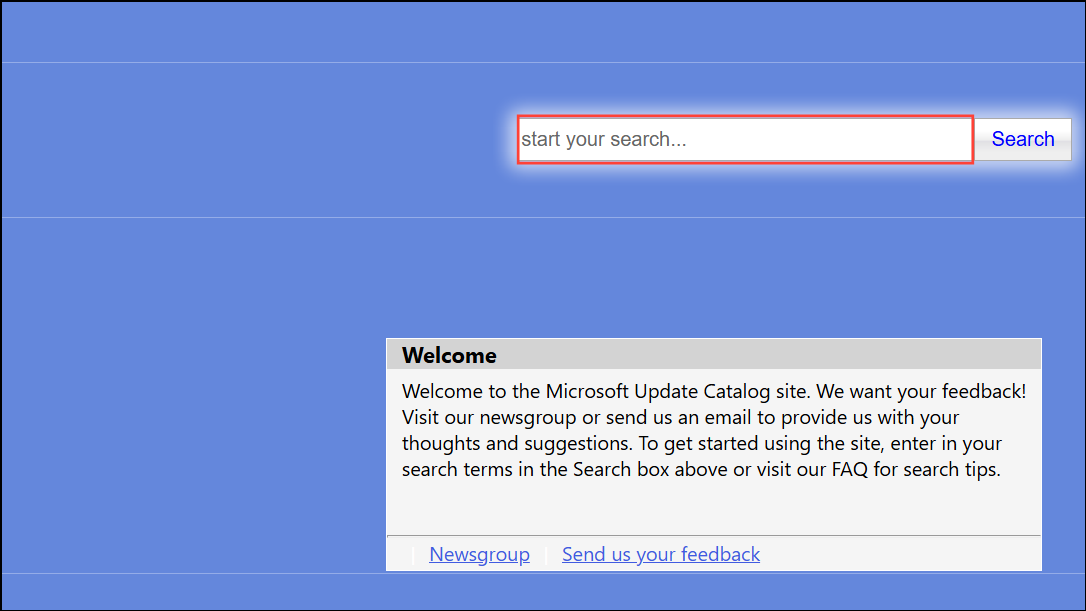
Microsoft periodically releases out-of-band (OOB) updates to address critical issues that emerge after regular Patch Tuesday releases. For error 0xc0290122, check for and install any OOB updates, as these often resolve compatibility problems between security features and recent patches.
Adjust BIOS Virtualization and Security Settings
Settings such as Intel VT-d (Virtualization Technology for Directed I/O), Intel VT-x, Intel TXT (Trusted Execution Technology), and Secure Boot can conflict with Windows virtualization-based security policies after certain updates. Modifying these BIOS settings can often restore system boot and resolve the error.
F2, Del, or Esc during startup).Modify Firmware Protection and Virtualization-Based Security Policies
Group Policy or registry settings that enforce firmware protection (Microsoft Defender System Guard) or Secure Launch can trigger error 0xc0290122 if they are incompatible with your hardware or recent updates.
Win + R shortcut, typegpedit.msc (Group Policy Editor), and press Enter.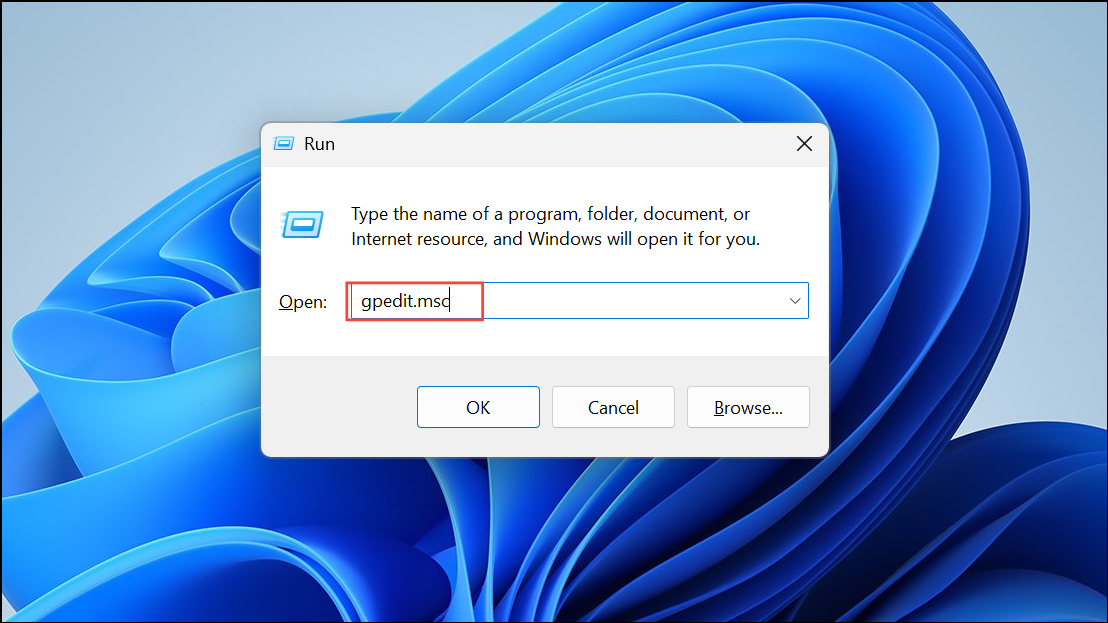
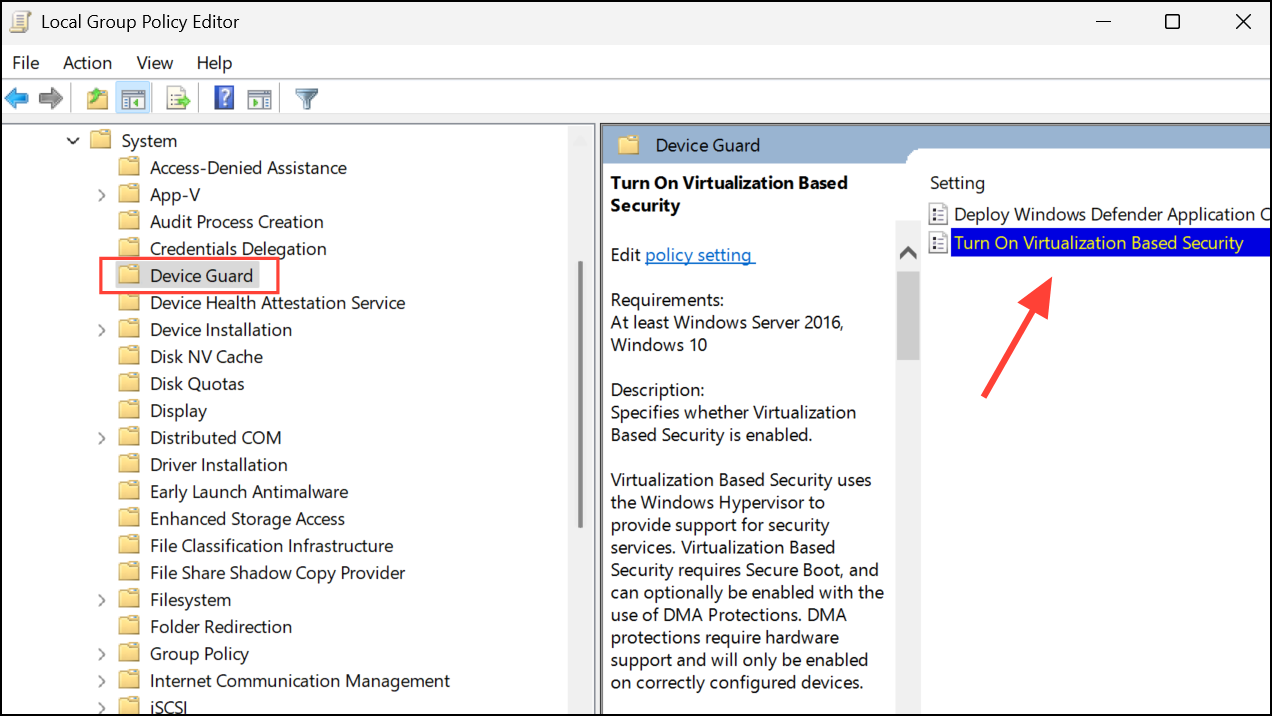
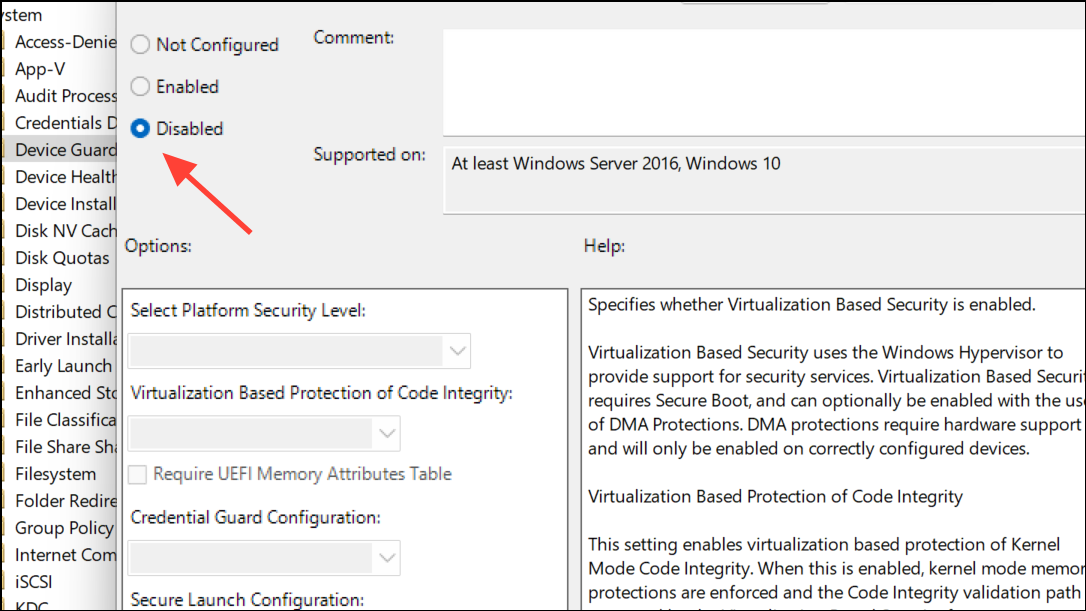
HKEY_LOCAL_MACHINE\SYSTEM\CurrentControlSet\Control\DeviceGuard\Scenarios\SystemGuard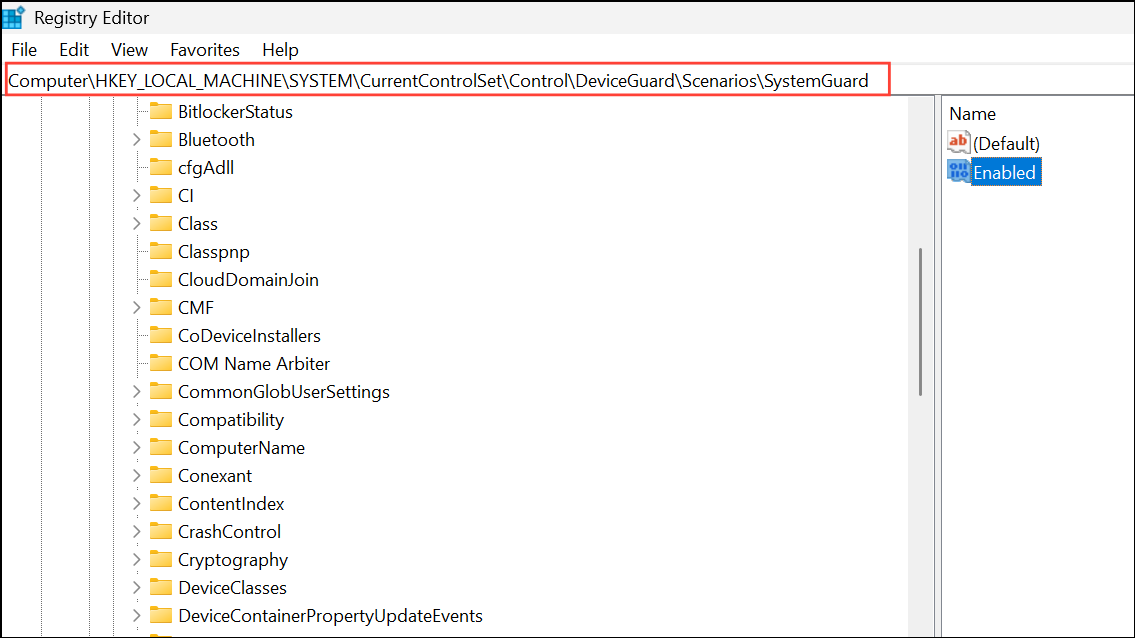
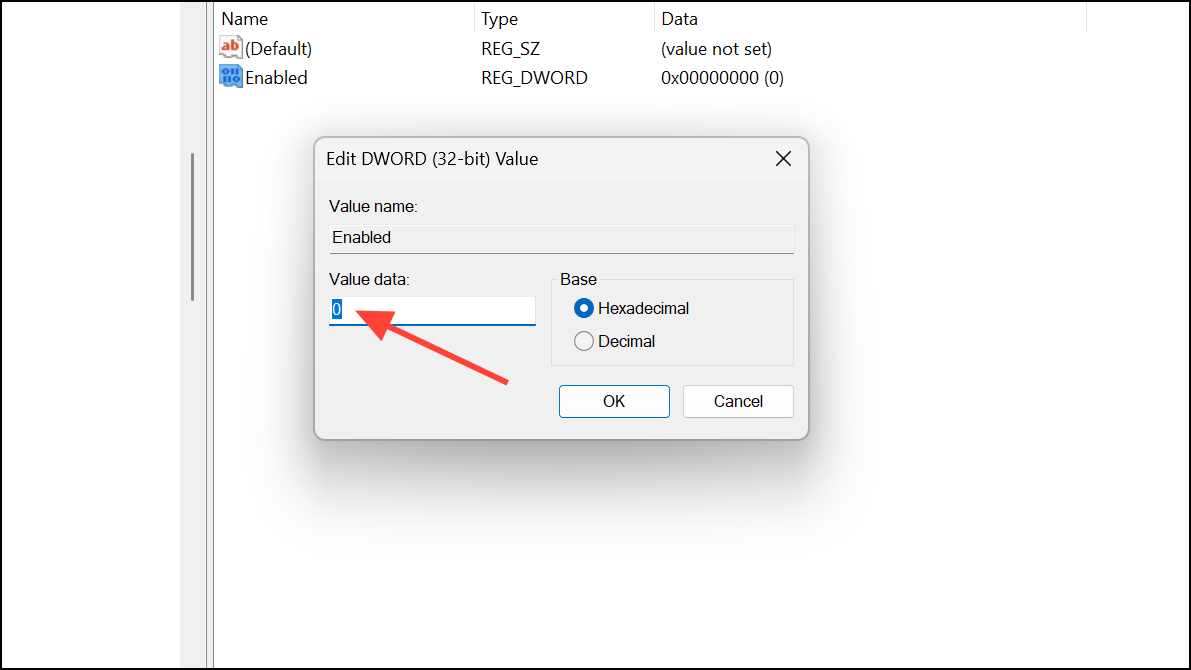
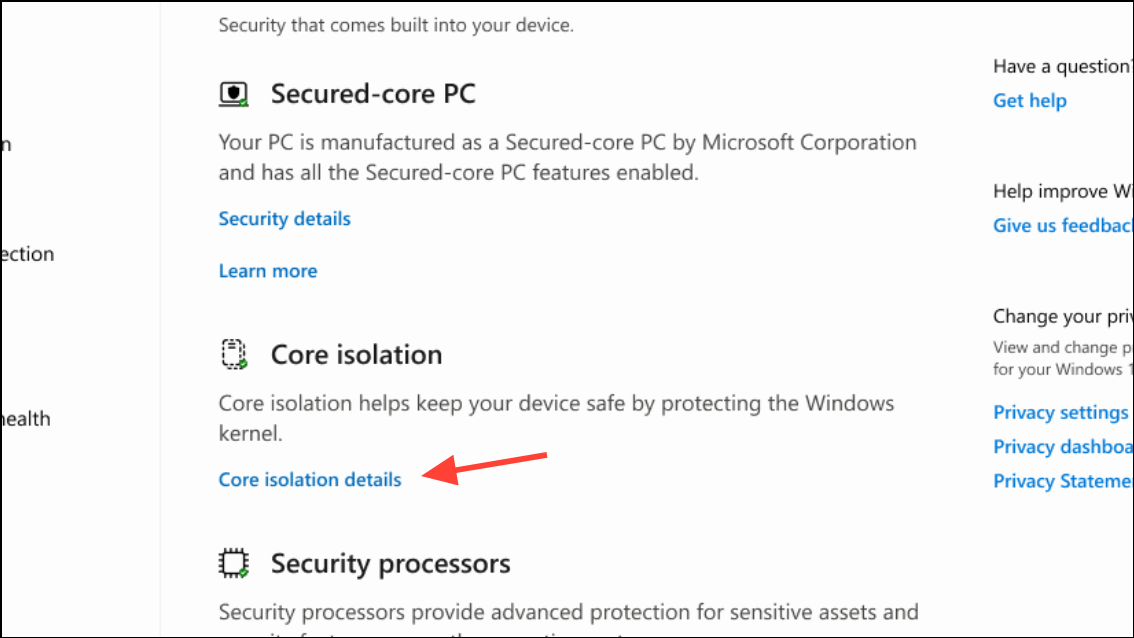
Manual Update Installation Using Media Creation Tool
When standard update methods fail due to corruption or missing files, performing an in-place upgrade with the Media Creation Tool can fix underlying system issues without affecting personal files and installed applications.
Additional Troubleshooting Tips
- Check for updated drivers and firmware from your device manufacturer, especially for security and virtualization features.
- Monitor Microsoft’s official update channels and support pages for new patches addressing virtualization or BitLocker issues.
- If you use enterprise deployment tools (WSUS, SCCM, Intune), ensure that the latest updates and OOB patches are imported and approved for affected devices.
- Consider pausing updates on affected device models until a permanent fix is available, particularly for business-critical systems.
Resolving error 0xc0290122 on Windows 11 may require a combination of BIOS, policy, and update changes. Staying current with Microsoft’s OOB patches and carefully managing security settings will minimize downtime and restore normal system operation.



