
System slowdowns, persistent bugs, or failed updates in Windows 11 often require a reset or reinstallation. The built-in recovery tools provide ways to reinstall Windows or repair system files while preserving your documents, photos, and other personal data. Understanding the different reset and repair options helps you choose the best method to get your PC running smoothly again, without unnecessary data loss or tedious reconfiguration.
Reinstall Windows 11 Using Windows Update Repair (Preserve Files, Apps, and Settings)
Microsoft introduced a repair option in Windows 11 that reinstalls core system files through Windows Update, aiming to resolve issues without removing your installed applications or user settings. This method is especially useful when you want to fix operating system problems but retain your current setup.
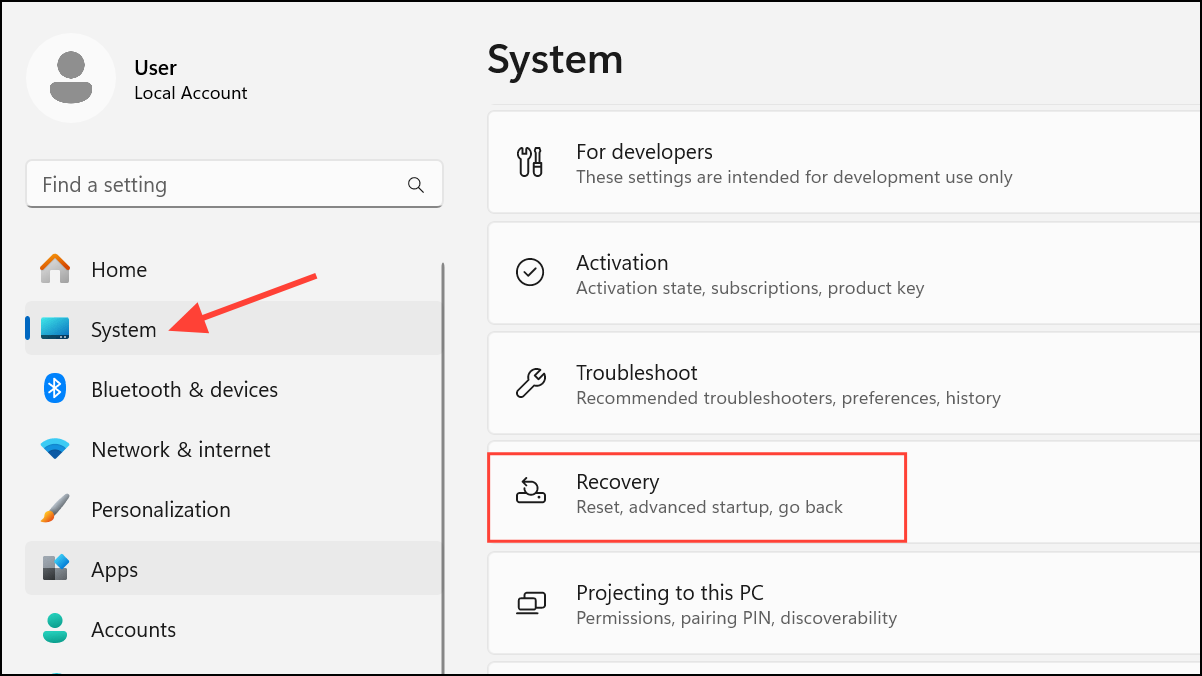
Fix problems using Windows Update and click the Reinstall now button.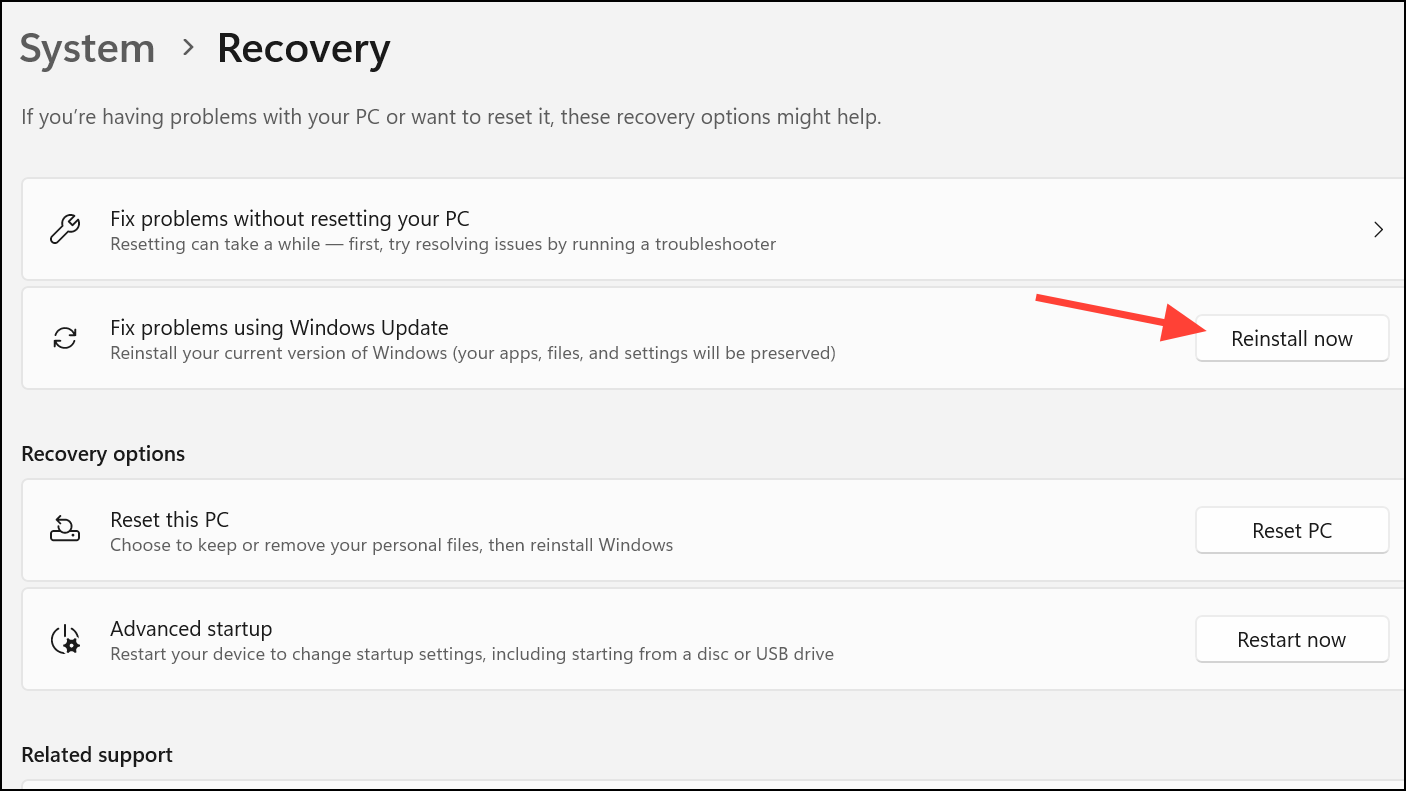
This repair option is ideal for resolving corrupted system files or update failures, and it typically leaves your files, installed programs, and customizations untouched. However, if deeper problems persist, you may need to use a more comprehensive reset.
Reset Windows 11 While Keeping Your Files
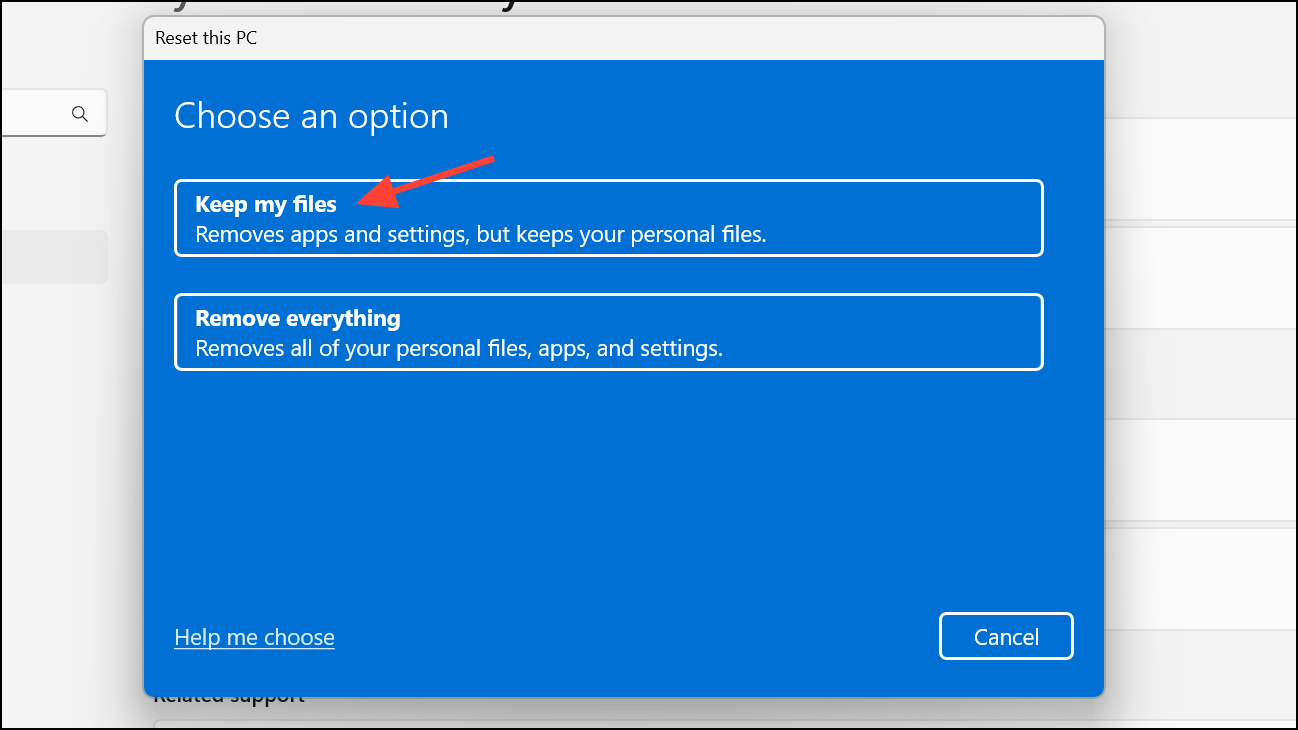
When system problems are more severe, the standard “Reset this PC” feature allows you to reinstall Windows 11 while preserving your personal files. This process removes most installed applications and resets system settings, offering a fresh start without erasing your documents, music, pictures, or downloads.
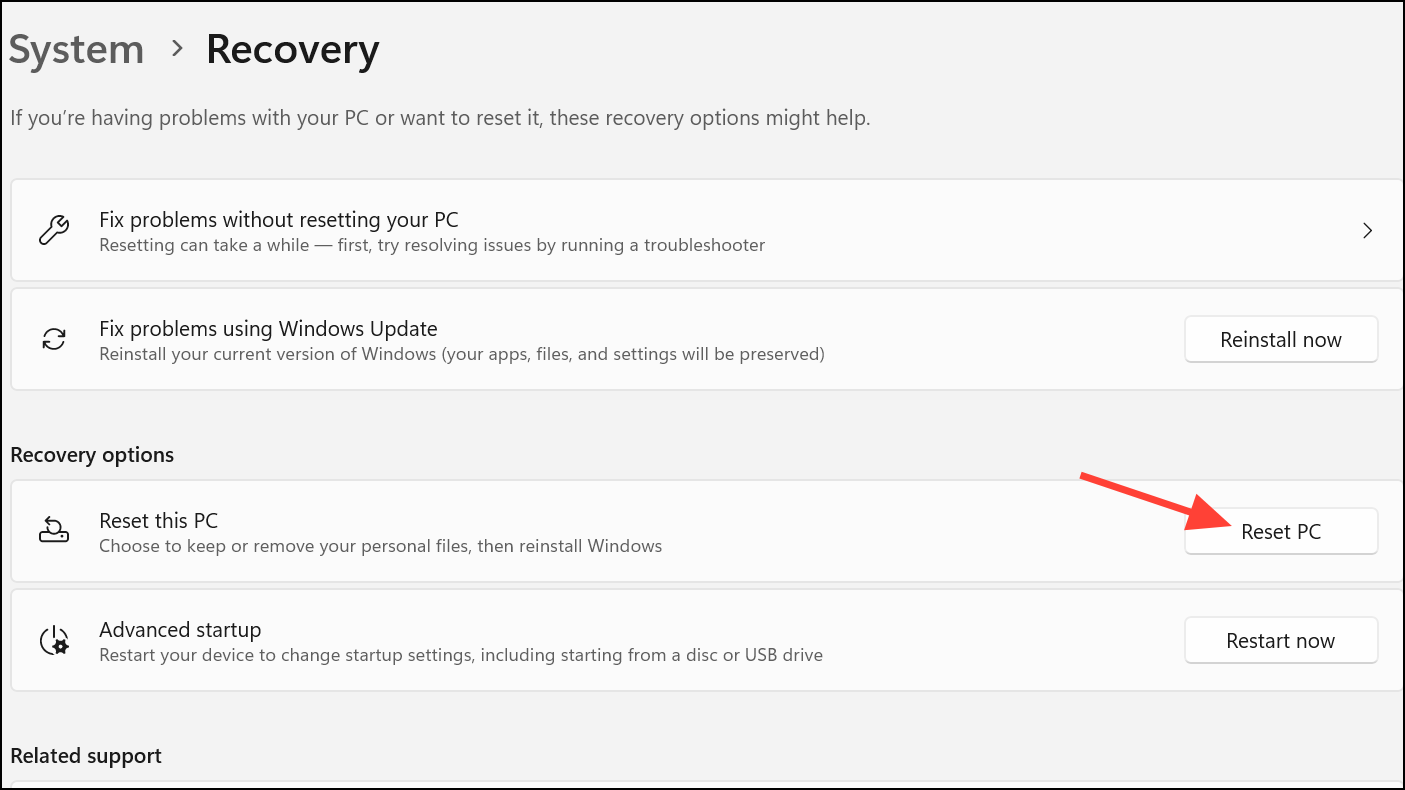
Cloud download (downloads a fresh copy of Windows from Microsoft) or Local reinstall (uses files already on your PC). Cloud download is preferred if you suspect your local installation is corrupted or outdated, but it requires a stable internet connection.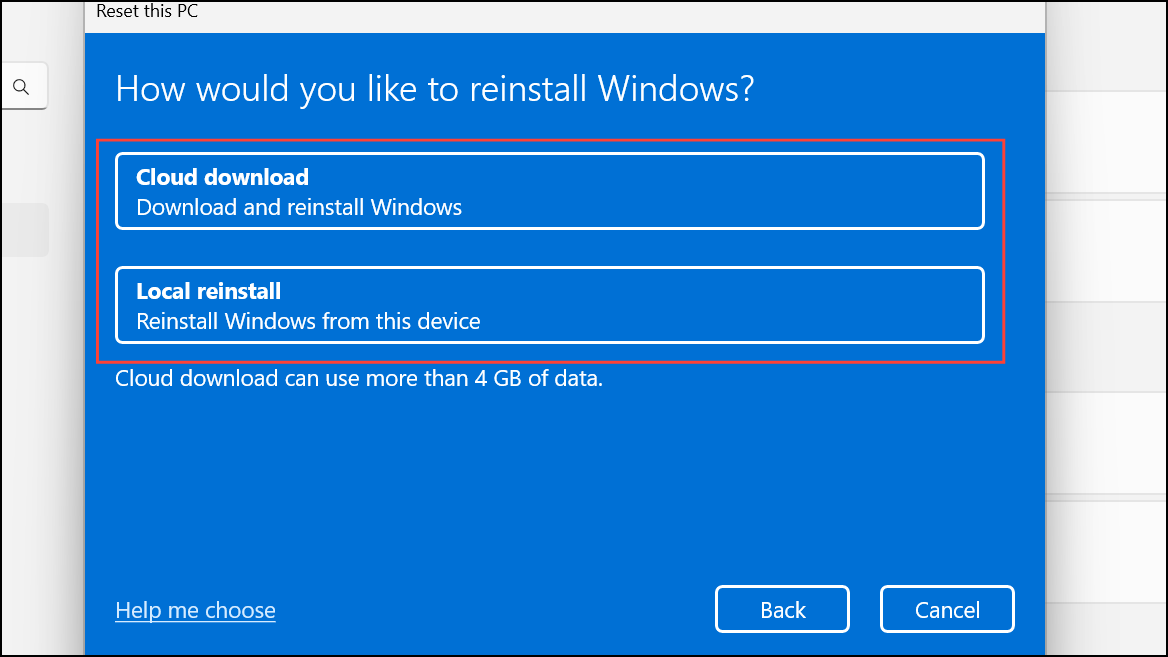
Reset to begin. The process can take from 30 minutes to several hours, depending on your PC’s speed and the reset method chosen. Your device may restart multiple times during the process.The “Keep my files” reset is reliable for most users, but always back up important documents to an external drive or cloud storage before starting. While personal files in C:\Users\YourName and custom folders on the system drive are usually preserved, having a backup ensures you can recover from unexpected issues.
Reset Windows 11 from Windows Recovery Environment (WinRE)
If you can’t boot into Windows normally, the Windows Recovery Environment (WinRE) lets you trigger a reset from outside the operating system. This is especially useful if startup problems or failed updates prevent you from accessing Settings.
Repair your computer.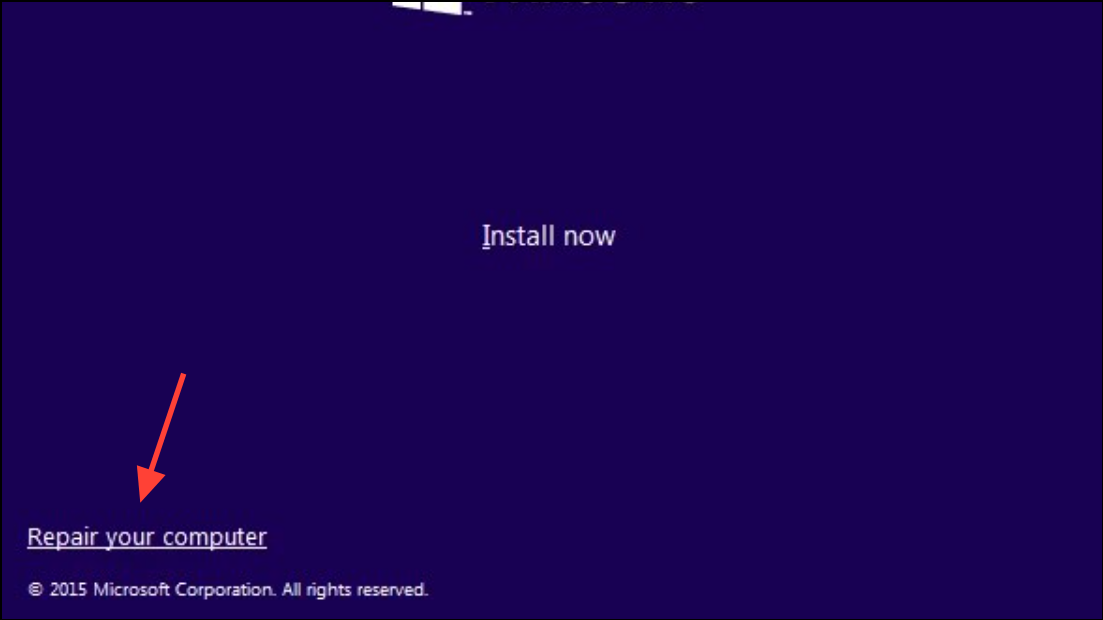
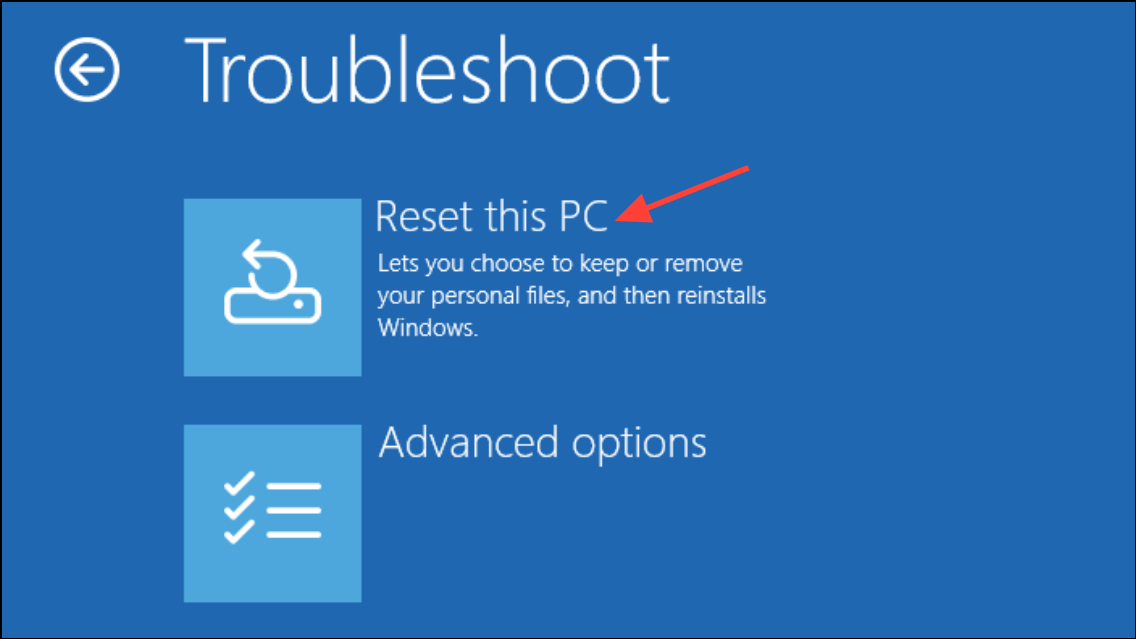
Keep my files. Follow the prompts to select your user account and enter your password if required.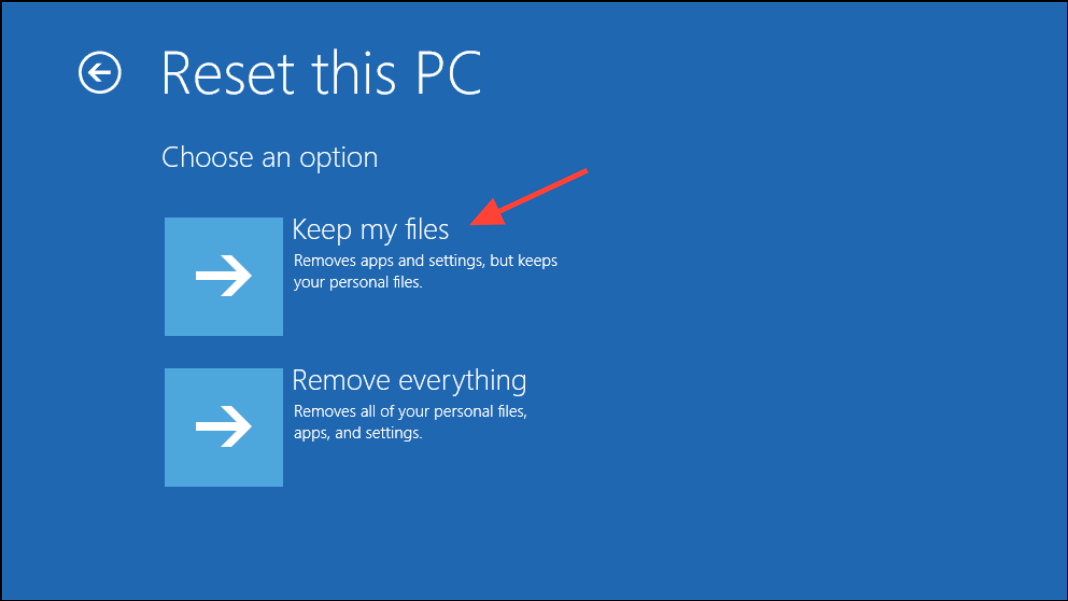
This method mirrors the standard reset process but is accessible even if Windows will not boot. As with other reset options, personal files are preserved, but applications and system settings are removed.
Important Considerations and Tips
- Always back up critical files before starting any reset, even when using the “Keep my files” option. While the process is designed to preserve data, unexpected errors can occur.
- Third-party applications—including games, browsers, and productivity tools—will be removed during a reset and must be reinstalled manually.
- Personal files in the
C:\Users\YourNamefolder and most custom folders on the system drive are preserved. However, files stored outside standard user folders should be backed up to be safe. - If your device uses BitLocker encryption, you may need your recovery key to complete the reset.
- For multi-user systems, a reset affects all user accounts. Each user’s personal files are kept, but all must reinstall their own applications and reconfigure settings.
- If you want to preserve applications as well as files, the Windows Update repair option is preferable. For a completely fresh start, use the “Remove everything” option, but this will erase all data and apps.
Resetting Windows 11 using these built-in tools can quickly restore system stability and speed, all while keeping your important files safe. Regular backups and a clear understanding of each reset option ensure you can recover from most software issues with minimal hassle.



