
Windows Update errors like Some update files are missing or have problems. We'll try to download the update again later. frequently interrupt critical system updates, causing failed installations and leaving your device vulnerable or behind on features. This issue often appears with error codes such as 0x80073712 or 0x8007000d, and can result from corrupted update files, faulty system components, network interruptions, or interference from security software. Addressing the problem quickly restores your system’s ability to receive updates and maintain security.
Repair Windows Using the Built-In Reinstallation Option
When standard troubleshooting does not resolve the missing update files error, a repair installation—also known as an in-place upgrade—offers a reliable fix. This method reinstalls Windows 11 over your current setup, repairing system files and update components without deleting your personal files or installed apps.
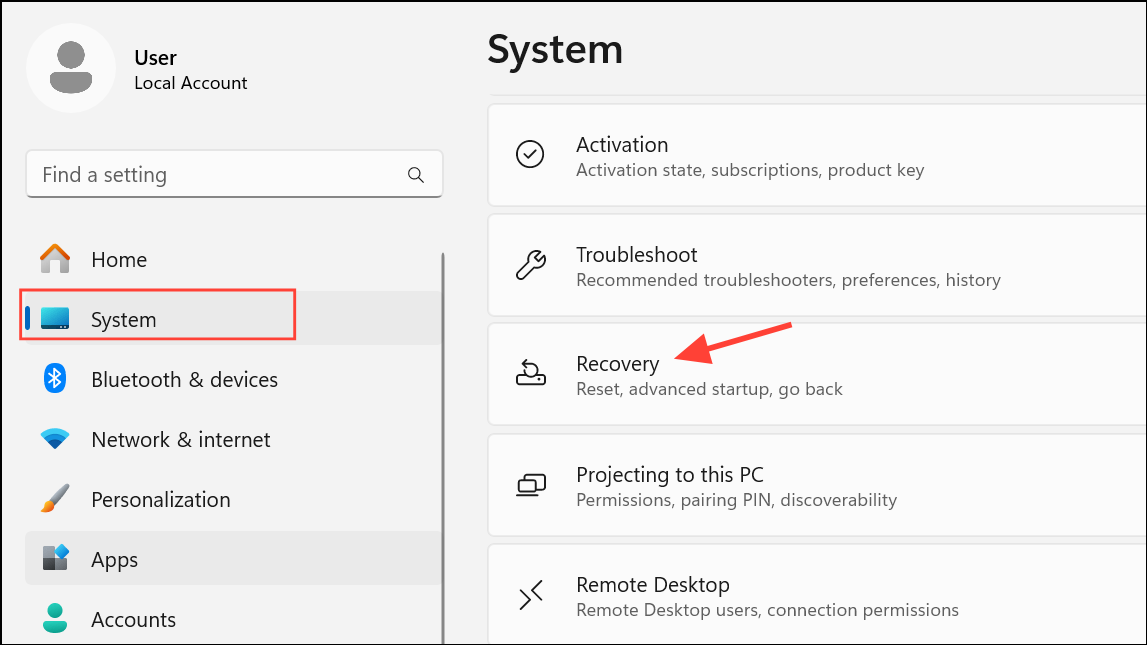
Fix problems using Windows Update, click Reinstall now. Follow the on-screen instructions to complete the repair installation. This process keeps your files, apps, and settings intact while restoring the update infrastructure.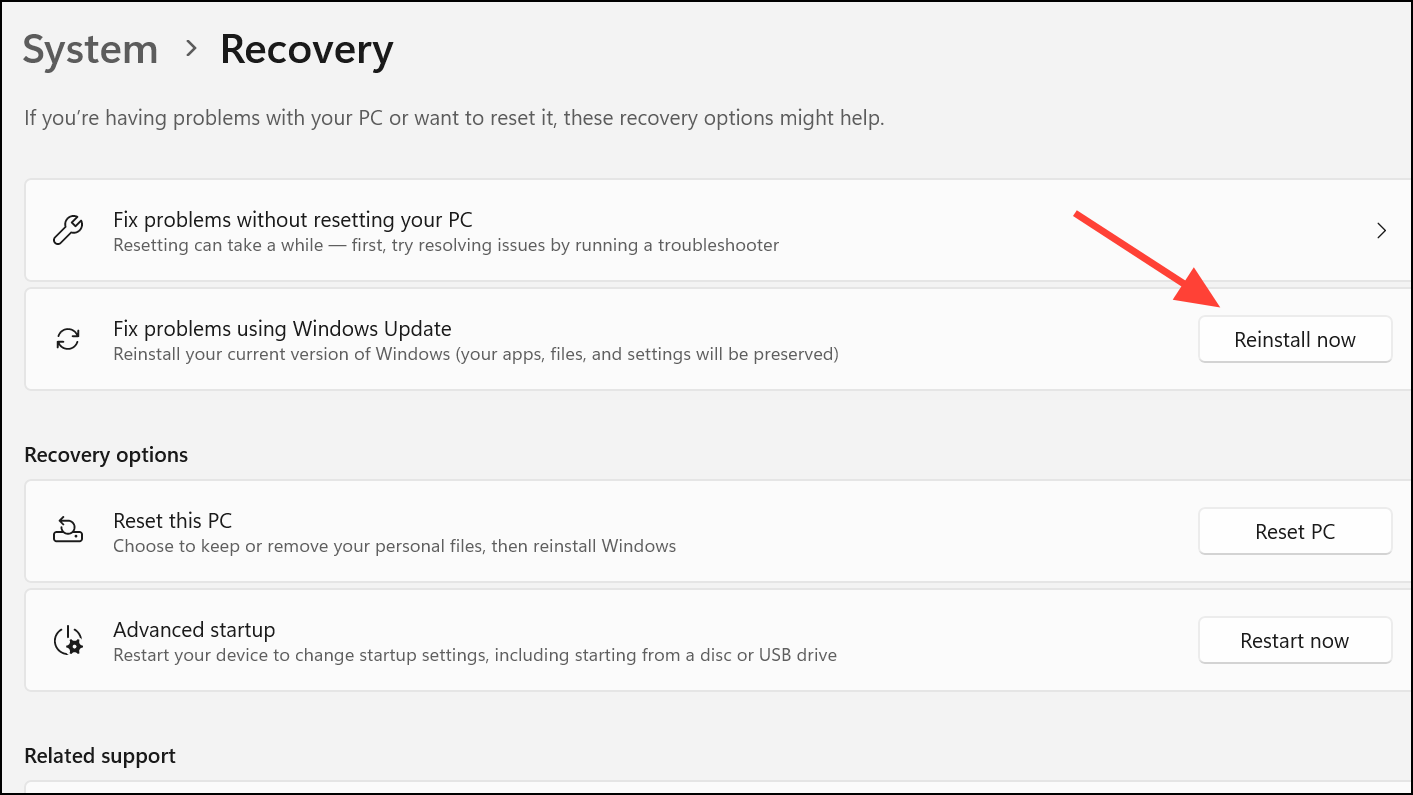
This approach resolves deeper corruption in the Windows component store, which is often the root cause of persistent update errors.
Run the Windows Update Troubleshooter
Microsoft includes a dedicated troubleshooter to automatically detect and fix update-related issues. This tool is effective for resolving common problems with update files and services.
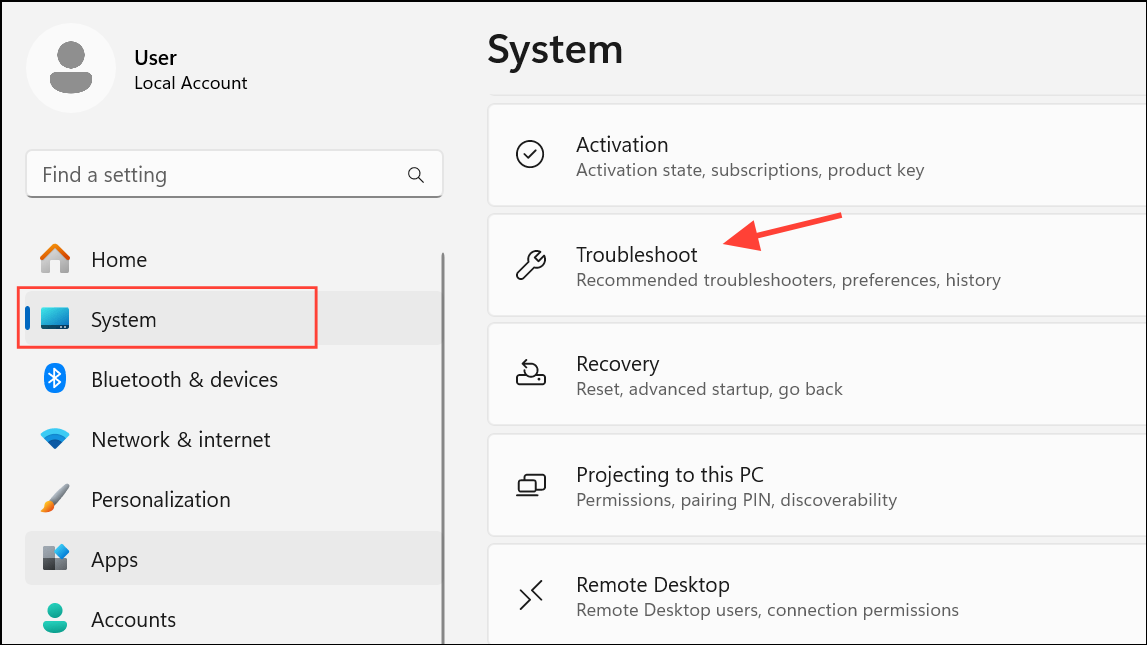
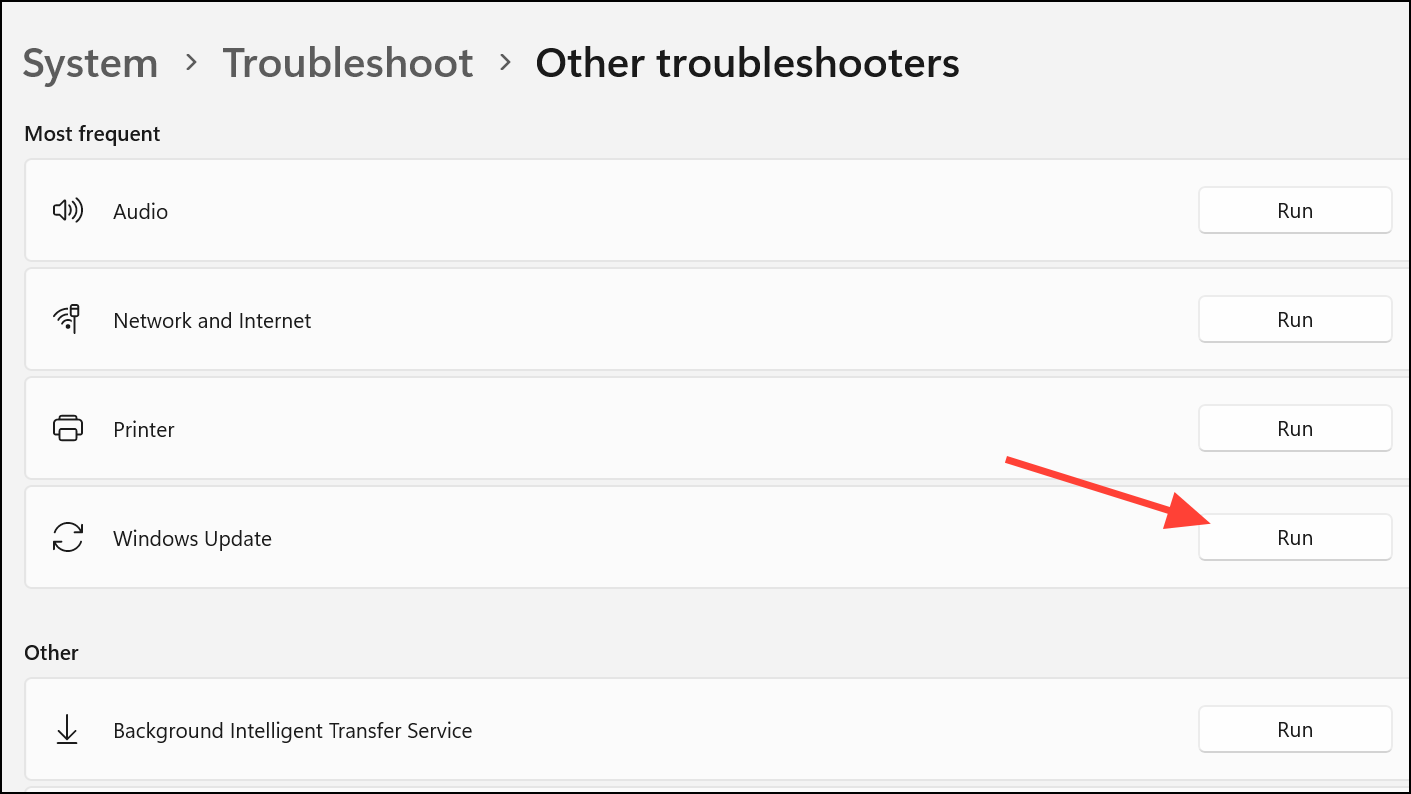
This tool repairs misconfigurations and resets update services, often resolving issues without further intervention.
Reset Windows Update Components Manually
Corrupted update cache or malfunctioning services can block updates. Manually resetting these components clears out problematic files and restarts necessary services, allowing updates to proceed.
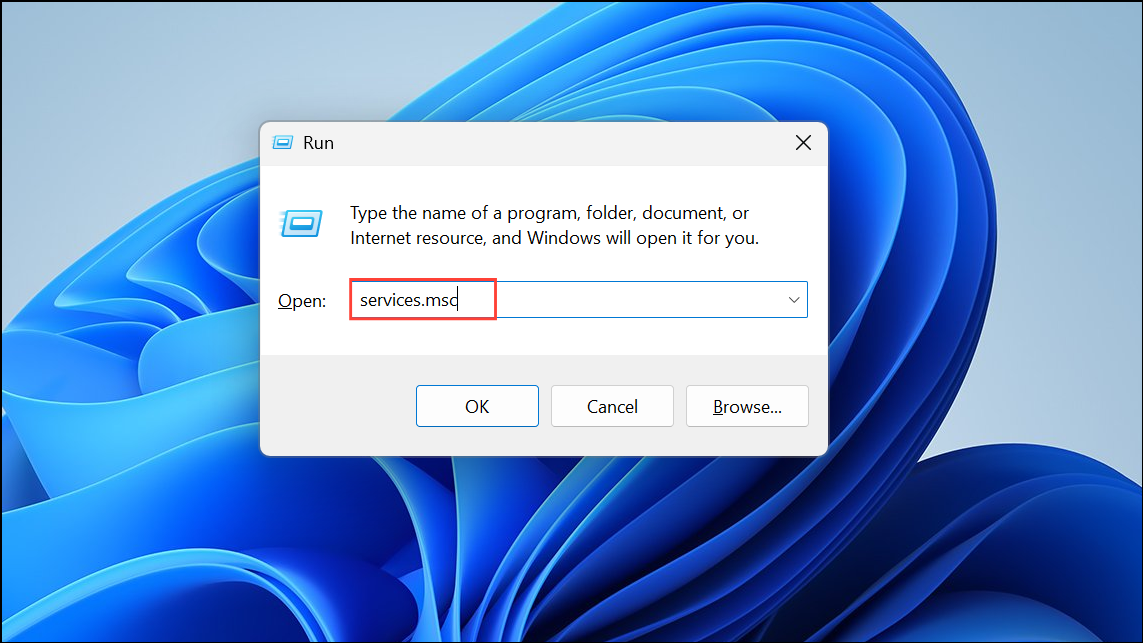
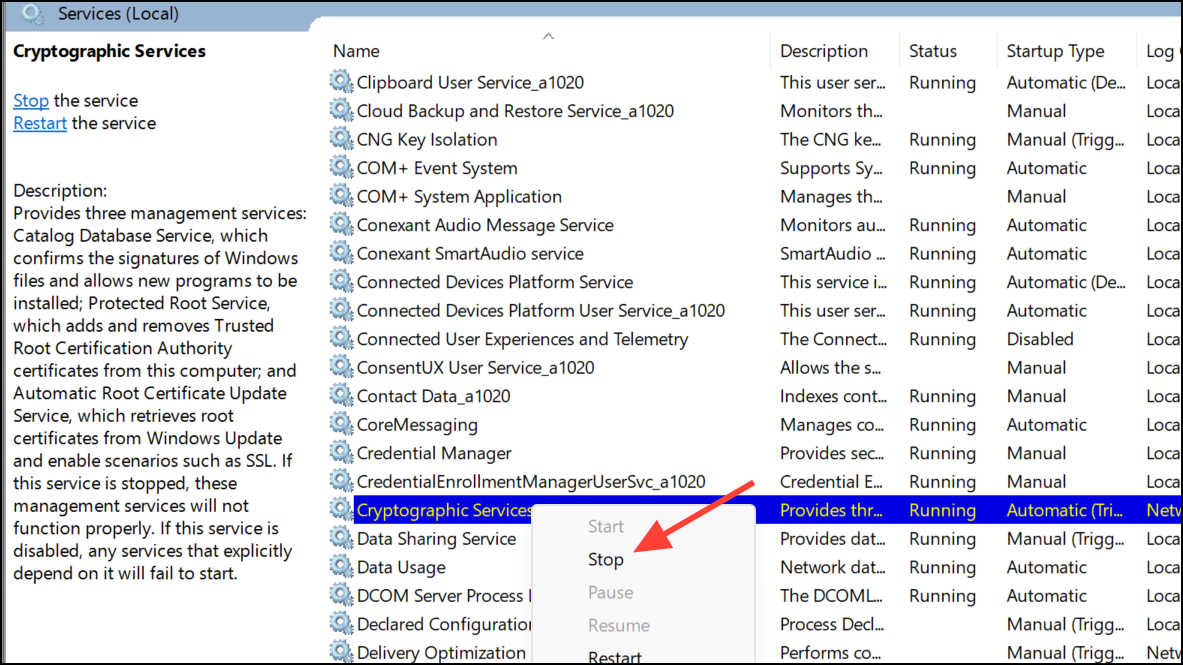
Stop:- Windows Update
- Background Intelligent Transfer Service (BITS)
- Cryptographic Services
- Windows Installer
C:\Windows\SoftwareDistribution. In the folder, select all files with Ctrl + A and delete them. These files will be rebuilt automatically by Windows Update.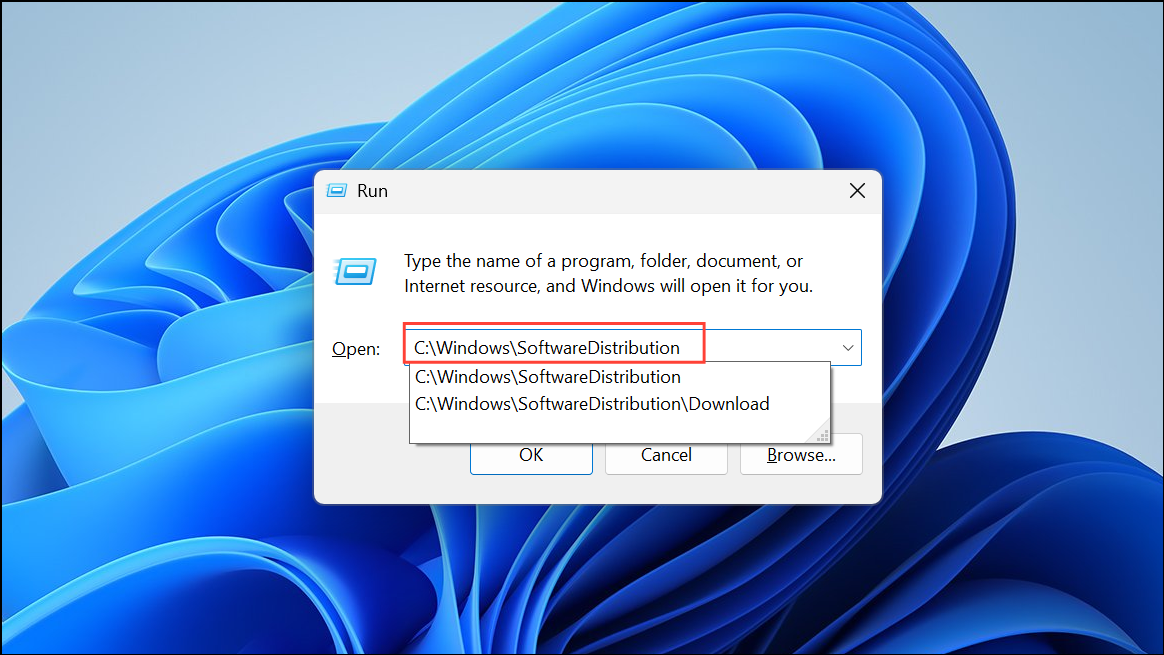
Start.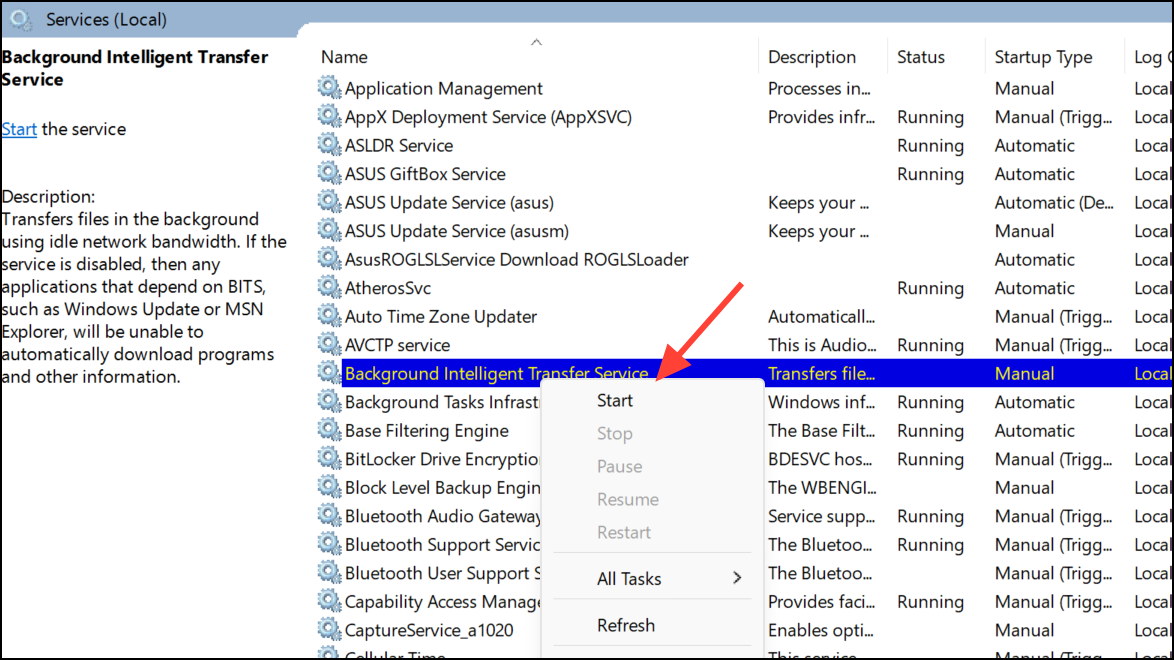
This process removes corrupted update data and ensures all update services are running with default settings.
Repair System Files with SFC and DISM
Faulty or missing system files can block updates or cause update files to become corrupted. The System File Checker (SFC) and Deployment Image Servicing and Management (DISM) tools scan for and repair these files.
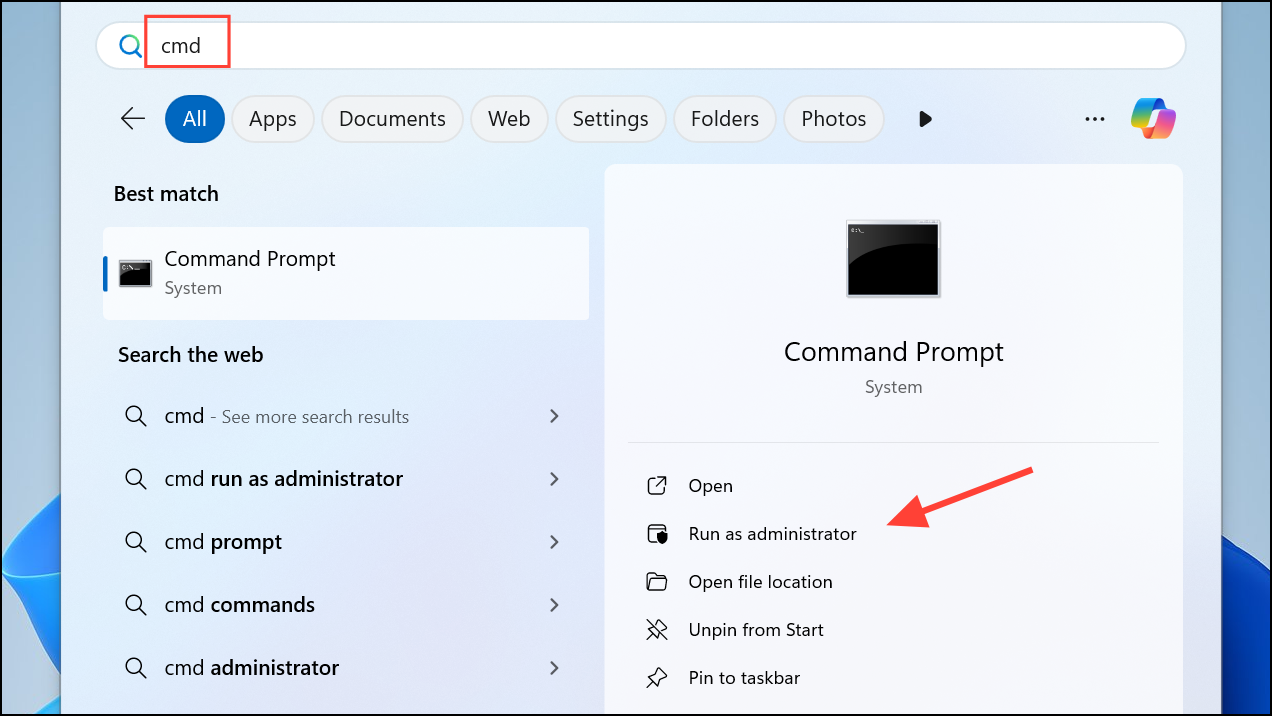
DISM /Online /Cleanup-Image /RestoreHealth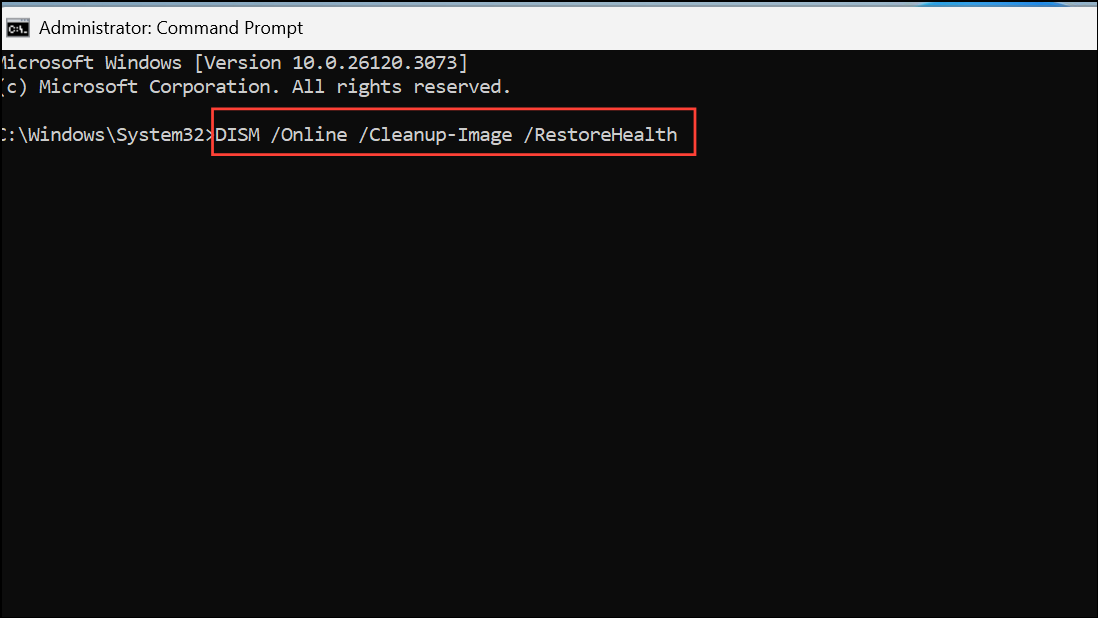
sfc /scannow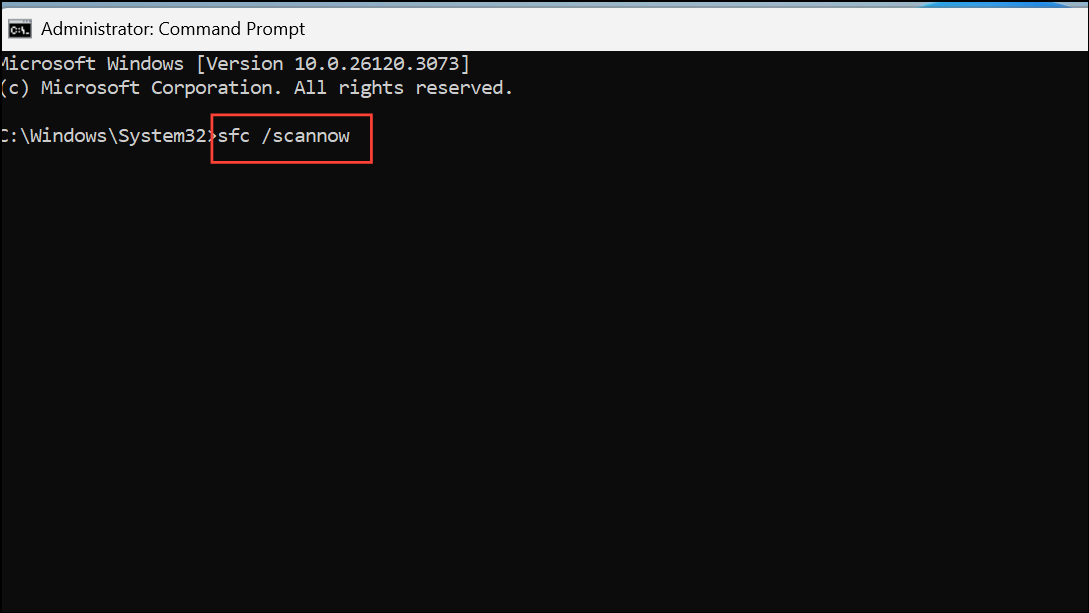
This sequence repairs corrupted system files and restores the integrity of the Windows update process.
Temporarily Disable Antivirus or Security Software
Third-party antivirus programs or aggressive firewall settings can block Windows Update downloads or interfere with system files. Temporarily turning off these security tools may allow updates to install successfully.
Windows Security from Settings, navigate to Virus & threat protection, and turn off real-time protection.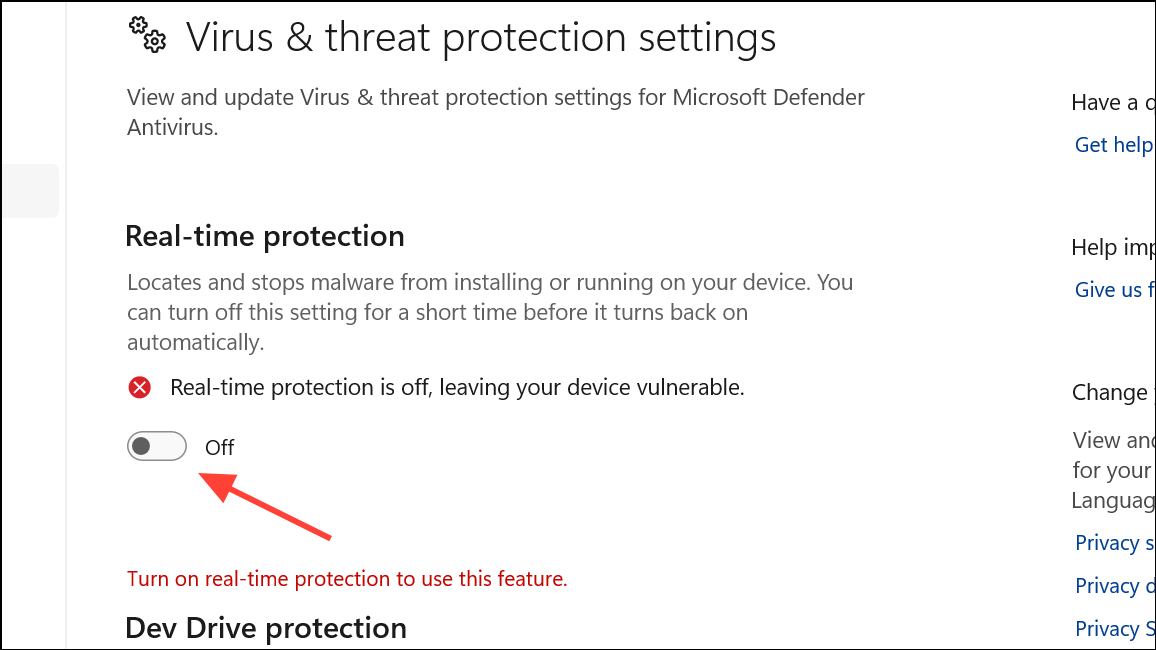
Disabling security software is a temporary troubleshooting step and should not be left off after updates finish installing.
Perform an In-Place Upgrade Using the Media Creation Tool
When all other fixes fail, using the Windows Media Creation Tool to upgrade your system can repair deeply embedded update issues. This process reinstalls Windows 11 while keeping your files and apps.
Upgrade this PC now. Follow the prompts, choosing the option to keep your files and applications.This method addresses persistent update failures by reinstalling core system components.
Resolving the missing update files error in Windows 11 restores your device’s ability to stay current and secure. If problems persist after these steps, contacting Microsoft Support or considering a full system reset may be necessary.



