
Slow boot times, laggy apps, and delayed system responses often result from unnecessary background processes, outdated drivers, and storage issues on Windows 11 PCs. Making targeted system tweaks can improve speed and stability—especially on older hardware or systems with limited resources.
Upgrade to a Solid State Drive (SSD)
Replacing a traditional hard drive (HDD) with a solid state drive (SSD) is the single most effective way to speed up a Windows 11 PC. SSDs read and write data much faster than HDDs, resulting in quicker boot times, faster file access, and smoother multitasking. Users with older laptops or desktops will notice a dramatic difference after this upgrade. While this step involves hardware changes, it is routinely recommended by experienced users and technicians as the first step for sluggish systems.
Disable Startup Programs
Many applications launch automatically when Windows 11 starts, consuming valuable system resources and slowing down boot times. Disabling unnecessary startup programs streamlines system boot and reduces background load.
Ctrl+Shift+Esc or right-clicking the taskbar and selecting Task Manager.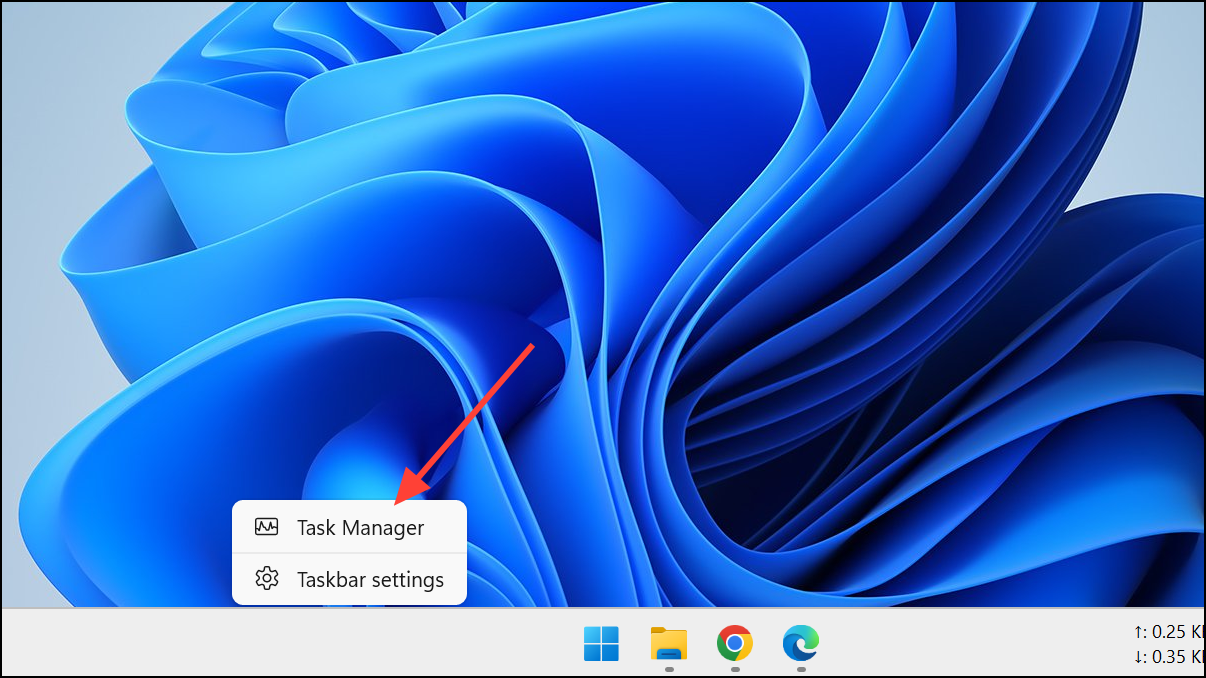
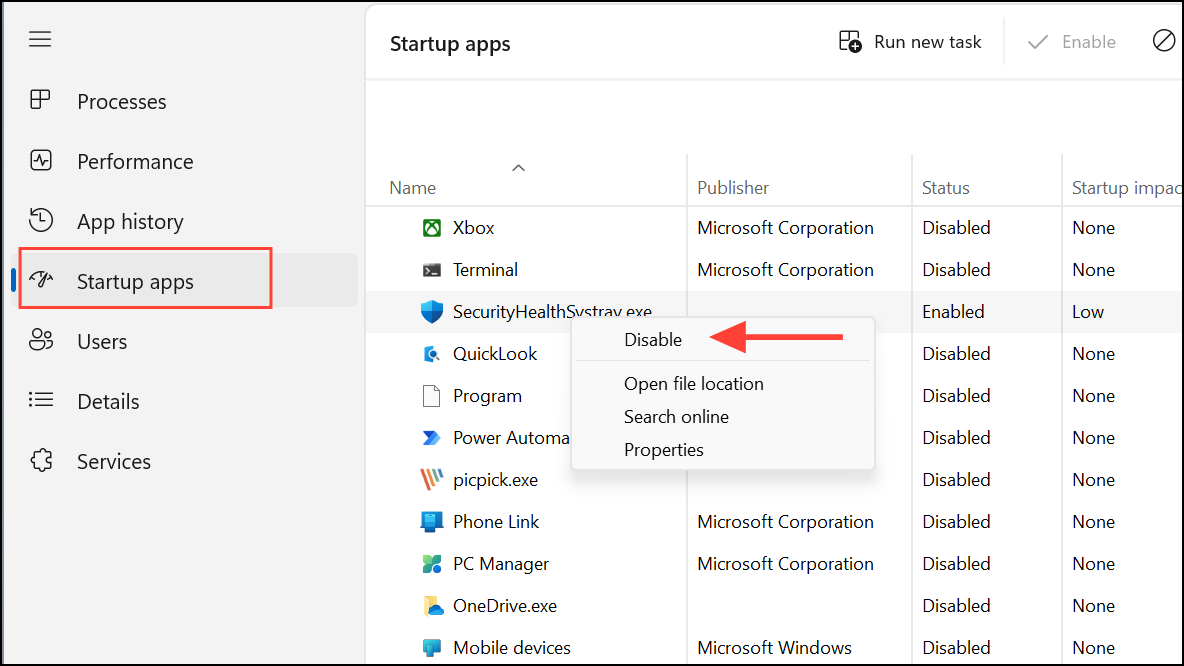
Disabling high-impact apps like cloud storage clients, music players, or unnecessary vendor utilities can significantly speed up startup times and free up system memory for other tasks.
Switch Power Settings to Best Performance
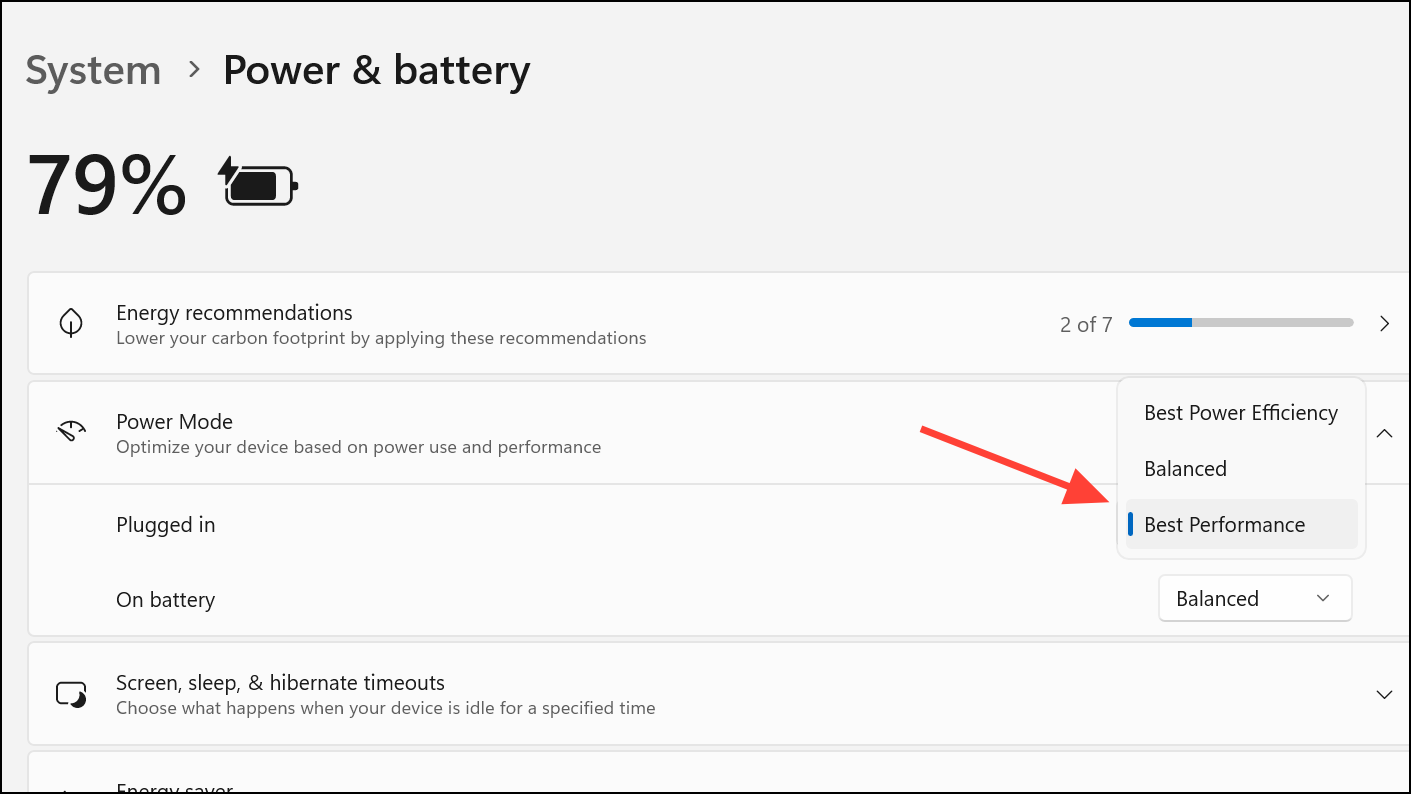
Windows 11 uses power plans to balance energy use and system speed. By default, many PCs use the Balanced or Power Saver plan, which reduces performance to save energy. Switching to a higher performance power plan allows your CPU and other hardware to operate at full speed, improving responsiveness and reducing lag.
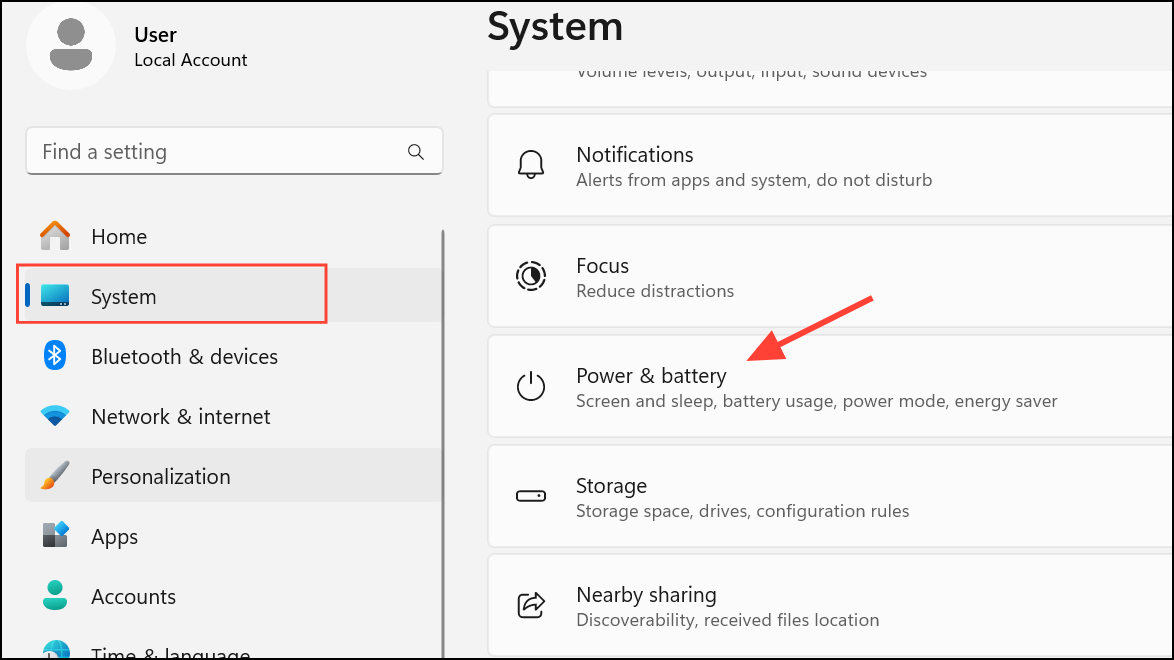
powercfg -duplicatescheme e9a42b02-d5df-448d-aa00-03f14749eb61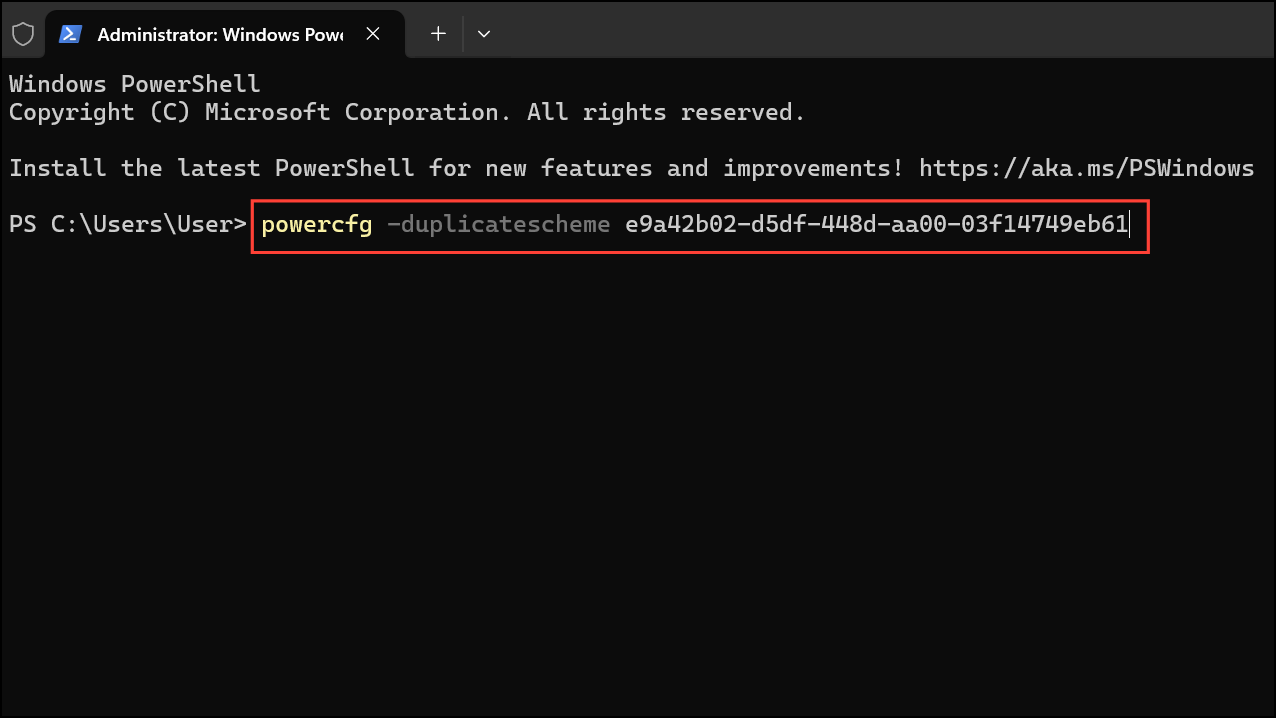
This change allows your PC to prioritize speed over energy savings, which is especially useful for gaming, video editing, or other demanding tasks.
Clean Up Disk Space with Storage Sense
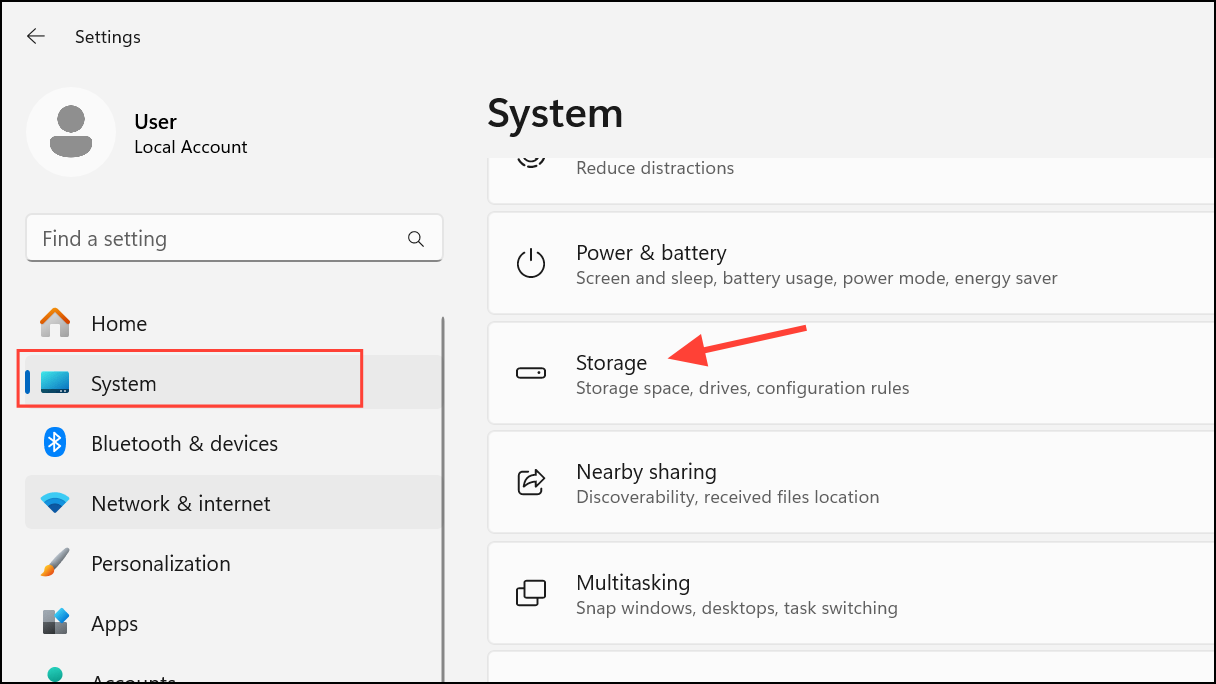
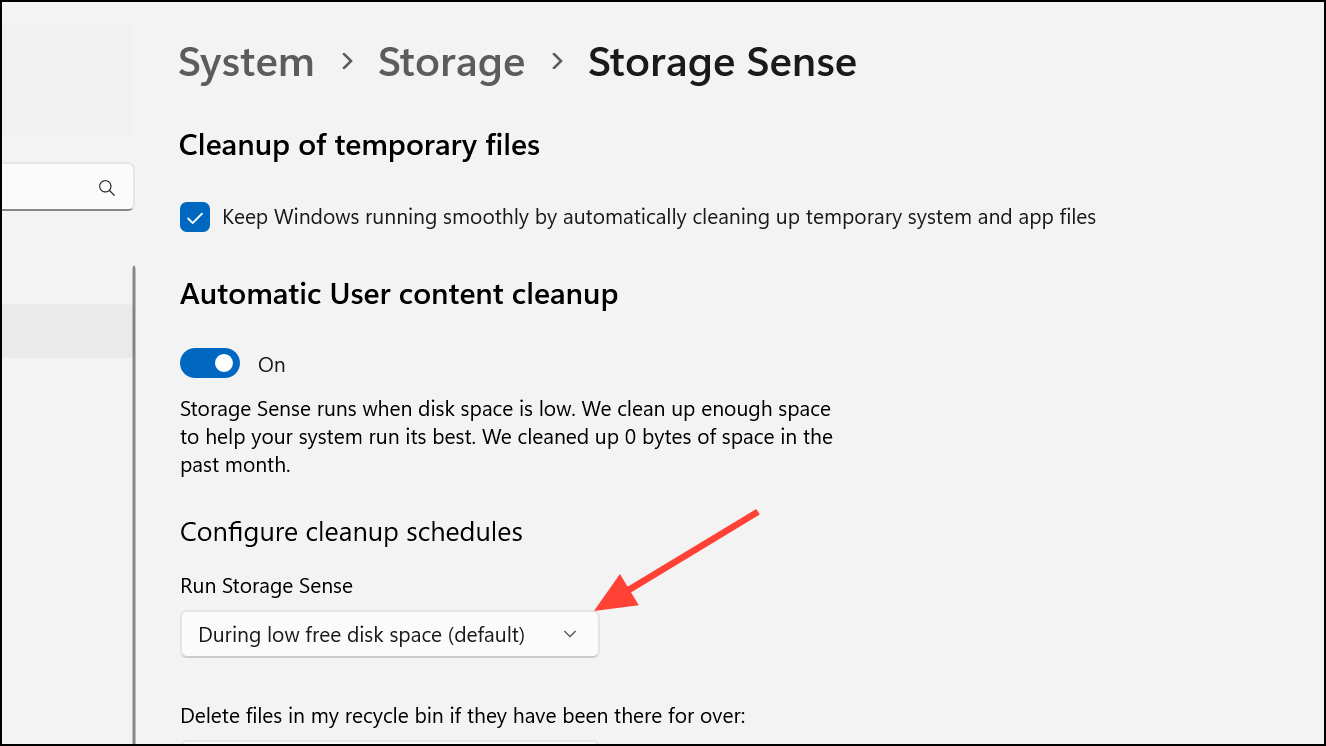
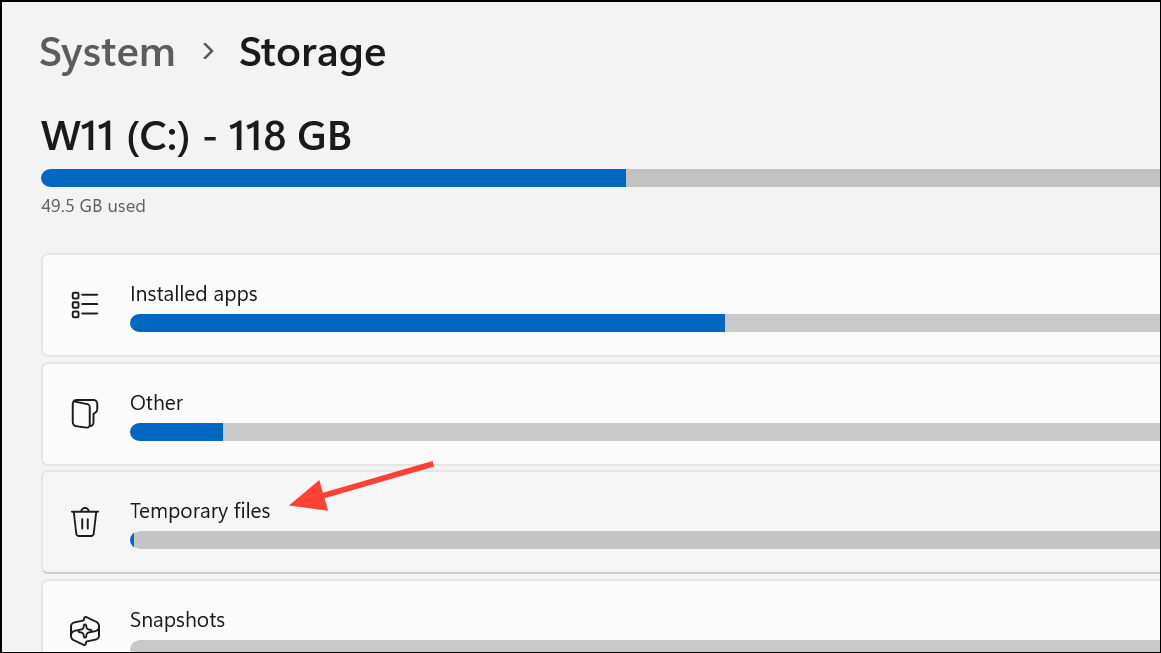
Temporary files, old downloads, and other clutter can fill up your drive, slowing down Windows 11. Storage Sense is a built-in tool that automatically deletes unnecessary files and keeps your system running smoothly.
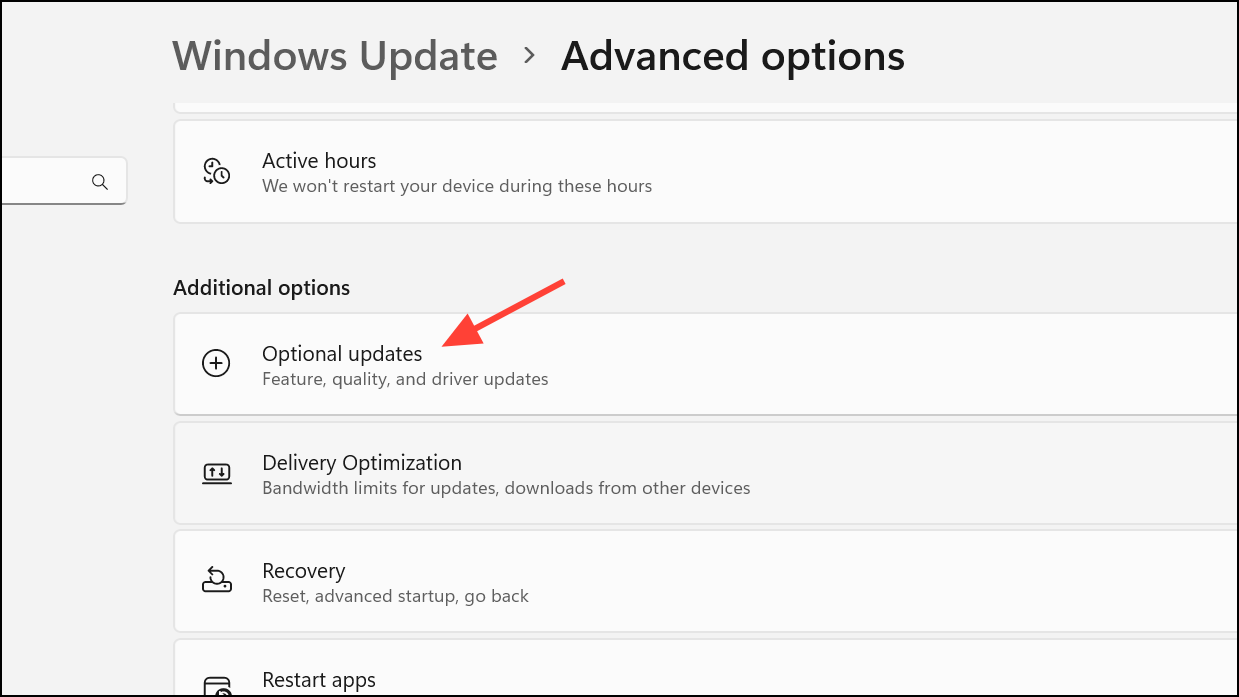
Update Device Drivers and Windows
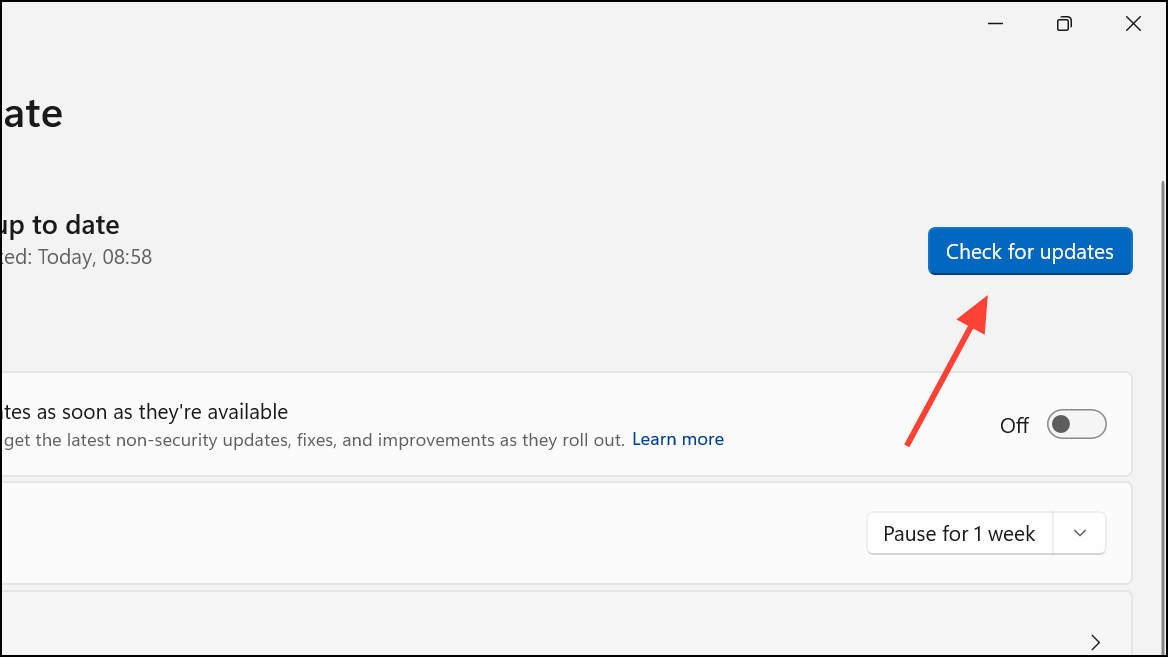
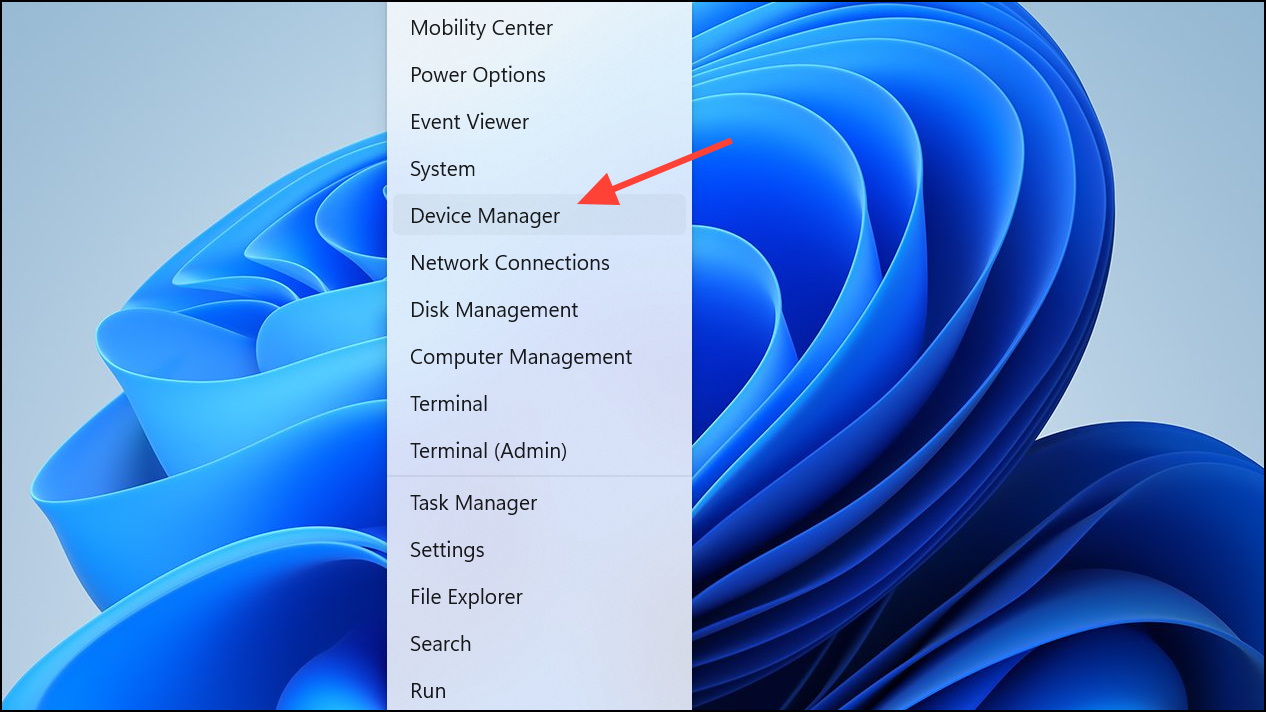
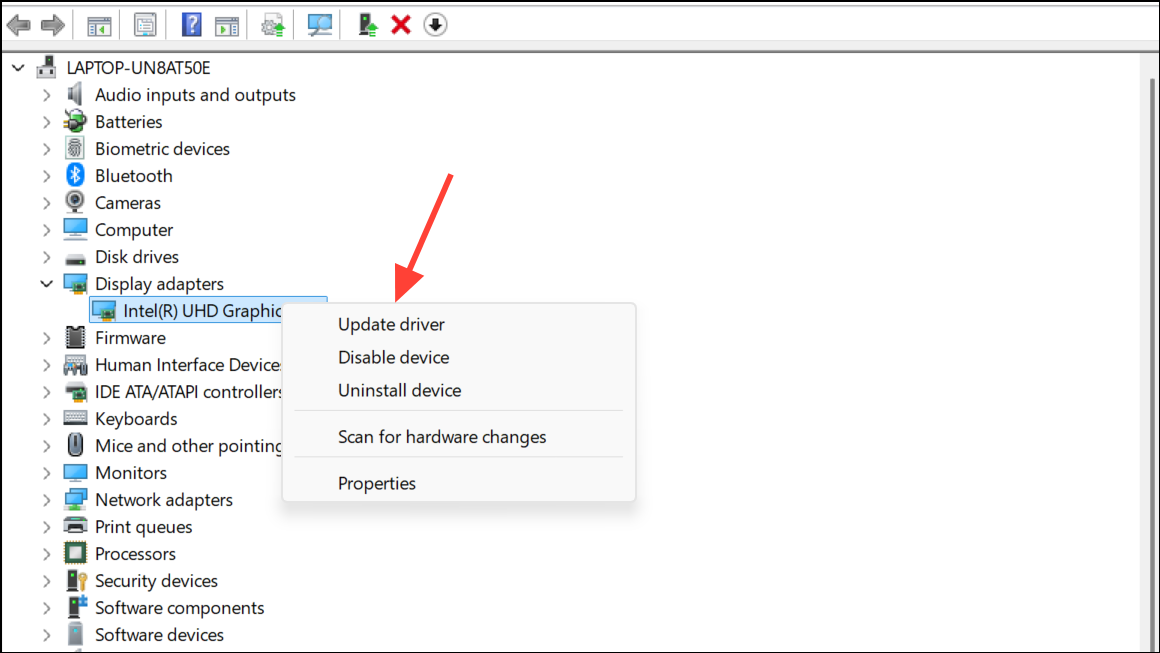
Outdated drivers—especially graphics drivers—can cause performance issues, crashes, and compatibility problems. Keeping both Windows and your device drivers current ensures your system benefits from the latest speed improvements and bug fixes.
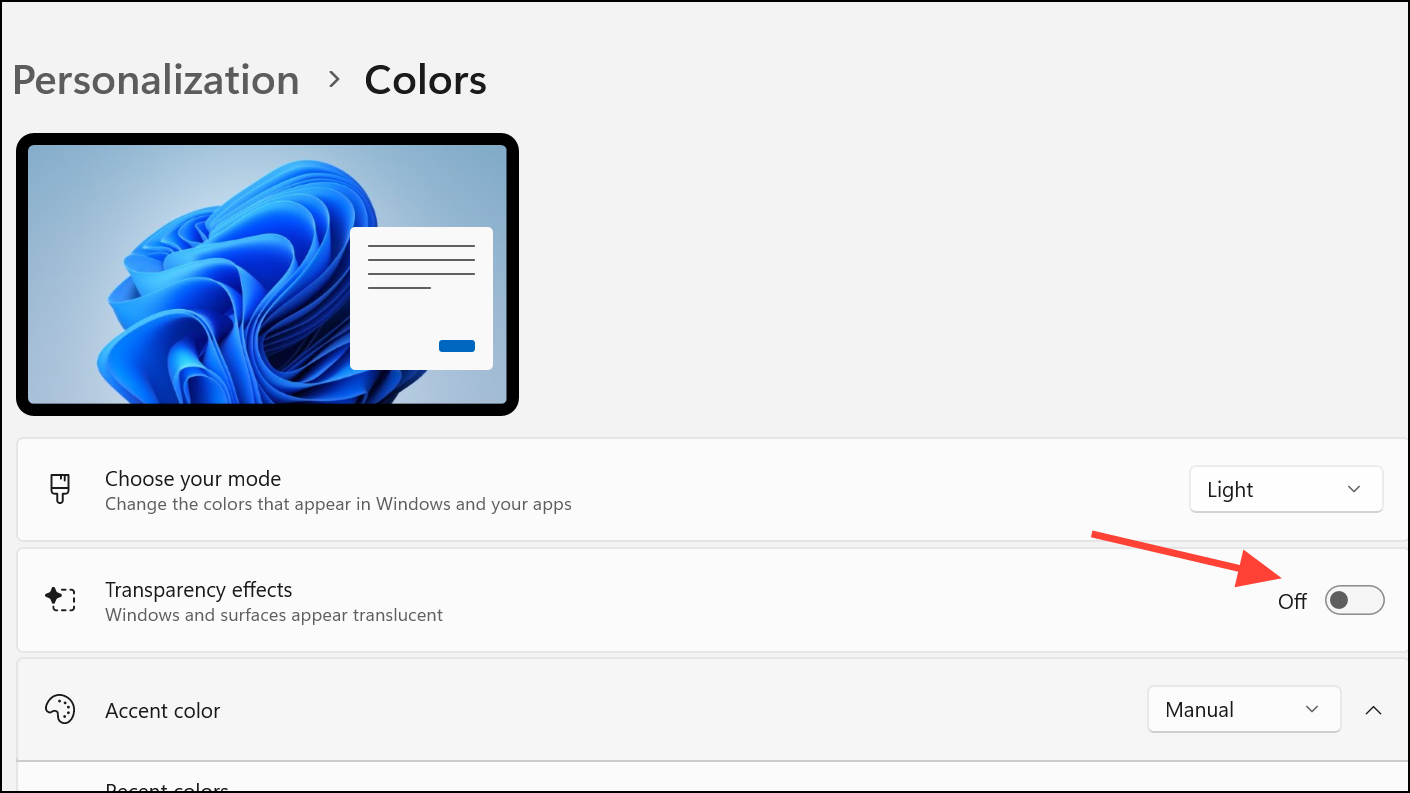
Turn Off Visual Effects and Animations
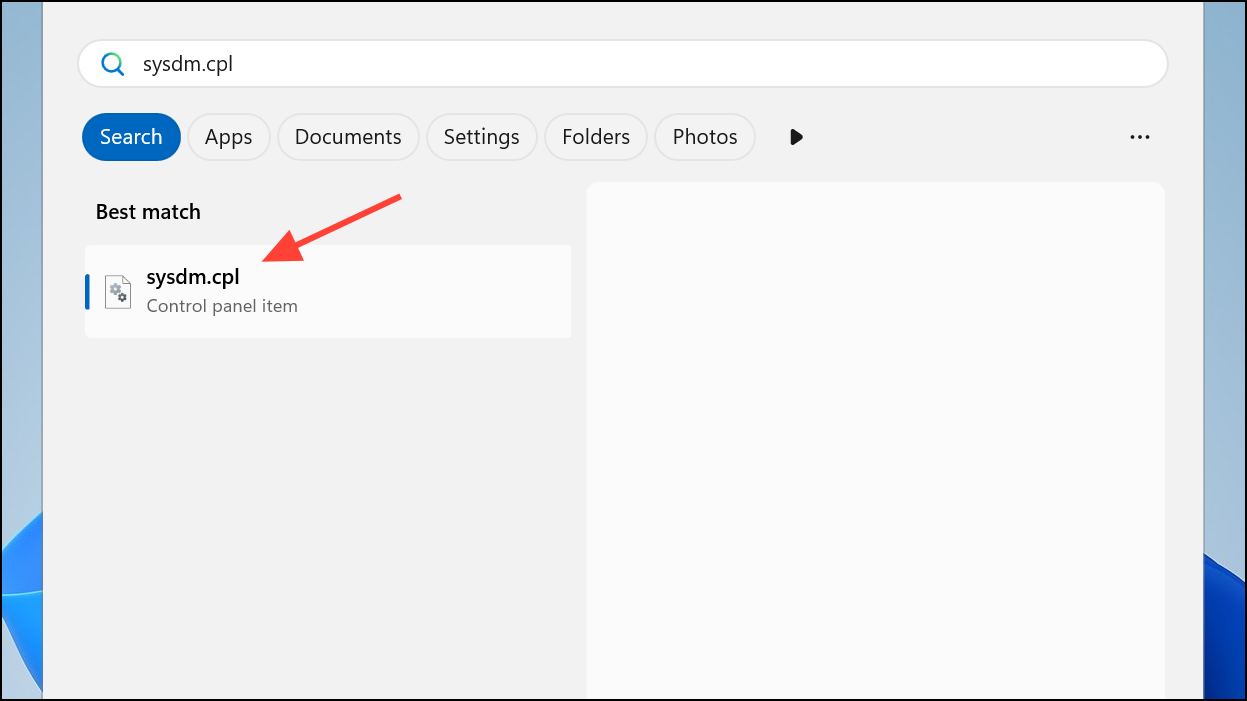
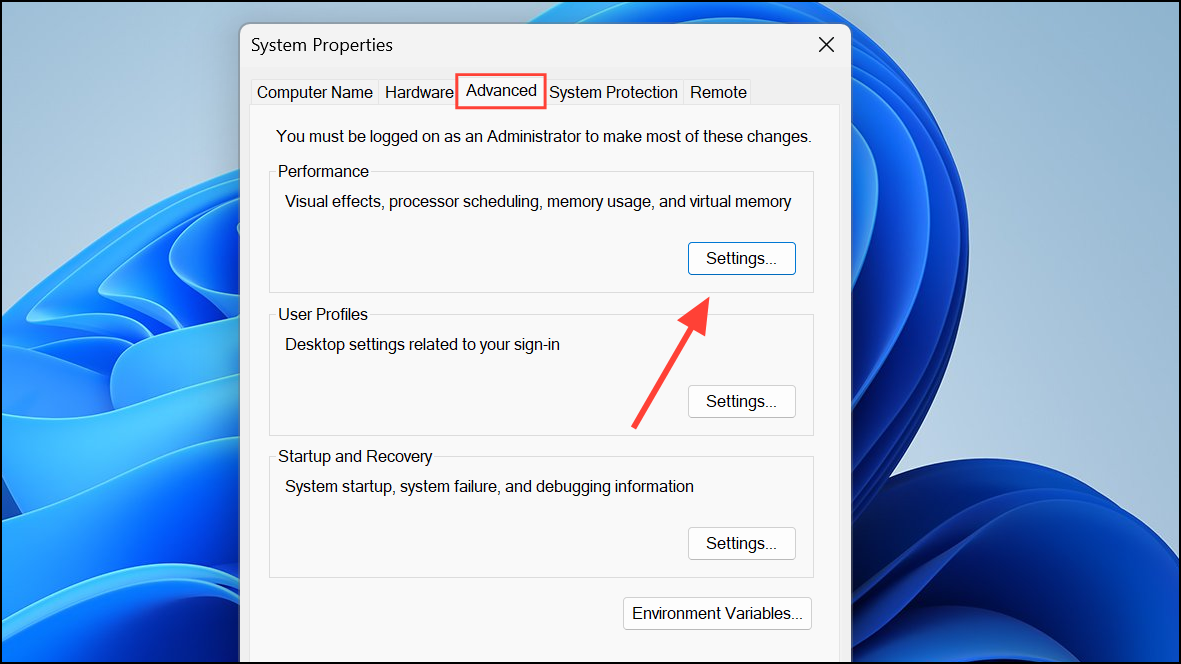
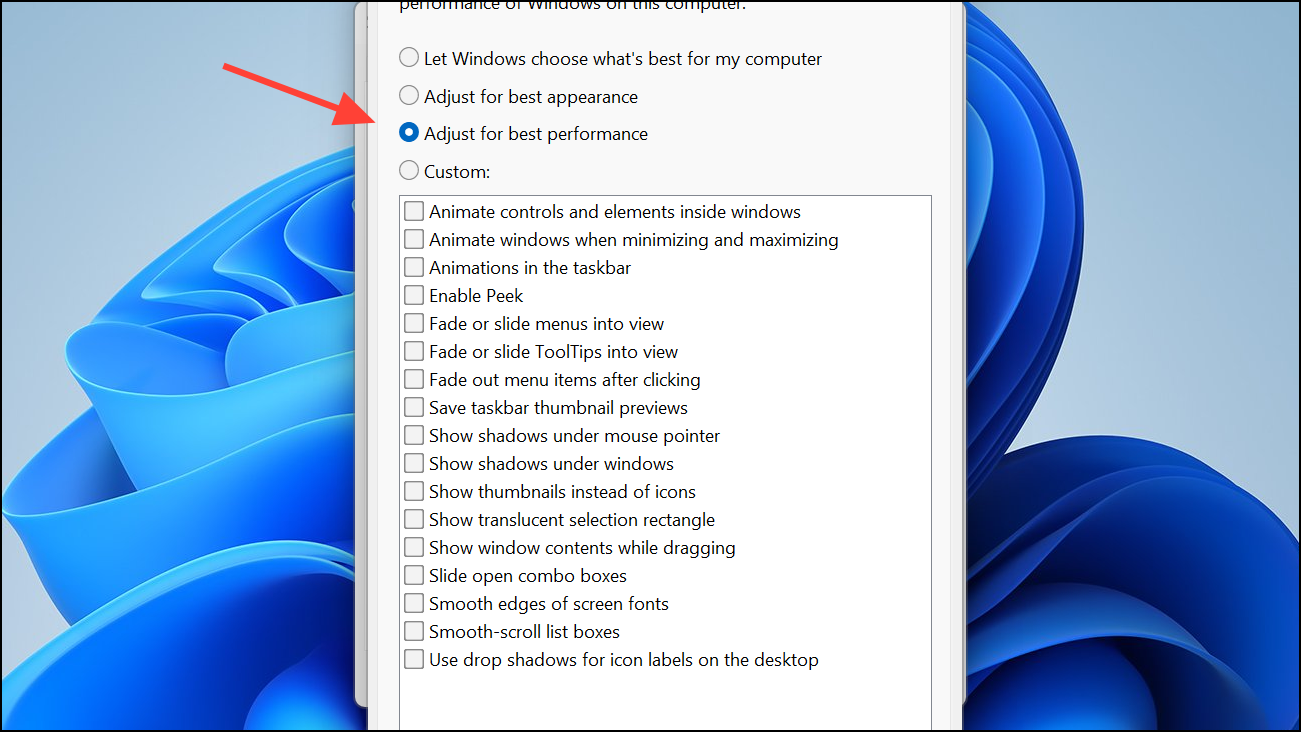
Windows 11 includes visual flourishes like animations, transparency, and shadows that can slow down older or lower-end PCs. Disabling these effects improves responsiveness and reduces unnecessary GPU load.
Remove Bloatware and Unnecessary Apps
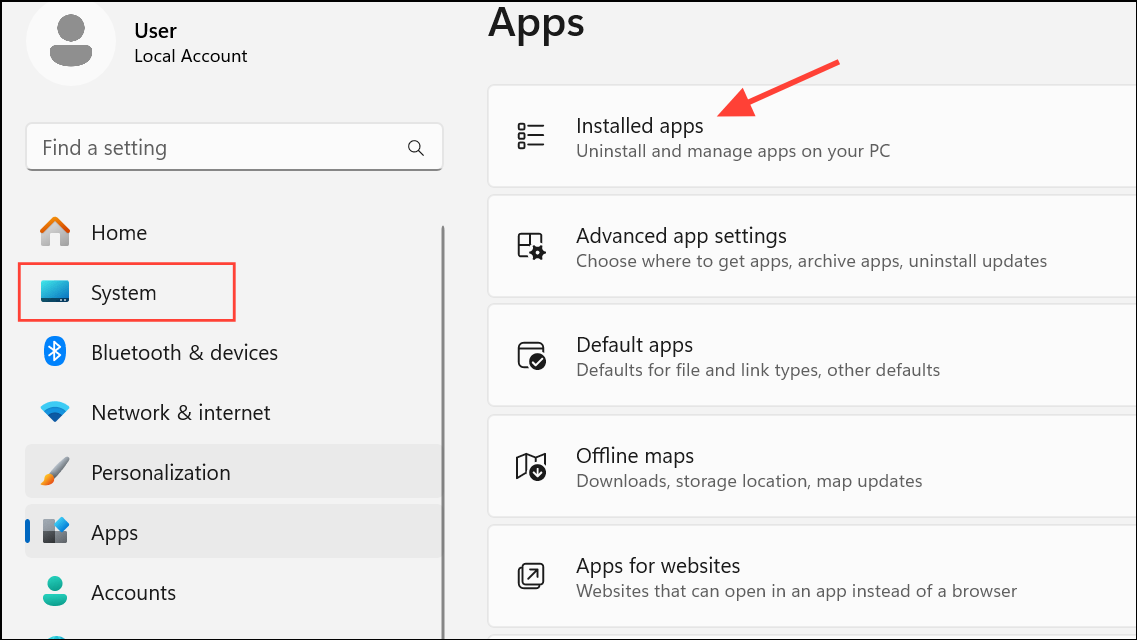
Pre-installed manufacturer software, trialware, and unused programs can consume resources and slow down your PC. Uninstalling these apps frees up memory and storage, reducing background activity.
Scan for Malware and Adware
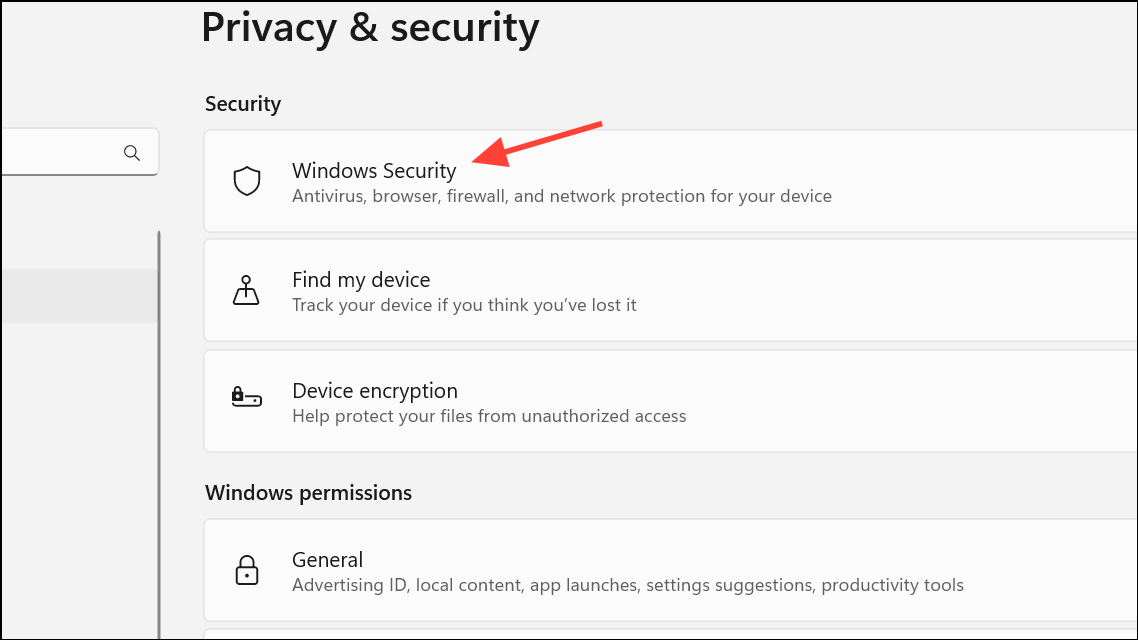
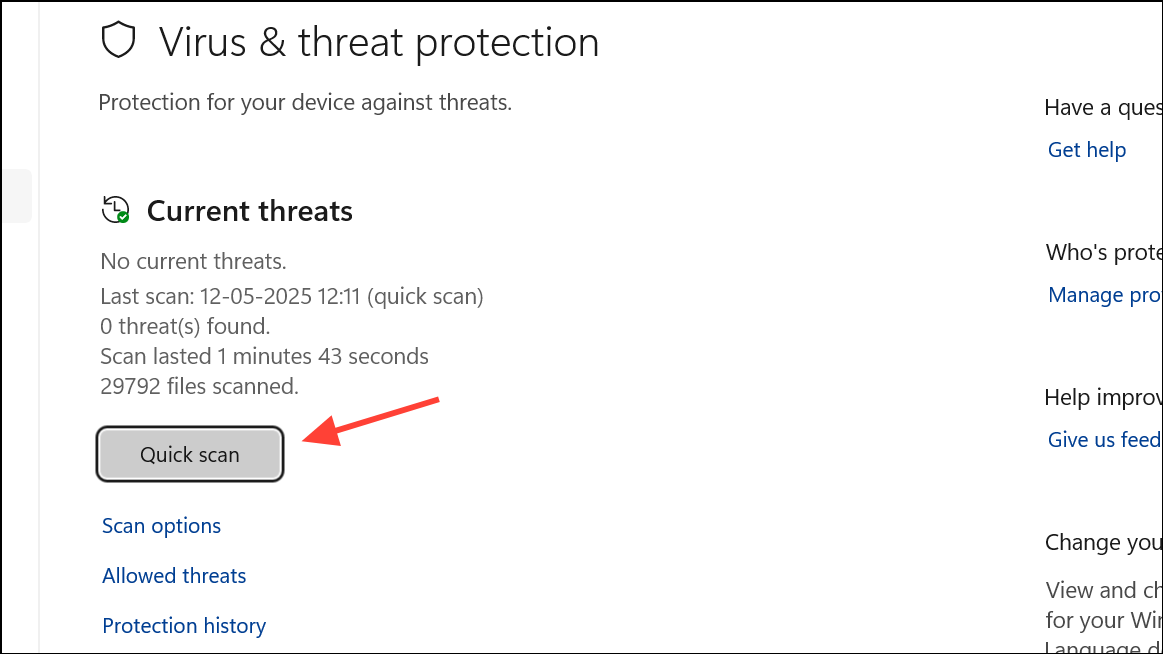
Malware and adware can silently drain resources and cause slowdowns. Running regular security scans helps keep your PC running efficiently.
Disable Search Indexing on Slow PCs
Windows Search indexes files in the background to speed up searches, but on slower PCs or older hard drives, this process can cause performance drops. Disabling or limiting indexing can free up resources.
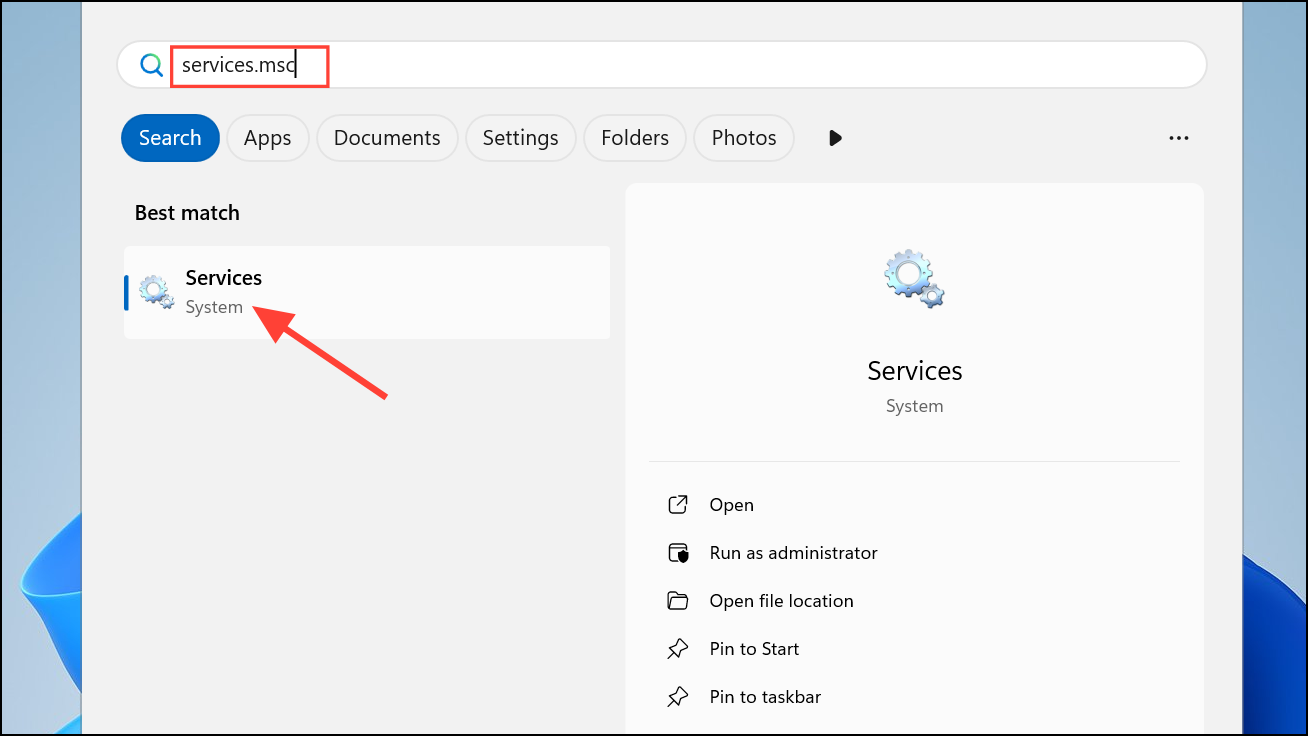
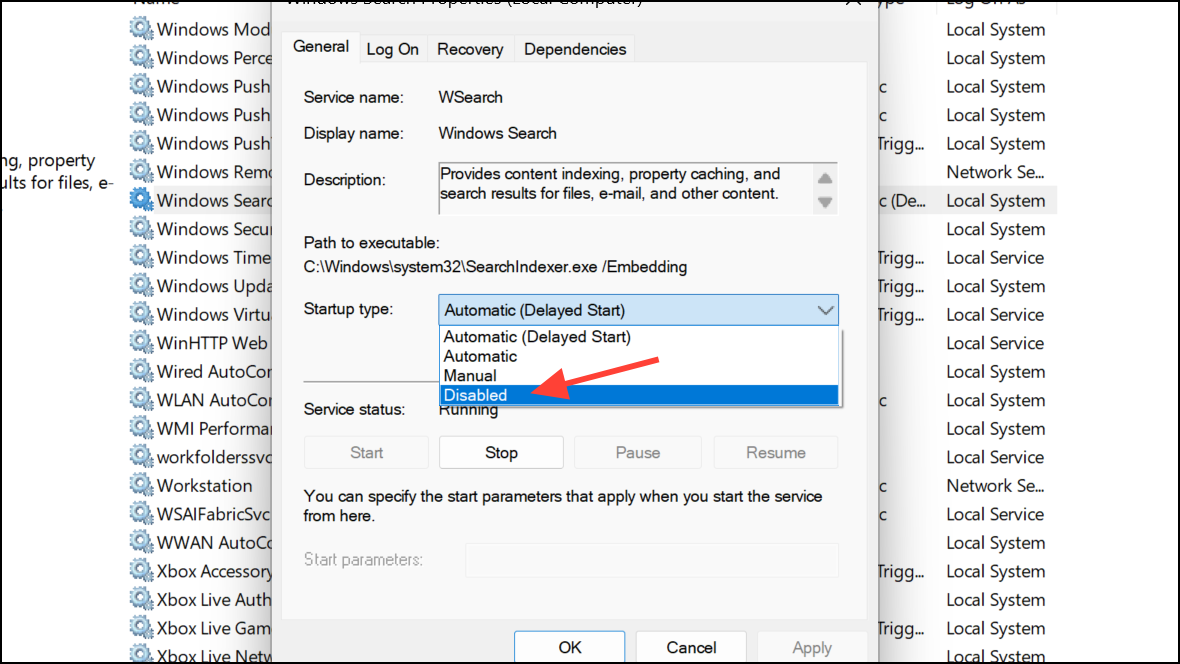
If you still want fast search in certain folders, adjust indexing options by searching for Indexing Options in the Start menu and modifying the included locations.
Use ReadyBoost for Extra RAM (on HDD Systems)
ReadyBoost uses a USB flash drive to supplement system memory, which can help if your PC has limited RAM and no SSD. This method is less effective than upgrading to an SSD or adding physical RAM, but it can provide a small speed boost on older systems.
Restart Windows Regularly
Restarting your PC clears temporary files, releases memory, and stops lingering background processes that can slow down performance. If your system feels sluggish after long periods of use, a quick reboot often restores responsiveness.
Applying these tweaks will help your Windows 11 PC start faster, run smoother, and deliver a more responsive experience—whether you’re working, gaming, or just browsing the web.



