Fix ERROR_SYSTEM_IMAGE_BAD_SIGNATURE (637) on Windows 11
Resolve the ERROR_SYSTEM_IMAGE_BAD_SIGNATURE (637) in Windows 11 by repairing system files, updating drivers, and restoring system integrity to prevent shutdowns and data loss.
Resolve the ERROR_SYSTEM_IMAGE_BAD_SIGNATURE (637) in Windows 11 by repairing system files, updating drivers, and restoring system integrity to prevent shutdowns and data loss.
by Pallav Pathak
The ERROR_SYSTEM_IMAGE_BAD_SIGNATURE (637) in Windows 11 signals that a critical system file or driver is not properly signed, prompting Windows to replace the file and shut down the system to protect against potential threats. This error can interrupt work, cause unexpected shutdowns, and may point to underlying corruption in system files or device drivers. Addressing the root cause as soon as possible helps restore system reliability and prevents recurring blue screen errors.
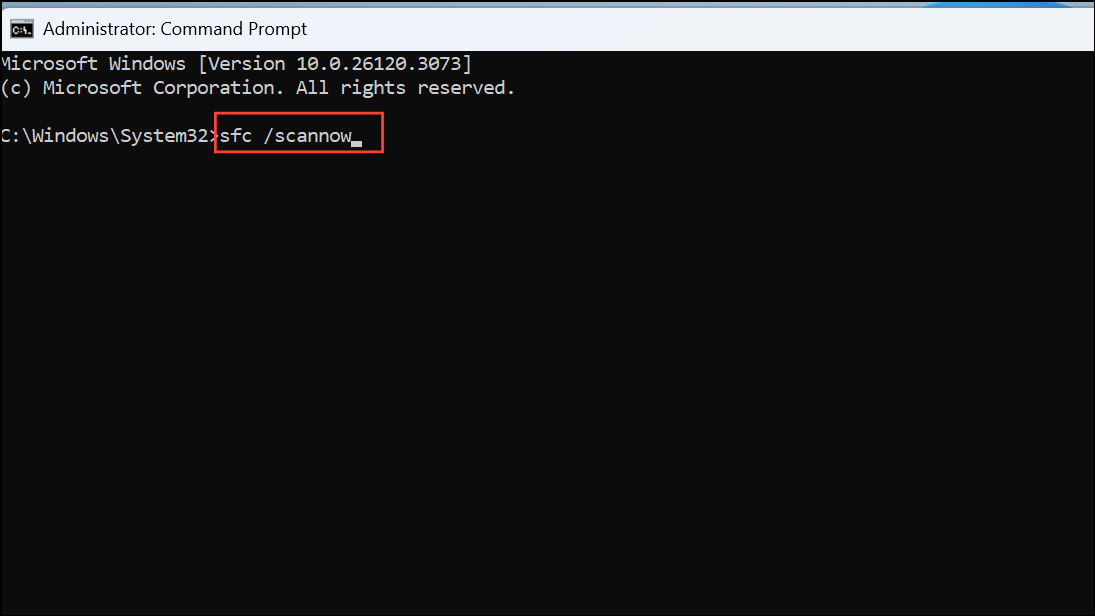
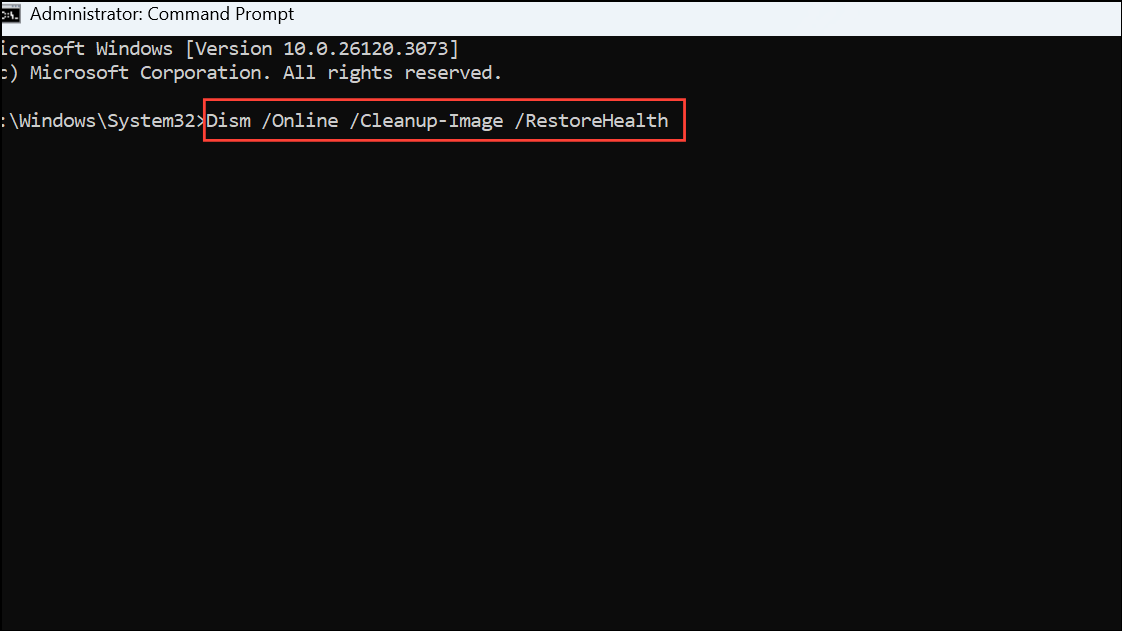
If the error persists after SFC, use the Deployment Image Servicing and Management (DISM) tool to repair the system image. Enter the following command and press Enter:
Dism /Online /Cleanup-Image /RestoreHealth
DISM connects to Windows Update to fetch and replace damaged system files. Let the scan finish, then restart your PC to apply changes.
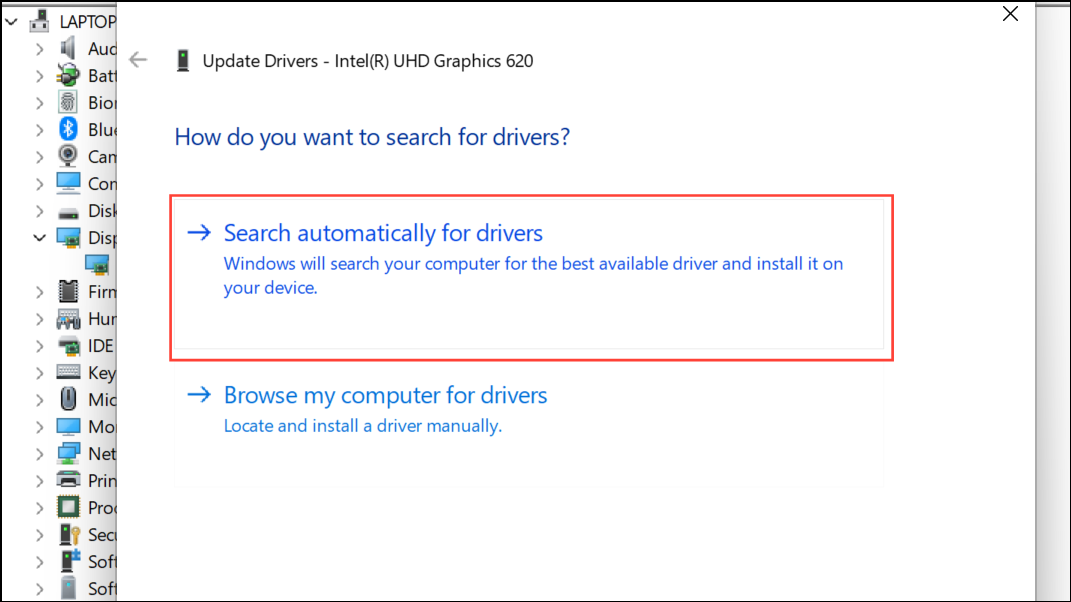
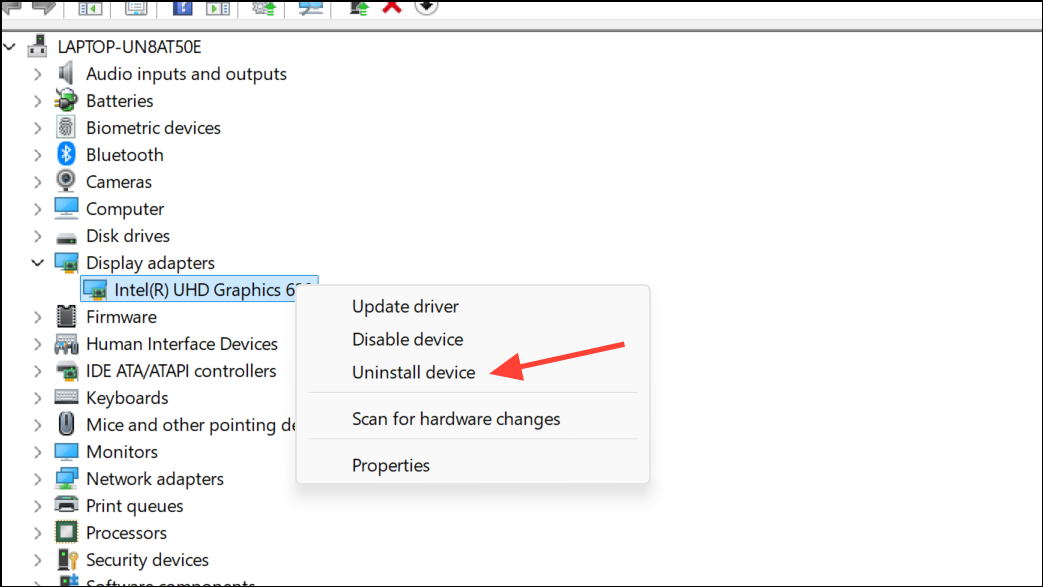
Choose Search automatically for drivers. If Windows cannot find an update, visit the manufacturer’s website to download and install the latest driver manually. Alternatively, use a trusted third-party driver updater tool to streamline this process.
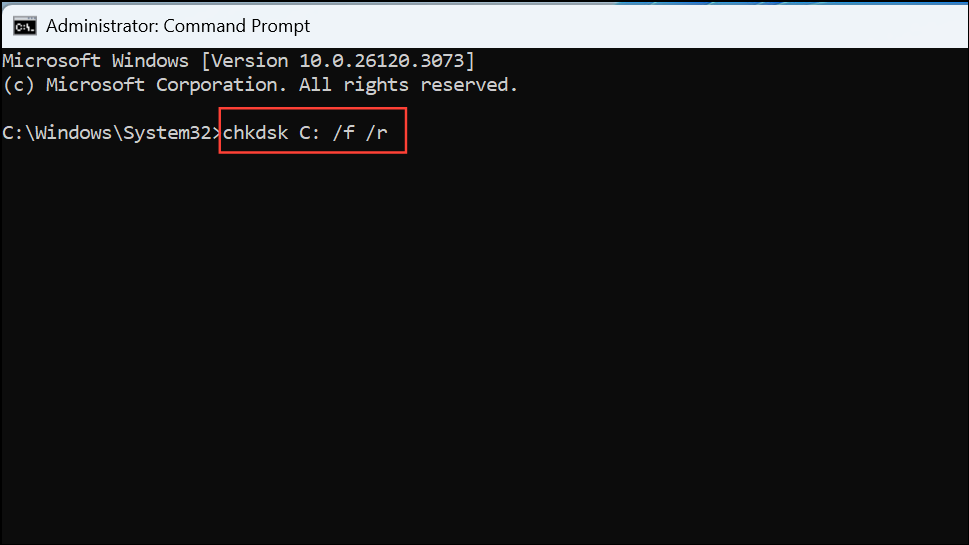
Enter the following command, replacing C with the letter of your system drive, and press Enter:
chkdsk C: /f /r
This command scans the disk for bad sectors and file system errors, repairing any issues it finds. If prompted to schedule the scan at the next restart, type Y and press Enter, then restart your computer.
The scan may take a while, especially on large or error-prone disks. Review the summary upon completion or check Event Viewer for detailed results.
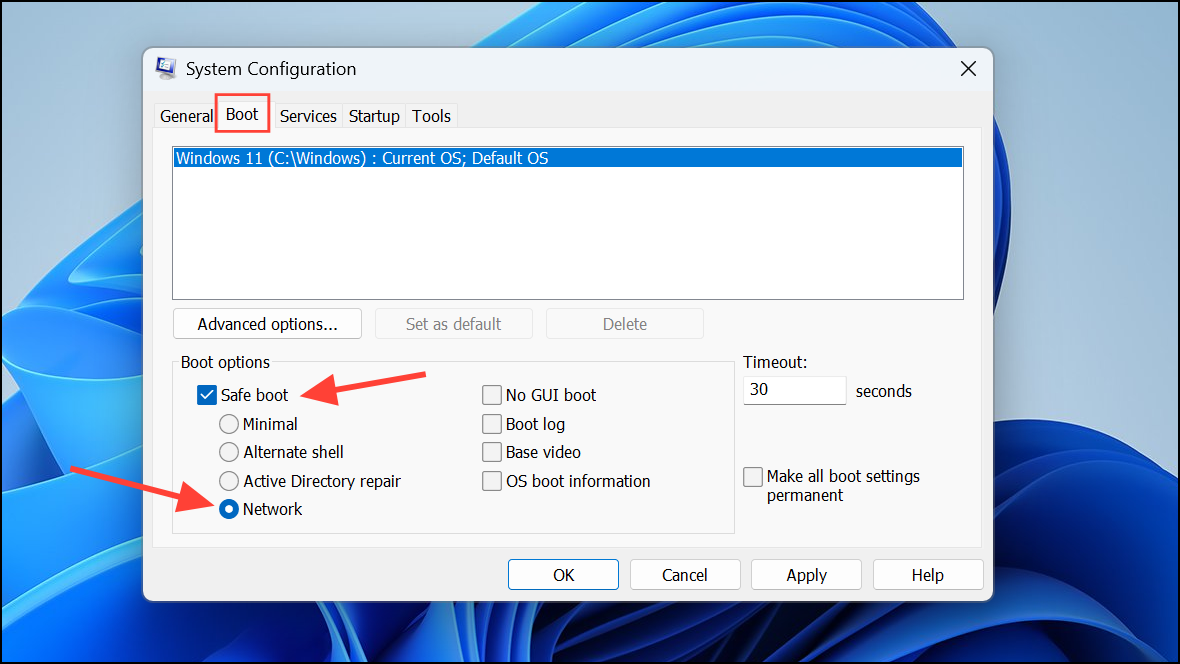
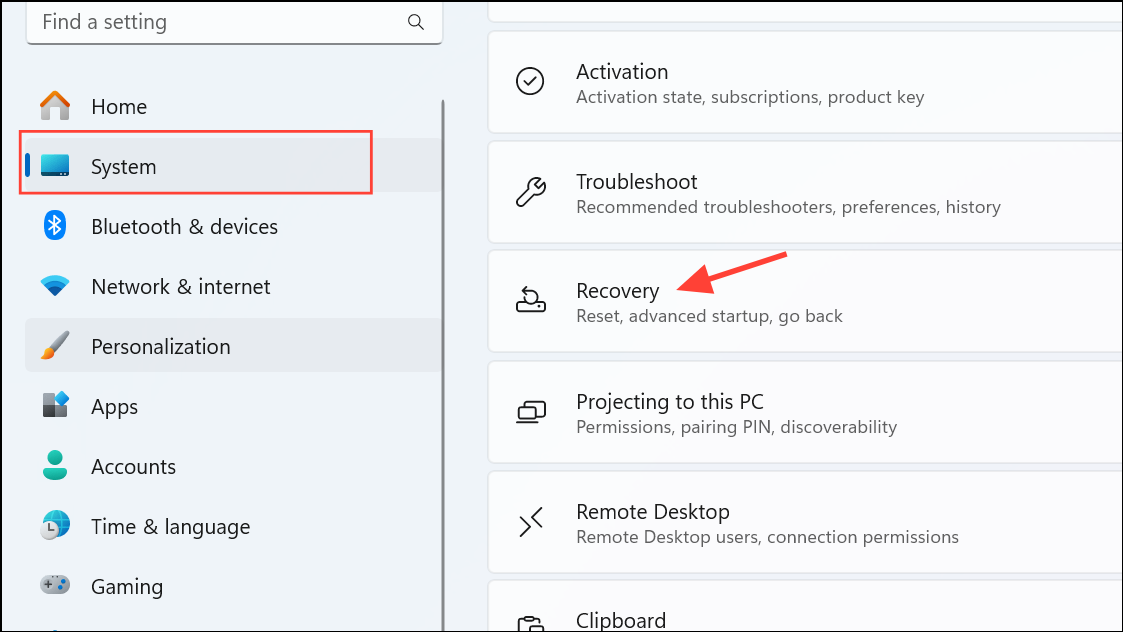
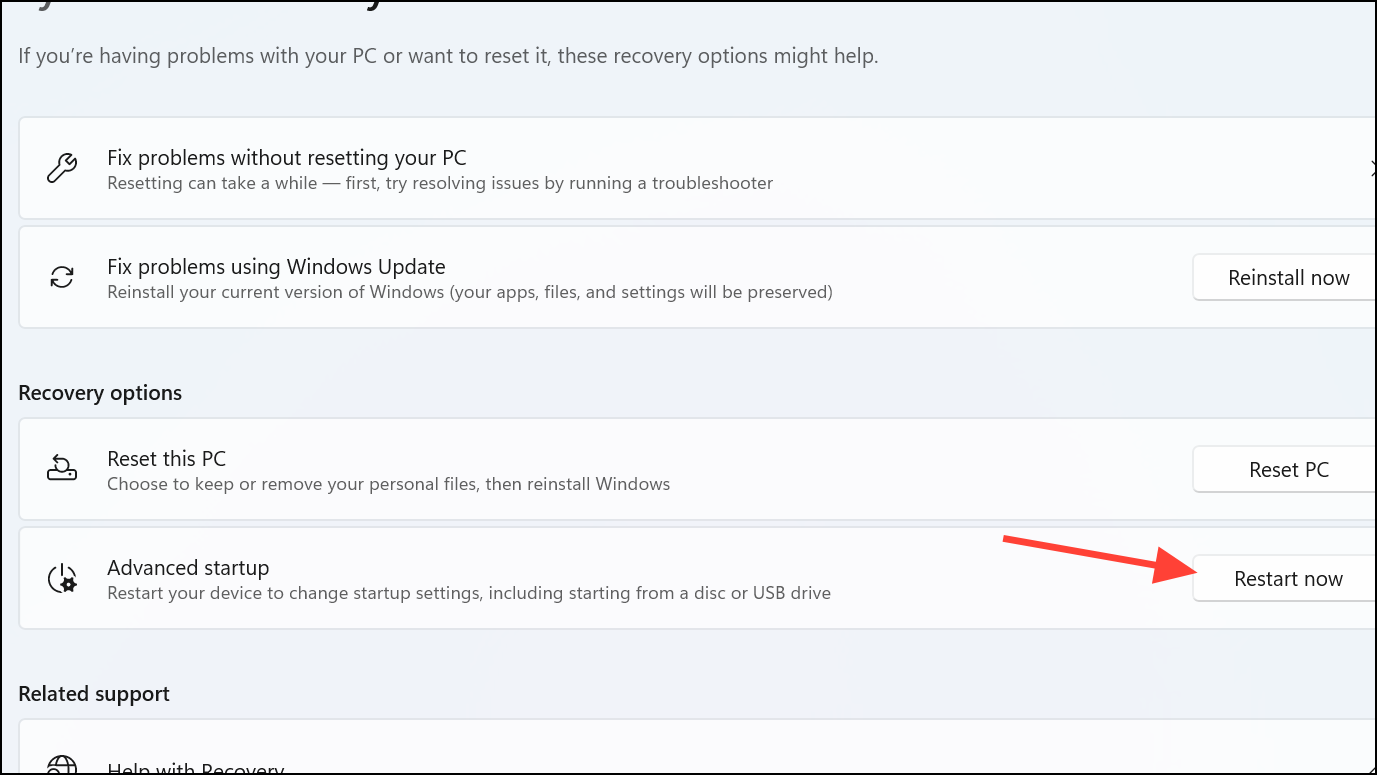
When presented with startup options, press F7 or 7 to disable driver signature enforcement. This allows the system to load unsigned drivers, which can temporarily bypass the error, but reduces system security. Only use this method if you trust all installed drivers and revert the setting as soon as possible.
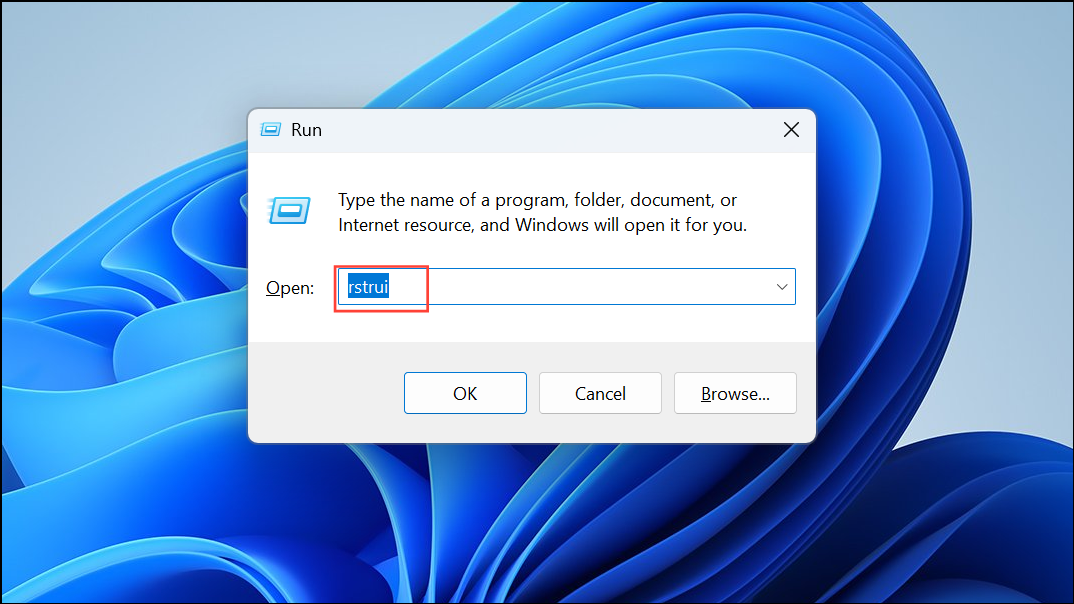
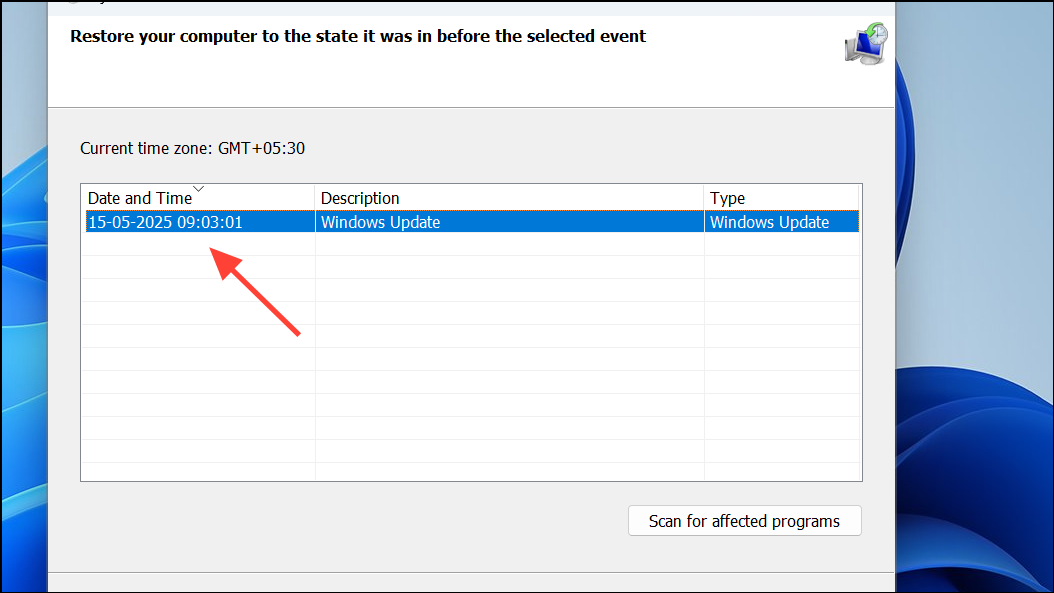
Click Next, then Finish to begin system restoration. Your PC will restart and revert system files and settings to the selected state. If the restore fails, unresolved driver or file corruption may be the cause.
Back up all important files, documents, and application licenses to an external drive or cloud storage. Ensure you have your Microsoft account credentials and a list of installed software.
On a working computer, visit the official Windows 11 download page and download the Media Creation Tool. Use it to create a bootable USB installation drive (at least 8GB capacity).
Follow the on-screen prompts to install Windows 11. Choose your language, edition, and partition as needed. Completing a clean installation removes all problematic files and drivers, restoring system stability. After installation, check for Windows Updates and reinstall necessary drivers and applications.
Resolving ERROR_SYSTEM_IMAGE_BAD_SIGNATURE (637) in Windows 11 involves repairing system files, updating or reinstalling drivers, addressing disk errors, and restoring or reinstalling the OS if needed. Taking these steps restores system reliability, prevents shutdowns, and helps you avoid recurring blue screen errors.