
Receiving a “USB device not recognized” message in Windows 11 can disrupt your workflow, prevent access to files, and block the use of essential peripherals like keyboards, mice, or storage drives. Addressing this problem requires a systematic approach that targets both software and hardware factors influencing USB connectivity.
Update or Reinstall USB Drivers
Outdated or corrupted USB drivers frequently cause recognition errors. Updating or reinstalling these drivers can restore device functionality and resolve persistent connection problems.
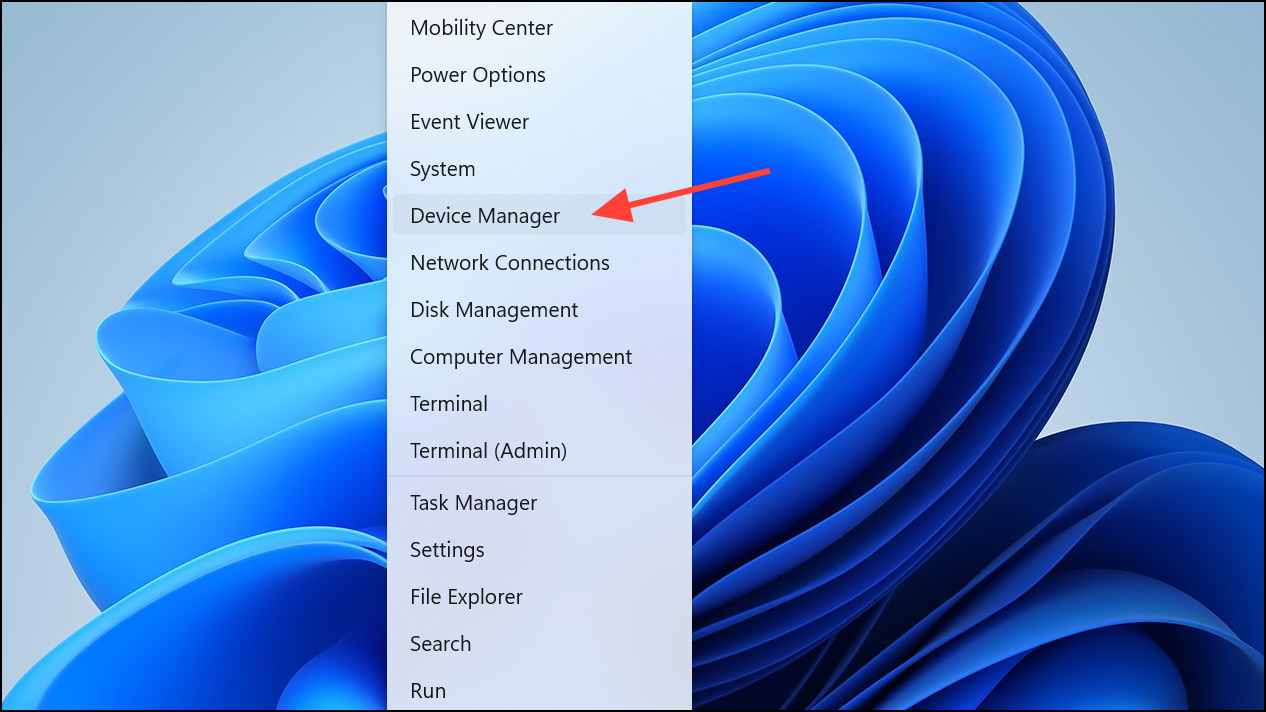
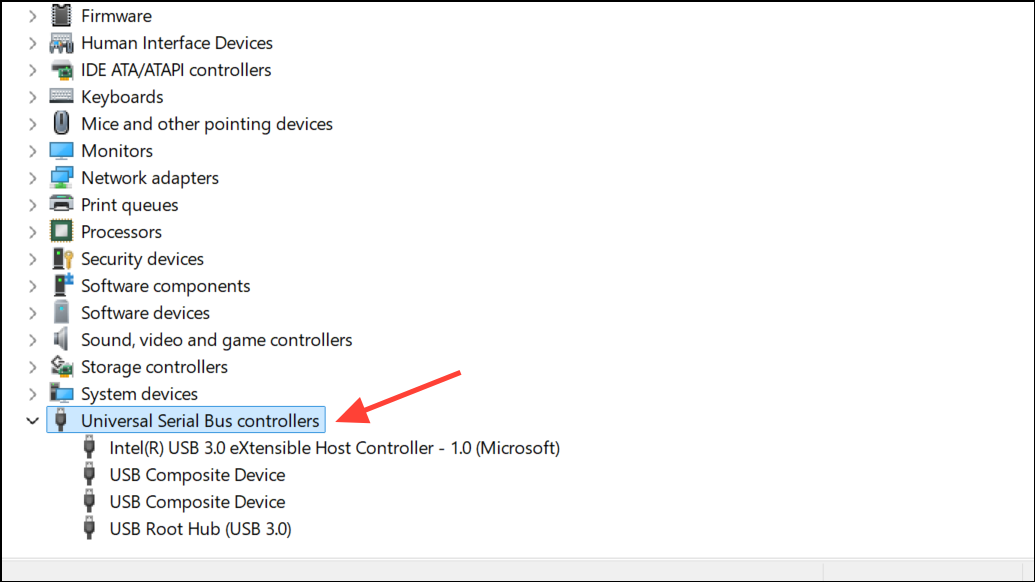
Update driver and choose Search automatically for drivers. Allow Windows to search for and install available updates.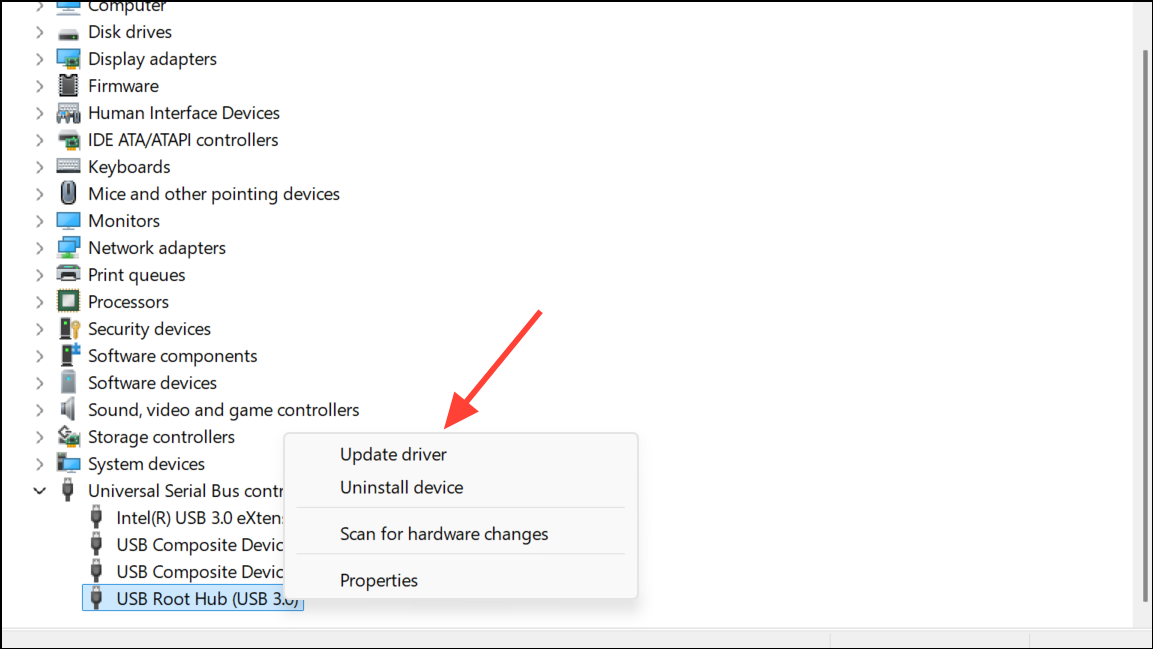
Uninstall device. After uninstalling, restart your computer; Windows will attempt to reinstall the correct driver automatically.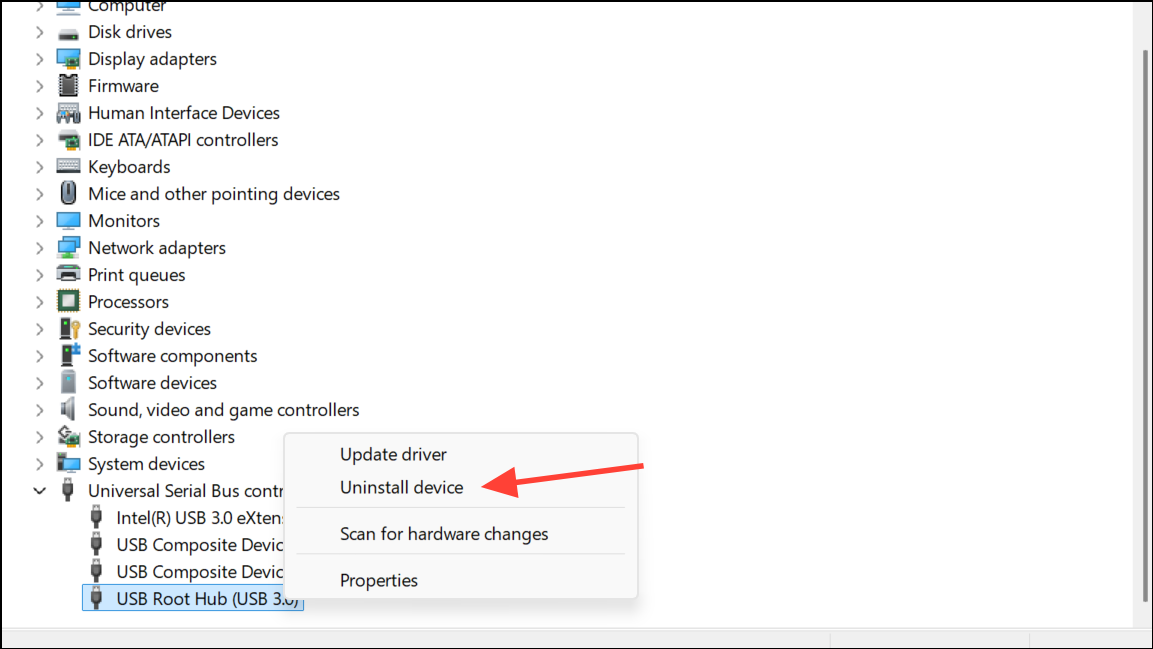
Adjust Power Management Settings
Windows 11 power-saving features can disable USB ports to reduce energy consumption, sometimes disconnecting devices unexpectedly. Adjusting these settings can keep your USB ports active and reliable.
Universal Serial Bus controllers. Right-click each USB Root Hub and select Properties.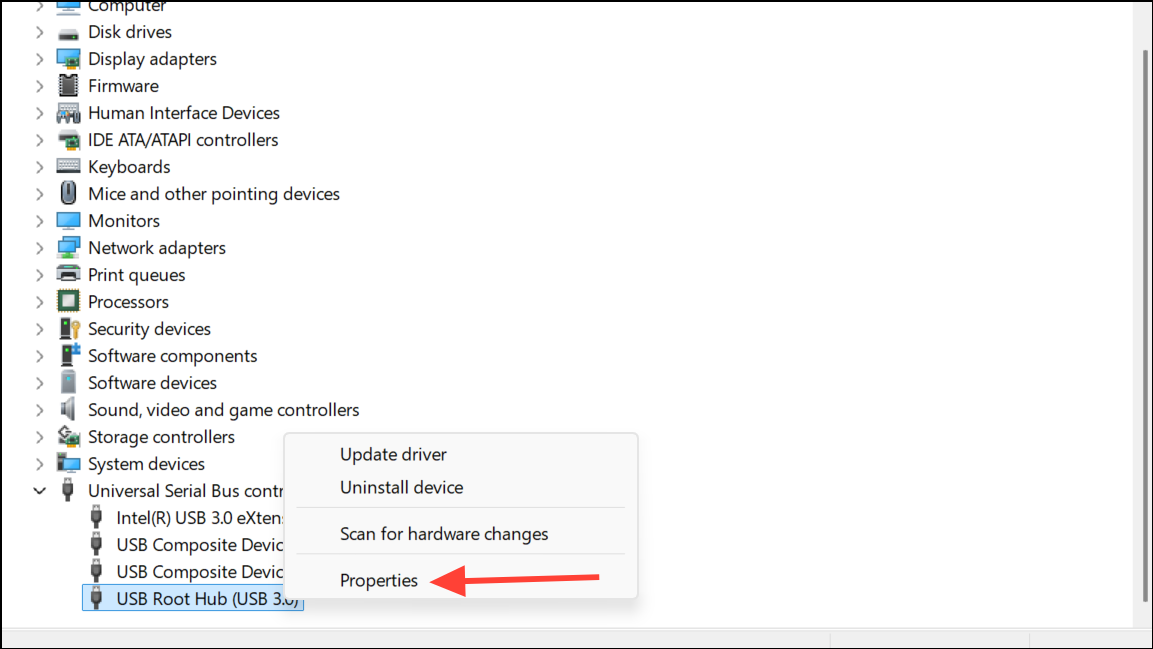
Power Management tab. Uncheck Allow the computer to turn off this device to save power. Click OK and repeat for all USB Root Hubs.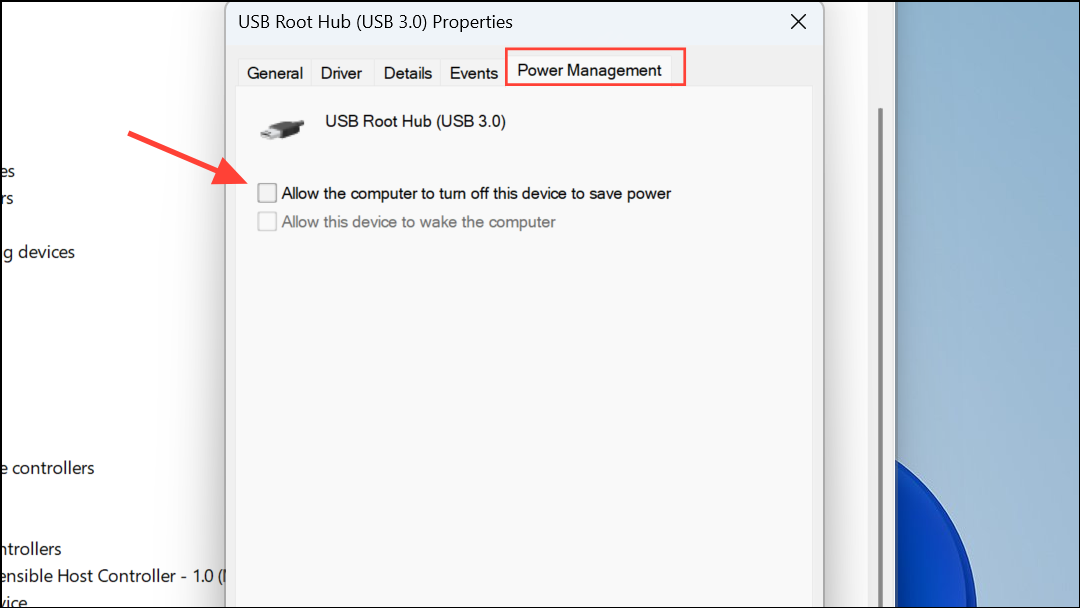
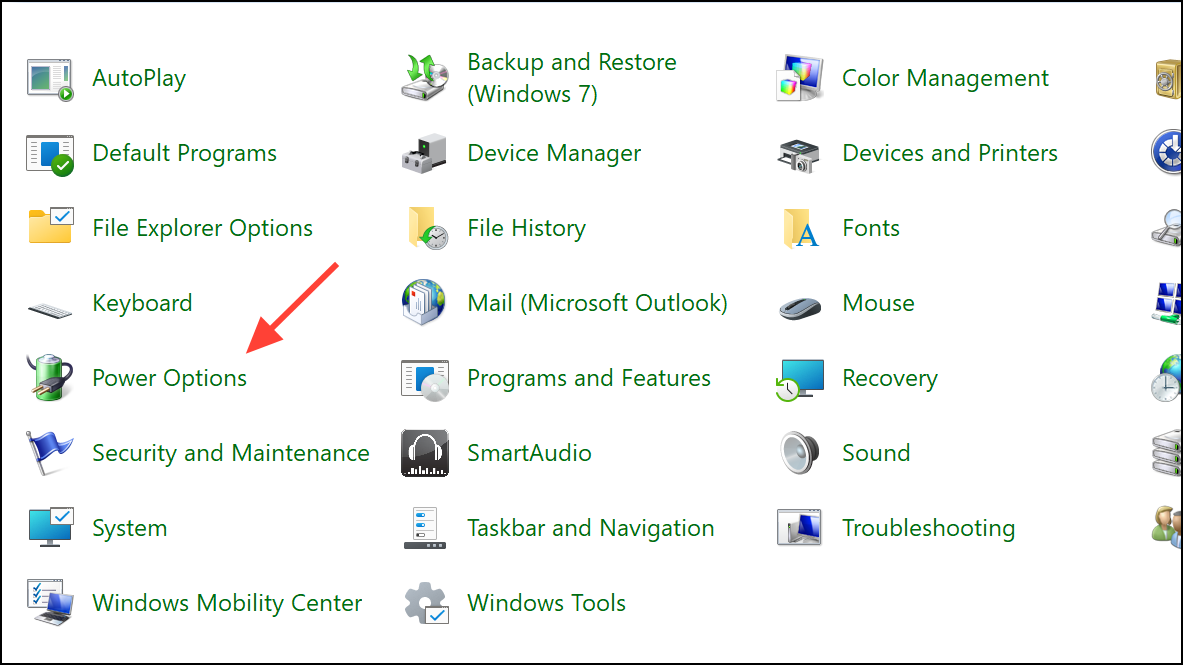
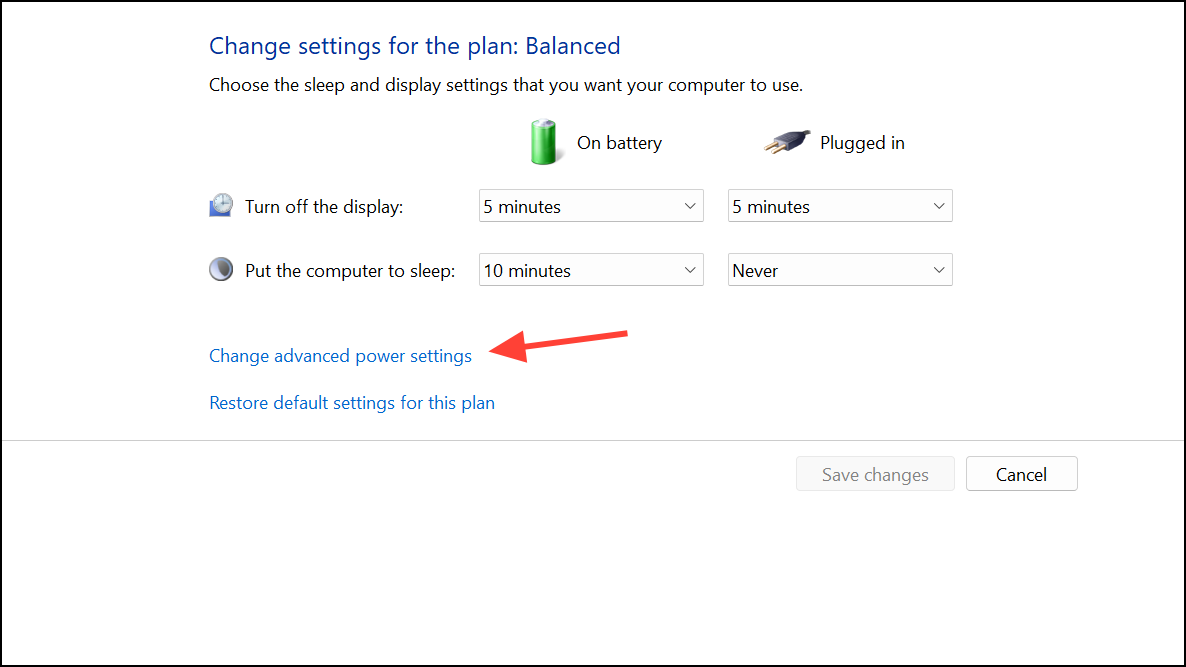
USB settings, and set USB selective suspend setting to Disabled.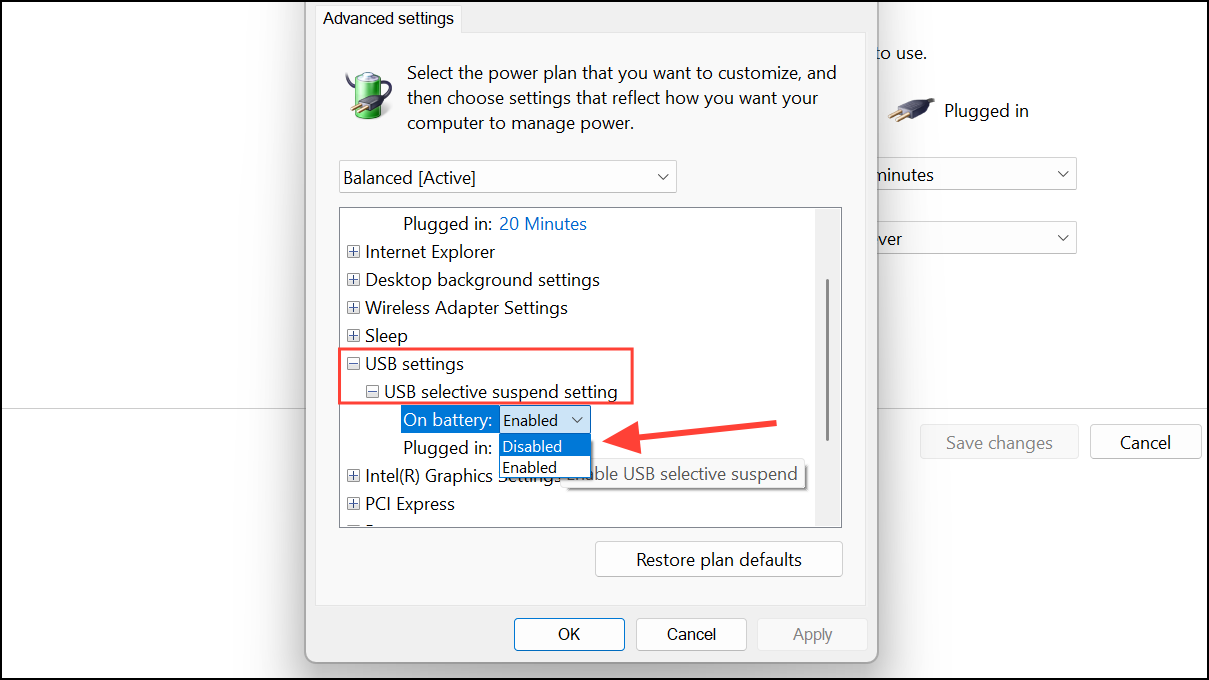
Test and Switch USB Ports or Cables
Physical faults in ports or cables can prevent device recognition, even when drivers and settings are correct. Testing alternative hardware helps identify or rule out these issues.
Reset USB Controllers
Resetting USB controllers can clear residual errors and force Windows to reinitialize hardware connections.
Universal Serial Bus controllers. Right-click each USB Root Hub, Host Controller, or Hub and select Uninstall device for each one.Scan for Malware or System Corruption
Malware or corrupted system files can disrupt device detection and USB operations. Running built-in diagnostic tools can repair these issues.
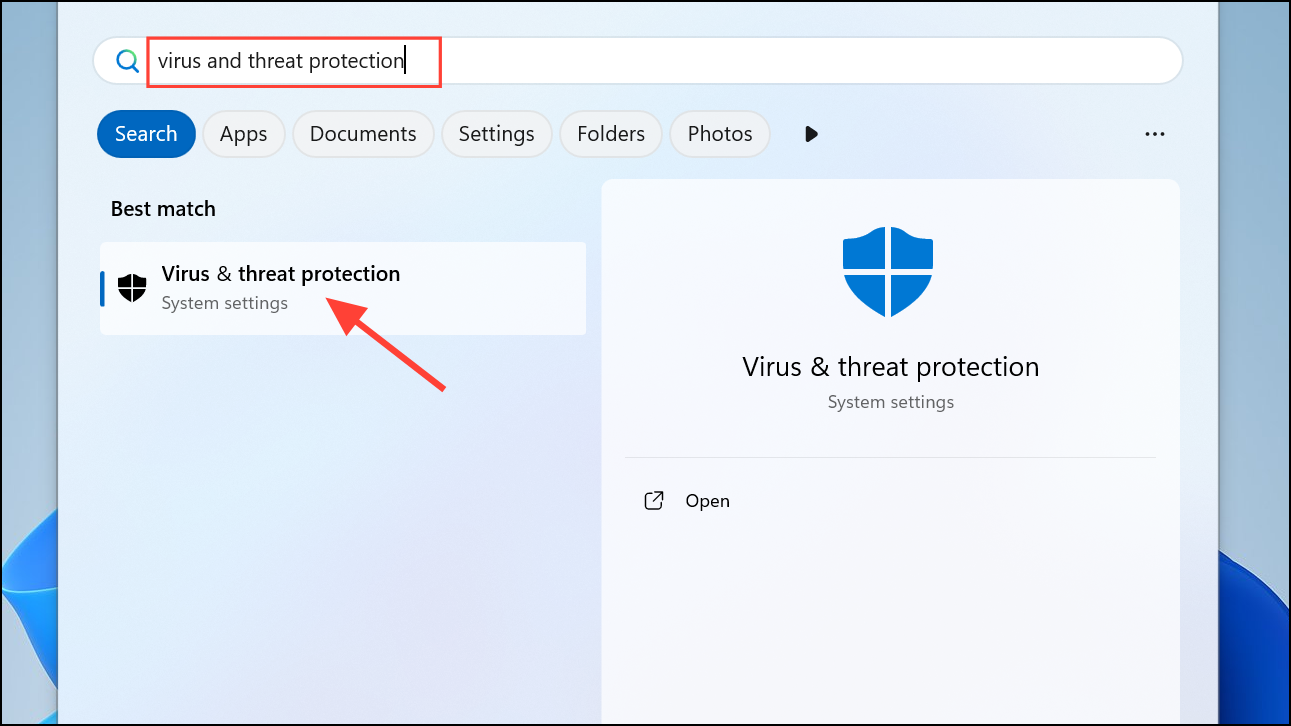
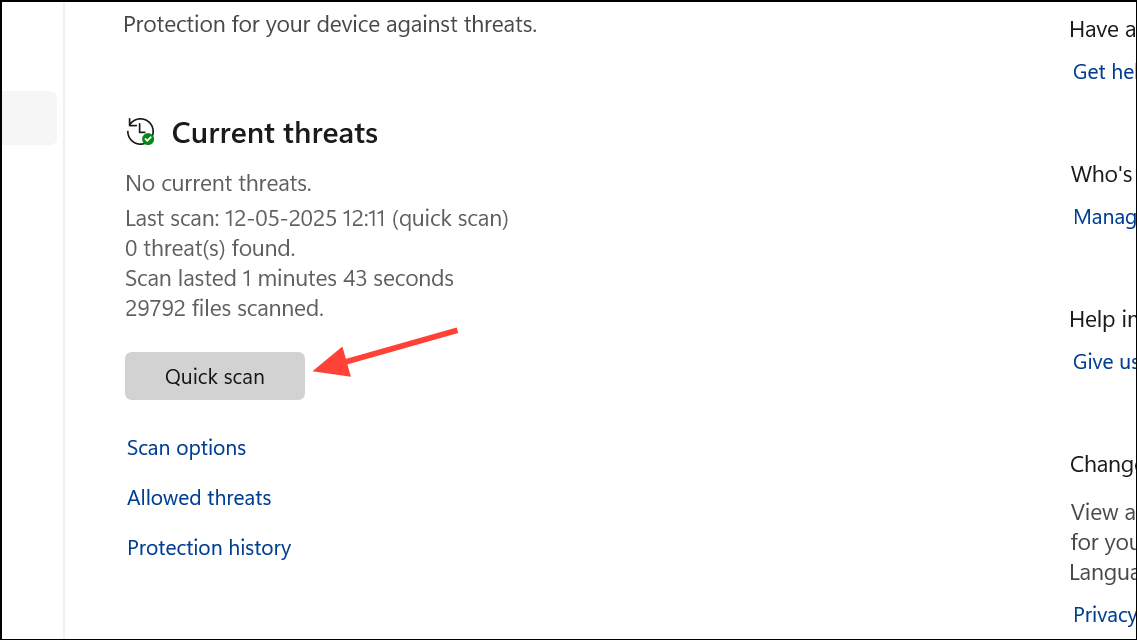
sfc /scannow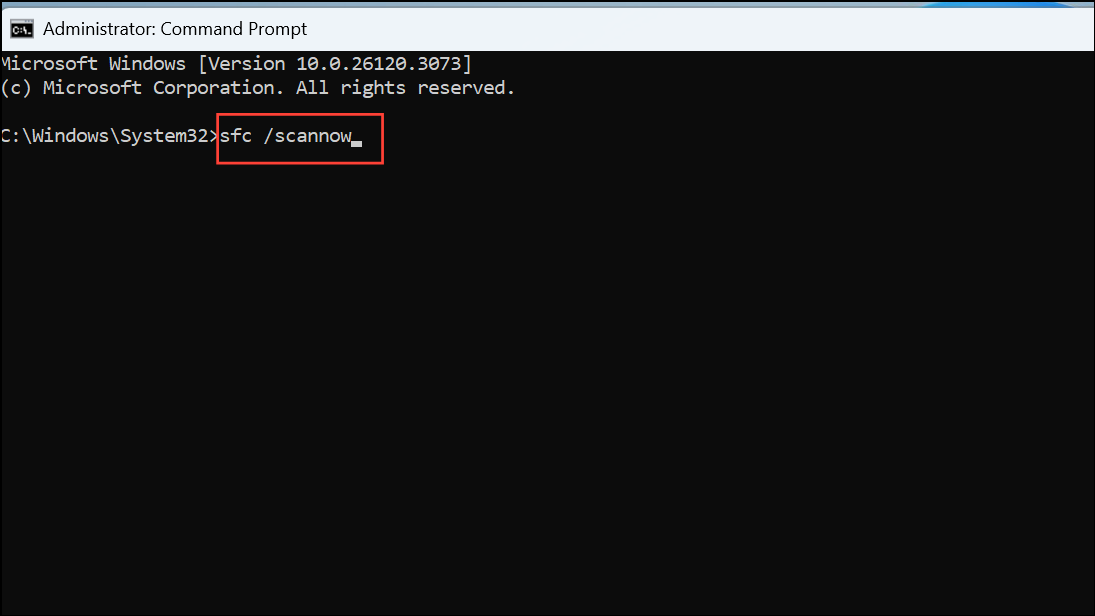
Wait for the scan to complete and follow any repair prompts.
DISM /Online /Cleanup-Image /RestoreHealth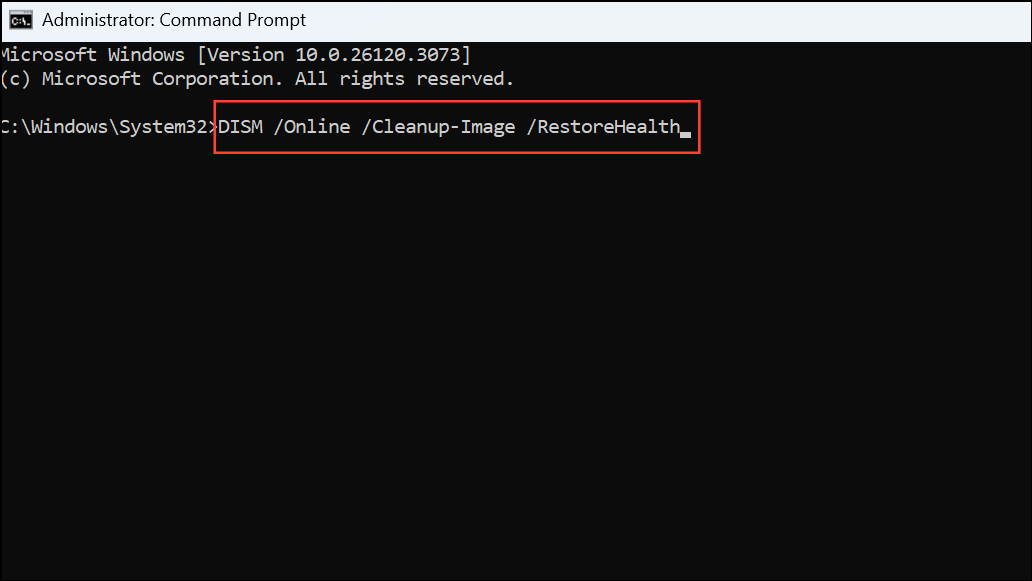
This command checks for deeper system corruption and attempts to restore damaged files.
Use System Restore or Repair Install
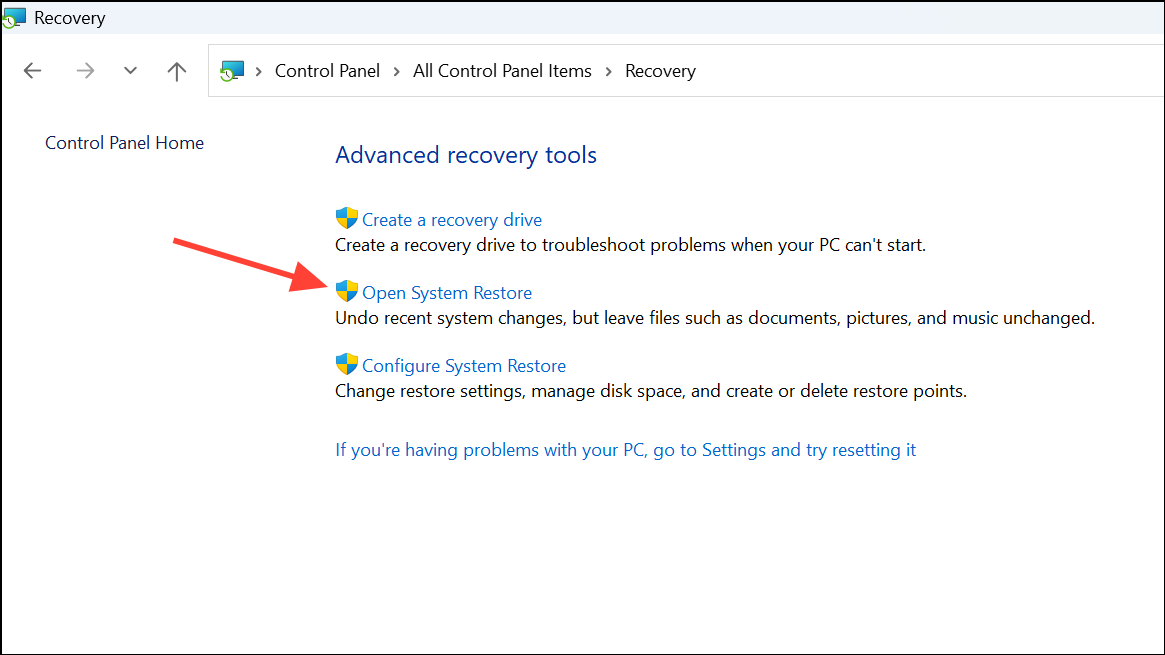
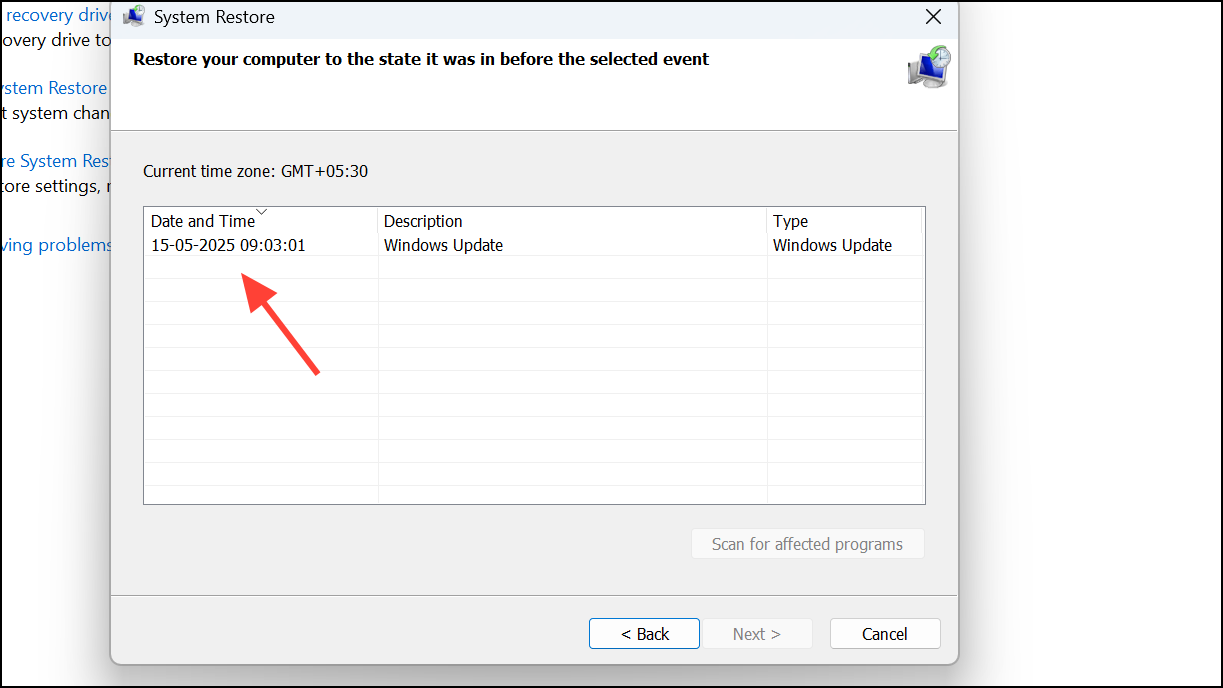
If USB recognition stopped after a recent update or software installation, restoring your system to an earlier state can reverse the issue. For persistent failures, a repair install refreshes Windows 11 while preserving your files and apps.
Check BIOS and Hardware Issues
Incorrect BIOS settings or hardware faults can block USB device access. Verifying BIOS options and testing hardware isolates these scenarios.
F2, DEL, or ESC during boot). Confirm that USB ports are enabled and not restricted by security settings.Resolving USB device recognition errors in Windows 11 often comes down to updating drivers, adjusting system settings, and methodically ruling out hardware faults. With these steps, most users regain steady access to their USB devices and avoid recurring disruptions.



