

Accumulating files in the default Downloads folder on the C: drive often leads to wasted storage space and slower system performance. Shifting your download location to another drive or a custom folder helps keep your main drive clear, reduces clutter, and makes it easier to manage files, especially if you regularly download large installers, videos, or work documents. This simple adjustment also prevents system updates from failing due to low space and makes backing up important files more straightforward.
Change the Default Download Location Using File Explorer
Win + E or by selecting the folder icon on your taskbar. File Explorer is the central tool for navigating files and folders in Windows.Win + R, then type shell:downloads and press Enter. This command opens your system’s recognized Downloads folder.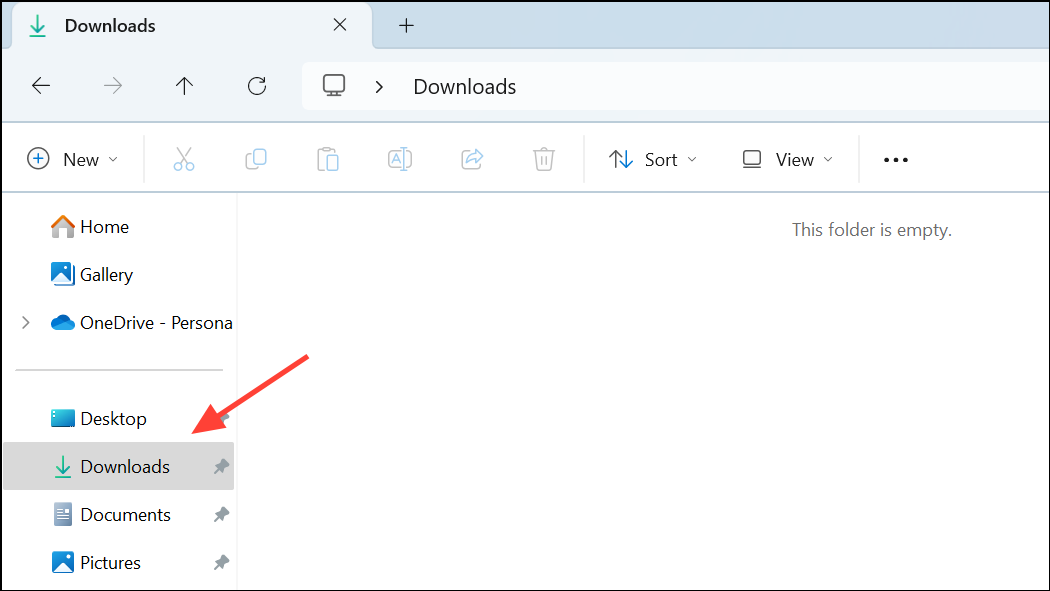
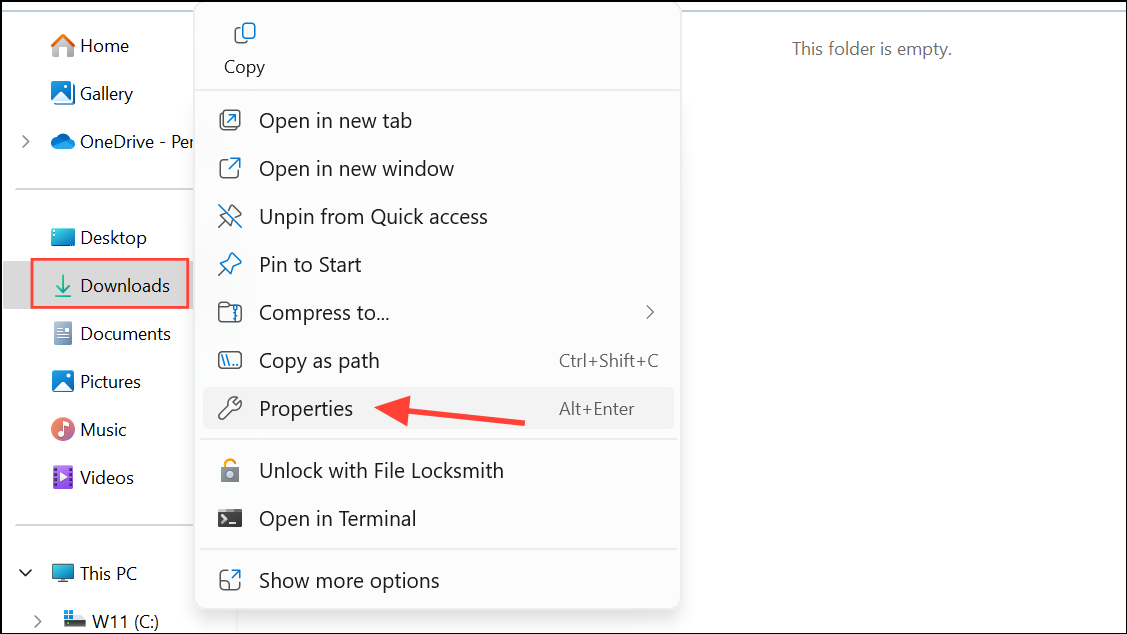
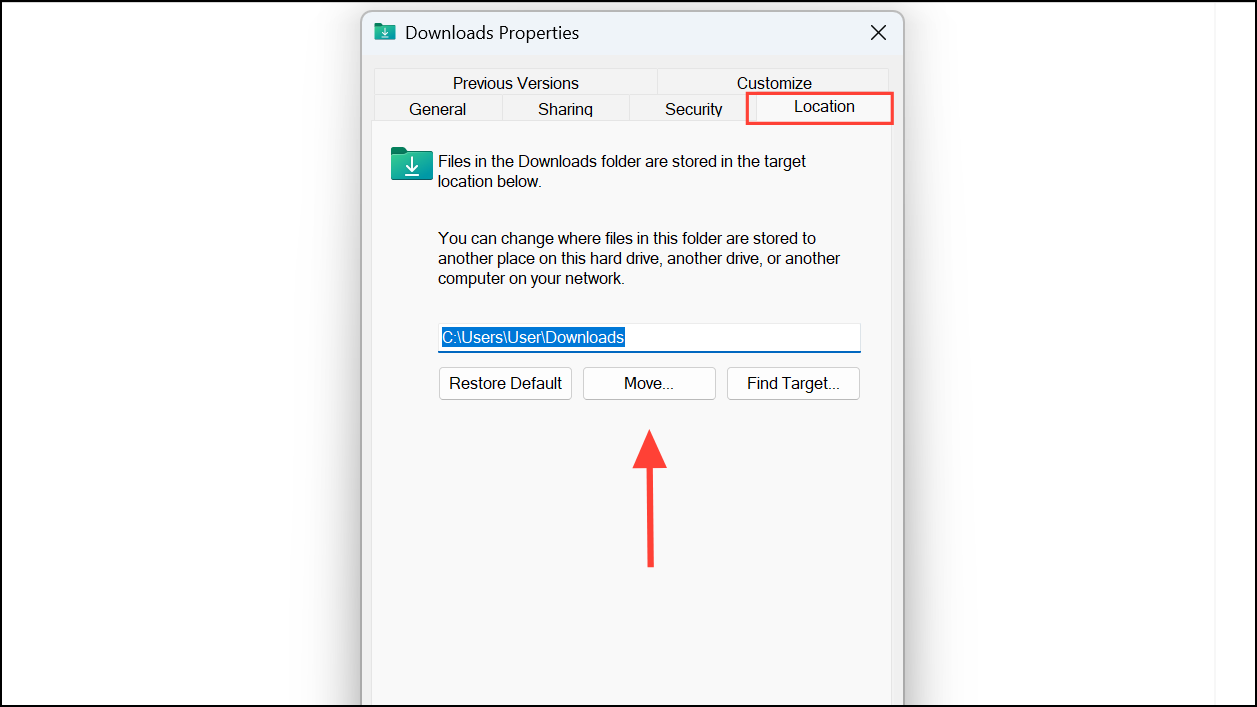
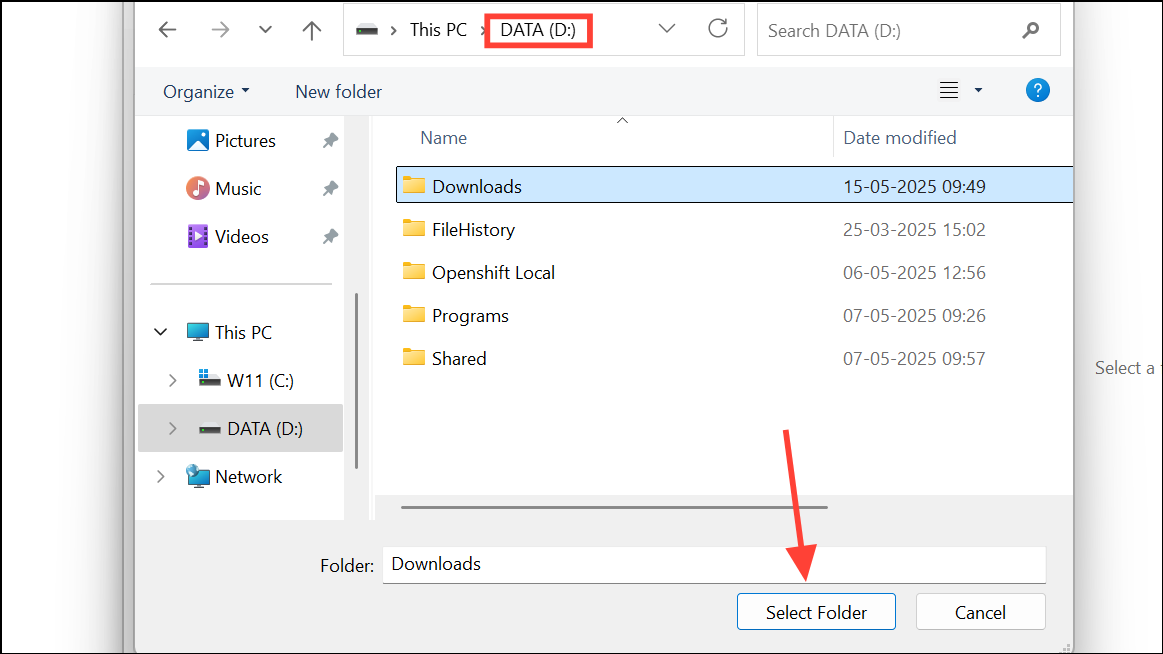
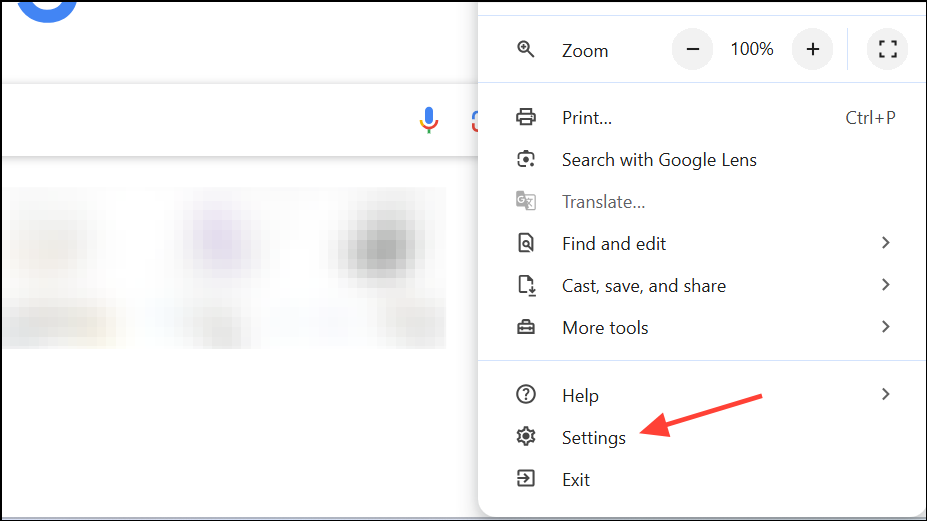
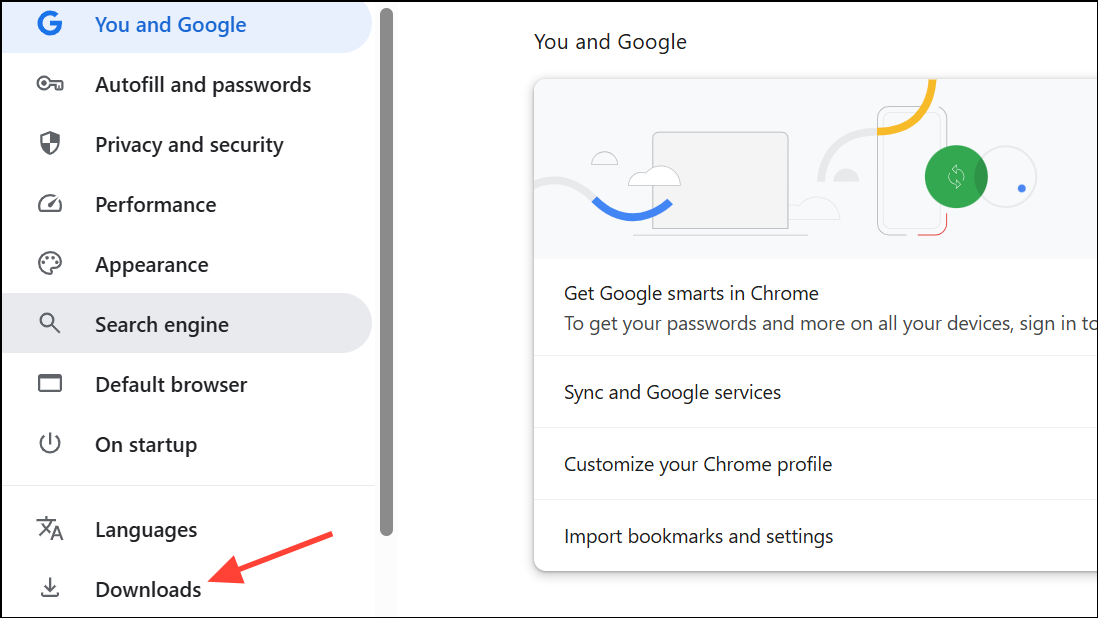
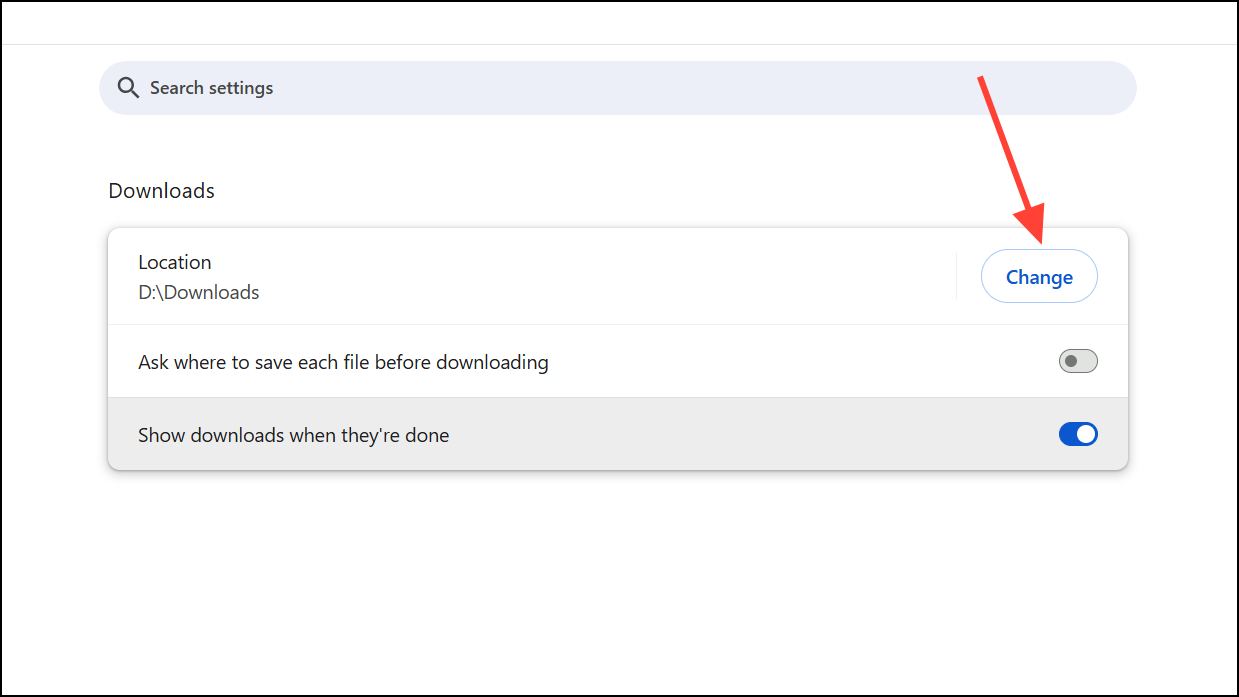
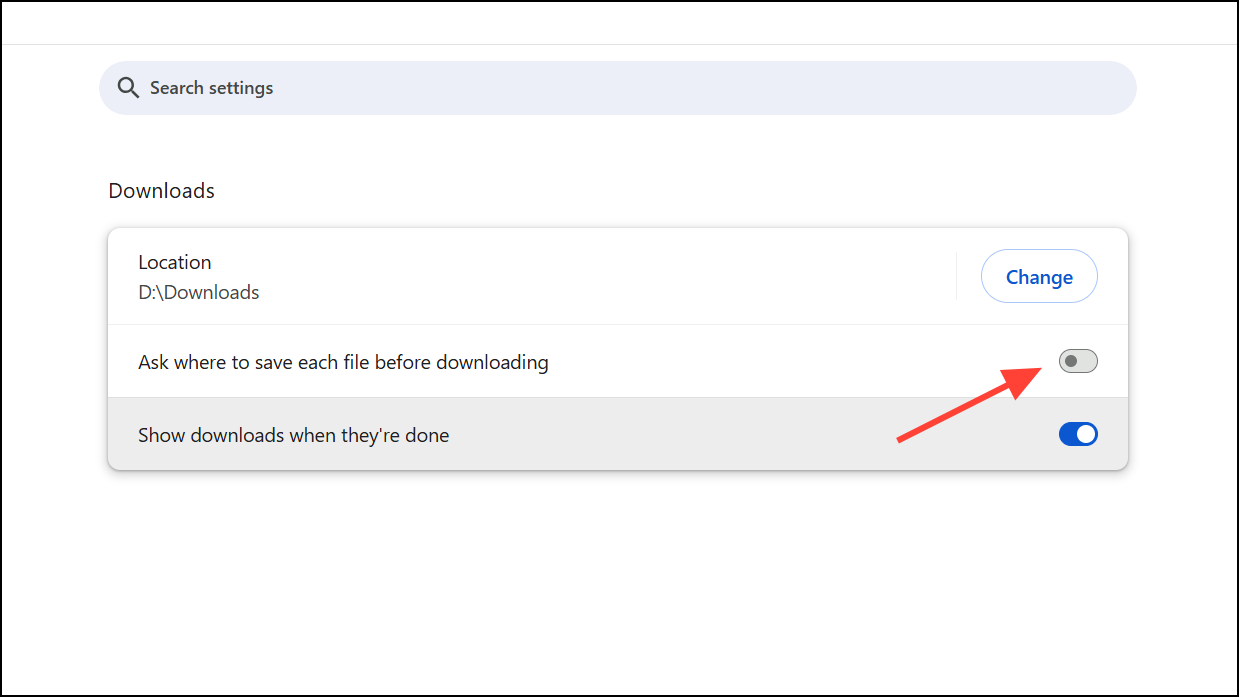
Set Download Locations in Your Web Browser
Most browsers, including Chrome, Edge, and Firefox, let you specify a custom download folder. Adjusting these settings ensures downloads initiated through your browser go to the correct location, especially if you use multiple browsers or want each to save files in different places.
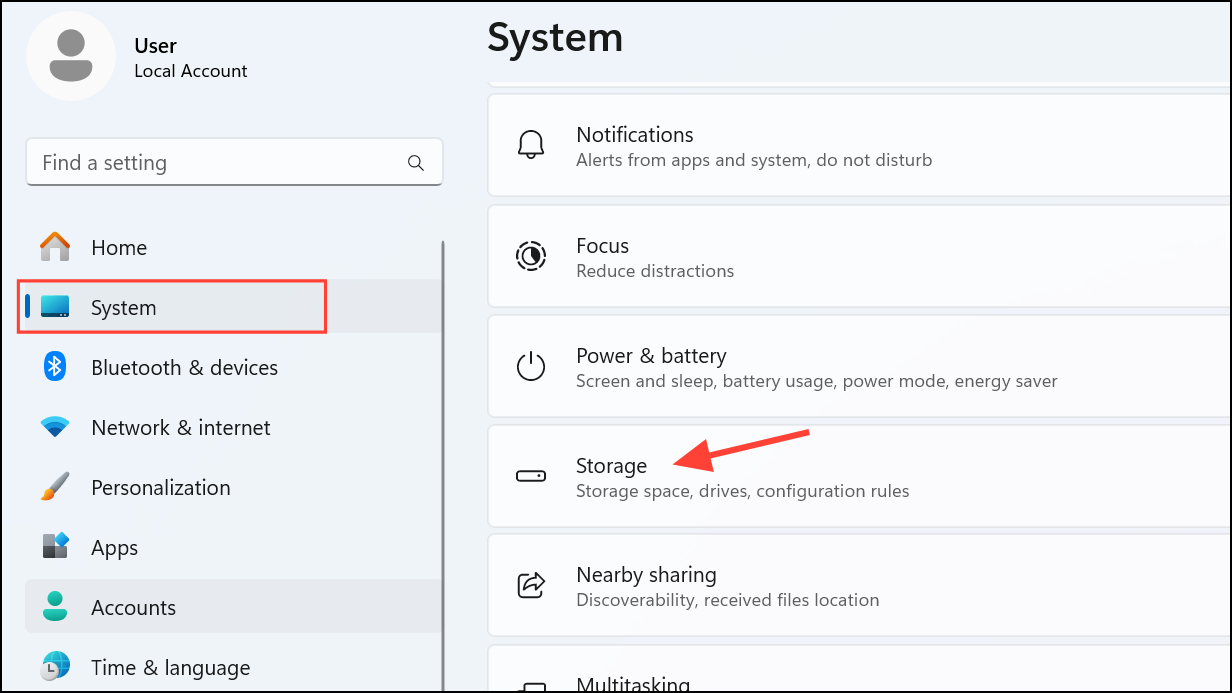
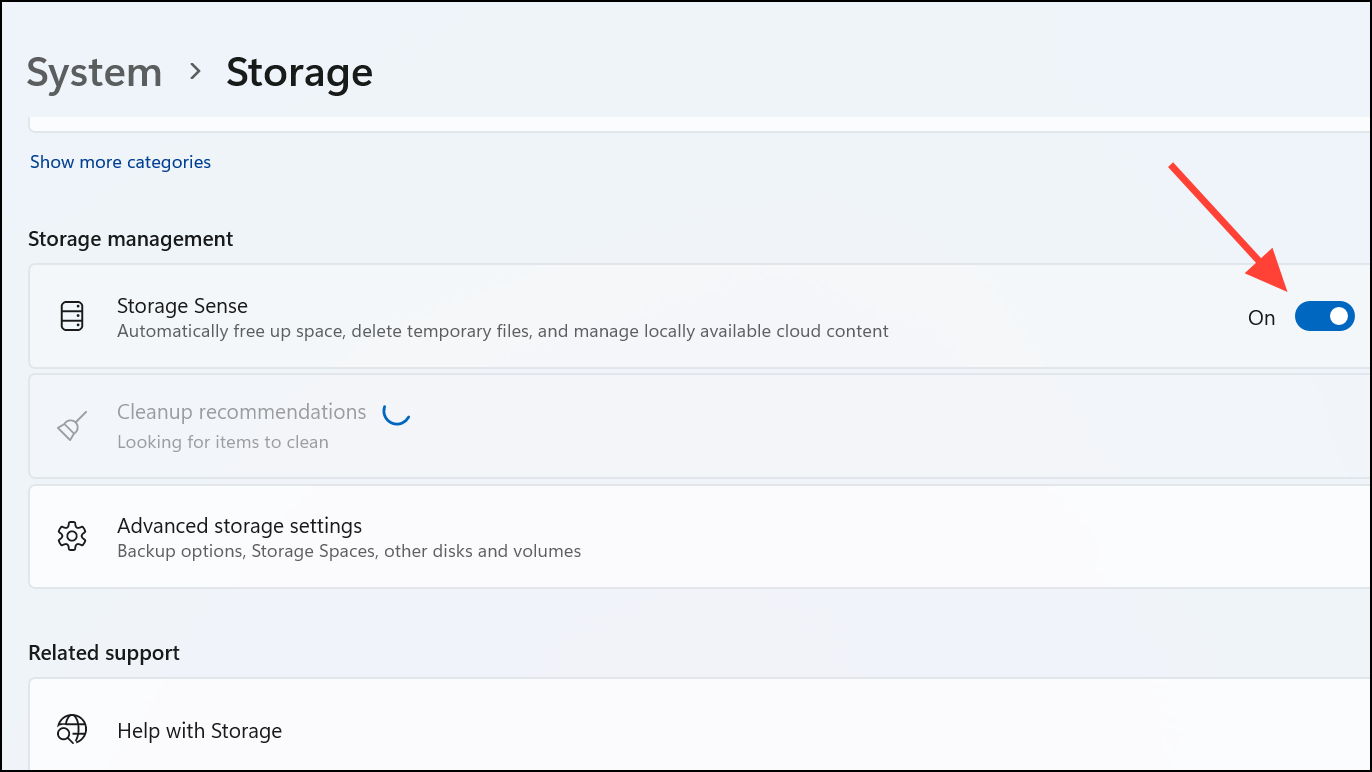
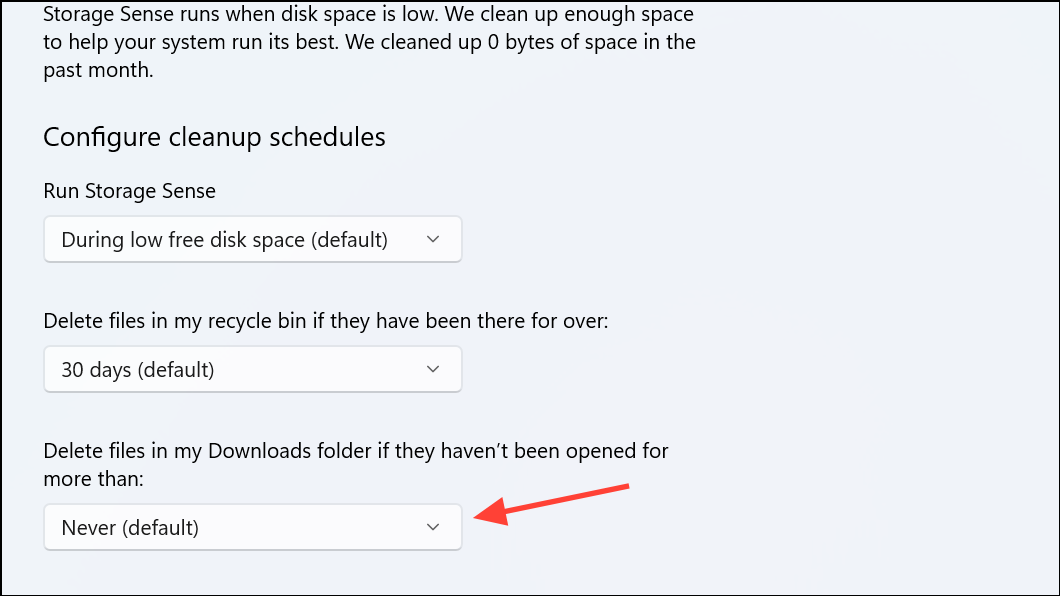
Automate Download Folder Cleanup with Storage Sense
Even after moving your Downloads folder, old files can accumulate and fill up your new drive. Windows 11 offers a feature called Storage Sense that periodically deletes unused files from the Downloads folder and other temporary locations. This tool is especially useful for keeping storage usage low without manual intervention.
Alternative Methods: Registry Edits and Symbolic Links
Advanced users may prefer to redirect the Downloads folder using Windows Registry edits or symbolic links. These approaches provide more control but carry risks if not done carefully. Editing the registry incorrectly can cause system instability, and symbolic links may confuse some applications.
To change the Downloads folder via the registry, update the HKCU\Software\Microsoft\Windows\CurrentVersion\Explorer\User Shell Folders entry for Downloads to your desired path. Always back up the registry before making changes. For symbolic links, you can use the mklink command in Command Prompt to point the original Downloads folder to a new location, but this method is best reserved for experienced users.
Moving your default Downloads folder in Windows 11 streamlines file management, keeps your system drive clear, and improves update reliability. Adjusting browser settings and automating cleanup with Storage Sense further simplifies the process, making your PC run smoother with less effort.



