
Repeated “Undoing changes made to your computer” messages during Windows 11 updates signal that the update process cannot finish and is rolling back. This issue often blocks access to critical security patches or new features, and can leave your system less stable or secure. The most effective way to resolve this is by directly addressing system file corruption and update component issues, then moving on to other possible causes like disk space, driver conflicts, or hardware compatibility.
Repair System Corruption and Reset Update Components
Command Prompt as an administrator. Type the following command and press Enter:DISM.exe /Online /Cleanup-Image /RestoreHealth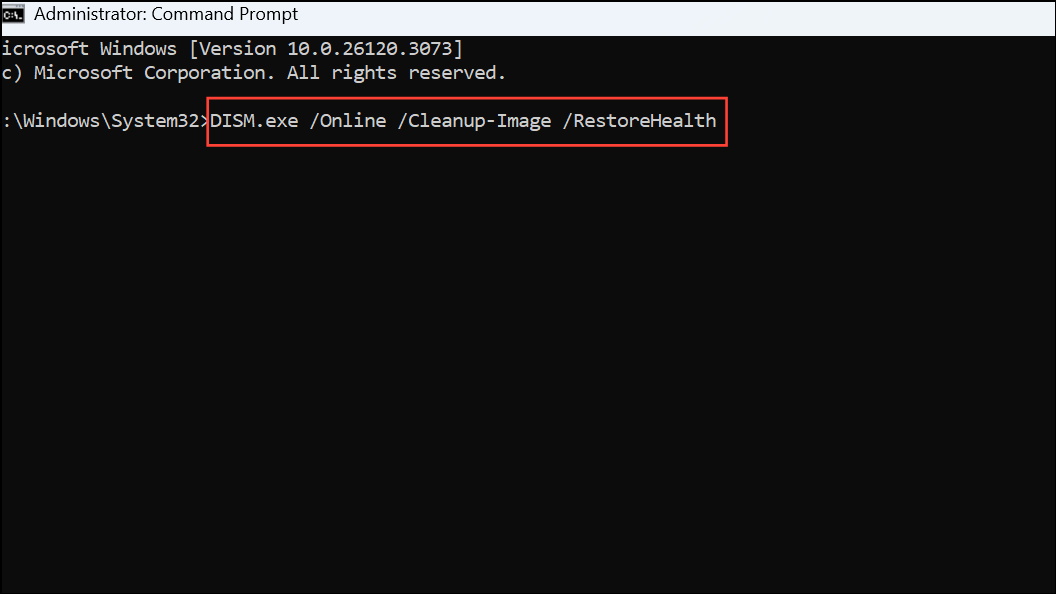
This process may take several minutes and will attempt to restore the integrity of the Windows image. After it finishes, run the next command:
sfc /scannow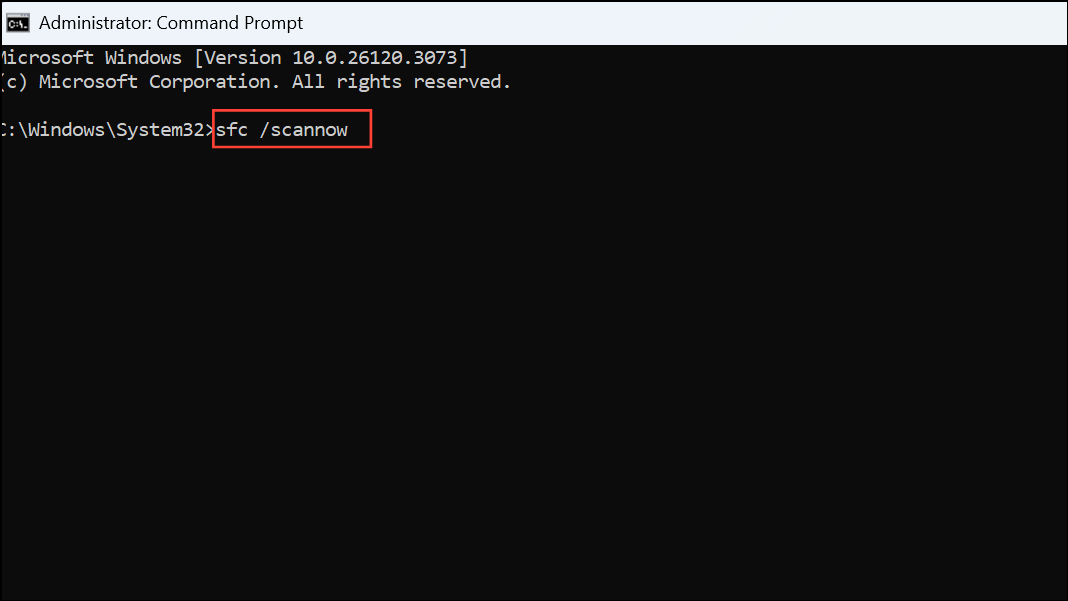
SFC will scan and repair any corrupted system files. When both scans are complete, sign out and reboot your PC to apply the repairs. This step often resolves update rollback issues caused by file corruption.
Command Prompt as an administrator and enter the following commands one by one, pressing Enter after each:net stop wuauserv
net stop cryptSvc
net stop bits
net stop msiserver
ren C:\Windows\SoftwareDistribution SoftwareDistribution.old
ren C:\Windows\System32\catroot2 catroot2.old
net start wuauserv
net start cryptSvc
net start bits
net start msiserver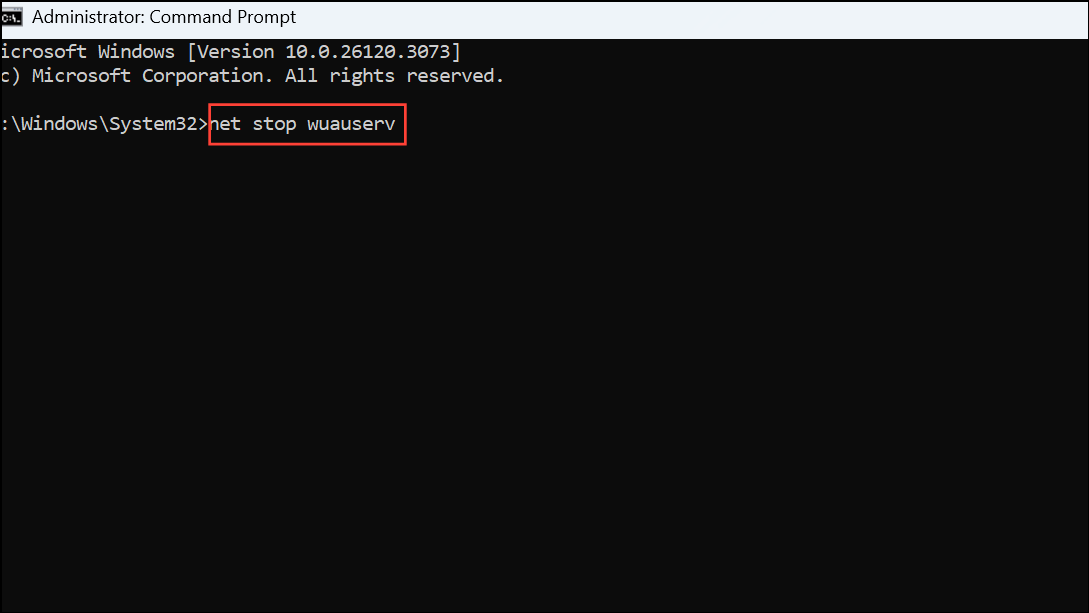
Restart your computer and attempt the update again. Resetting these components can resolve persistent update failures that cause Windows to revert changes.
Free Up Disk Space
Settings and go to System > Storage. If your drive is nearly full, Windows updates may fail due to insufficient space.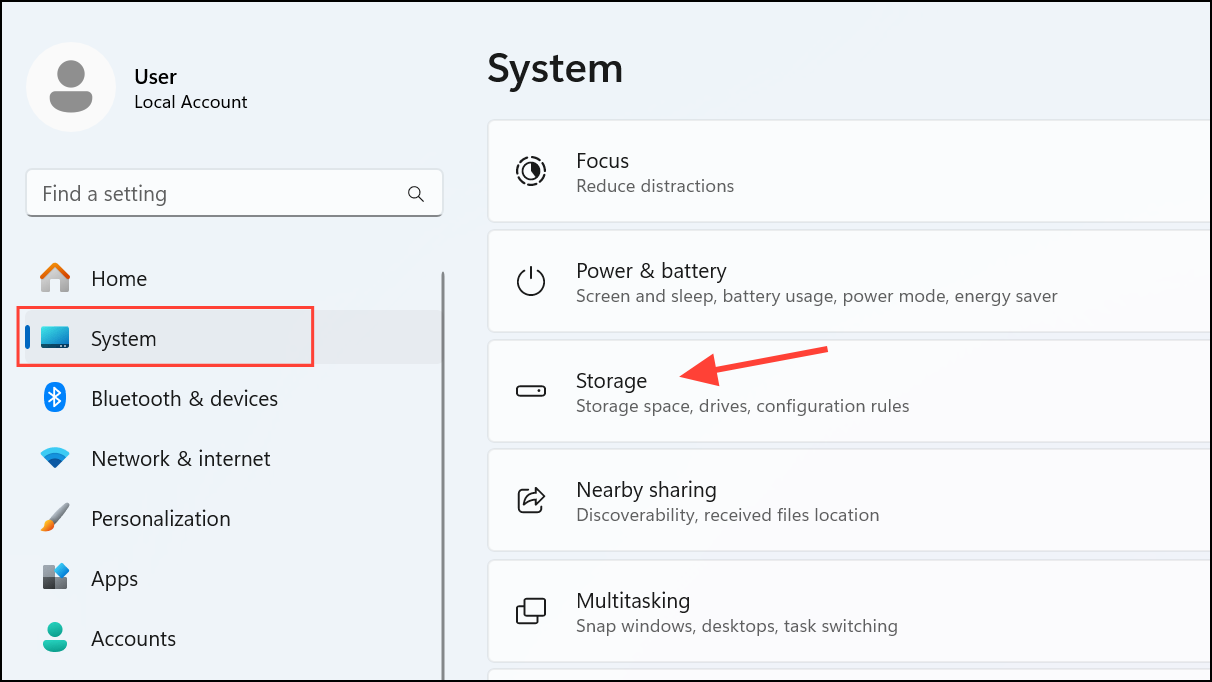
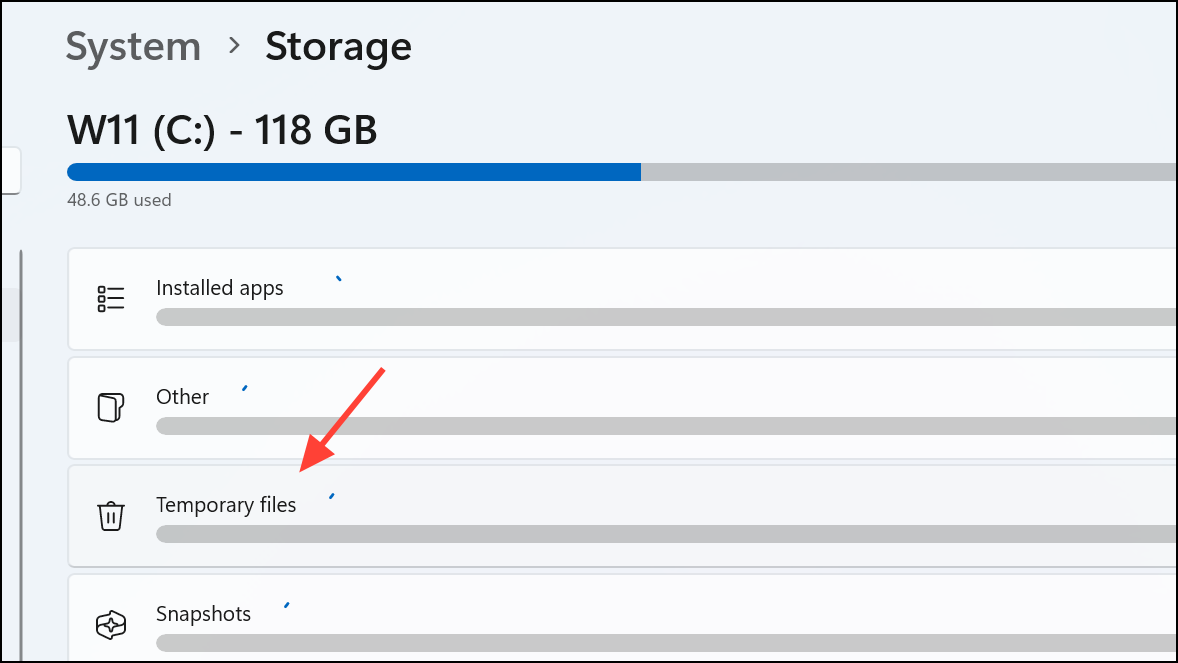
Disk Cleanup by pressing Win + R, typing cleanmgr, and pressing Enter. Delete old update files and other unnecessary data. Reboot and try the update again.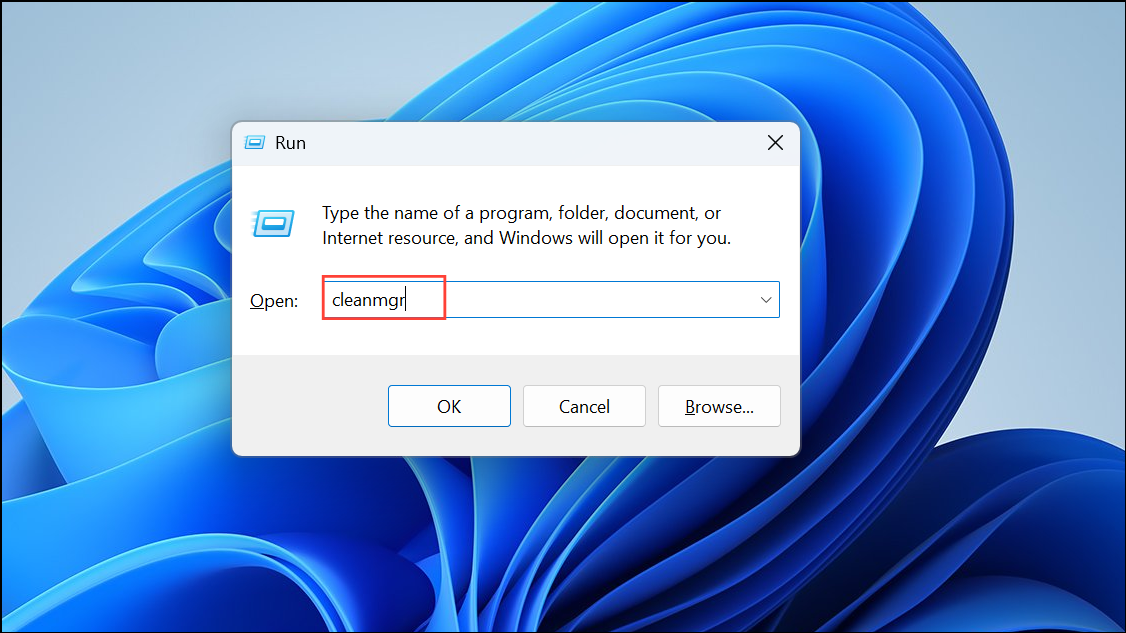
Run Windows Update Troubleshooter
Use the built-in Windows Update Troubleshooter to automatically detect and fix common update issues.
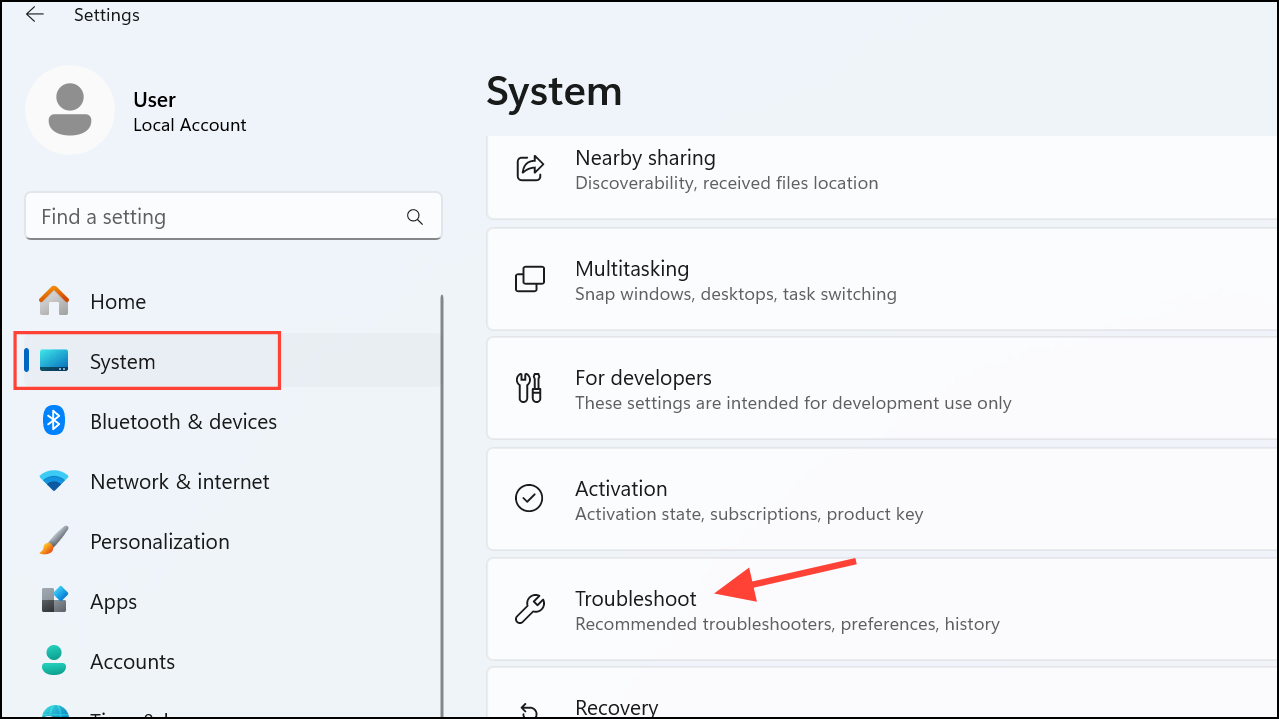
Other troubleshooters, and then Run next to Windows Update. Follow the prompts and apply any recommended fixes.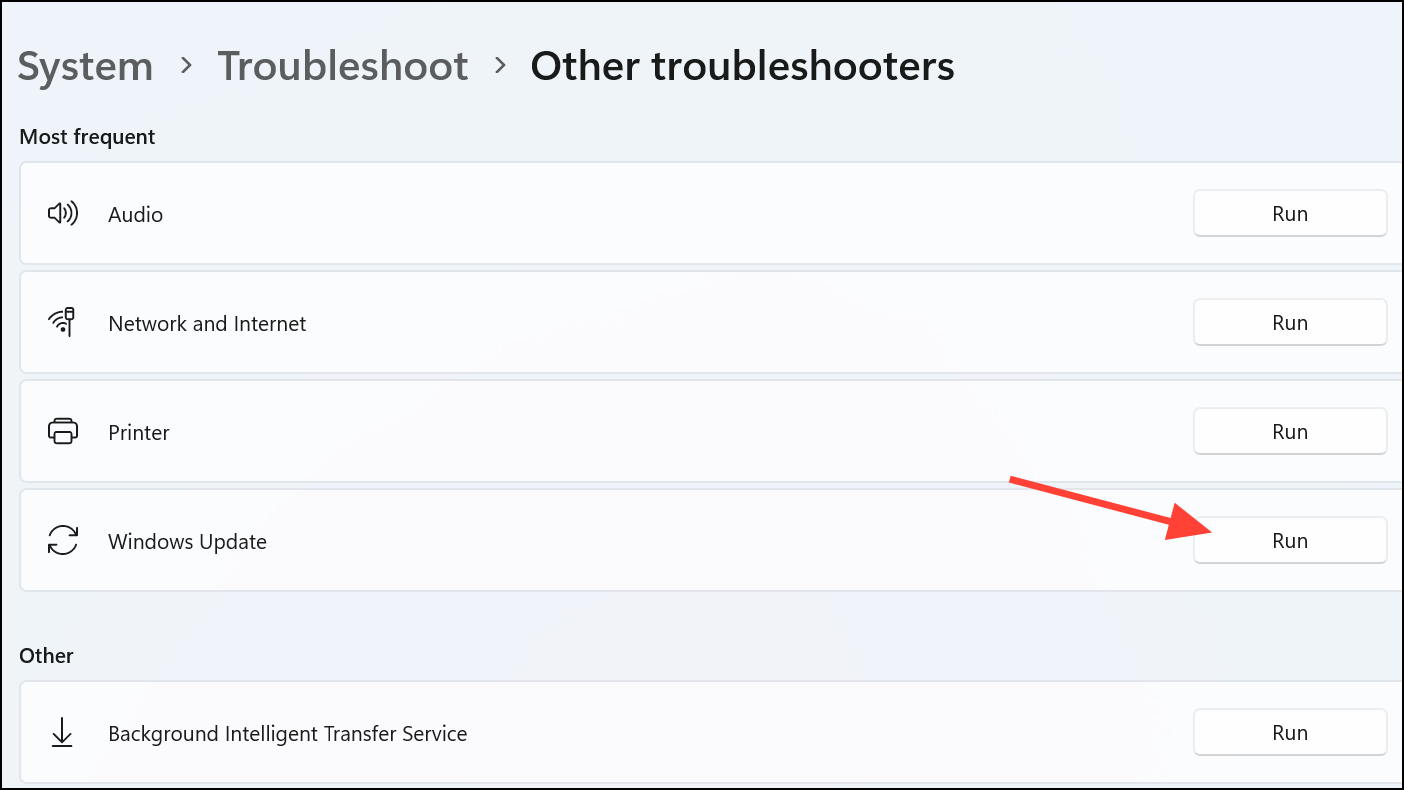
Uninstall Conflicting Updates or Drivers
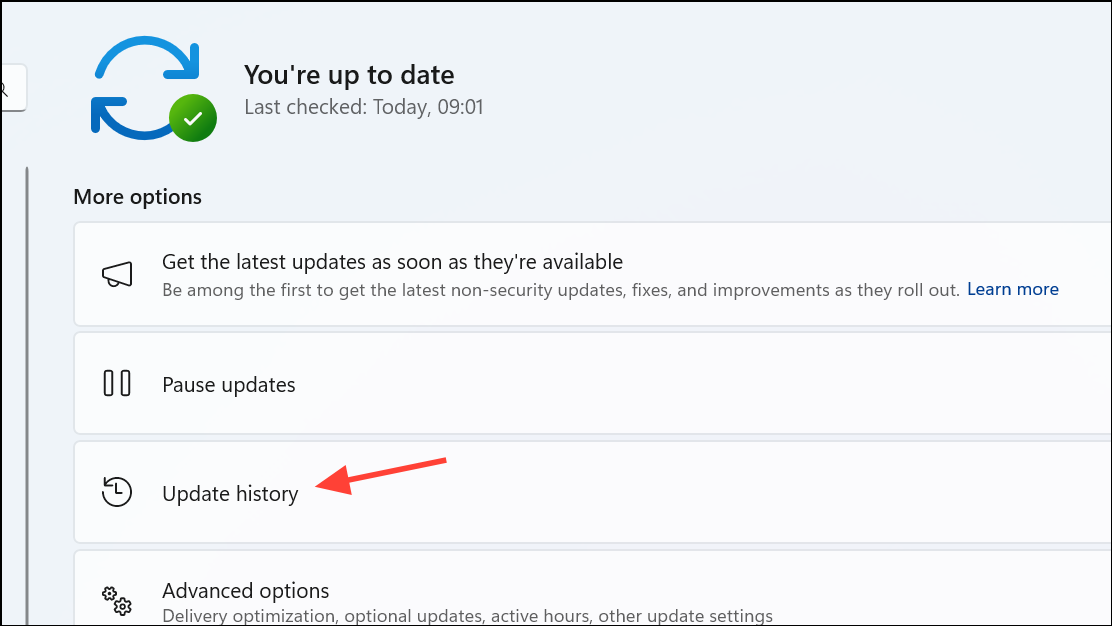
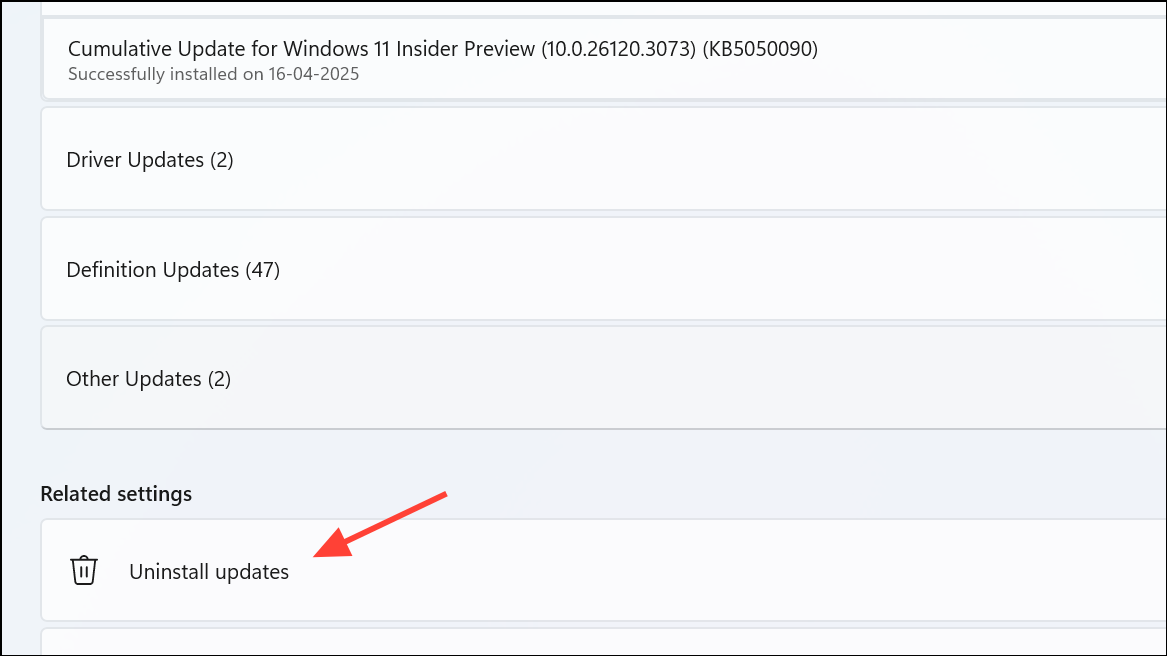
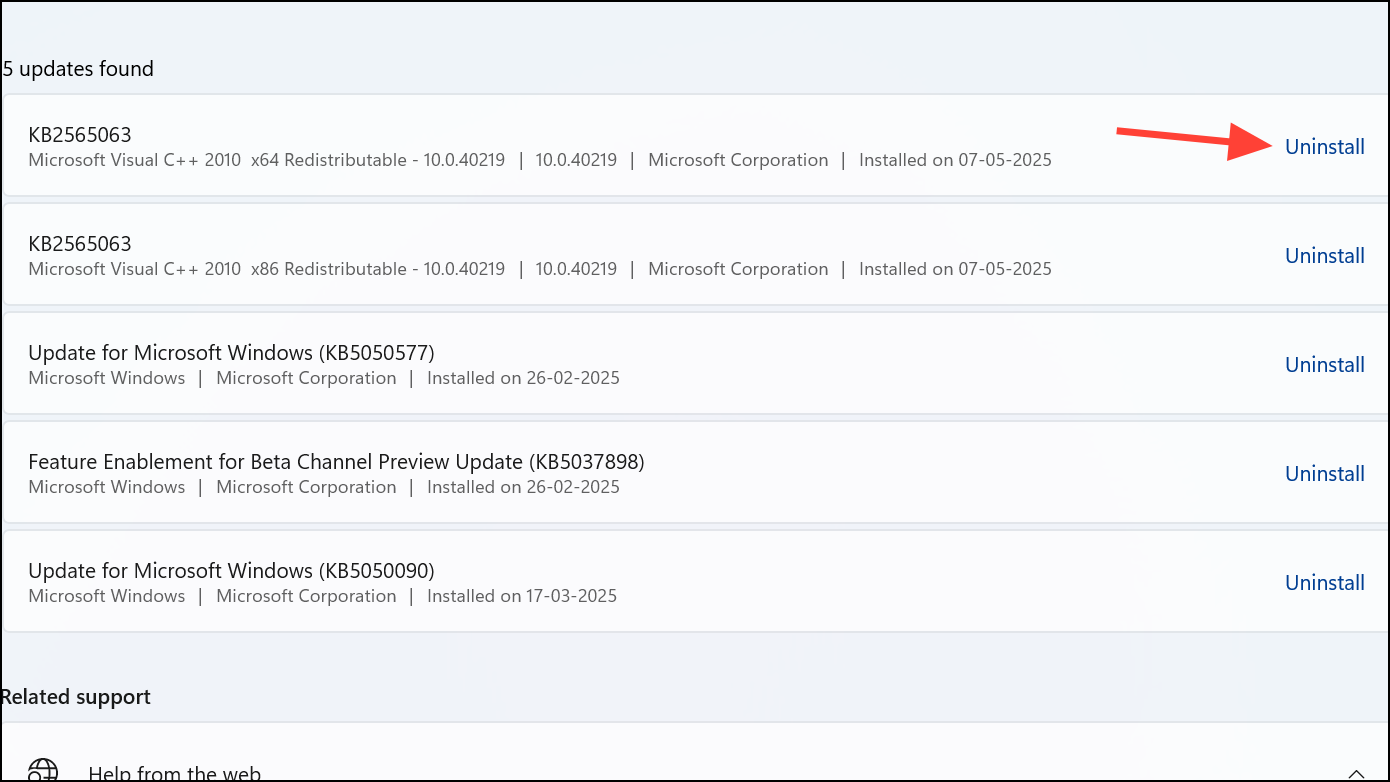
Perform a Clean Boot
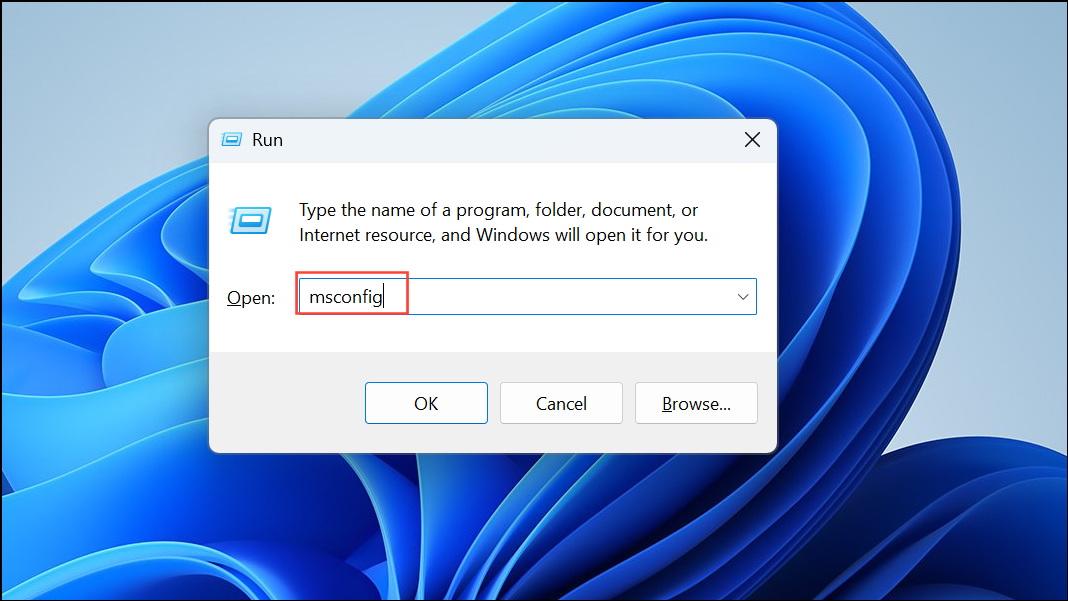
Services tab on the System Configuration dialog box, check Hide all Microsoft services and click Disable all.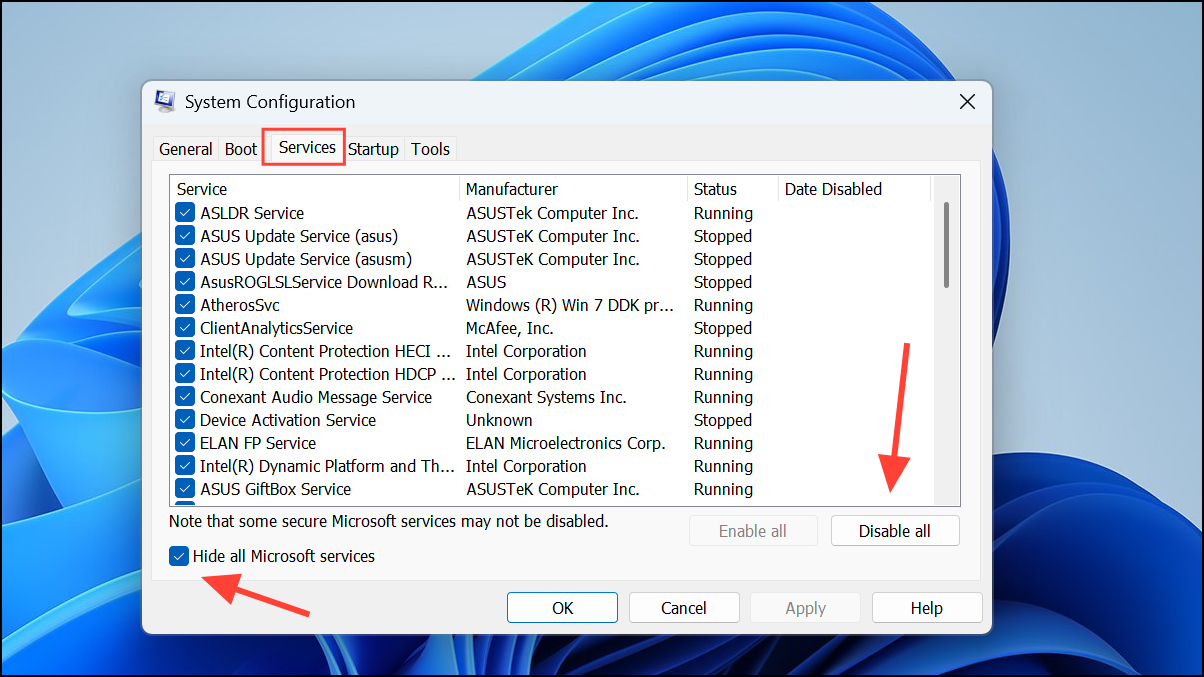
Startup tab, open Task Manager, and disable all startup programs by right-clicking and selecting Disable. Restart your PC and attempt the update.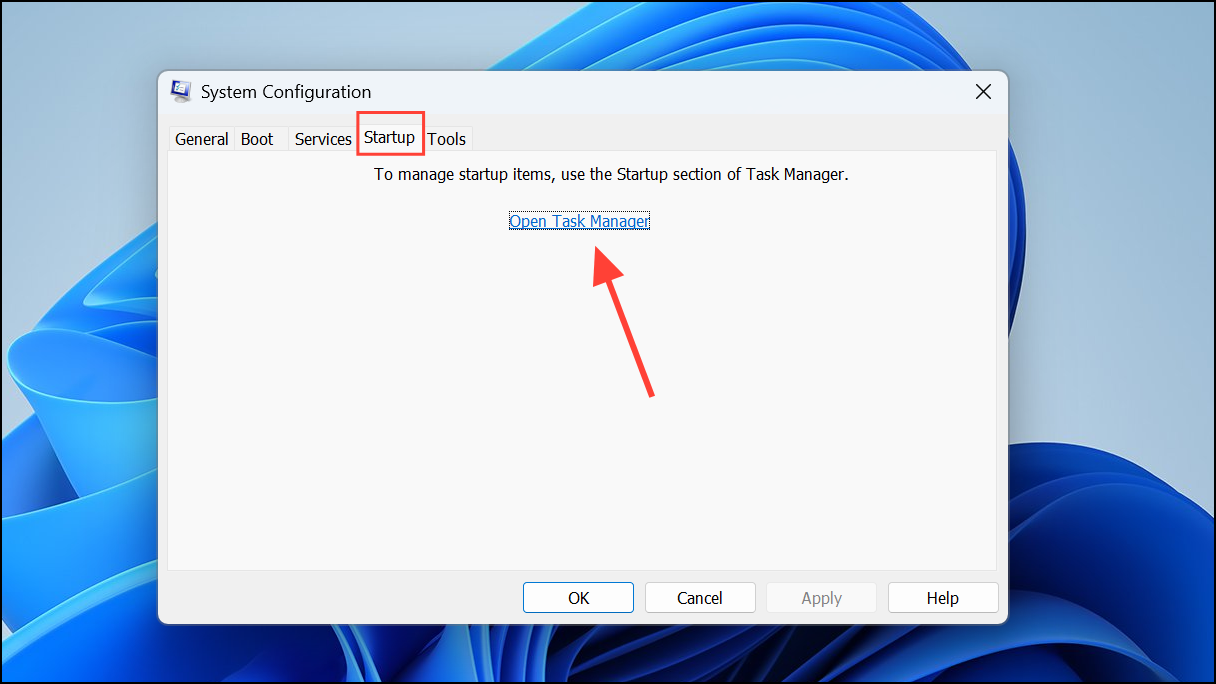
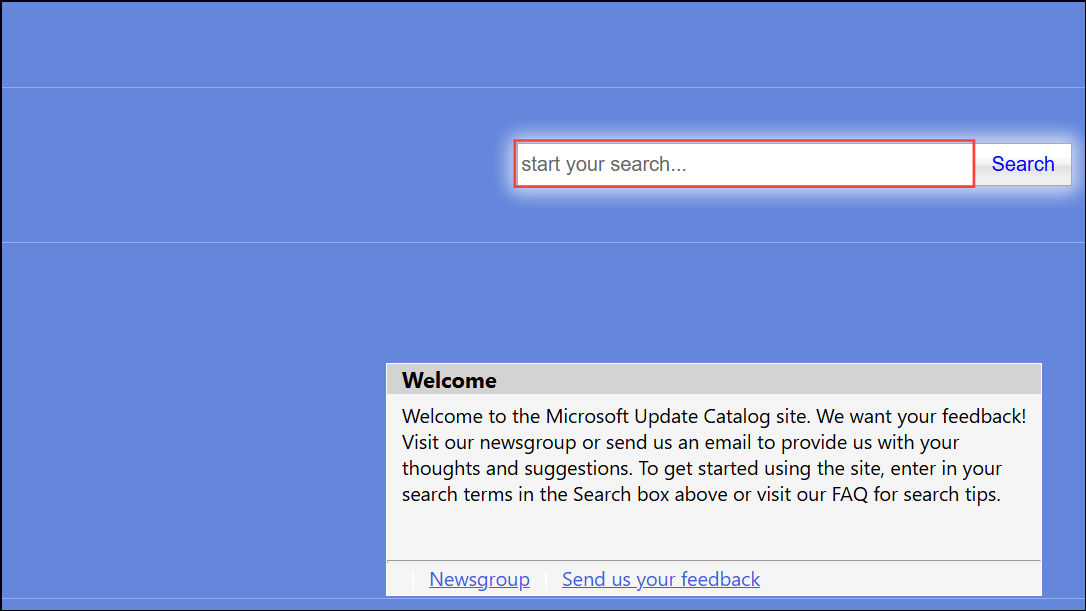
Manually Install Updates
Download and install updates directly from the Microsoft Update Catalog if automatic updates keep failing.
Address Hardware Compatibility and BIOS Issues
Updates can fail and revert if recent hardware changes (such as CPU upgrades) have not been fully recognized by Windows. Make sure all device drivers are up to date, and check your motherboard manufacturer’s website for BIOS updates. Sometimes, performing a fresh Windows installation after major hardware changes resolves persistent update failures.
Perform an In-Place Upgrade
If none of the above methods work, use the Windows Media Creation Tool to perform an in-place upgrade.
Completing these steps should resolve most Windows 11 update rollback problems. If updates still fail, consider checking for specific hardware compatibility issues or seeking help from Microsoft support forums for more targeted troubleshooting.



