
Windows 11 often prioritizes PIN login through Windows Hello, making it difficult to use a traditional password or set up automatic sign-in. When the system disables password options or greys out the PIN removal button, users lose flexibility in how they access their devices. This guide details practical steps to disable PIN login and regain control over your preferred sign-in method.
Remove PIN Login When the Option Is Greyed Out
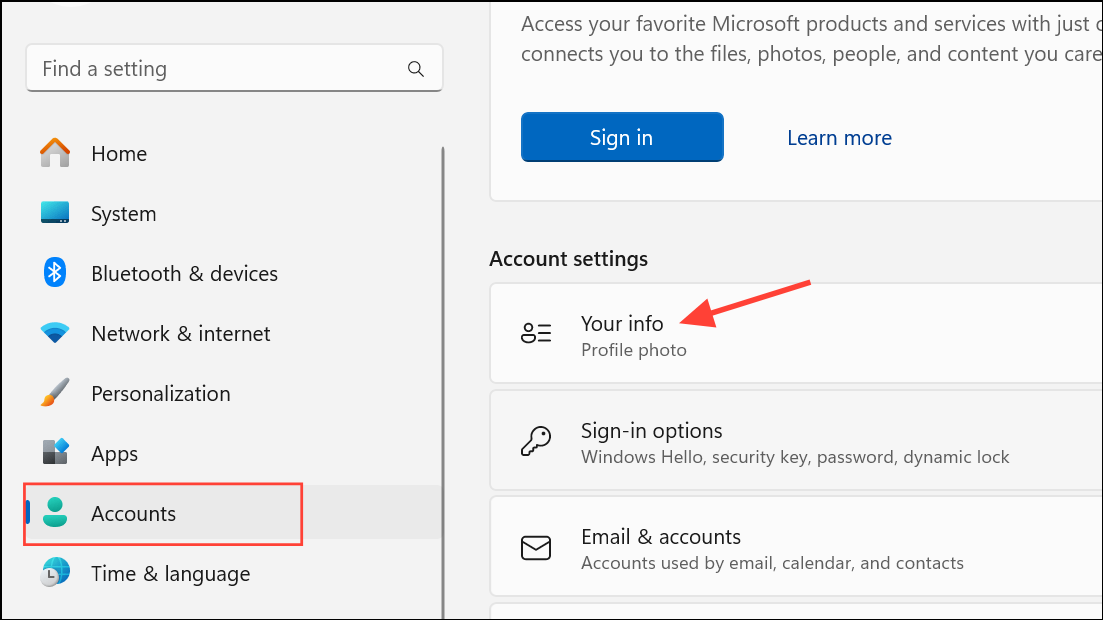
Settings by pressing Windows + I. Navigate to the Accounts section, then select Sign-in options.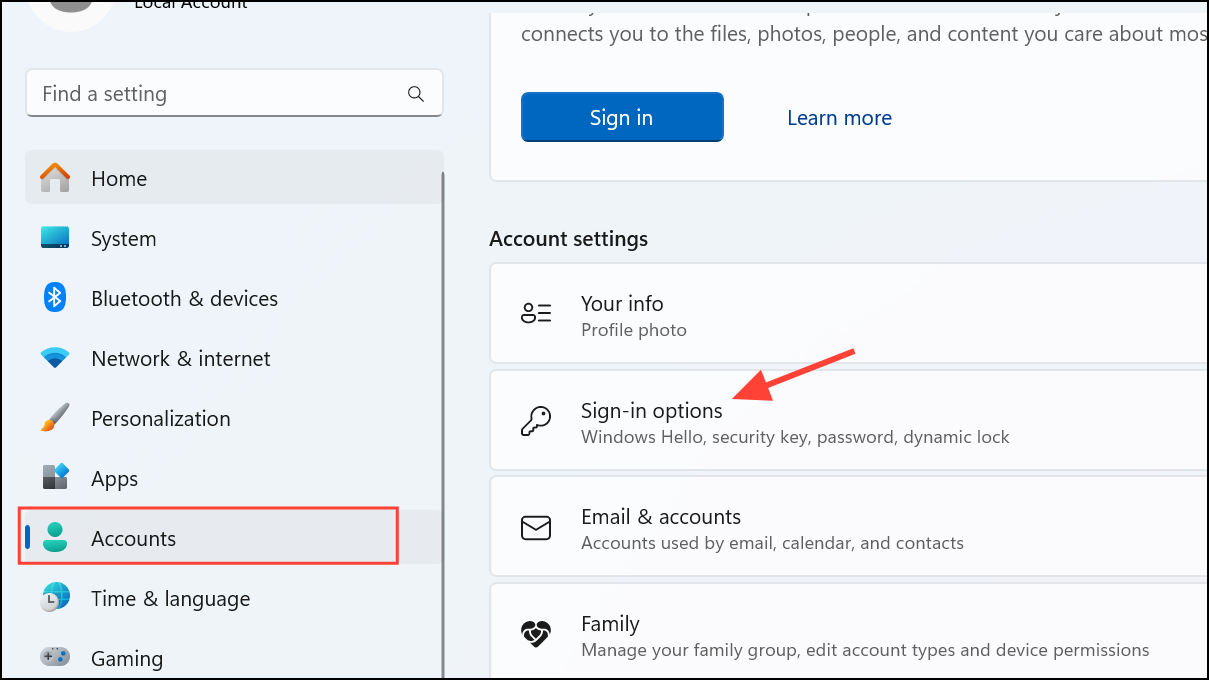
For improved security, only allow Windows Hello sign-in for Microsoft accounts on this device (Recommended). Toggle this setting off. Disabling this option is necessary because Windows 11 will otherwise force you to use PIN or biometric sign-in methods, and the PIN removal button will remain unavailable.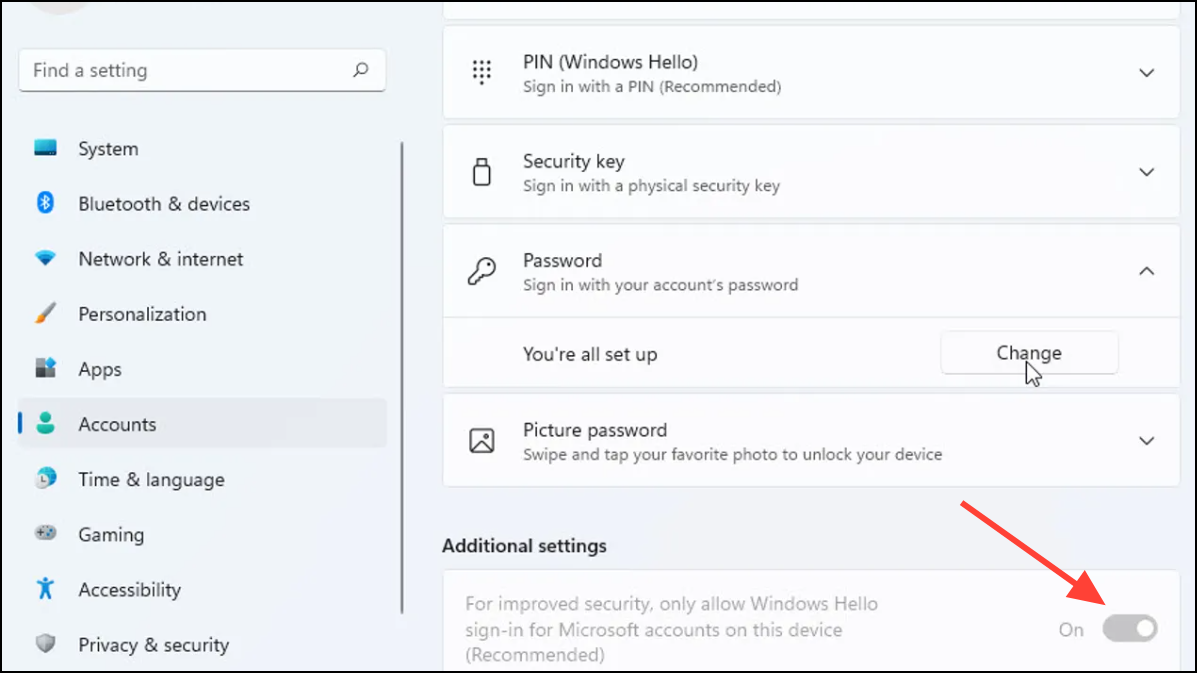
Sign-in options page. Under PIN (Windows Hello), click Remove. When prompted, enter your account password to confirm. This action removes the PIN requirement, and you will be able to use your password for login.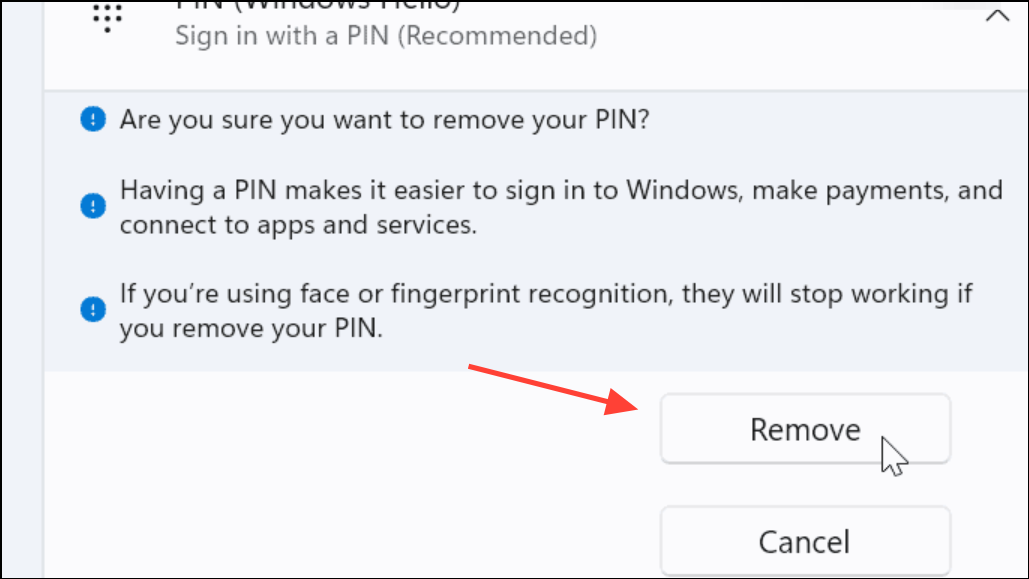
Windows may require a restart or for you to close and reopen the Settings app for these changes to take effect. If the Remove button is still greyed out, review the next method to check for passwordless account settings at the Microsoft account level.
Disable Passwordless Login at the Microsoft Account Level
Some users find that even after toggling off Windows Hello sign-in requirements, the PIN removal option remains unavailable. This can happen if passwordless login is enabled on your Microsoft account, which forces the use of PIN or biometrics.
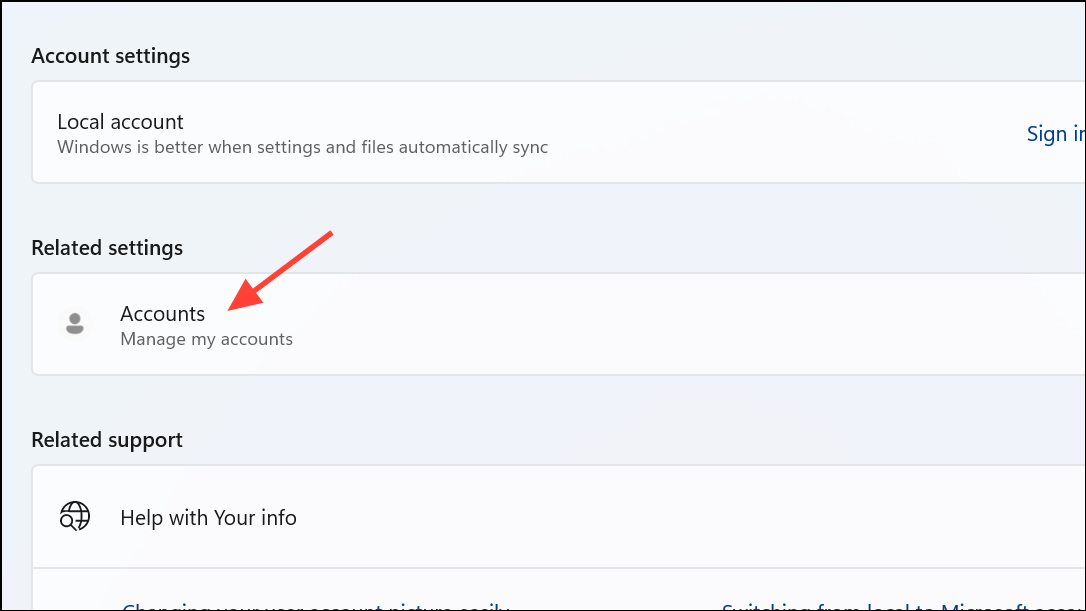
Security tab, then choose Advanced security options.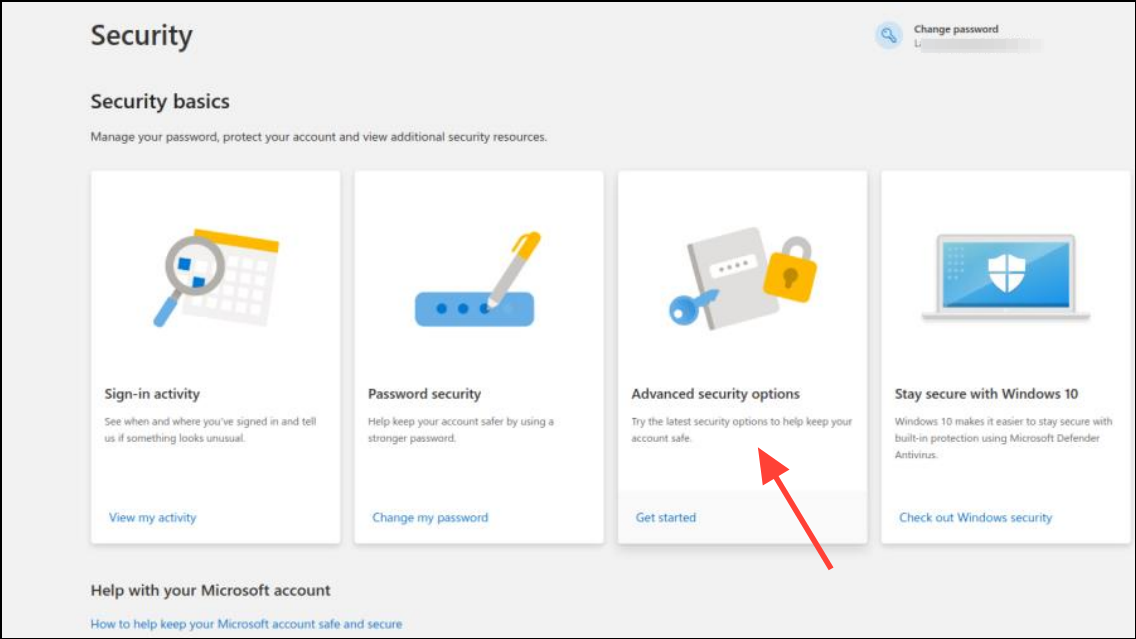
Passwordless account setting under Additional security. Turn off this feature and follow any on-screen prompts. Once disabled, return to your device and repeat the steps in the previous section to remove the PIN login.This process restores the ability to use a password for signing in, giving you more flexibility in how you access your device.
Set Up Automatic Login Without PIN or Password
For users who want their device to boot directly to the desktop without any sign-in prompt, configuring automatic login is possible once PIN requirements are removed.
Windows + R to open the Run dialog, type netplwiz, and press Enter. This opens the User Accounts window.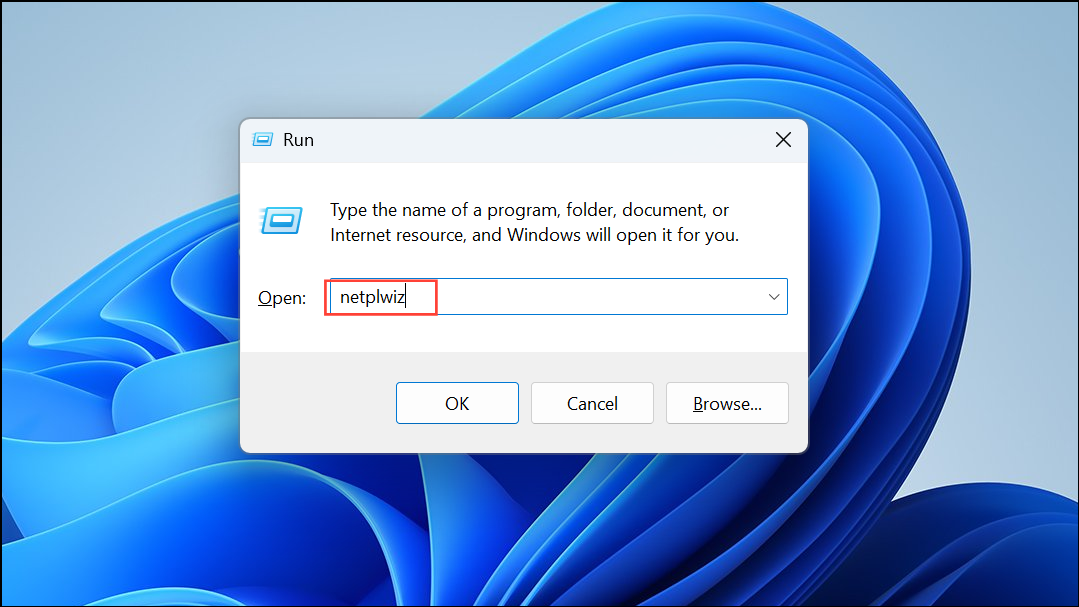
Users must enter a user name and password to use this computer. Click Apply.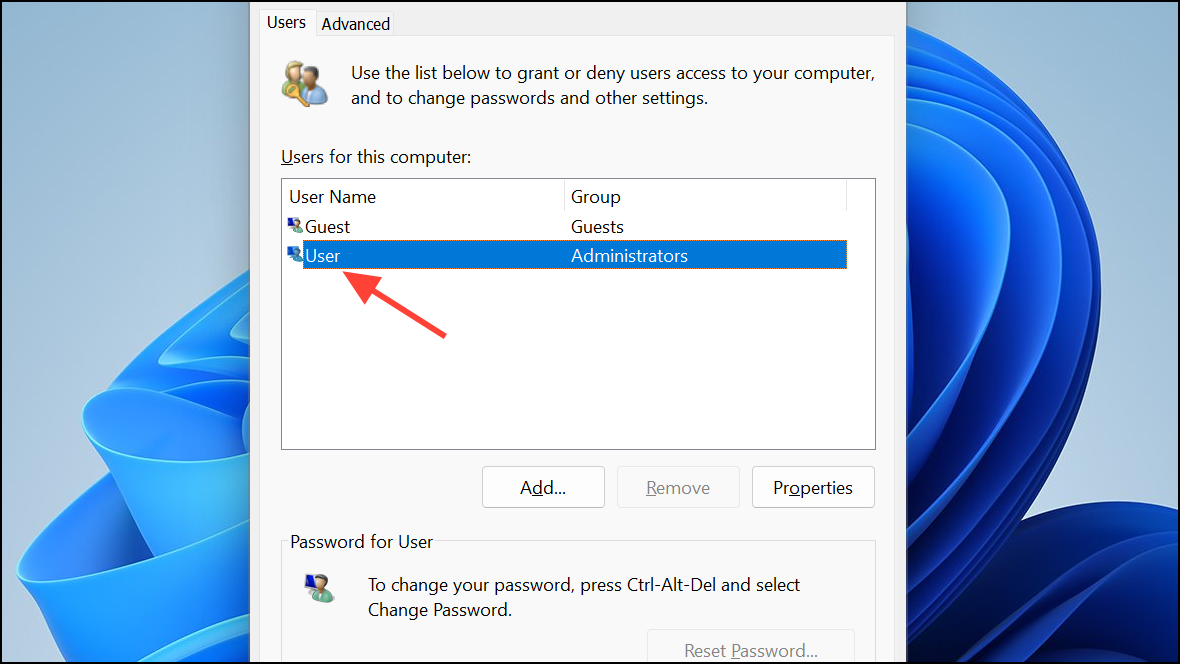
If the checkbox is missing, ensure that Windows Hello sign-in for Microsoft accounts is disabled as described in the first method. This option is hidden if Windows Hello is enforced.
Switch to a Local Account for Complete Sign-In Removal
Microsoft accounts often enforce sign-in requirements for security and synchronization features. Switching to a local account removes these restrictions, allowing you to set a blank password or configure automatic login.
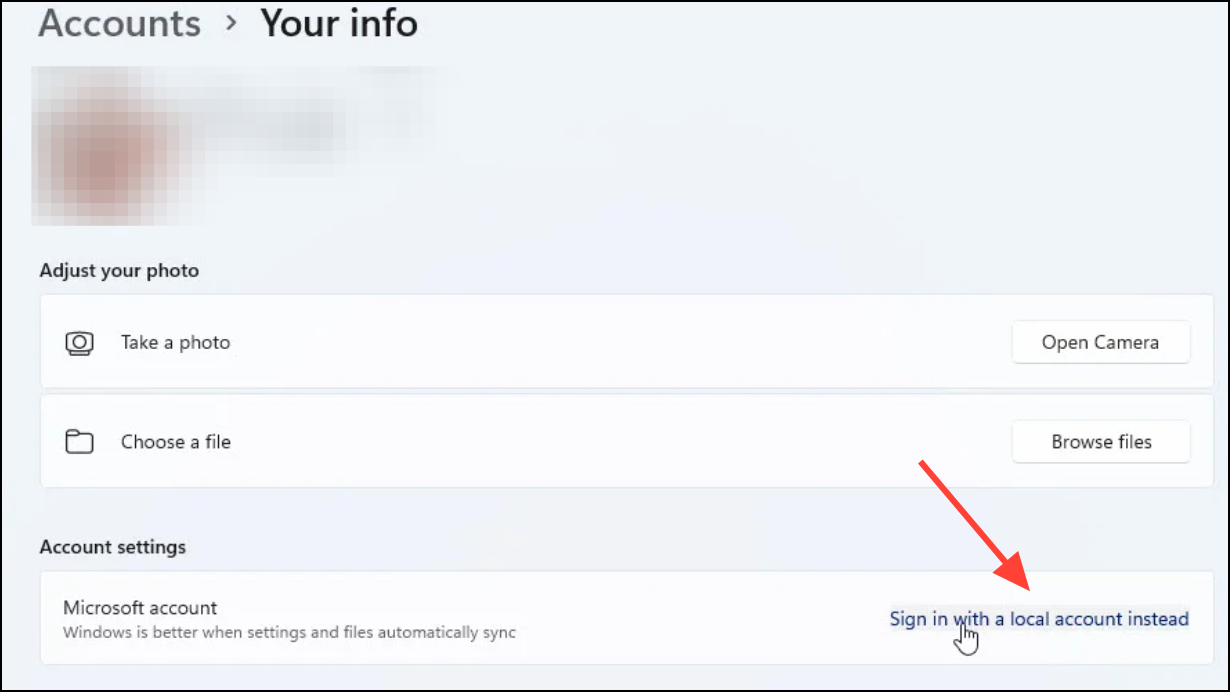
netplwiz to set up automatic login, as described earlier.Alternative: Remove PIN Using Third-Party Tools
When built-in options fail, such as in cases of forgotten PINs or persistent greyed-out settings, third-party utilities like EaseUS Partition Master’s Password Reset feature can remove PIN or password requirements. This method involves creating a bootable USB, starting the locked PC from that USB, and using the tool to reset or remove PIN credentials. This solution is especially useful if you’re locked out or standard Windows settings are inaccessible.
Always use reputable software and back up important data before making changes with third-party tools.
Restoring password login or setting up automatic sign-in on Windows 11 requires disabling enforced PIN requirements through system settings and, if necessary, making changes at the Microsoft account level. These steps simplify device access and let you choose your preferred sign-in method.



