
Sync failures between Microsoft accounts and Windows 11 devices disrupt the transfer of settings, passwords, and personalization across PCs. These problems can leave users with outdated preferences, missing files, or persistent sign-in prompts, resulting in a fragmented experience. Addressing Microsoft account sync issues requires a careful review of account status, system settings, and device policies to restore seamless integration.
Check and Re-Link Your Microsoft Account
Account linkage problems often prevent Windows 11 from syncing preferences, passwords, and personalization. Re-linking the account can resolve underlying authentication or token issues.
Sign in with a local account instead and complete the switch to a local account. Restart your PC after this change to ensure all background processes reset.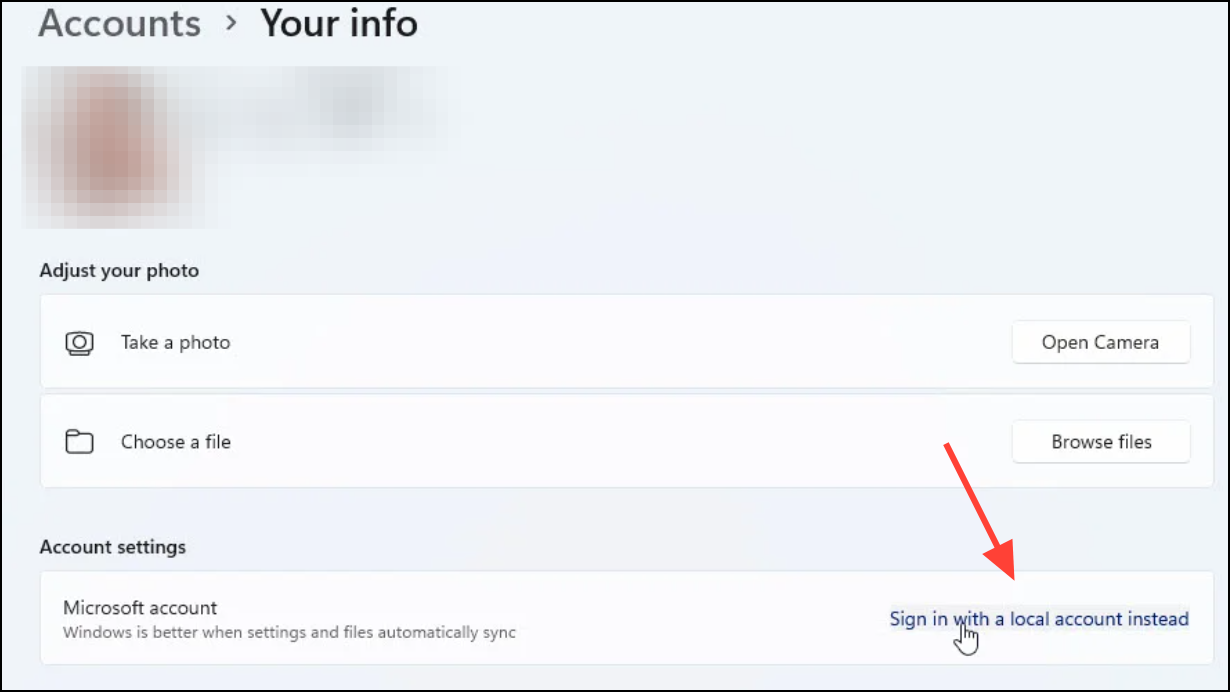
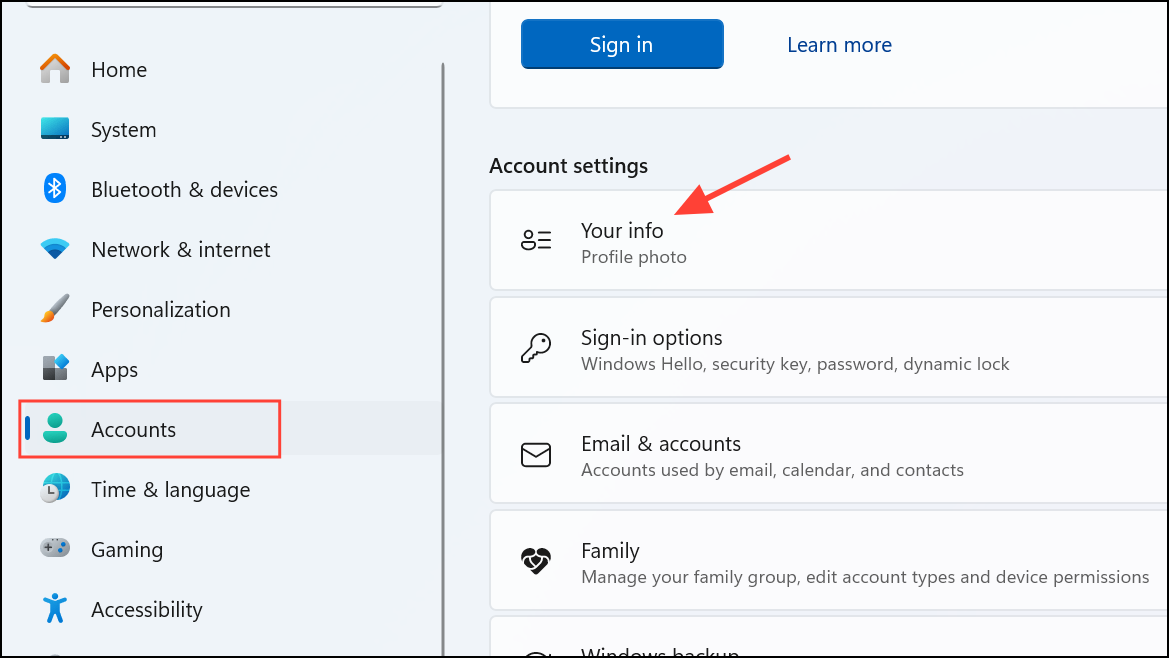
Settings > Accounts > Your info. Click Sign in with a Microsoft account instead and follow the prompts to reconnect your Microsoft account. Restart your device again to finalize the process.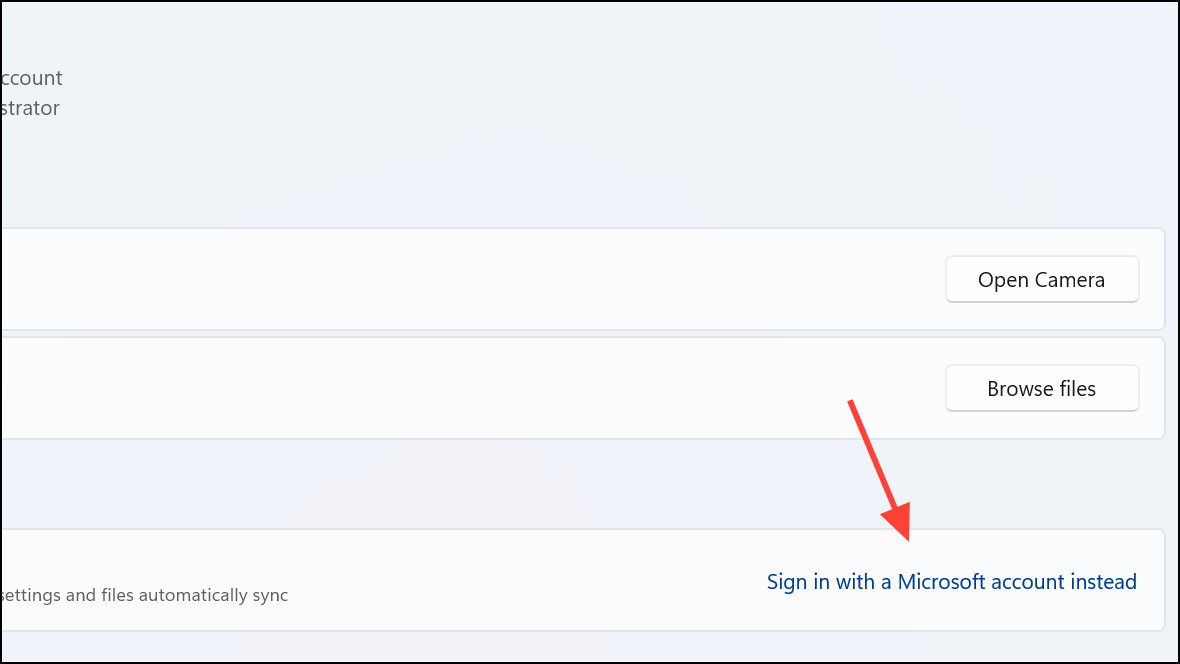
This process refreshes the account token and can resolve issues with profile photo, name, and device sync failures. If the problem persists, proceed to the next method.
Verify and Enable Sync Settings in Windows 11
Windows 11 uses the “Remember my preferences” feature to sync settings across devices. If this is disabled or misconfigured, sync will not function properly.
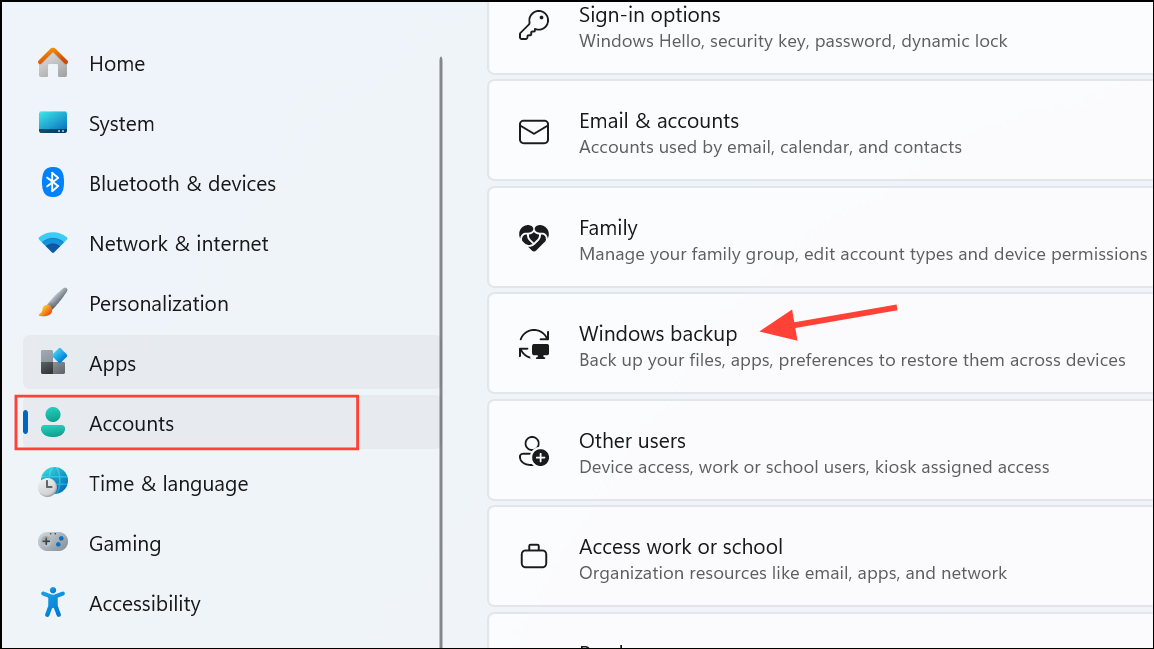
Remember my preferences is toggled ON. Expand this section and select which settings you want to sync, such as passwords, language preferences, and personalization.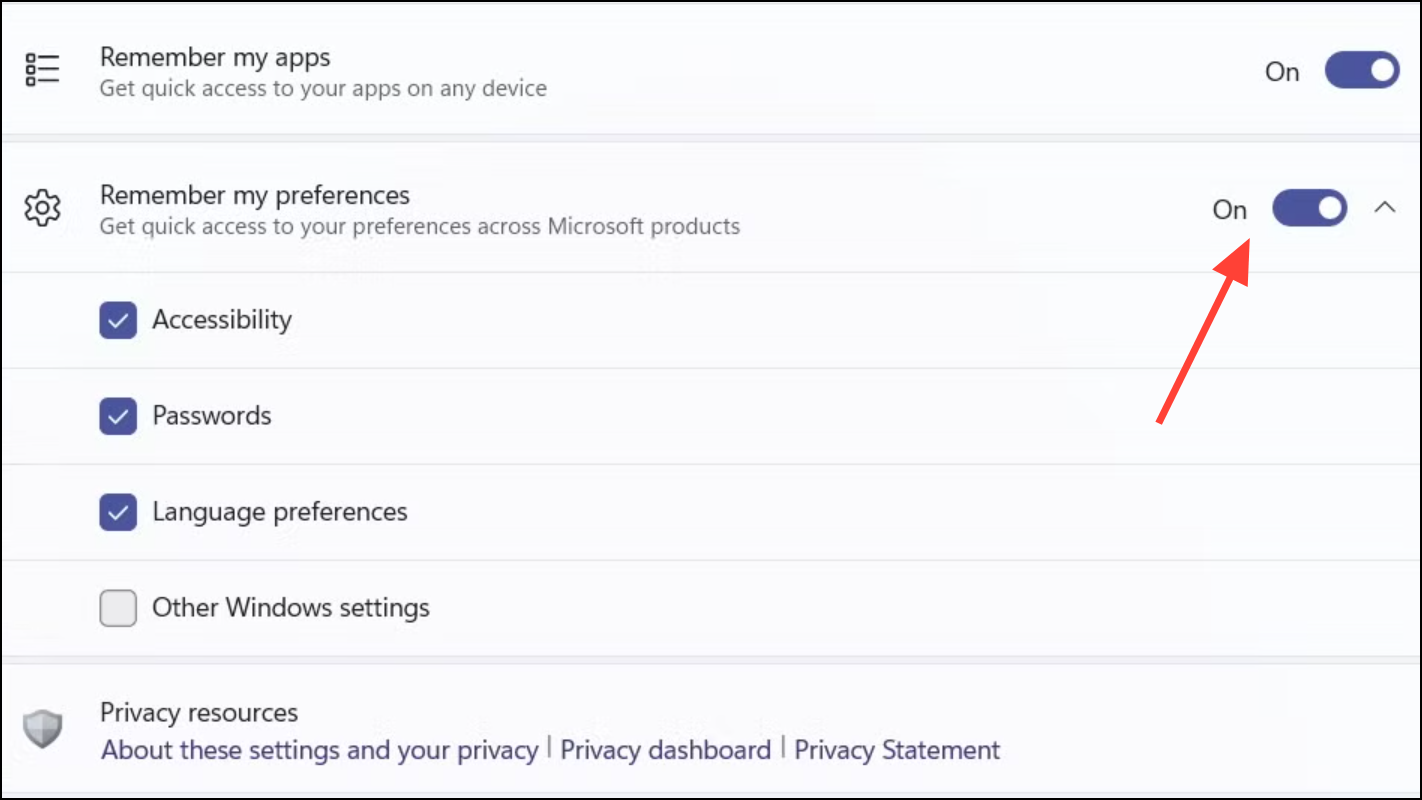
If the toggle is grayed out, group policy or registry settings may be blocking sync. Address these in the next section.
Update Windows 11 to the Latest Version
Outdated system files or pending updates can disrupt Microsoft account integration and sync functionality.
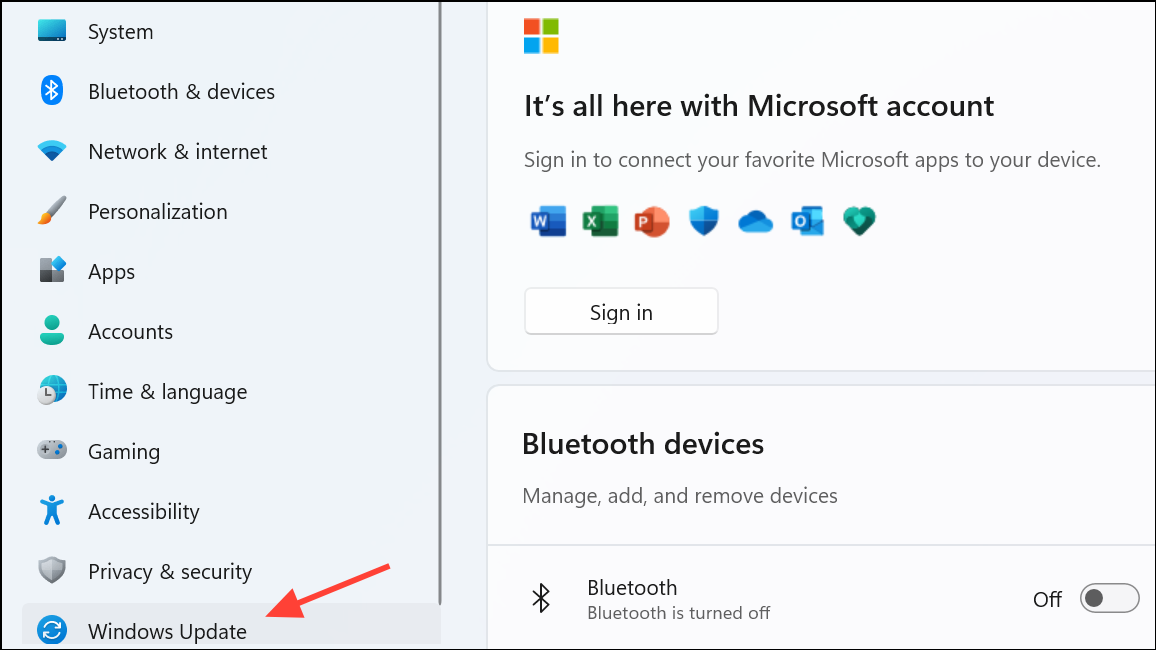
Check for updates and install all available updates. Restart your device to complete the installation.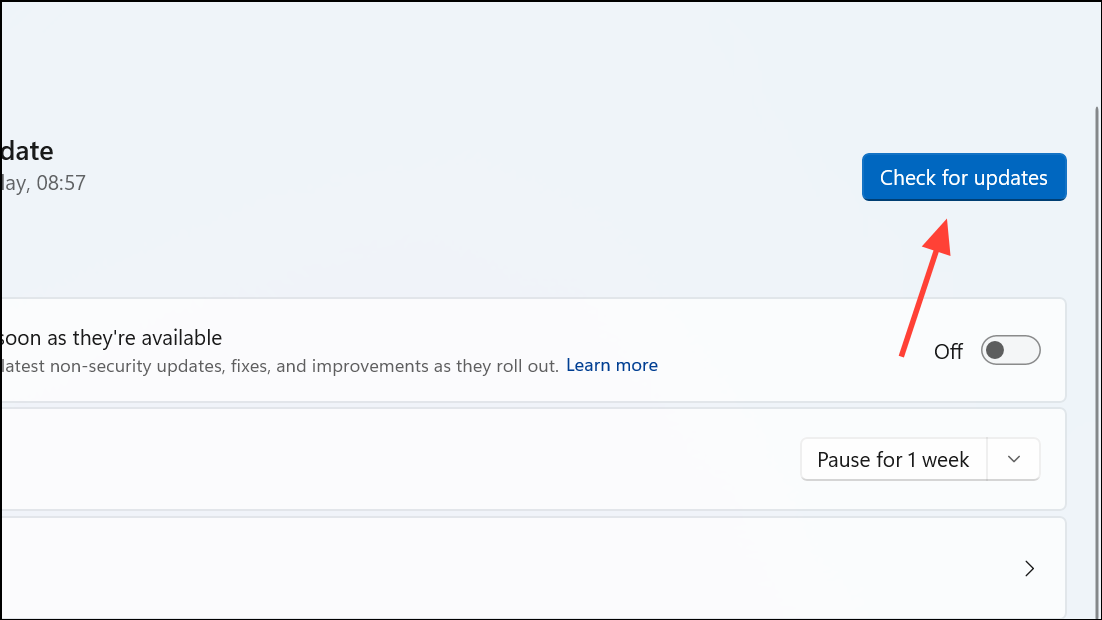
Updating ensures you have the latest bug fixes and compatibility improvements for Microsoft account services.
Unblock or Recover Your Microsoft Account
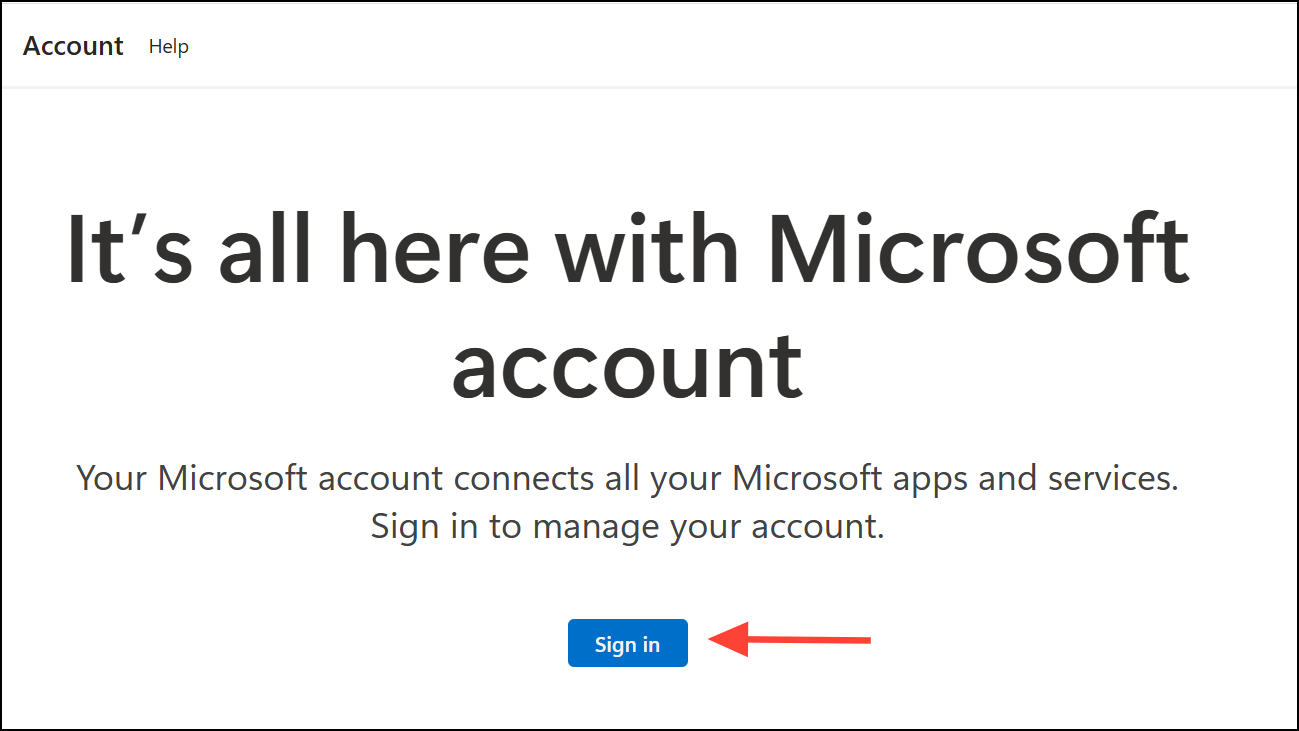
Blocked or compromised accounts cannot sync settings or authenticate with Windows 11. Unblocking restores full functionality.
Check Local Account Policies and Password Settings
Specific account policies, like “Password Never Expires,” can interfere with password sync between your device and Microsoft account, especially on Windows 11 Pro editions.
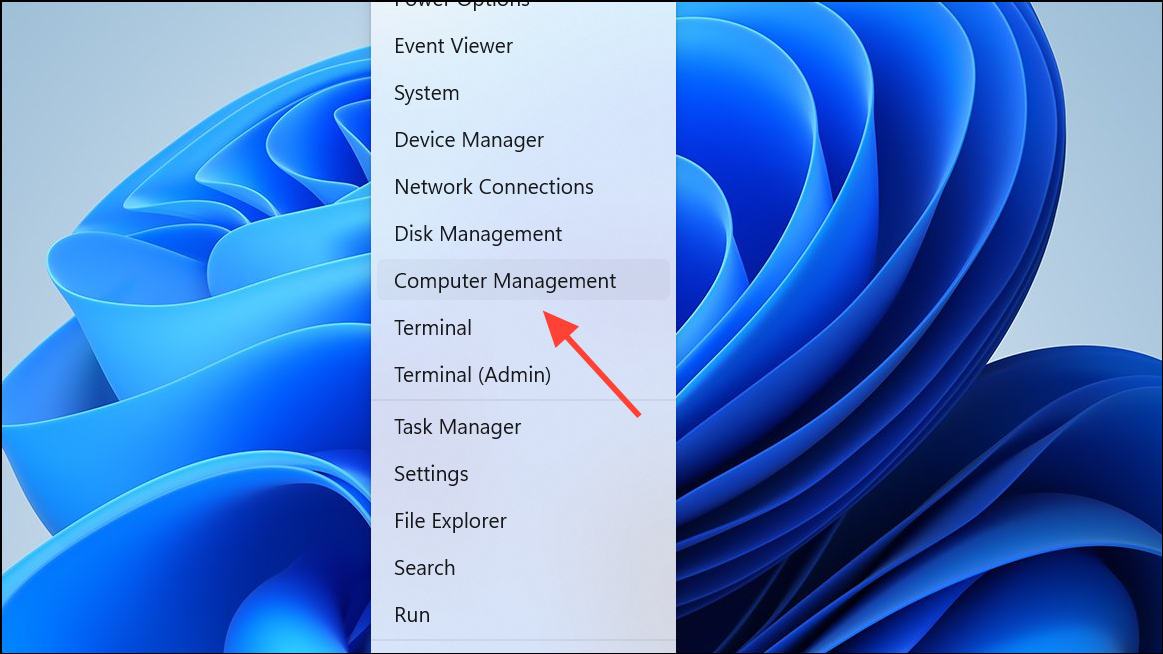
Password Never Expires is checked, uncheck it and click OK. Restart your PC so the password syncs with your Microsoft account.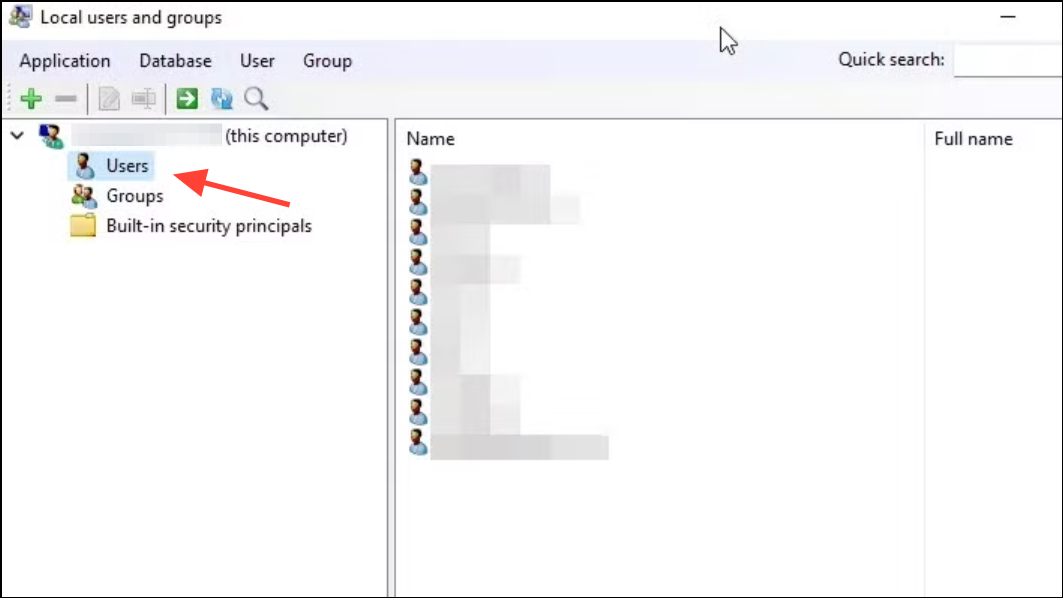
net accounts /maxpwage setting or re-enable “Password Never Expires” after syncing.Enable Sync Settings via Group Policy or Registry Editor
Administrative policies may prevent sync features from being activated. Adjusting these settings can restore sync capability.
Using Local Group Policy Editor (Windows 11 Pro and above)
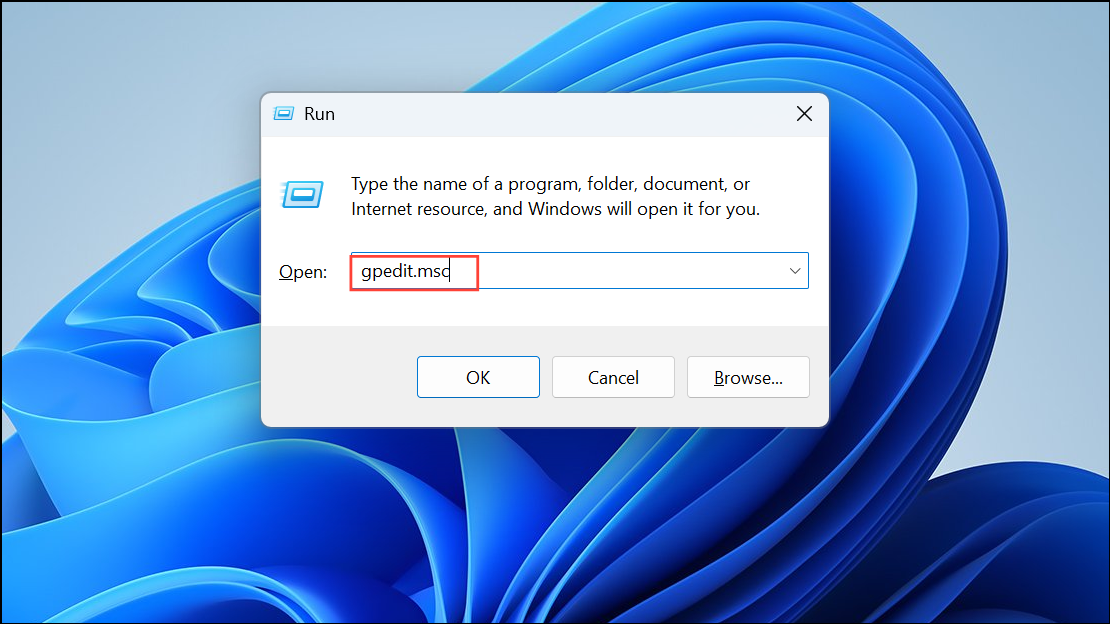
Computer Configuration > Administrative Templates > Windows Components > Sync your settings.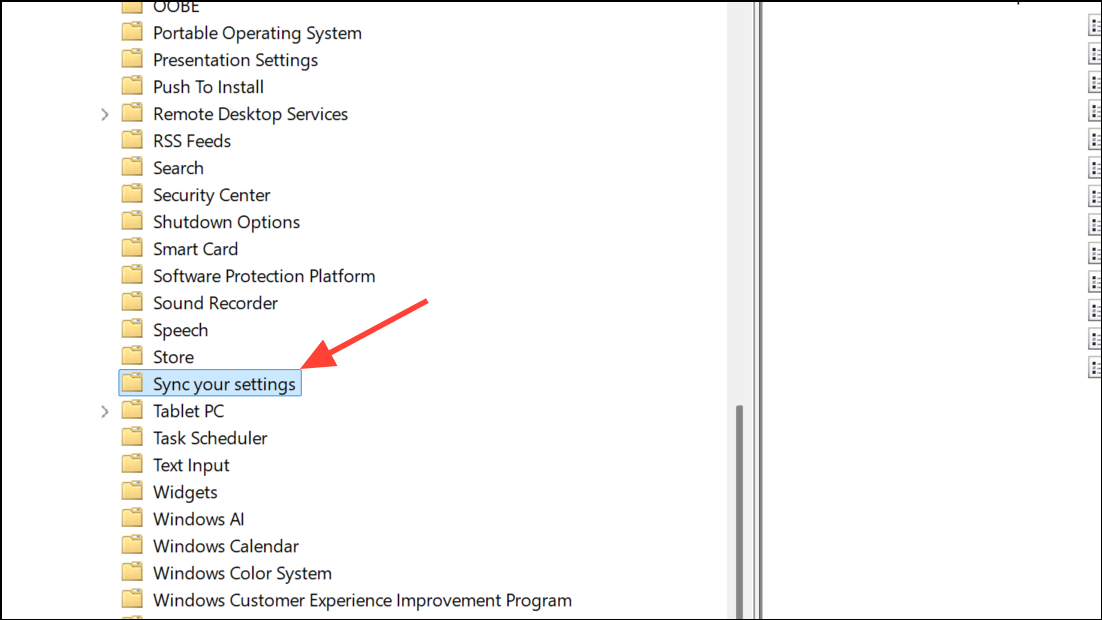
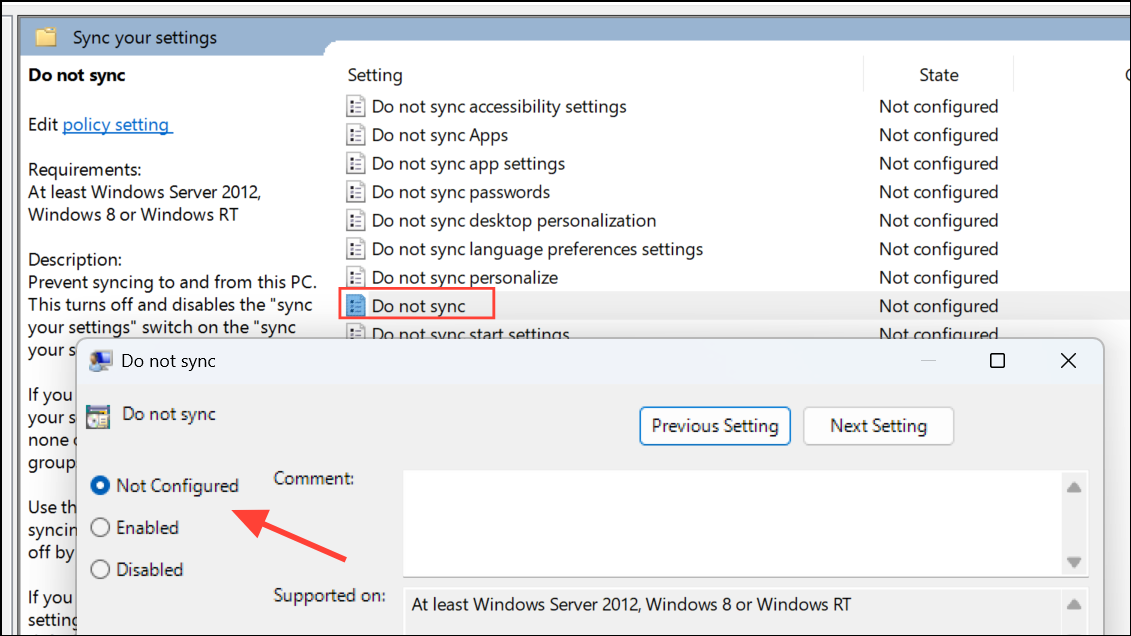
Using Registry Editor (All Editions)
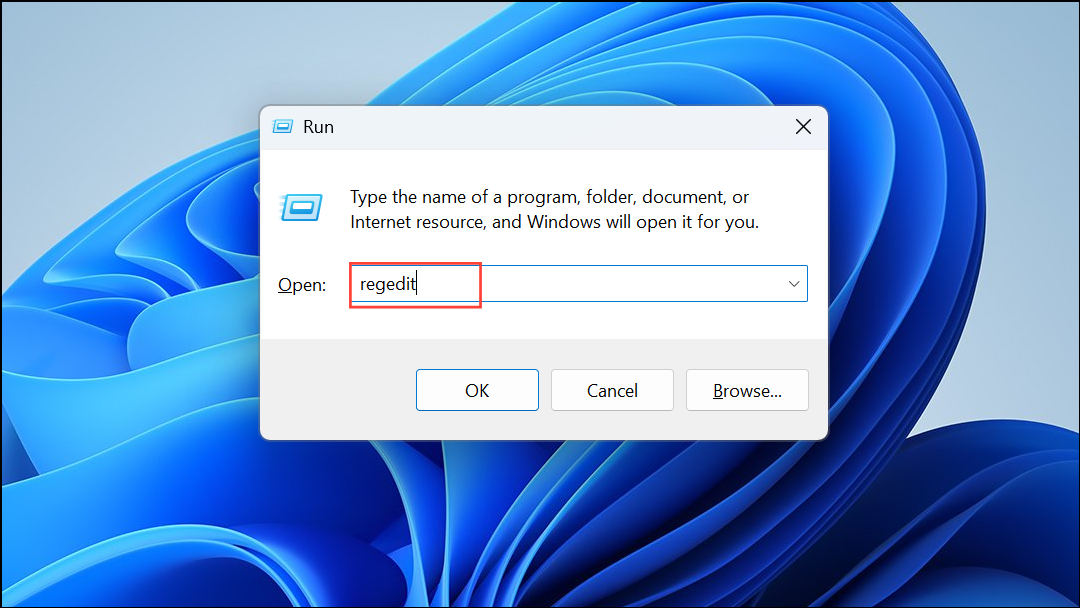
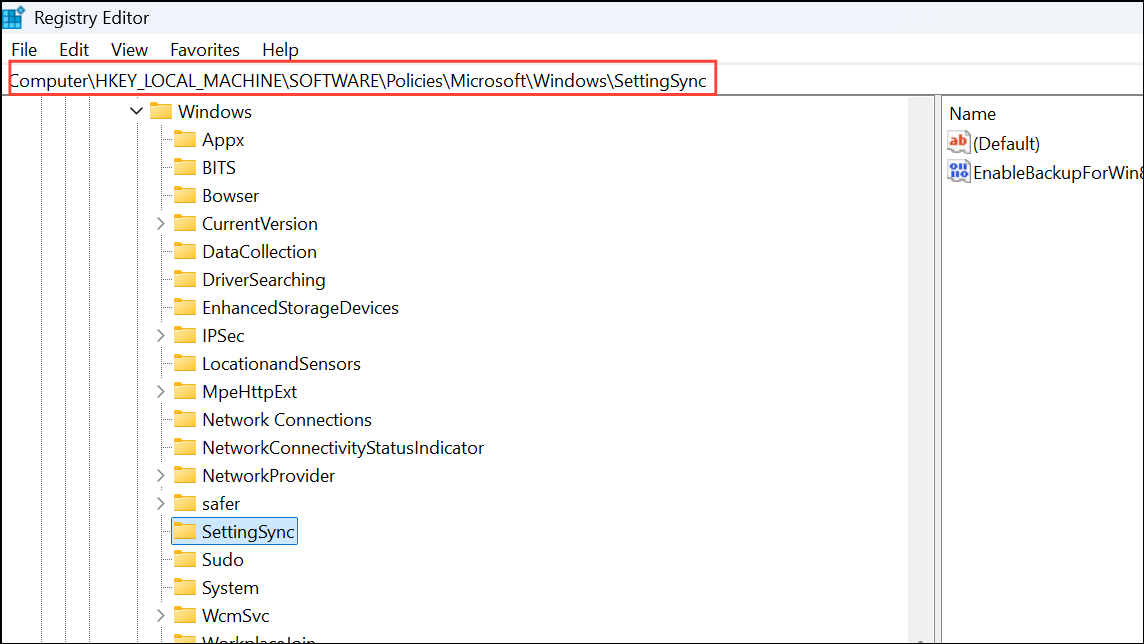
DisableSettingsSync and DisableSettingSyncUserOverride are set to 0 or delete these entries if present. Restart your computer to apply changes.Create a New Microsoft Account Profile
Account corruption can block sync operations even after troubleshooting. Creating a new profile can resolve persistent issues.
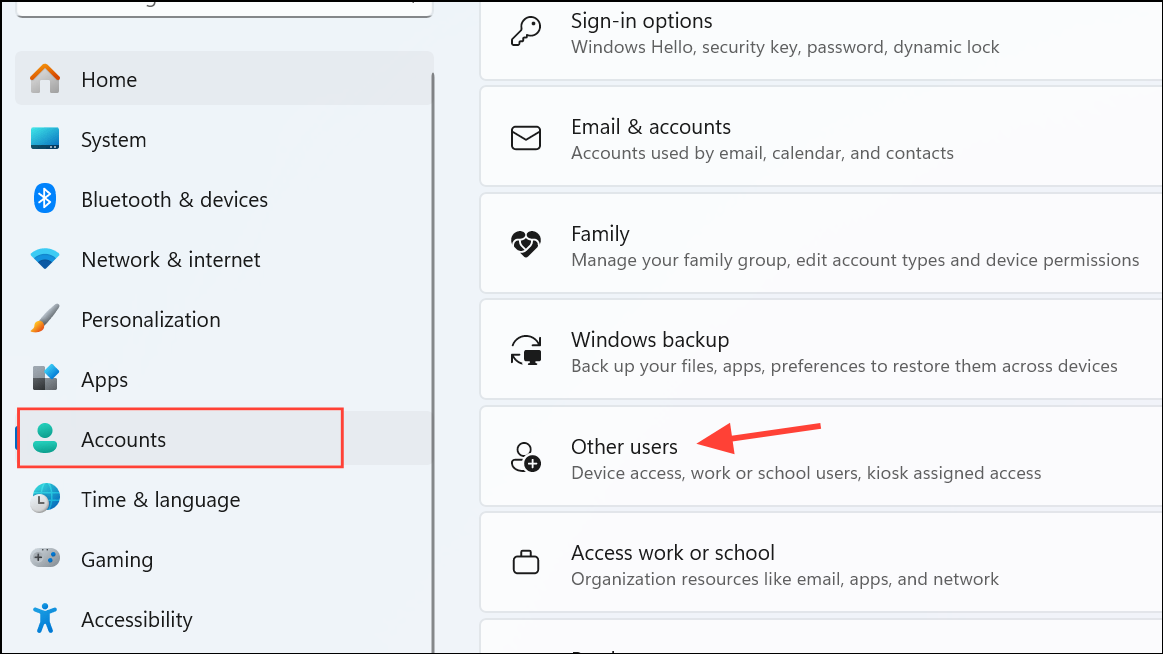
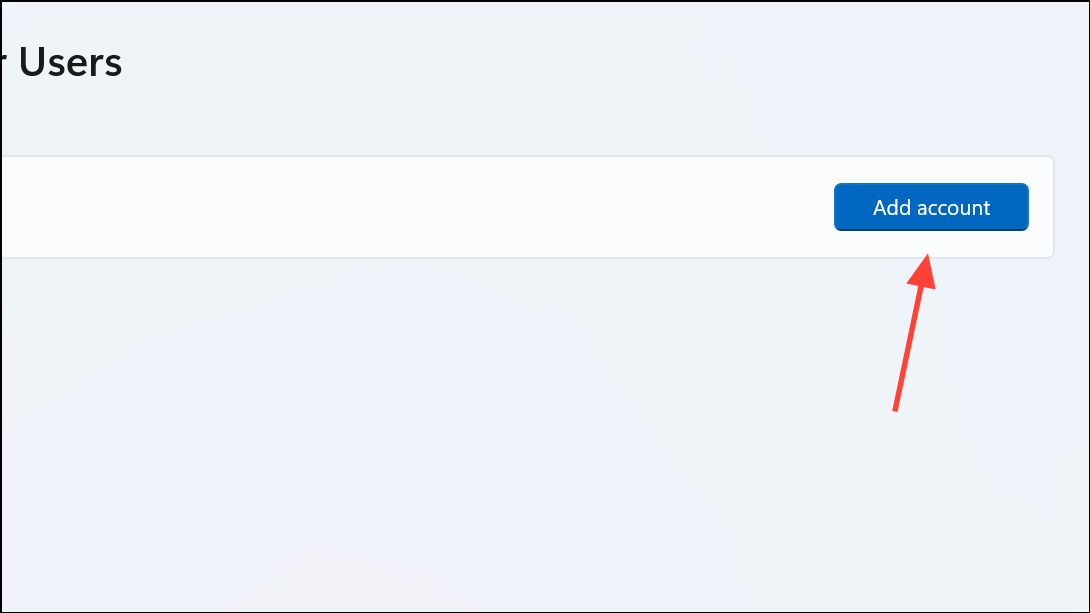
Settings > Accounts > Your info. Test if sync features now work. If successful, transfer your files and app data to the new profile and remove the old account after confirming everything works as expected.Reset Windows 11 as a Last Resort
When all other methods fail, performing a system reset can resolve deep-seated configuration or corruption issues that block Microsoft account sync.
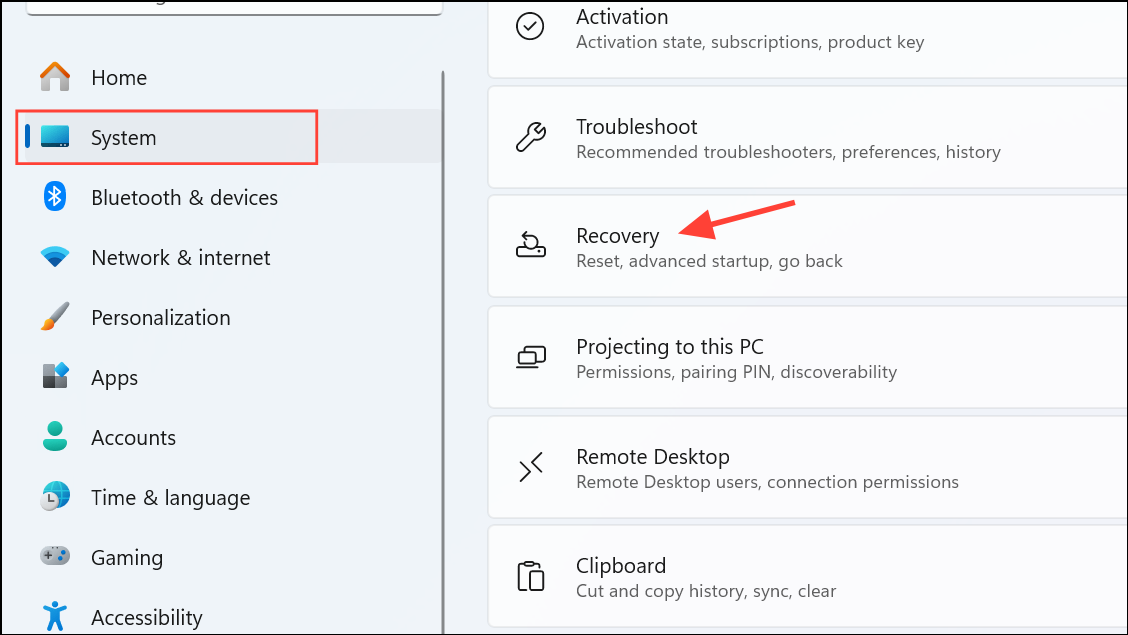
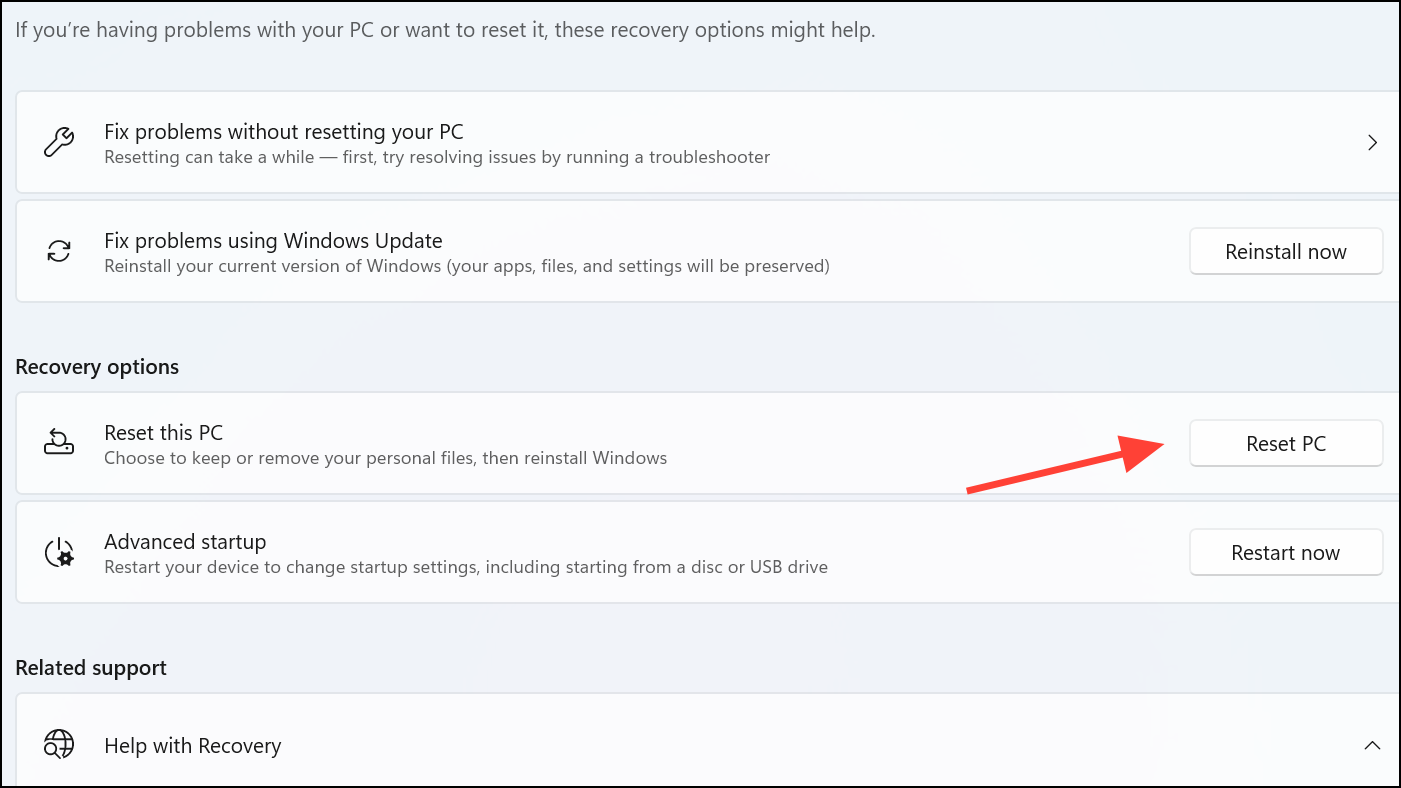
This action returns Windows 11 to default settings, which can clear out persistent sync errors tied to user configuration or corrupted system files.
Restoring Microsoft account sync in Windows 11 streamlines device setup and keeps your settings consistent. Regularly updating your system and reviewing account policies helps prevent future sync interruptions.



