Streamline Windows 11 by removing bloatware, customizing system settings, and boosting performance using the free, open-source Winhance utility.
Streamline Windows 11 by removing bloatware, customizing system settings, and boosting performance using the free, open-source Winhance utility.
by Pallav Pathak
Windows 11 installations often come loaded with unnecessary apps, pre-set options, and features that can slow down your PC or clutter your workflow. Winhance provides a centralized, open-source solution for removing unwanted software, controlling privacy and security settings, and fine-tuning your system for better speed and usability.
Remove Unwanted Windows Apps and Features
Pre-installed applications and optional features can consume storage, slow down startup times, and introduce distractions. Winhance addresses this by offering a simple dashboard where you can select which apps and features to keep or remove.
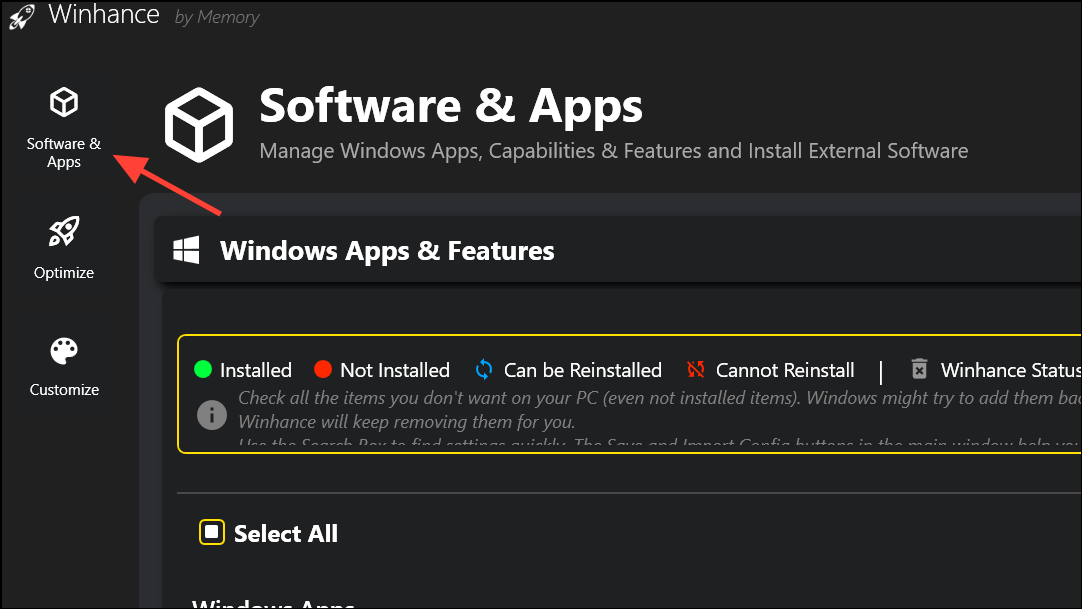
Open Winhance and navigate to the Software & Apps section. The interface lists installed Windows apps, legacy capabilities, and optional features, each with a checkbox and status indicator.
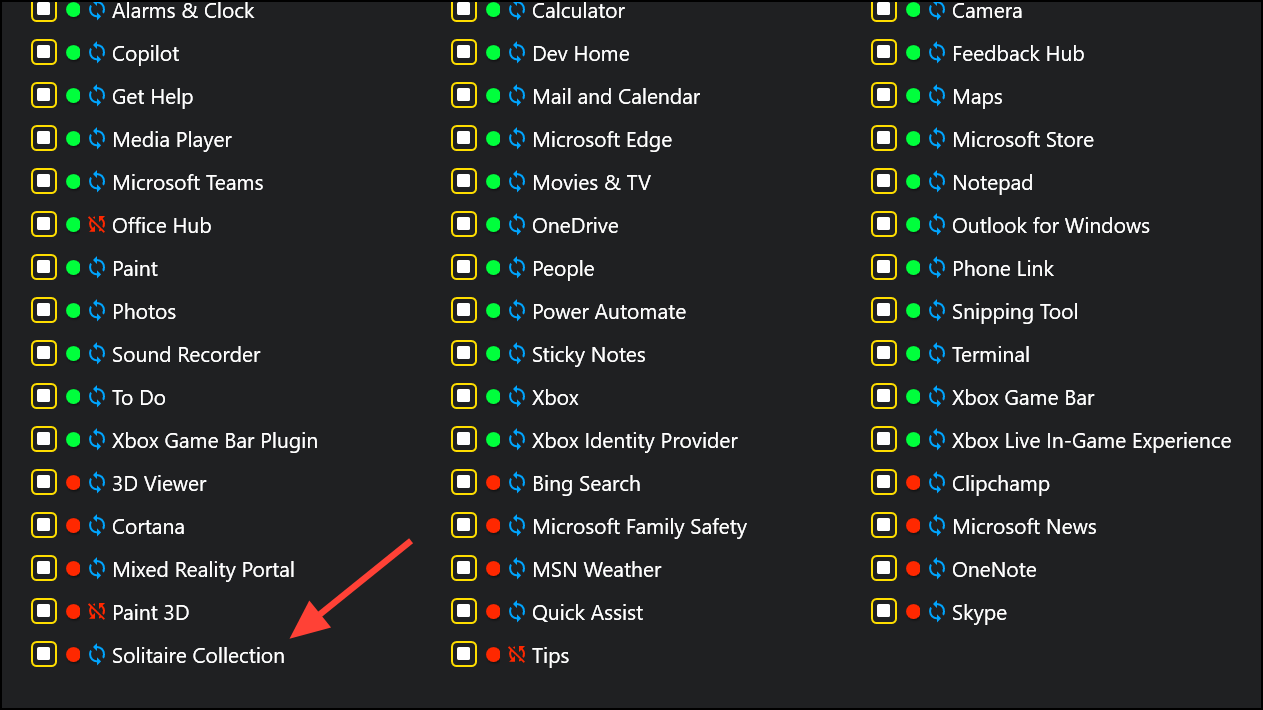
Select the apps or features you want to remove by checking their boxes. For example, you can target Microsoft Edge, OneDrive, Copilot, Bing News, 3D Viewer, or other bundled software.
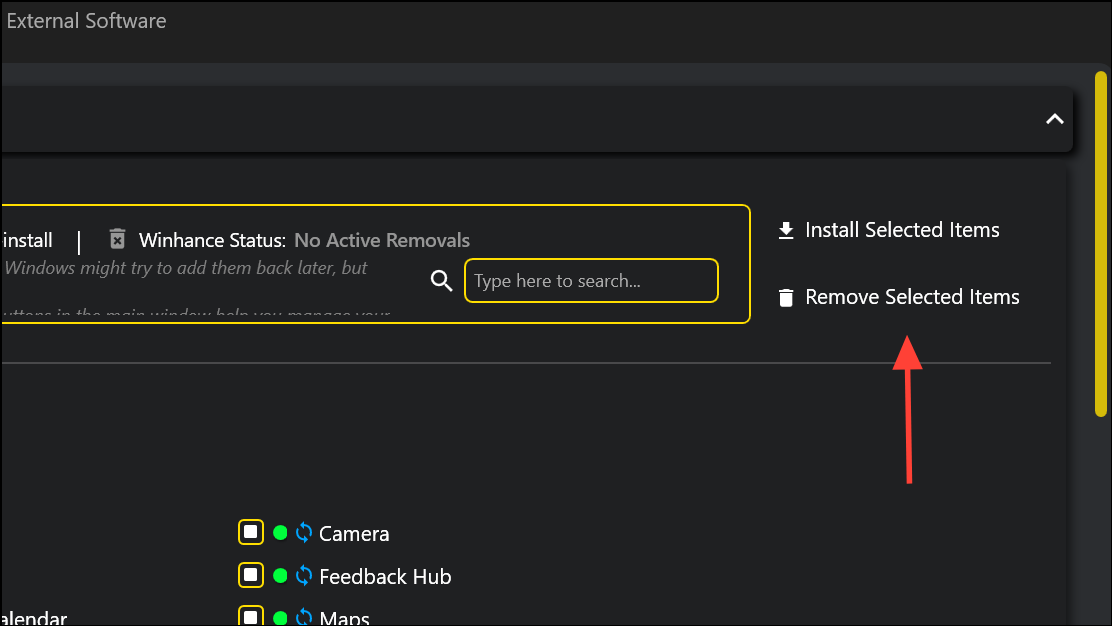
Click Remove Selected Items at the top right. Winhance executes removal scripts and sets up scheduled tasks to prevent the reinstallation of these components during Windows Updates. This ensures that removed apps do not return after system updates or restarts.
Removing bloatware improves system responsiveness and frees up resources for applications you actually use. If you accidentally remove something needed later, Winhance allows reinstallation of most default apps through its interface.
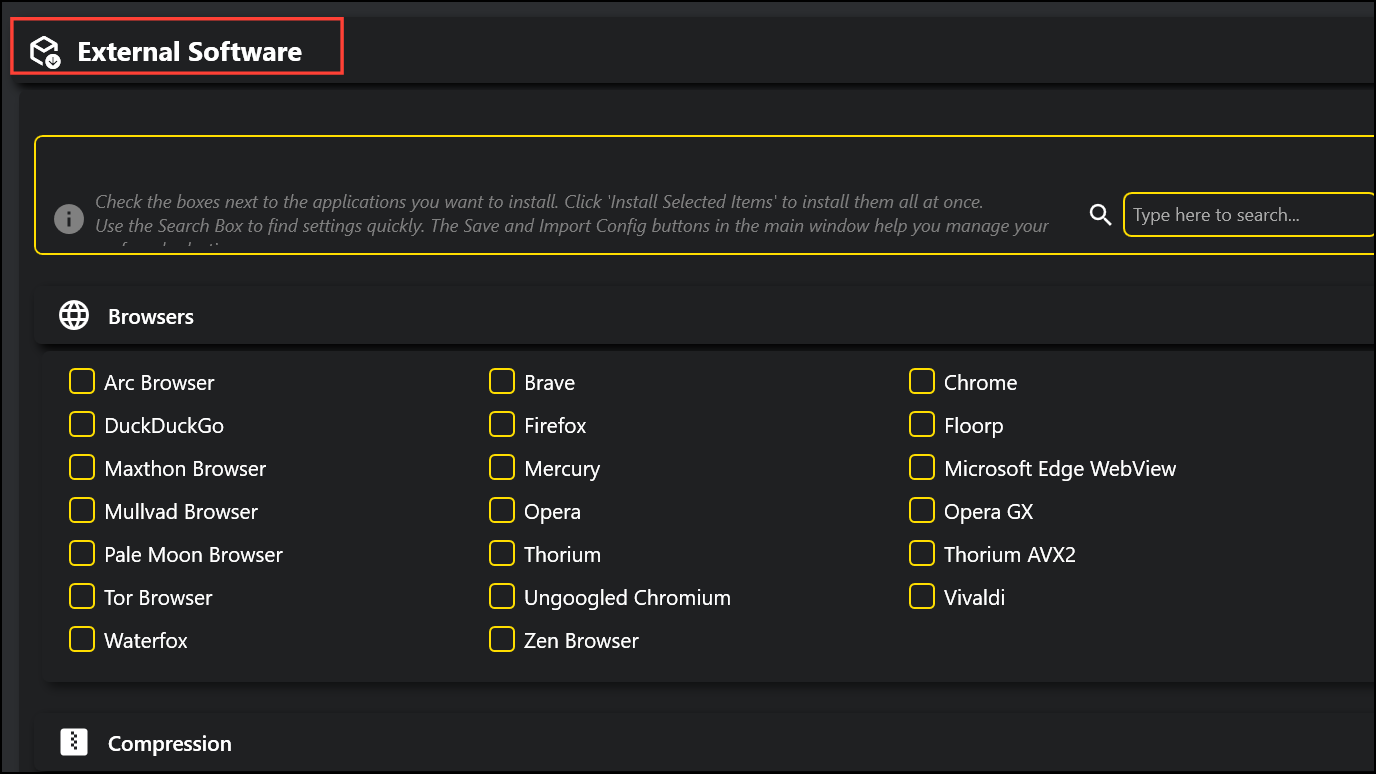
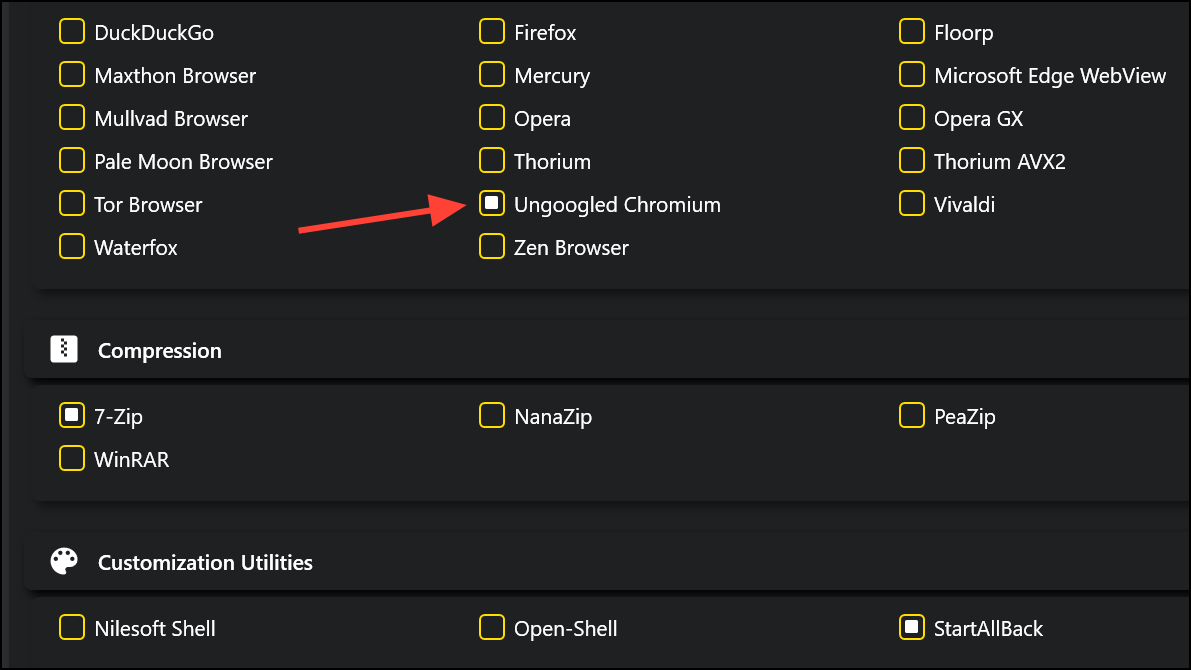
Setting up a new Windows environment often involves downloading and installing multiple applications one by one. Winhance streamlines this process by providing a curated list of useful third-party tools directly within its dashboard.
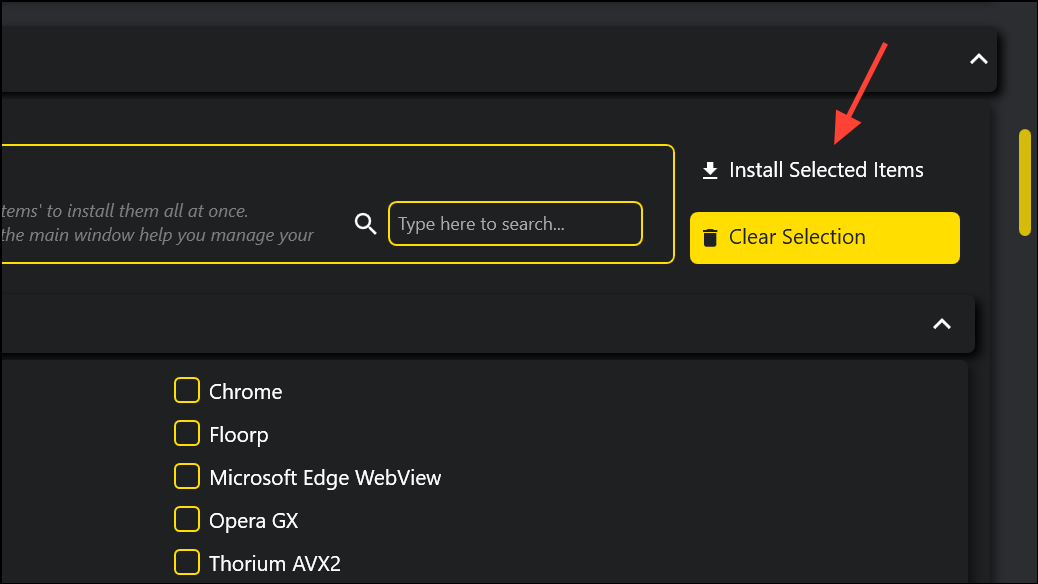
Click Install Selected Items. Winhance automatically downloads and installs each selected app using the Windows Package Manager (WinGet), saving you time and reducing the risk of downloading from unofficial sources.
This approach is similar to tools like Ninite but with more integration into system setup and configuration. You can also save your selection as a configuration file, making it easy to replicate your preferred setup on new machines or after a fresh install.
Optimize Security, Privacy, and Performance Settings
Windows 11 includes a wide range of settings for security, privacy, gaming, power management, and updates. Navigating these options through built-in menus can be time-consuming and confusing. Winhance consolidates these controls into a single, organized dashboard for quick access and adjustment.
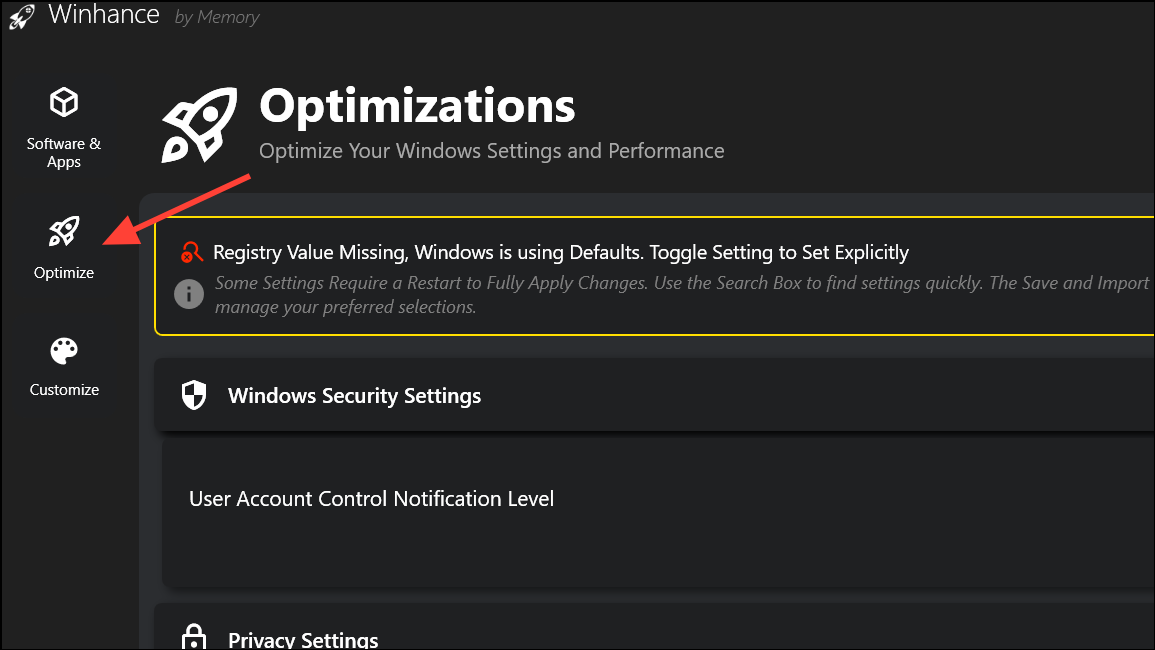
Open the Optimize tab in Winhance. Here, you’ll find grouped controls for security, privacy, gaming, updates, and power settings, each with explanatory tooltips and toggle switches.
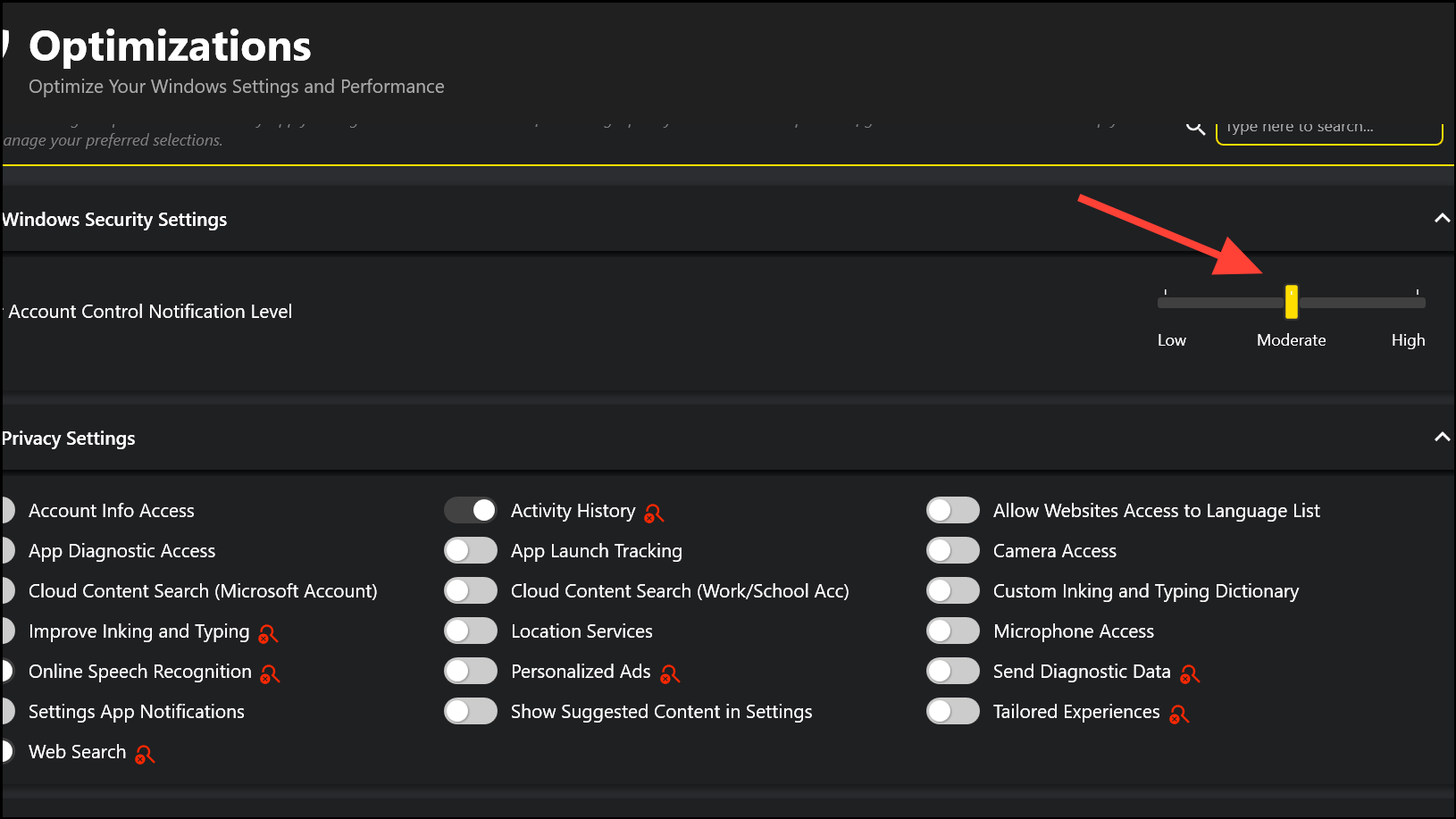
Adjust Security Settings such as User Account Control (UAC), Windows Defender, and firewall preferences. For example, you can set the UAC notification level with a slider or toggle Defender on or off as needed.
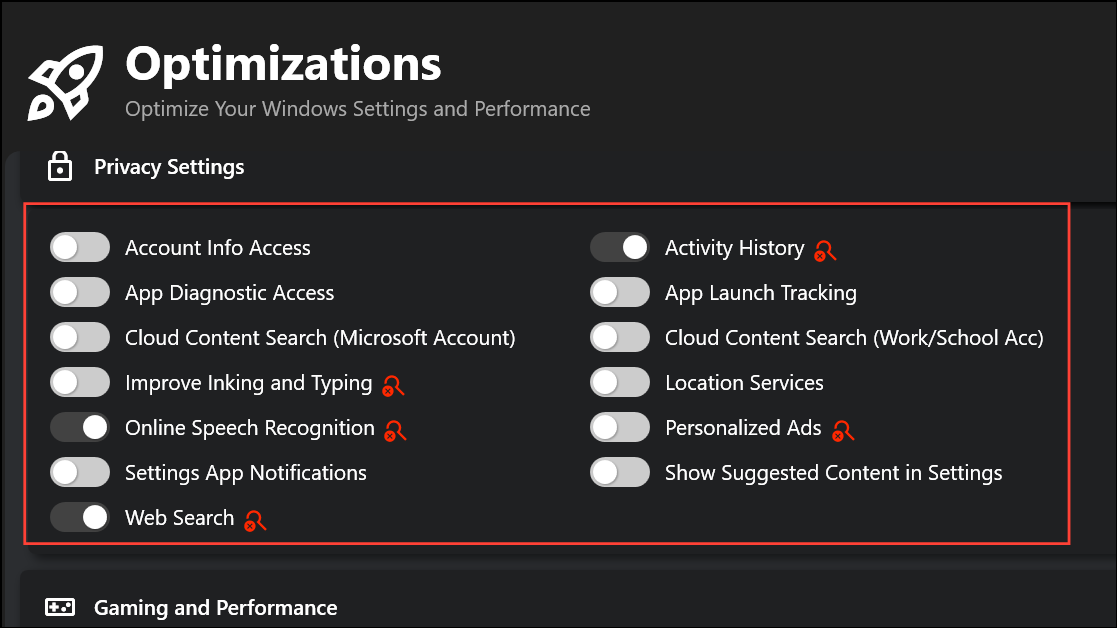
Refine Privacy Settings by disabling features like activity history, camera access, personalized ads, and telemetry. This reduces background data collection and improves personal privacy.
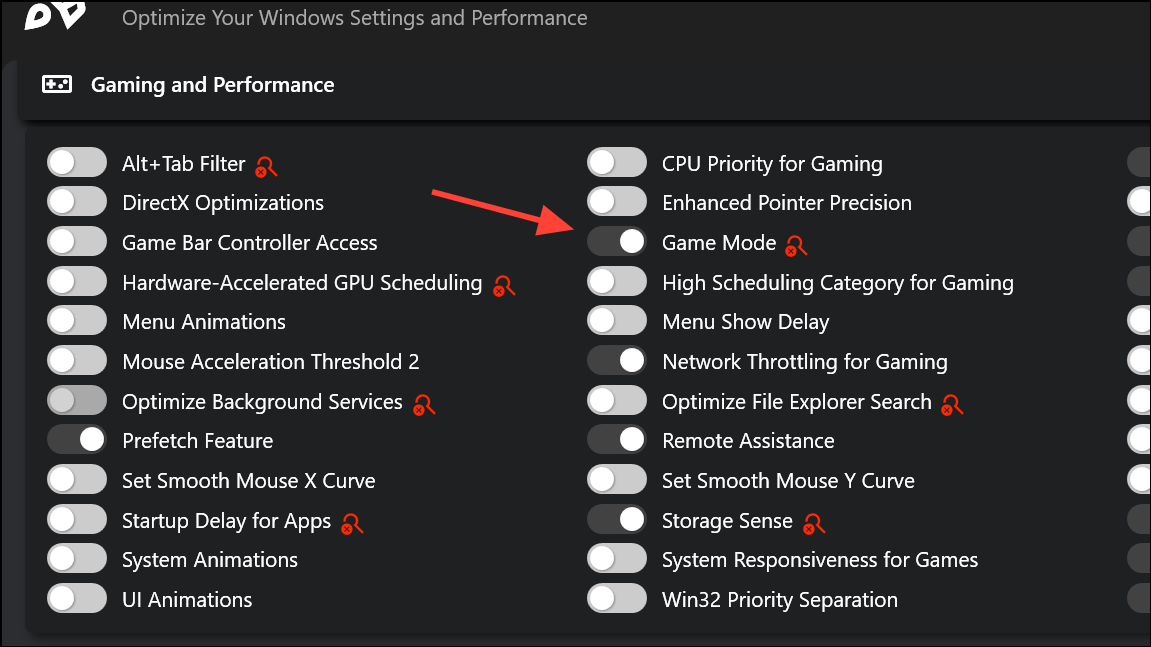
Tweak Gaming and Performance options including CPU/GPU prioritization, network traffic shaping for games, disabling unnecessary visual effects, and optimizing File Explorer search. These changes can reduce input lag and boost frame rates for gaming sessions.
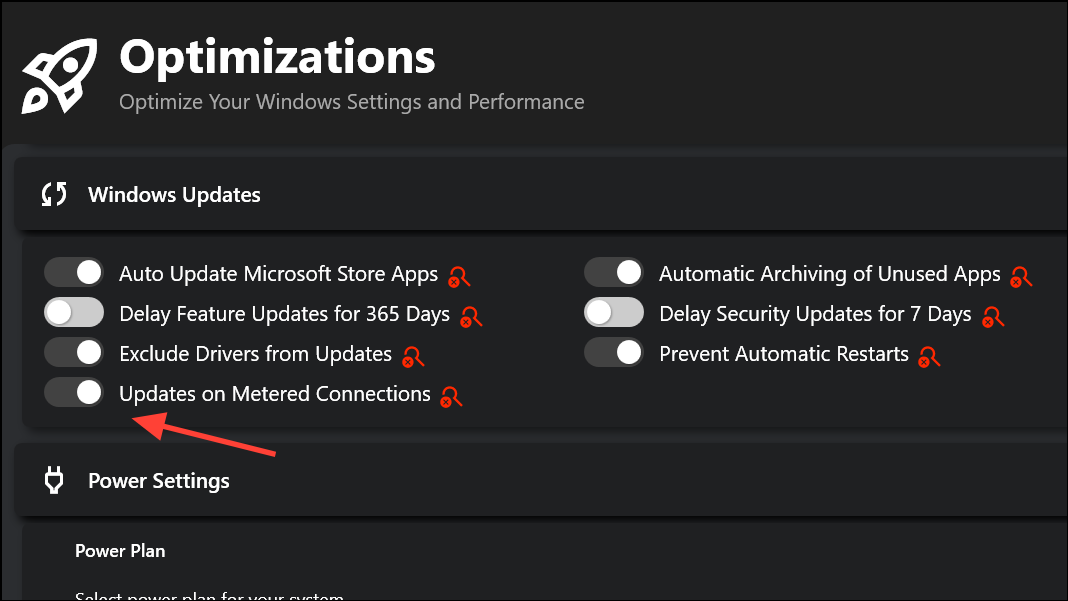
Manage Windows Updates by disabling or delaying automatic updates, turning off forced restarts, and controlling update notifications. If you’re on a metered connection, you can prevent updates from downloading in the background.
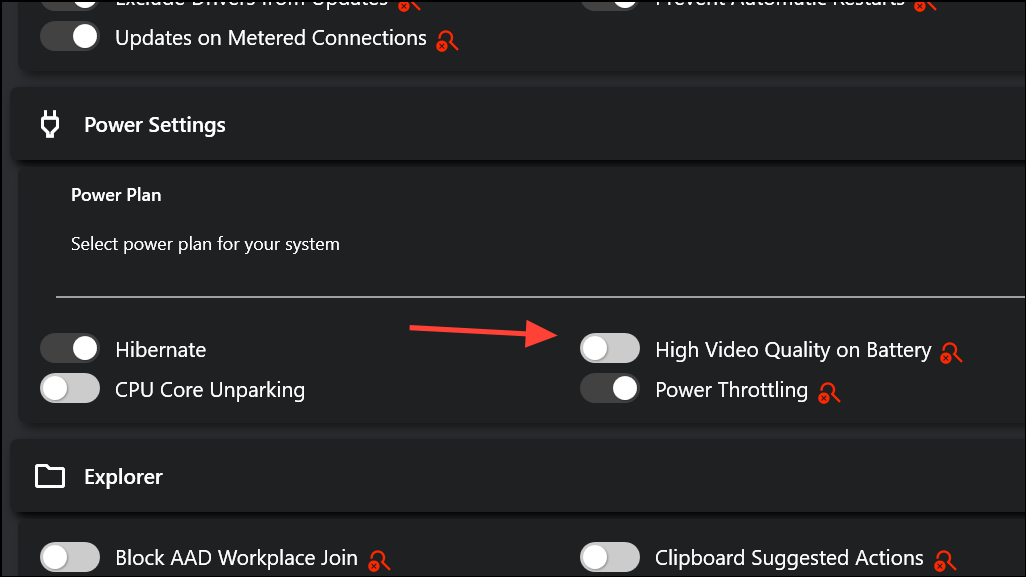
Configure Power Settings such as hibernation, power throttling, and power plan selection to match your usage patterns—whether you prioritize performance or battery life.
Each setting has a status indicator to warn if a registry value is missing or a restart is needed to apply changes. This immediate feedback helps avoid misconfigurations and ensures your adjustments take effect as intended.
Customize the Windows Interface and Workflow
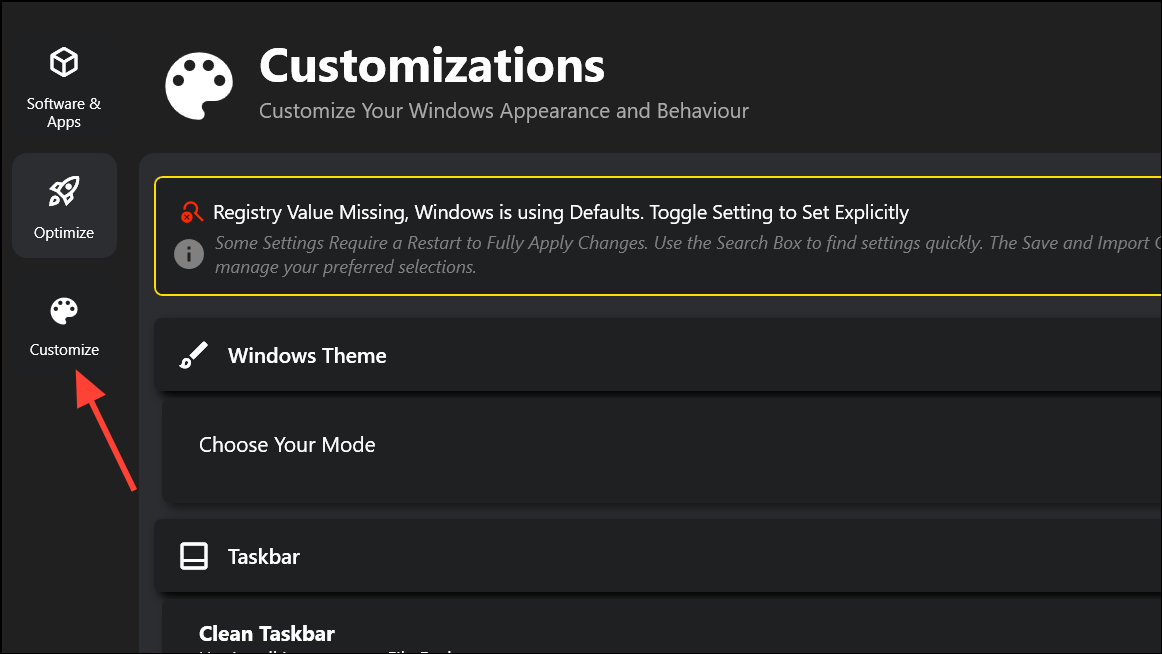
Personalizing the look and feel of Windows 11 can make daily tasks more efficient and enjoyable. Winhance centralizes customization options for themes, the taskbar, Start menu, File Explorer, and notification behaviors.
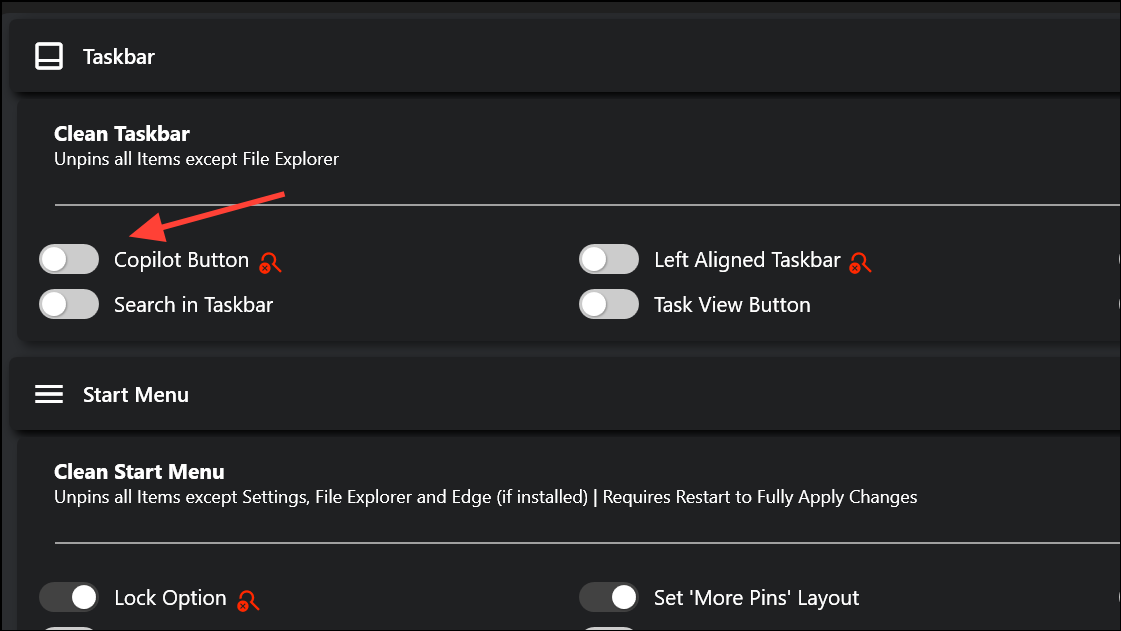
In the Taskbar section, unpin unnecessary icons such as Copilot, Meet Now, Task View, and Windows Chat. You can also align the taskbar to the left and control which system tray icons are visible.
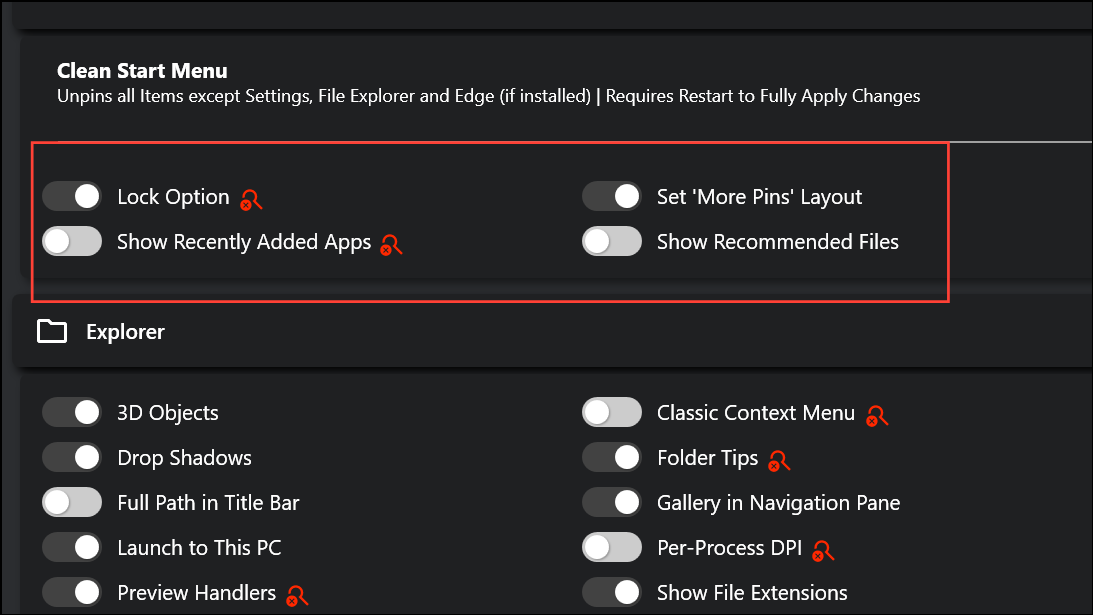
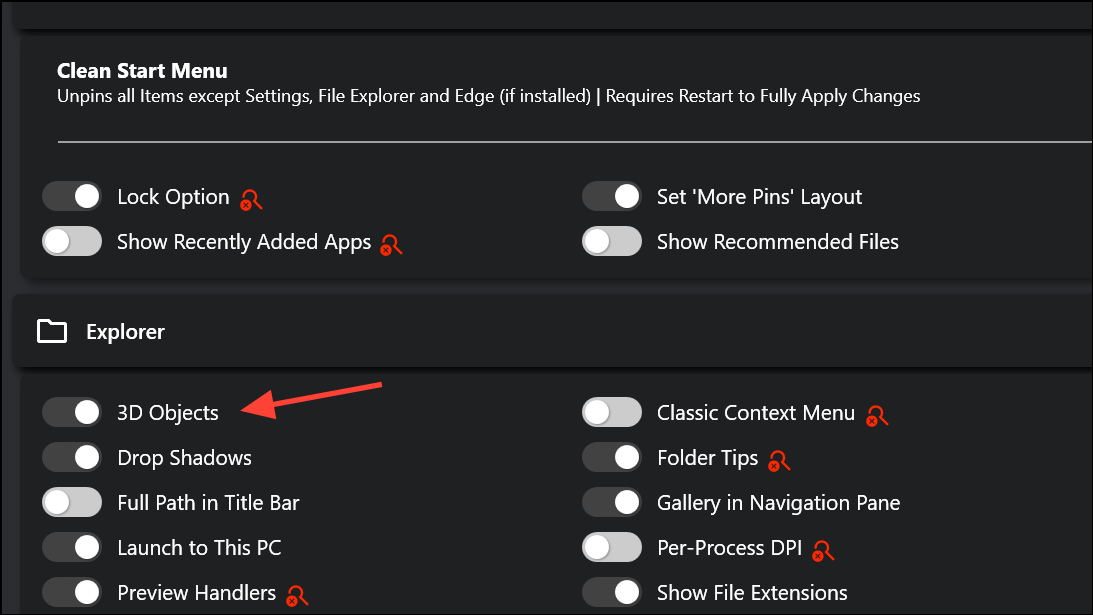
Adjust Start Menu settings to remove recommended files, hide recently added apps, or set a More Pins layout for quicker access to your favorite programs.
Fine-tune File Explorer by enabling full path display, showing file extensions, forcing thumbnails, or restoring the classic context menu. These tweaks simplify file navigation and reduce accidental misclicks.
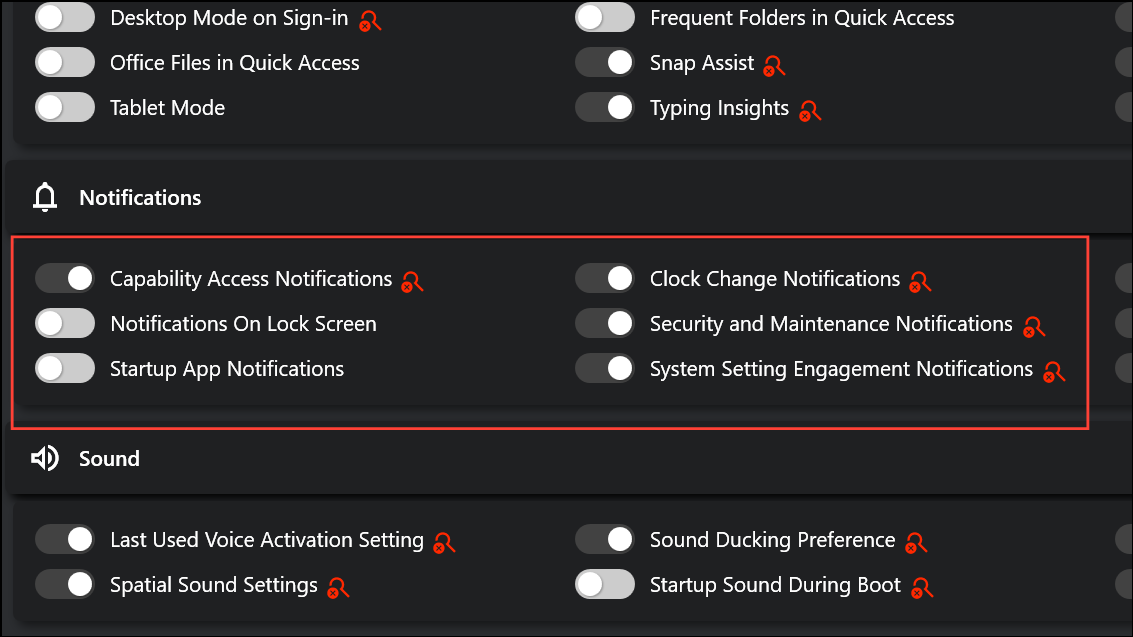
Manage Notifications by disabling lock screen pop-ups, hiding system tips, or muting notifications during focus periods. This reduces interruptions when you’re working or gaming.
All customization changes are applied immediately, and you can save your entire configuration for easy import later. While some advanced tweaks (like automated theme switching or hiding the taskbar completely) aren’t yet included, Winhance covers the most-requested personalization settings.
Using Winhance via PowerShell
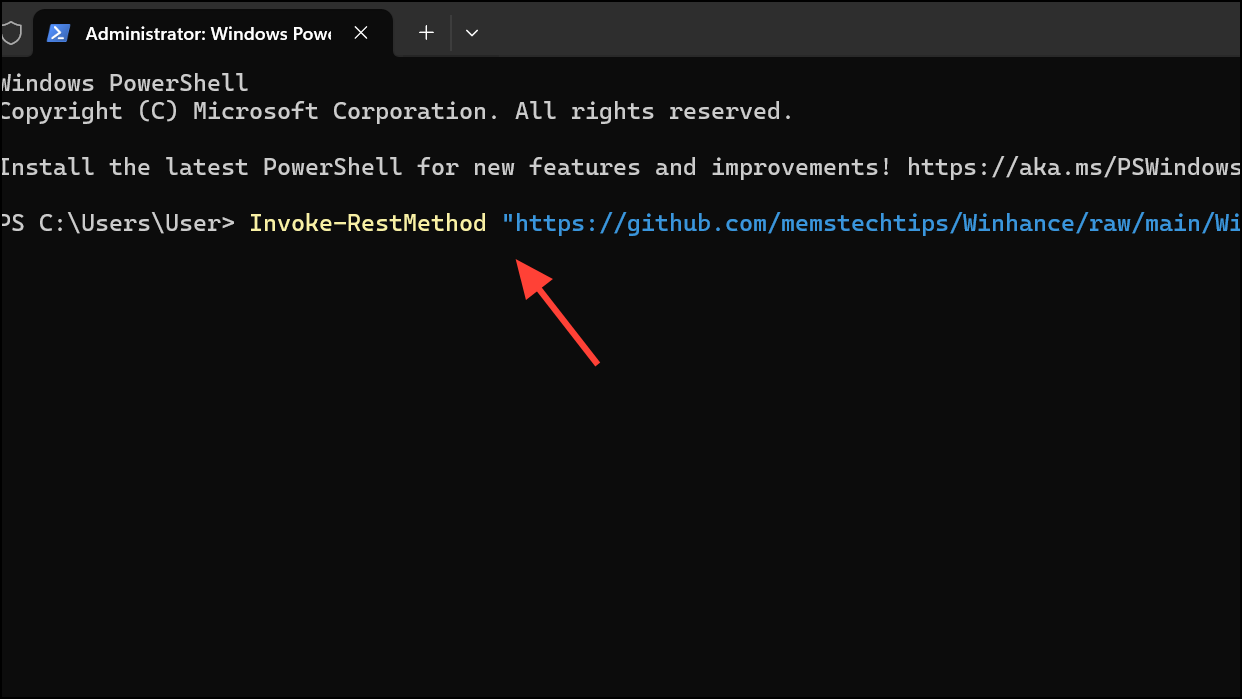
For users who prefer scripts or need automation, Winhance started as a PowerShell utility and still supports command-line execution. This is particularly useful for IT professionals deploying custom configurations across multiple machines.
Use the script’s interactive prompts to select which apps to remove, which features to install, and which settings to adjust. The script creates scheduled tasks to maintain your chosen configuration after reboots and updates.
While the PowerShell version offers less granular control than the GUI app, it’s suitable for batch deployments or headless environments. Manual editing of the generated scripts may be required to reverse changes or exclude specific apps from future removals.
Winhance provides a practical way to streamline Windows 11 by removing clutter, installing essential tools, and centralizing system tweaks. Saving your configuration lets you quickly replicate your preferred setup across devices or after a clean install.