
Microsoft Store failing to open or crashing after the Windows 11 24H2 update disrupts access to essential app downloads, updates, and license management. Users report error messages such as “Sorry about that! Something went wrong, and Microsoft Store failed to initialize. Try refreshing or come back later,” with standard reset and repair options proving ineffective. This issue can stem from update conflicts, corrupted system files, service misconfigurations, or account authorization problems introduced by the 24H2 release.
Restart Microsoft Store Install Service
Windows Key + S to open Windows Search, then type services.msc and press Enter. This launches the Services management console.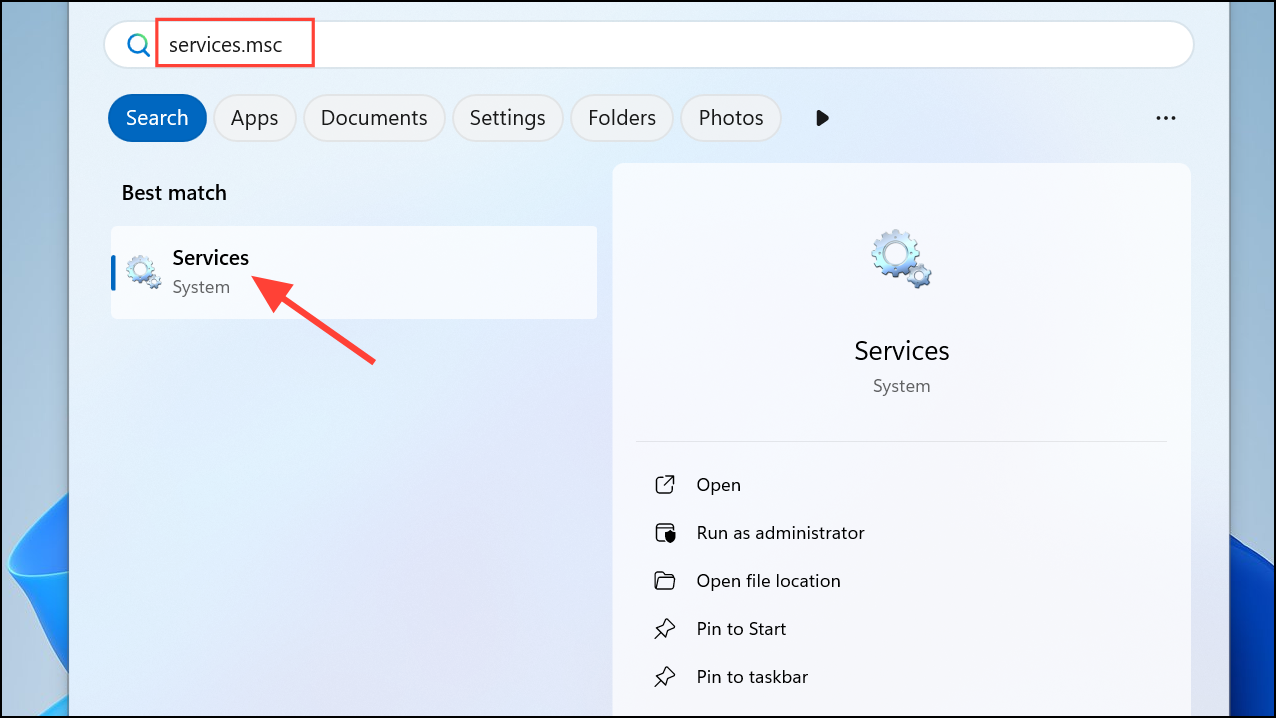
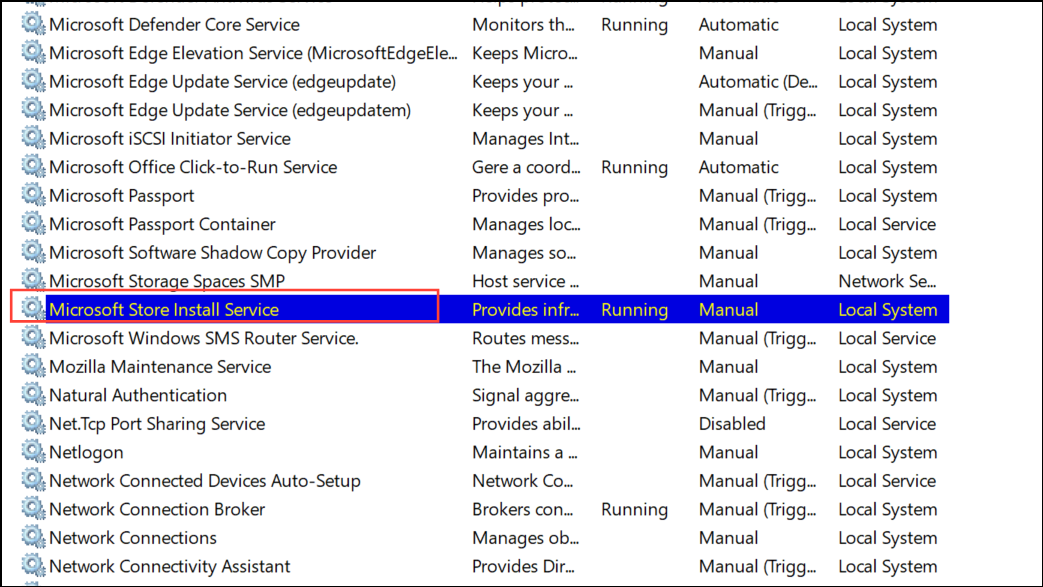
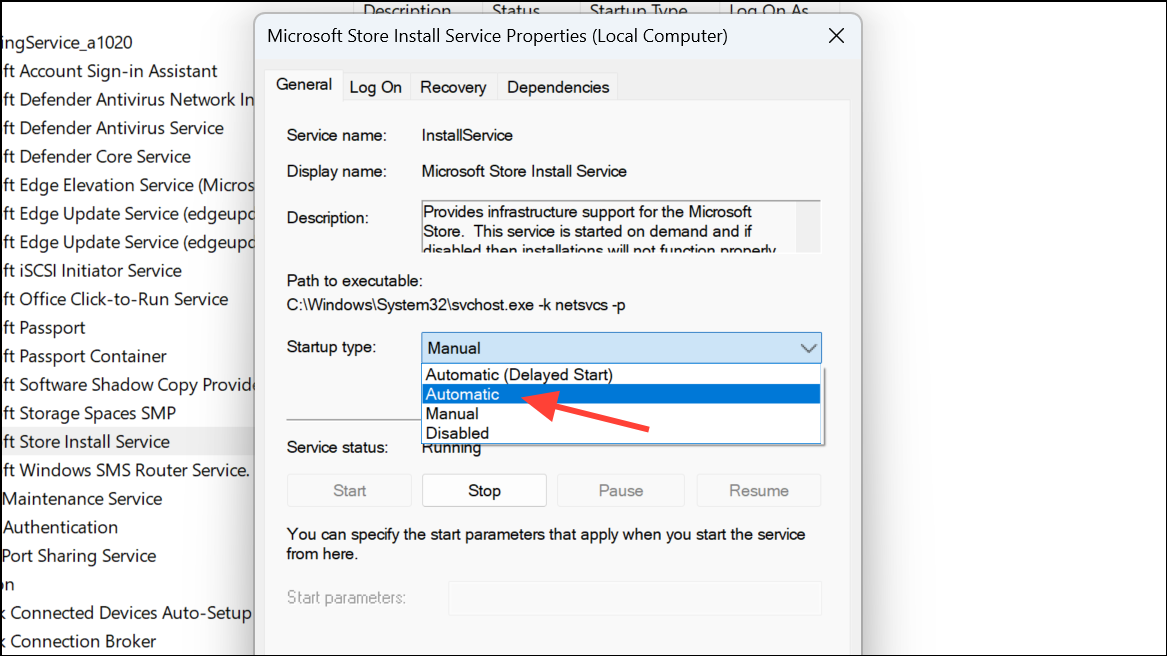
Restarting or enabling this service ensures the Store can initialize its installation routines, which often resolves startup failures caused by background service interruptions.
Run System File Checker and DISM to Repair System Files
Windows Key + X and selecting Windows Terminal (Admin) or Command Prompt (Admin).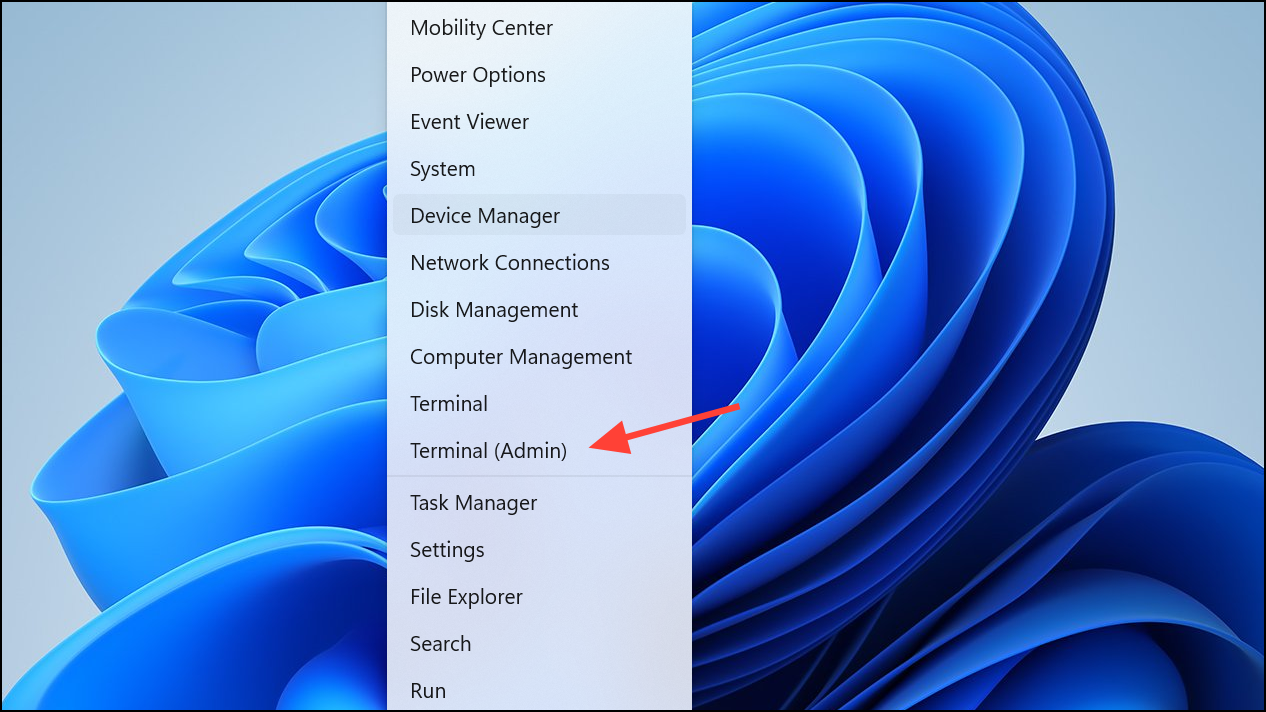
sfc /scannowThis command checks and repairs corrupted or missing system files that could prevent Microsoft Store from loading properly.
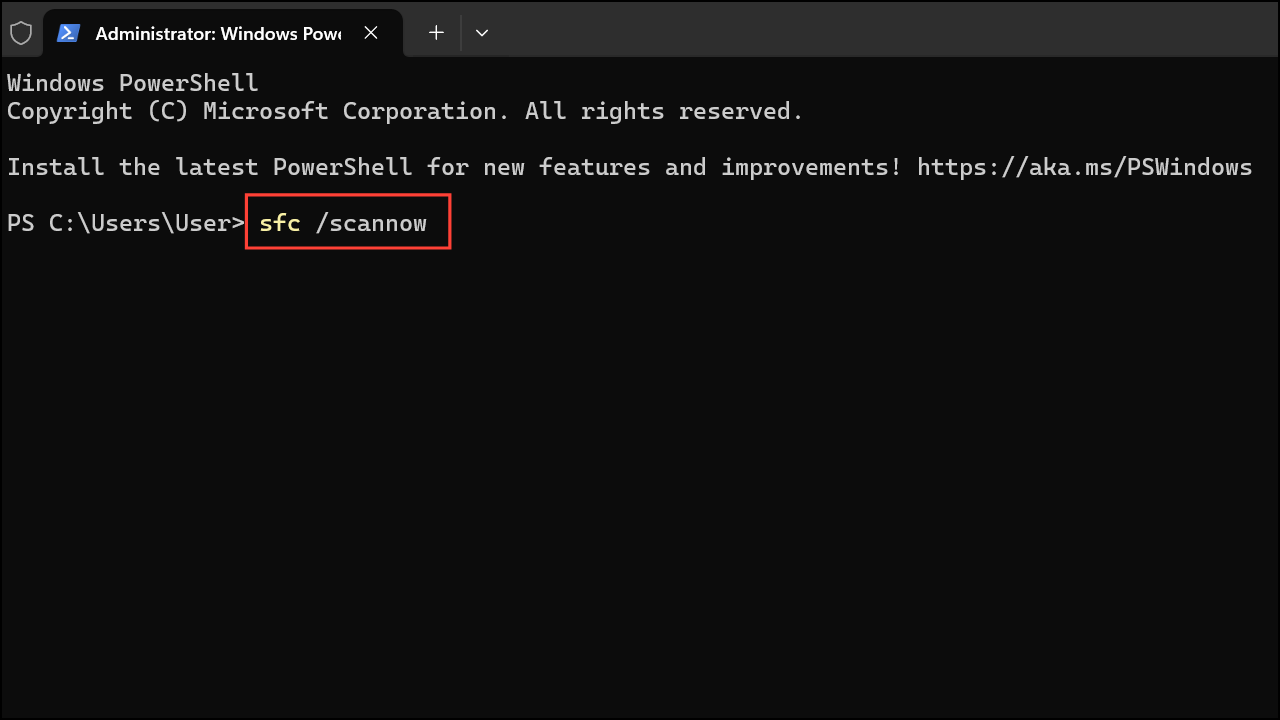
DISM /Online /Cleanup-Image /CheckHealth
DISM /Online /Cleanup-Image /ScanHealth
DISM /Online /Cleanup-Image /RestoreHealth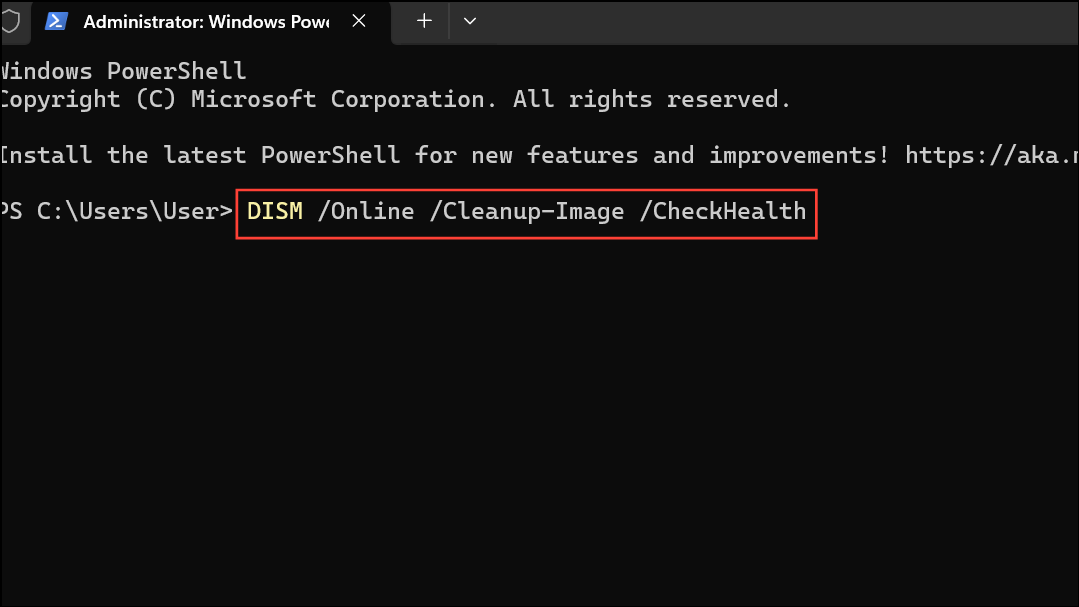
Restart your PC after these scans. This process fixes deeper corruption in system files and Windows servicing components, which is a common cause of persistent Store crashes after major updates.
Re-register and Reinstall Microsoft Store
Get-AppXPackage *WindowsStore* -AllUsers | Foreach {Add-AppxPackage -DisableDevelopmentMode -Register "$($_.InstallLocation)\AppXManifest.xml"}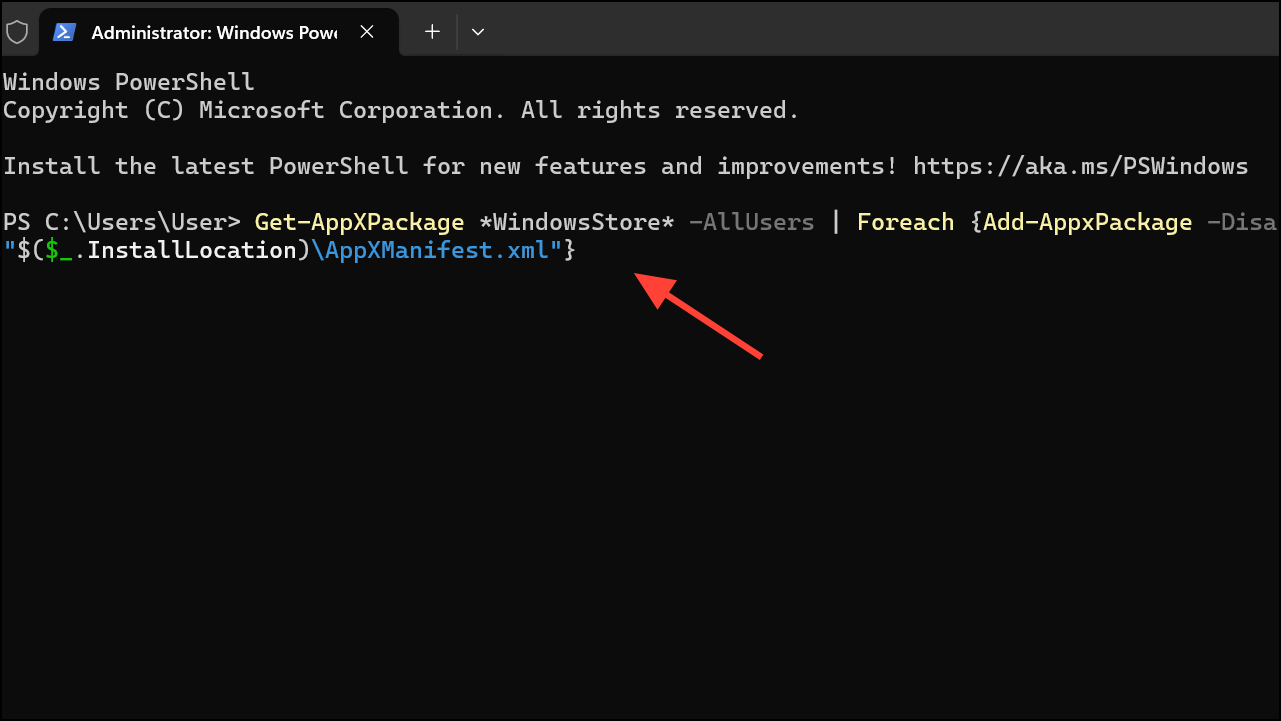
This command re-registers the Microsoft Store app for all users, repairing registration errors or missing components that block the app from launching. Restart your PC after running the command.
Temporarily Uninstall Third-Party VPNs and Antivirus Software
Some third-party VPN or antivirus programs can interfere with Microsoft Store’s network connections or block essential services. Temporarily uninstall these tools, then attempt to launch the Store again. If the issue resolves, consider adjusting your security software’s settings or switching to a compatible alternative.
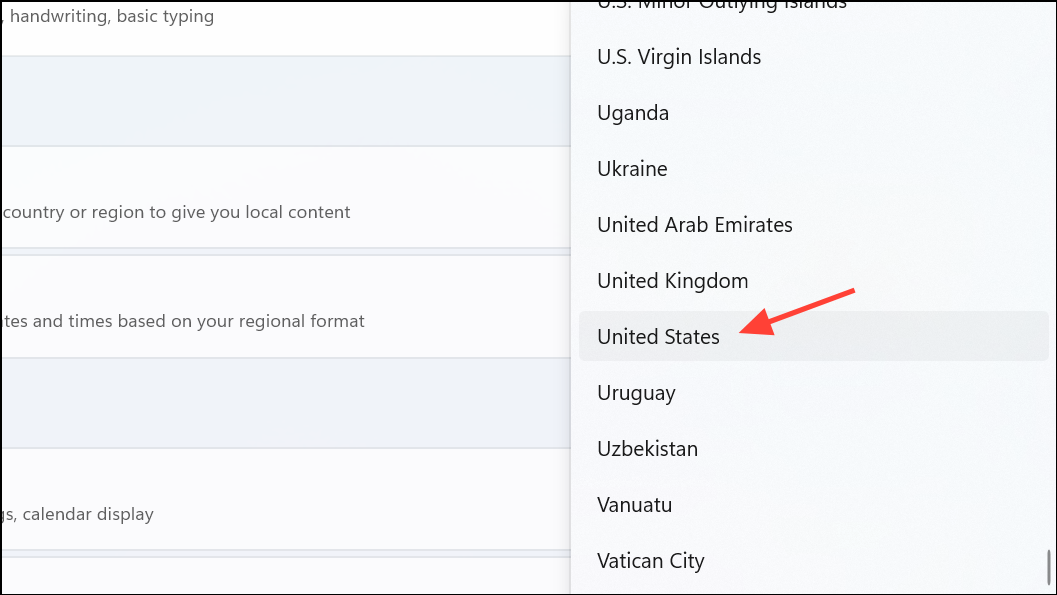
Switch Region Settings and Reauthenticate Microsoft Account
Check for Pending Windows Updates and Known Issue Rollbacks
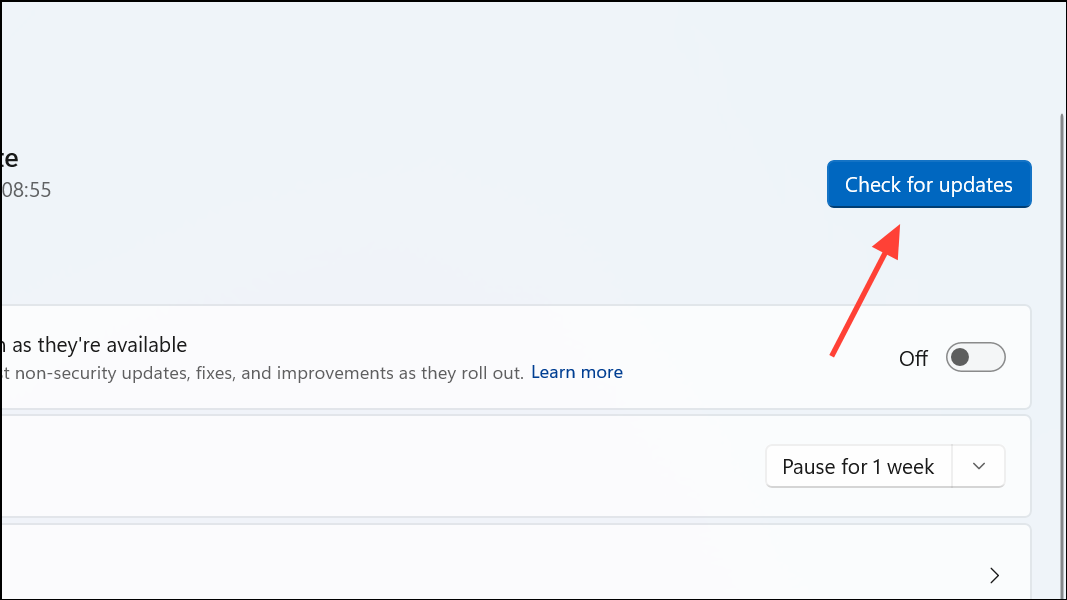
Microsoft sometimes deploys server-side fixes for widespread bugs via Known Issue Rollback (KIR). Open Settings > Windows Update and select Check for updates multiple times. Restart your PC after each check. These background fixes may not be listed as separate updates but can silently resolve Store initialization problems caused by recent patches.
Advanced: In-Place Upgrade or Clean Install as Last Resort
If all previous methods fail—including service restarts, system file repairs, and app re-registration—performing an in-place upgrade or a clean install may be necessary. An in-place upgrade reinstalls Windows while keeping your files and most settings, which can restore Microsoft Store functionality without a full wipe. However, a clean install resets the entire system, so back up important data first. This approach is disruptive but has resolved cases where user profiles and critical app registrations are irreparably damaged by update conflicts.
To perform an in-place upgrade, download the latest Windows 11 ISO from Microsoft’s official site, launch the installer, and choose the option to keep your files and apps. For a clean install, back up your data, create installation media, and boot from it to reinstall Windows from scratch.
Resolving Microsoft Store crashes on Windows 11 24H2 often requires a combination of service checks, system repairs, and account troubleshooting. If standard fixes fail, consider waiting for Microsoft’s server-side patches or use in-place upgrade as a last resort to restore full Store functionality.



