
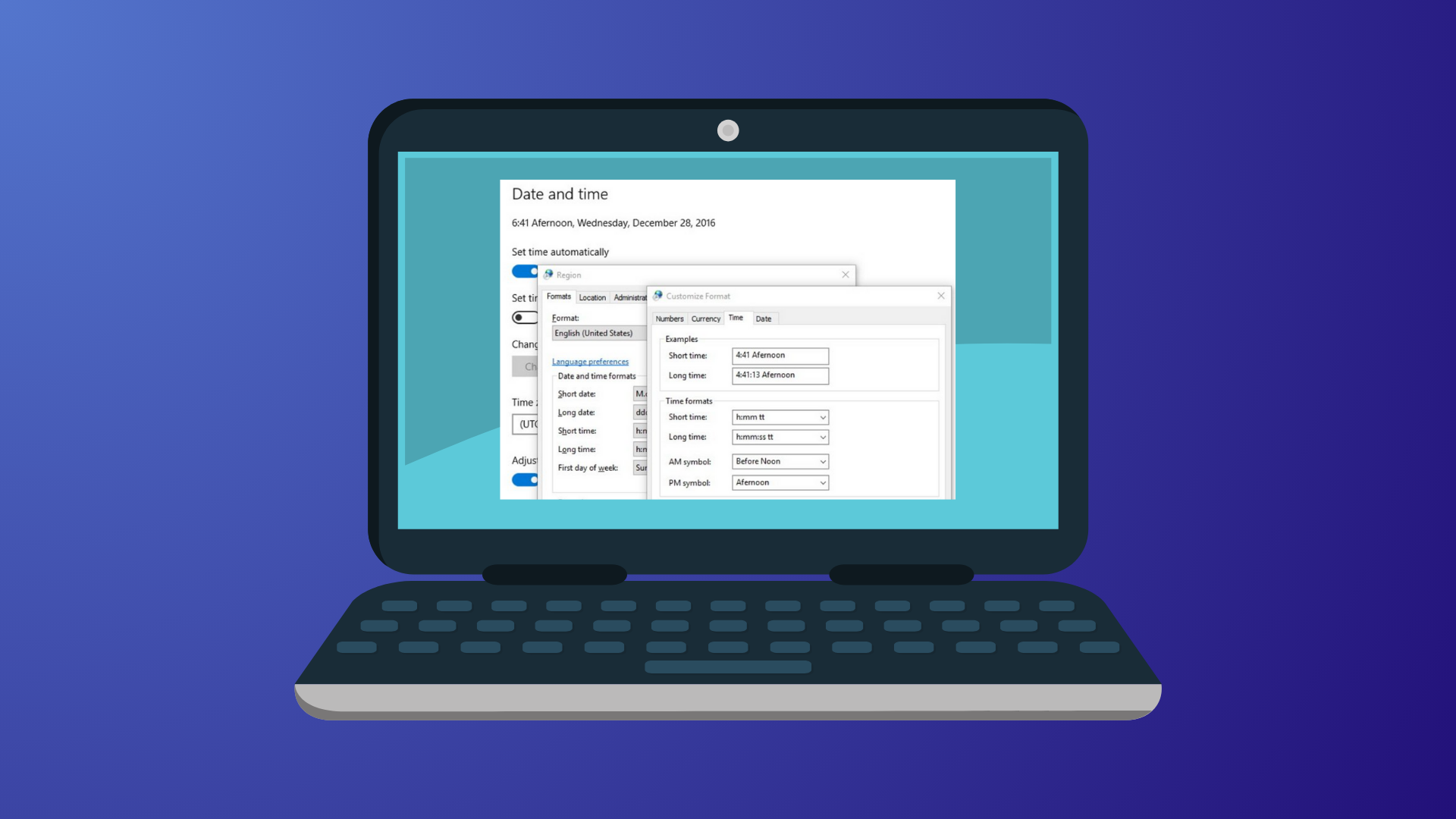
Regional misconfiguration during Windows 11 setup often results in a date format that doesn’t match personal or workplace standards. This can cause confusion, especially in environments where the day and month order matters for scheduling or documentation. Adjusting the date format not only prevents misunderstandings but also streamlines daily operations, ensuring your system displays dates in the way you expect.
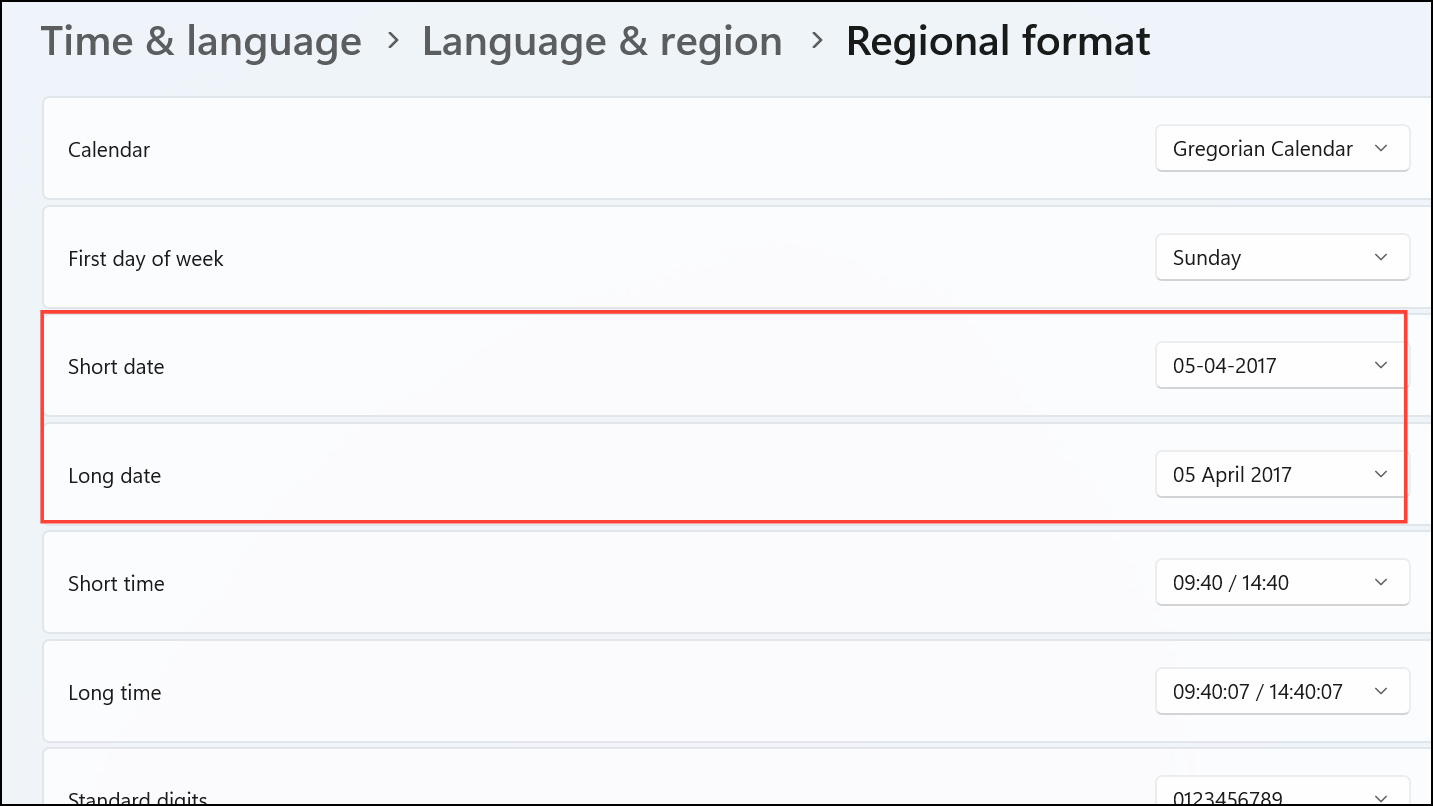
Change Date Format Using the Settings App
Windows key + I or by right-clicking the date and time on the taskbar and selecting “Adjust date and time.” This action brings up the main configuration area for time and region.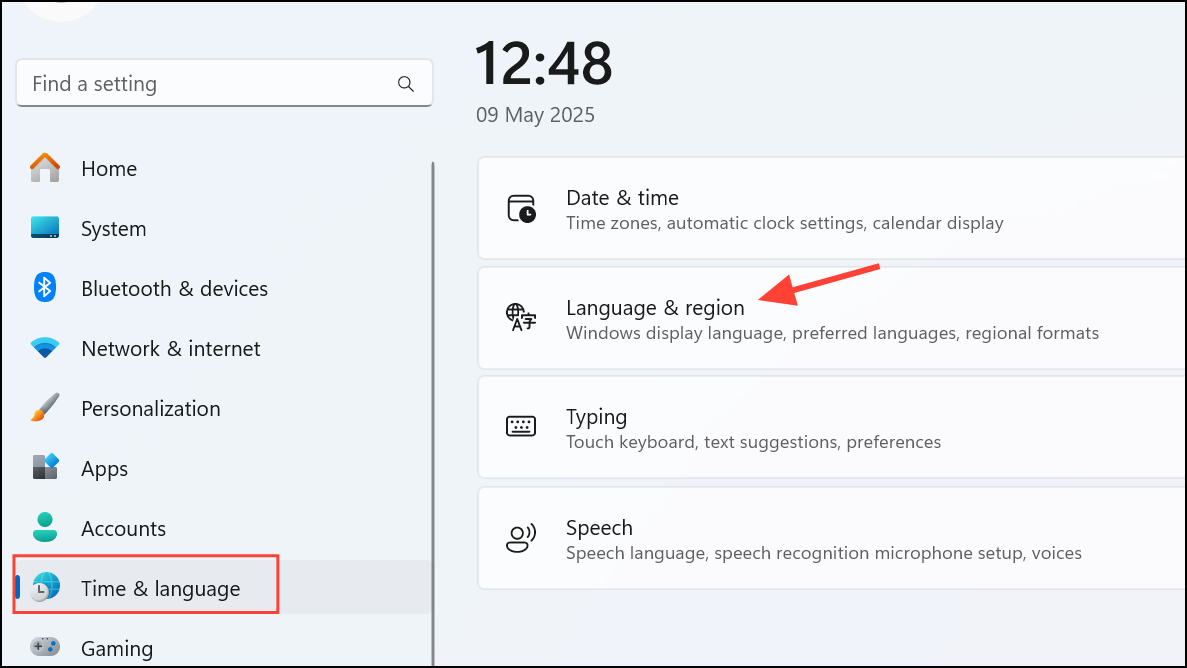
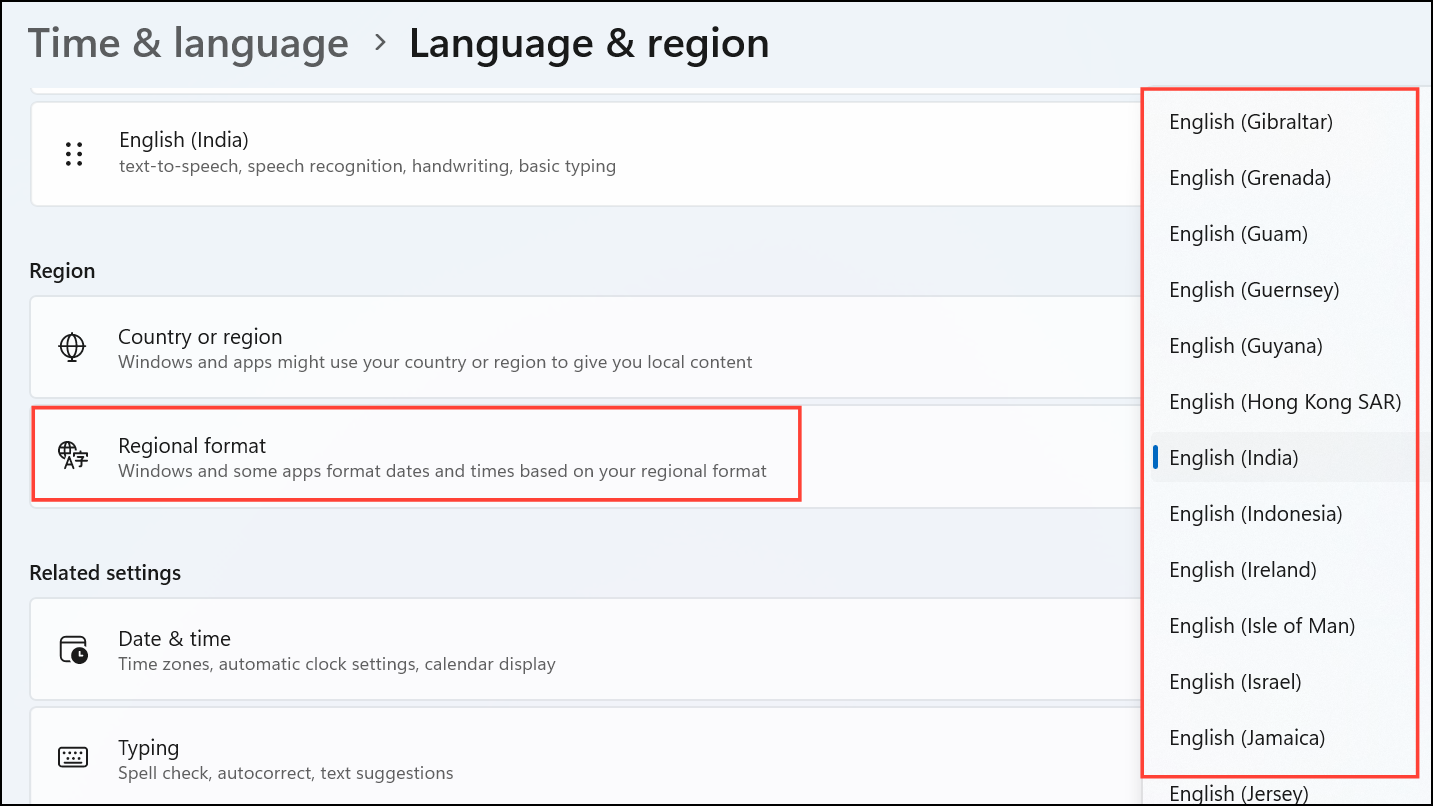
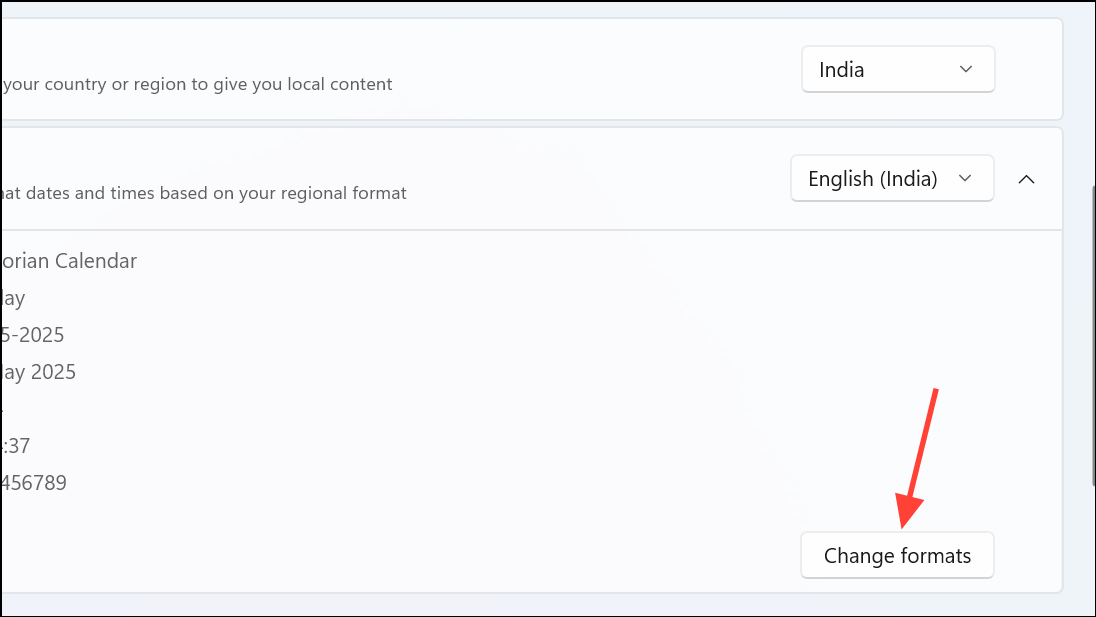
Set a Custom Date Format Using Control Panel
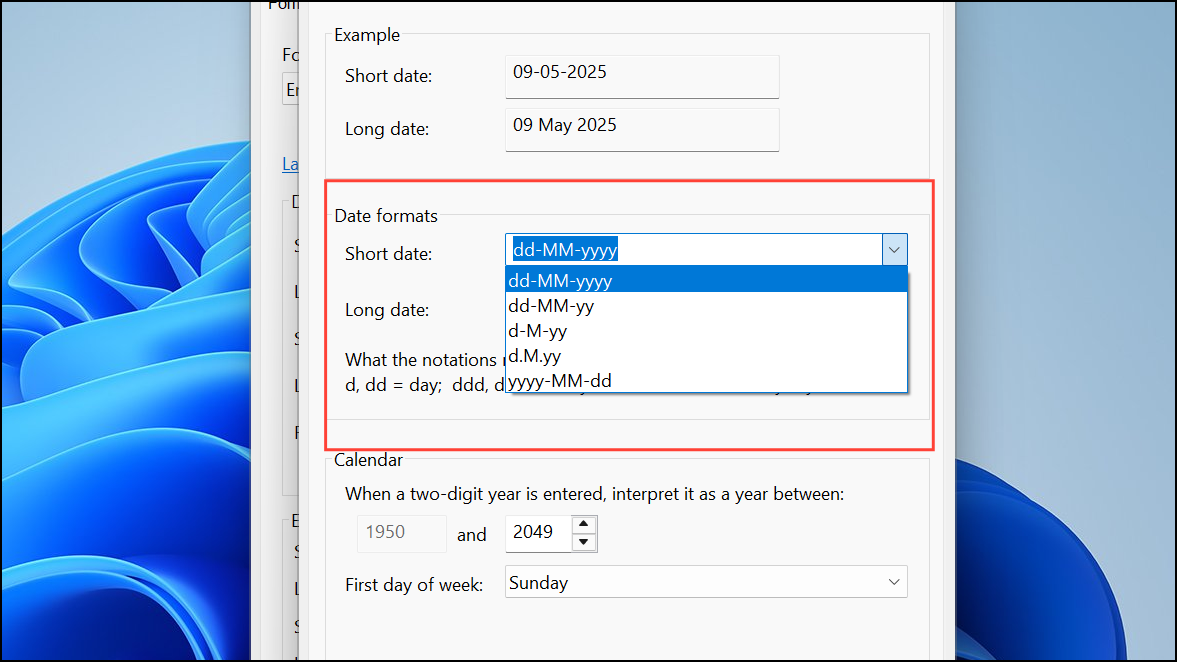
For users who require a date format not available in the Settings app dropdowns—such as including the weekday, using different separators, or custom year/month/day arrangements—the Control Panel offers more granular options.
Windows key + R to open the Run dialog, then type control and press Enter. This launches the classic Control Panel interface.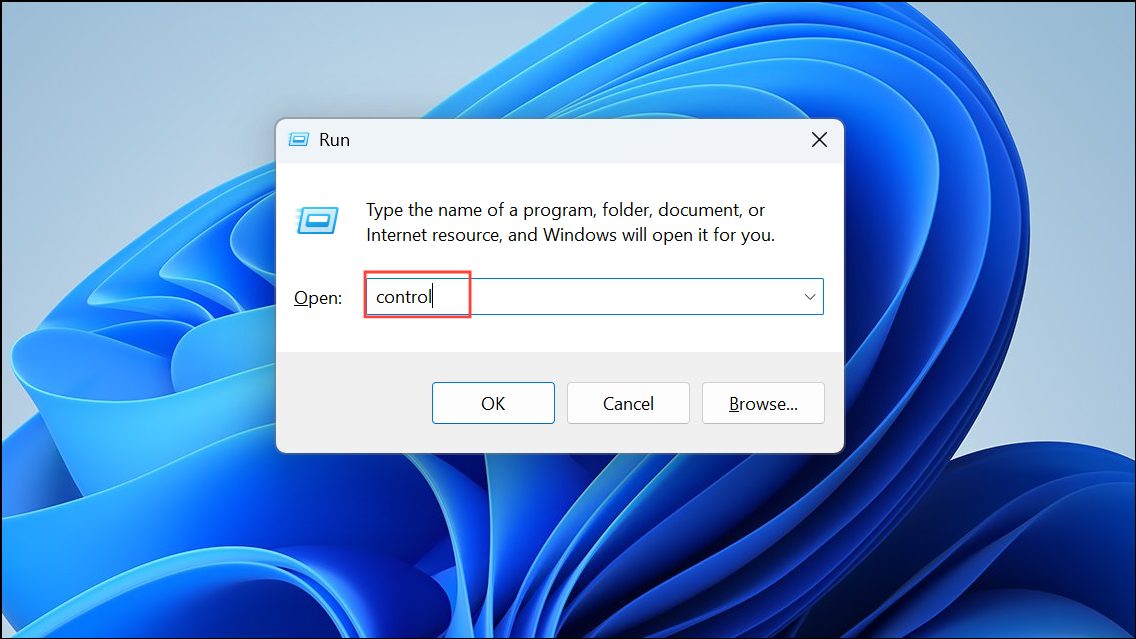
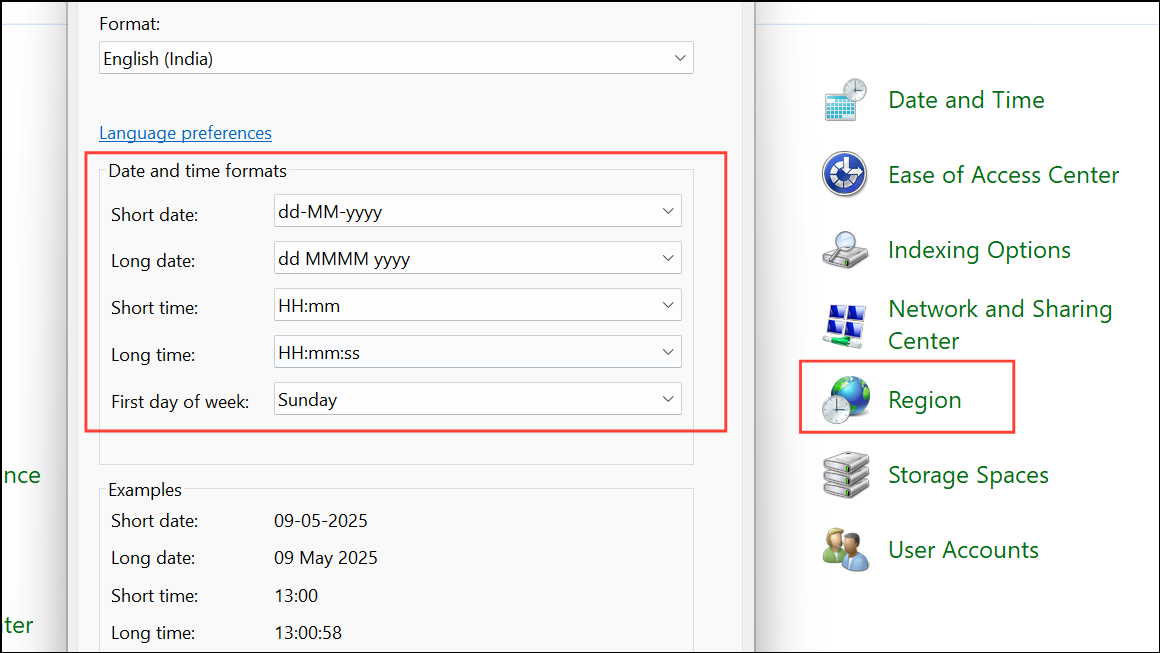
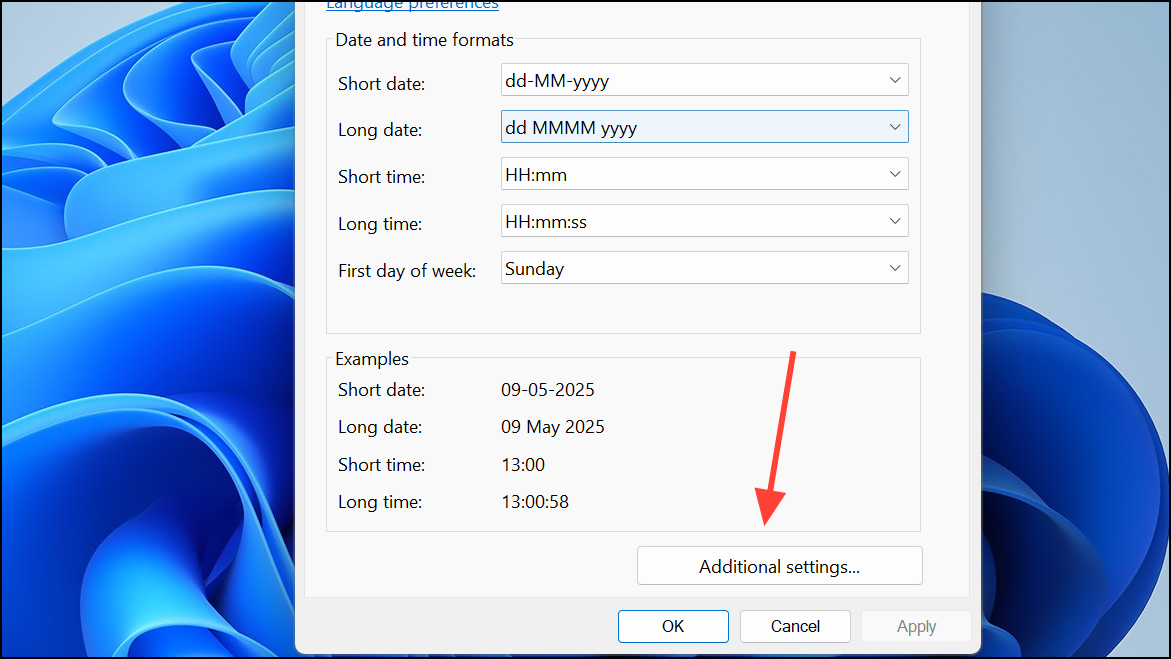
dd-MM-yyyy displays as 31-12-2025, while ddd, dd/MM/yy displays as Tue, 31/12/25. You can use:d,ddfor day.ddd,ddddfor day of week.M,MMfor month.y,yy,yyyyfor year.
Maintain Consistent Date Formats Across Languages and Regions
If you frequently switch your system’s country or region, Windows 11 may automatically revert to that region’s default date format. To prevent this, set both your “Country or Region” and “Regional Format” to your preferred settings in the Language & Region area of the Settings app.
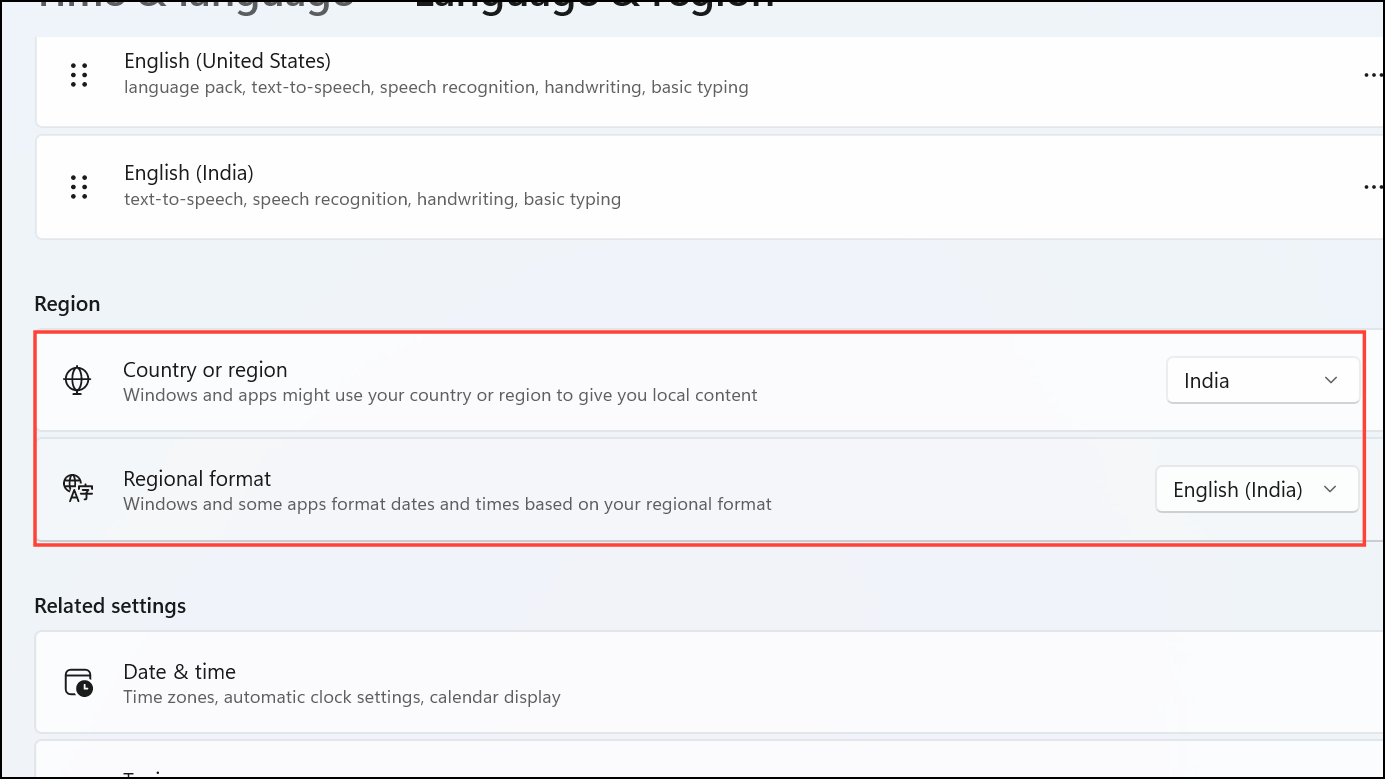
Also, ensure your “Windows Display Language” matches your preference. For those who travel or use multiple languages, double-check these settings after any regional change.
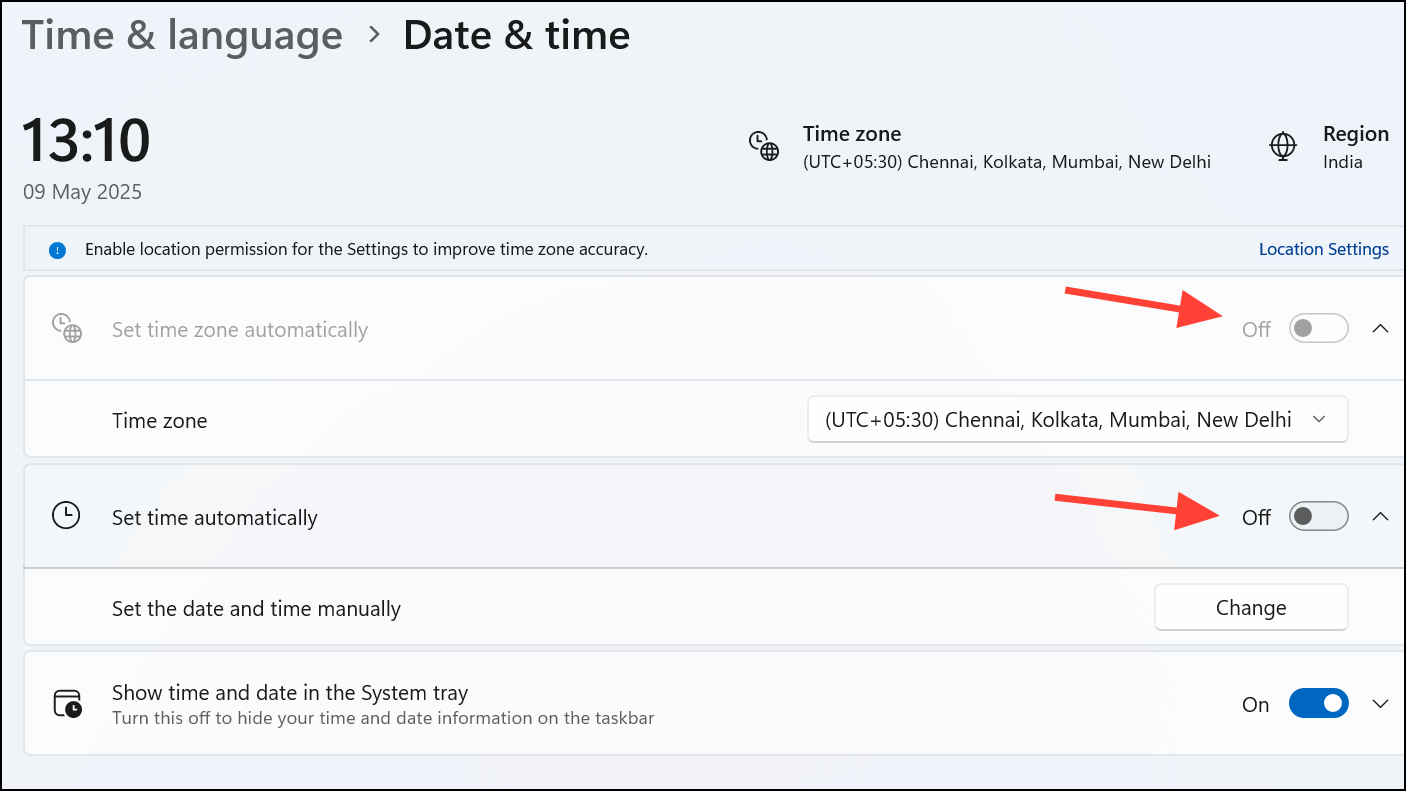
Disabling automatic time zone and time adjustment can also help retain your chosen format. Right-click the time on the taskbar, select “Adjust date and time,” and turn off the first two options for automatic time and time zone. This keeps your chosen format stable, though you’ll need to manually update these settings if you move to a new time zone.
Switching the date format on Windows 11 removes confusion and ensures your system matches your workflow. With these steps, you can quickly adjust or customize the display to suit your needs.



