

Windows 11 update processes can halt abruptly with error code 0x80070070 when the system drive runs low on available space. This error blocks installation of updates and new features, leaving your device unable to complete critical system changes. Addressing storage limitations directly not only allows the update to proceed but also improves overall system responsiveness and reliability.
Expand the System Partition to Create Sufficient Space
Expanding the system partition is the most direct way to resolve space-related update errors. This method increases the available storage for Windows updates and essential files, often resolving the error without requiring major file deletions.
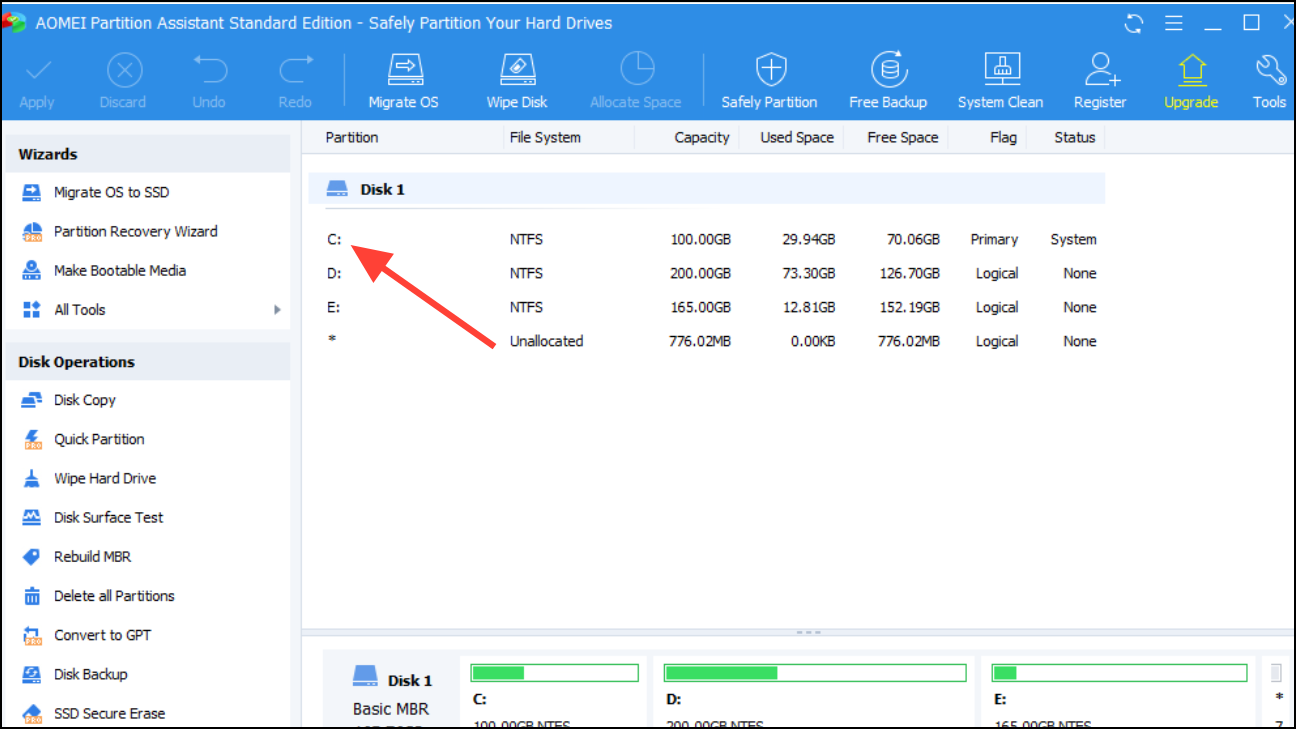
"Resize/Move". Drag the partition boundary to include unallocated space or follow prompts to allocate free space from another partition.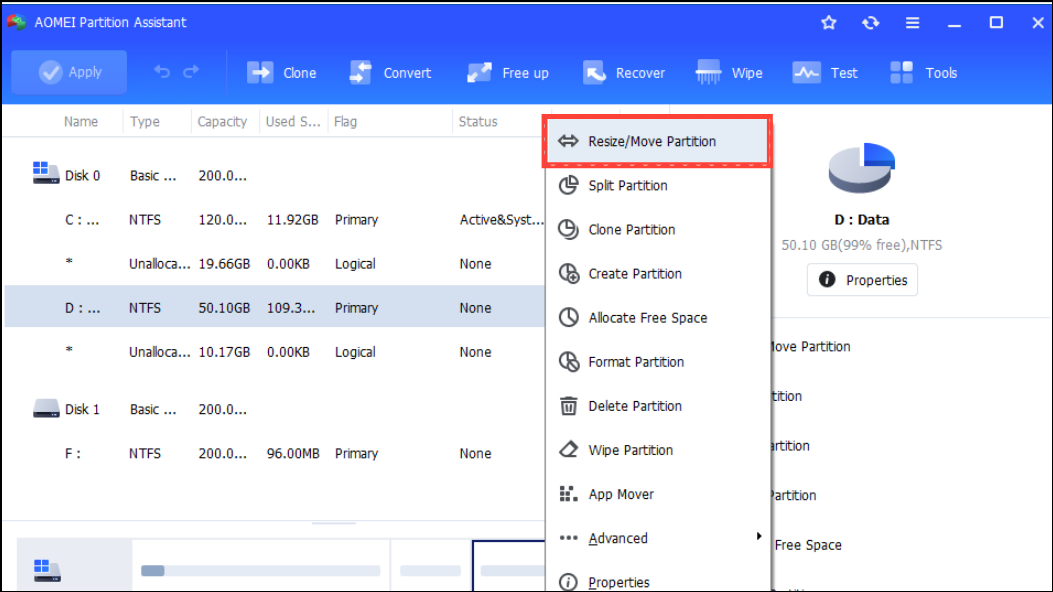
"Execute Task" or "Apply" to start the resizing process. The system may require a restart to complete the operation safely.Expanding the system partition typically resolves the 0x80070070 error by providing enough room for updates and future system files, reducing the likelihood of recurrent storage issues.
Free Up Disk Space Using Built-In Windows Tools
When expanding the partition is not feasible, systematically clearing out unnecessary files can quickly release storage and allow updates to proceed.
"Disk Cleanup" in the Start menu and selecting the application.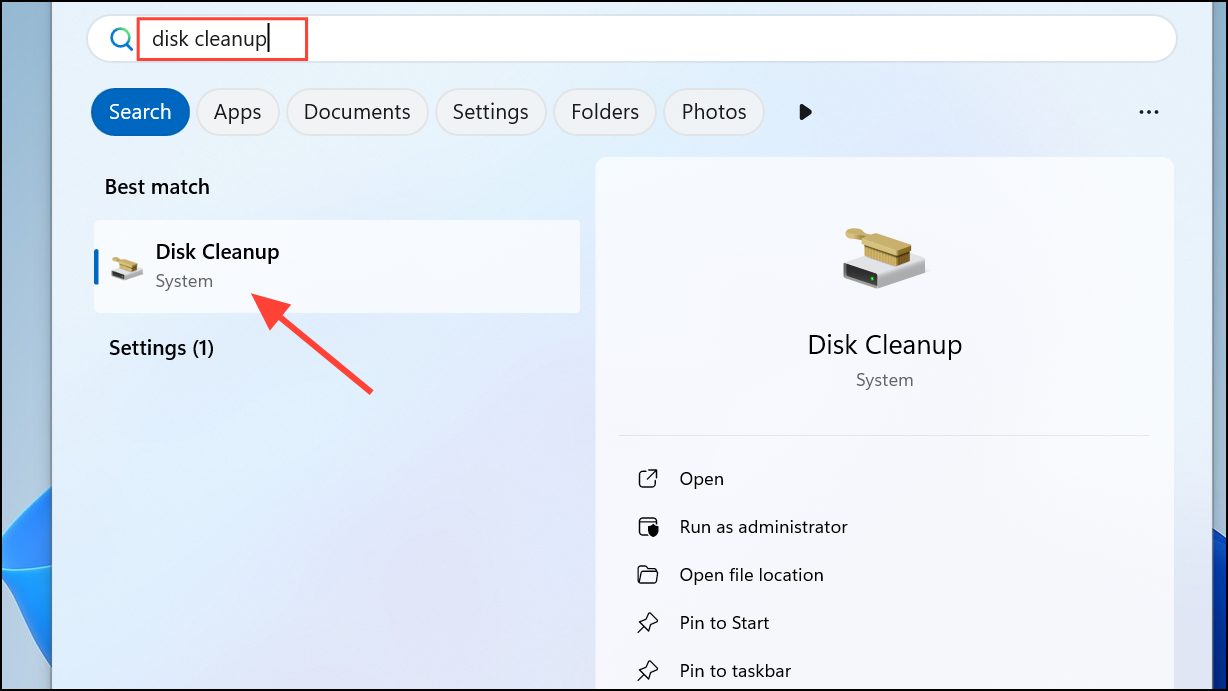
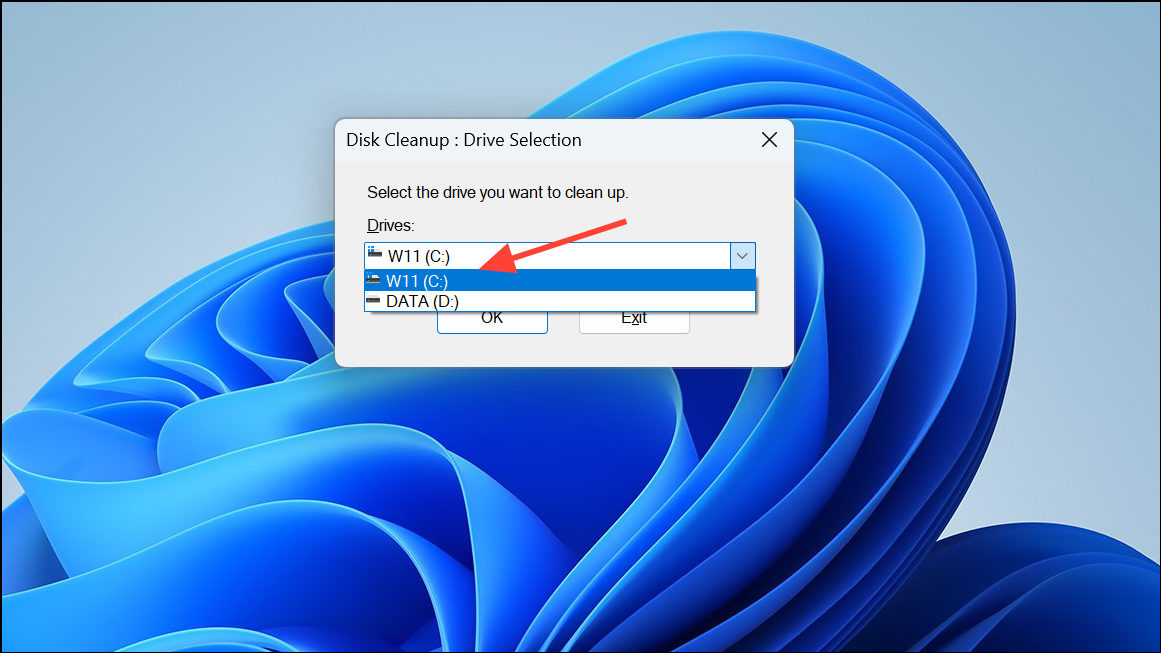
"Clean up system files" to remove even more space-consuming items, such as previous Windows installations.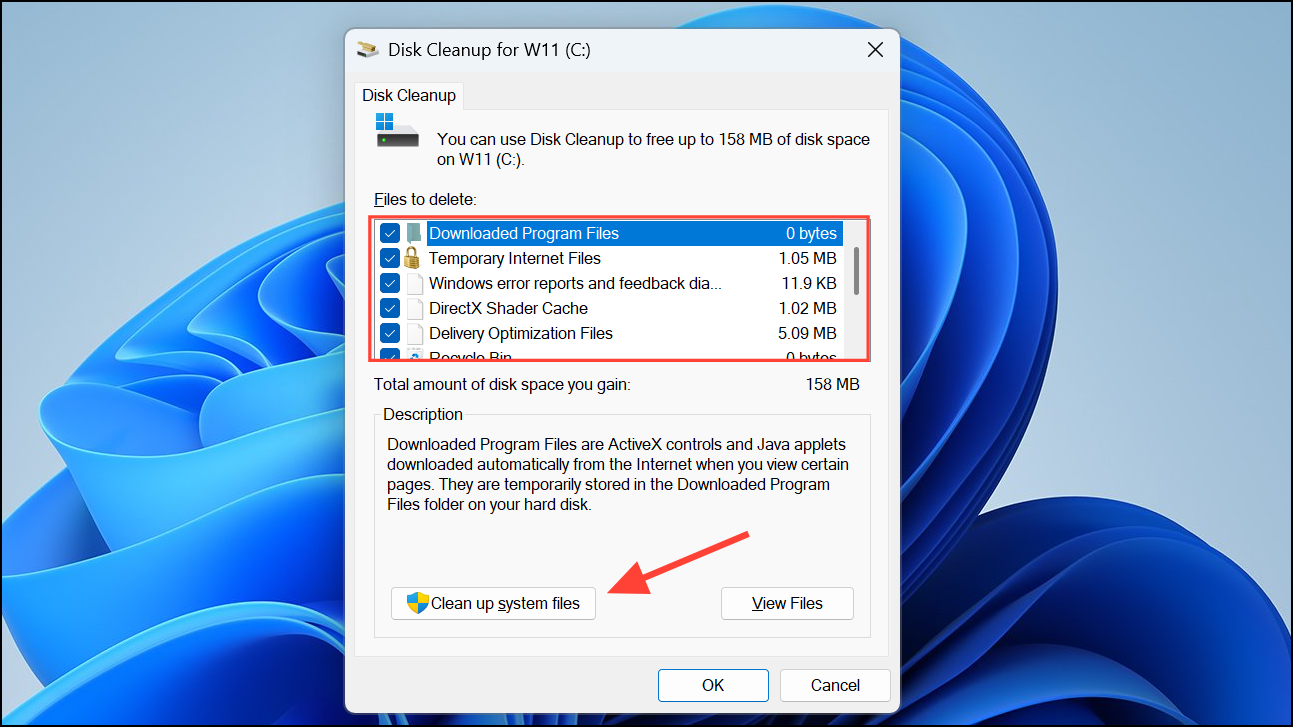
"OK" and confirm deletion. Wait for the cleanup process to finish before attempting the update again.Disk Cleanup provides a safe, built-in method to reclaim storage and is effective for quickly addressing minor space shortages.
Remove or Relocate Large Files and Applications
Large personal files and unused applications often occupy significant storage on the system drive. Moving or deleting these items can immediately free up space required for Windows updates.
"Settings" with Windows + I and navigate to "System" > "Storage". Use the storage breakdown to identify large file categories and installed applications.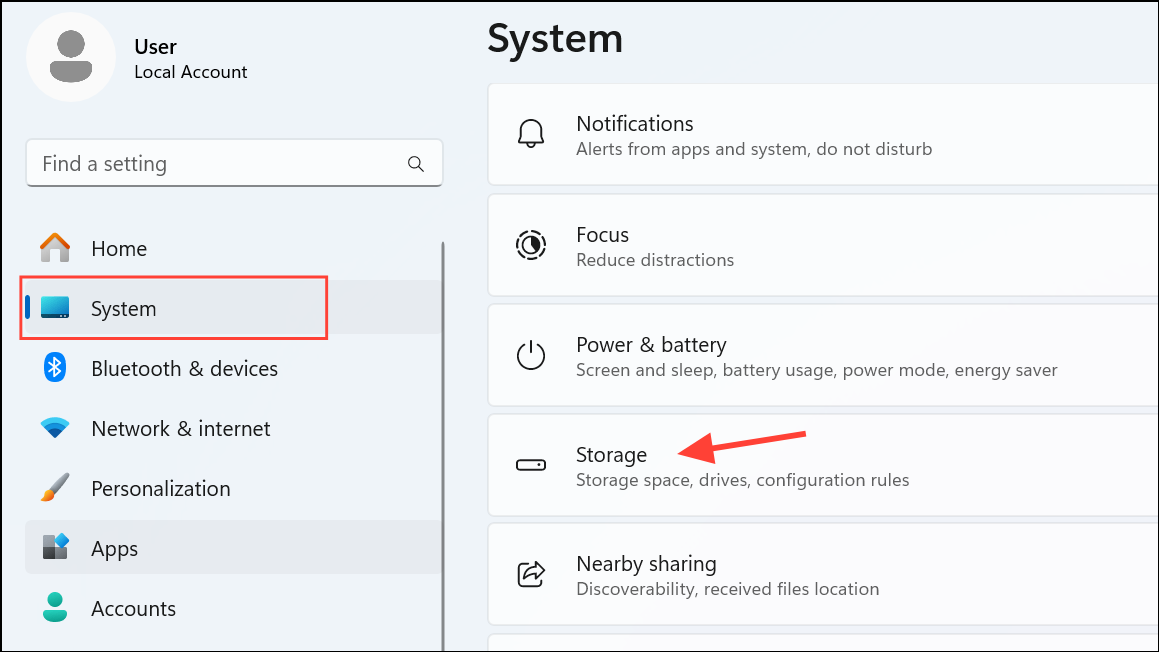
"Apps" > "Installed apps". Sort by size and uninstall programs you no longer use by clicking the three-dot menu and selecting "Uninstall".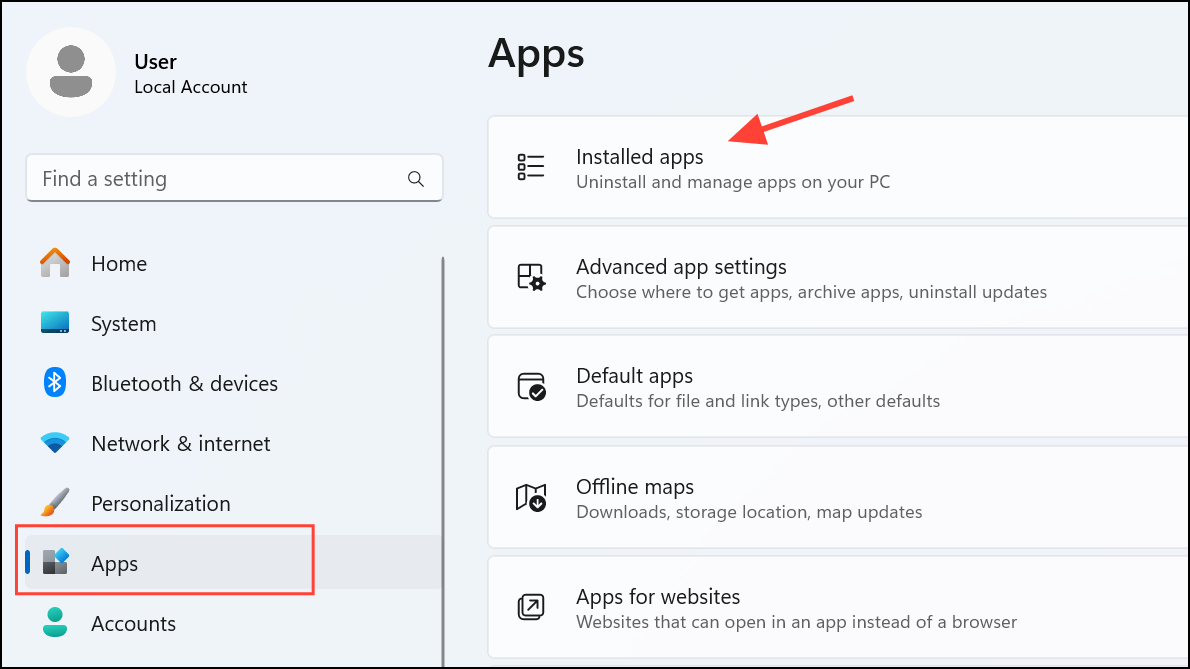
"Cut", navigate to the new location, and then select "Paste"."Empty Recycle Bin" to permanently remove deleted items and reclaim the space.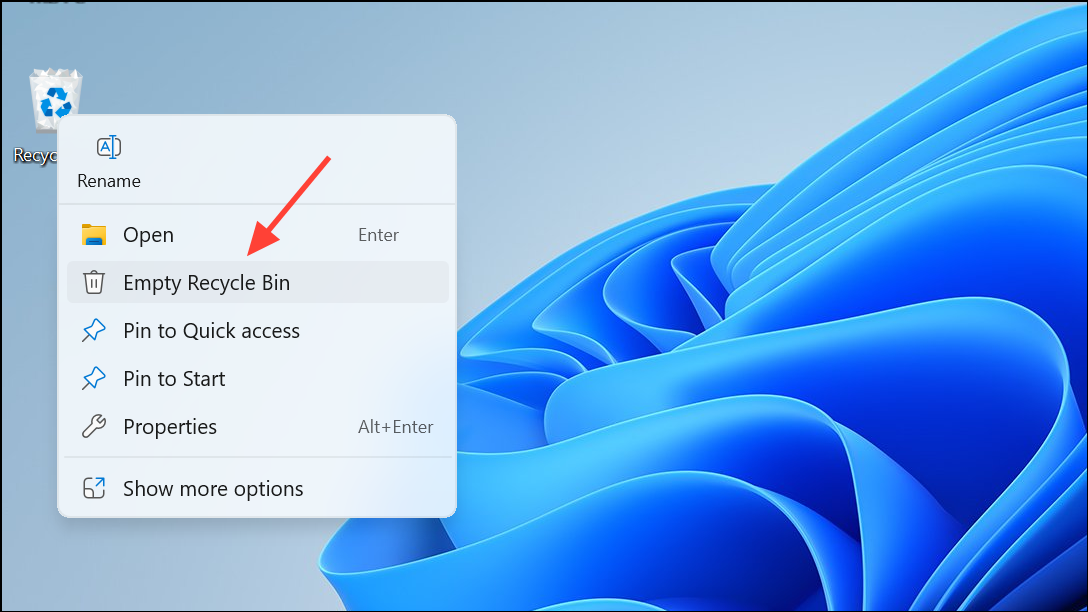
This process is especially effective for users with large media libraries or old software installers cluttering the primary drive.
Clear Temporary and System Files Manually
Temporary files and cached data accumulate over time, occupying valuable disk space. Manually deleting these files ensures that hidden storage is reclaimed.
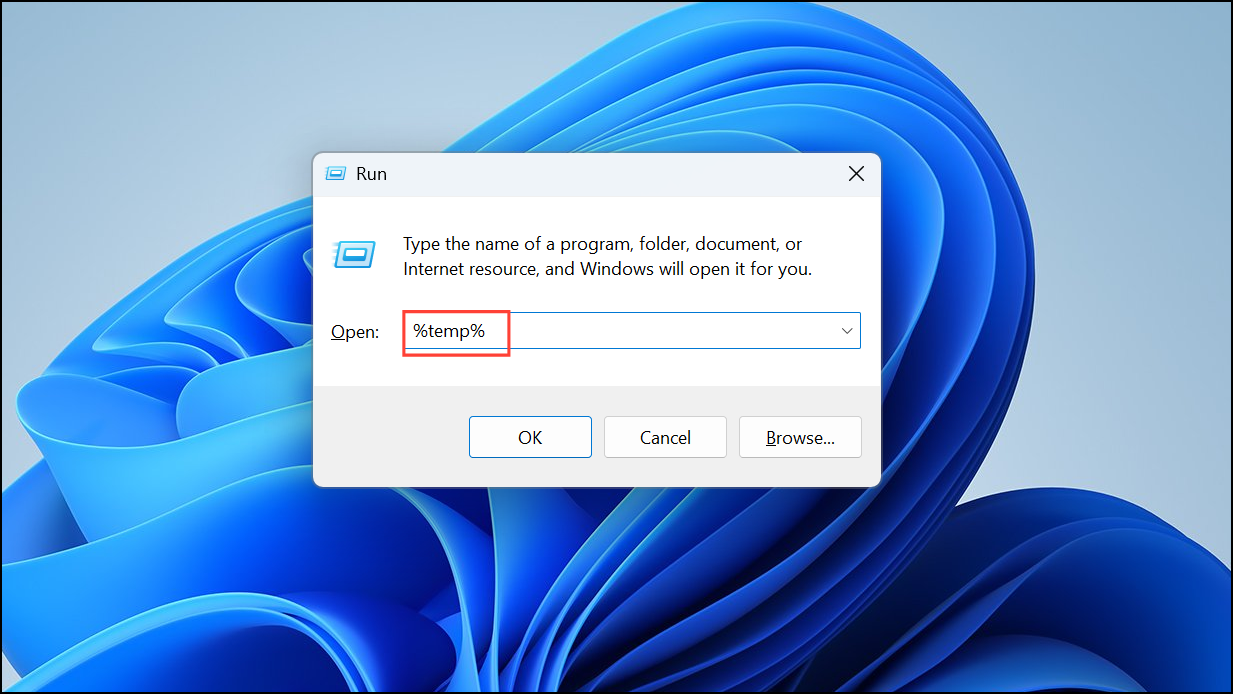
Ctrl + A, then delete them using Shift + Delete to permanently remove these files. Some files may be in use and cannot be deleted; skip these when prompted.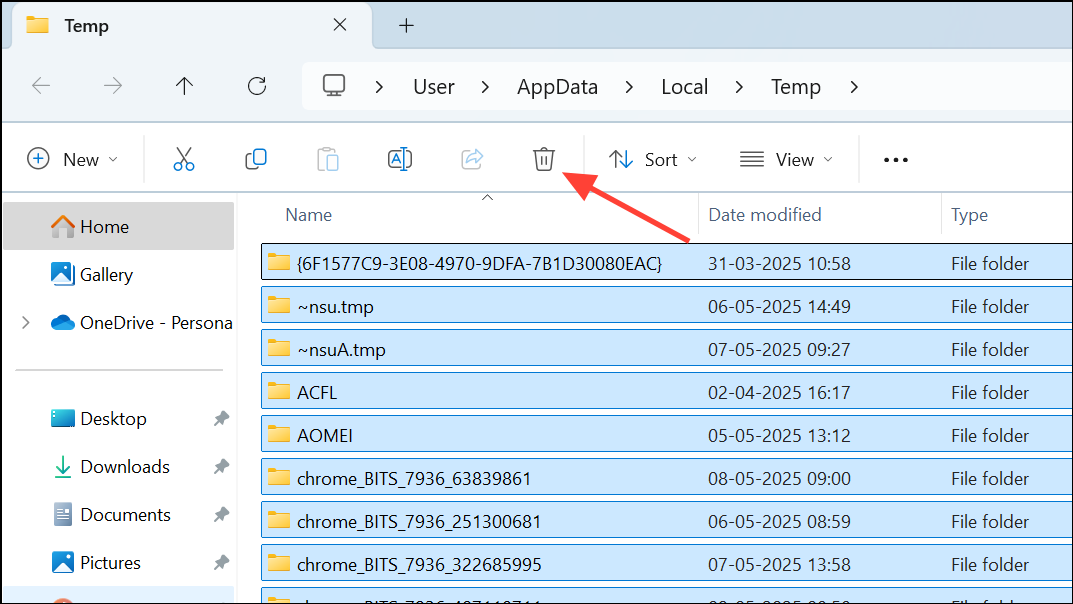
Regularly clearing temporary files prevents gradual storage loss and supports smoother system operation.
Optimize Storage Settings and Automate Maintenance
Windows 11 includes features to automate storage management and minimize future space issues.
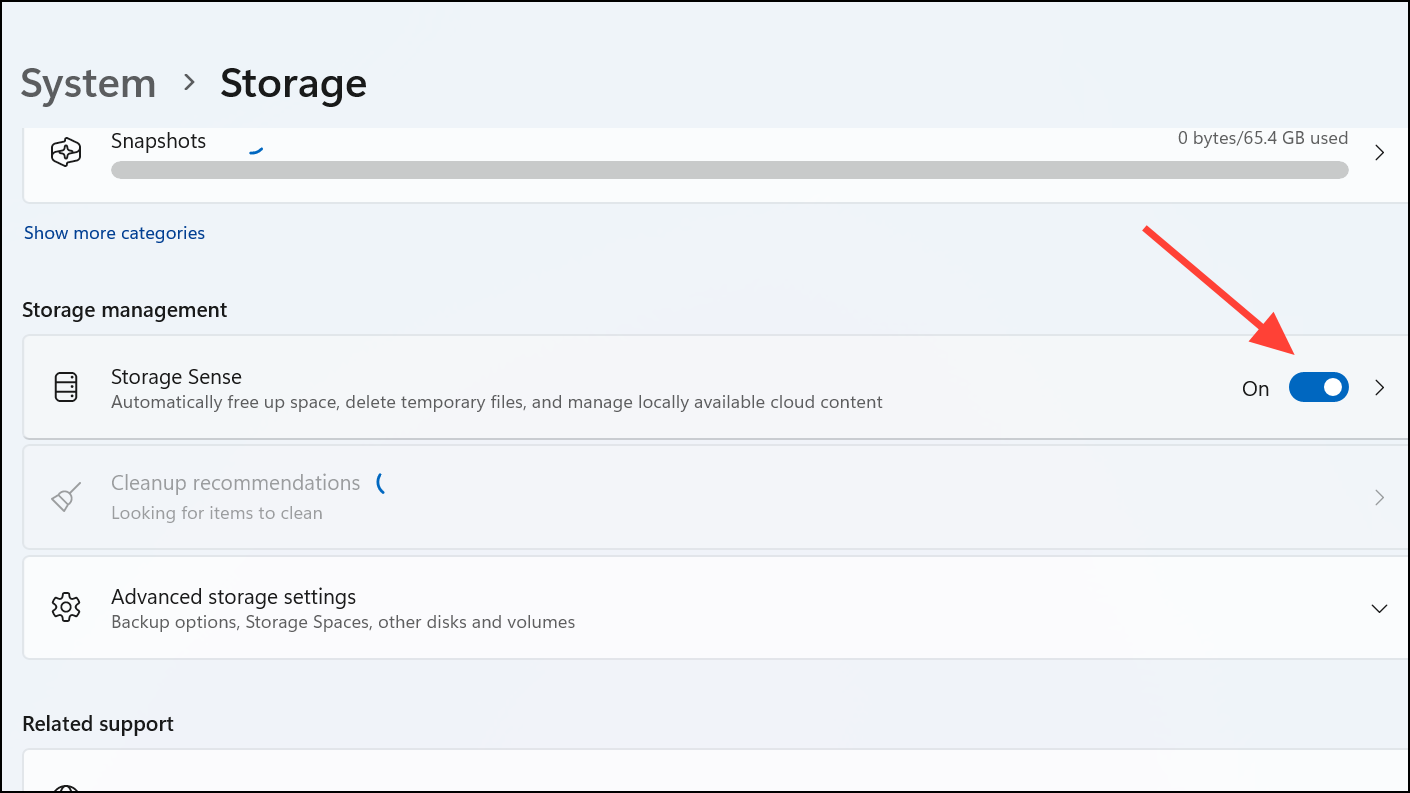
"Storage Sense" to configure how often it runs and what types of files it should delete automatically, such as temporary files and items in the Recycle Bin.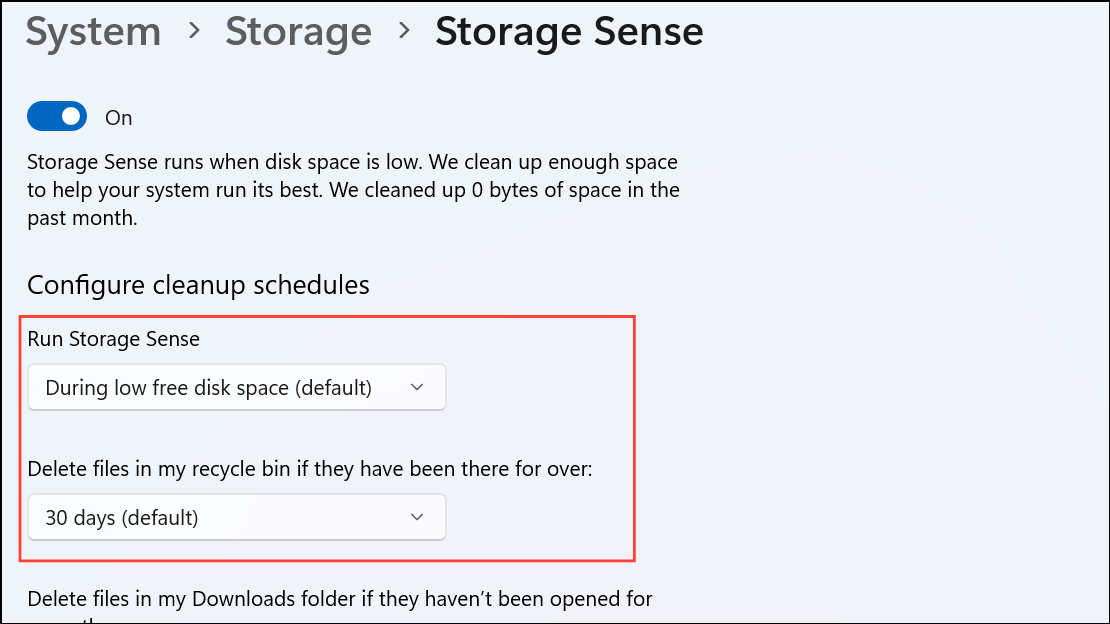
Automating storage maintenance with Storage Sense minimizes manual intervention and helps maintain enough free space for future updates.
Address Corrupted or Misconfigured System Partitions
In rare cases, the 0x80070070 error may result from partition corruption or improper configuration, not just low space. Running system checks and repair utilities can resolve these hidden issues.
"cmd", right-clicking, and selecting "Run as administrator".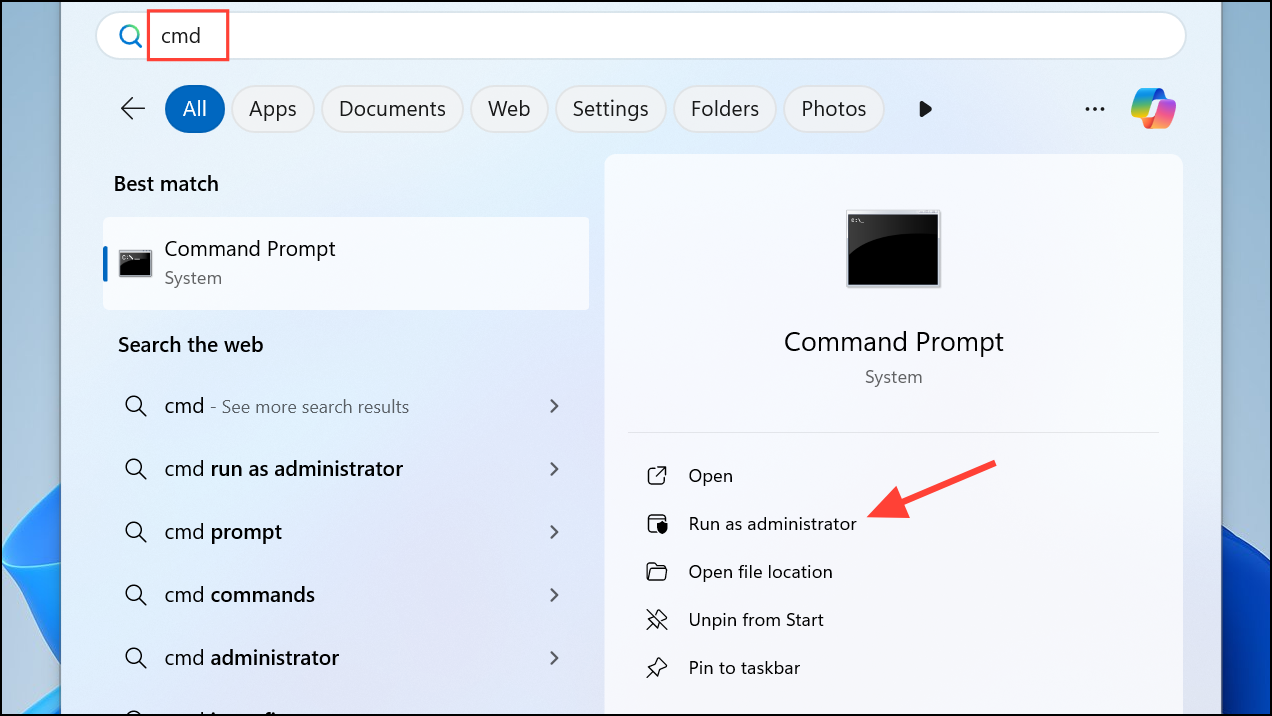
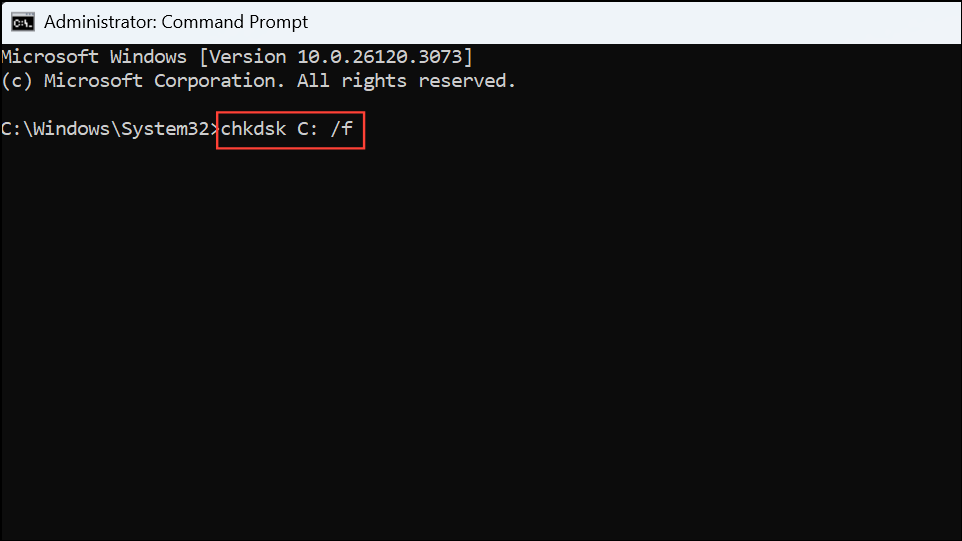
chkdsk C: /fThis command scans the C: drive for errors and repairs them. You may be prompted to schedule the check for the next system restart; confirm if needed and reboot.
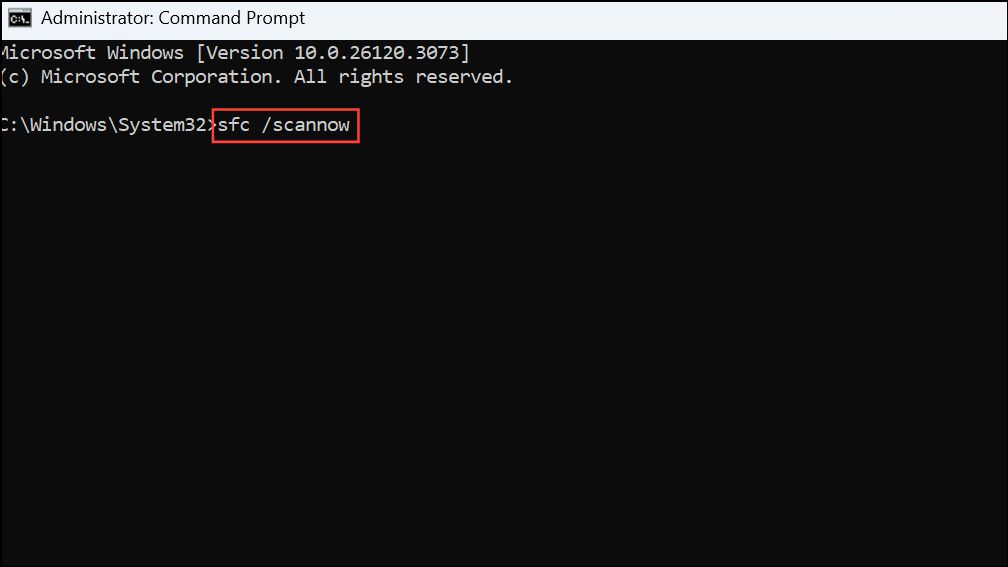
sfc /scannowThis scans and repairs corrupt system files that could interfere with update processes.
Resolving error 0x80070070 on Windows 11 is straightforward when you address storage limitations directly, whether by expanding partitions, clearing out unneeded files, or automating maintenance. Keeping your system drive free of clutter not only prevents future update errors but also improves speed and reliability for daily tasks.



