
Windows Update failures with error code 0x800705aa often result from system file corruption, misconfigured update components, or incorrect time settings. This error stops updates from installing and can sometimes disrupt other system features, such as the Start menu or app functionality. Addressing the underlying causes restores normal update operations and system stability.
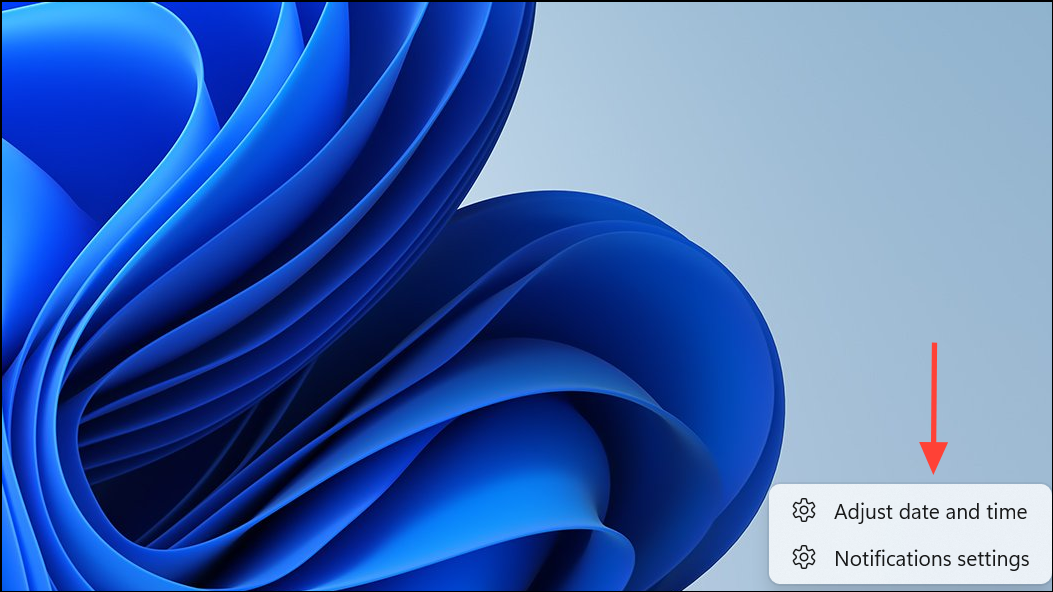
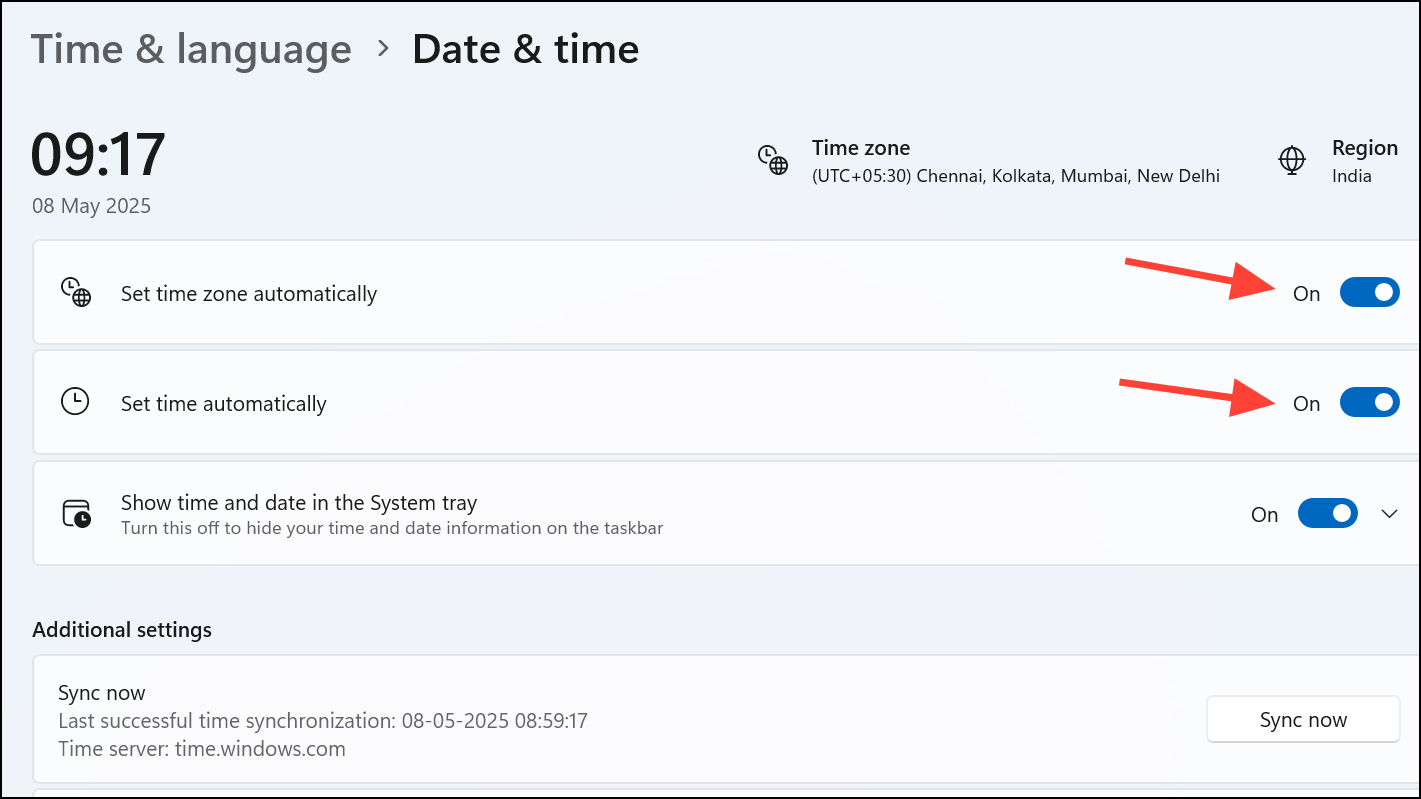
Correct Time and Date Settings
Incorrect time and date configurations frequently block Windows Update processes. Synchronizing your system’s clock and time zone with official servers ensures update requests are processed correctly.
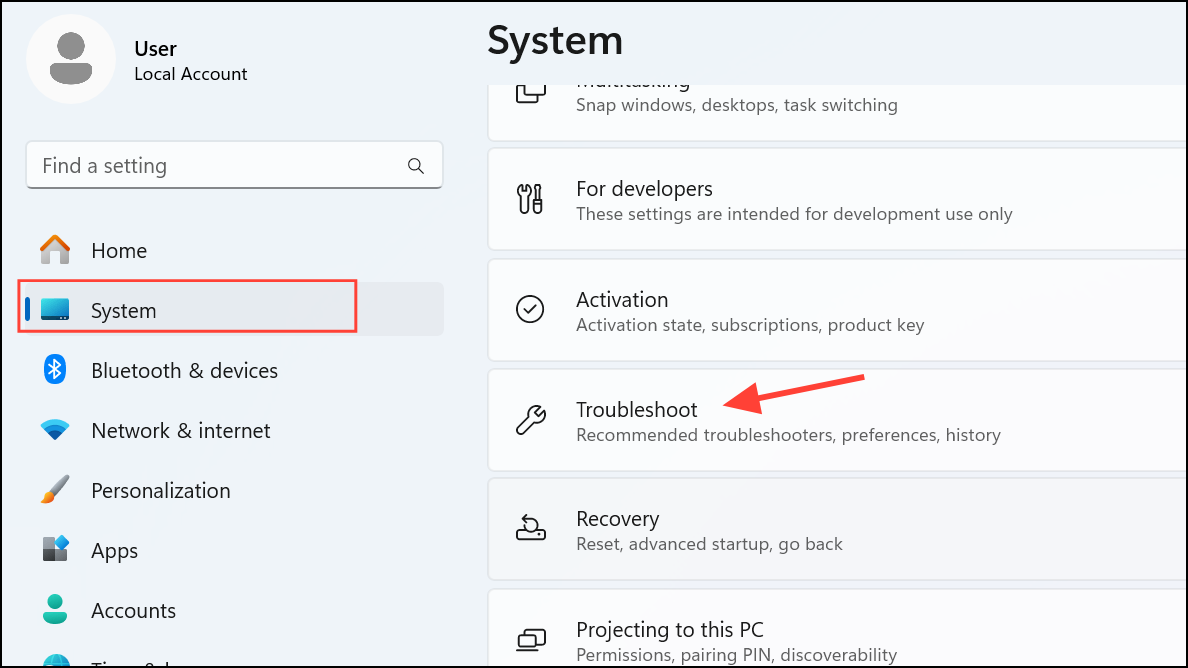
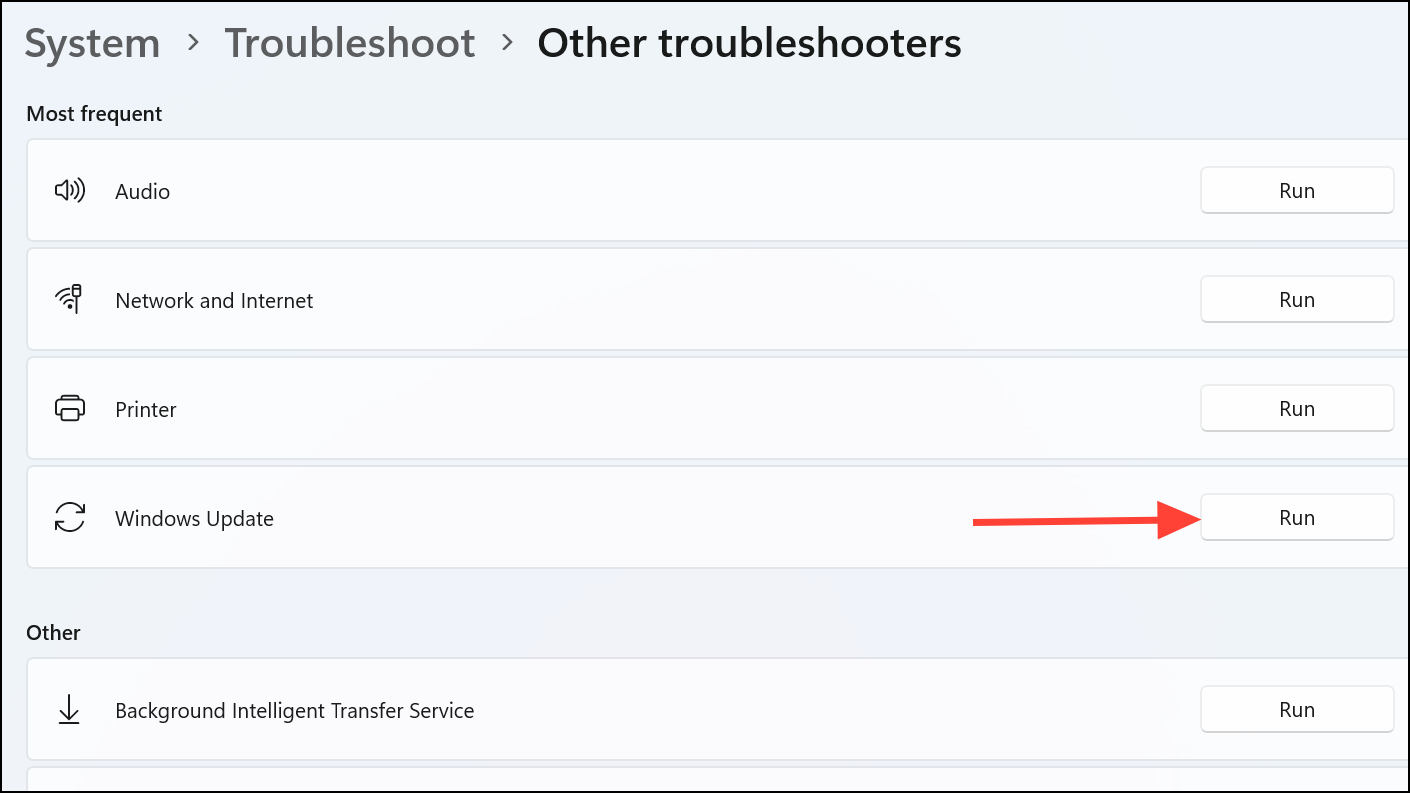
Run the Windows Update Troubleshooter
Windows includes a built-in troubleshooter that automatically identifies and resolves common update issues, including those that trigger error 0x800705aa.
Repair System Files with SFC and DISM
Corrupted or missing system files frequently block updates and trigger error 0x800705aa. The System File Checker (SFC) and Deployment Image Servicing and Management (DISM) utilities repair these files using trusted sources.
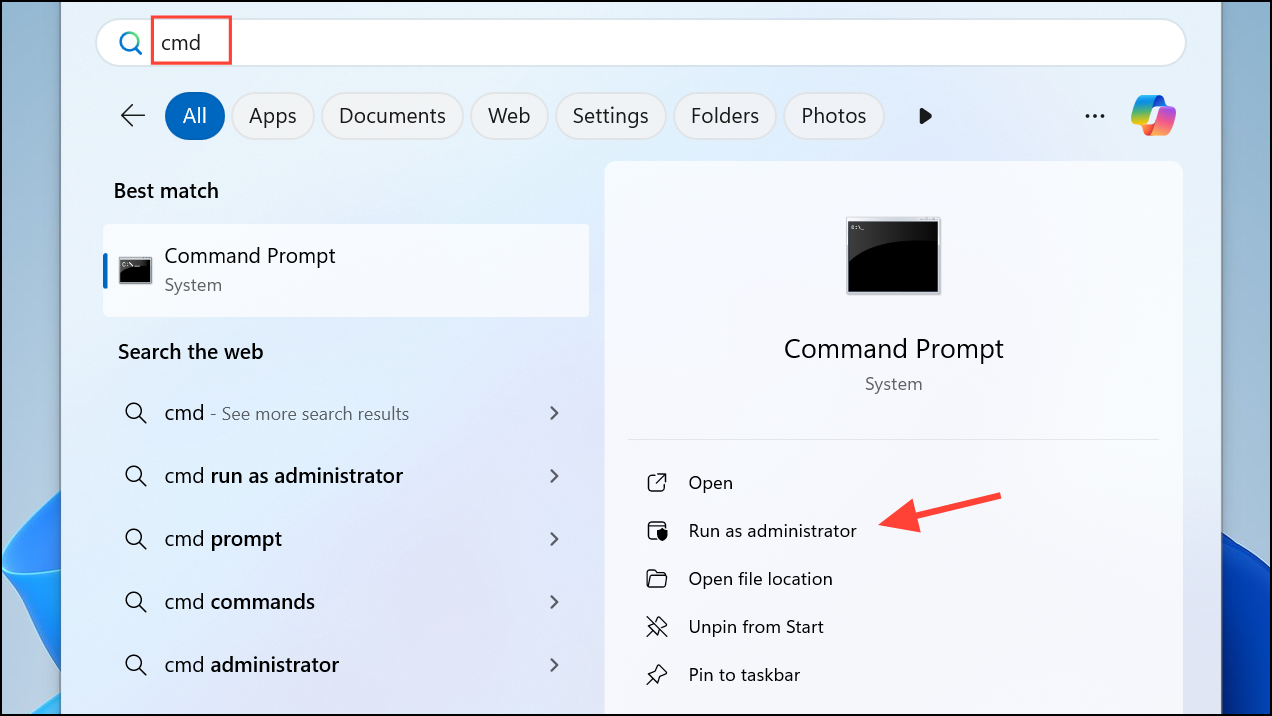
DISM /Online /Cleanup-Image /RestoreHealth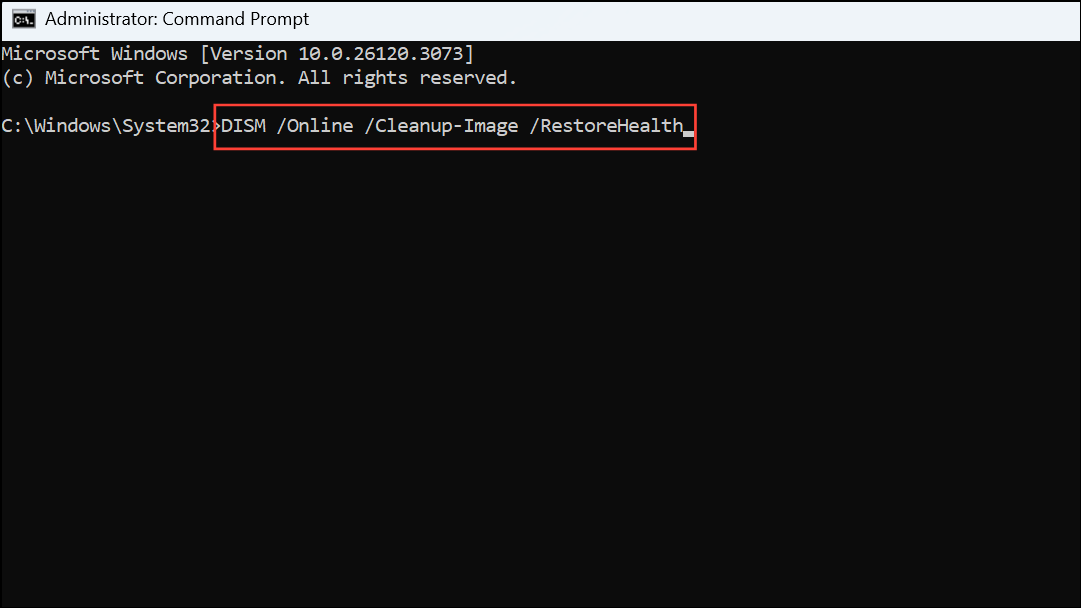
sfc /scannow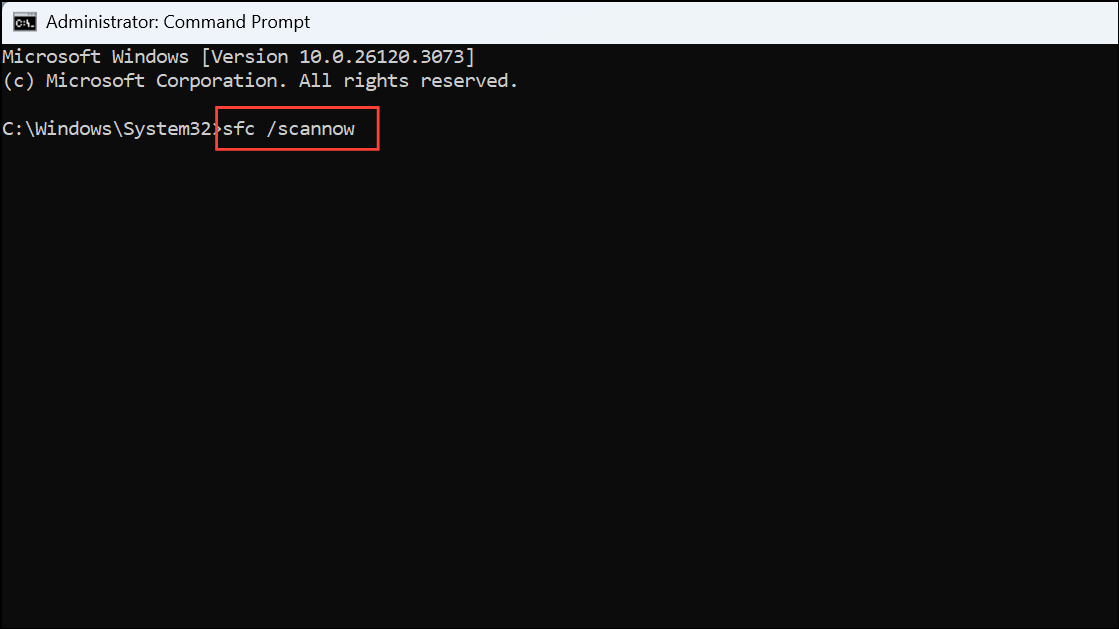
Reset Windows Update Components
Occasionally, the services and folders Windows uses to manage updates become corrupted or stuck, causing repeated update failures. Resetting these components clears out problematic files and restarts the update process.
net stop wuauserv
net stop cryptSvc
net stop bits
net stop msiserver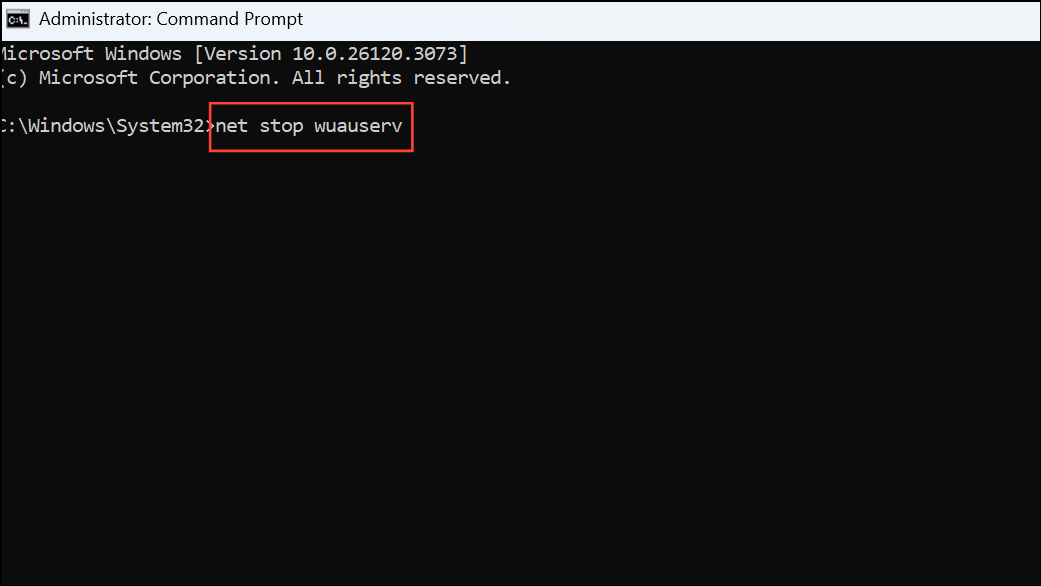
ren C:\Windows\SoftwareDistribution SoftwareDistribution.old
ren C:\Windows\System32\catroot2 catroot2.old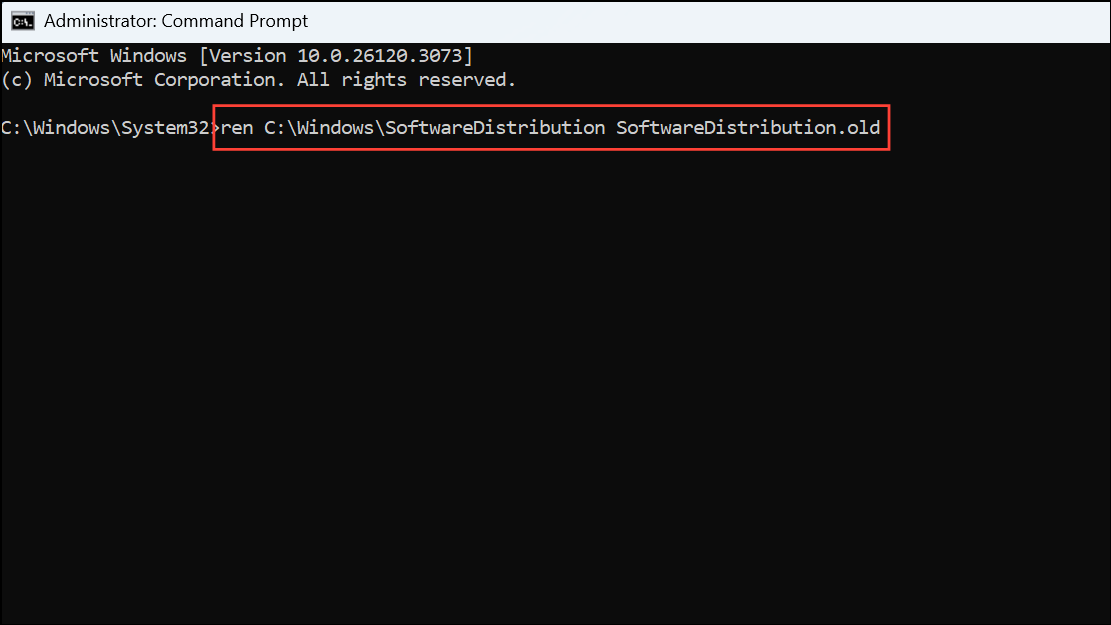
net start wuauserv
net start cryptSvc
net start bits
net start msiserver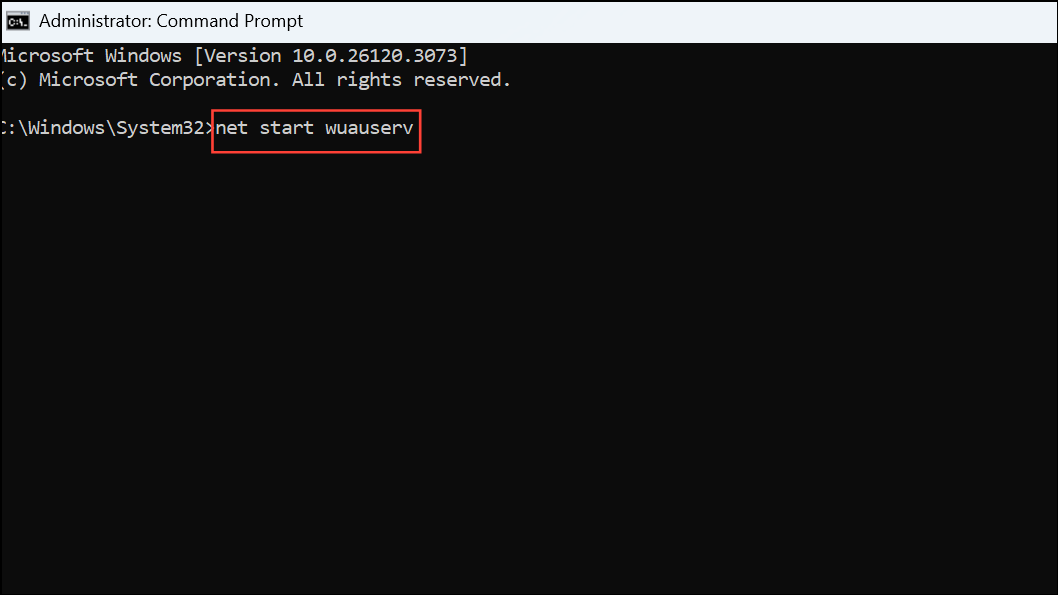
Free Up Disk Space
Insufficient disk space can prevent updates from downloading or installing, even if the error message refers to “insufficient resources.” Clearing temporary files and unused data provides the space needed for update operations.
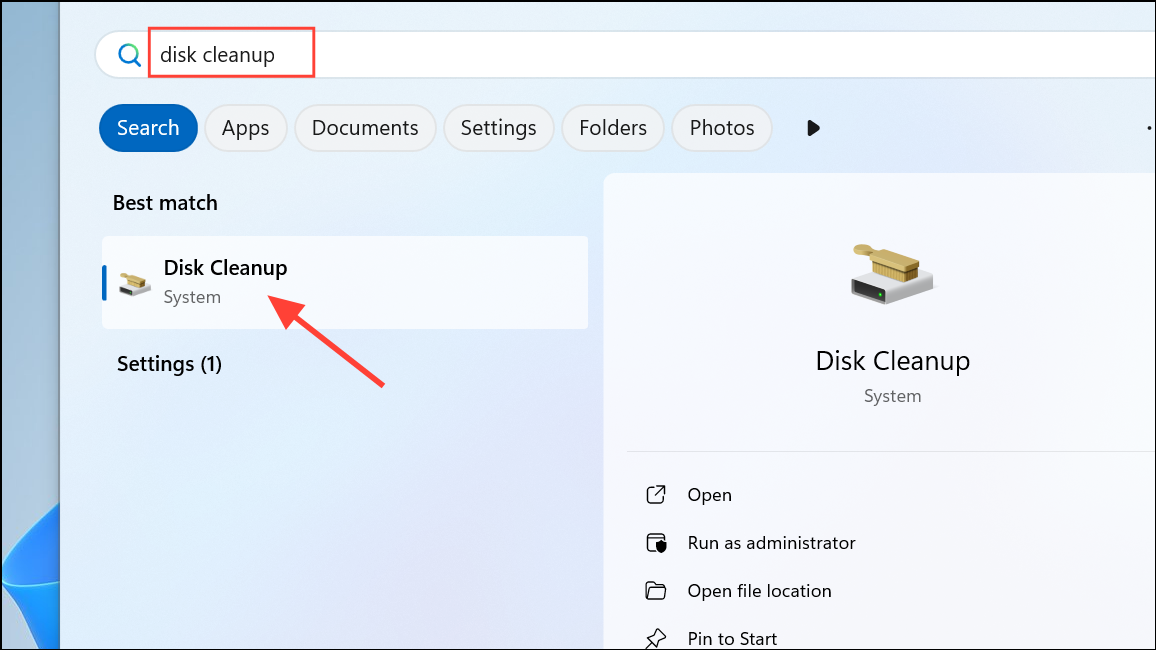
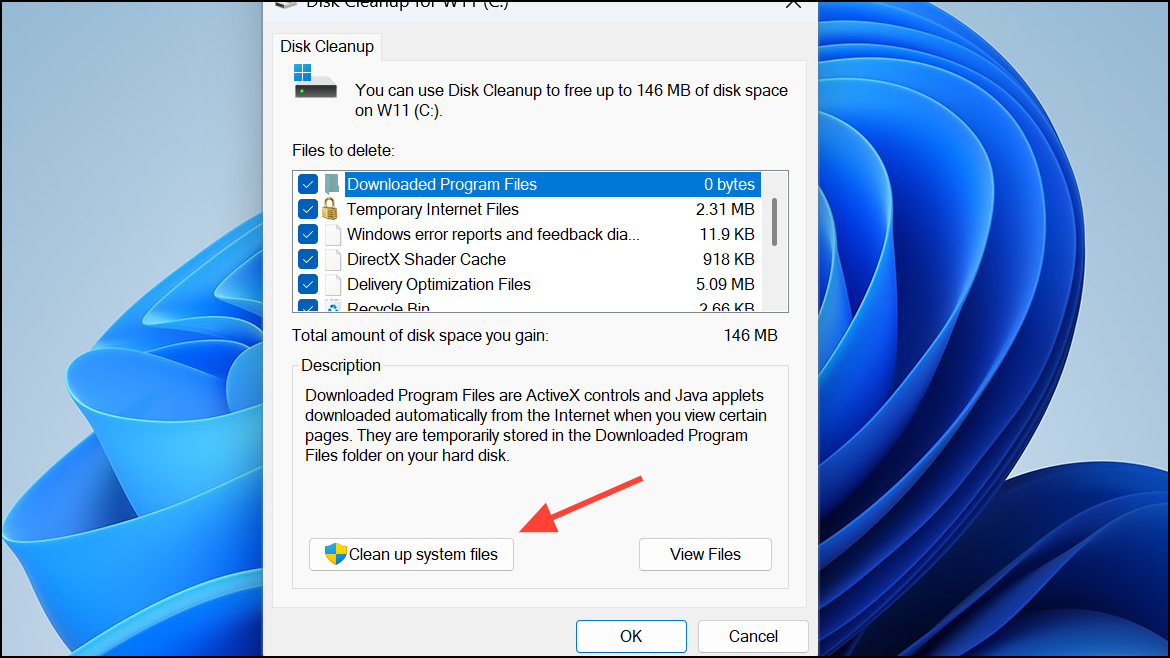
C:, and select file categories to delete, such as temporary files, system cache, and previous update files.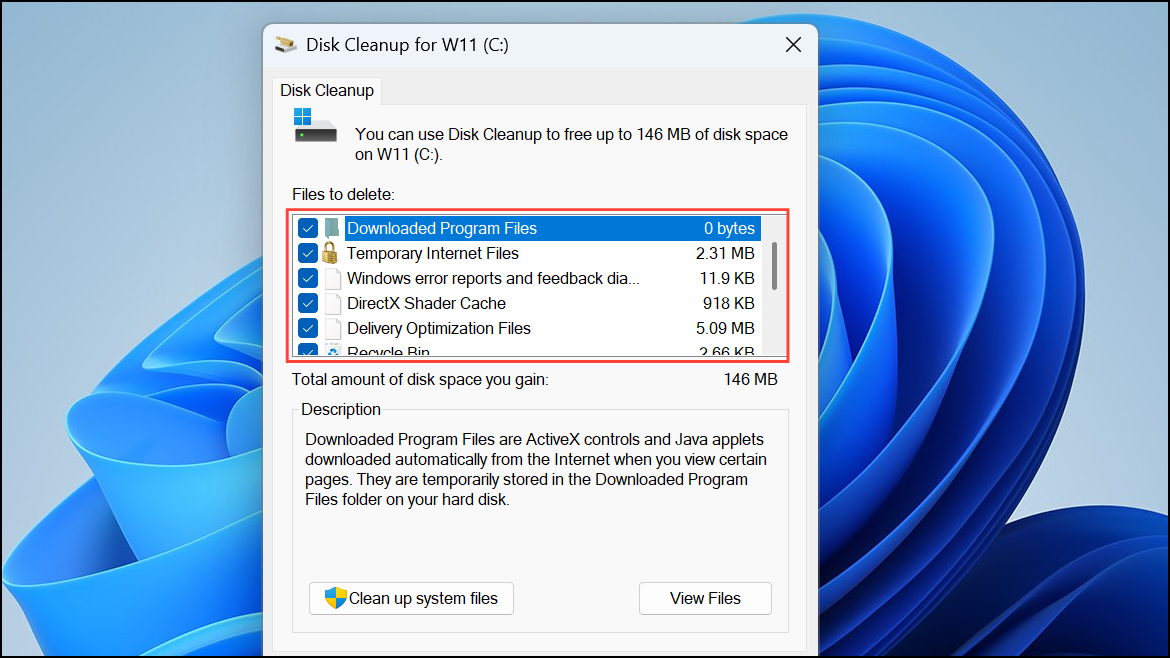
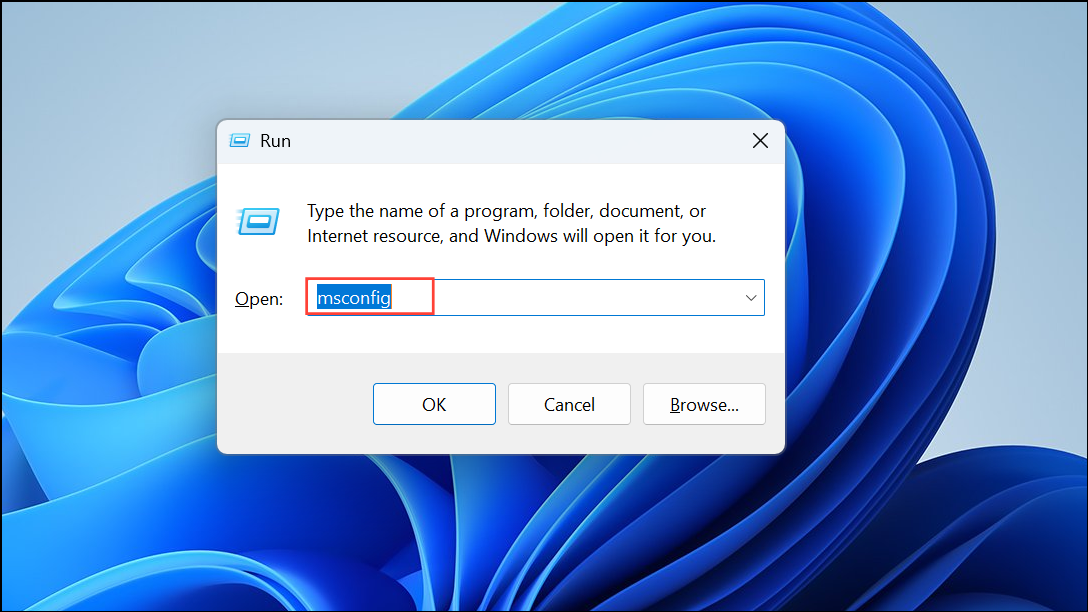
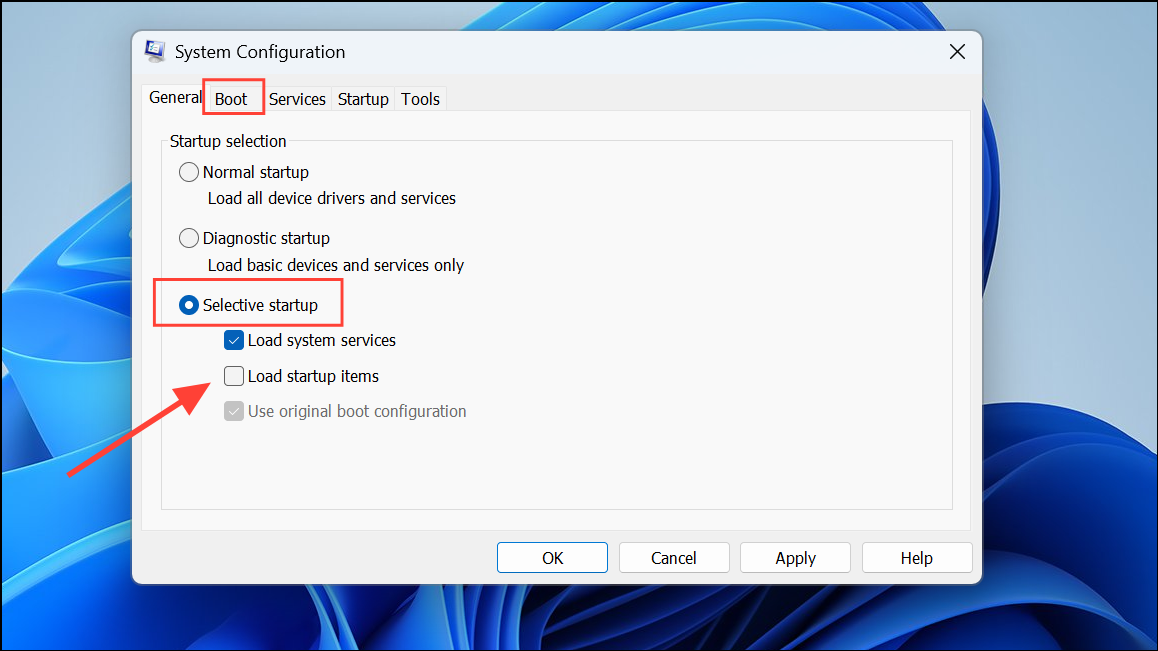
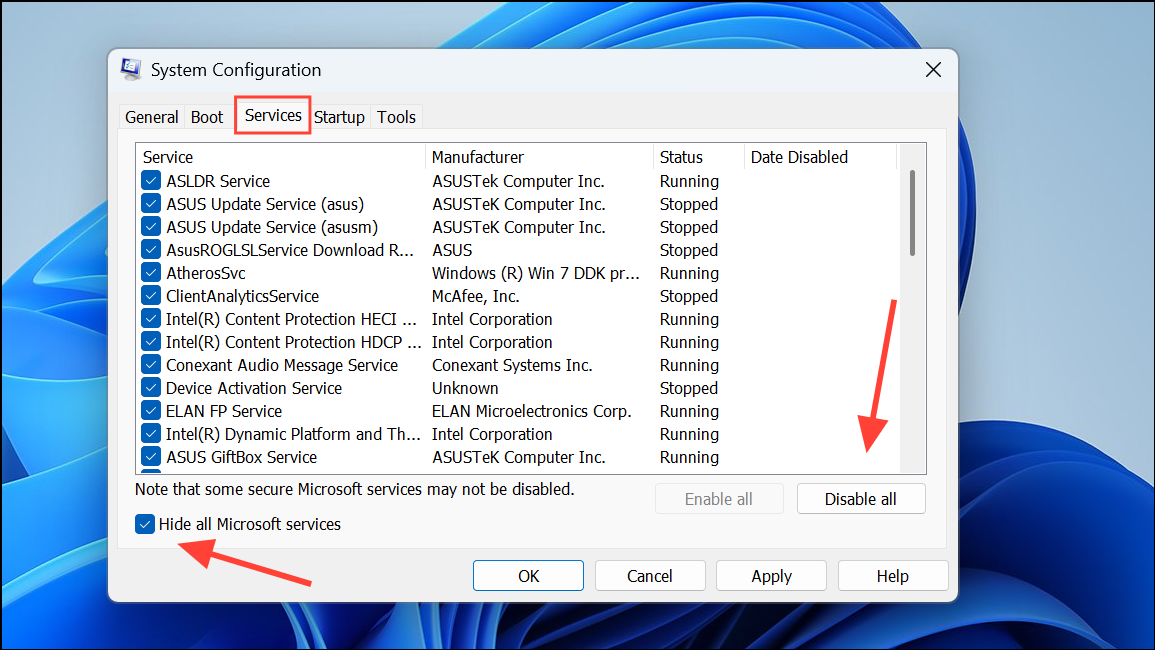
Clean Boot Windows
Software conflicts from third-party applications or services can interfere with Windows Update. Starting Windows in a clean boot state loads only essential services, helping to identify and eliminate conflicts.
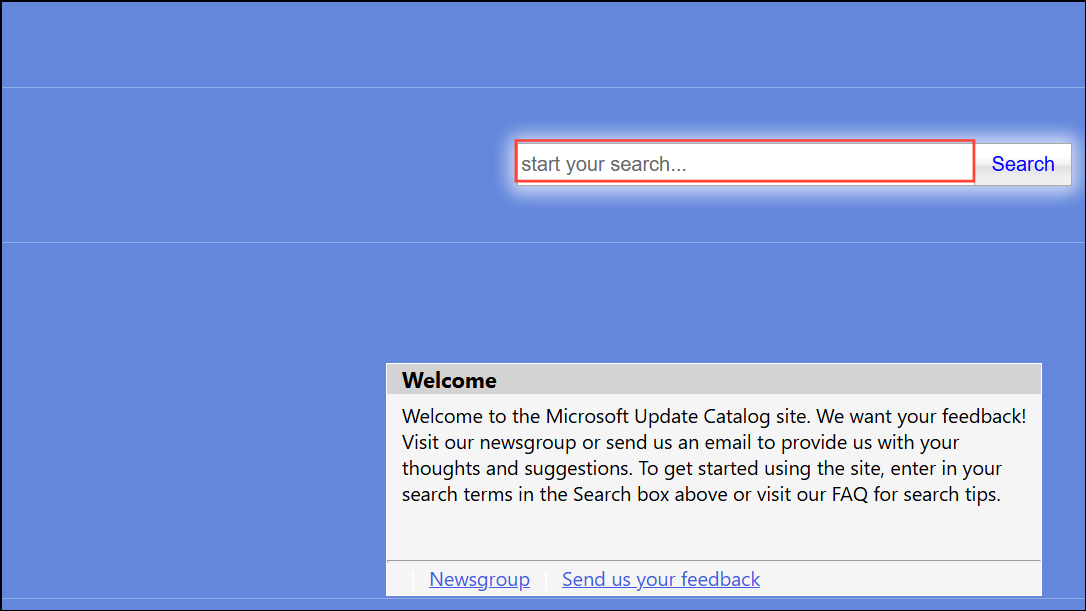
Manual Installation of Updates
When automatic updates continually fail, manually downloading and installing the problematic update can bypass some system-level errors. This approach provides a direct workaround, especially if only one update is problematic.
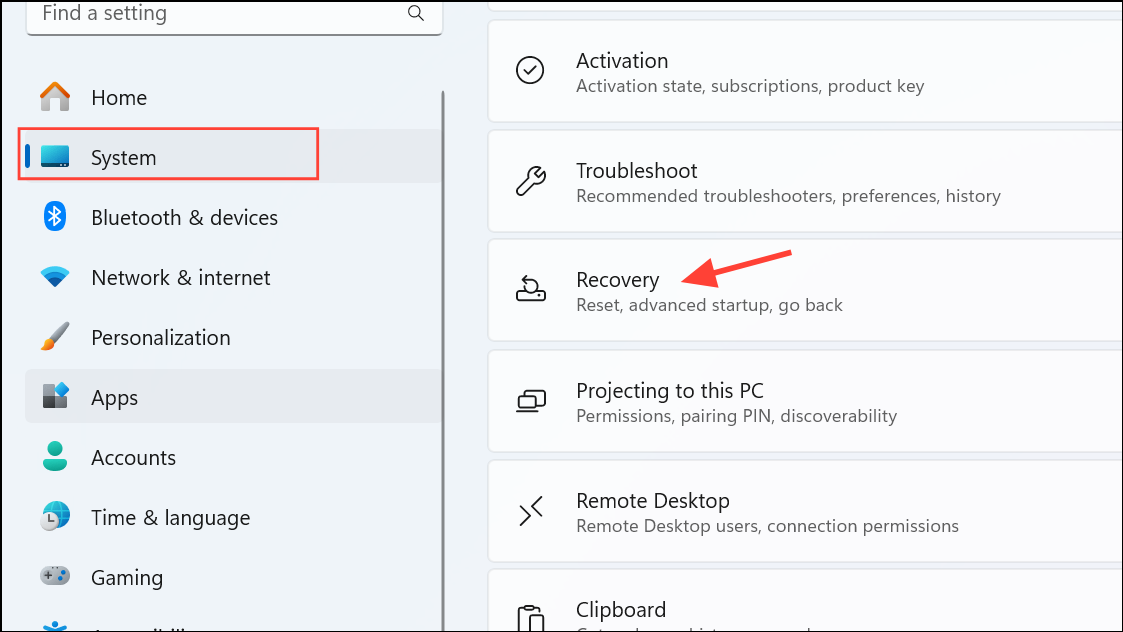
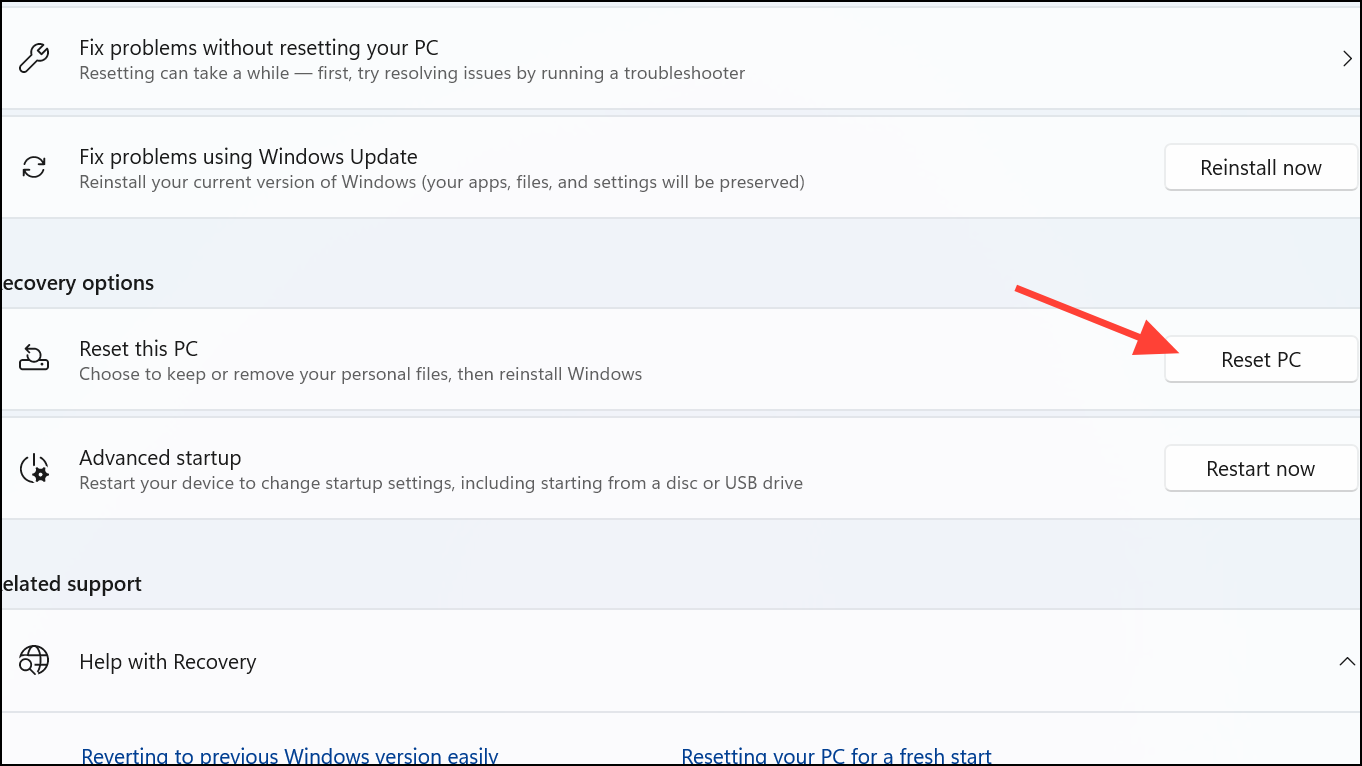
Repair Install or Reset Windows
If all other methods fail, performing a repair install (in-place upgrade) or resetting Windows can resolve deeply rooted system file corruption. These options reinstall Windows while preserving your files or, if chosen, resetting everything for a fresh start.
Addressing error 0x800705aa in Windows 11 often involves a combination of system file repair, update component resets, and configuration fixes. Regularly maintaining system updates and backups helps prevent the recurrence of such errors.



