
Windows 11 update failures with error code 0x800f0831 typically occur when the system can’t access required update files, encounters corrupted components, or lacks dependencies from previous updates. This error can prevent your device from installing important security patches and feature upgrades, potentially leaving your system less secure and missing out on stability improvements. Addressing this error promptly restores your system’s ability to receive updates and keeps your device running smoothly.
Repair Windows Component Store and System Files
cmd in the Windows search bar, right-clicking on “Command Prompt,” and selecting “Run as administrator.” This ensures you have the necessary permissions to repair system files.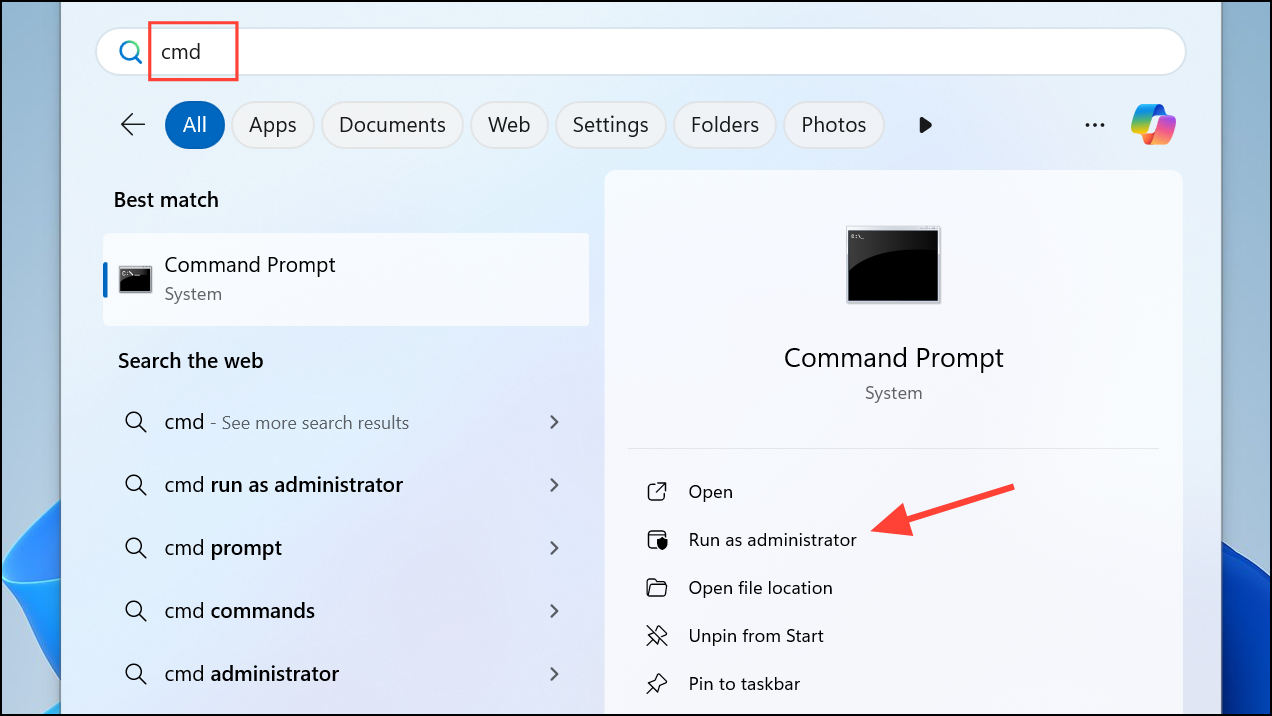
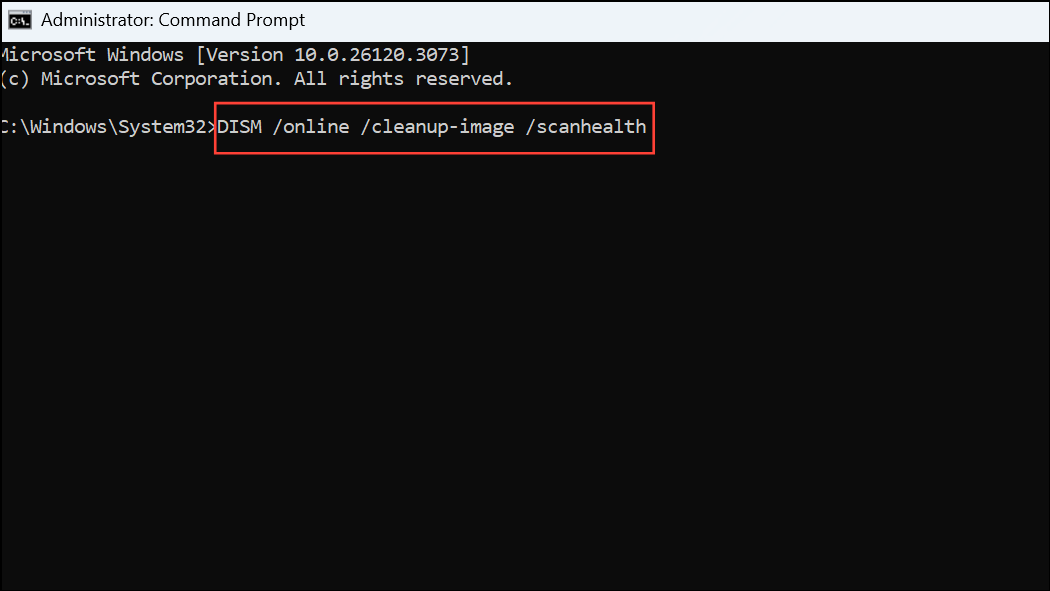
DISM /online /cleanup-image /scanhealthThis checks for corruption in the Windows image, which can block updates.
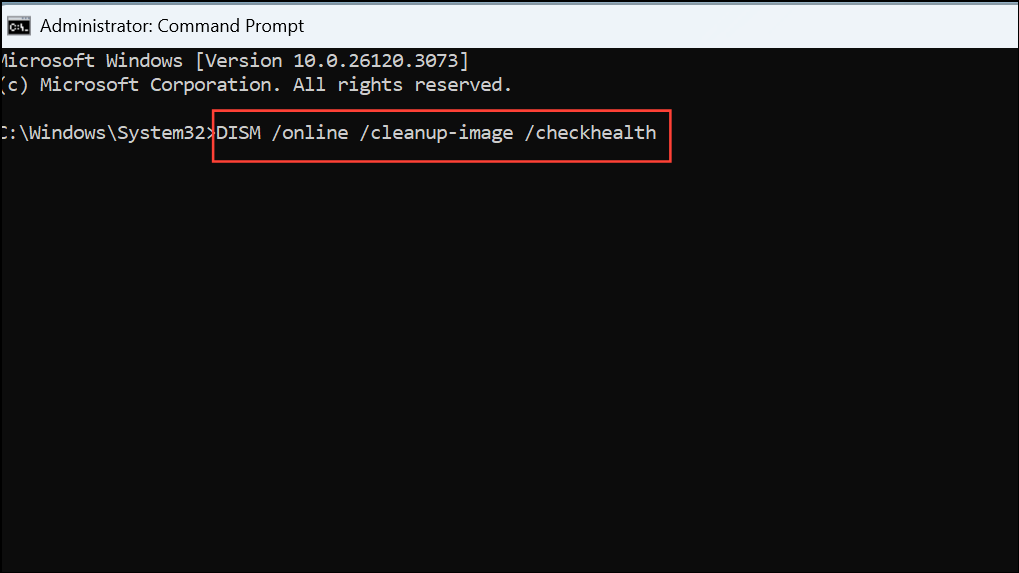
DISM /online /cleanup-image /checkhealthThis step determines if the component store corruption is repairable.
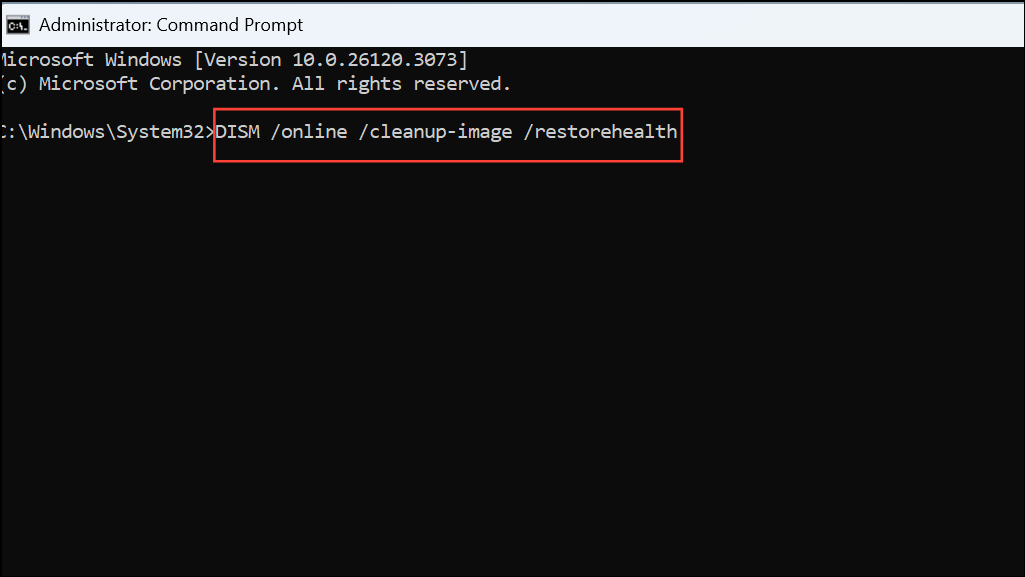
DISM /online /cleanup-image /restorehealthThis command downloads and replaces corrupted files from Windows Update servers. If your device is offline or behind a proxy, ensure internet access is available or temporarily disable the proxy.
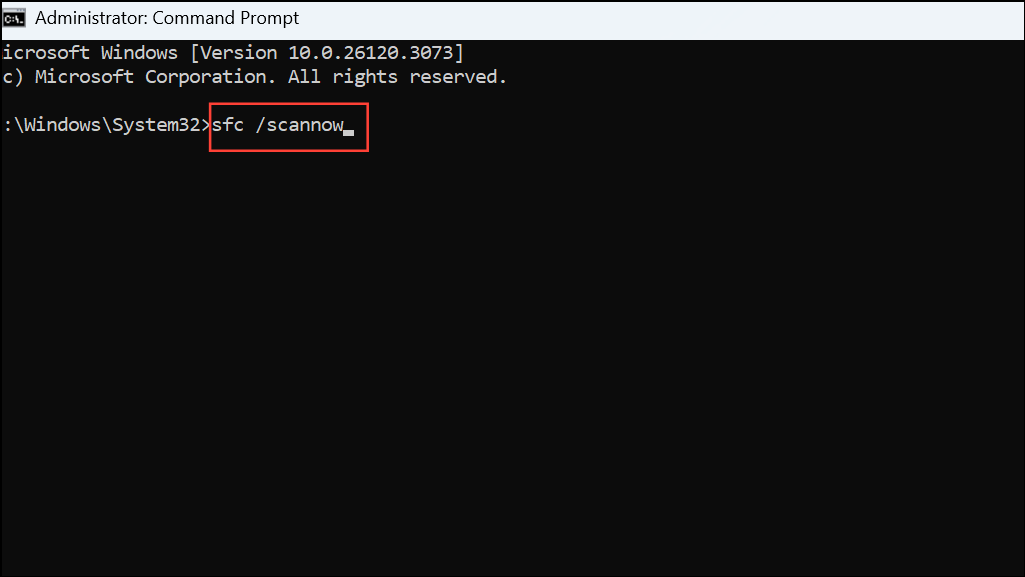
sfc /scannowThis replaces any corrupted or missing system files with correct versions from the local cache.
Clear Windows Update Cache
Corrupted or incomplete update files in the Windows Update cache can trigger error 0x800f0831. Clearing this cache forces Windows to re-download updates from scratch.
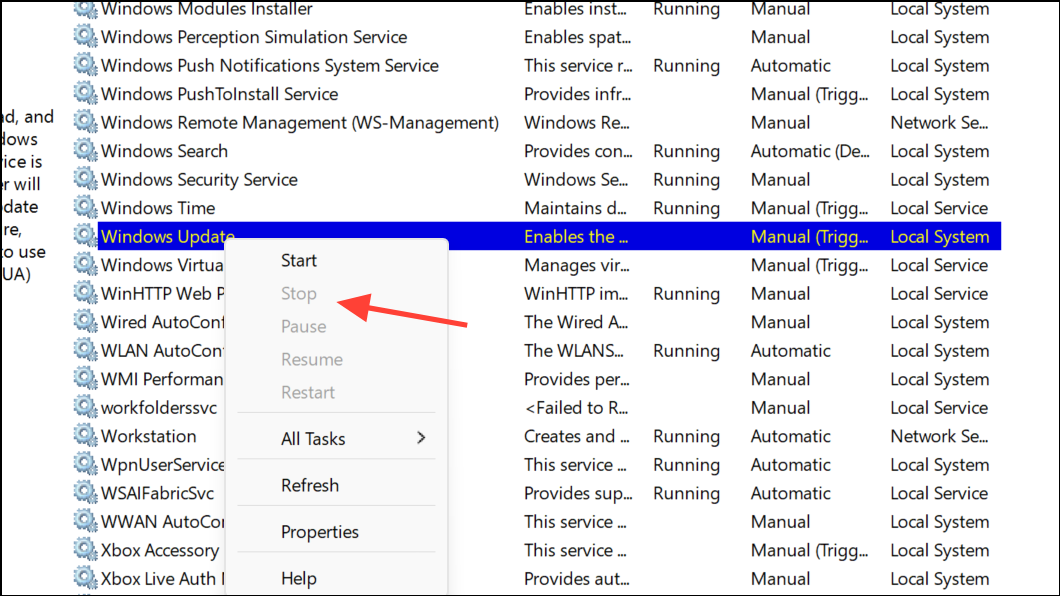
Windows + R, type services.msc, and press Enter. This opens the Services management console.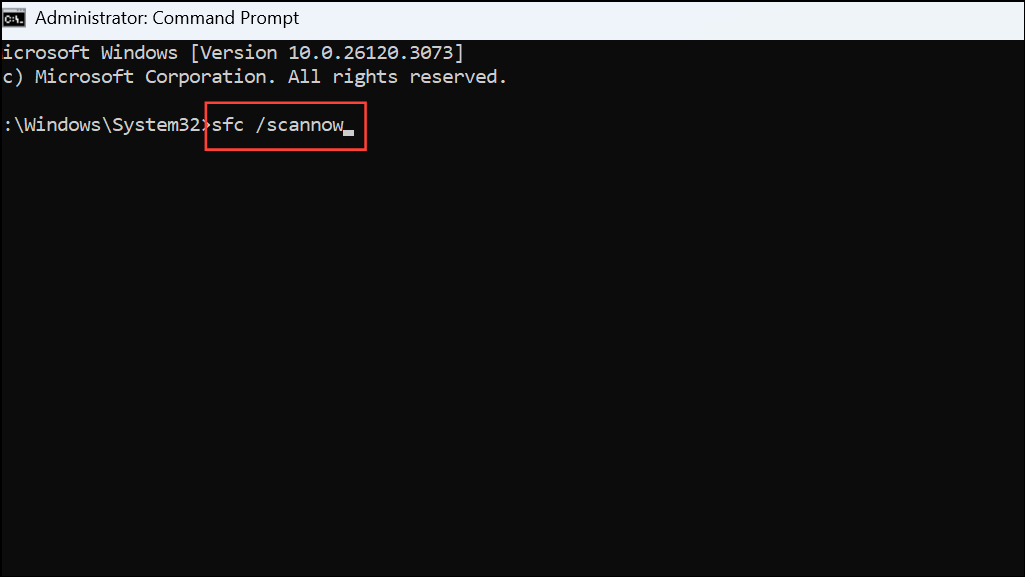
C:\Windows\SoftwareDistribution. Select all files and folders inside, then delete them. If prompted for administrator permission, confirm to proceed.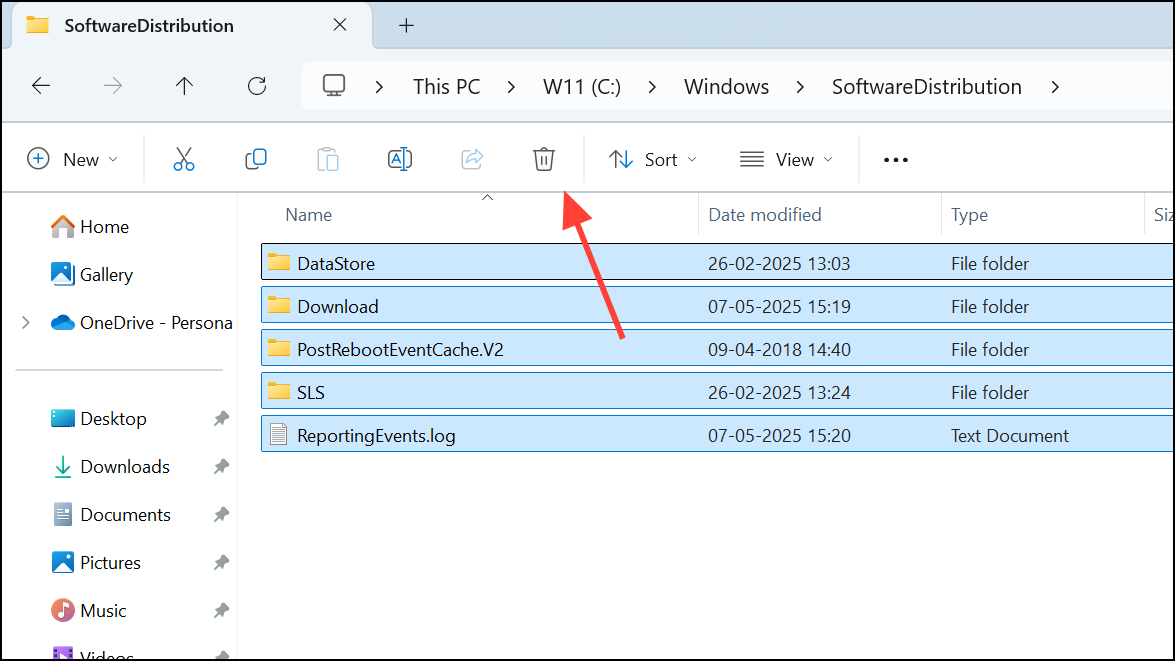
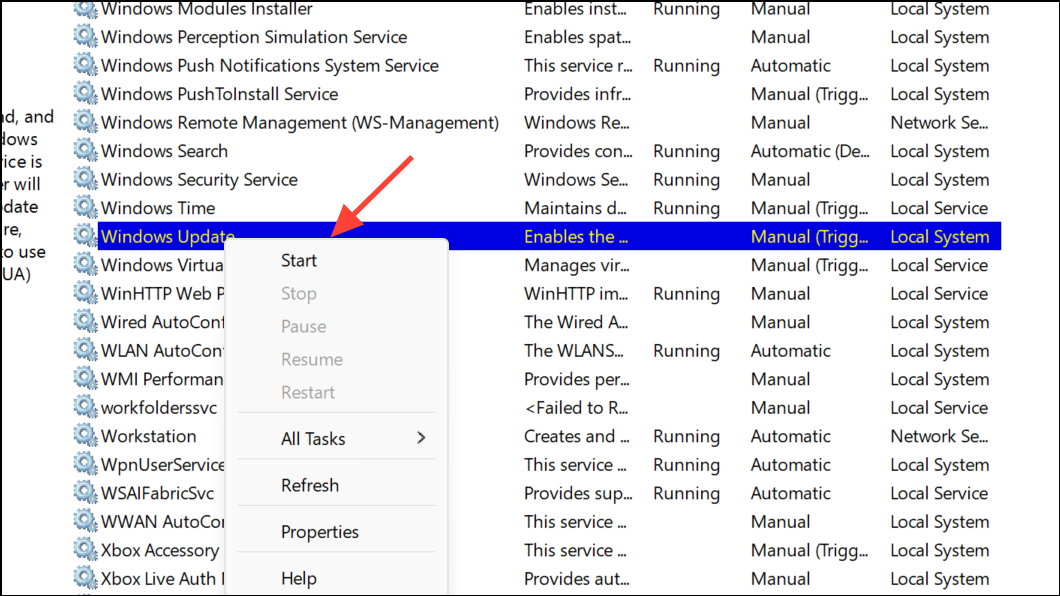
Enable .NET Framework 3.5
Certain Windows updates require legacy components such as .NET Framework 3.5. If this feature is missing or disabled, updates may fail with error 0x800f0831.
Windows + R), type optionalfeatures, and press Enter. This opens the Windows Features dialog.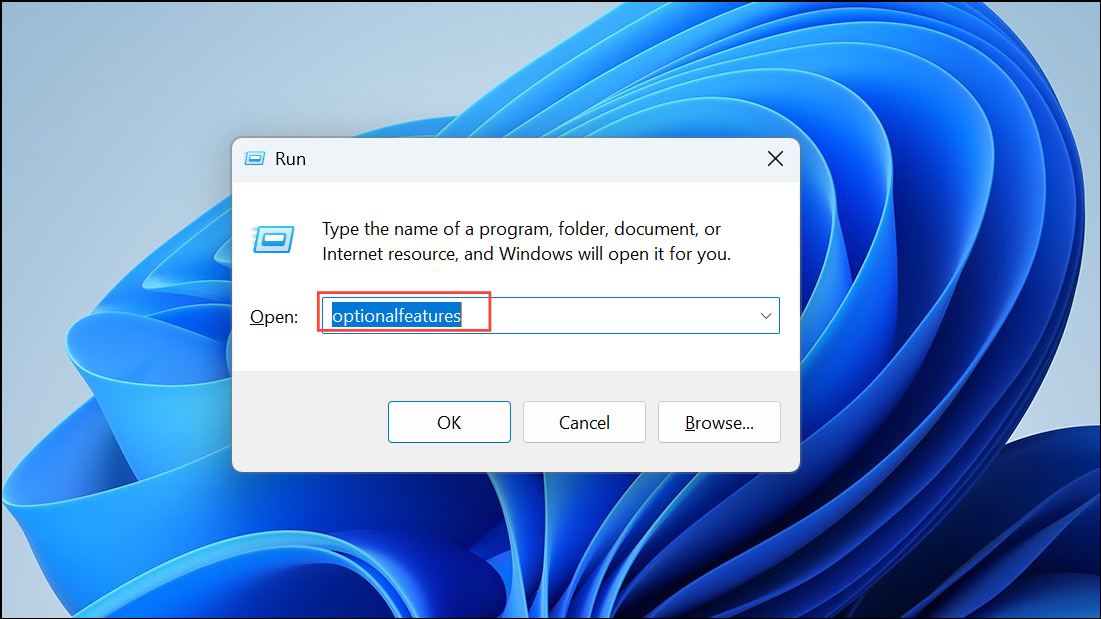
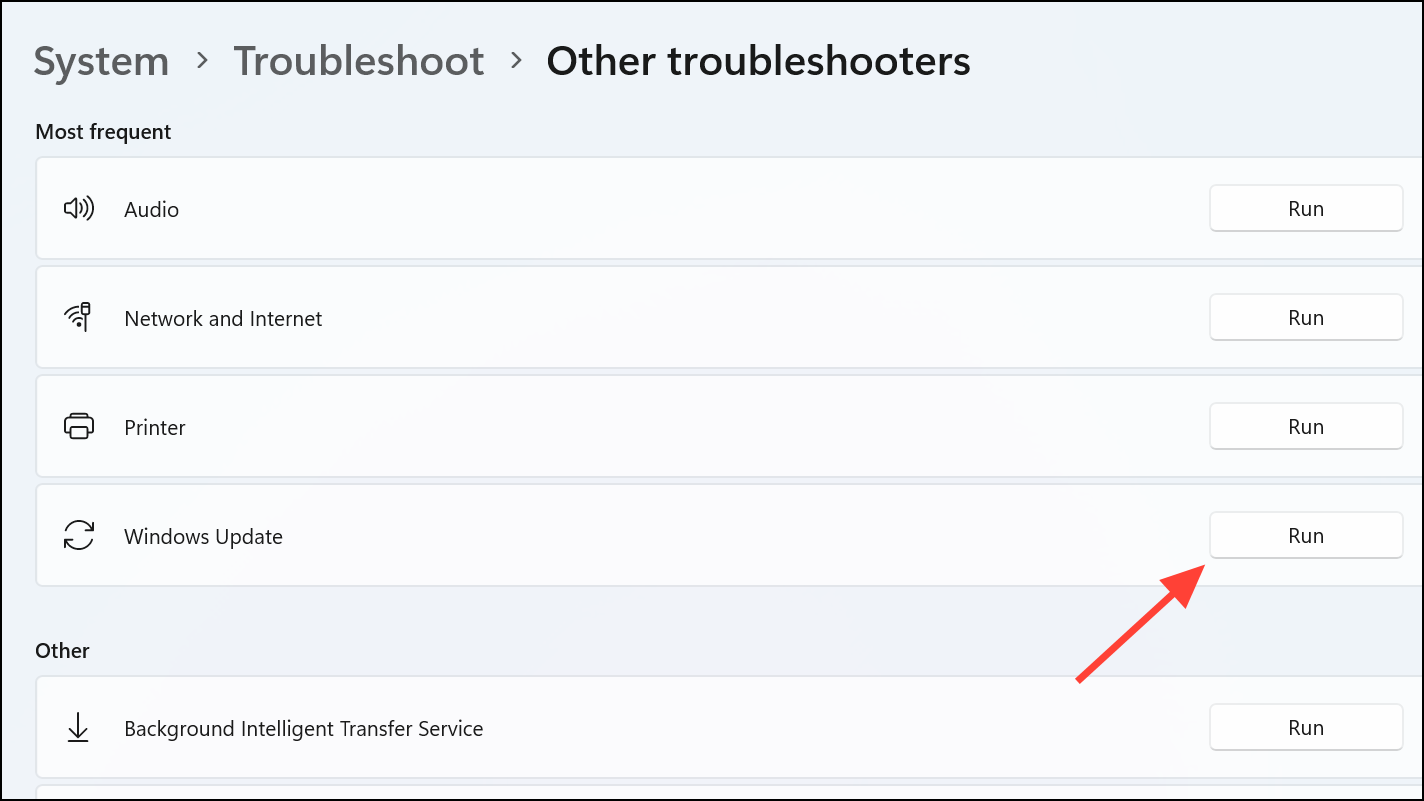
Run Windows Update Troubleshooter
Windows 11 includes a built-in troubleshooter designed to identify and resolve common update problems.
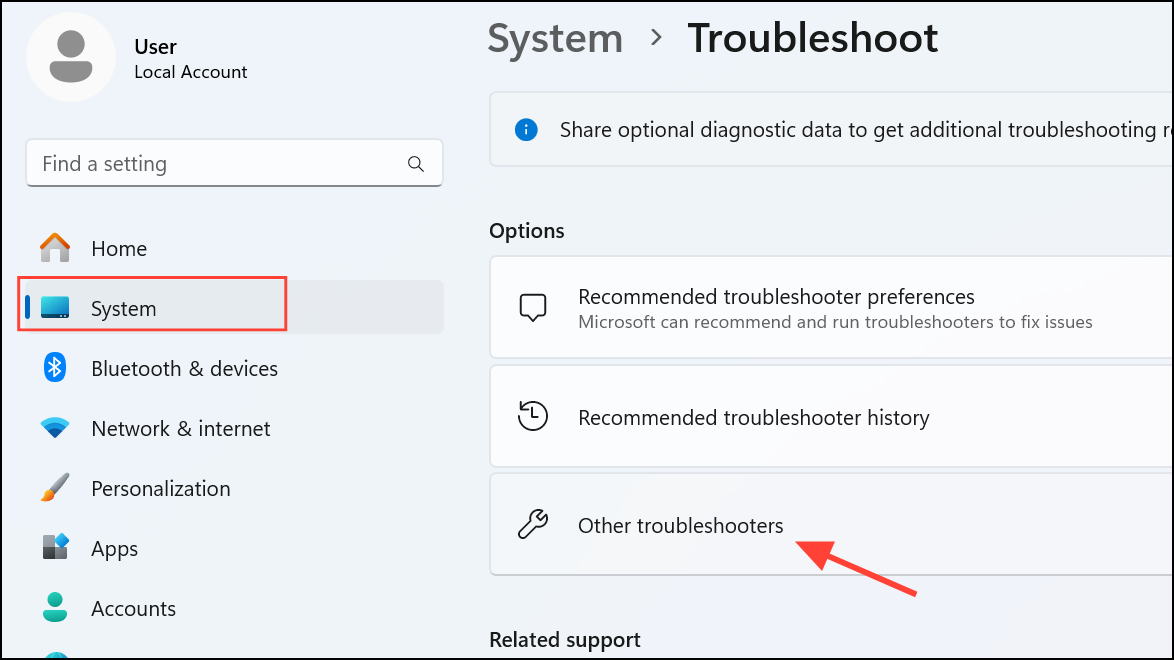
Reset Windows Update Components Manually
When update services or supporting files become corrupted, a full reset of Windows Update components can restore update functionality.
net stop wuauserv
net stop cryptSvc
net stop bits
net stop msiserver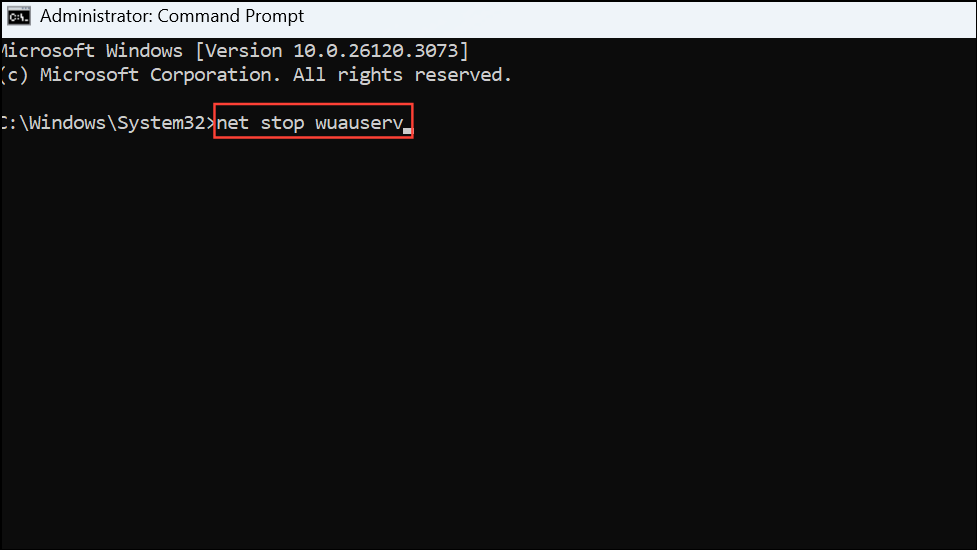
Ren %systemroot%\SoftwareDistribution SoftwareDistribution.old
Ren %systemroot%\System32\catroot2 catroot2.old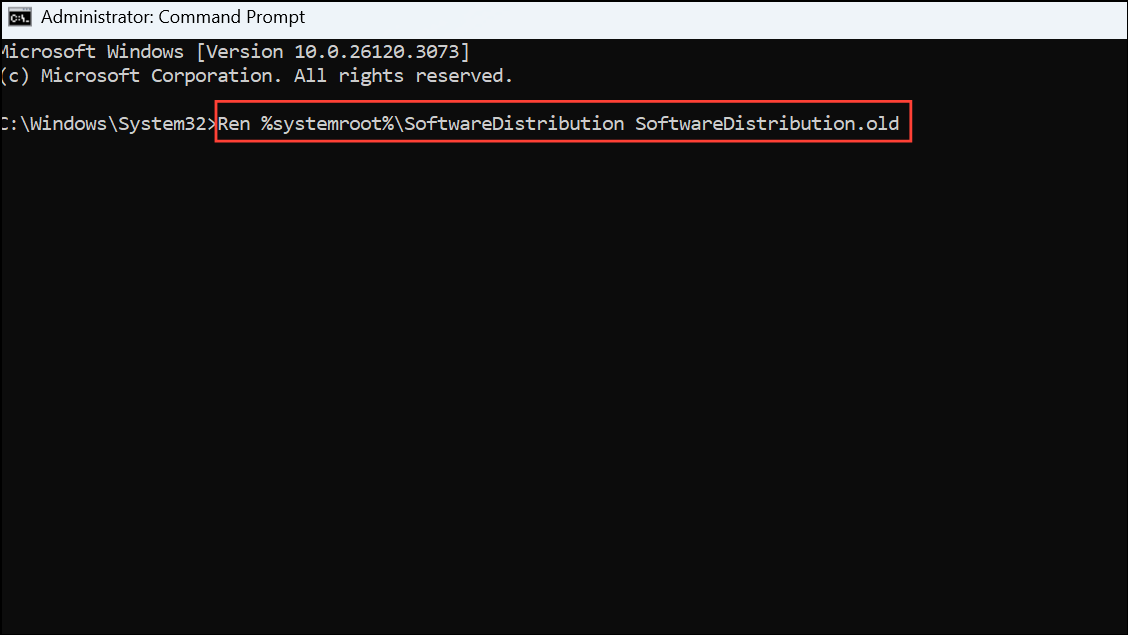
net start bits
net start wuauserv
net start appidsvc
net start cryptsvc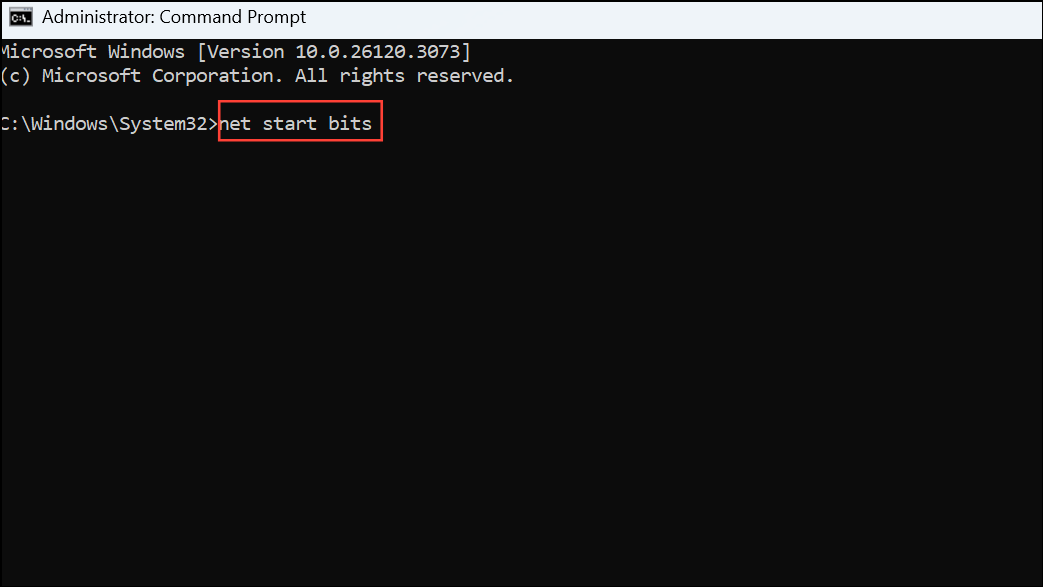
Manually Download and Install the Update
If Windows Update repeatedly fails, manually installing the specific update can bypass the problematic process.
KB5022845).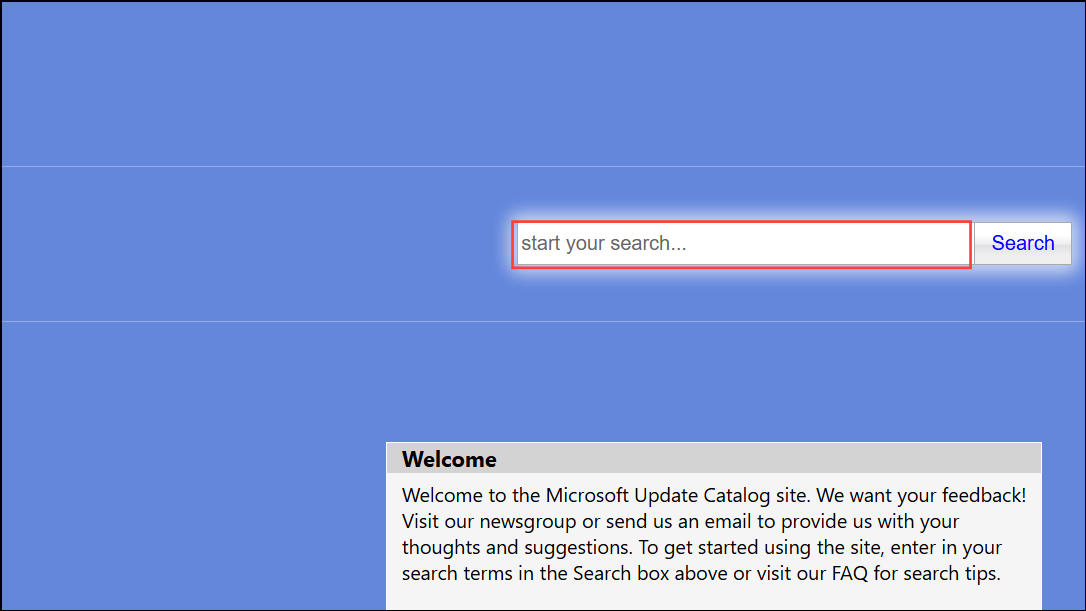
Perform an In-Place Upgrade or Repair Installation
When corruption is severe or previous methods fail, an in-place upgrade using a Windows 11 ISO can repair system files while keeping your apps and data intact.
setup.exe. Follow the prompts, choose to keep personal files and apps, and proceed with the installation.Resolving Windows 11 update error 0x800f0831 restores your device’s ability to receive critical updates and keeps your system reliable. If one method doesn’t resolve the issue, working through the other approaches above usually leads to a fix.



