
Playback failures in Windows 11 often result from Error 0xc004f011, which signals a missing codec required for certain video or audio files. This error prevents media files from opening in built-in apps like Movies & TV or Windows Media Player. Addressing this issue restores your ability to play a wide range of media formats without interruptions.
Install the Required Codec from Microsoft Store
Open the video or audio file that triggered the error using the built-in Movies & TV app or Windows Media Player. When the error appears, look for a prompt or link suggesting you get the necessary codec from the Microsoft Store. Click the link to proceed.
The Microsoft Store will open to the codec package page. Commonly, the required codec is the HEVC Video Extensions or a similar package. Select
Get or Install to download and install the codec.After installation, close the media player and reopen your file. The video or audio should now play without the error message.
Use a Third-Party Media Player with Built-in Codecs
Download a reputable third-party media player such as VLC Media Player from the official website. VLC is known for supporting a wide range of codecs out of the box, eliminating the need for separate codec installations.
Install the media player by running the setup file and following the on-screen instructions. During installation, you can set the new player as the default for video and audio files if desired.
Open the problematic file using the new media player. Playback should work immediately, as these players include the most necessary codecs internally.
Update Windows and Media Player Apps
Open
Settings and navigate to Windows Update. Select Check for updates and install any available updates. Microsoft occasionally releases codec updates or bug fixes through Windows Update.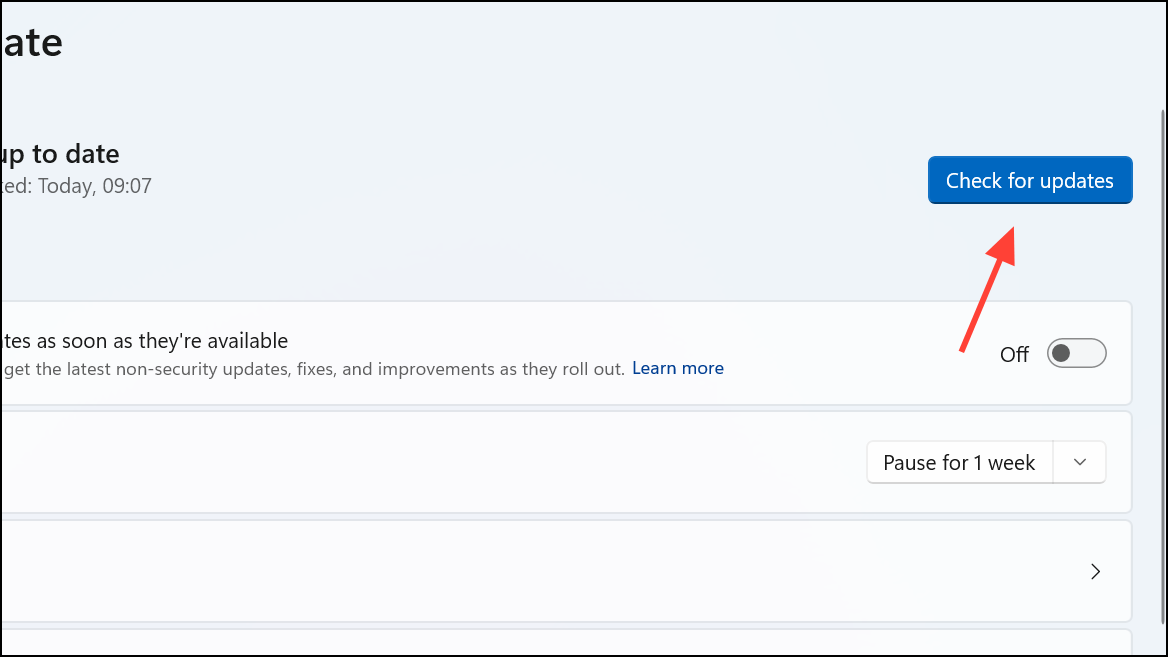
Open the Microsoft Store and go to
Downloads. Click Check for updates to update the Movies & TV app and Windows Media Player. Outdated apps may lack support for newer codecs.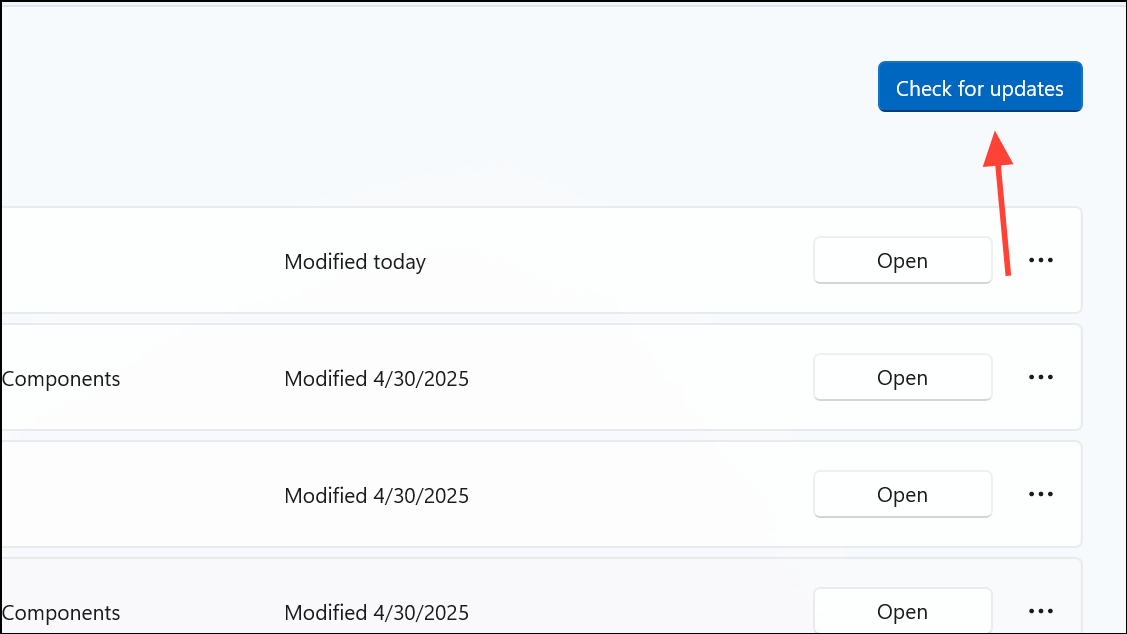
Install a Codec Pack
Download a trusted codec pack such as K-Lite Codec Pack from the official website. Codec packs bundle multiple codecs, increasing compatibility with various media formats.
Run the installer and choose the recommended installation settings. Avoid selecting unnecessary extras to prevent potential software conflicts.
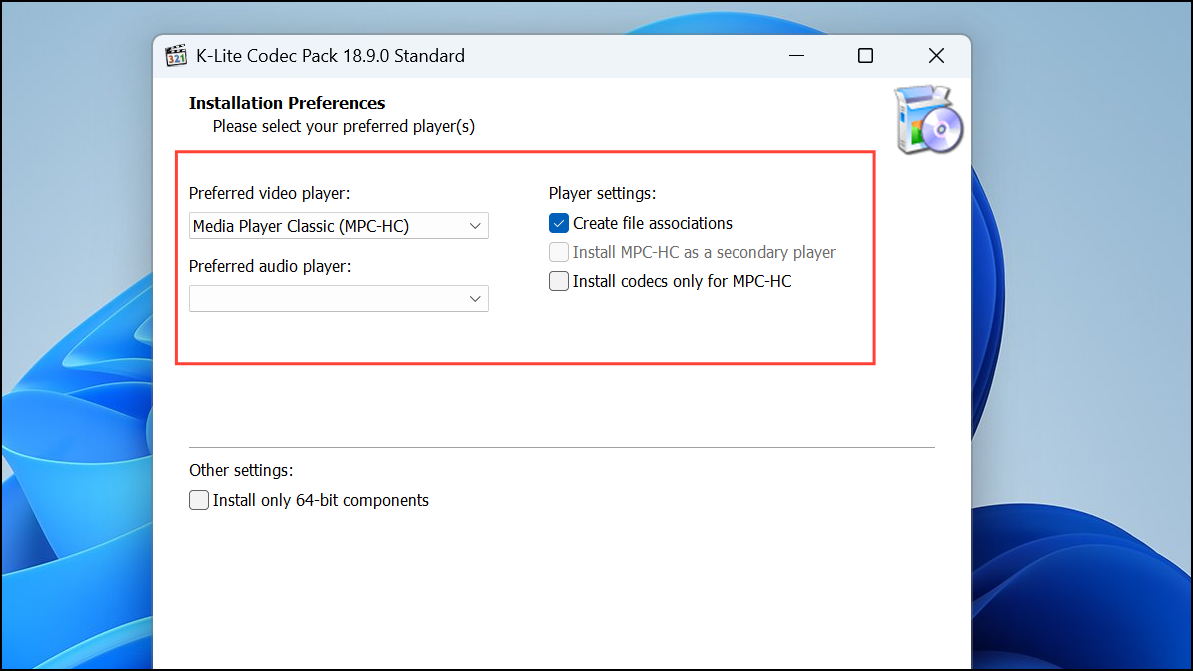
After installation, restart your system. Open the file again using your preferred media player to check if the error is resolved.
Resolving Error 0xc004f011 in Windows 11 restores your ability to play diverse media formats seamlessly. Keeping your system and apps updated and using media players with broad codec support helps prevent similar issues in the future.



