
Printer connections on Windows 11 systems running version 22H2 and later frequently fail with the error message: Operation could not be completed (error 0x00000bc4). No printers were found. This issue typically arises after upgrading Windows 11, causing network printers to disappear and preventing new connections. The root cause is a change in the default Remote Procedure Call (RPC) protocol used for printer communication, which restricts network printer discovery. Adjusting system policies or registry settings corrects this behavior and restores access to shared printers.
Change Group Policy to Allow Network Printer Discovery
Windows + R, typing gpedit.msc, and pressing Enter. This tool is available in Windows 11 Pro, Enterprise, and Education editions.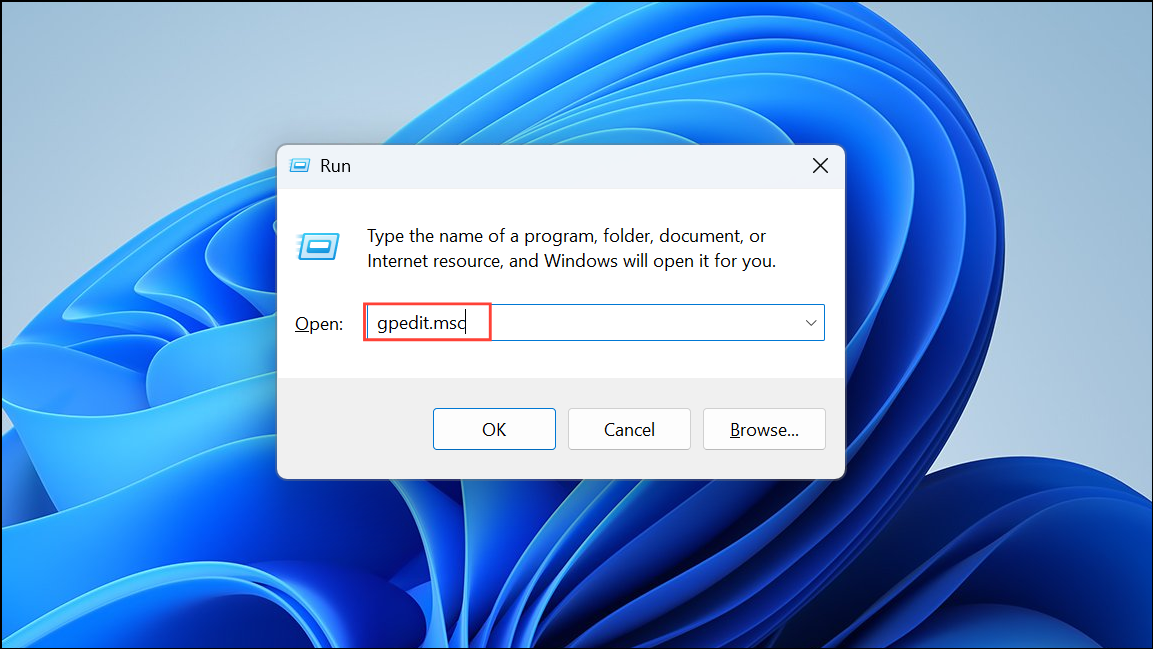
Computer Configuration > Administrative Templates > Printers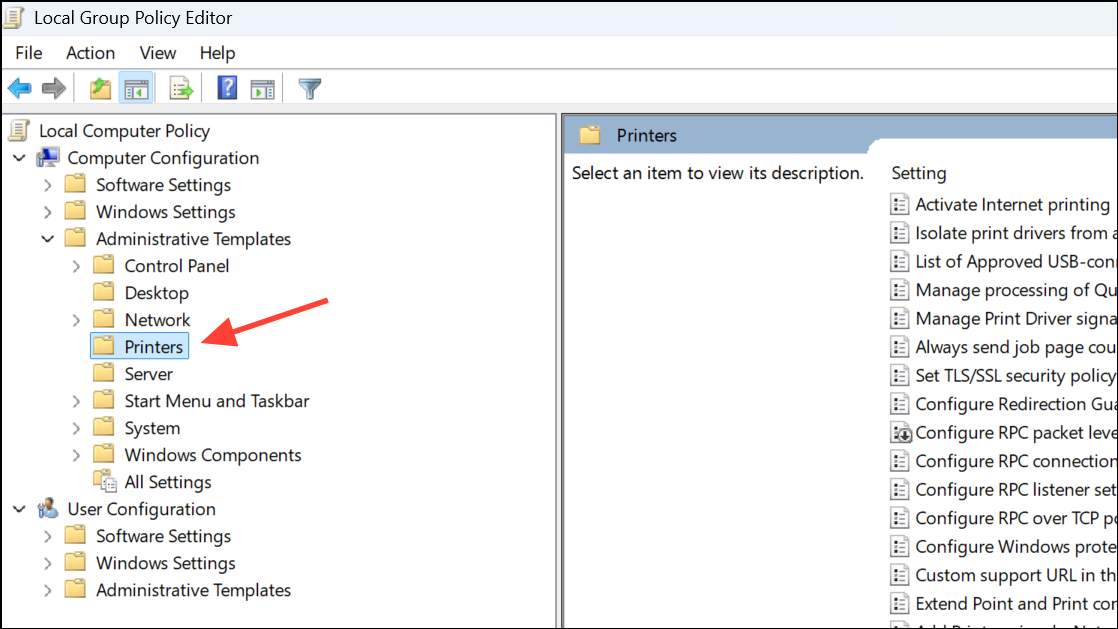
Configure RPC connection settings in the right pane. This setting determines which protocol Windows uses to communicate with network printers.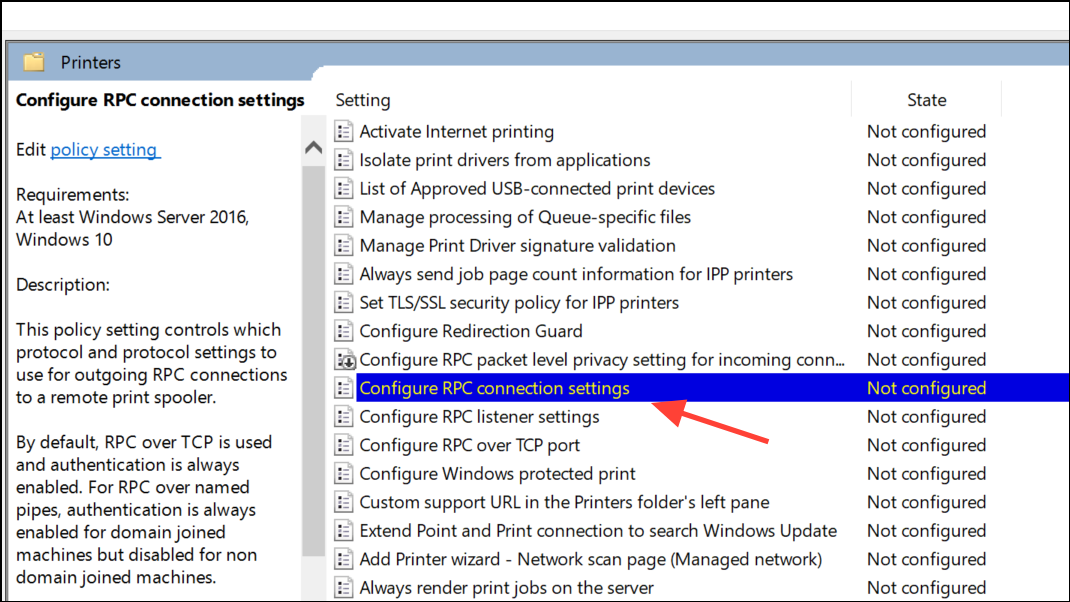
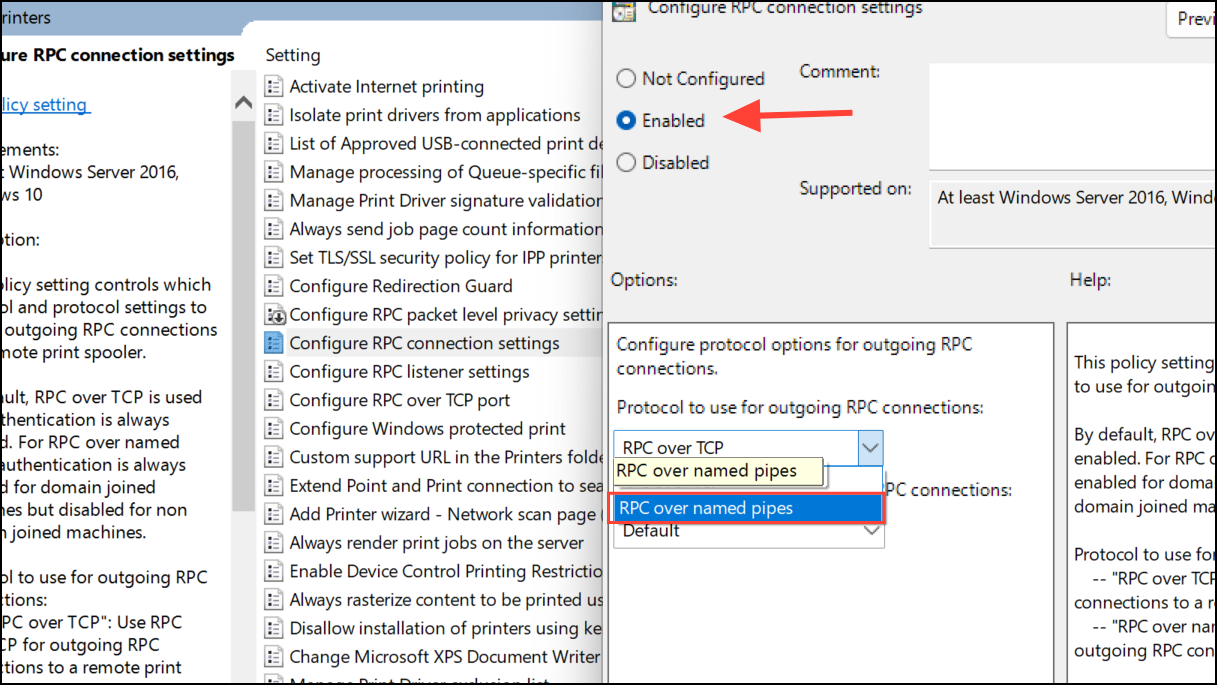
Modify Registry Settings for Windows 11 Home or Missing Group Policy Editor
Windows 11 Home edition does not include the Group Policy Editor. Instead, update the registry to set the correct RPC protocol for network printers. This method achieves the same result as the group policy change above.
Windows + R, type regedit, and press Enter to open the Registry Editor. When prompted by User Account Control, confirm to proceed.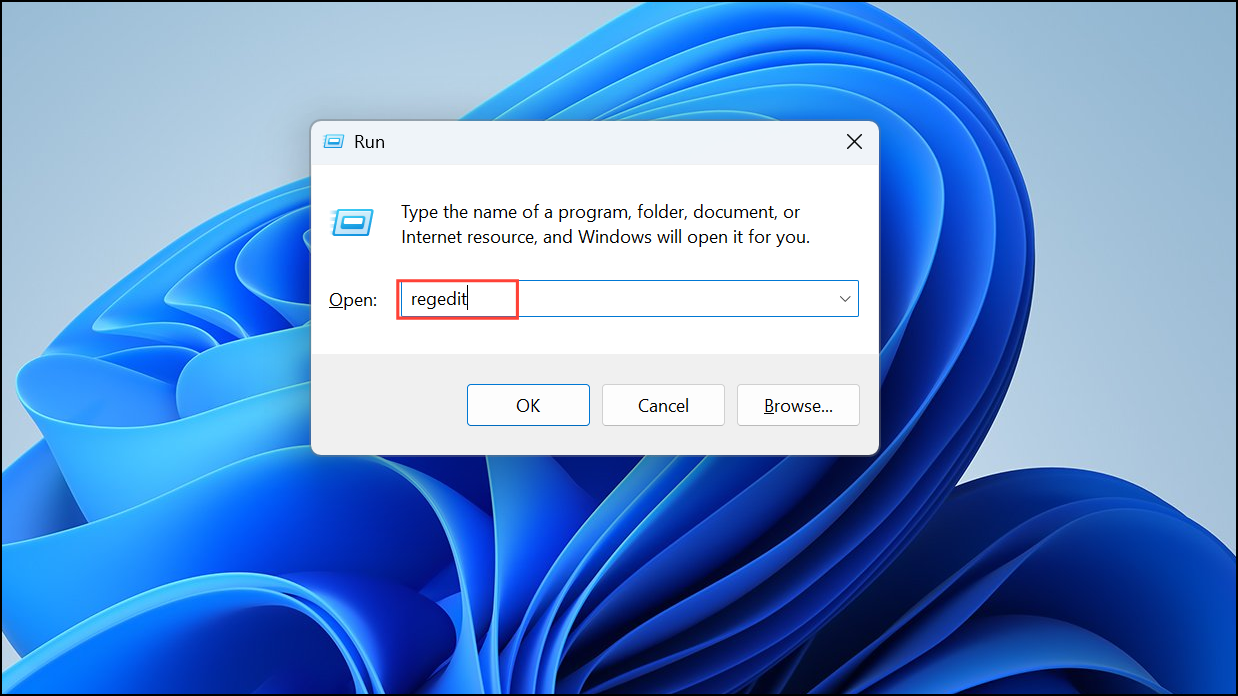
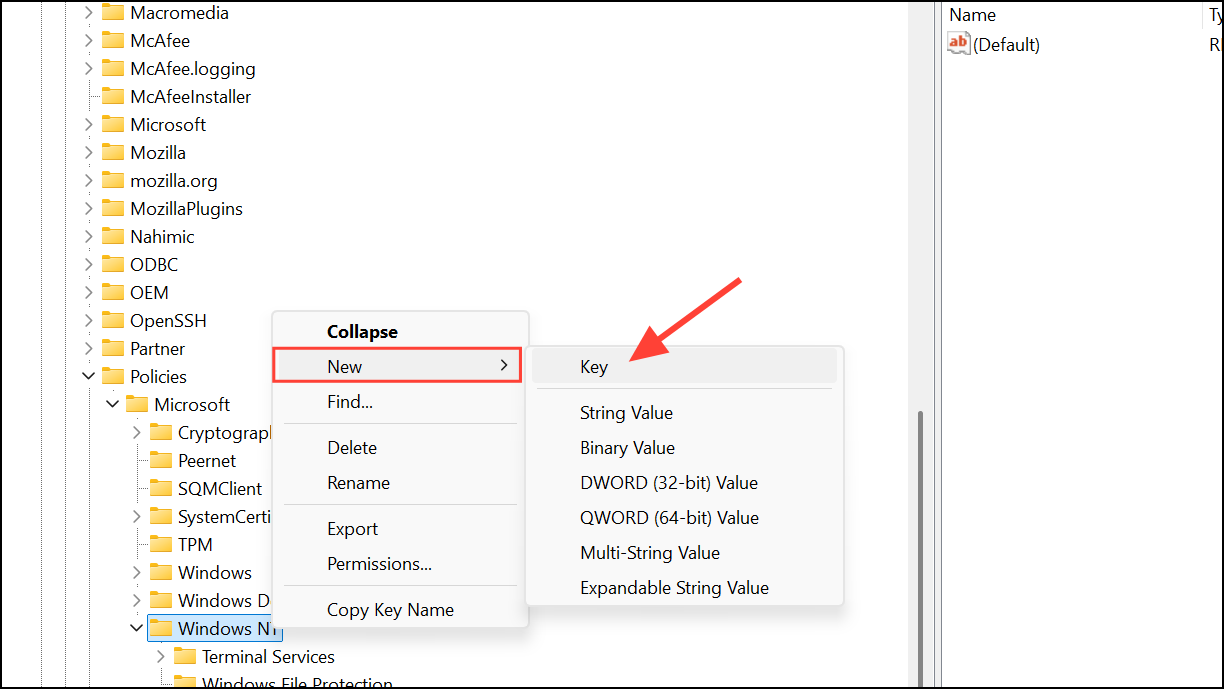
HKEY_LOCAL_MACHINE\SOFTWARE\Policies\Microsoft\Windows NT\Printers\RPCIf the Printers or RPC keys do not exist, right-click to create them as new keys under Windows NT and Printers respectively.
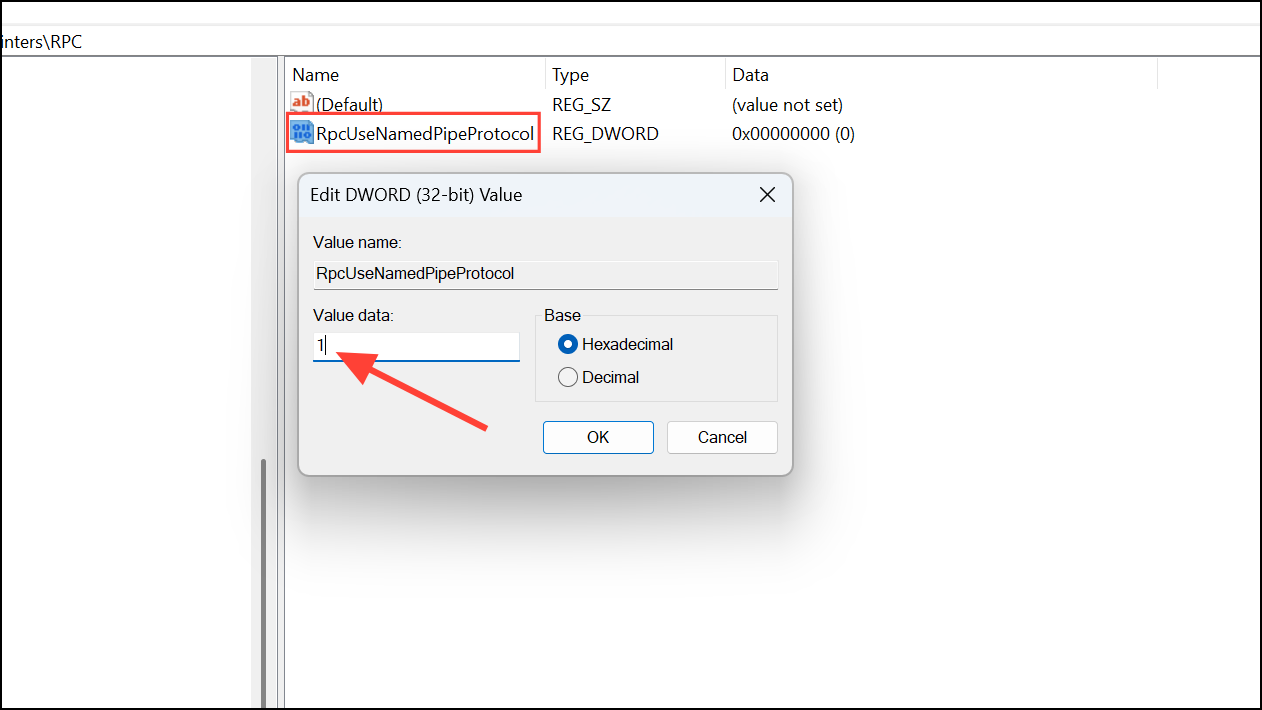
RPC key, right-click the right pane and select New > DWORD (32-bit) Value. Name the new value RpcUseNamedPipeProtocol.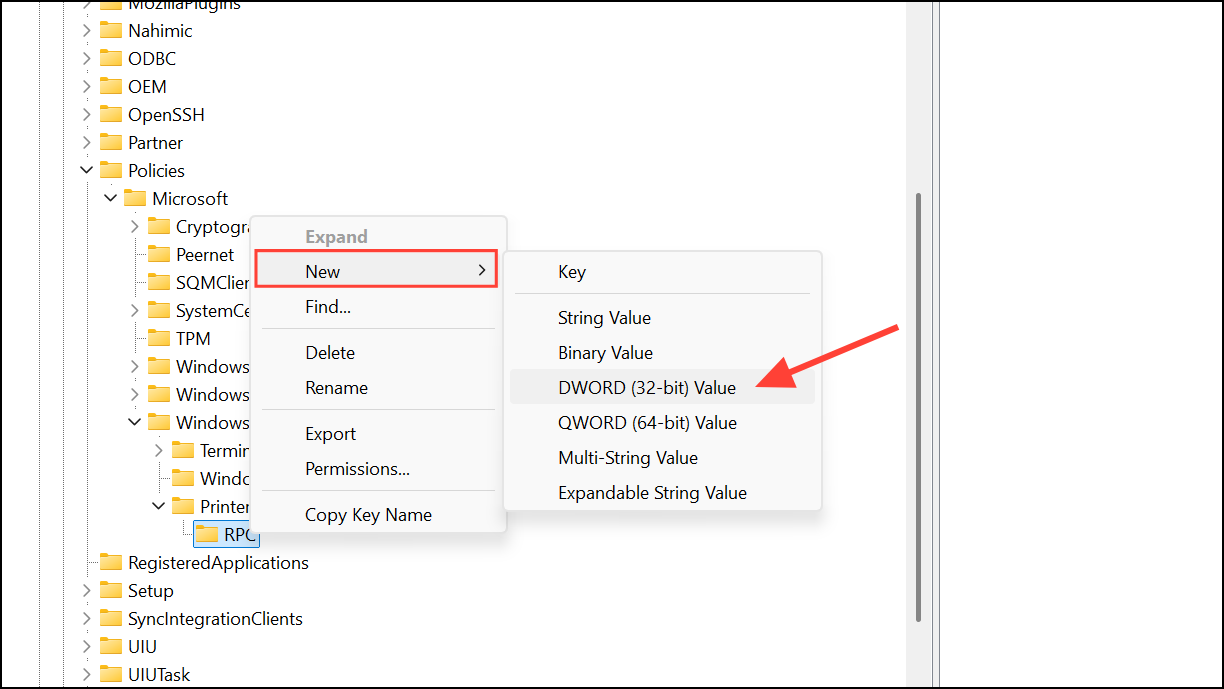
Clear and Reset the Printer Spooler
Print spooler issues or stuck print jobs can also interfere with printer detection. Resetting the spooler clears pending jobs and refreshes printer services.
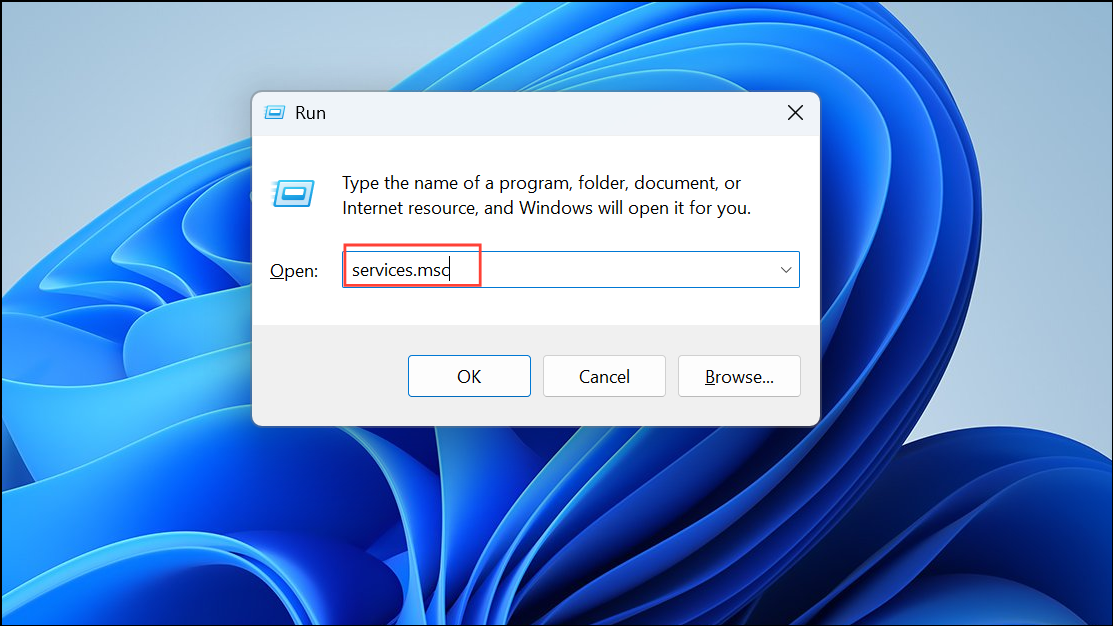
Print Spooler in the list. Right-click it and choose Stop to halt the service.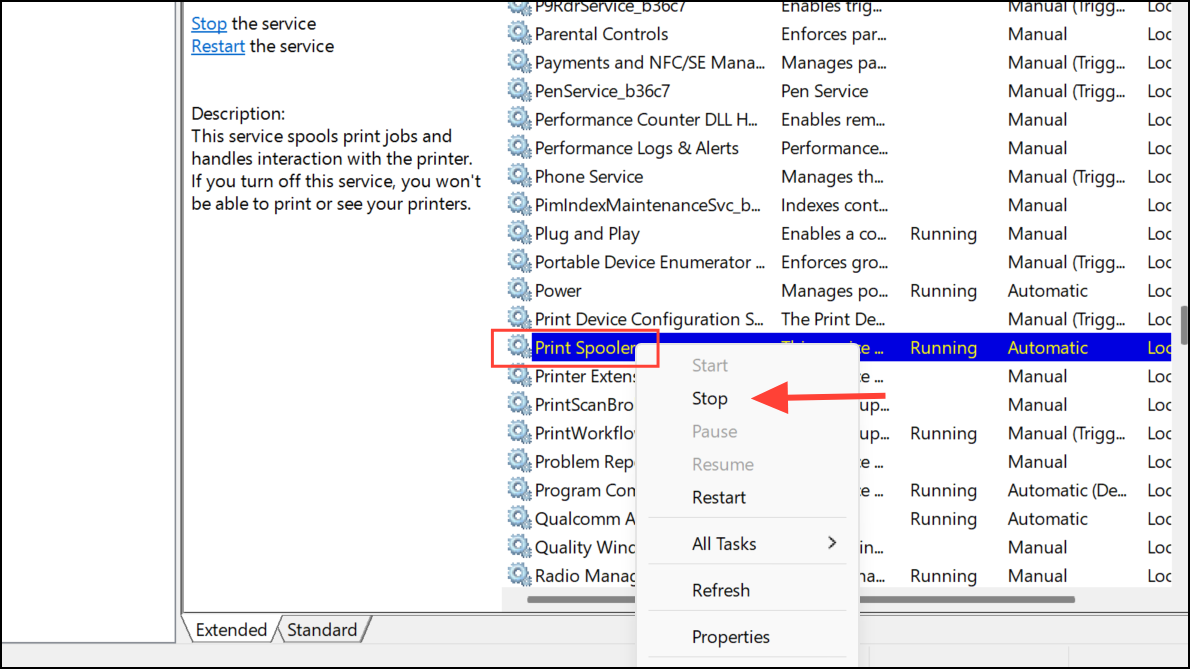
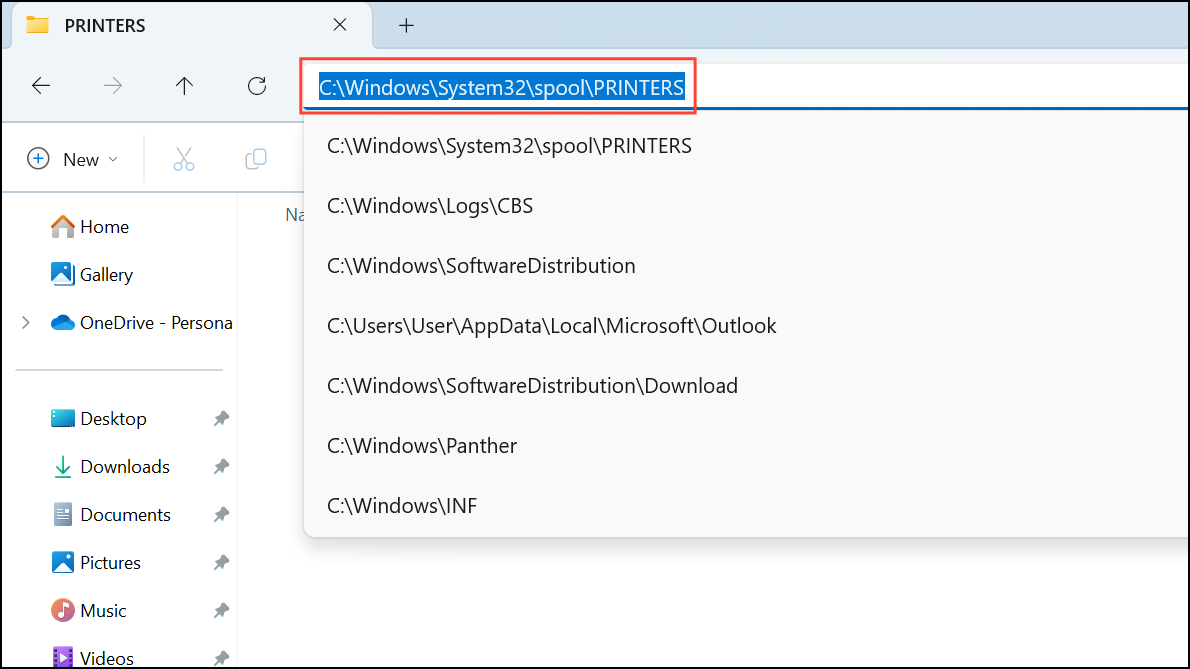
C:\Windows\System32\spool\PRINTERSDelete all files inside the PRINTERS folder, but do not delete the folder itself. This step removes any stuck print jobs.
Print Spooler again, and select Start to restart the service.Run the Printer Troubleshooter
Windows includes a built-in printer troubleshooter that diagnoses and repairs common printer issues automatically.
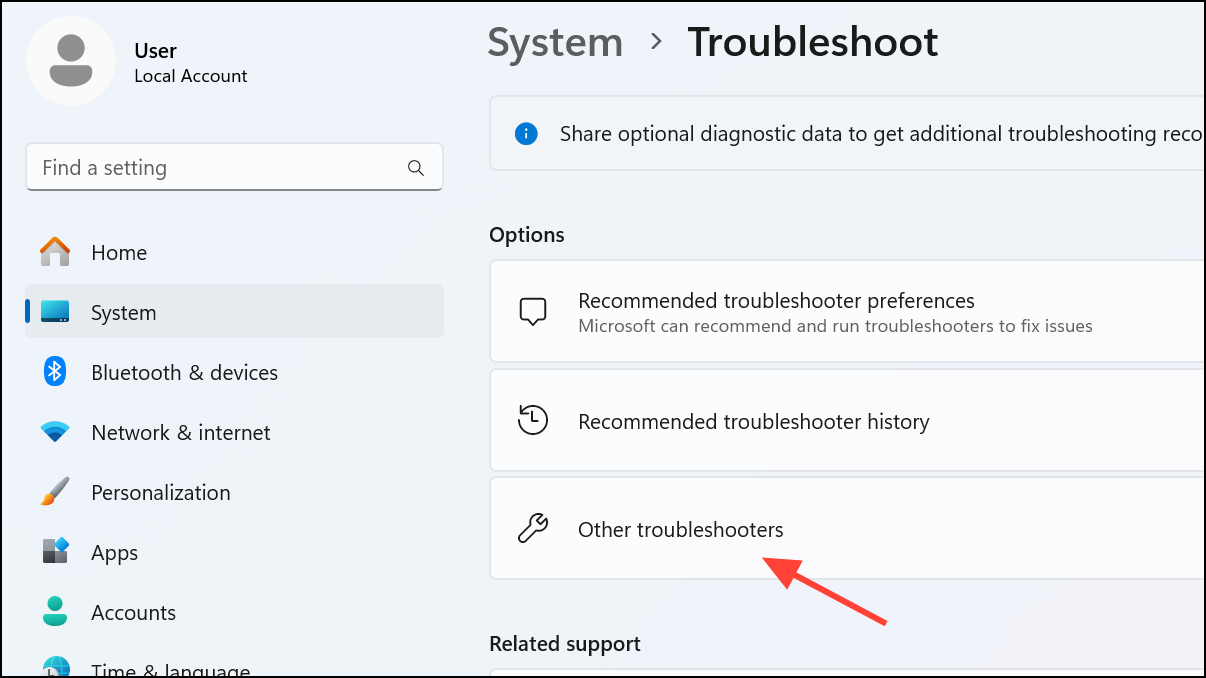
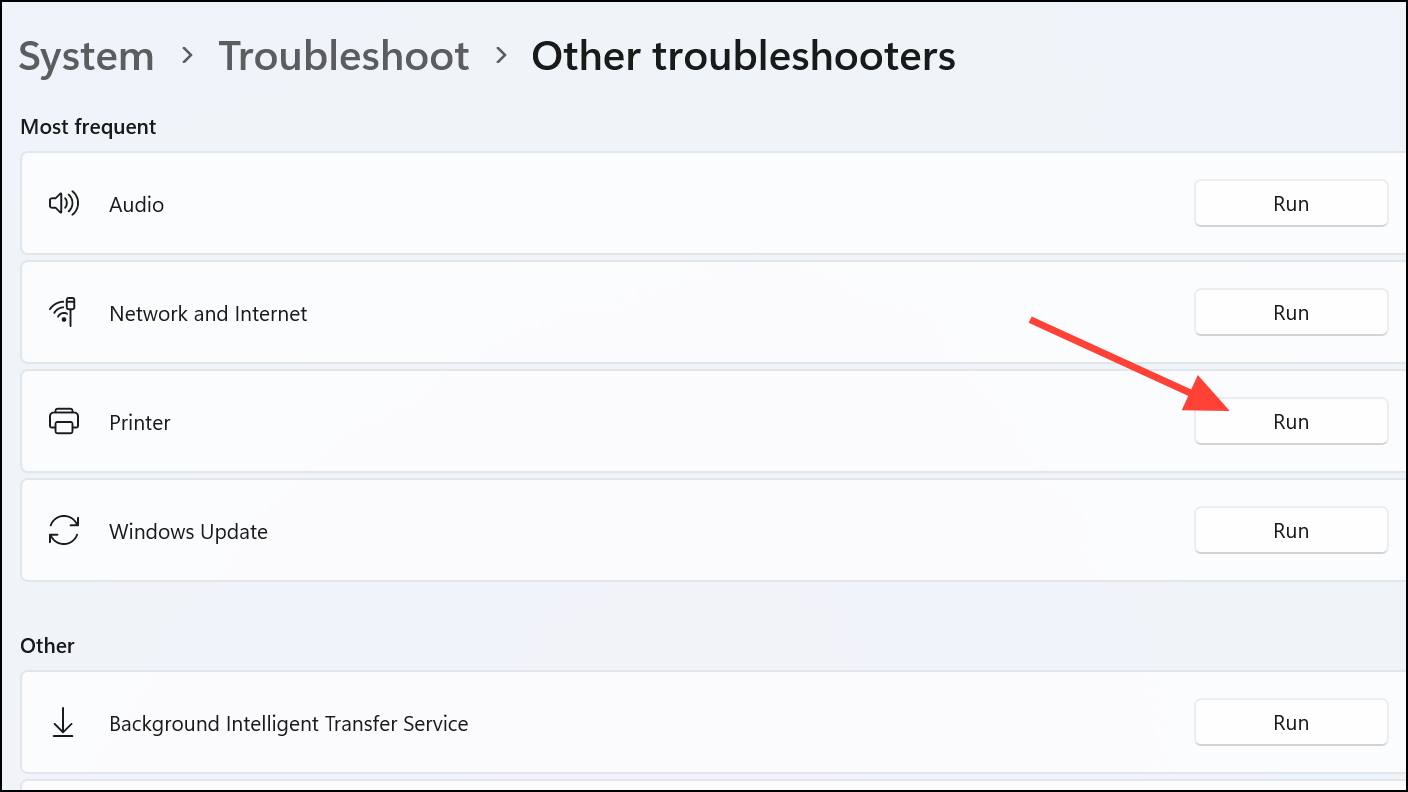
Add the Printer Manually
If automatic detection still fails, manually adding the network printer can bypass some system restrictions.
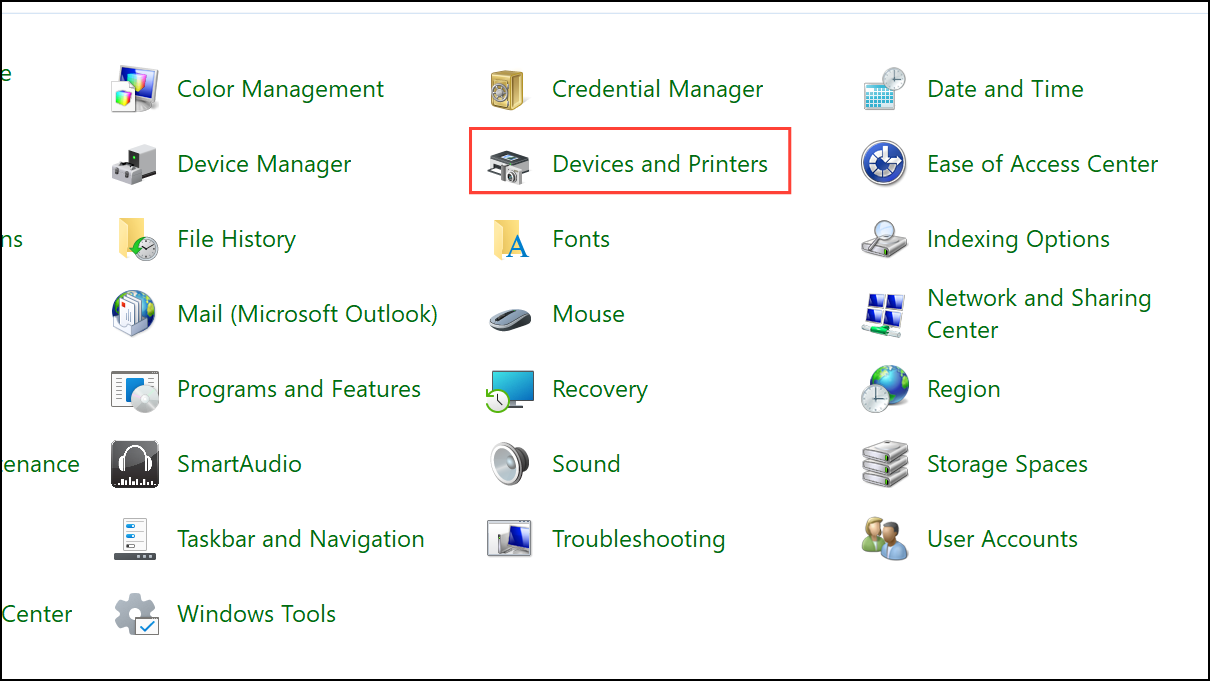
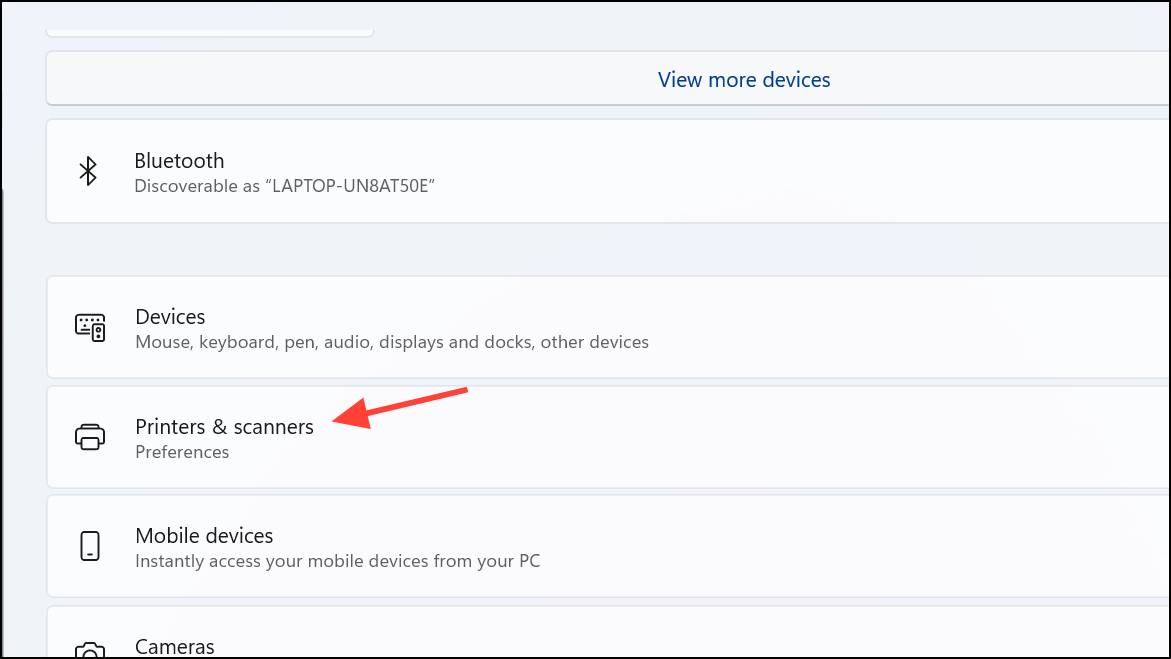
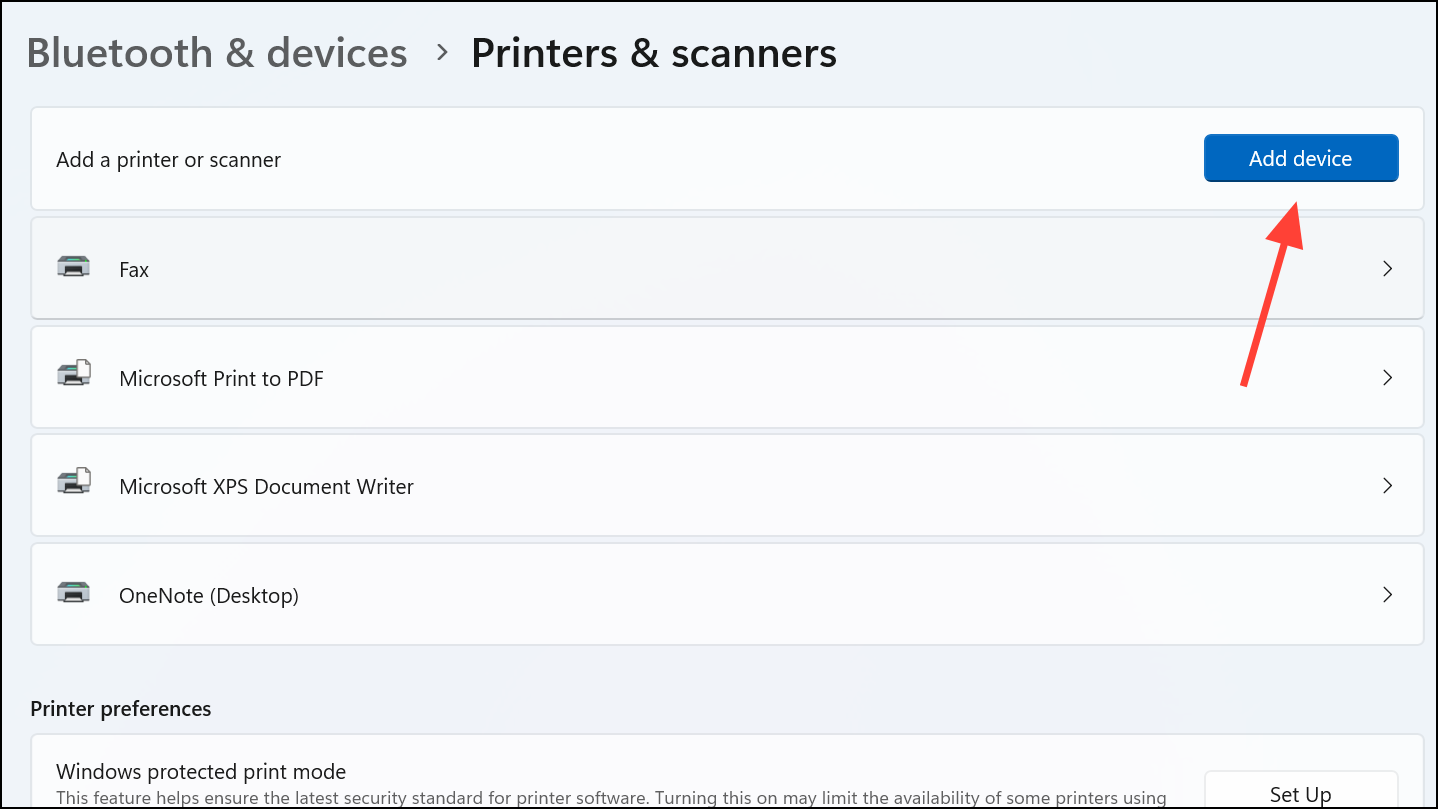
\\ComputerName\PrinterName) or browse for it.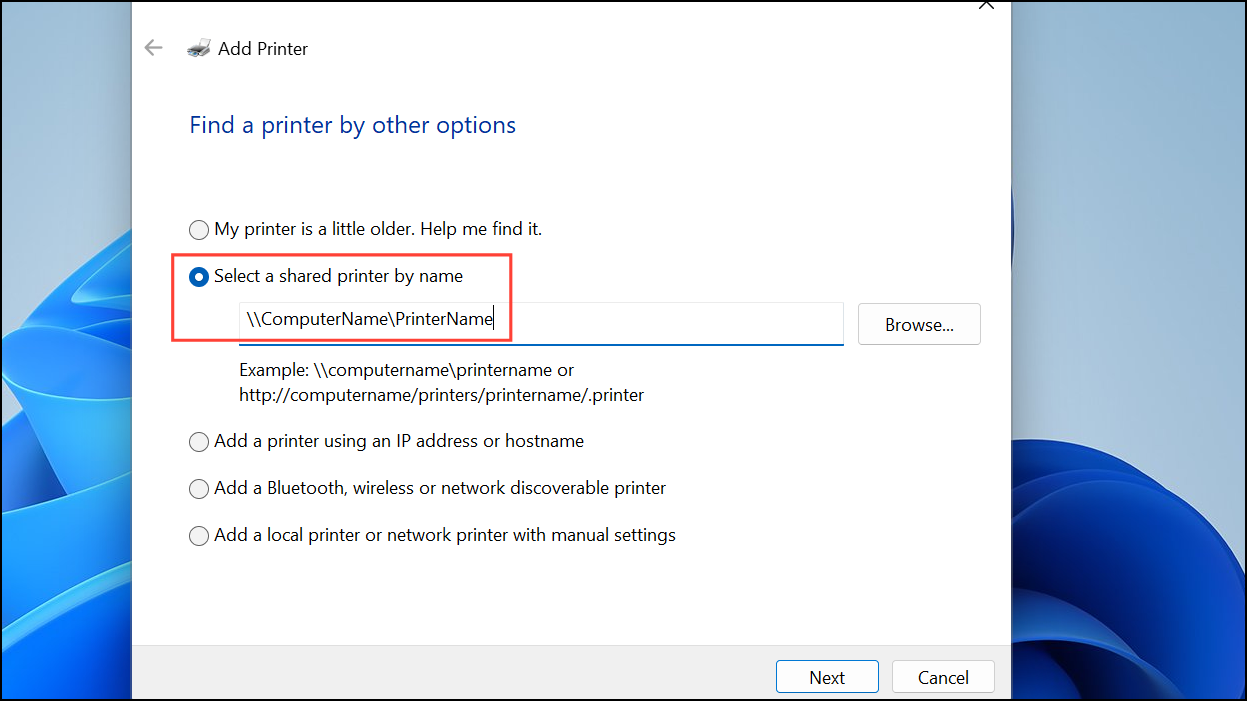
Update Printer Drivers
Outdated or incompatible printer drivers can also prevent successful printer connections. Installing the latest drivers ensures compatibility with Windows 11’s updated protocols.
Switching the RPC protocol via Group Policy or the registry reliably restores network printer functionality after upgrading to Windows 11. If issues persist, resetting the print spooler, running the troubleshooter, or updating drivers provides additional fixes.



