

Missing Power Modes in Windows 11 settings can limit your ability to control device performance and battery usage. Power Modes—like Best Power Efficiency, Balanced, and Best Performance—help you adjust how your system uses energy and resources. If you notice that Power Modes are unavailable or missing from the Settings app or system tray, several factors could be responsible, including system misconfiguration, outdated drivers, or hardware limitations.
Check for Windows Updates
Settings app by pressing Windows + I on your keyboard. Click on Windows Update in the left sidebar.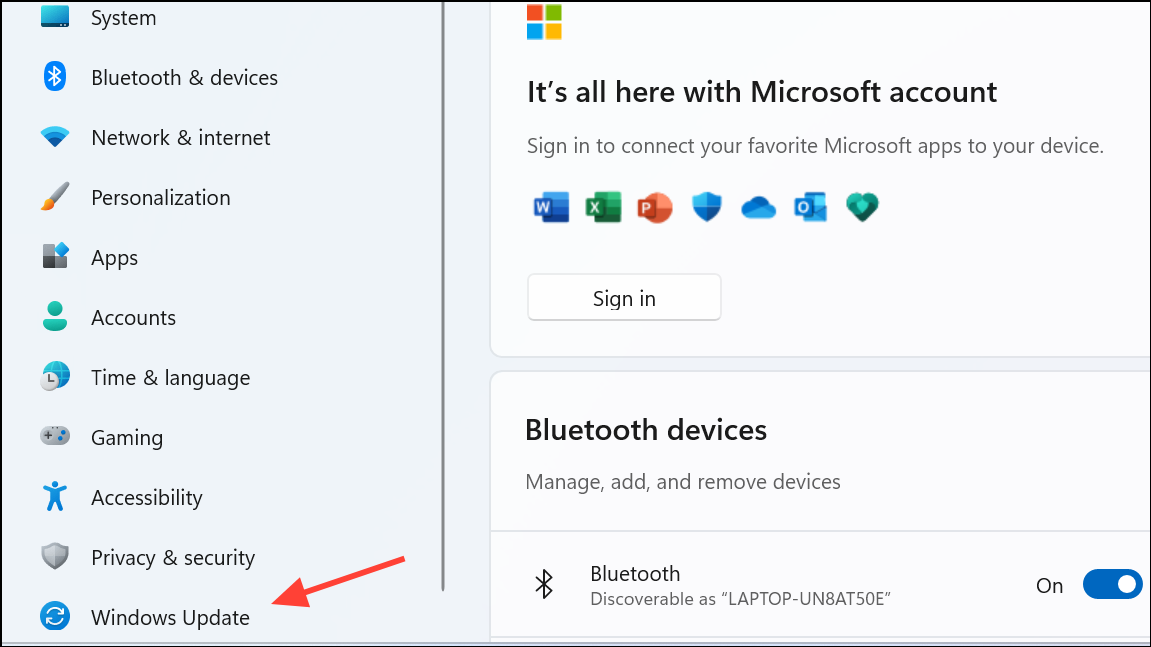
Check for updates and allow the system to download and install any available updates. Updates often include bug fixes that restore missing features like Power Modes.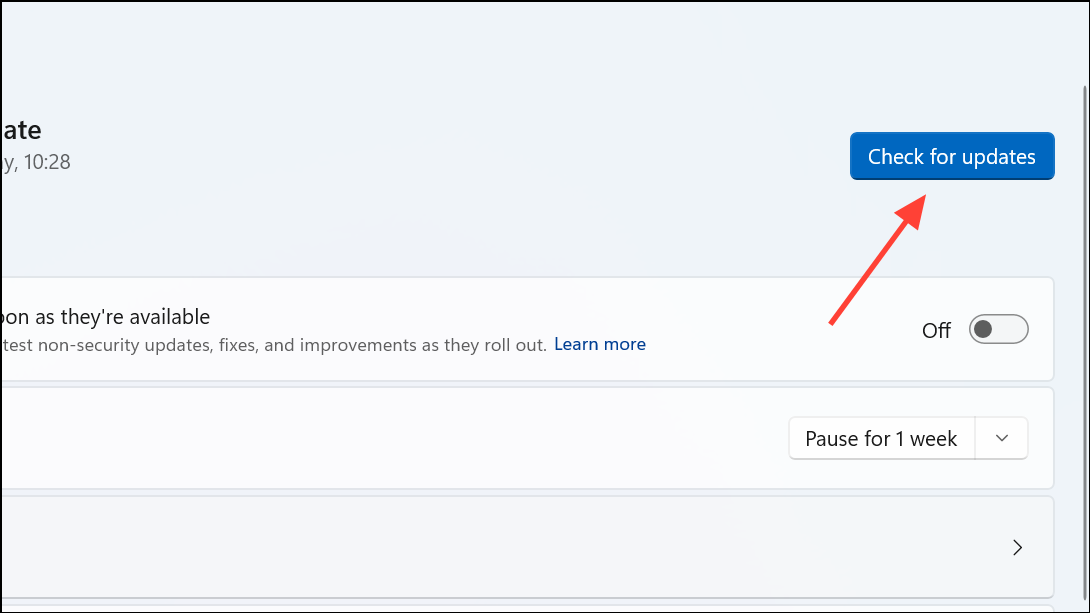
Settings > System > Power & battery.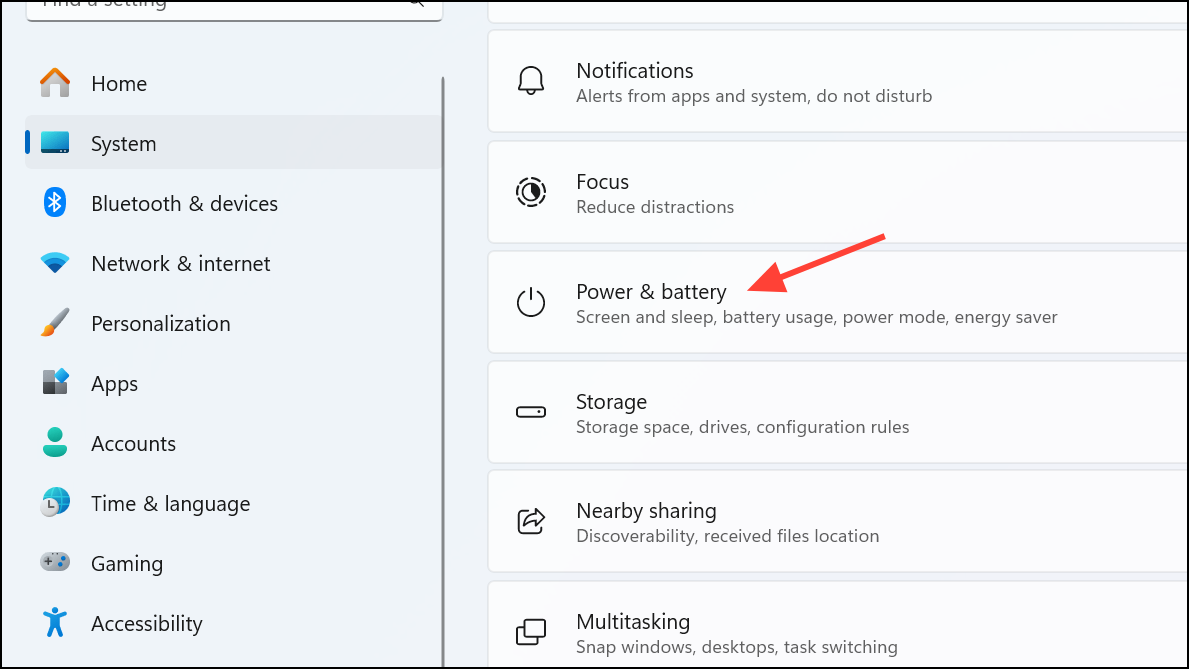
Update Device Drivers
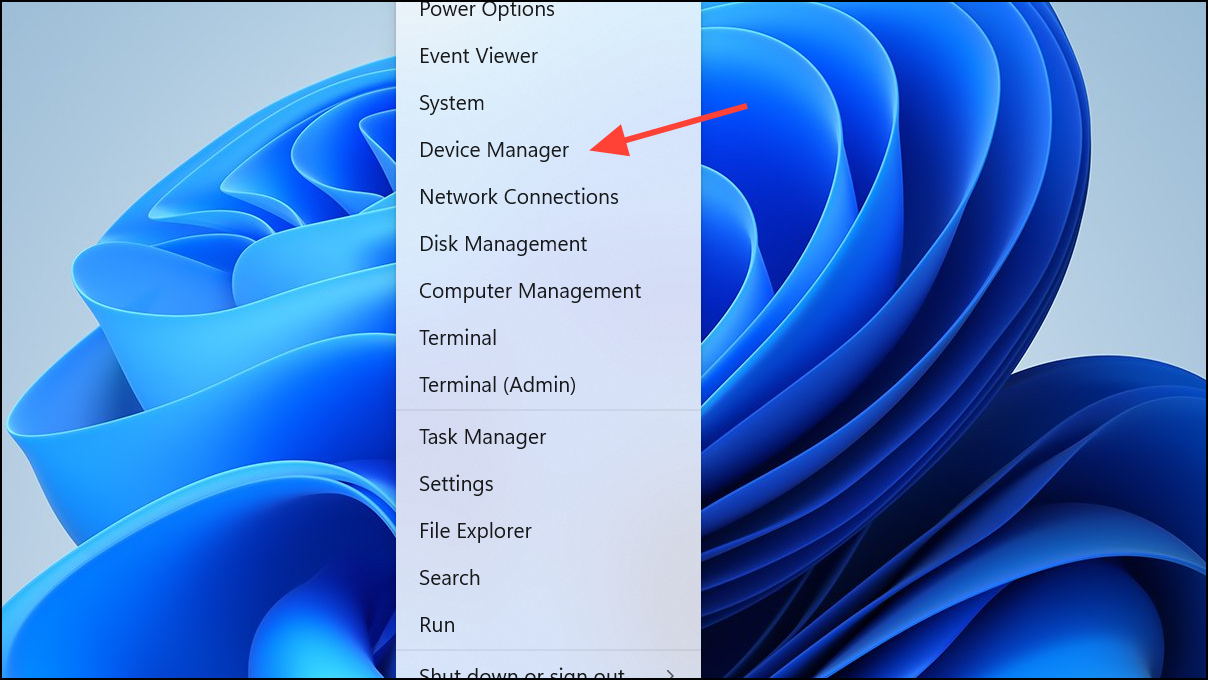
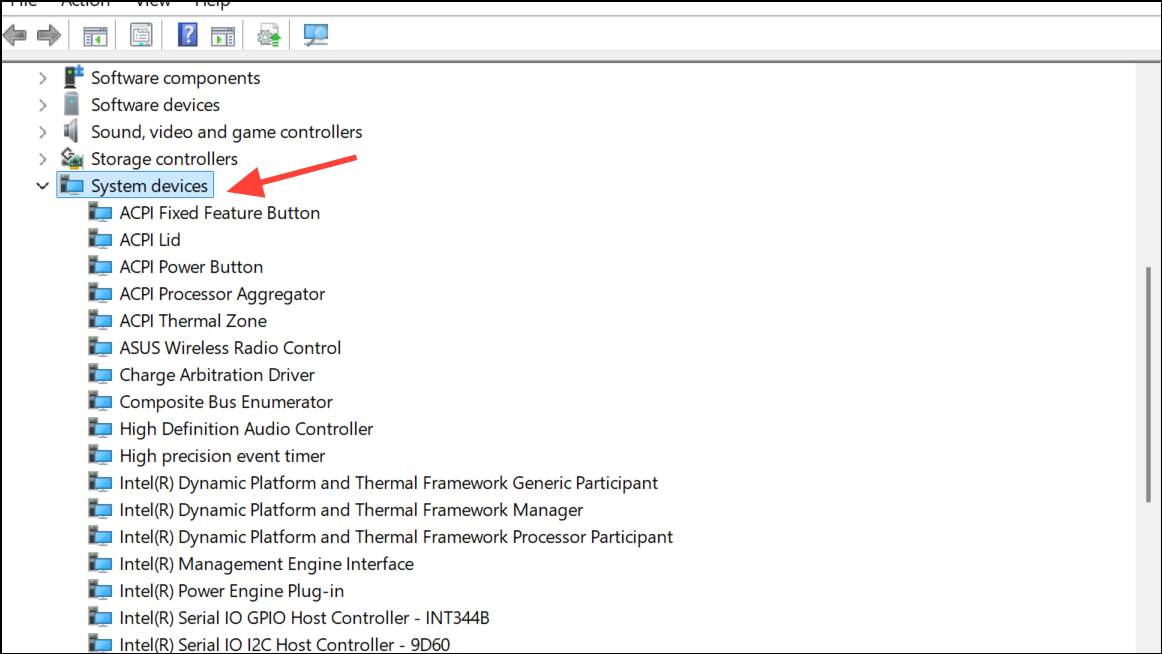
Microsoft ACPI-Compliant Control Method Battery and select Update driver. Choose Search automatically for drivers.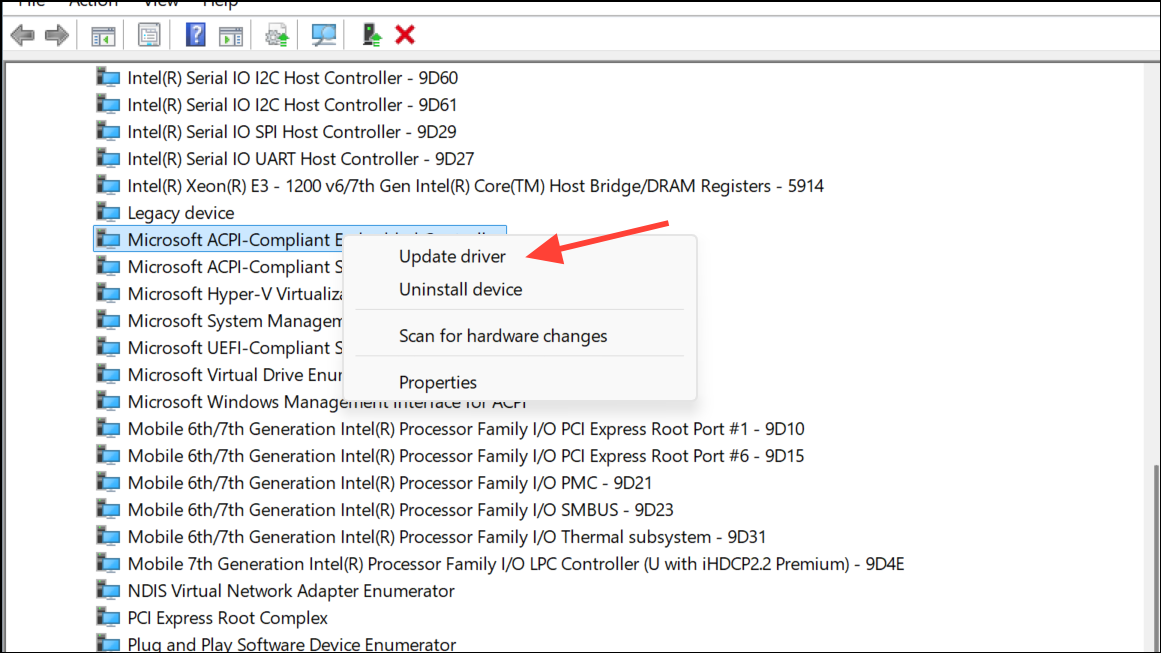
Restore Power Plans Using Command Prompt
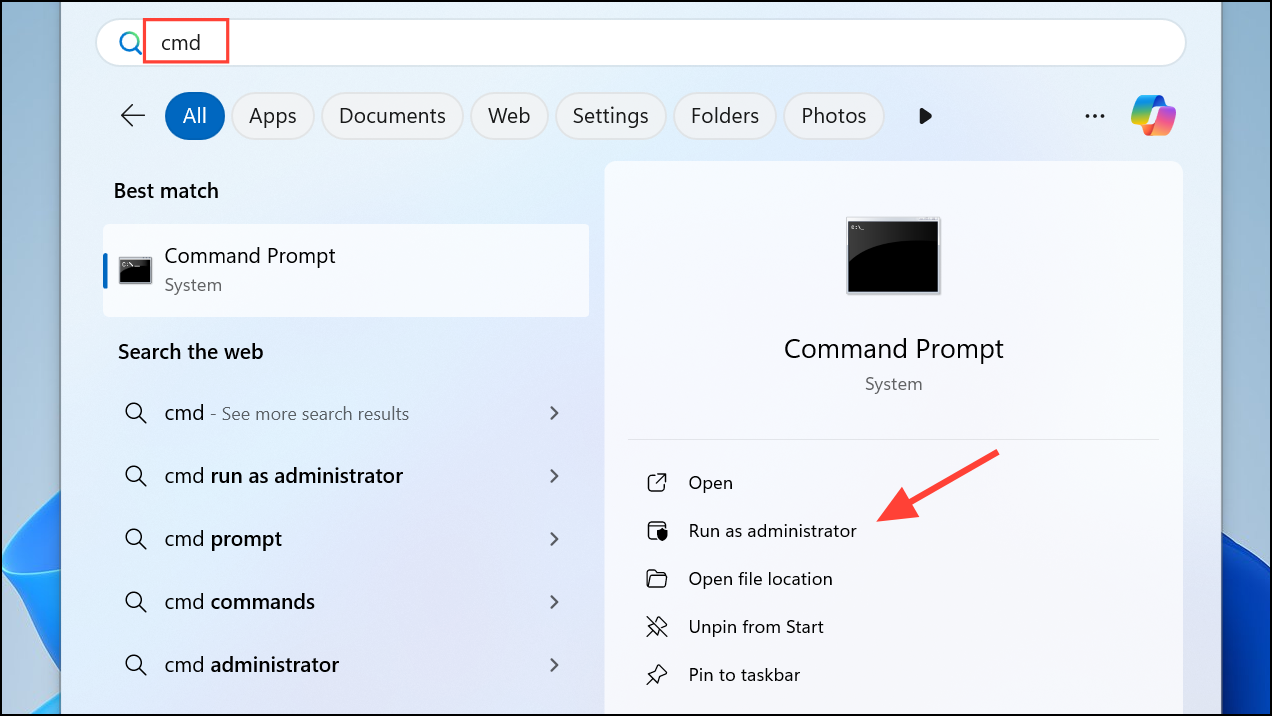
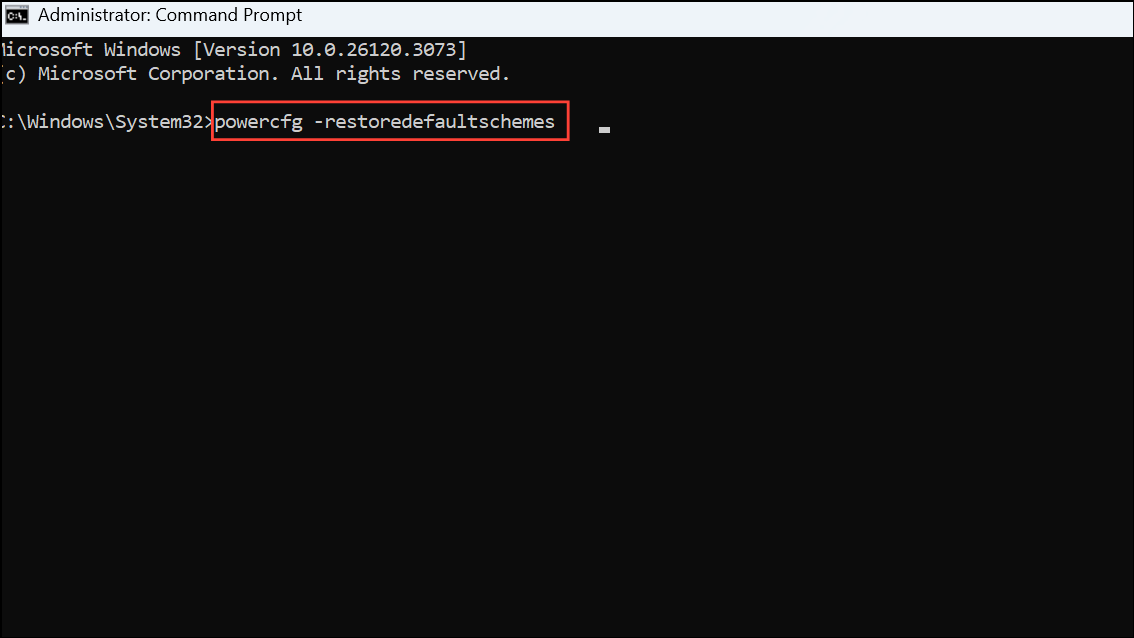
powercfg -restoredefaultschemes
This command reinstates the standard Windows power plans, which may resolve missing Power Modes in the settings.
Settings > System > Power & battery for the restored Power Modes.Check Device Compatibility and Manufacturer Settings
Some devices, especially desktops or systems with custom power management solutions, may not support Power Modes in the same way as laptops. If you’re using a manufacturer-specific utility (such as Dell Power Manager or Lenovo Vantage), check those apps for power settings, as they may override or replace Windows defaults.
Additionally, ensure that your device firmware (BIOS/UEFI) is up to date. Visit your device manufacturer’s support website for the latest updates and installation instructions.
Modify Group Policy or Registry Settings (Advanced)
On some systems, Power Modes may be hidden due to group policy or registry changes. This method should be used with caution, as incorrect changes can affect system stability.
Windows + R, type gpedit.msc, and press Enter to open the Local Group Policy Editor (only available on Windows 11 Pro and above).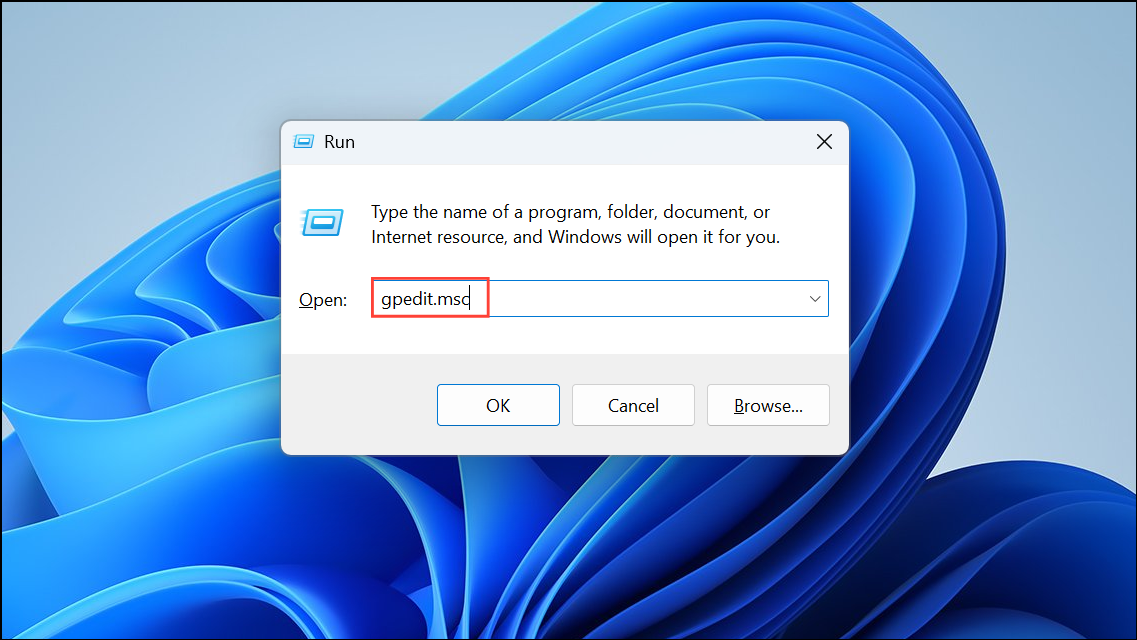
Computer Configuration > Administrative Templates > System > Power Management. Review policies that might restrict access to power options, and set them to Not Configured if needed.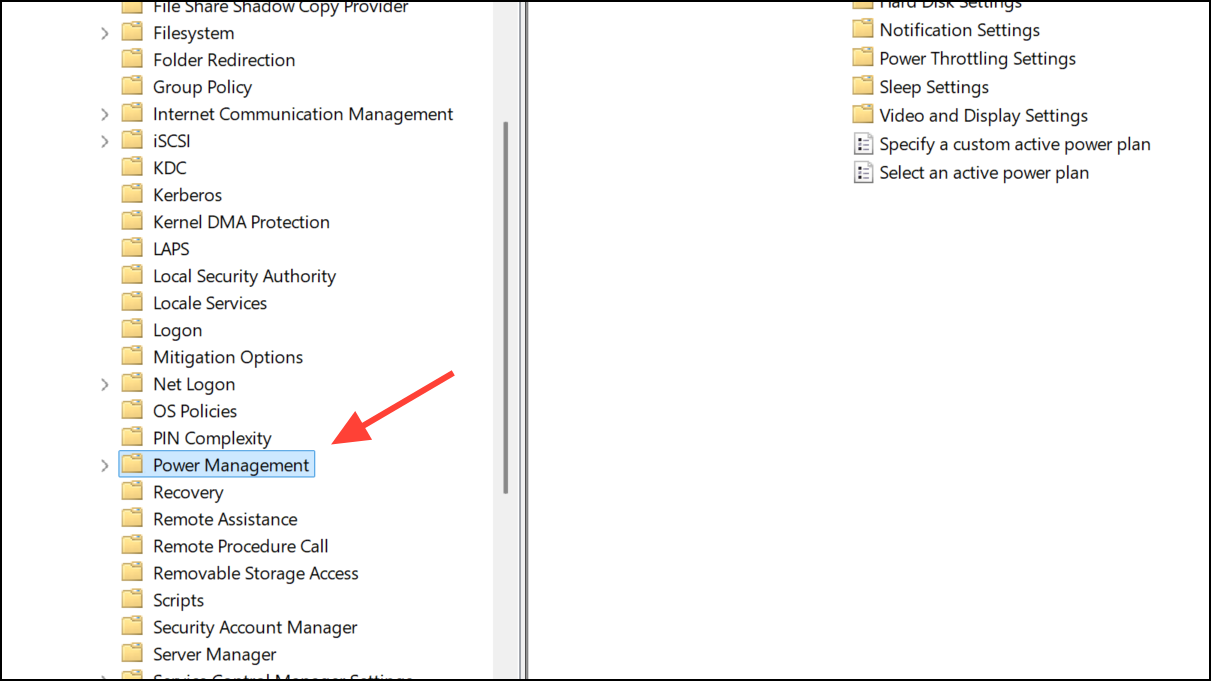
For Windows Home users, registry edits may be required. Always back up your registry before making changes.
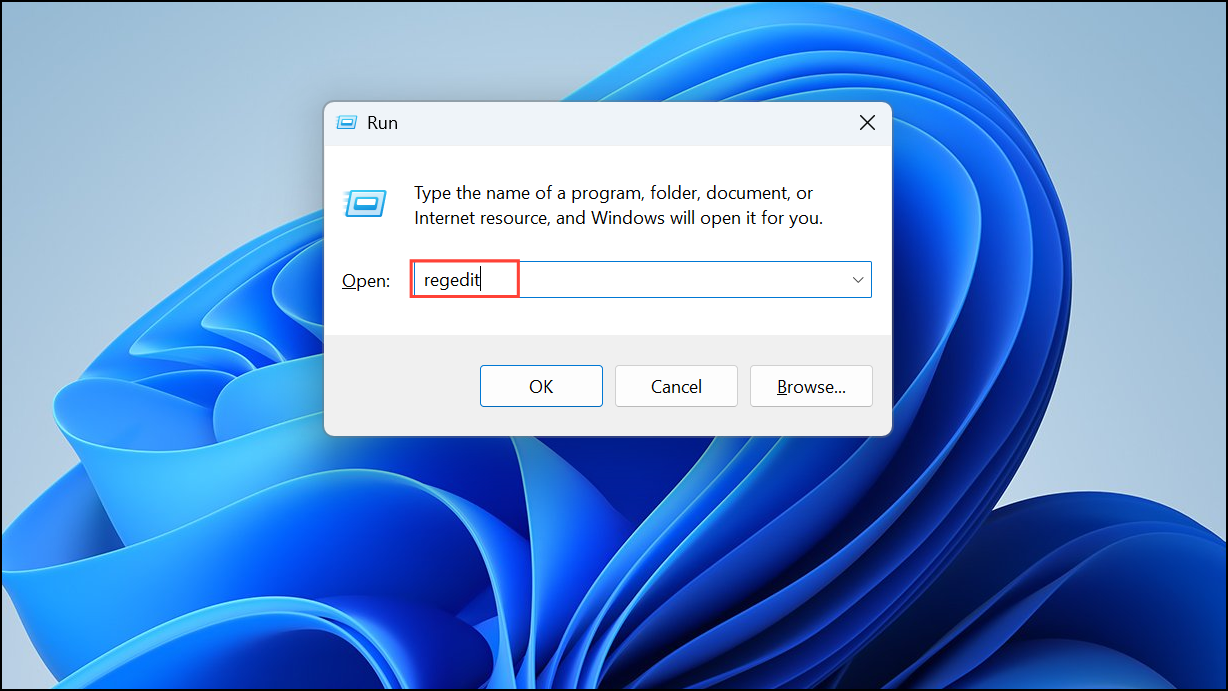
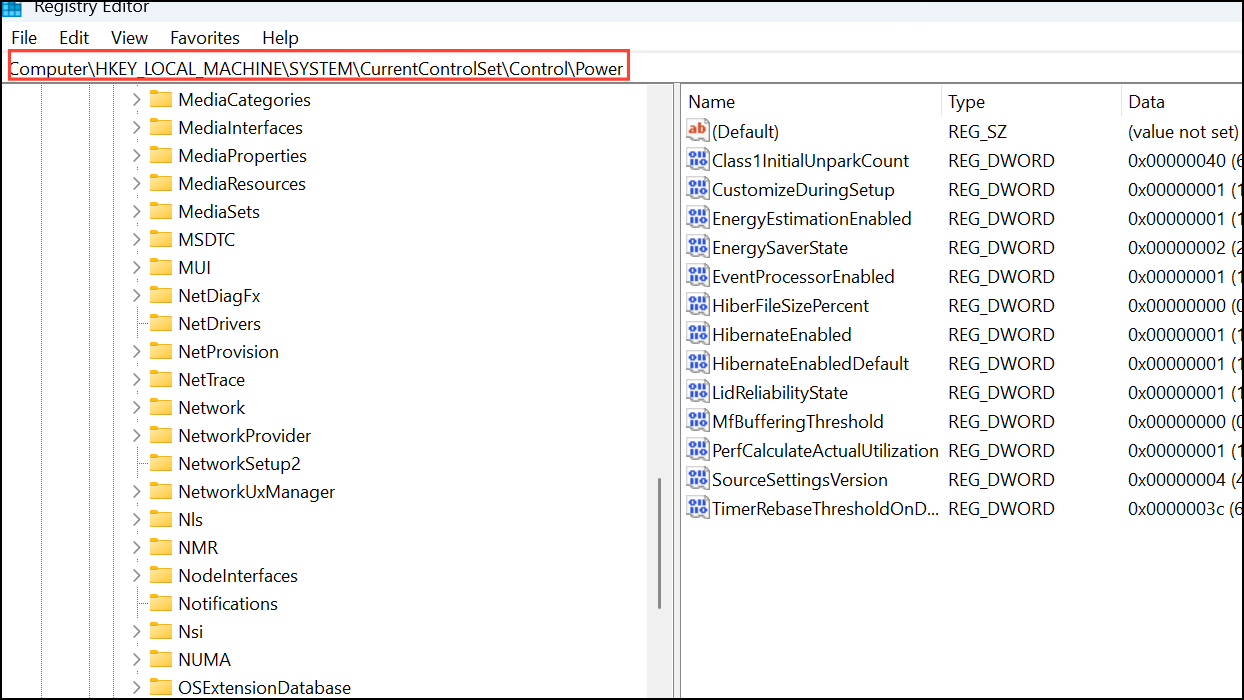
HKEY_LOCAL_MACHINE\SYSTEM\CurrentControlSet\Control\Power
Restoring Power Modes in Windows 11 gives you direct control over system performance and battery life. Regularly check for updates and keep drivers current to maintain full access to power management features.



