
Loss of mouse cursor visibility after Windows 11 updates interrupts navigation and complicates routine tasks, especially when the cursor fails to reappear after a system restart. Addressing this issue quickly restores system usability and prevents workflow interruptions.
Reconnect or Re-enable Mouse Hardware
Unplug your mouse from the USB port and reconnect it to a different USB port on your computer. This checks for faulty ports or loose connections.
If you use a wireless mouse, replace the batteries and ensure the receiver is properly connected. Switch the receiver to another USB port if necessary.
For Bluetooth mice, open
Settings > Bluetooth & devices > Devices and verify that the mouse is paired and connected. If not, remove and re-pair the device.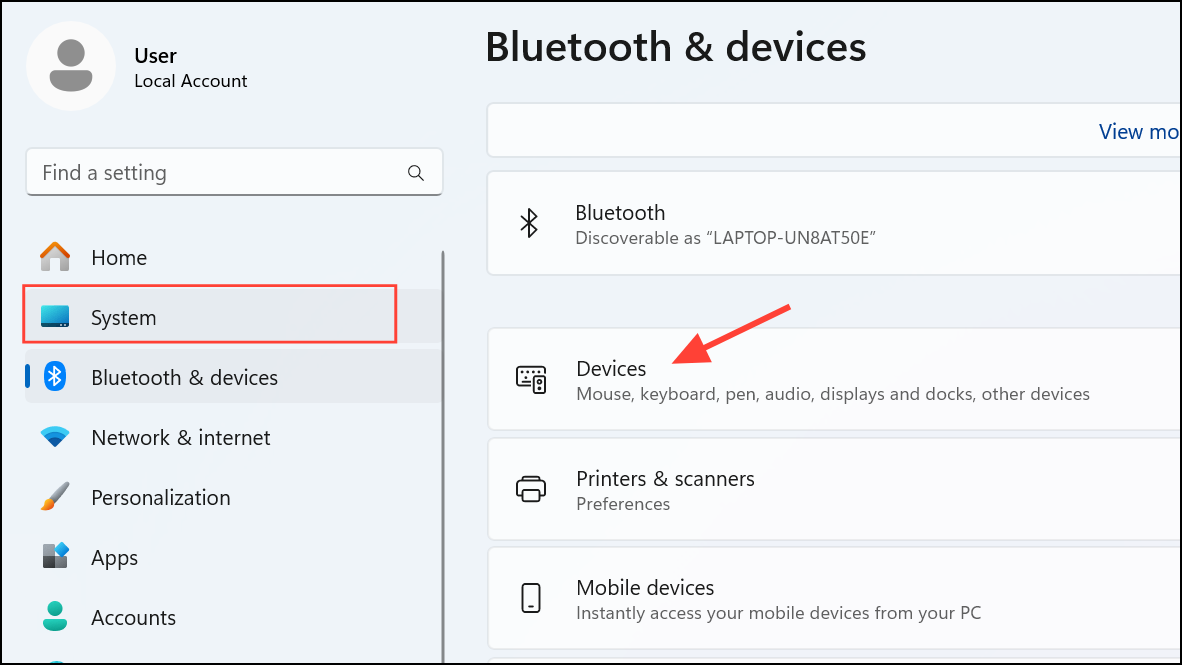
Enable Mouse Using Keyboard Shortcuts
Press
Windows + X to open the Quick Link menu. Use the arrow keys to select Device Manager and press Enter.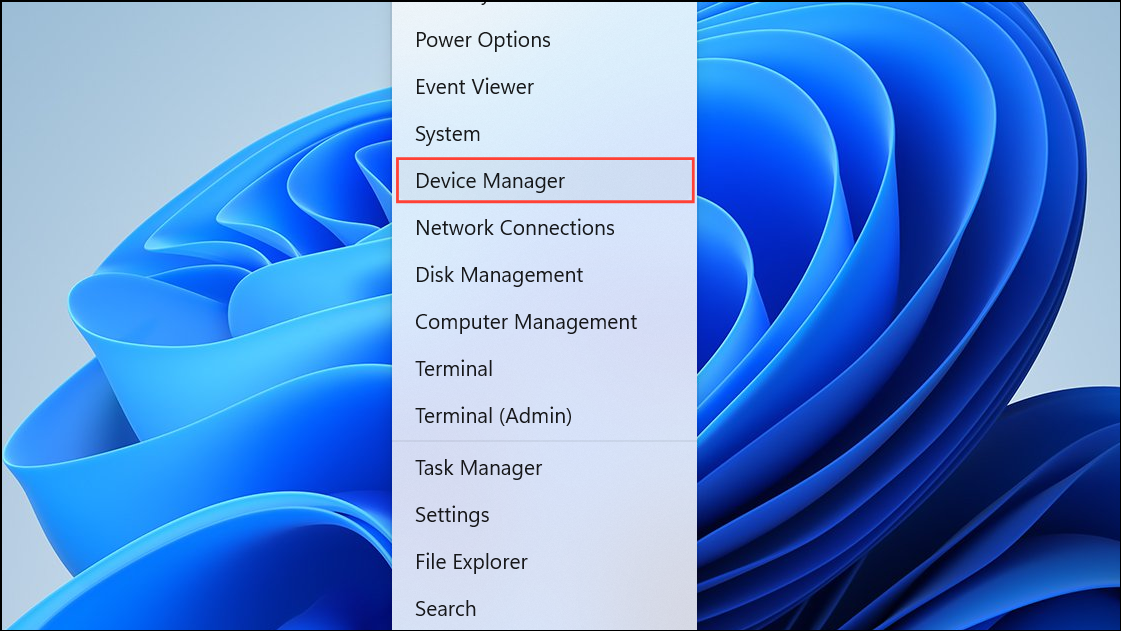
In Device Manager, use arrow keys to expand
Mice and other pointing devices. Select your mouse device, press Shift + F10 (or the context menu key), and choose Enable device if available.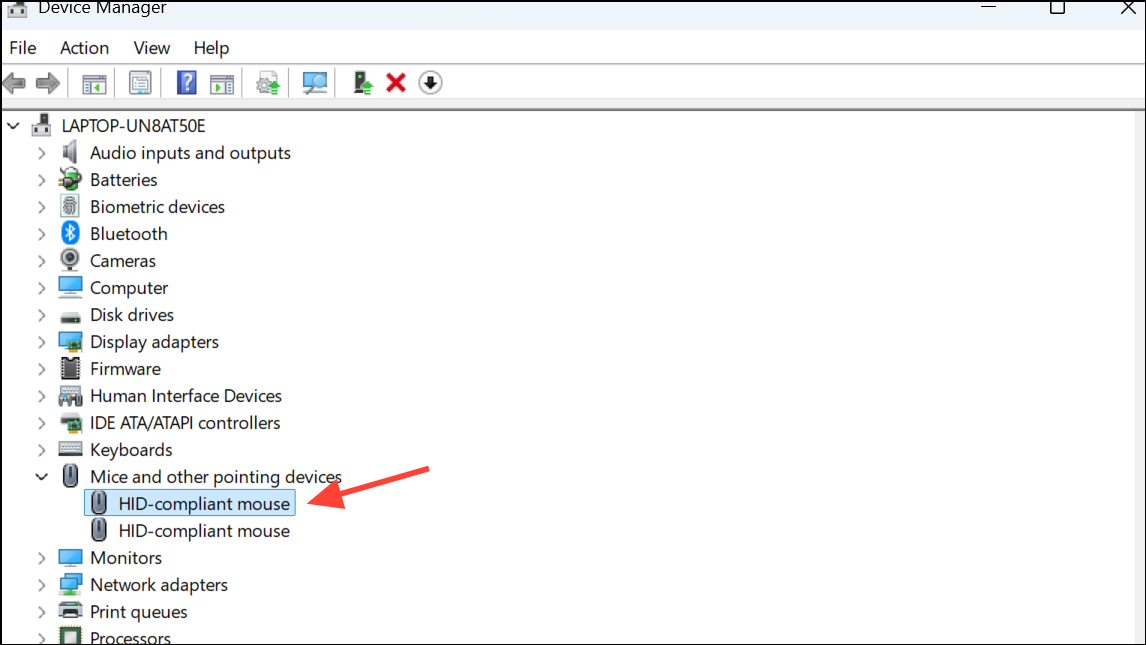
If the mouse is already enabled, select
Uninstall device, then restart your computer. Windows will reinstall the driver automatically, which can resolve driver corruption from updates.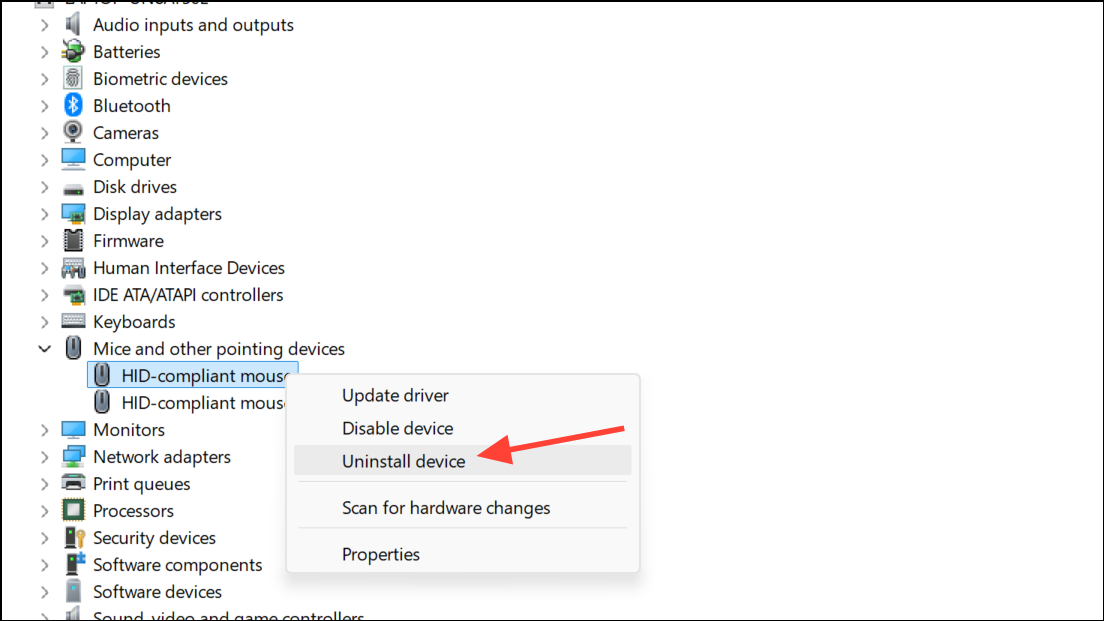
Update or Roll Back Mouse Drivers
Navigate to
Mice and other pointing devices, select your mouse, and open its properties with Alt + Enter.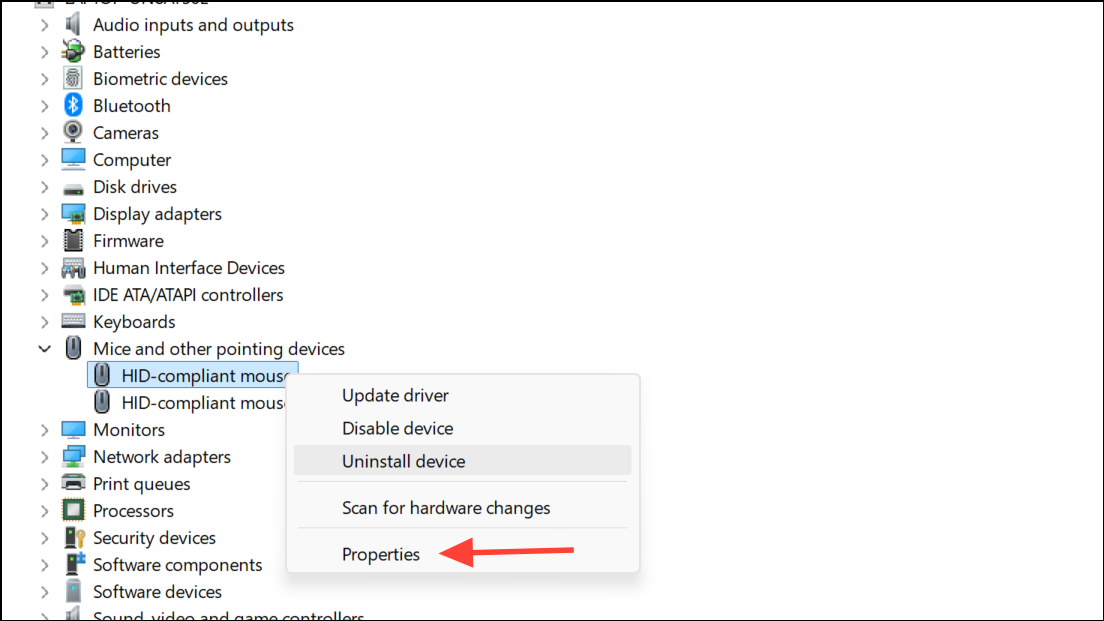
In the Properties window, switch to the
Driver tab using the arrow keys. Choose Update Driver to search for newer drivers, or select Roll Back Driver if the issue started after an update, and the option is available.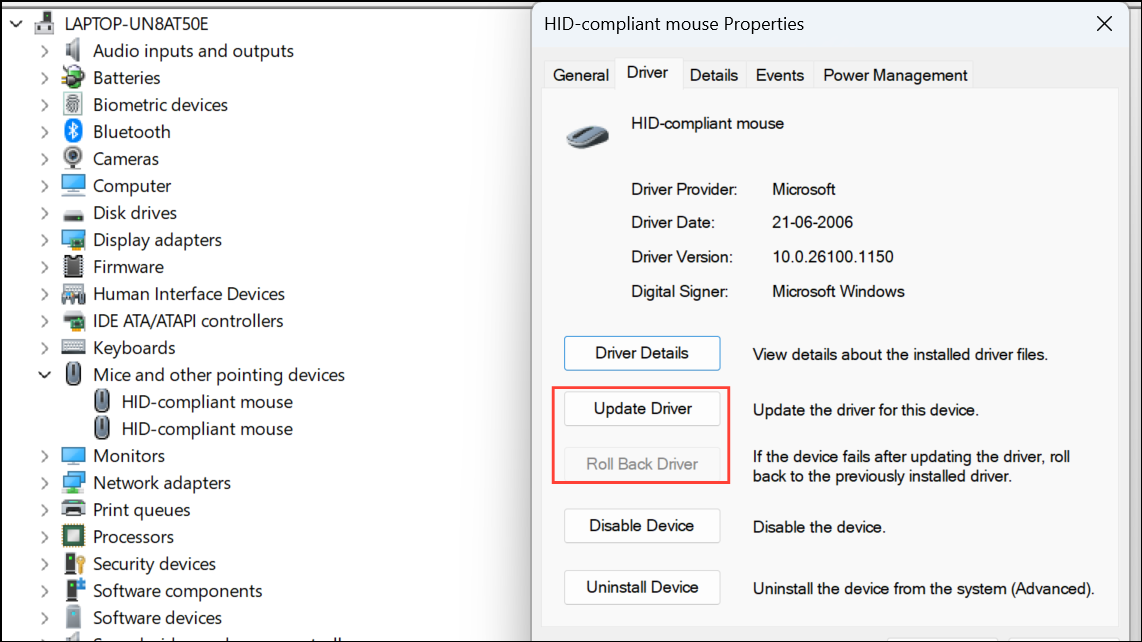
Restart your computer to apply changes. This can resolve compatibility issues introduced by recent Windows updates.
Show Mouse Cursor via Settings Adjustments
Press
Windows + I to open Settings. Use Tab and arrow keys to navigate to Accessibility, then select Mouse pointer and touch.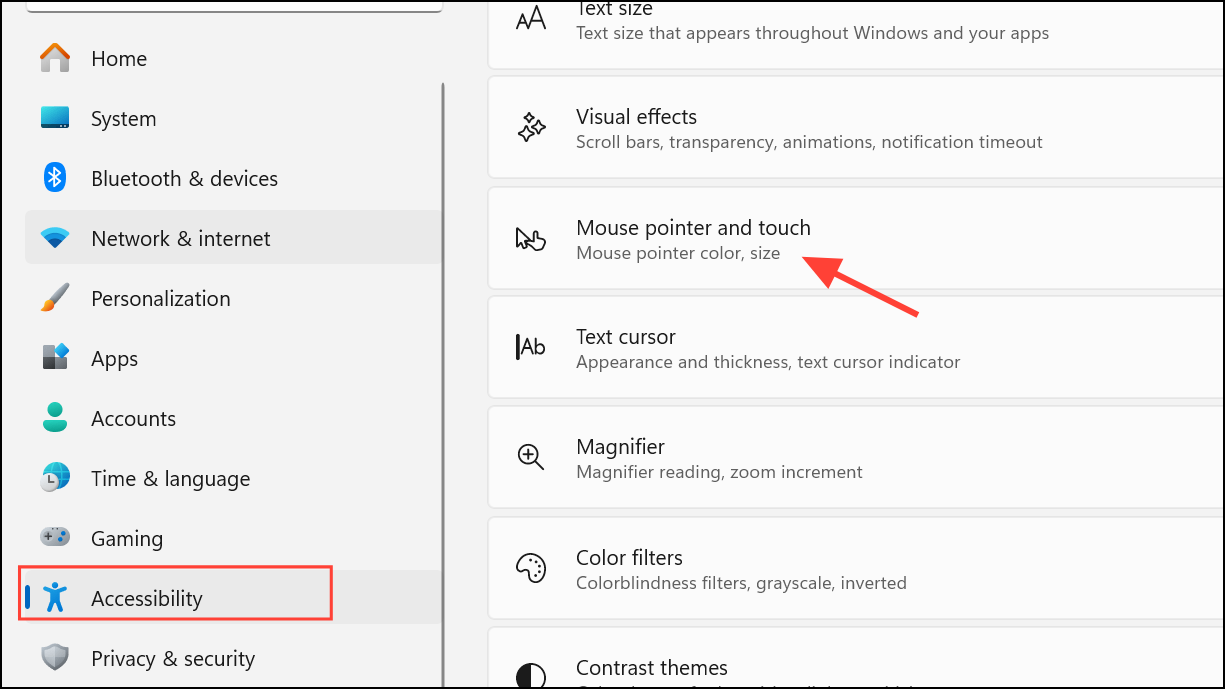
Adjust the pointer size and color. Sometimes, changing these settings refreshes the cursor display and makes it visible again.
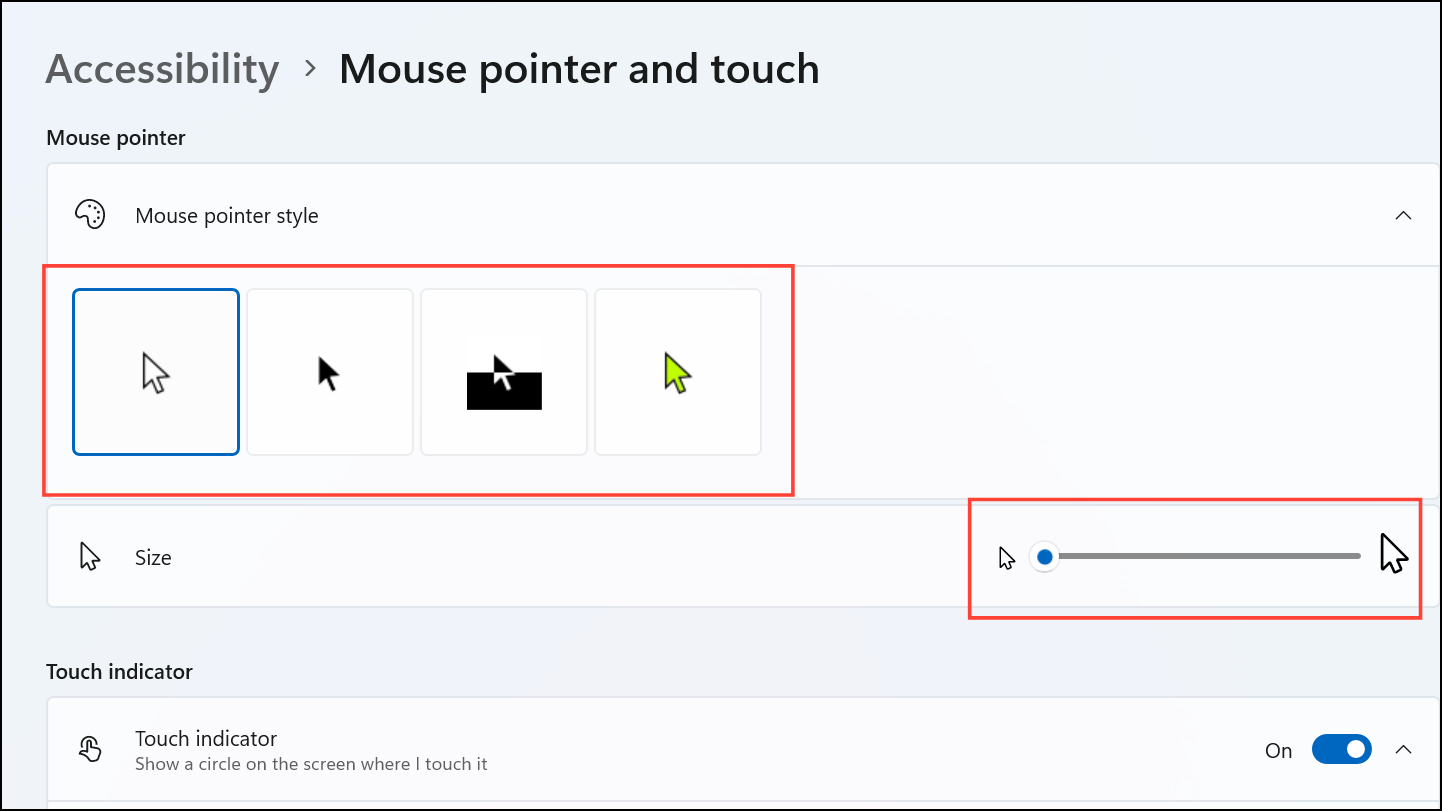
Ensure
Mouse Keys is turned off, as enabling it can sometimes interfere with normal cursor function.Restart Windows Explorer Process
Press
Ctrl + Shift + Esc to open Task Manager. Use arrow keys to select Windows Explorer in the list of processes.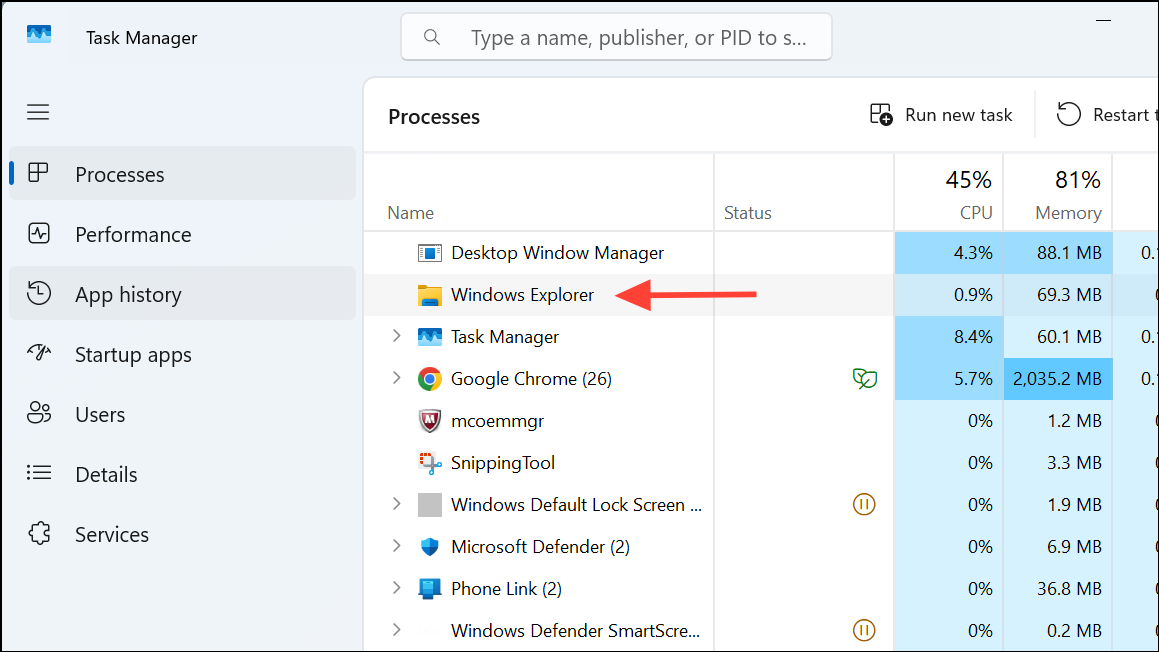
Press
Shift + F10 to open the context menu, then select Restart and press Enter. This refreshes the desktop environment and can restore a missing cursor without rebooting.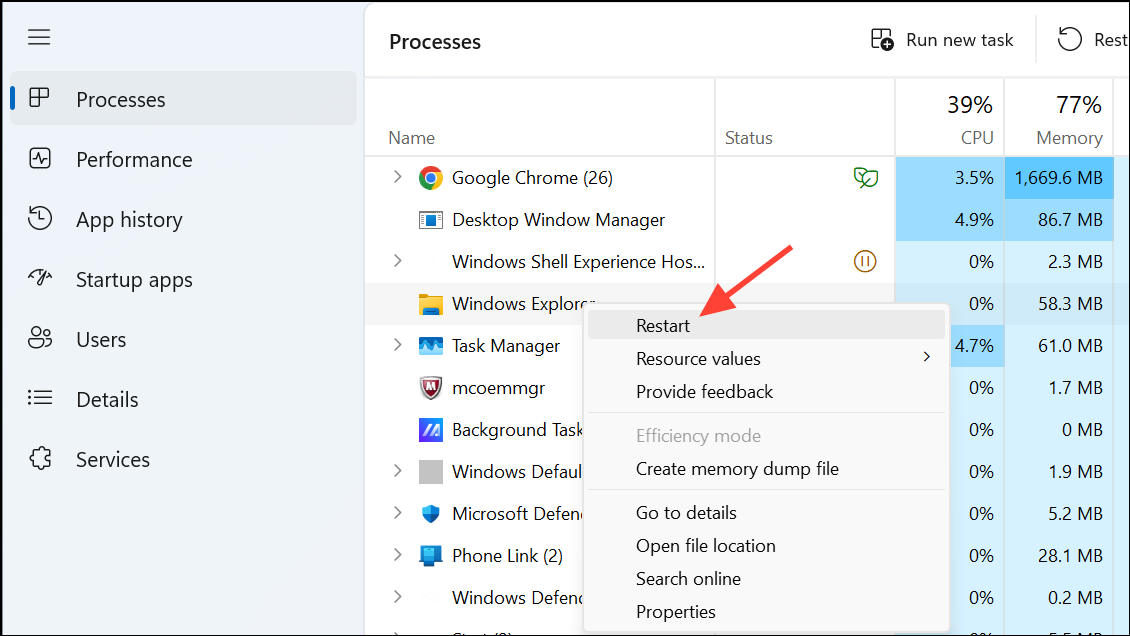
Perform System Restore or Uninstall Recent Updates
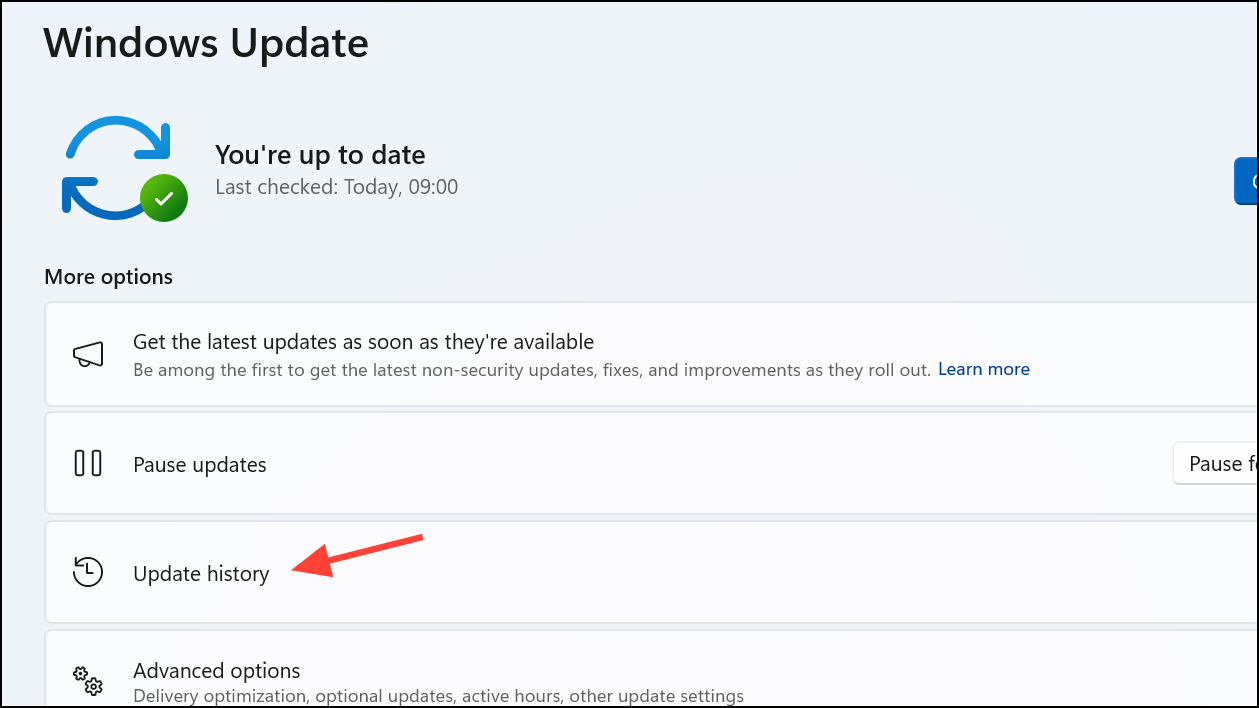
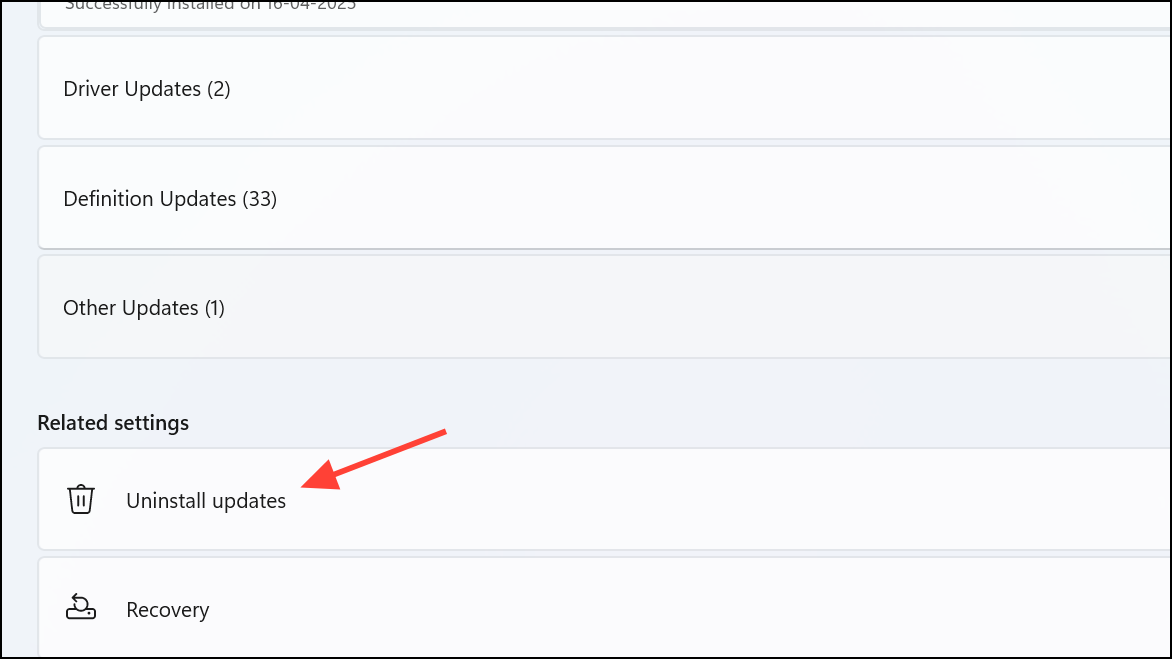
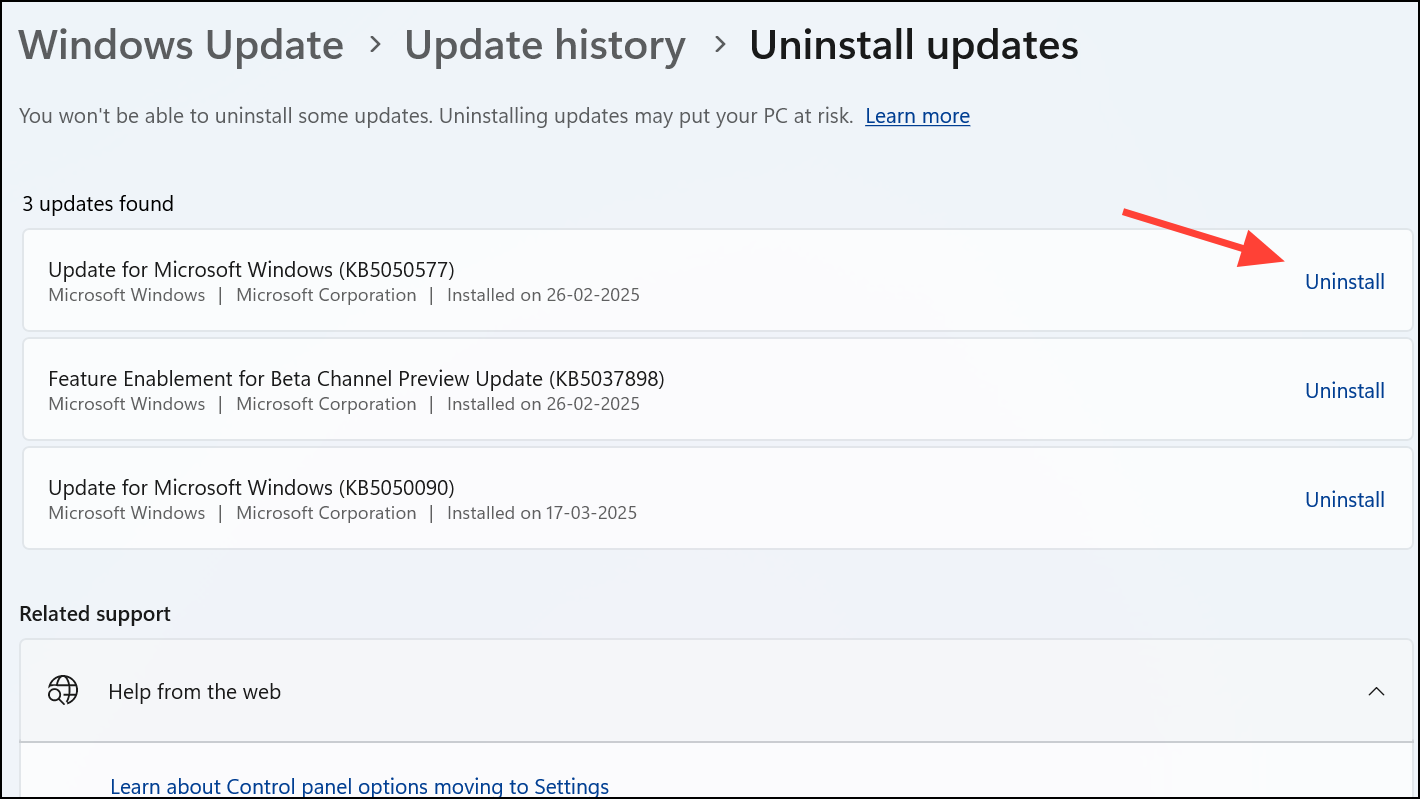
If the problem persists, type
rstrui in the Run dialog (Windows + R) and press Enter to launch System Restore. Follow the prompts to revert your system to a restore point before the cursor disappeared.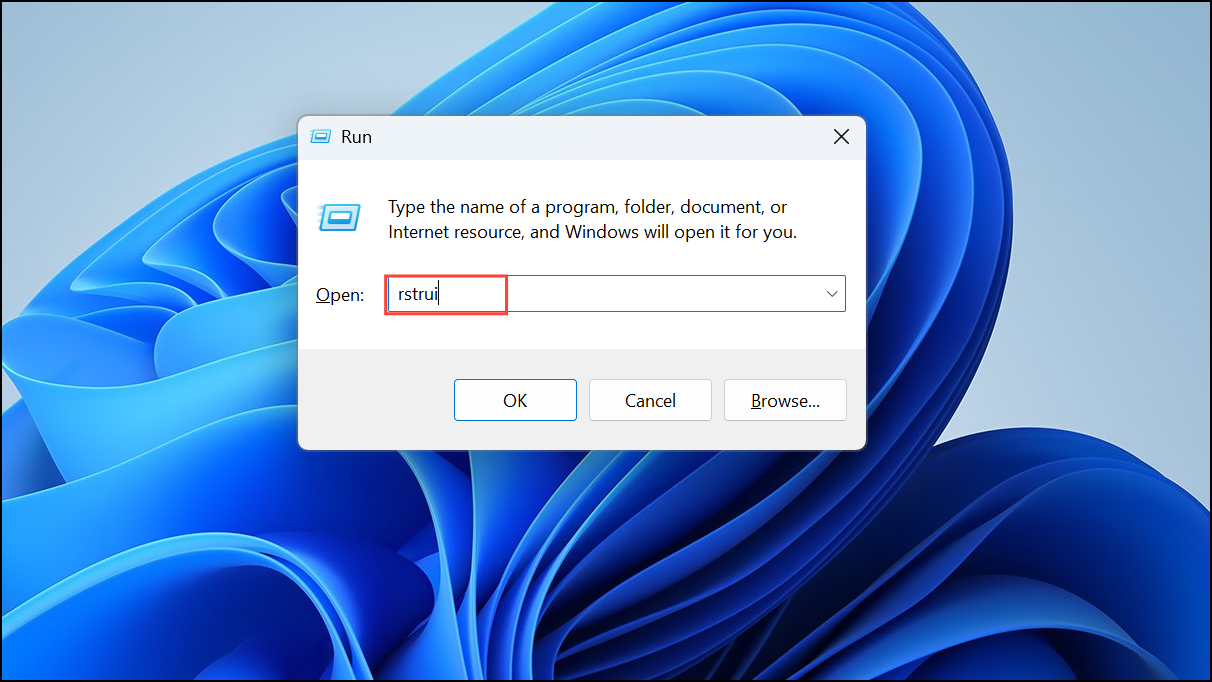
After restoring your mouse cursor, consider checking for updated drivers and keeping a backup of important system settings. This helps you quickly resolve similar issues in the future and minimizes downtime.



