
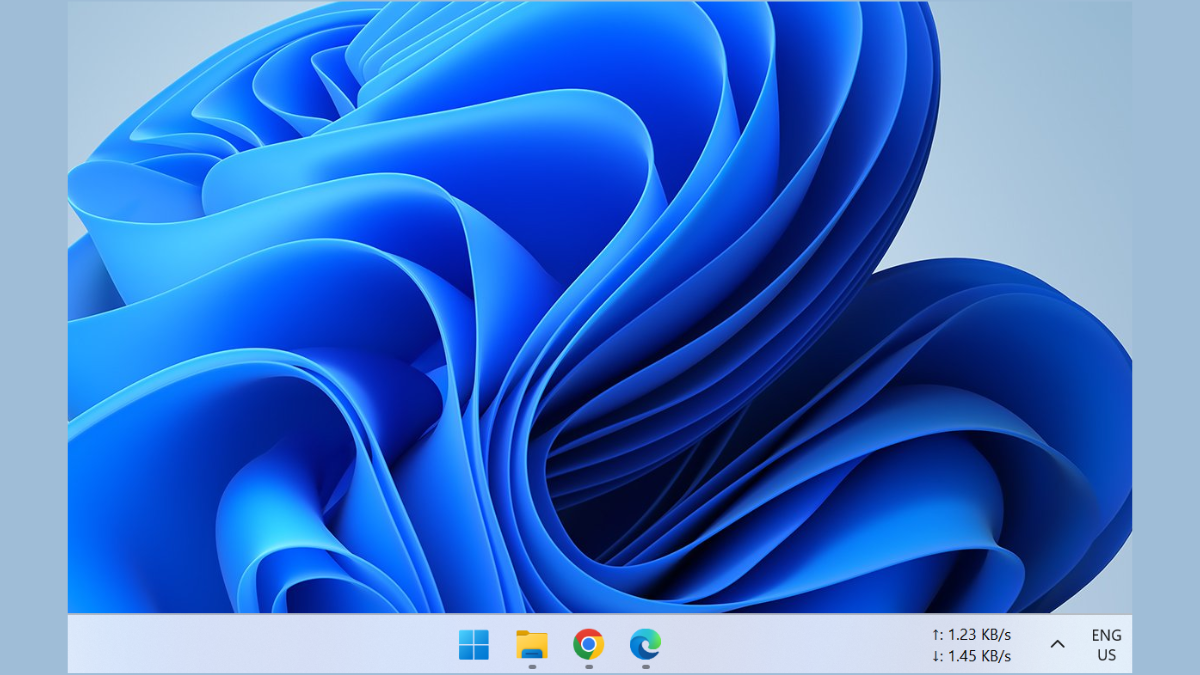
The Windows taskbar provides quick access to your most-used apps, but it can also take up valuable screen space when you’re working in full-screen applications or watching videos. If you prefer your taskbar to remain visible and locked only when you’re on the desktop, but hidden during other activities, you can achieve this behavior with a few simple adjustments. This guide explains how to configure your taskbar so it stays locked and visible while on the desktop, yet automatically hides when you open applications or use full-screen mode.
Method 1: Using Windows Built-in Taskbar Settings
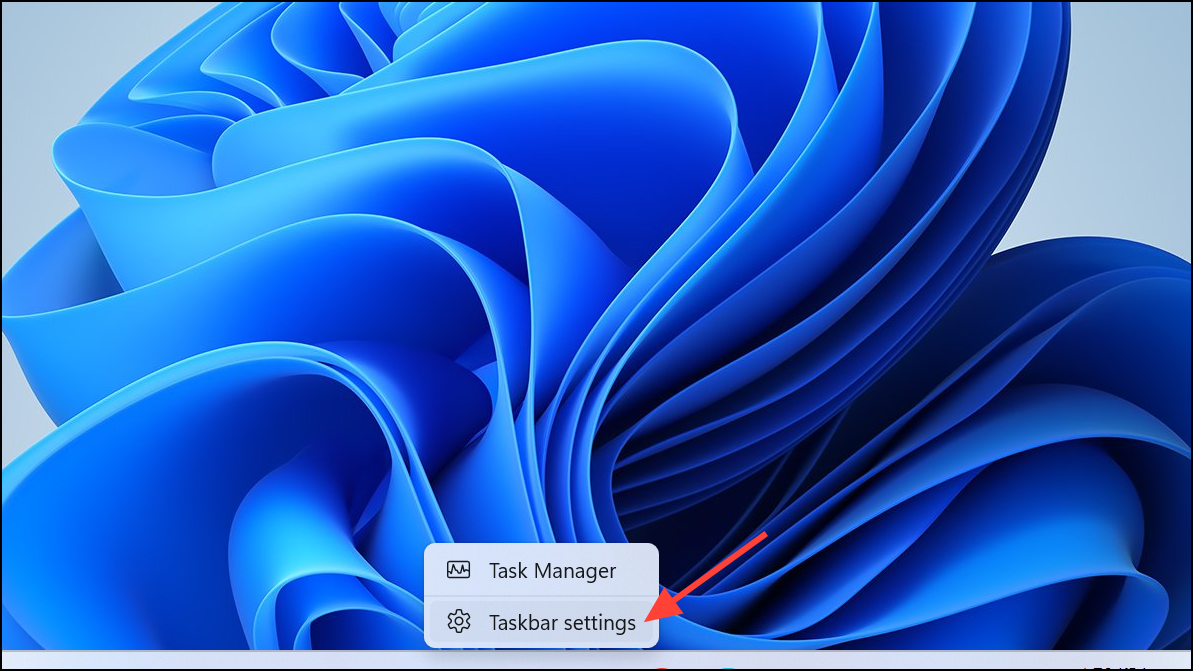
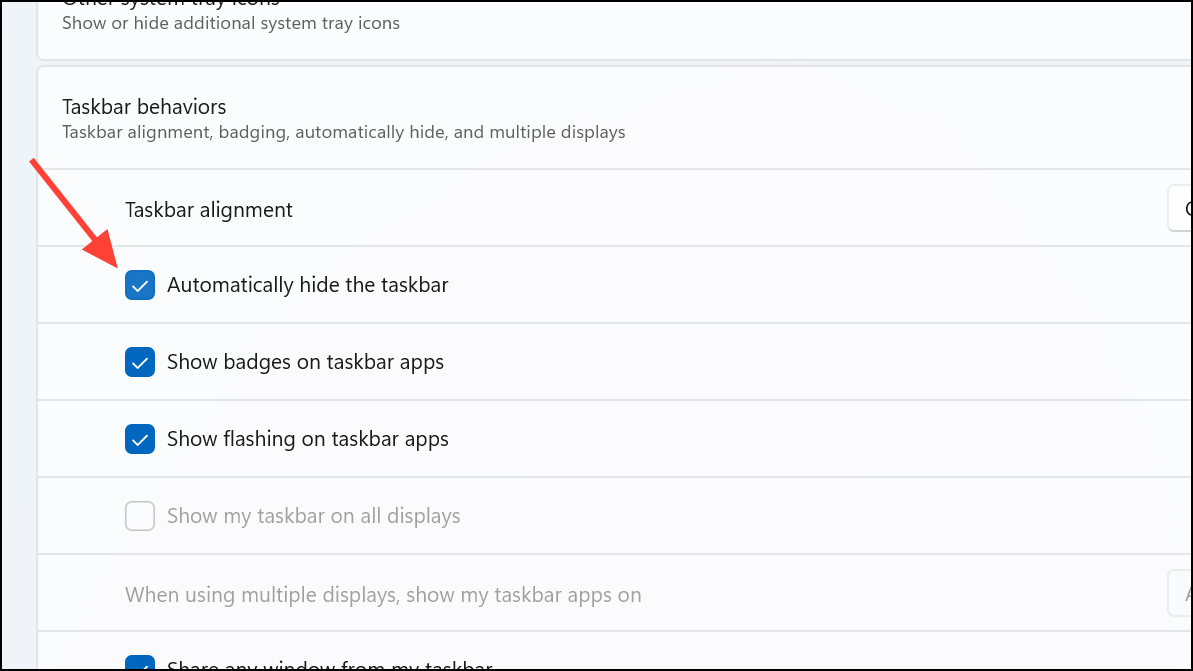
While this method effectively hides the taskbar when apps are open, it also hides the taskbar on the desktop unless you move your cursor to its location. If you specifically want the taskbar always visible on the desktop and hidden only when apps are running full-screen or maximized, you may need to use third-party software instead.
Method 2: Using AutoHotkey for Custom Taskbar Behavior
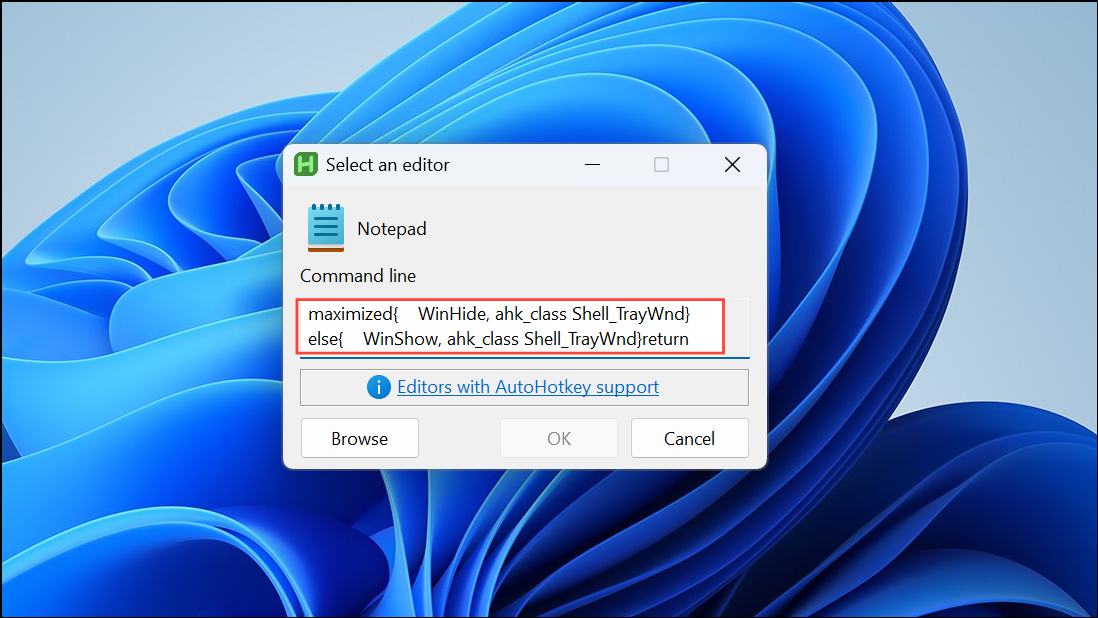
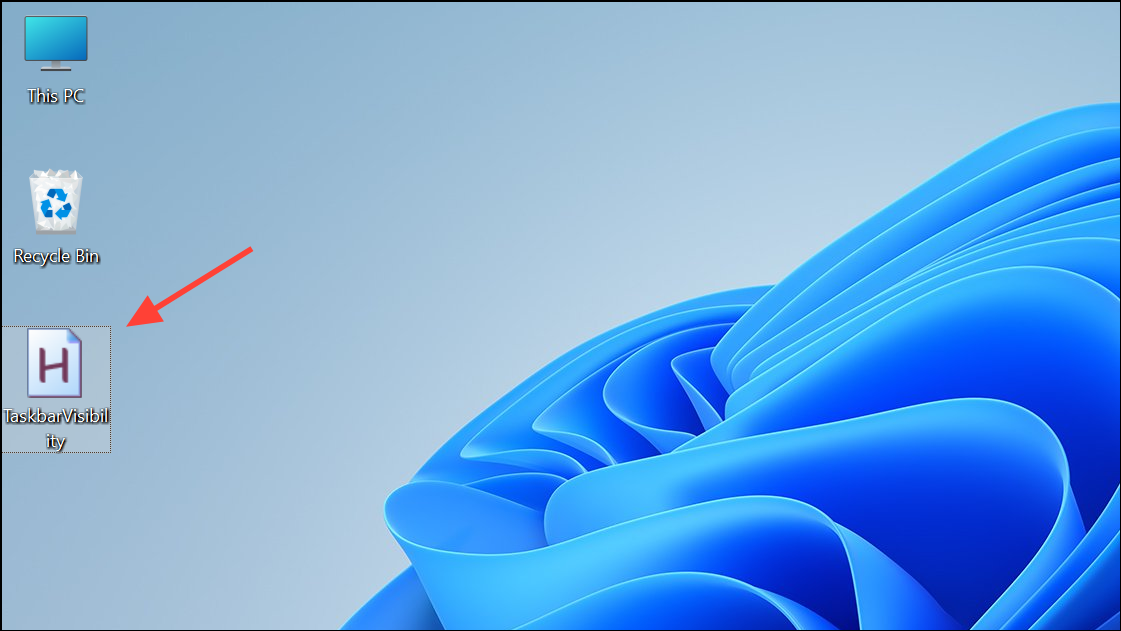
If you prefer a more customizable, script-based approach, AutoHotkey allows you to create a custom taskbar behavior script. This method is suitable for advanced users comfortable with scripting.
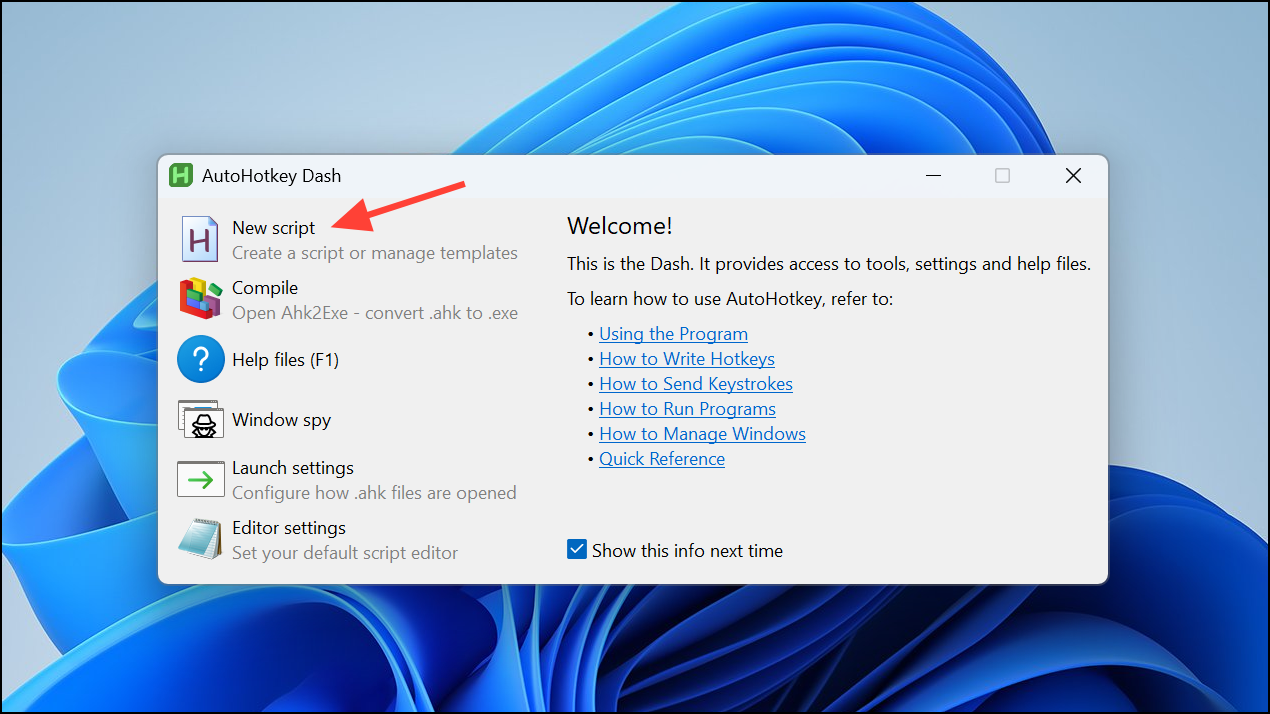
#Persistent
SetTimer, CheckActiveWindow, 500
return

CheckActiveWindow:
WinGet, activeWindow, ID, A
WinGet, windowState, MinMax, ahk_id %activeWindow%

if (windowState = 1) ; Window is maximized
{
    WinHide, ahk_class Shell_TrayWnd
}
else
{
    WinShow, ahk_class Shell_TrayWnd
}
return
With these methods, you can easily set your Windows taskbar to stay locked while on the desktop yet automatically hide when using apps, optimizing your workspace, and improving your productivity.



