
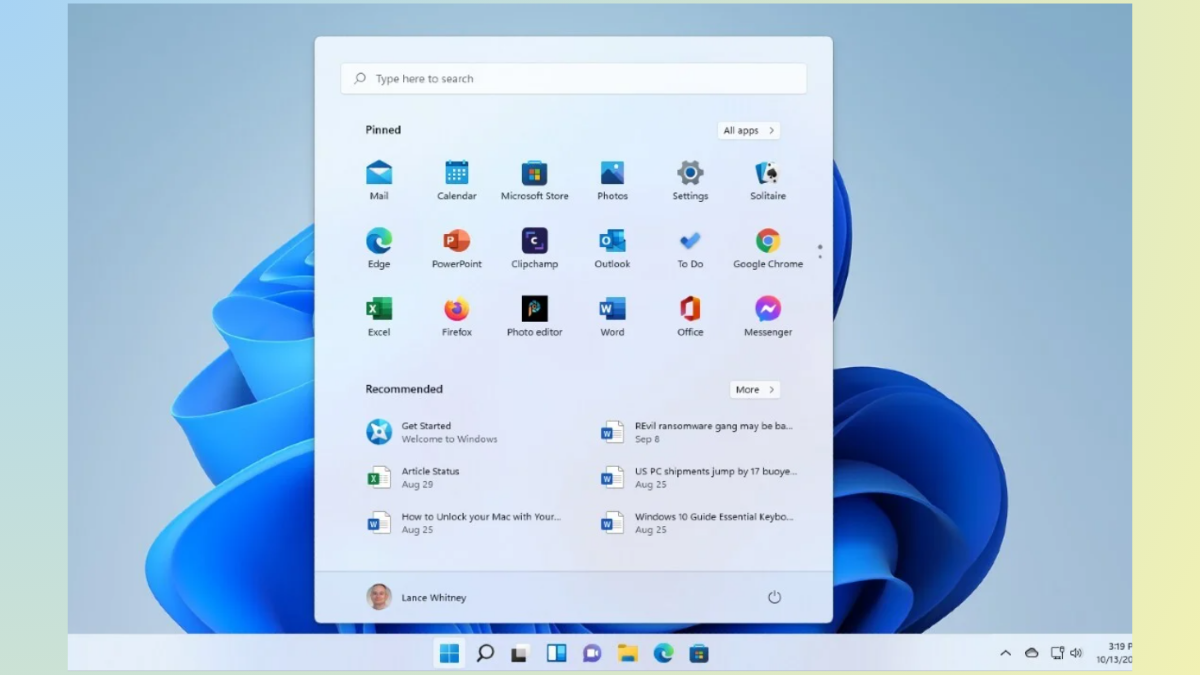
System navigation comes to a halt when the Windows 11 Start menu and taskbar vanish or stop responding. This issue can block access to apps, settings, and notifications, disrupting even the most basic tasks. The most reliable fix involves a registry change targeting the IrisService, but several other techniques can also restore functionality, depending on the root cause. Below, you’ll find effective, clear instructions for each approach, starting with the method that delivers the most consistent results.
Remove the IrisService Registry Key to Restore the Start Menu and Taskbar
Ctrl + Shift + Esc to open Task Manager. If Task Manager appears in compact mode, click “More details” at the bottom to expand the view.Run new task at the top. This opens a dialog box for launching a new process.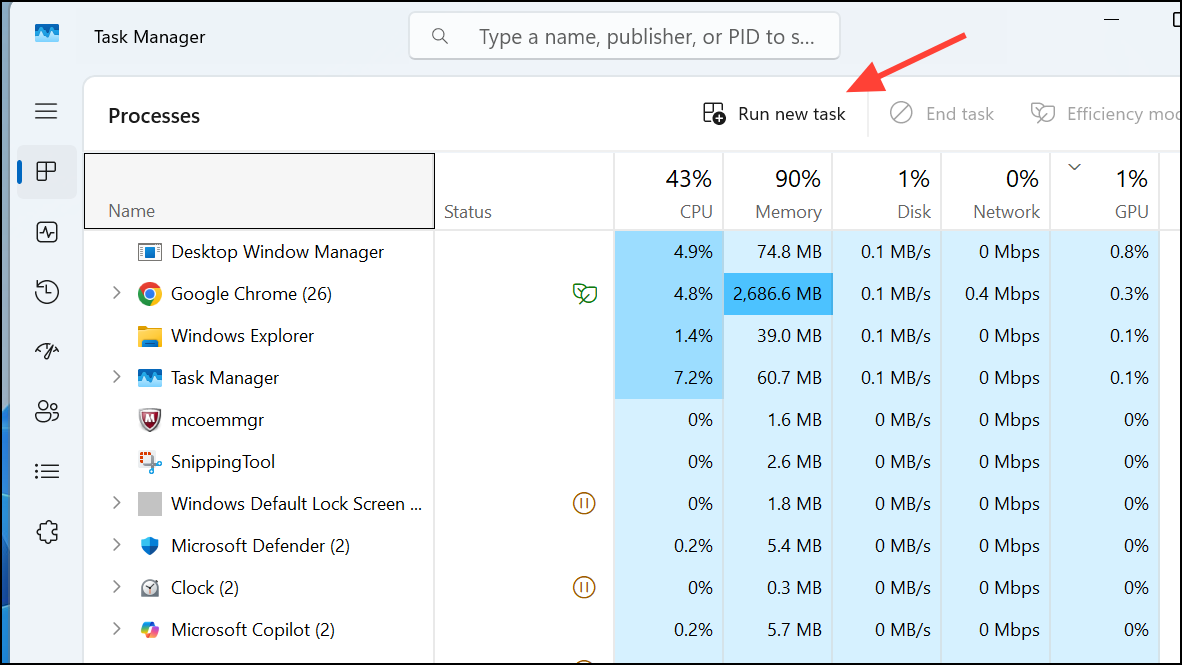
cmd in the box and check the option to run as administrator if available, then click OK. This opens a Command Prompt window.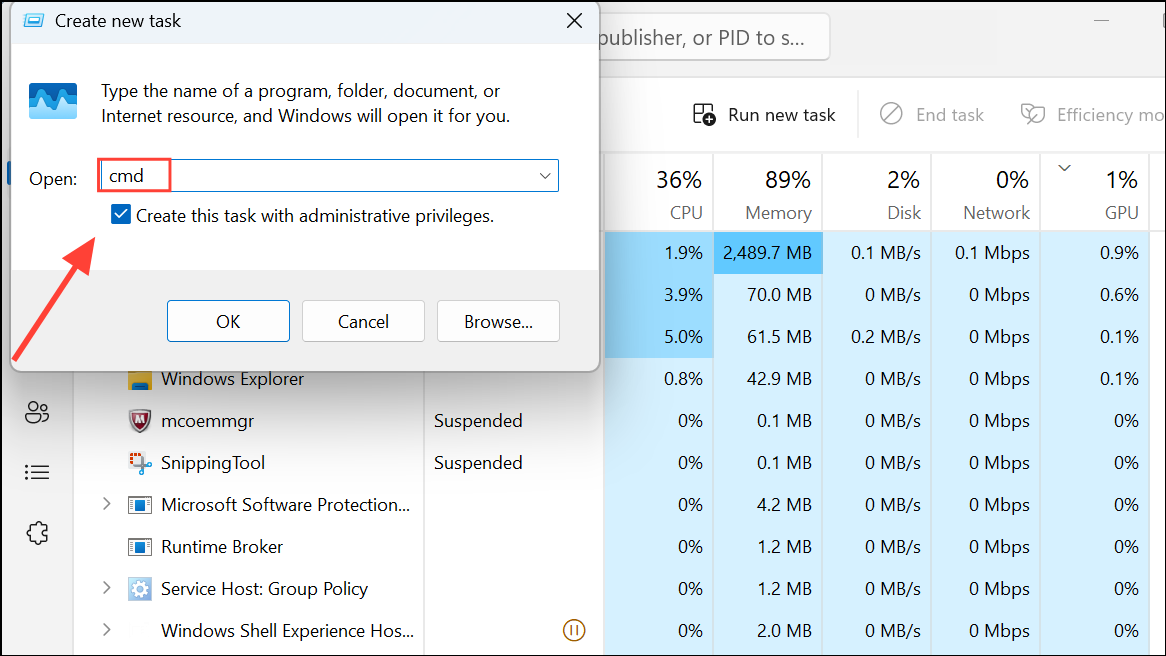
reg delete HKCU\SOFTWARE\Microsoft\Windows\CurrentVersion\IrisService /f && shutdown -r -t 0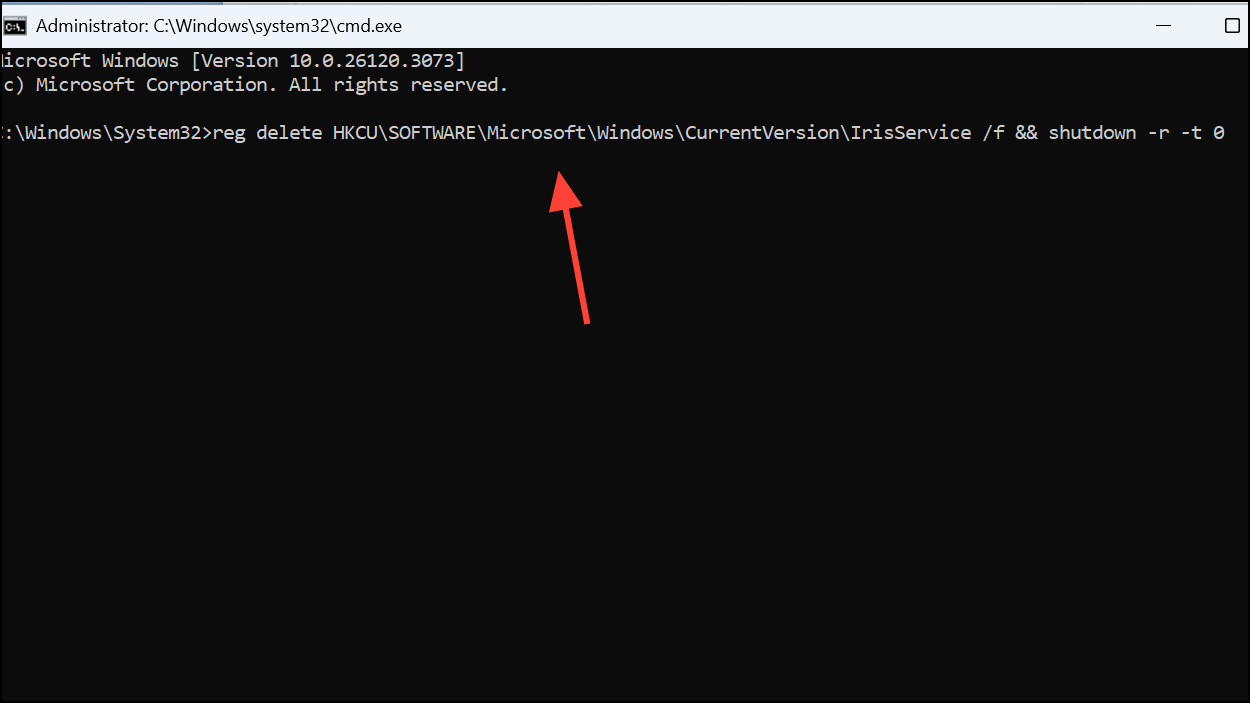
This command deletes the IrisService registry key, which is known to cause issues with the taskbar and Start menu. The PC will automatically restart. Once Windows loads, the Start menu and taskbar should reappear and respond normally.
Install Windows Updates
Microsoft regularly issues patches for critical bugs, including those affecting the Start menu and taskbar. Applying updates can correct underlying issues introduced by previous builds.
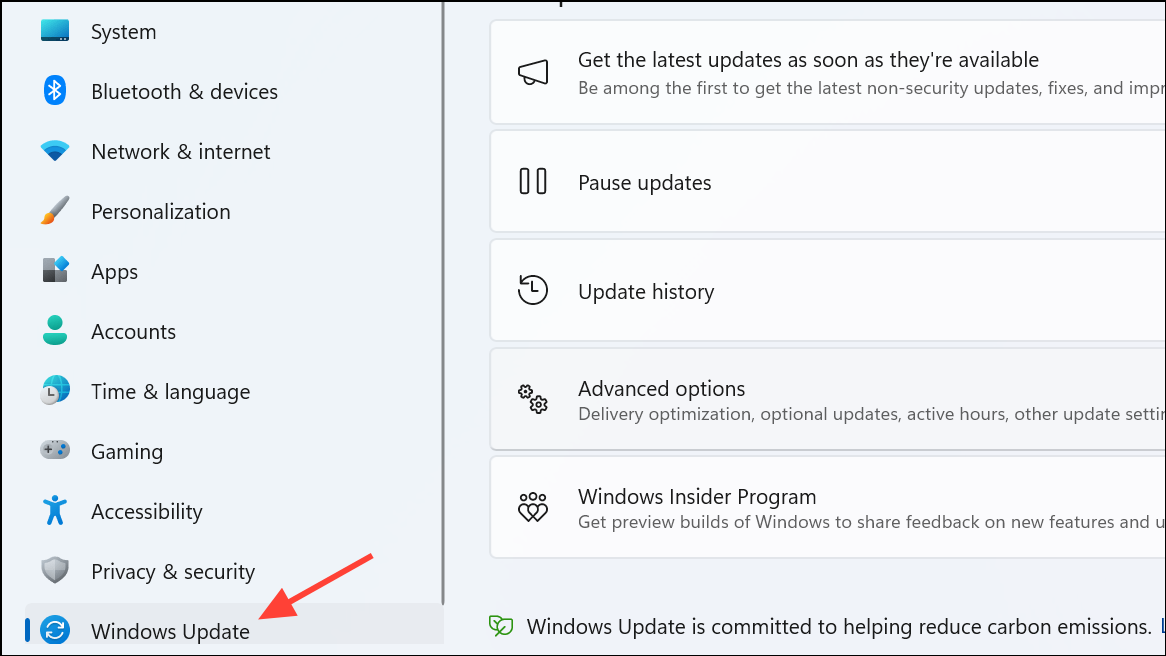
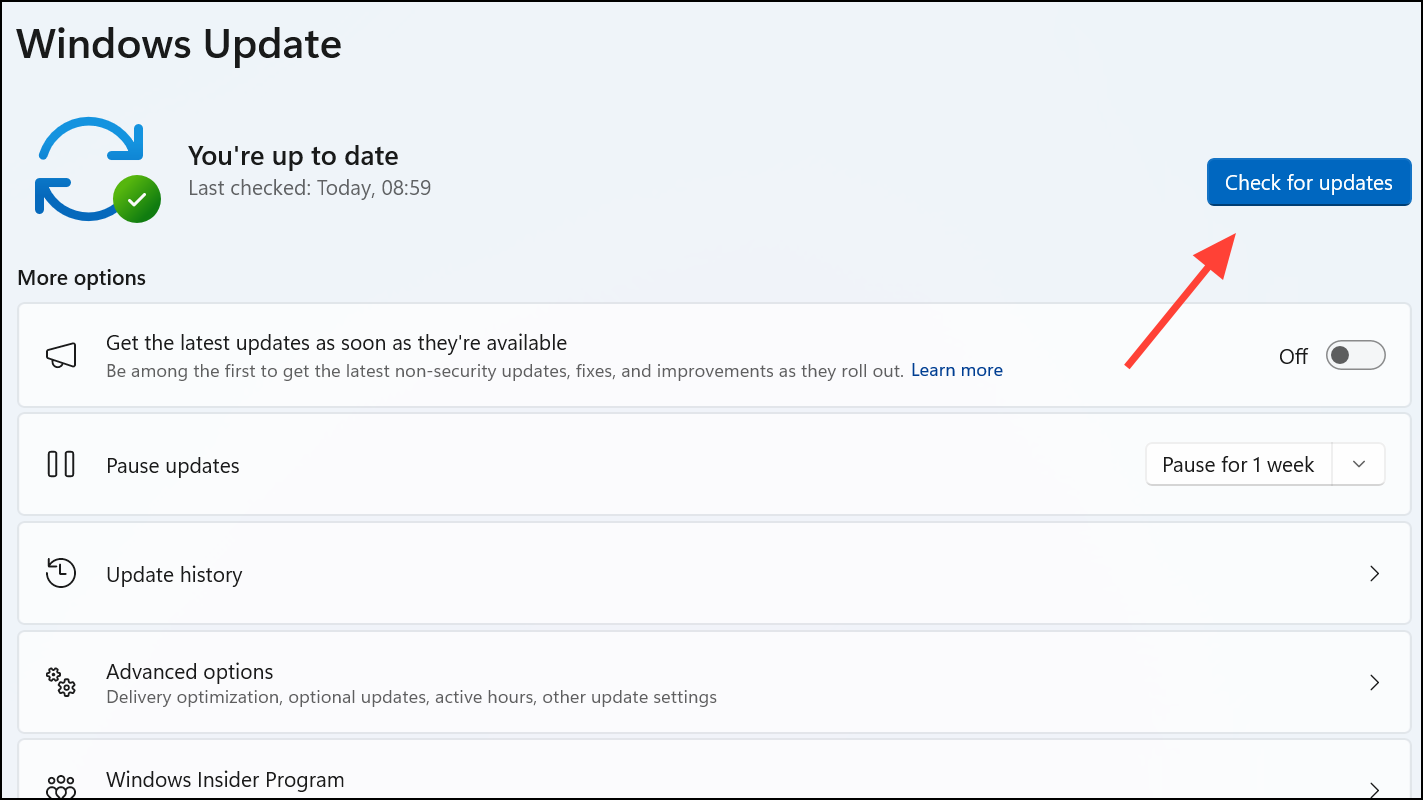
Restart Windows Explorer
Restarting the Windows Explorer process refreshes the graphical shell and can temporarily restore missing or unresponsive elements.
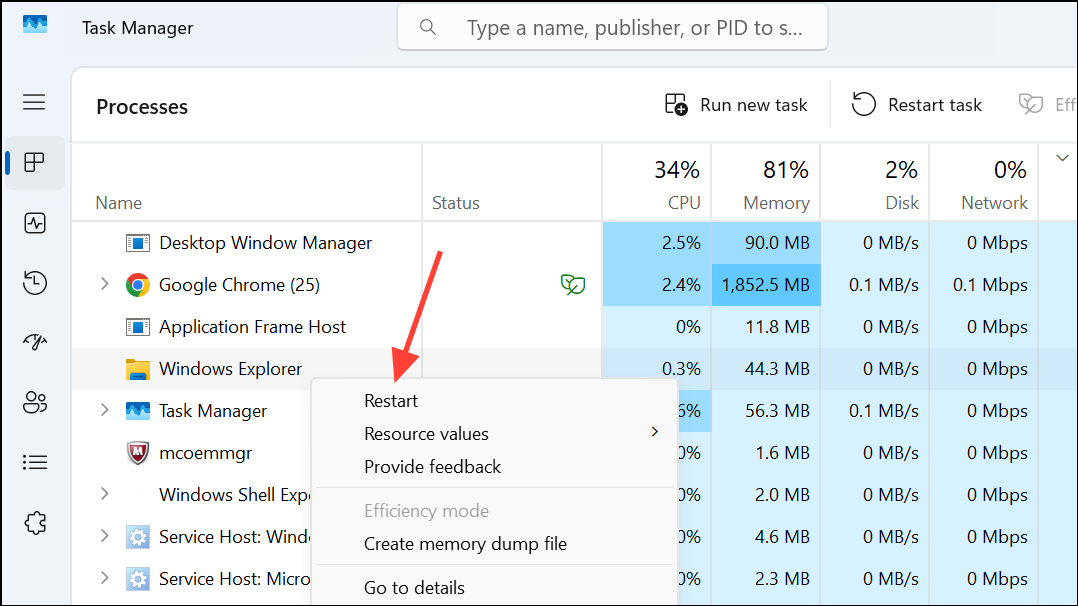
This will reload the desktop environment. While this often brings back the taskbar and Start menu, the fix may only last until the next reboot or system event triggers the issue again.
Adjust Date and Time Settings
Incorrect date and time settings can interfere with system processes, sometimes causing the Start menu and taskbar to disappear. Adjusting these settings can trigger a reset of affected components.
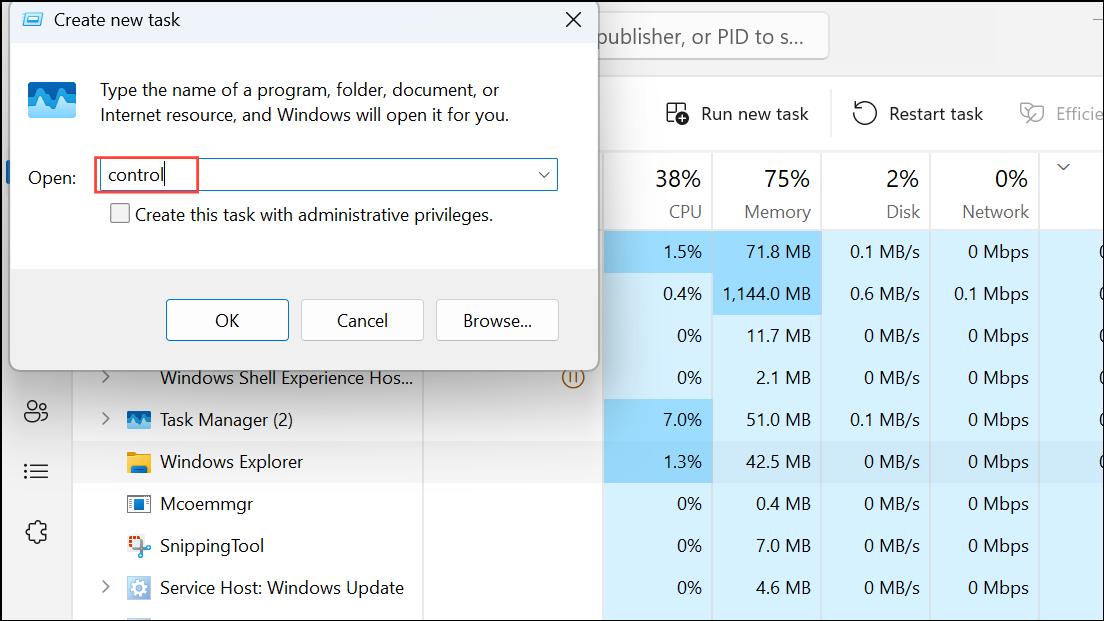
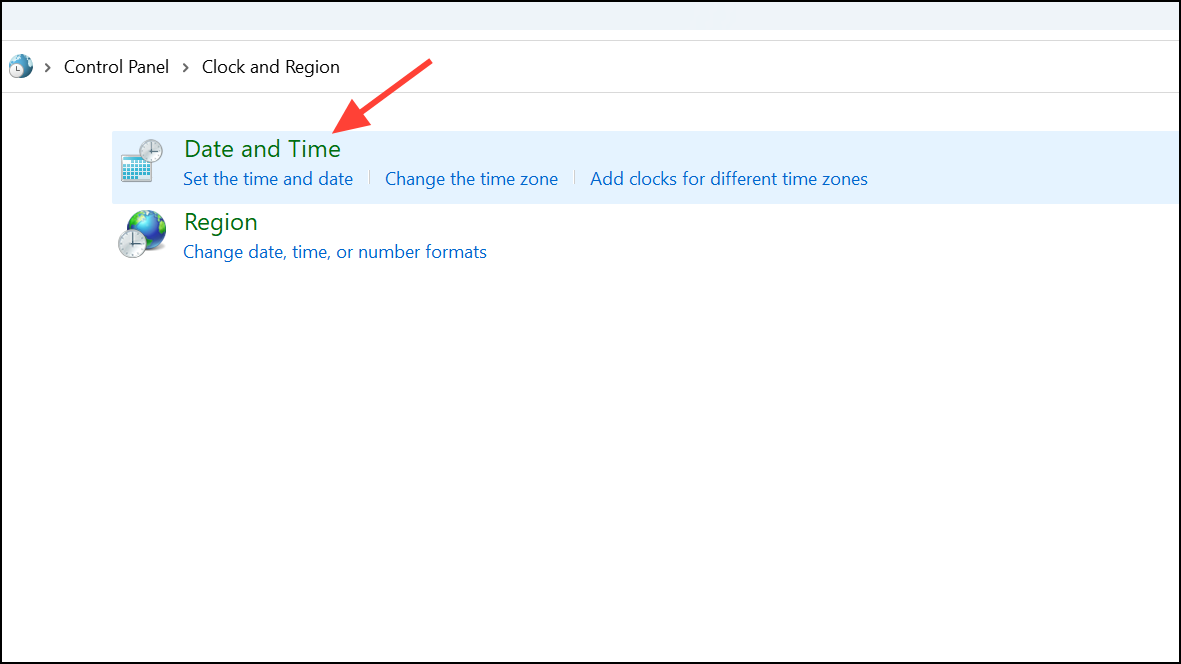
Change date and time and set the correct values. Also, check the time zone and adjust if necessary.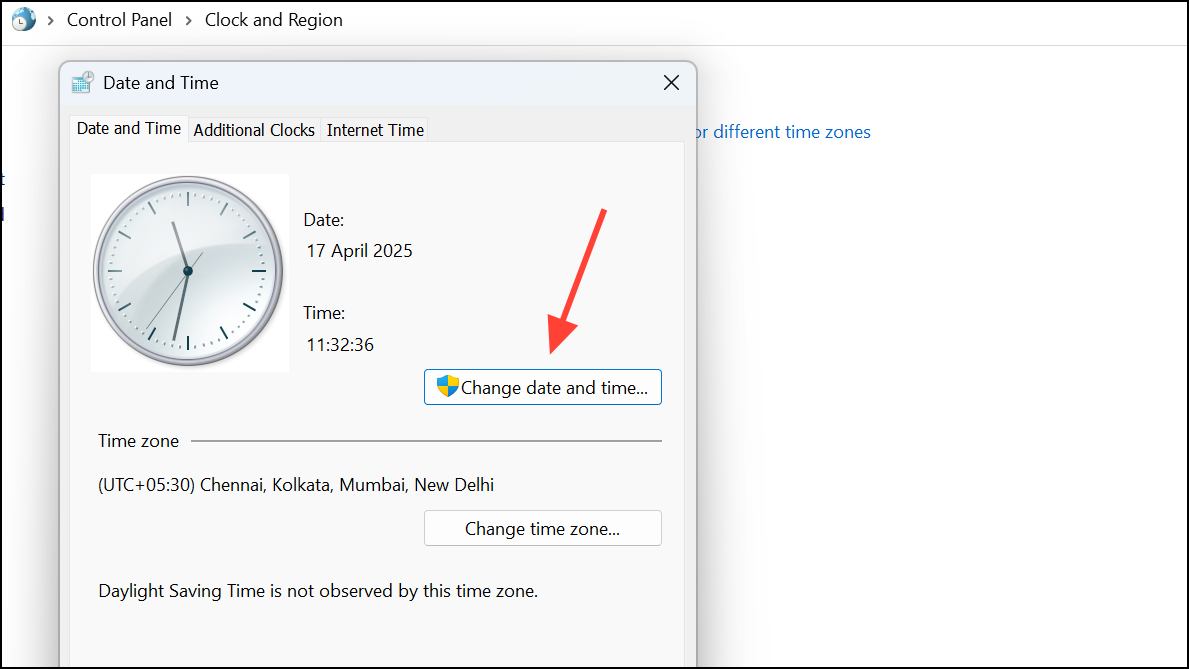
Apply and OK, then restart your PC. This step has resolved the issue for some users, especially when time synchronization errors are involved.Reinstall Display Drivers
Corrupted or incompatible display drivers can disrupt the Windows graphical interface, causing Start menu and taskbar issues.
Ctrl + Shift + Esc), select File > Run new task, type devmgmt.msc, and press OK to open Device Manager.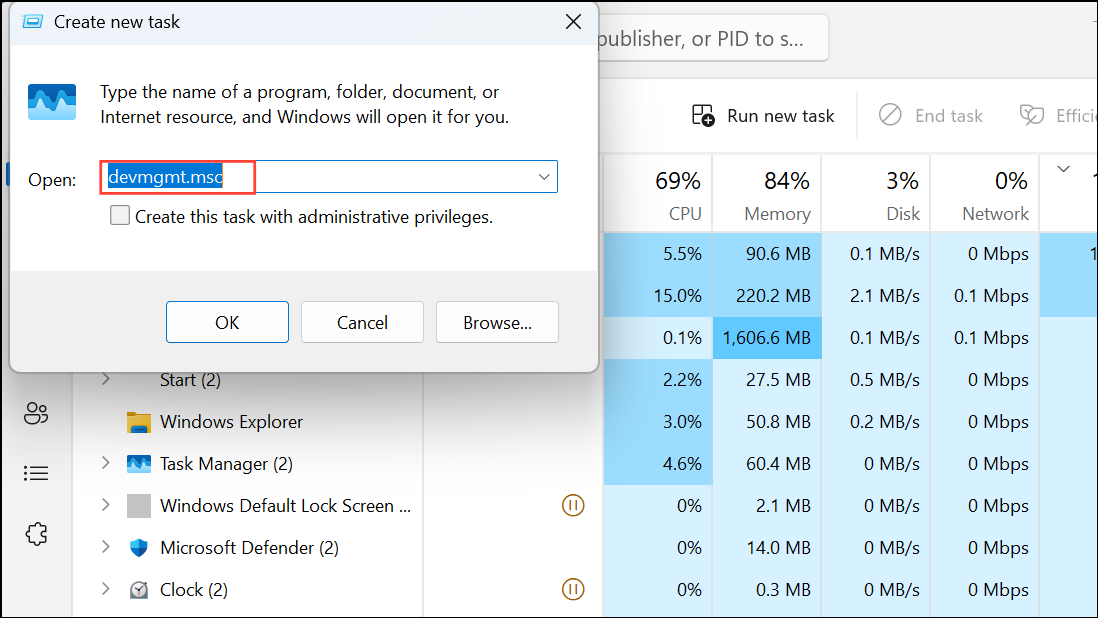
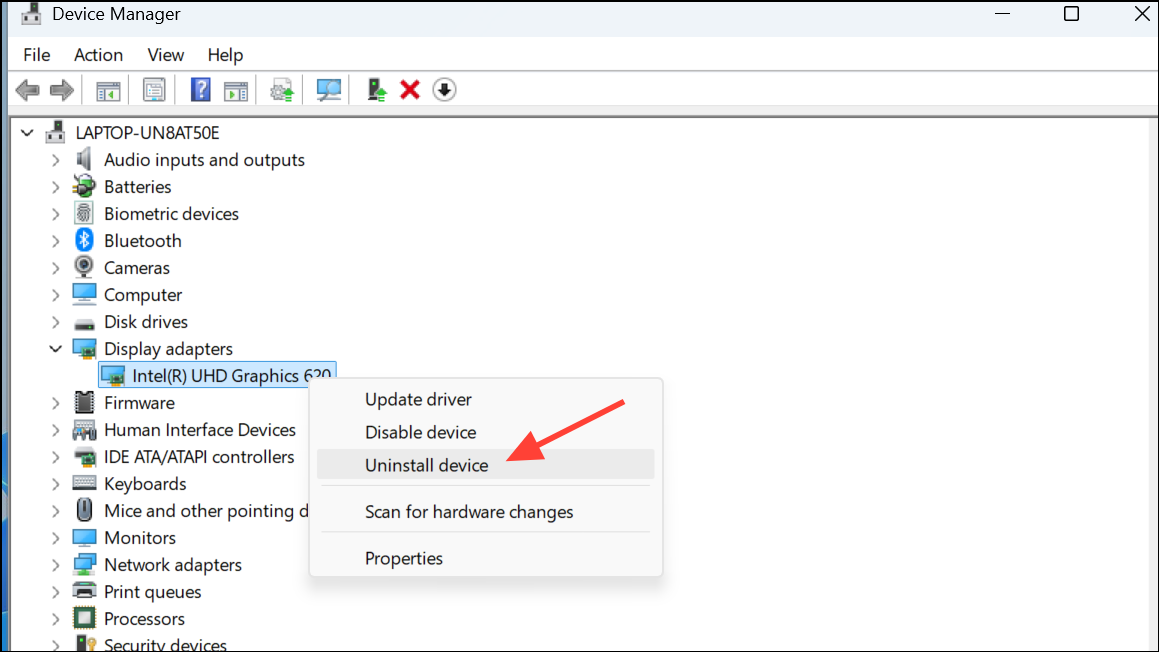
Check Taskbar Auto-Hide and Off-Screen Settings
Sometimes, the taskbar is set to auto-hide or has been accidentally moved off-screen. Adjusting these settings can restore visibility.
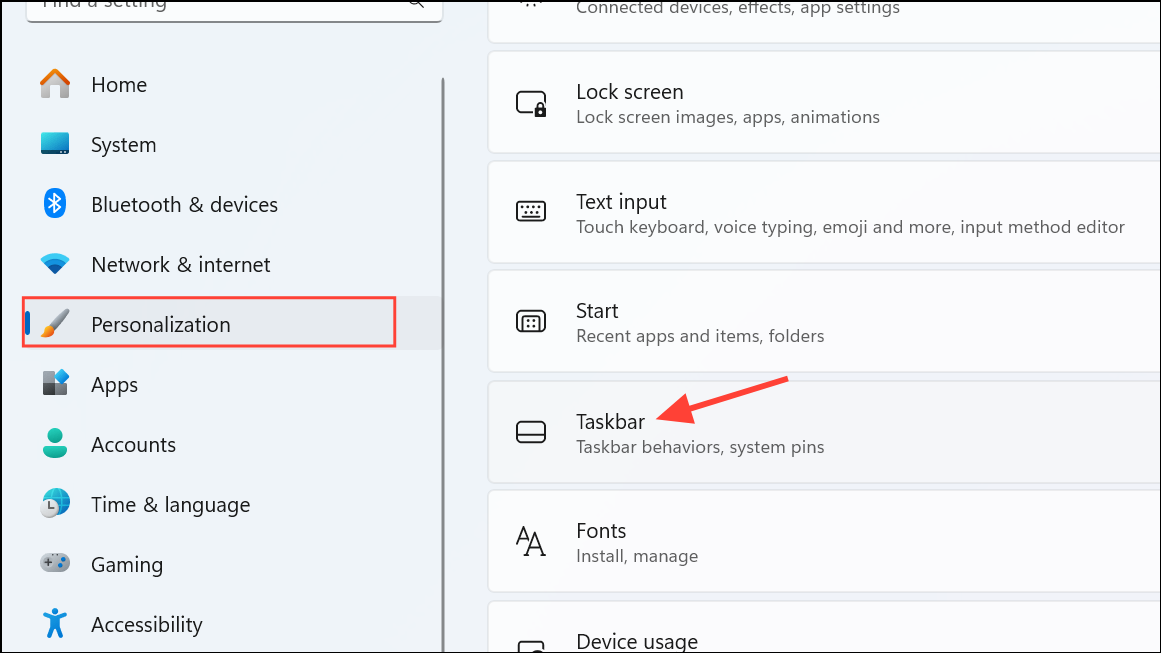
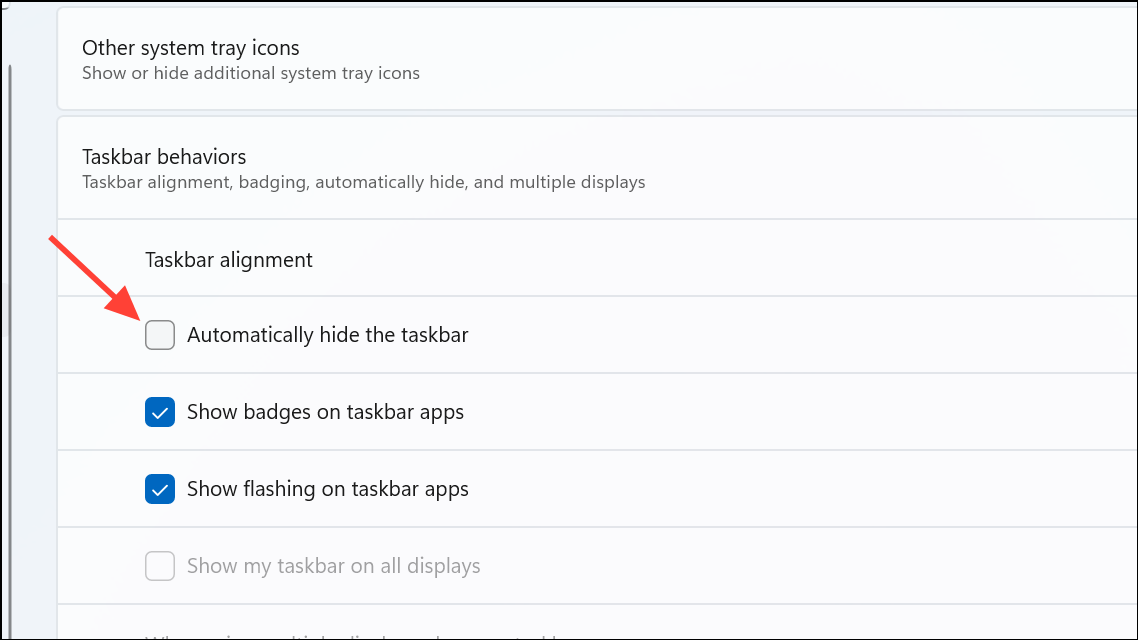
Additional Troubleshooting: System File Checker and Recovery
Corrupted system files can prevent the Start menu and taskbar from functioning. Running built-in repair tools can fix these issues.
File > Run new task, type cmd, check to run as administrator, and click OK.SFC /scannow
DISM /Online /Cleanup-Image /CheckHealth
DISM /Online /Cleanup-Image /ScanHealth
DISM /Online /Cleanup-Image /RestoreHealth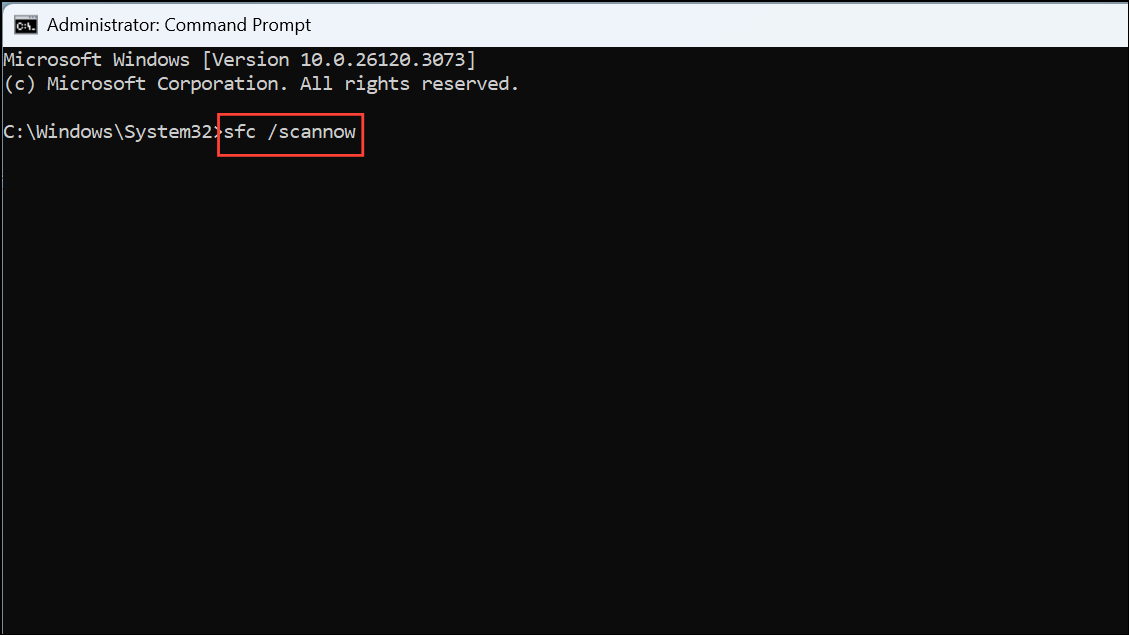
These commands check for and repair corrupted system files. After completion, restart your PC. If problems persist, consider using System Restore or an in-place upgrade, which repairs Windows without deleting personal files or apps.
Resolving missing Start menu and taskbar issues in Windows 11 often requires a combination of these methods. Applying the registry fix or updating Windows usually delivers the fastest results, but alternative steps are available if those don’t work. Regular system maintenance and keeping device drivers up to date can help prevent these issues in the future.



