
Windows Update error 0x80070306 interrupts the update process in Windows 11, preventing important security and feature updates from installing. This error often appears when system files are corrupted, update components malfunction, or previous updates leave the system in an inconsistent state. Addressing this problem quickly restores your device’s ability to receive updates and keeps your system secure and stable.
Run the Windows Update Troubleshooter
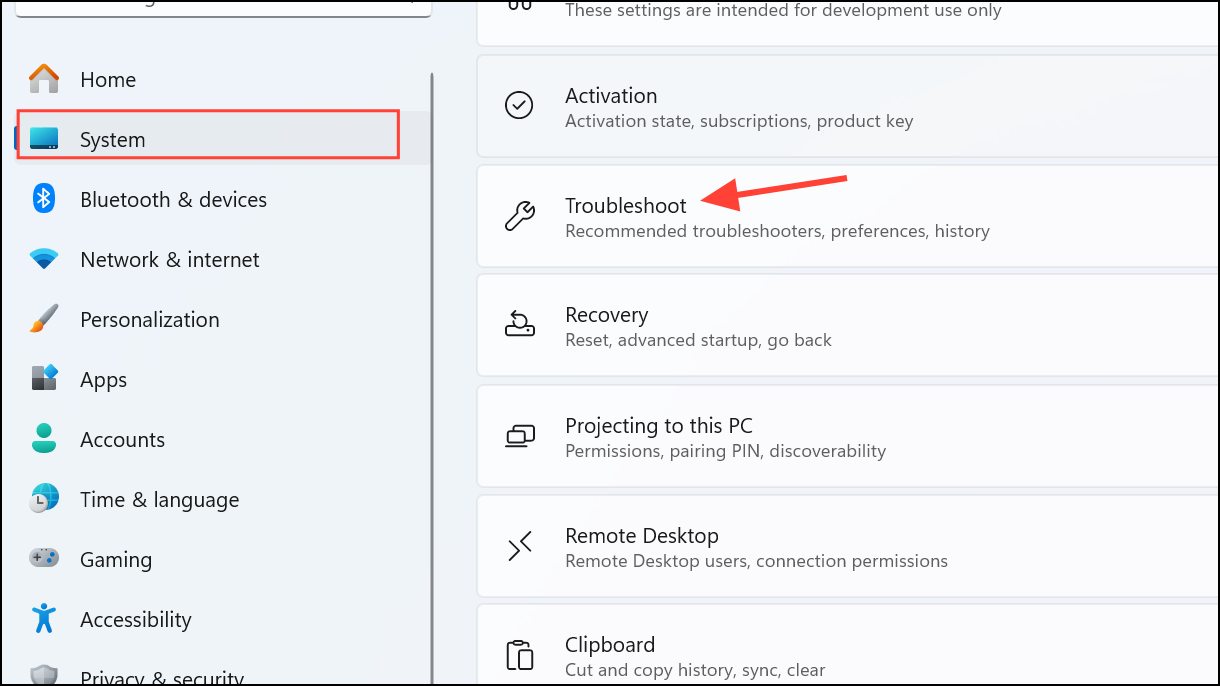
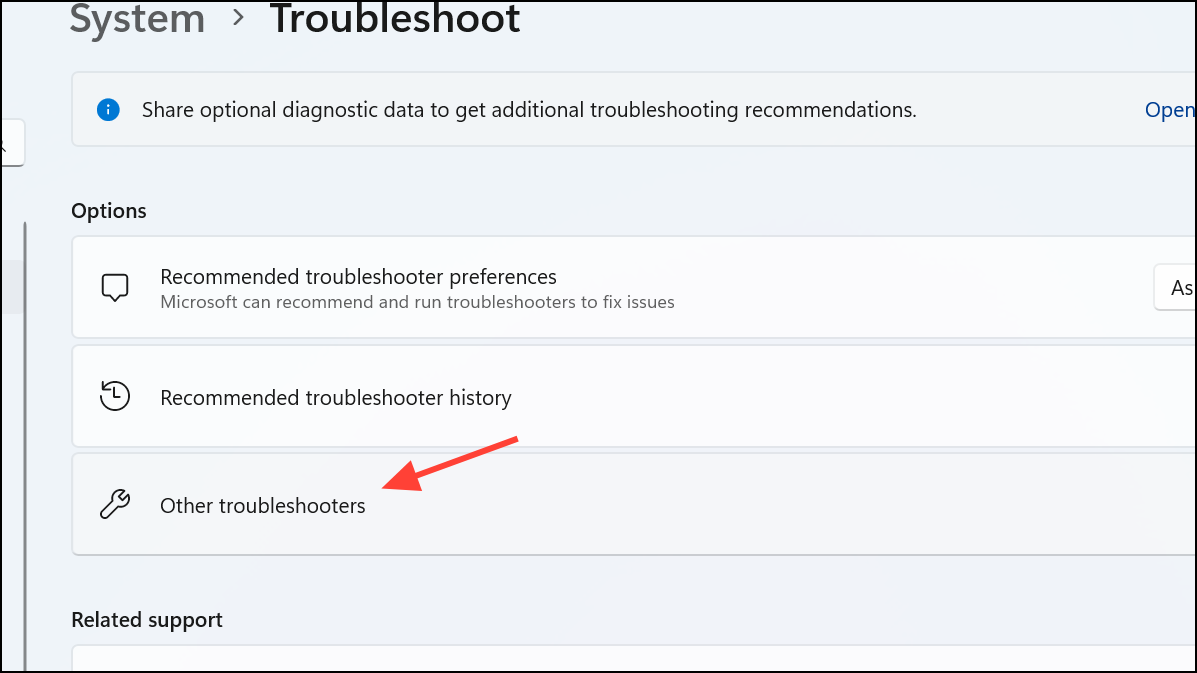
Windows Update in the list and click Run next to it. The troubleshooter diagnoses and attempts to fix update-related issues automatically. Follow any on-screen prompts and restart your PC after completion. This process resolves common update problems by resetting components and clearing temporary issues.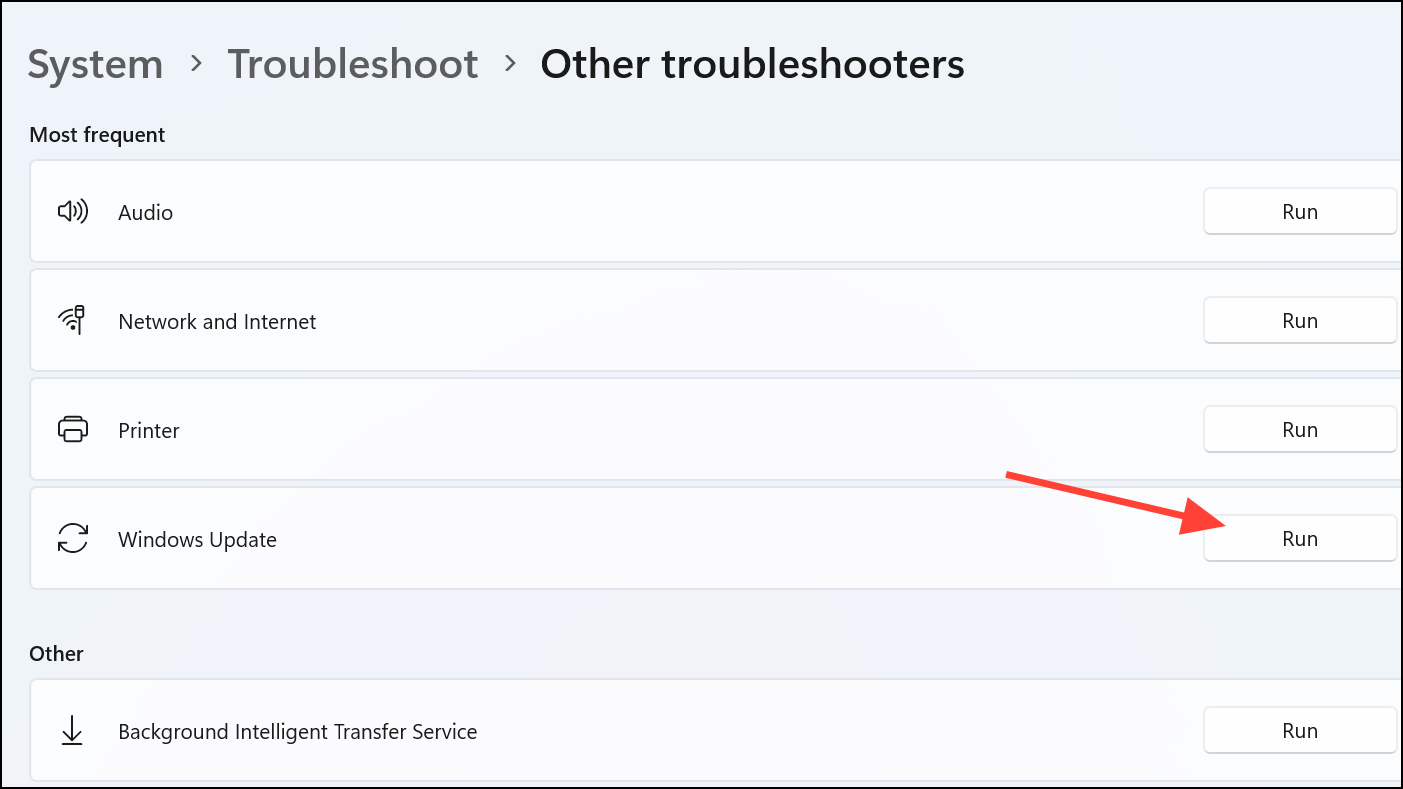
Repair System Files with DISM and SFC
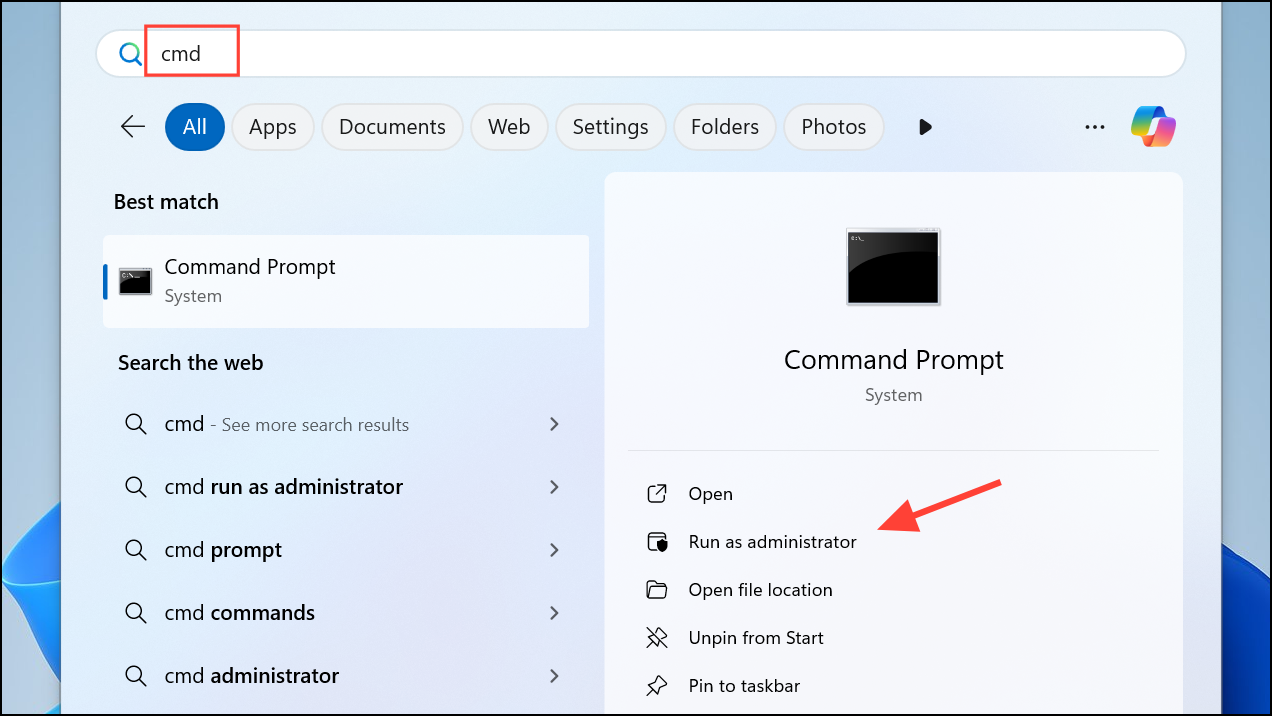
DISM.exe /Online /Cleanup-image /Restorehealth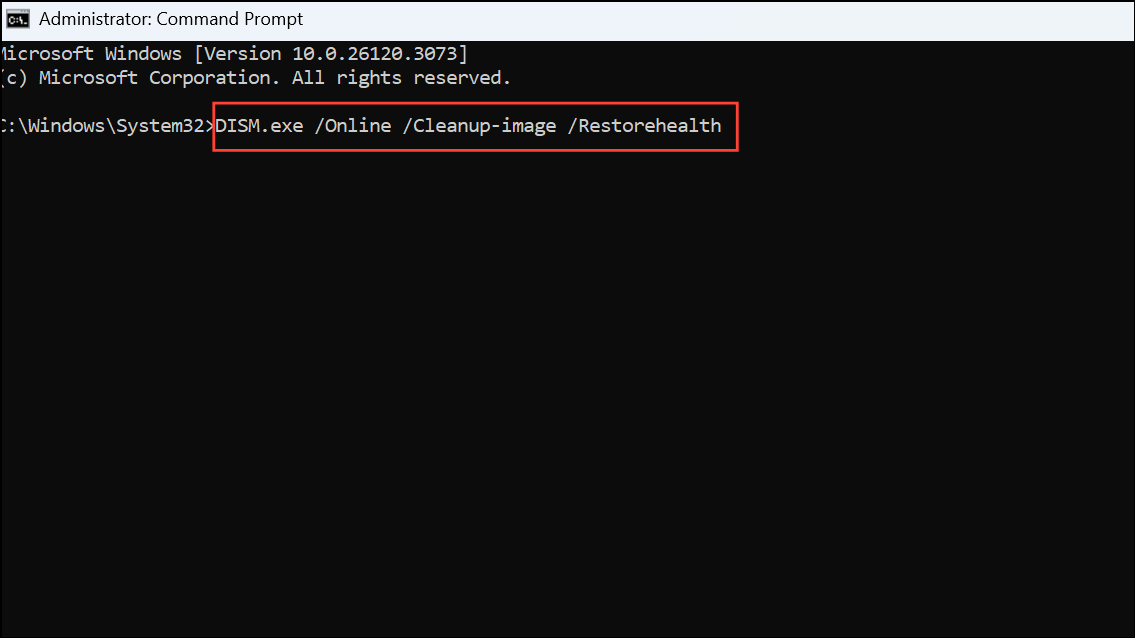
This command checks and repairs issues with the Windows image. Wait for the process to finish.
sfc /scannow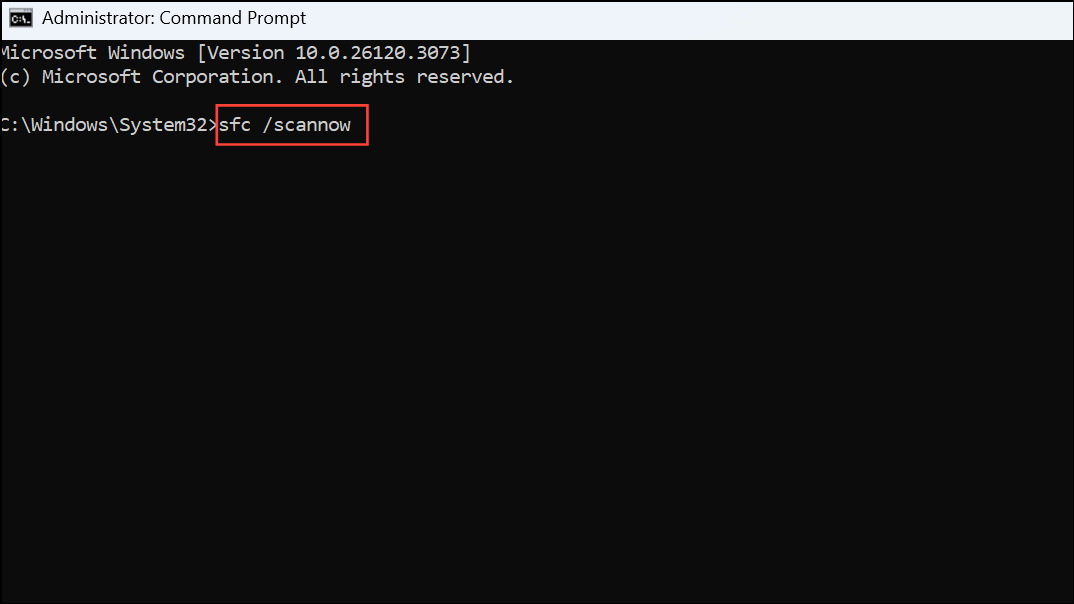
This scan locates and repairs corrupted or missing system files that may be blocking updates. Let the scan complete, and then restart your PC. These steps address deeper system corruption that the troubleshooter cannot fix.
Reset Windows Update Components
net stop bits
net stop wuauserv
net stop msiserver
net stop cryptsvc
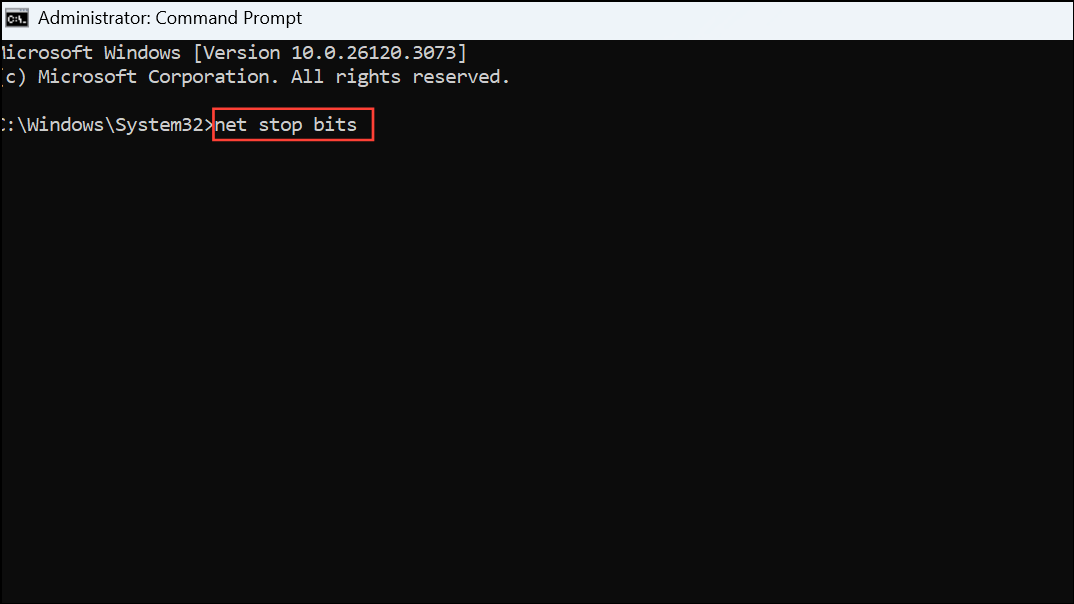
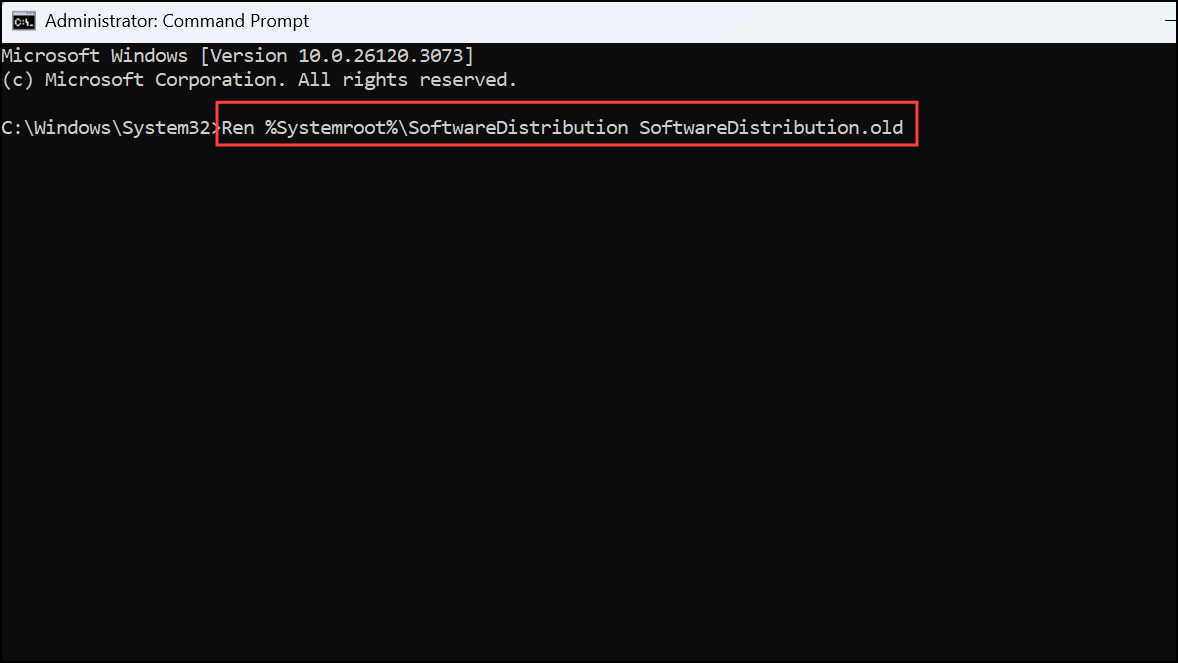
Ren %Systemroot%\SoftwareDistribution SoftwareDistribution.old
Ren %Systemroot%\System32\catroot2 catroot2.old
net start bits
net start wuauserv
net start msiserver
net start cryptsvc
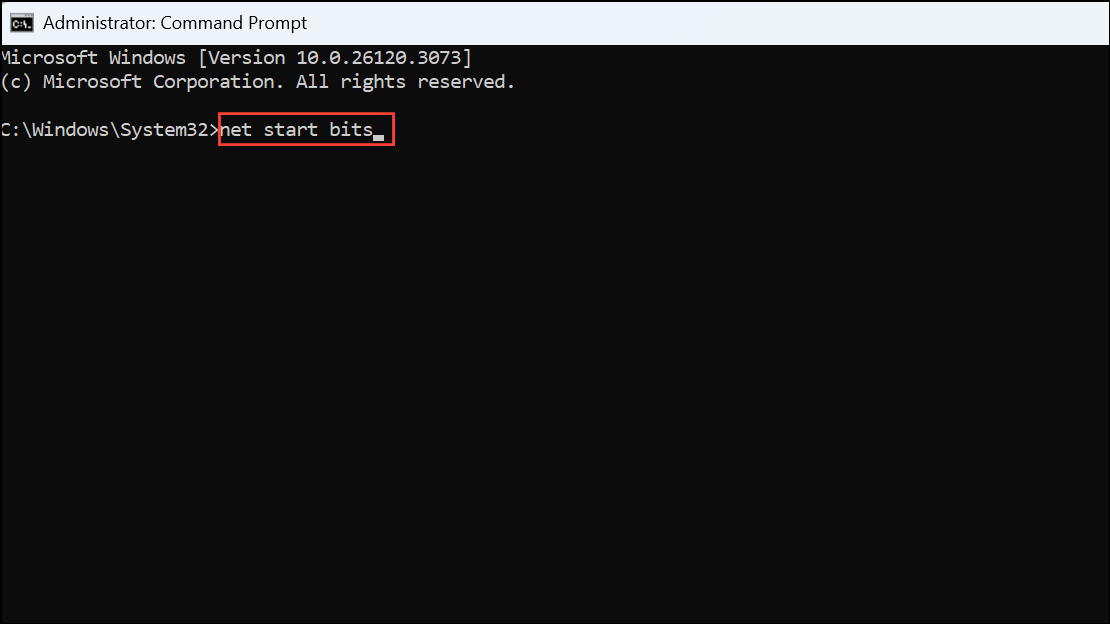
Resetting these components clears out old, corrupted update files and resolves persistent update failures. Restart your computer and attempt the update again.
Install Updates in Safe Mode
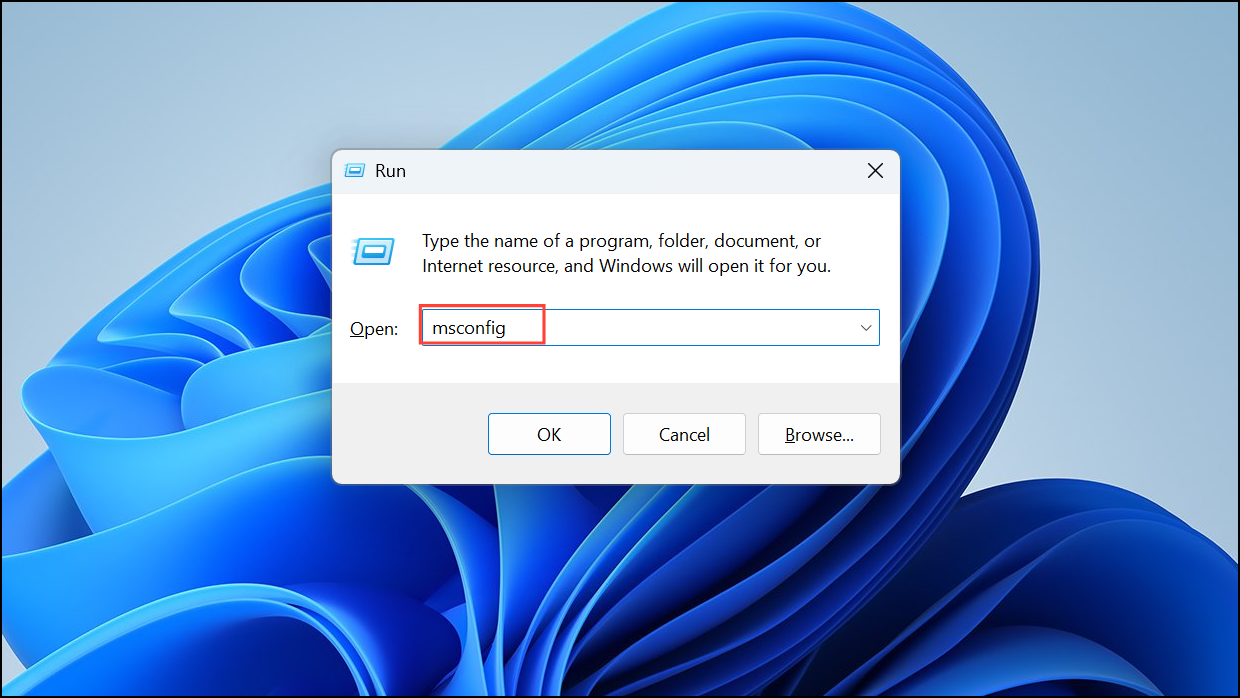
Boot tab and check Safe boot with Network selected. Click OK and restart your PC.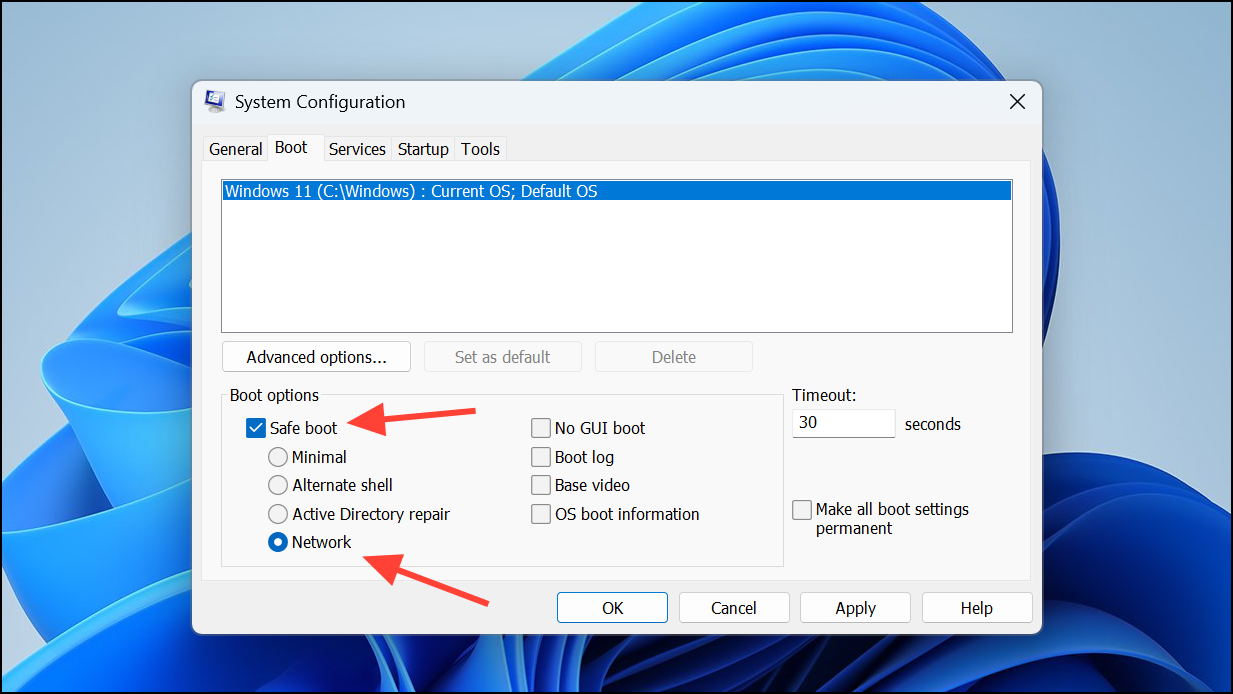
Use “Fix Problems Using Windows Update” (Windows 11 Only)
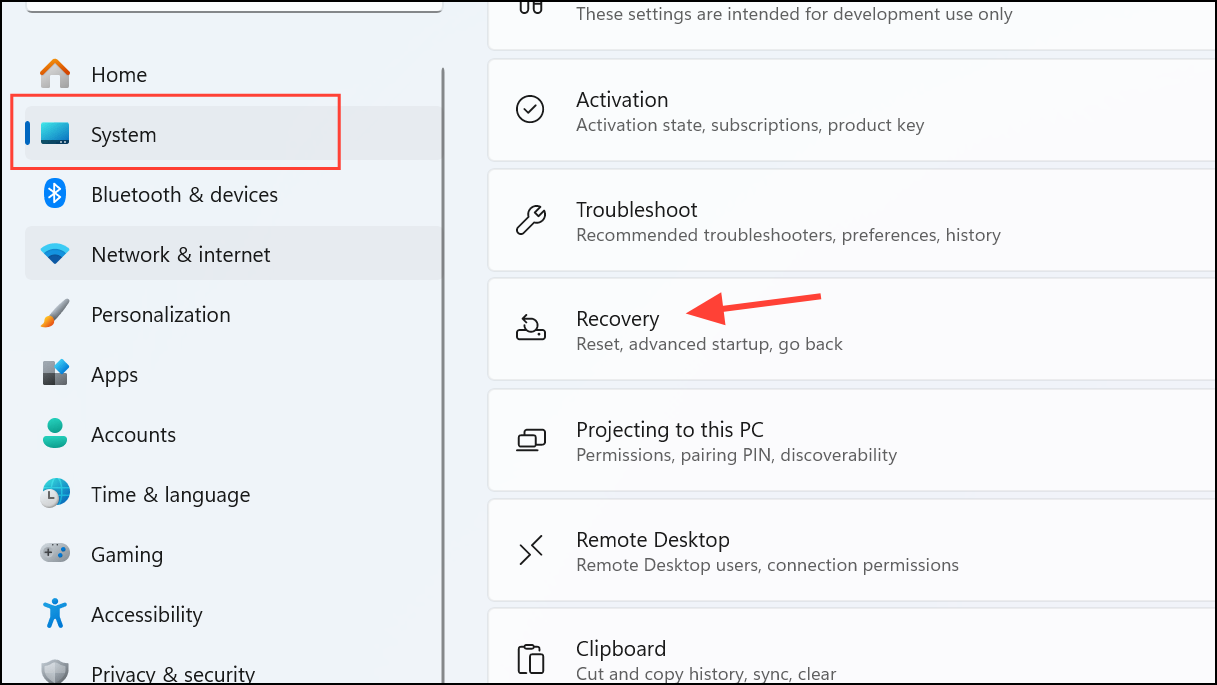
Fix problems using Windows Update, click Reinstall now. Follow the on-screen instructions. This process performs a repair installation that keeps your files, apps, and settings intact while fixing update-related problems.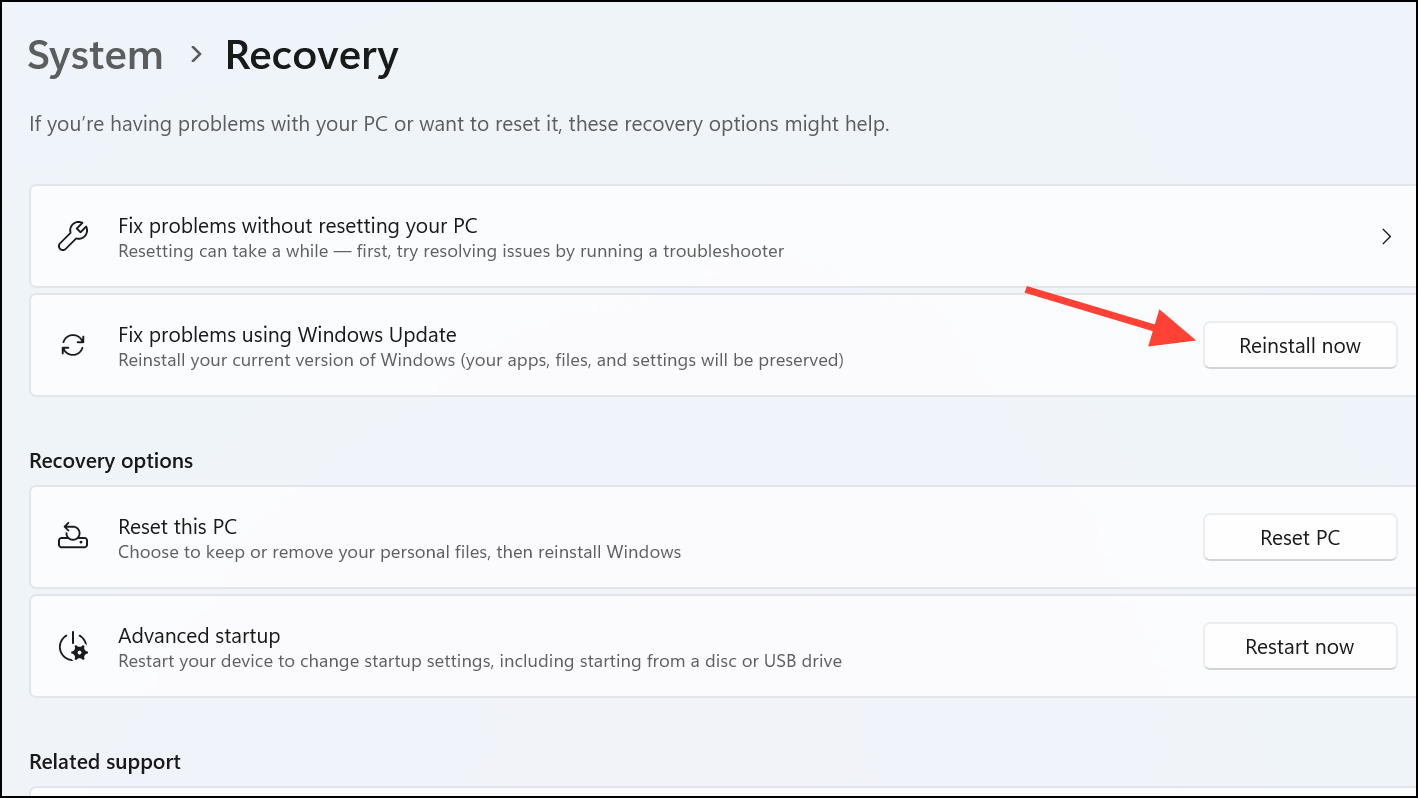
Manually Download and Install Updates
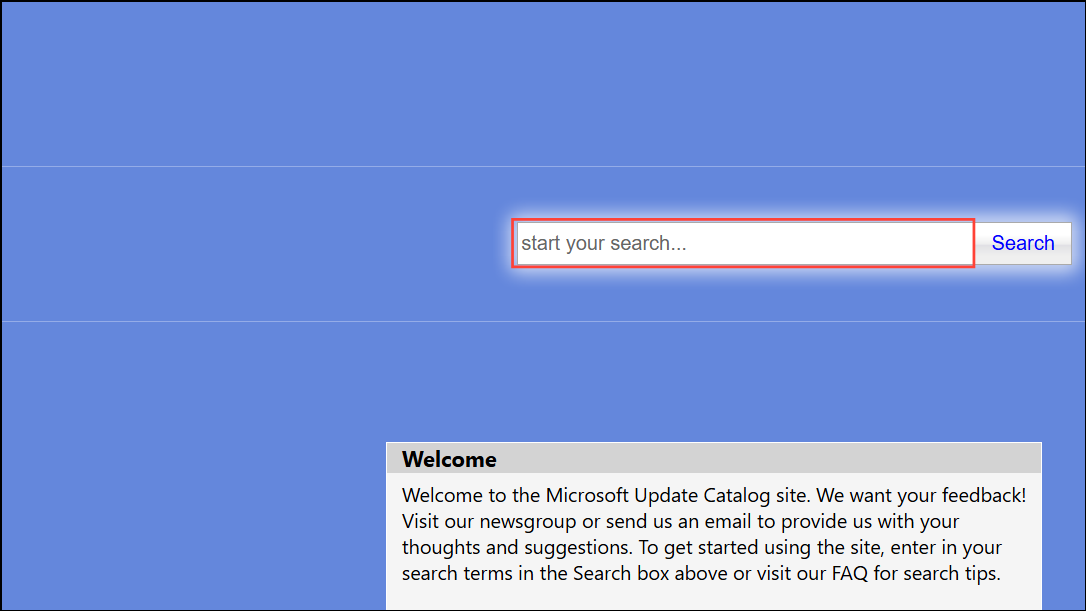
Settings > System > About).DISM /Online /Add-Package /PackagePath:C:\Packages\your-update-file.msu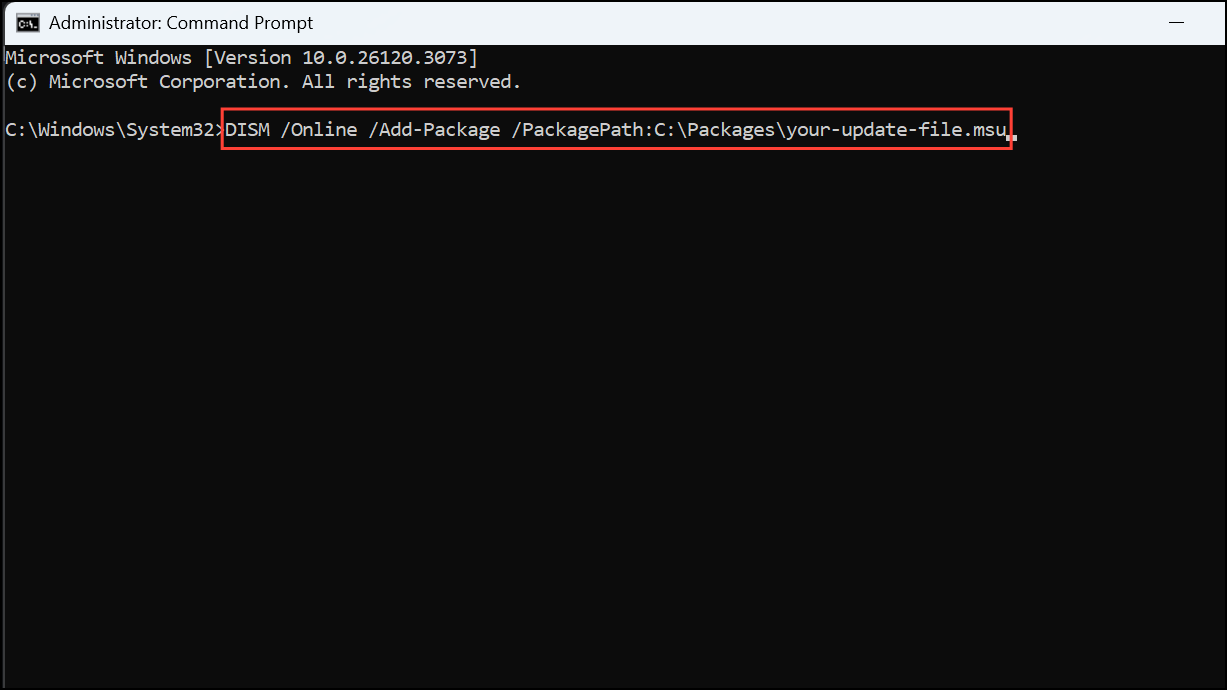
Restart your PC when prompted. This method bypasses issues with the standard update process by applying the update package directly.
Reset or Repair the .NET Framework
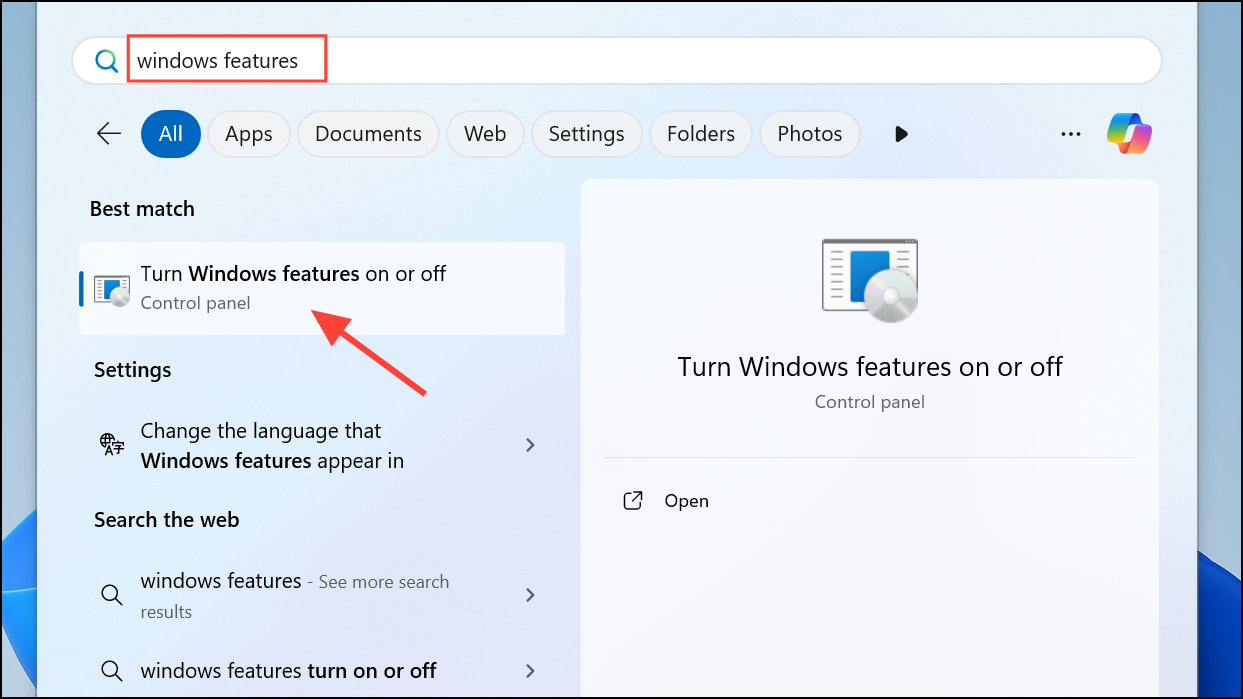
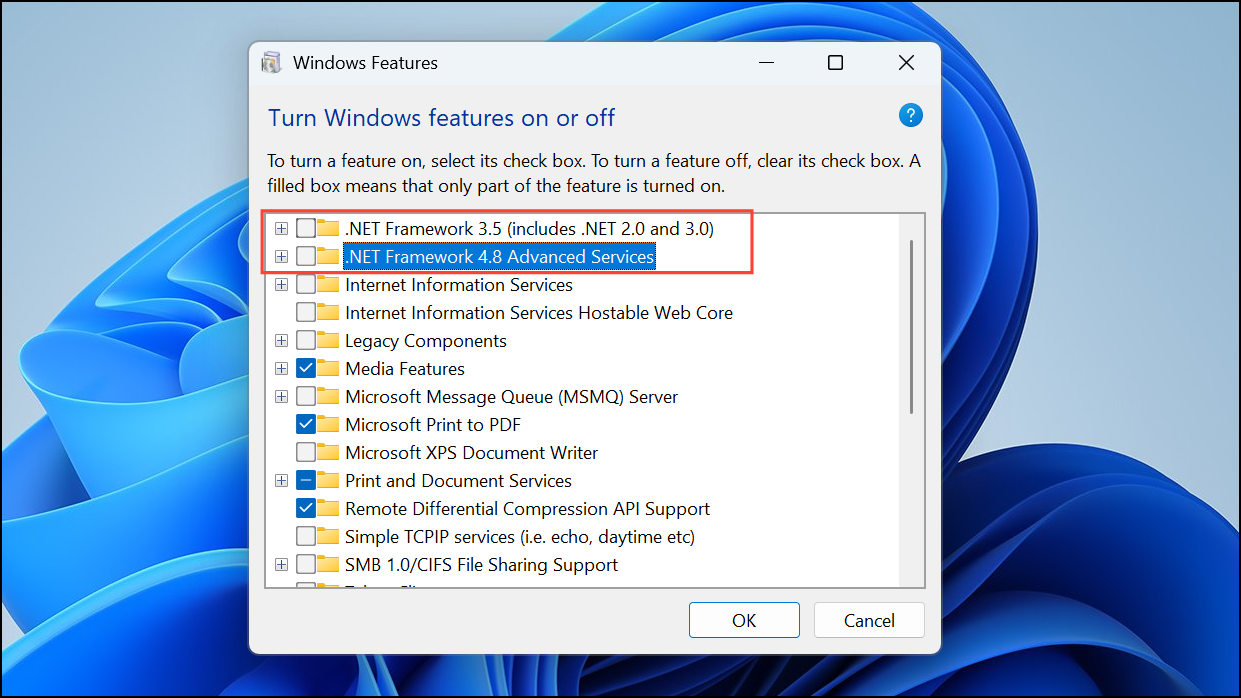
OK to reinstall them. Restart your PC again. This process repairs .NET Framework corruption, which can cause update failures.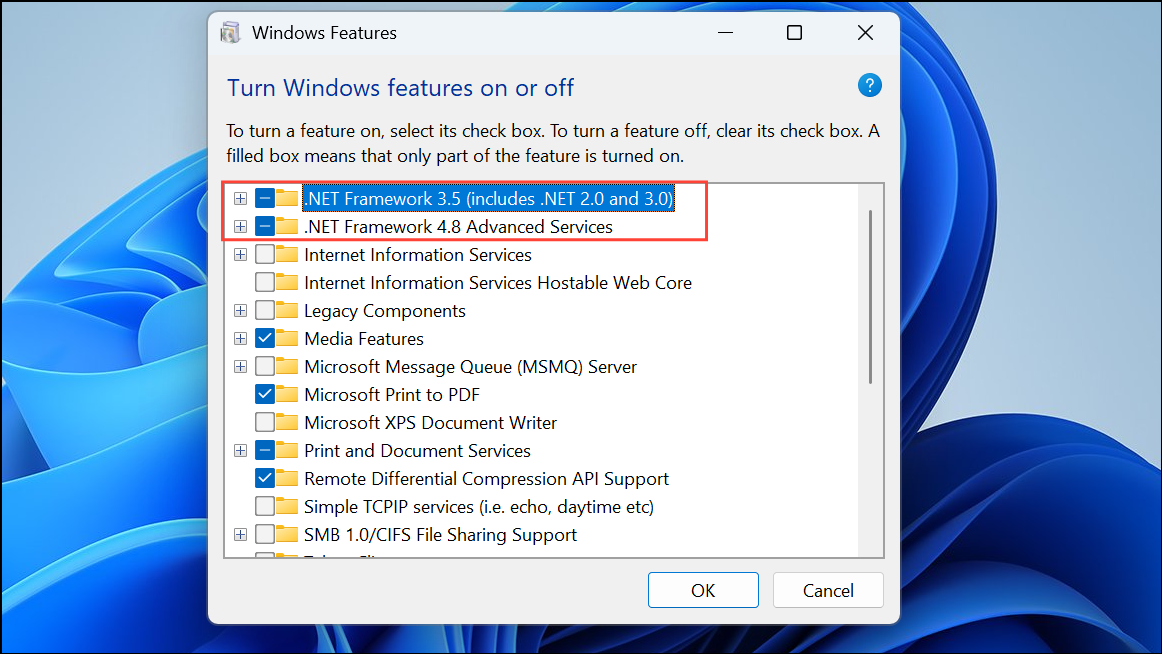
Use the Media Creation Tool or Installation Assistant
Following these steps addresses the root causes of error 0x80070306 in Windows 11, restoring your device’s ability to receive updates and keeping your system running smoothly.



