
Seeing the 0x800704ec error with a message stating “This program is blocked by group policy” can prevent you from using critical features like Windows Defender, Microsoft Store, or signing into your Microsoft account in Windows 11. This issue often stems from misconfigured Group Policy or Registry settings, third-party antivirus conflicts, or corrupted system files. Here’s how to restore normal functionality easily.
Change Group Policy Settings
Group Policy controls many aspects of Windows security and system behavior. If a policy is blocking Windows Defender, Microsoft Store, or account sign-in, you’ll need to adjust it.
Windows key + R, typing gpedit.msc, and pressing Enter.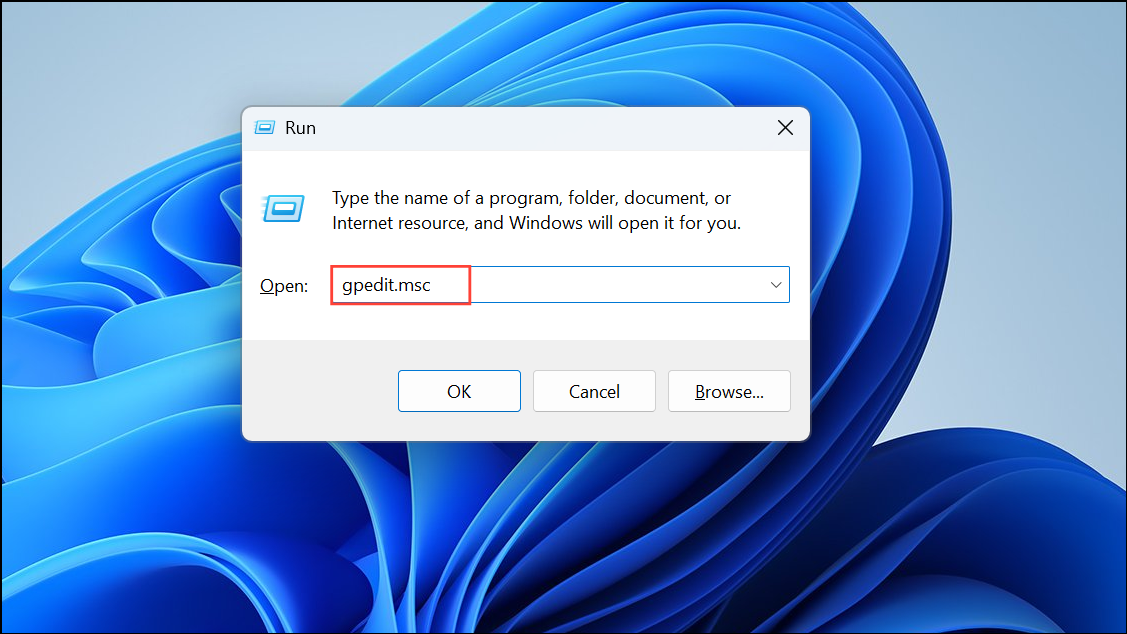
Computer Configuration > Administrative Templates > Windows Components > Microsoft Defender Antivirus (or Windows Components > Microsoft Store if the store is blocked).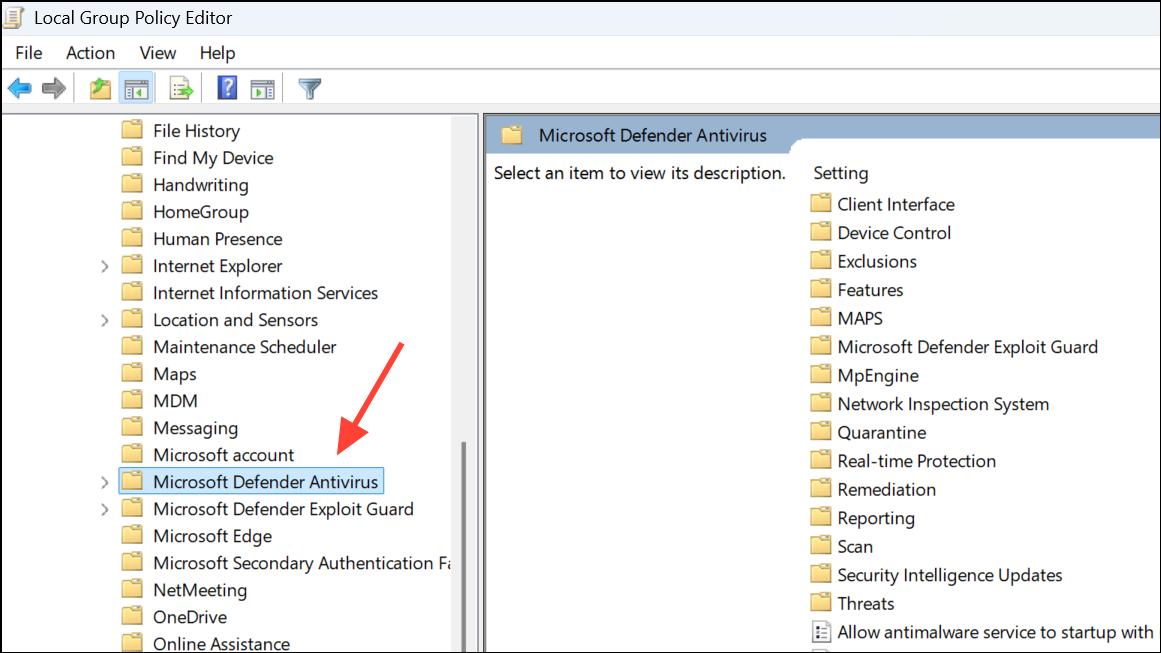
Turn off Microsoft Defender Antivirus (or the relevant policy for your issue). Set it to Not Configured or Disabled, then click OK.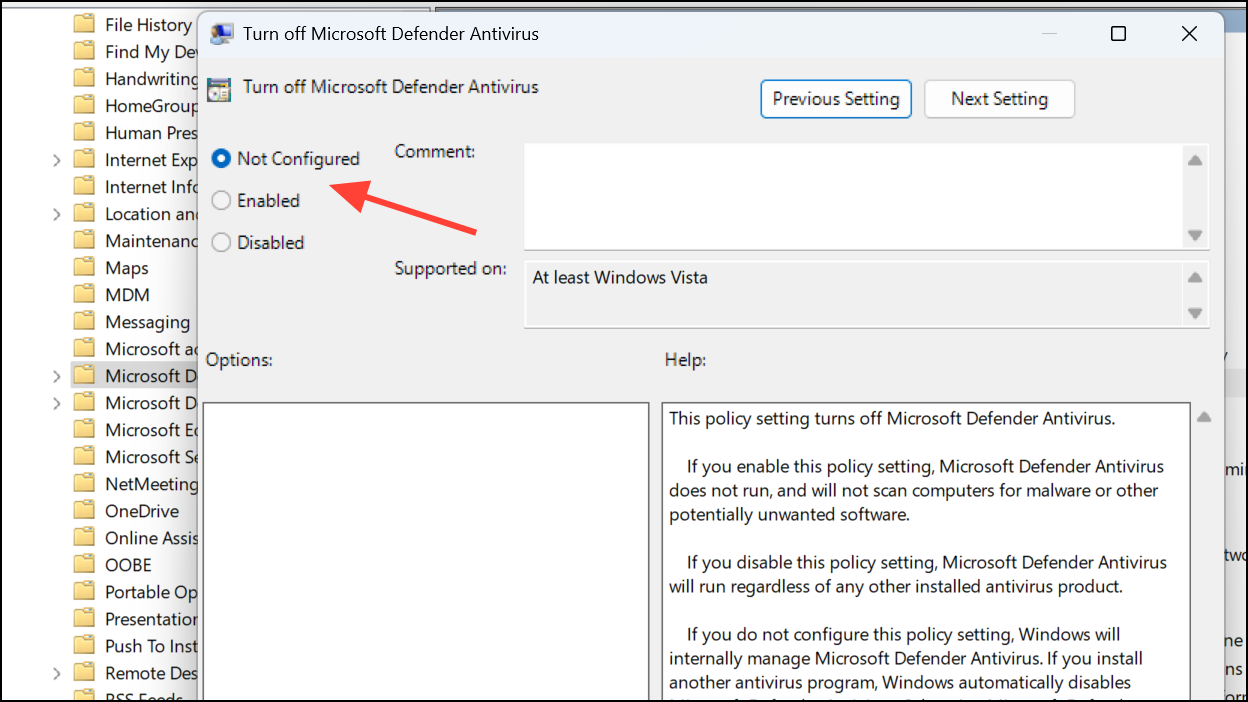
Remove or Disable Third-Party Antivirus Software
Third-party antivirus programs can override or disable Windows Defender, leading to error 0x800704ec. Temporarily removing these tools can help determine if they are causing the conflict.
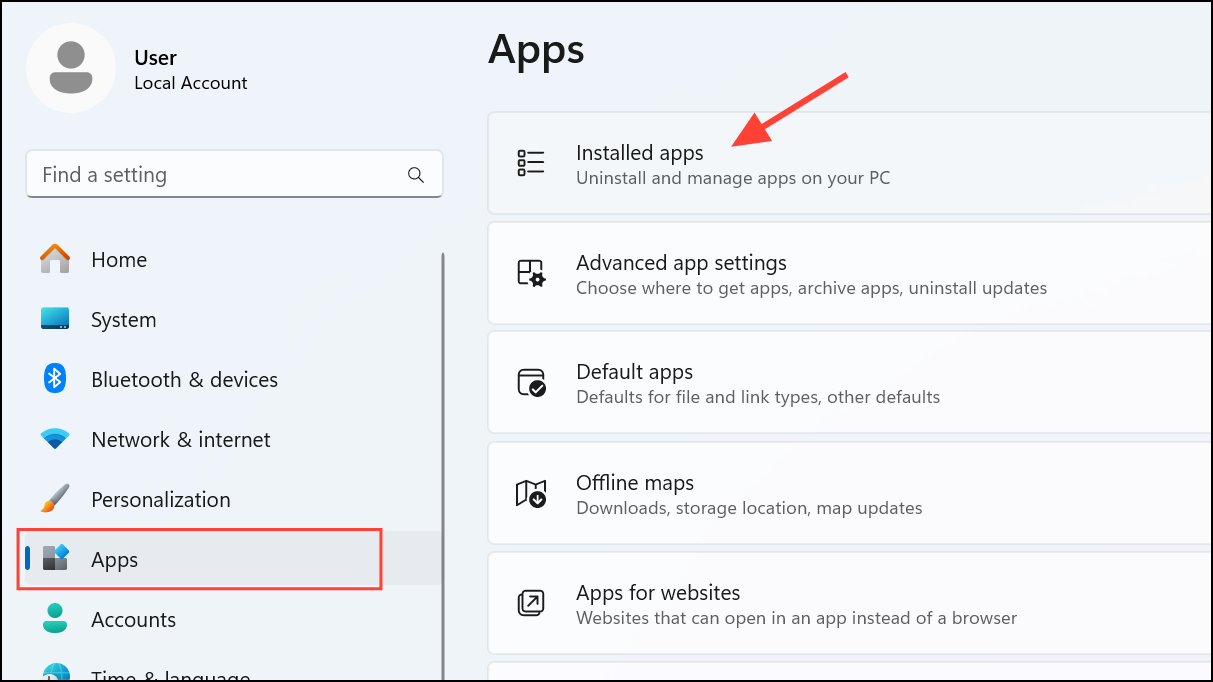
If the error no longer appears, you may want to switch to Windows Defender or find a compatible security solution.
Use Registry Editor to Unblock Features
Sometimes, Registry values can block Windows Defender or Microsoft Store even if Group Policy settings look correct. Editing the Registry can resolve these hidden blocks.
Windows key + R, type regedit, and press Enter to open the Registry Editor. Approve any security prompts.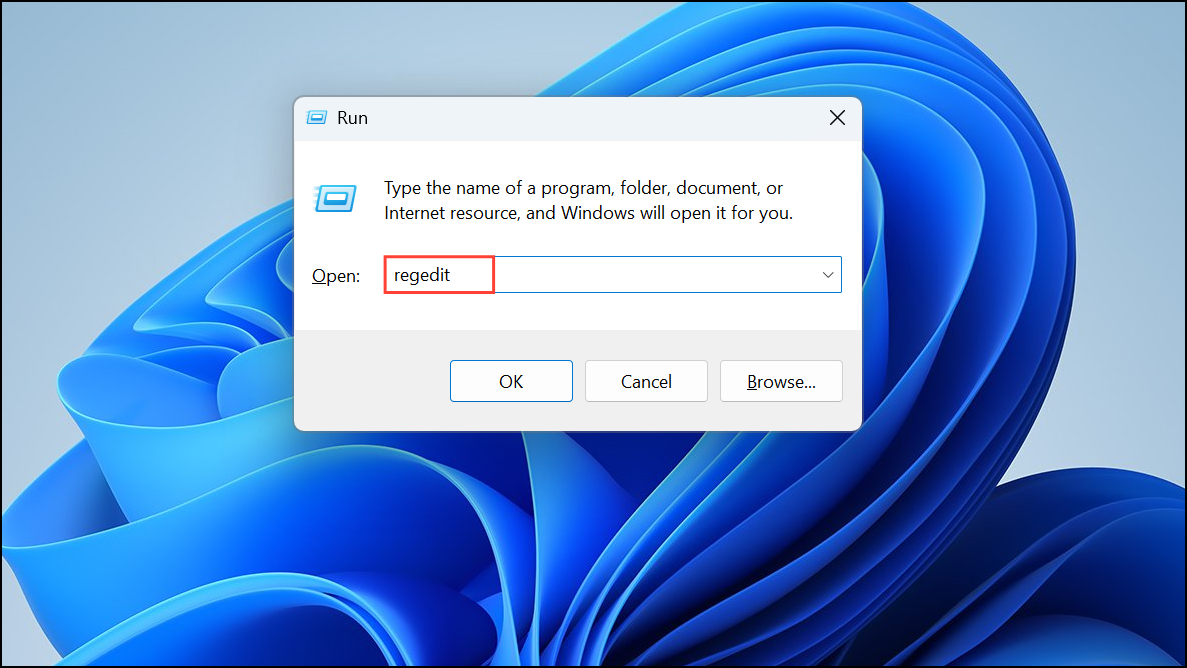
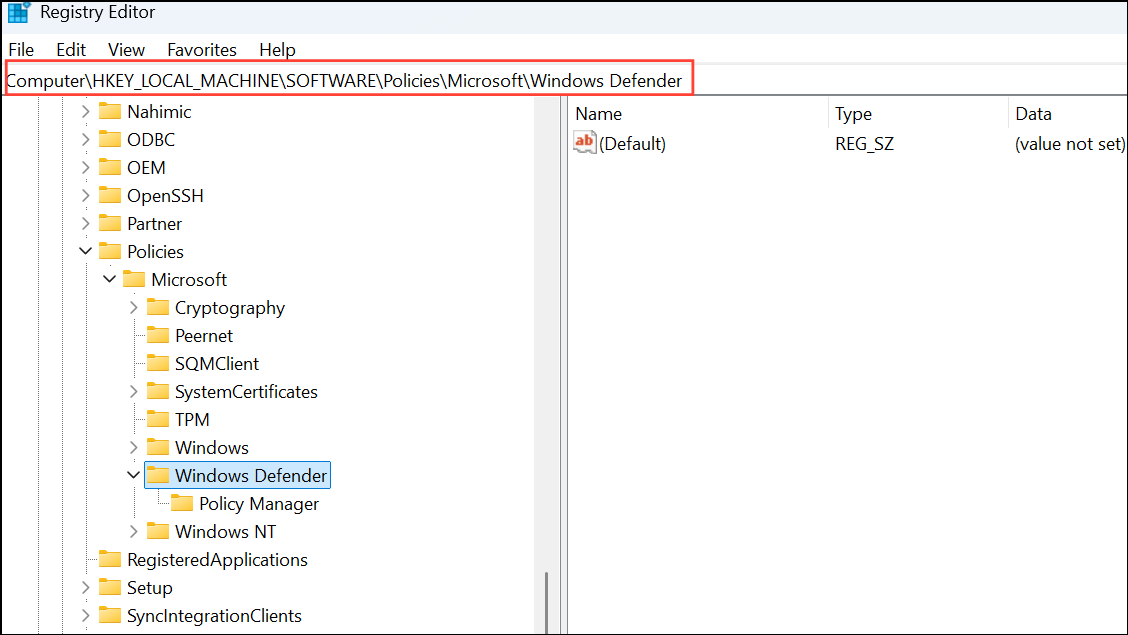
DisableAntiSpyware or DisableRealtimeMonitoring. If present, right-click and choose Delete.HKEY_LOCAL_MACHINE\SOFTWARE\Policies\Microsoft\WindowsStore and set RemoveWindowsStore to 0 or delete it.Reset or Update Windows Security Components
Corrupted system files or outdated components can cause error 0x800704ec. Restoring core Windows files and settings can resolve persistent problems.
cmd in the Start menu, right-click and select Run as administrator.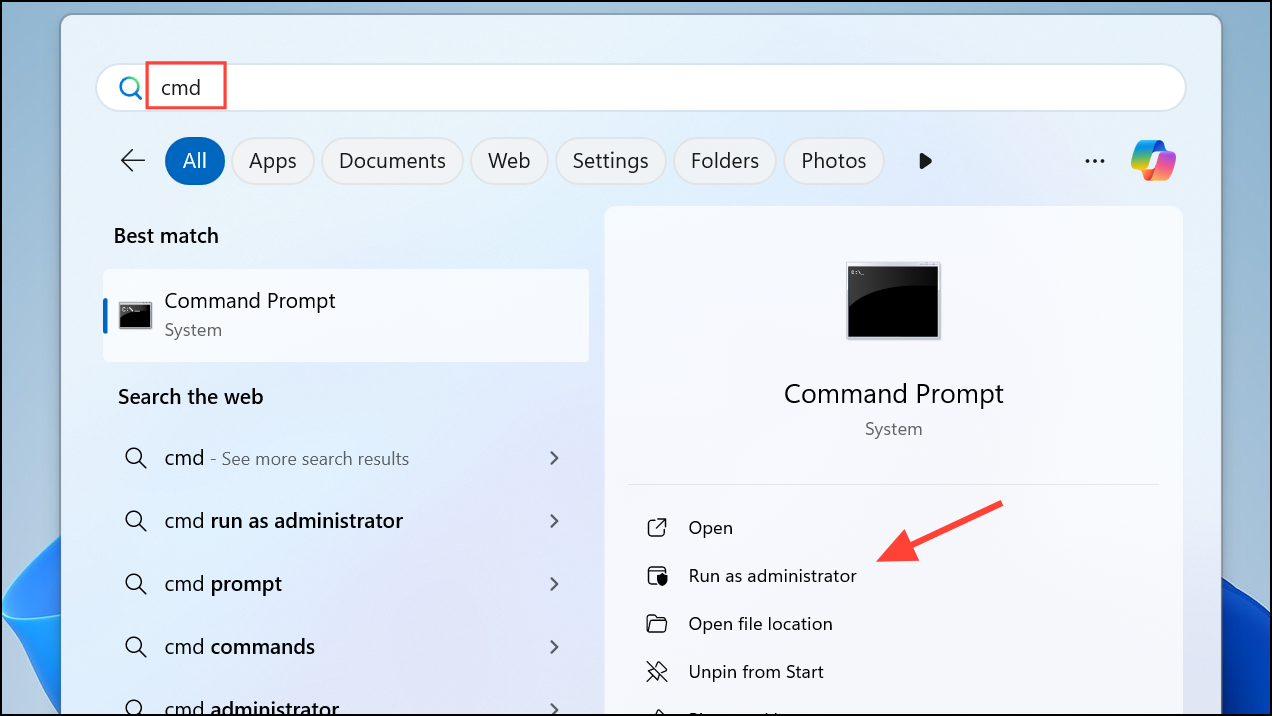
sfc /scannow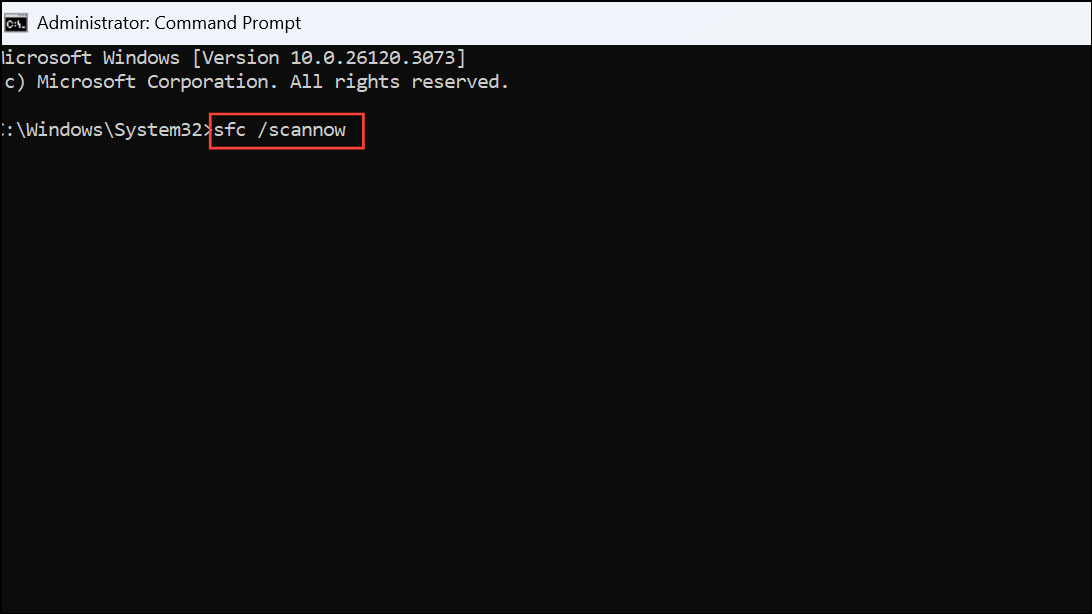
Wait for the scan to complete and follow any on-screen instructions.
DISM /Online /Cleanup-Image /RestoreHealth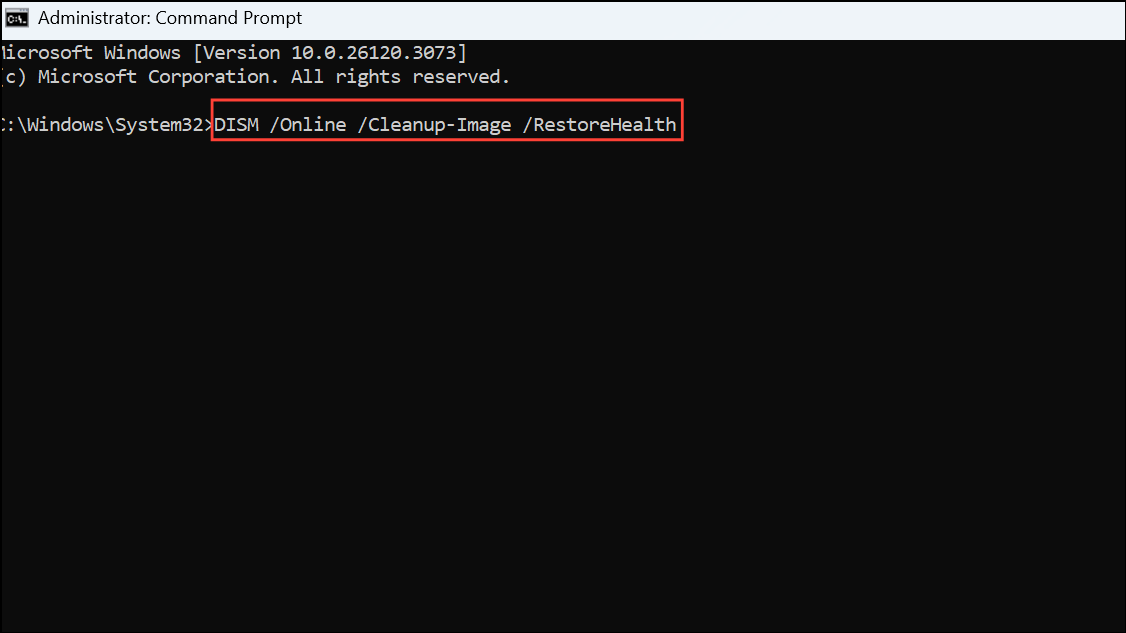
This process may take several minutes. Once finished, restart your PC.
Settings > Apps > Installed apps, selecting Microsoft Store, clicking Advanced options, and then Reset.Restore Default Group Policy and Registry Settings (For Home Edition)
Windows Home users do not have access to the Group Policy Editor, but you can still reset Group Policy settings using Command Prompt.
rd /S /Q "%WinDir%\System32\GroupPolicyUsers"
rd /S /Q "%WinDir%\System32\GroupPolicy"
gpupdate /force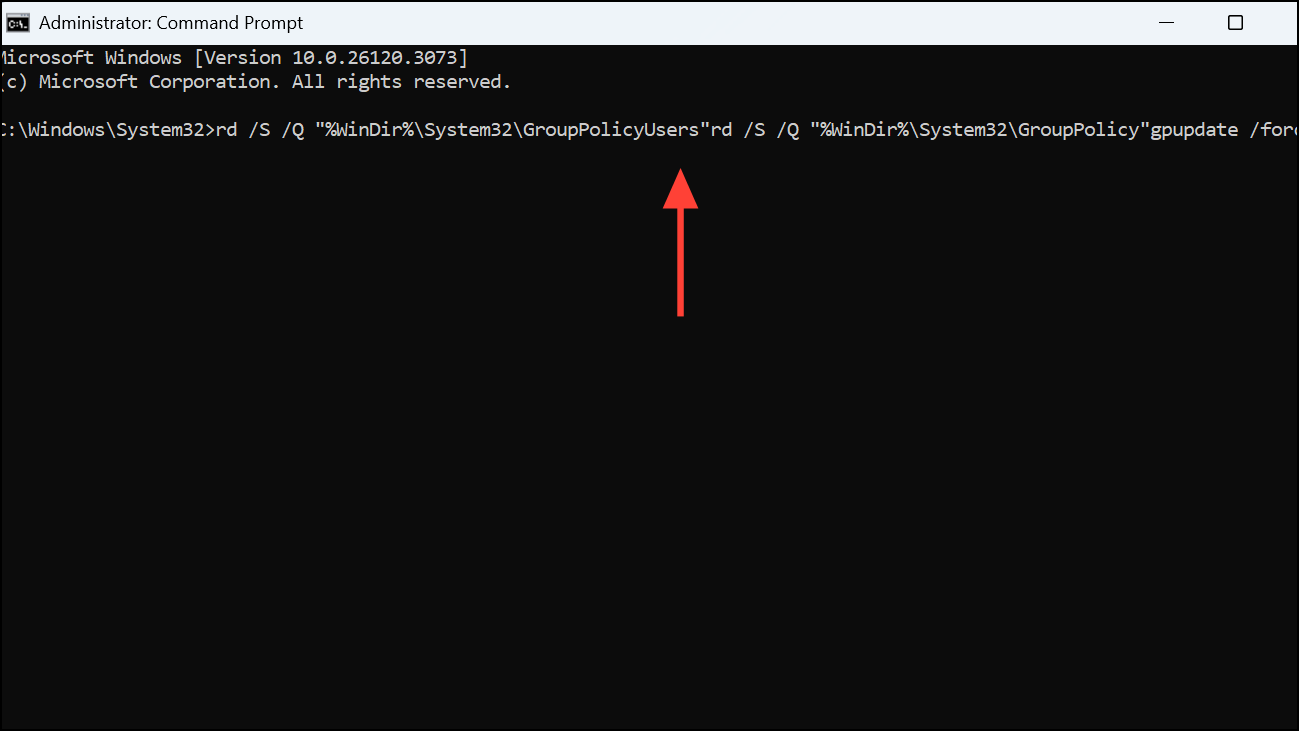
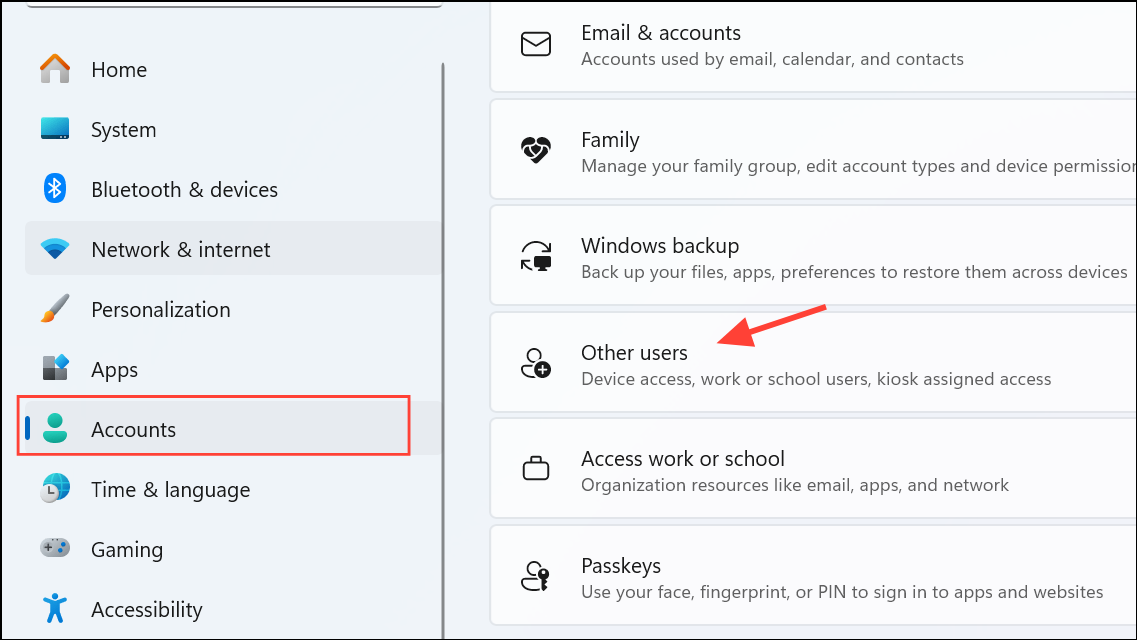
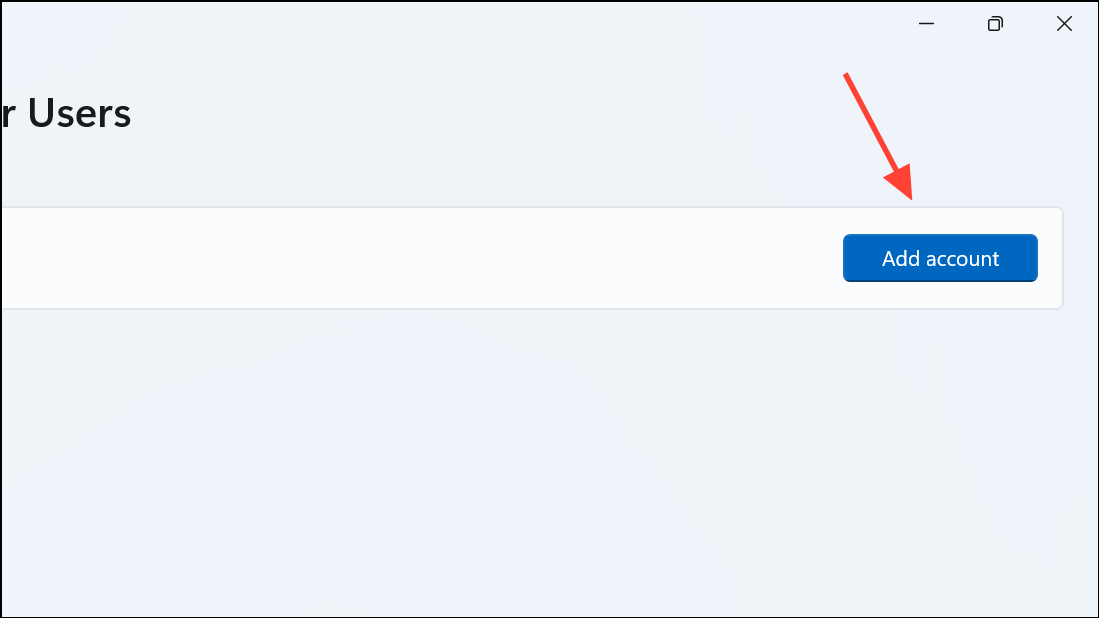
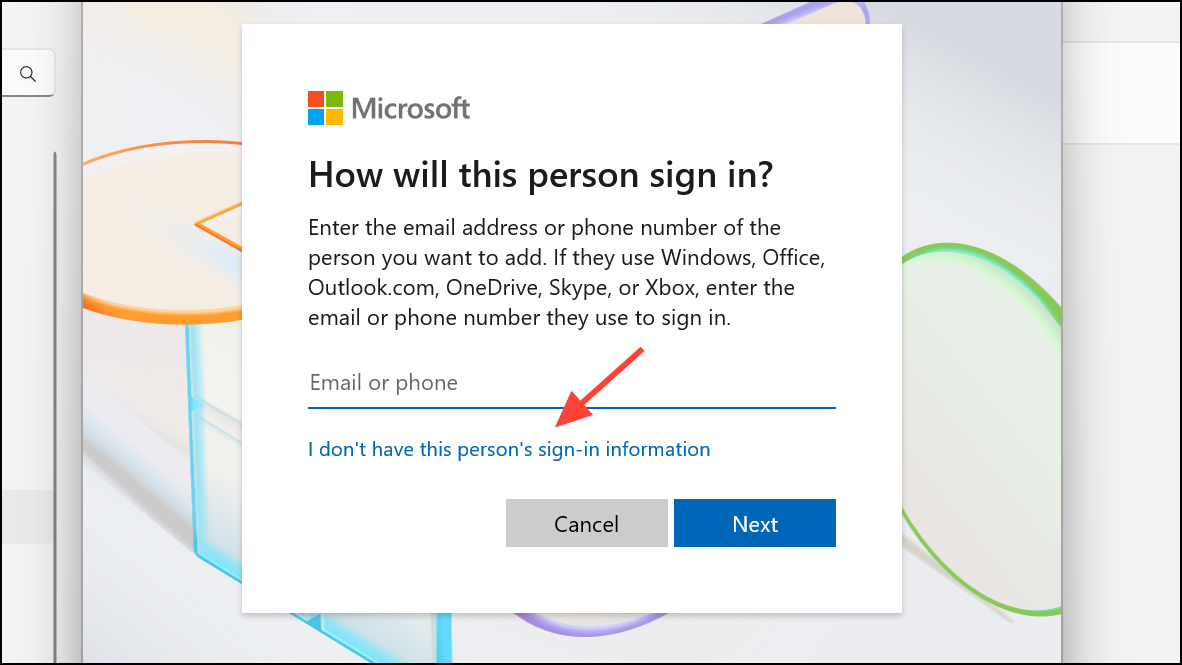
Test in a New User Account
If the error persists, your user profile may be corrupted. Creating a new account can help isolate the issue.
Resolving the 0x800704ec error in Windows 11 usually involves correcting Group Policy or Registry settings, removing third-party antivirus conflicts, and restoring system files. Regularly updating Windows and keeping your security configuration simple can help prevent this issue in the future.



