
Windows 11 update failures with error code 0x8007000d typically indicate that critical update files are missing or corrupted or that the system’s component store is damaged. This error can block feature updates (such as 22H2, 23H2, or 24H2) and security patches, leaving your device at risk. Addressing this issue requires a combination of repairing system files, resetting update components, and, in some cases, reinstalling or updating drivers.
Repair System Files and Windows Component Store
Corrupted system files or a damaged Windows component store are a primary cause of error 0x8007000d. Running built-in repair utilities can restore missing or damaged files and allow updates to proceed.
cmd in the Start menu, right-clicking Command Prompt, and selecting Run as administrator.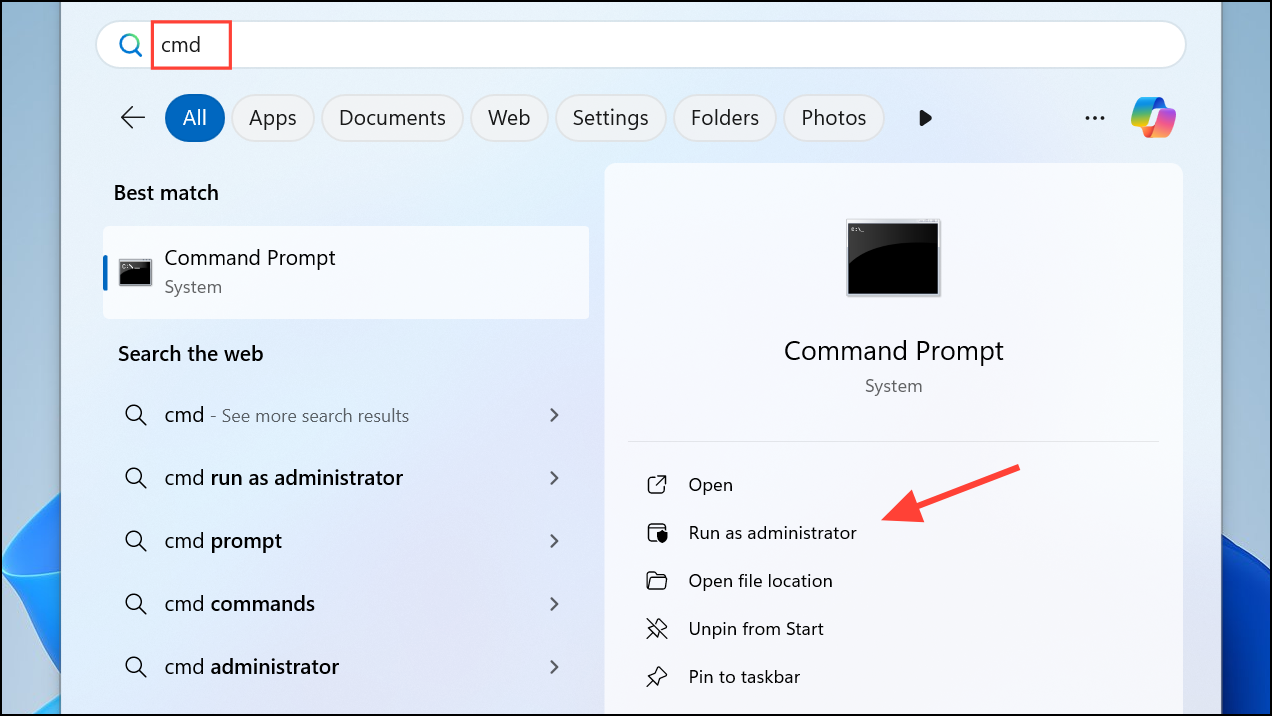
Dism /Online /Cleanup-Image /RestoreHealth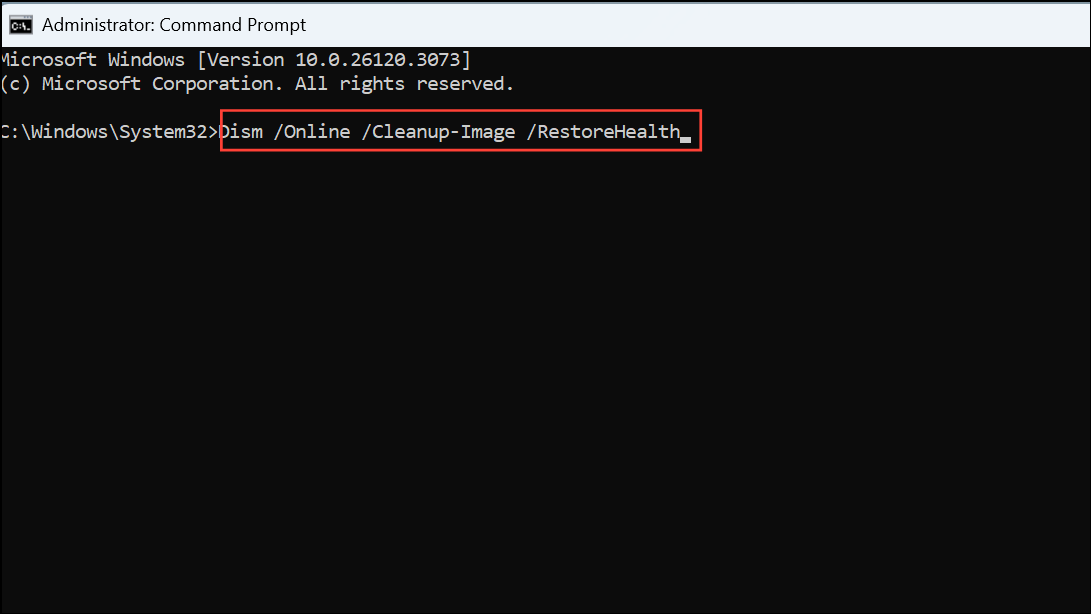
This process may take several minutes. Wait until it is complete and reports whether corruption was detected and fixed.
sfc /scannow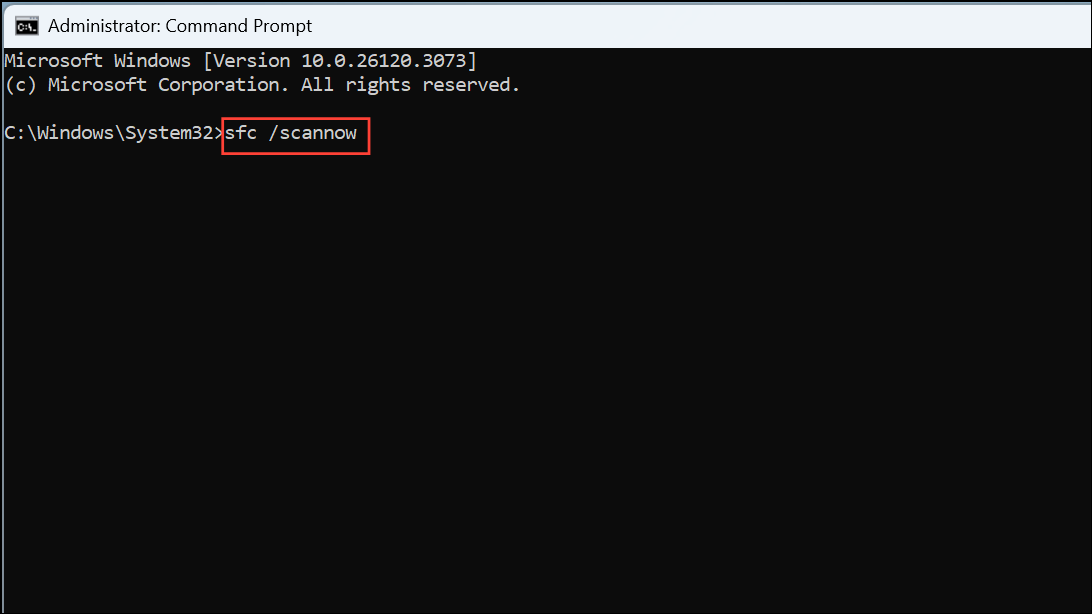
Let the scan finish. If any issues are found, SFC will attempt to repair them automatically. After these repairs, restart your computer and attempt the update again.
Reset Windows Update Components
Obsolete or corrupted update cache files can prevent Windows from installing updates. Resetting the update components removes these files and forces Windows to download fresh copies.
Enter after each:net stop wuauserv
net stop cryptSvc
net stop bits
net stop msiserver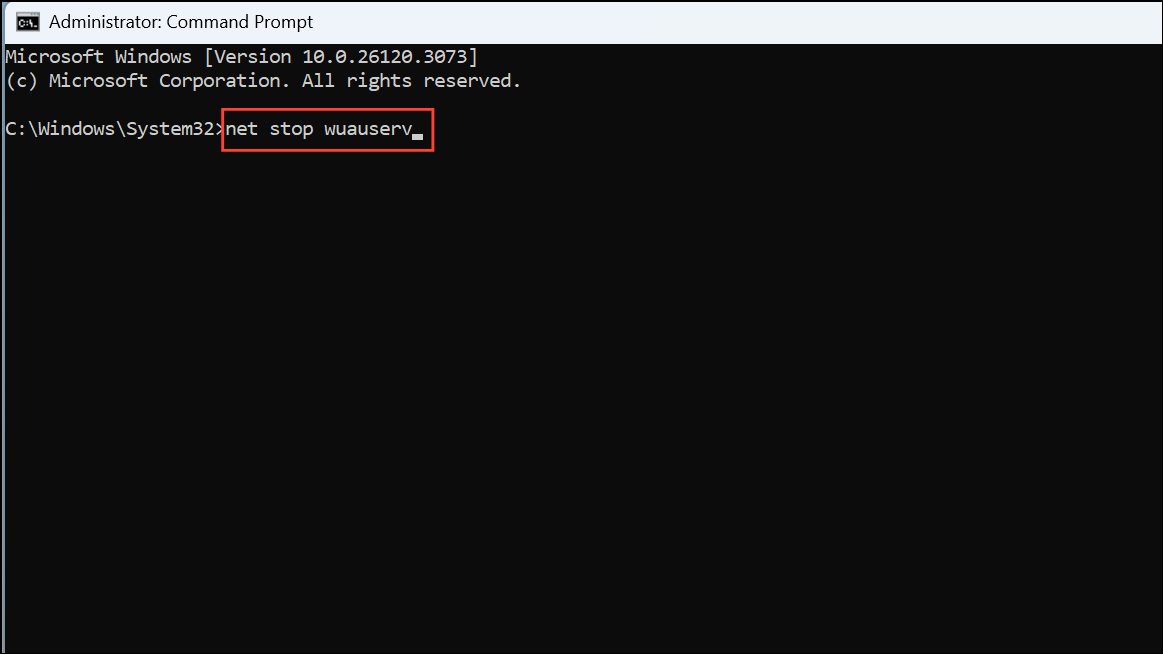
C:\Windows\SoftwareDistribution using File Explorer. Select all files and folders inside, then delete them. This clears the update cache.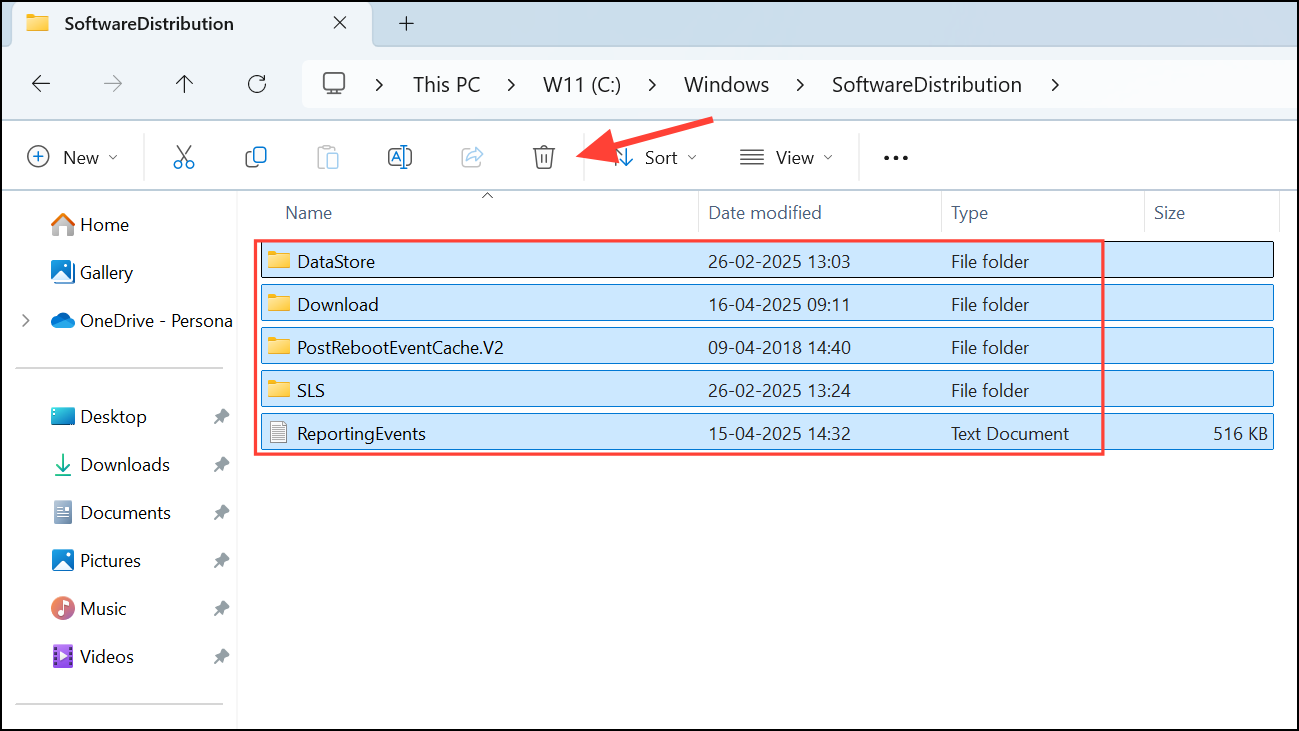
net start wuauserv
net start cryptSvc
net start bits
net start msiserver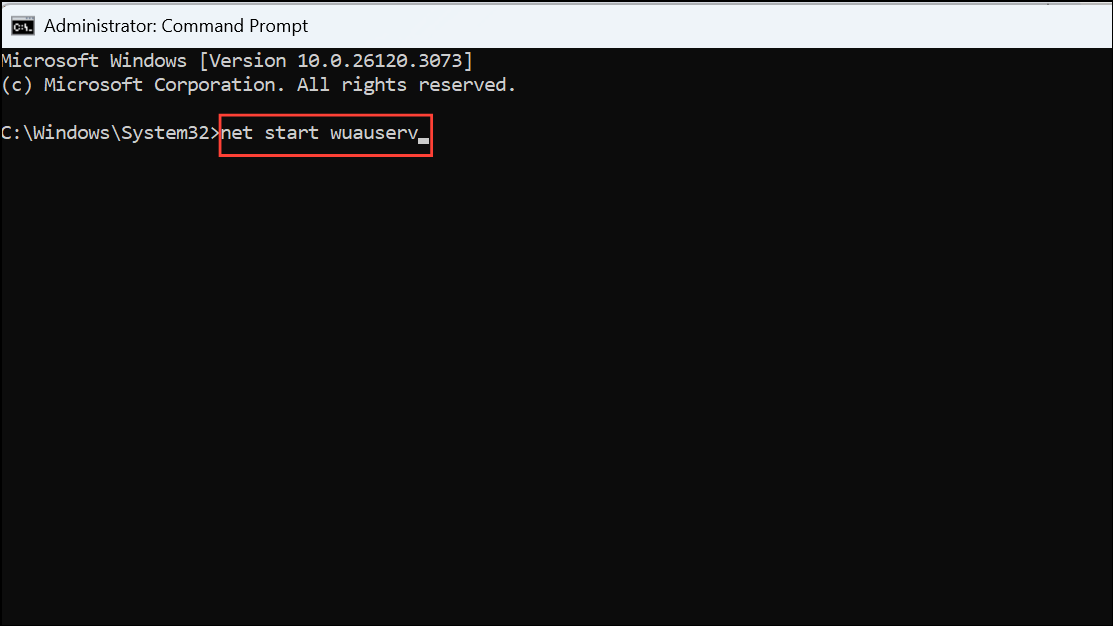
Restart your device and check for updates again.
Update or Reinstall Graphics Drivers
Outdated or problematic graphics drivers—particularly NVIDIA drivers—have been linked to update failures with error 0x8007000d. Removing and reinstalling these drivers can resolve the issue, especially when updating to feature releases like 22H2 or 23H2.
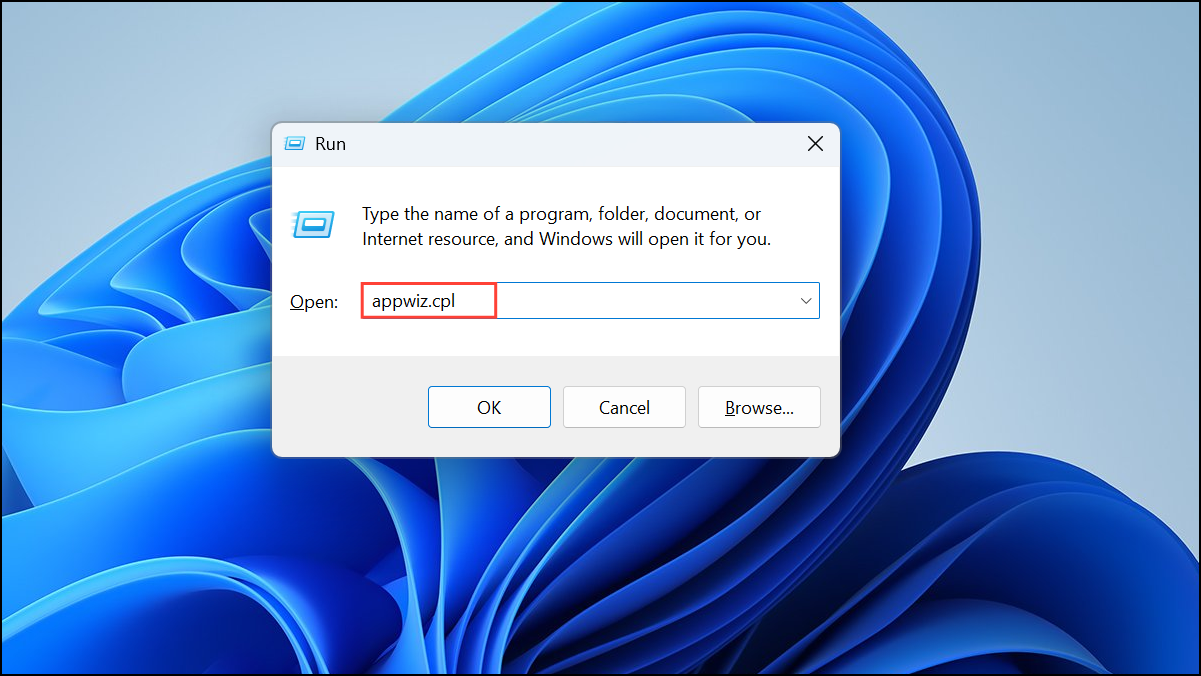
Run Windows Update Troubleshooter
The built-in Windows Update Troubleshooter can automatically detect and correct issues with update components and configurations.
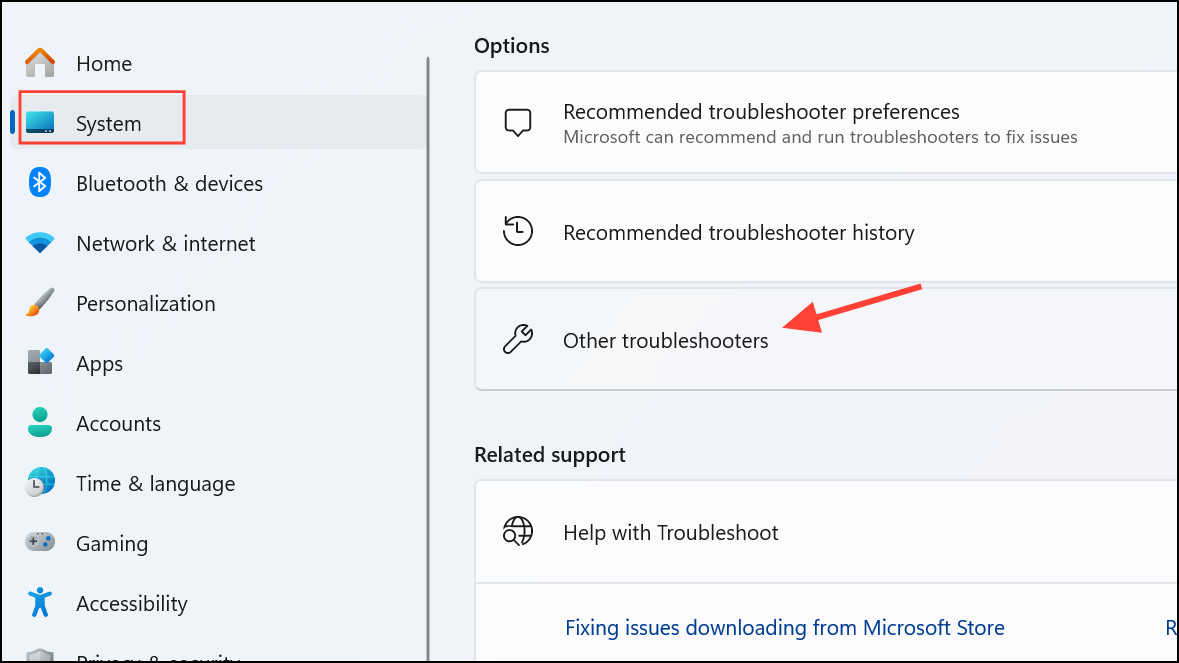
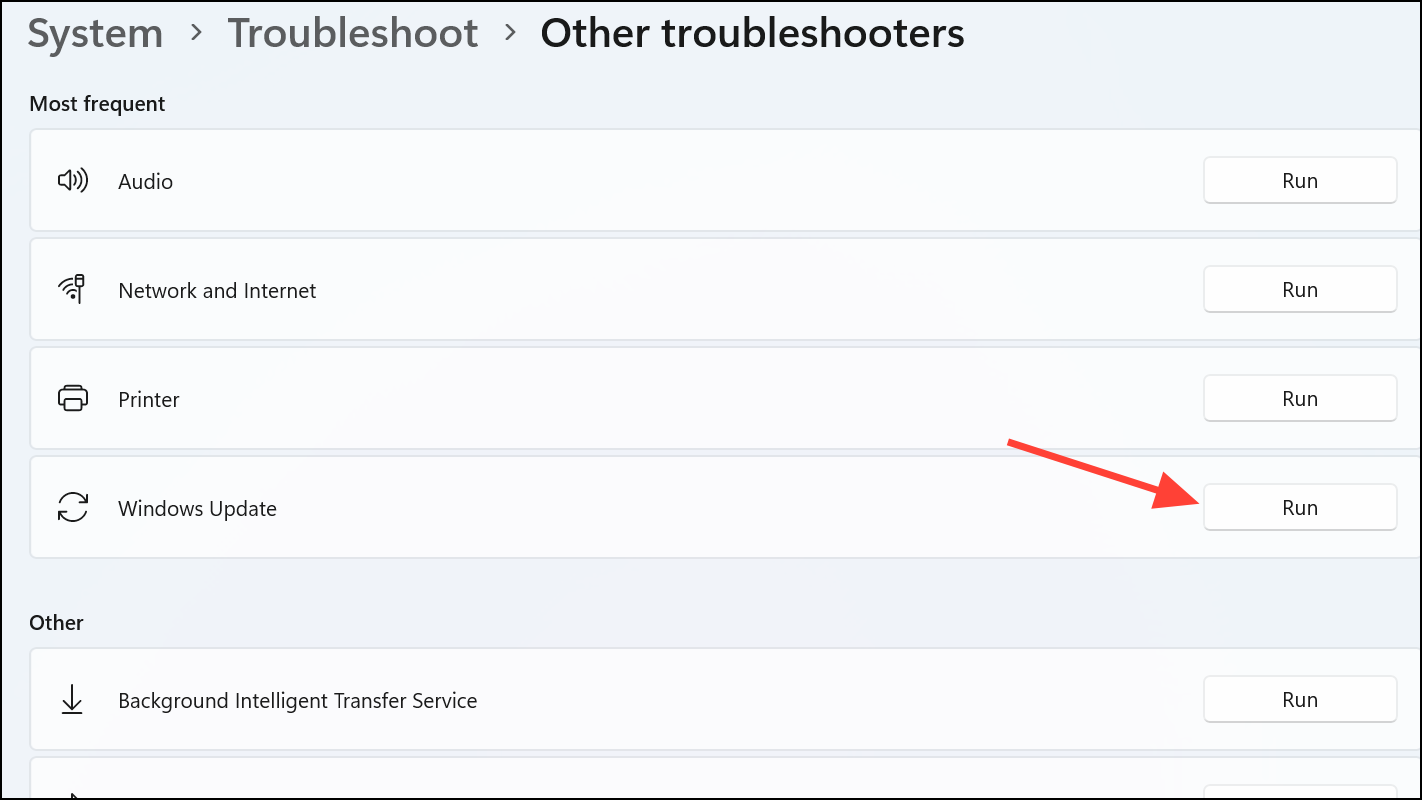
Rename CBS Log Files
Occasionally, the CBS log file used by Windows Update becomes locked or corrupted, leading to update errors. Renaming this file forces Windows to generate a new, clean log.
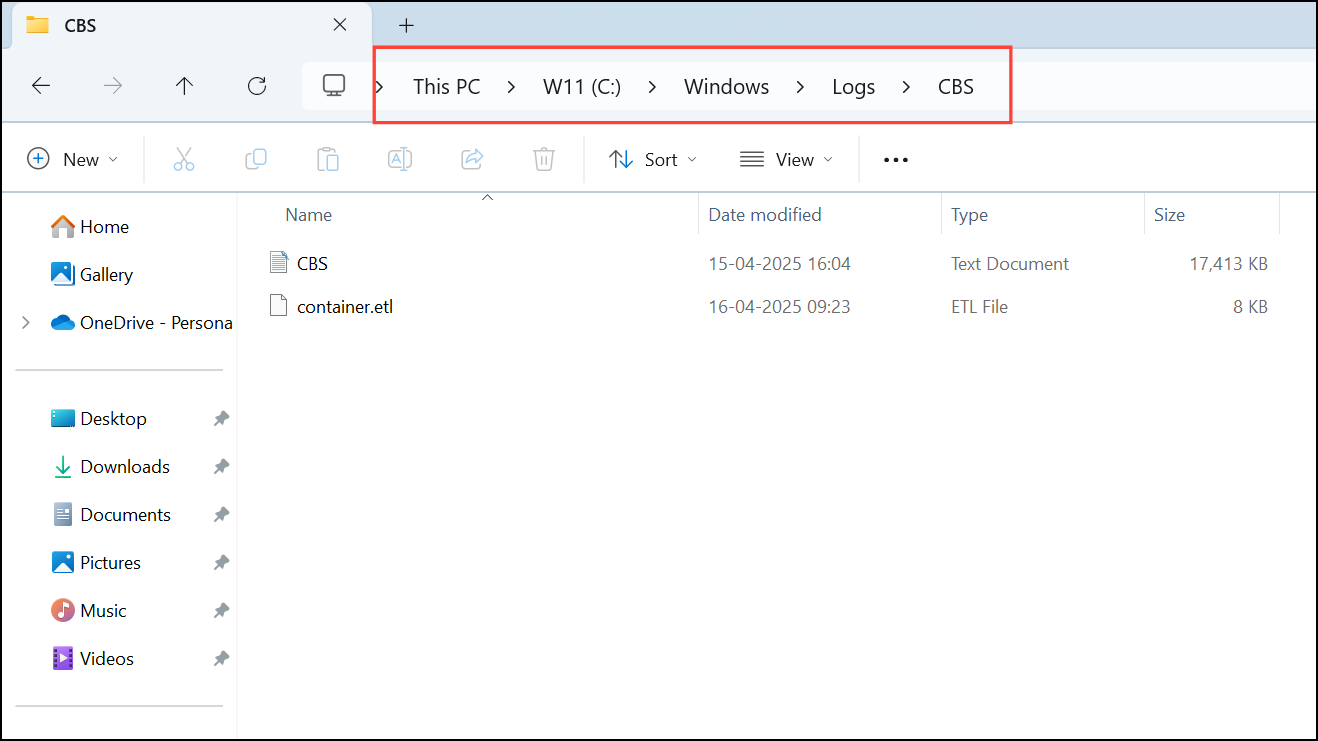
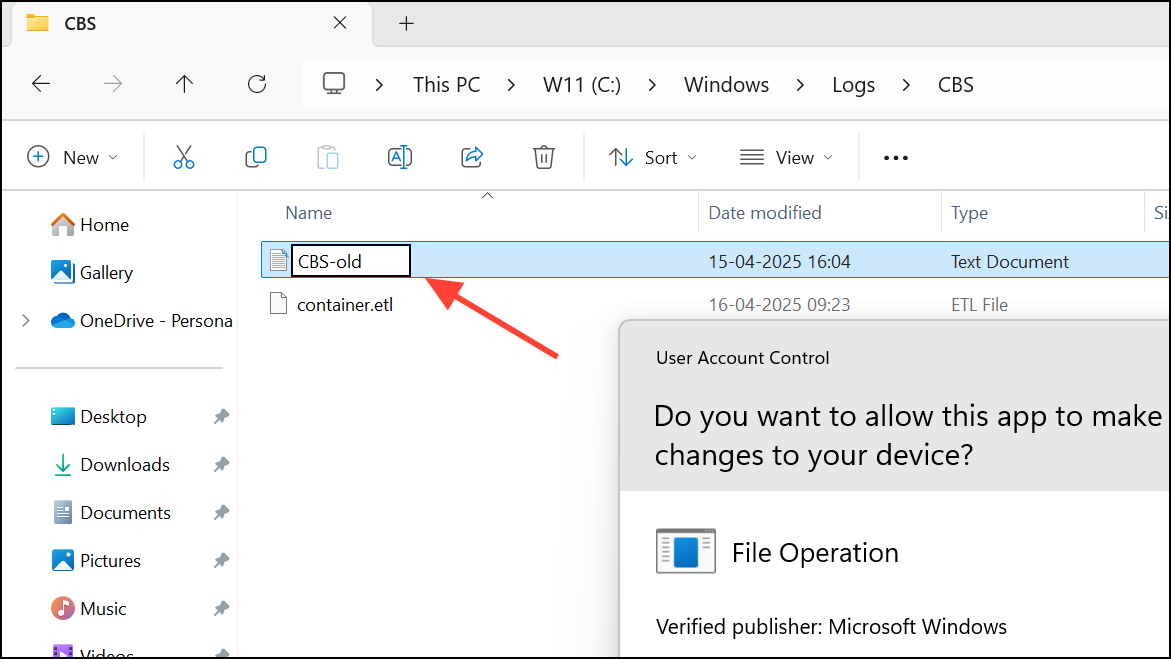
services.msc), find Windows Modules Installer, and set its startup type to Manual. Restart your PC and try again.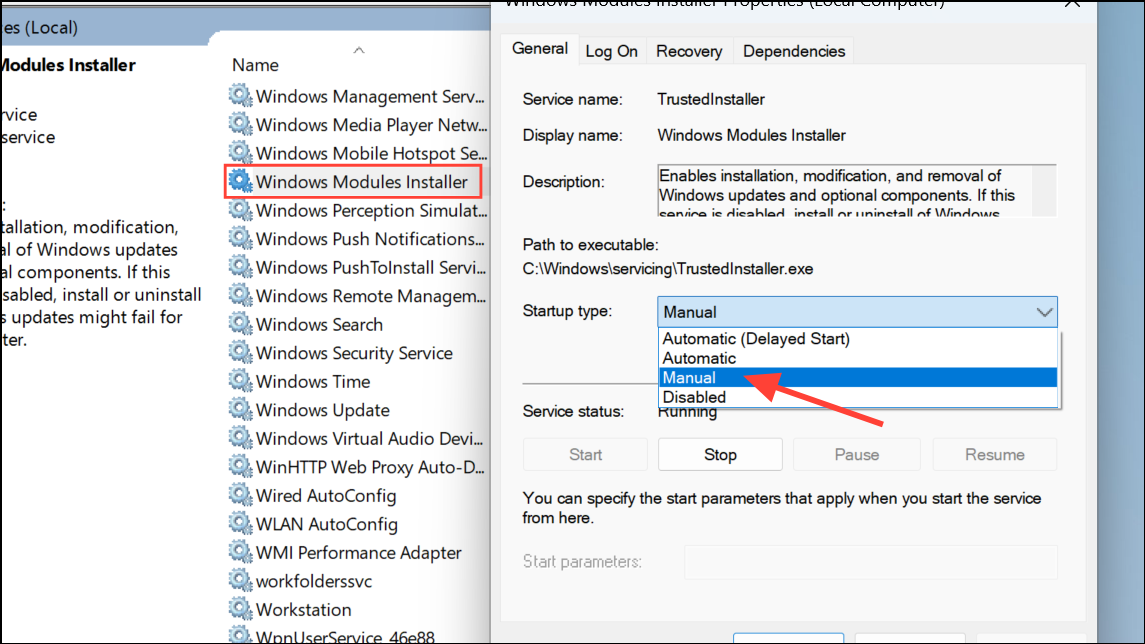
After renaming, revert the service’s startup type to its original setting.
Temporarily Disable Antivirus Software
Antivirus programs—both built-in (Windows Defender) and third-party—can interfere with update processes, causing error 0x8007000d. Temporarily disabling real-time protection may allow updates to complete.
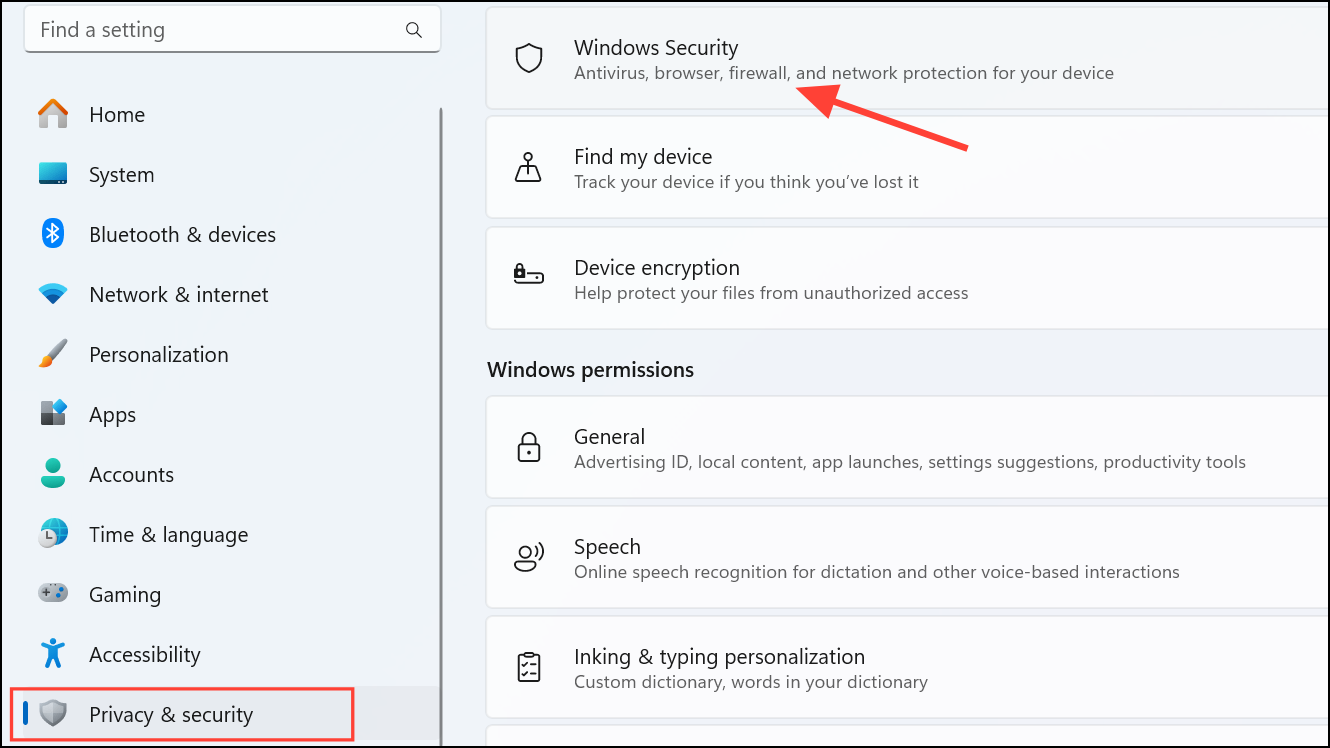
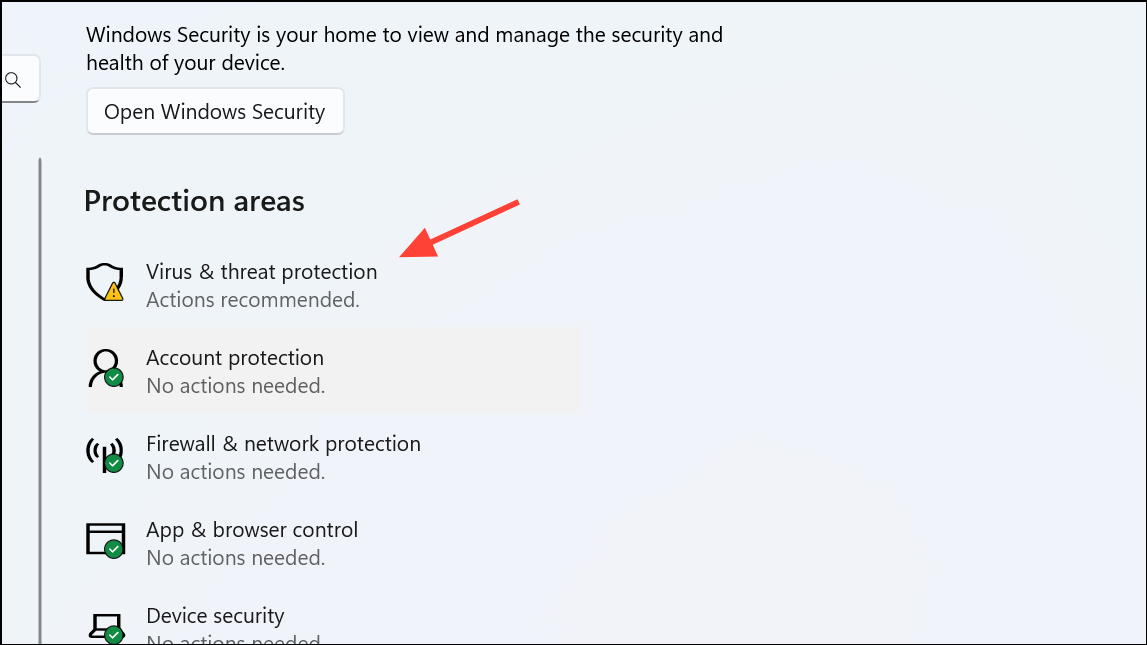
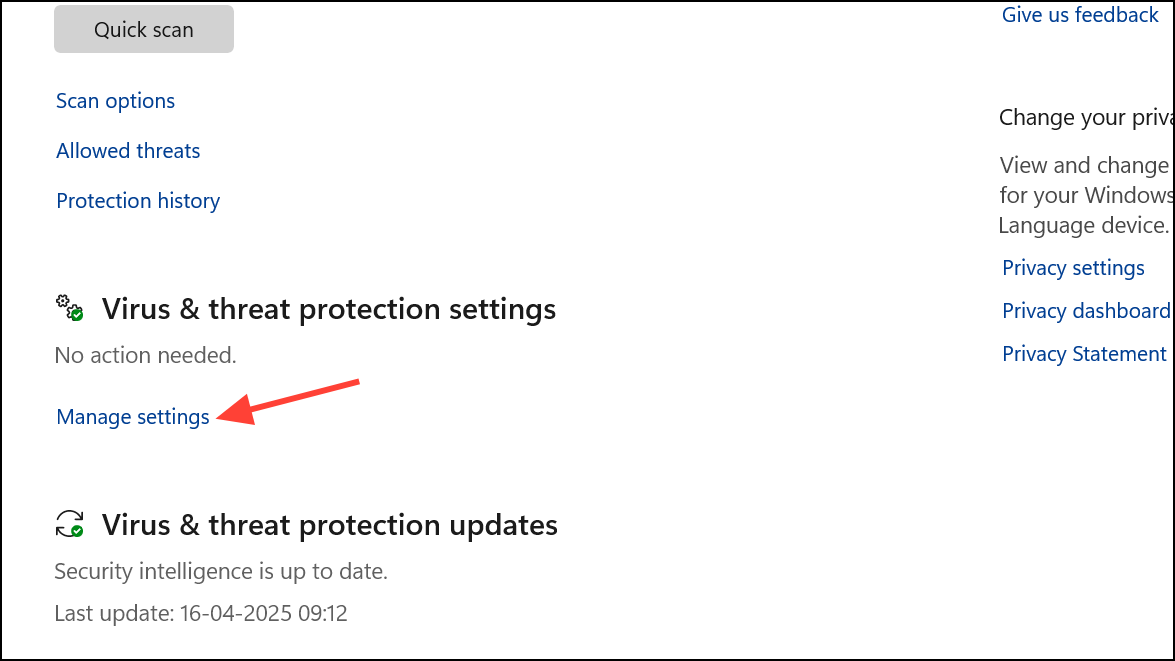
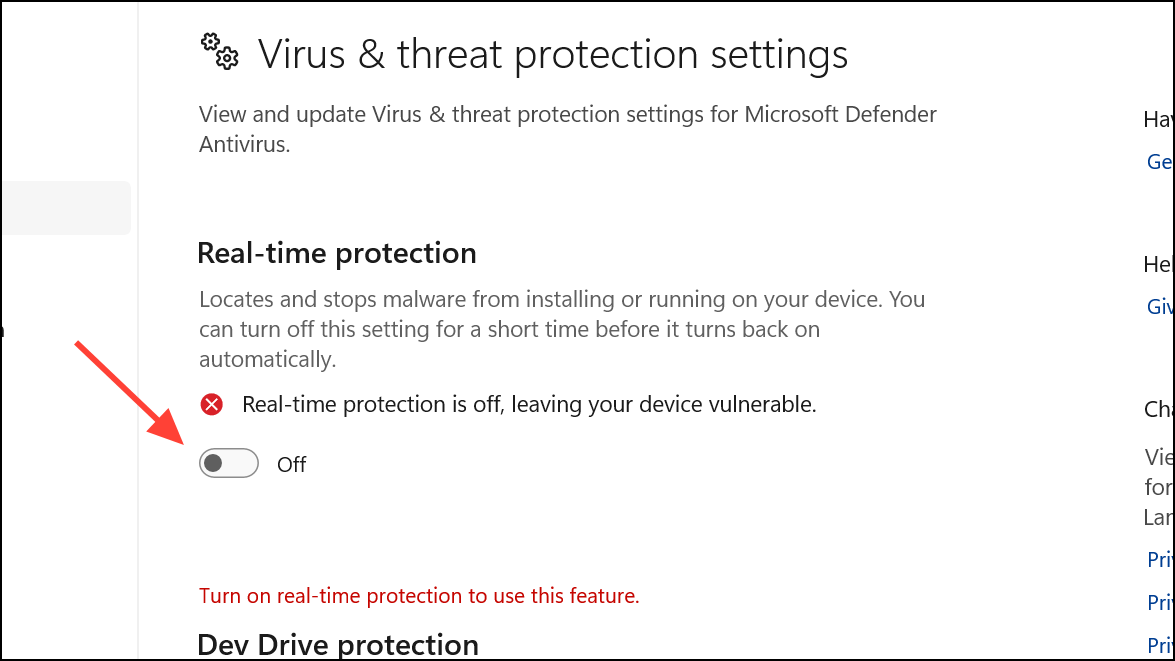
Once the update succeeds, re-enable or reinstall your antivirus software.
Perform a Repair Install or In-Place Upgrade
If none of the above steps resolve the error, performing a repair install (also called an in-place upgrade) can fix deep system corruption without erasing your files or apps.
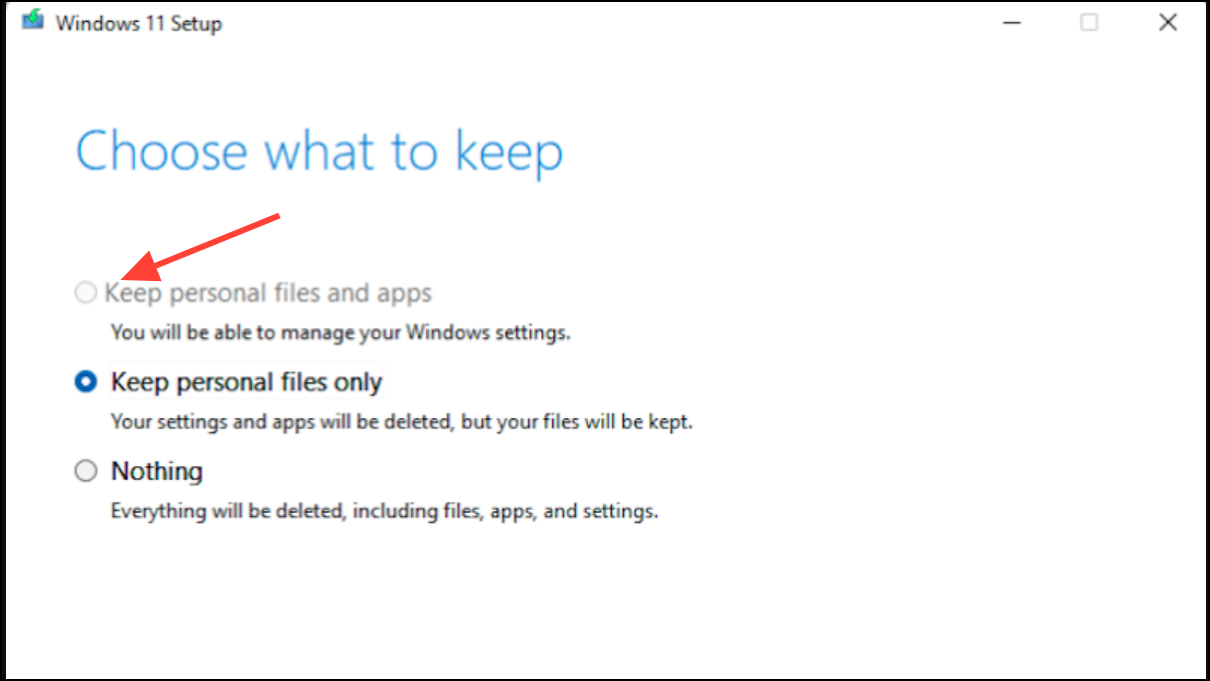
Alternatively, use the Windows 11 Installation Assistant for a similar result.
Additional Checks: Device Drivers and Compatibility Holds
In some cases, update failures may be caused by incompatible device drivers or pending hardware issues. For example, users with NVIDIA graphics cards have reported that uninstalling NVIDIA Control Panel and GeForce Experience resolved update blocks. Also, if updates disappear from Windows Update after repeated failures, Microsoft may have applied a temporary compatibility hold for your device.
- Check Device Manager for outdated or problematic drivers and update them.
- Disconnect unnecessary peripherals before updating.
- If the update is no longer offered, monitor the Windows Release Health dashboard or try again after a few weeks.
For advanced troubleshooting, reviewing CBS logs (C:\Windows\Logs\CBS\CBS.log) and Setup logs (C:\$WINDOWS.~BT\Sources\Panther\setupact.log) may reveal specific causes, but these steps are best reserved for experienced users or with the help of a support professional.
Fixing error 0x8007000d in Windows 11 usually comes down to repairing system files, resetting update components, and addressing driver conflicts. With these steps, you can restore update functionality and keep your device secure and up to date.



