
Windows 11 doesn’t natively support receiving Bluetooth audio, but you can easily set up your PC to function as a Bluetooth audio receiver using a simple app from the Microsoft Store. This allows you to stream music, podcasts, or other audio directly from your smartphone or tablet to your computer’s speakers, eliminating the need for additional hardware.
Method 1: Using the Bluetooth Audio Receiver App
Windows + I to open Settings. Then, navigate to “Bluetooth & Devices” and toggle Bluetooth to the “On” position.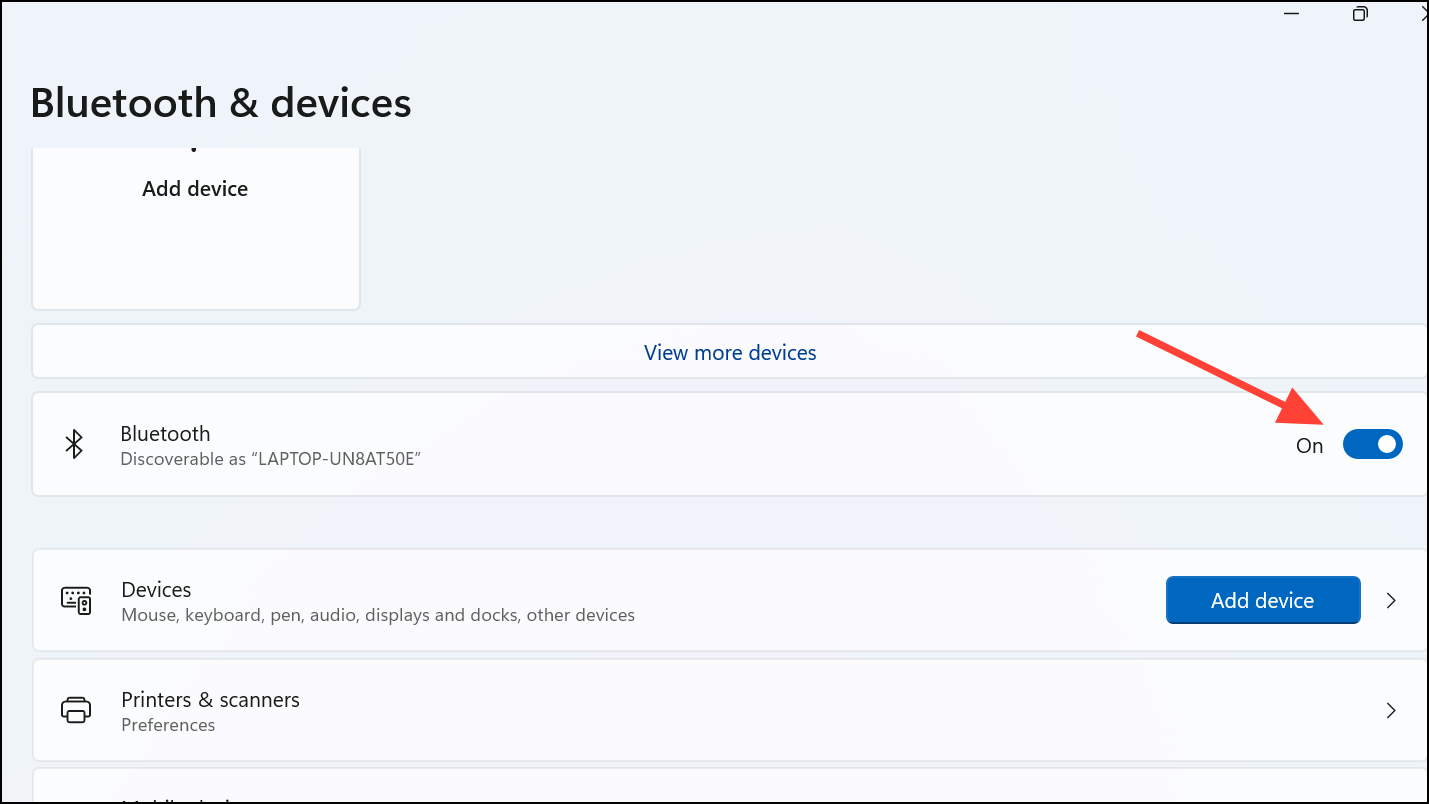
Windows + S, type “Microsoft Store,” and open the app. Search for “Bluetooth Audio Receiver,” select it from the results, and click “Get” to install.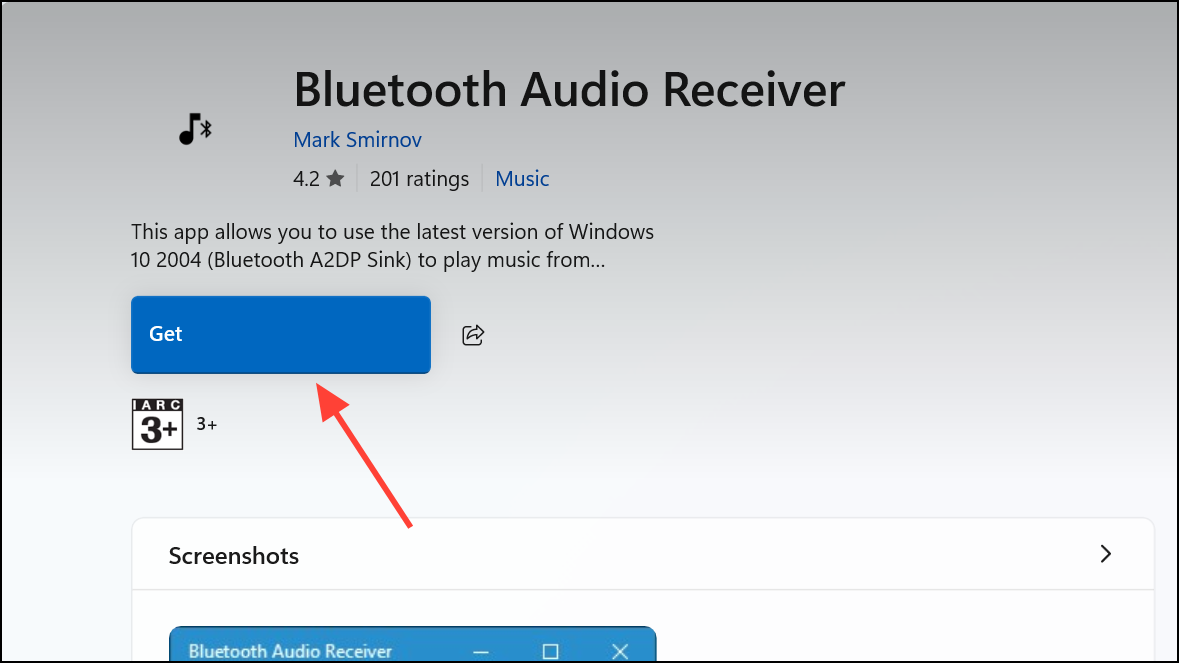
If the audio doesn’t start immediately, double-check that your device is connected for media audio in its Bluetooth settings. You can also adjust the volume directly from your PC’s system tray or your mobile device.
Troubleshooting Tips
If your PC doesn’t detect your mobile device, ensure that Bluetooth is active and your device is set to discoverable mode. Keep your devices within a 30-foot range for the best connection quality. If you experience audio dropouts, minimize physical obstructions between devices and avoid interference from other wireless devices.
Method 2: Using the “Project to This PC” Feature
Another approach to getting audio from your mobile device to your Windows 11 PC is to use the built-in “Project to This PC” feature. This method mirrors your phone’s screen and audio to your PC, but it may not be ideal if you only want audio.
Windows + I to open Settings and navigate to “System” > “Projecting to this PC.” Adjust the settings to allow projection from your mobile device. You may need to install the Wireless Display optional feature if prompted.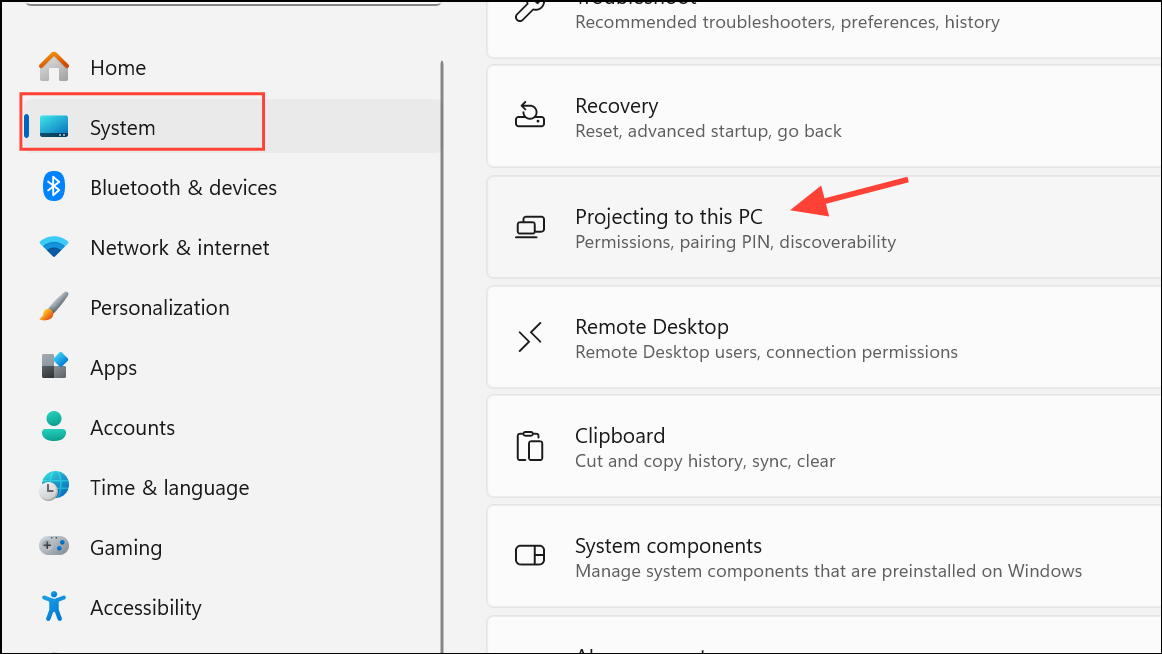
While effective, this method streams both audio and video, which might be unnecessary if you only want audio playback.
Advanced Applications and Tips
Using your Windows 11 PC as a Bluetooth receiver can simplify conference calls, presentations, and even mobile gaming setups. For example, you can stream audio from multiple devices during a meeting or presentation or test mobile game audio directly through your PC speakers for clearer sound.
To optimize your experience, ensure your Windows 11 is regularly updated for improved Bluetooth driver compatibility and stability. Experiment with Windows audio settings to tailor the sound output to your preferences. You can also find additional help or advanced troubleshooting tips on community forums like WindowsForum.
Setting up your Windows 11 PC as a Bluetooth receiver is straightforward and cost-effective, allowing you to conveniently stream audio without additional equipment. Happy listening!



