
The error code 0x80240fff appears when Windows 11 is unable to successfully synchronize updates. Typically, this occurs due to issues like corrupted update files, conflicts with third-party software, or connection problems with Microsoft update servers. Resolving this error involves several troubleshooting methods, starting with the most effective.
Method 1: Reset Windows Update Components
The most effective way to resolve the 0x80240fff error is by resetting the Windows Update components. This method clears out corrupted or problematic files that often cause update synchronization issues.
cmd in the Start menu, right-clicking the result, and selecting “Run as administrator.”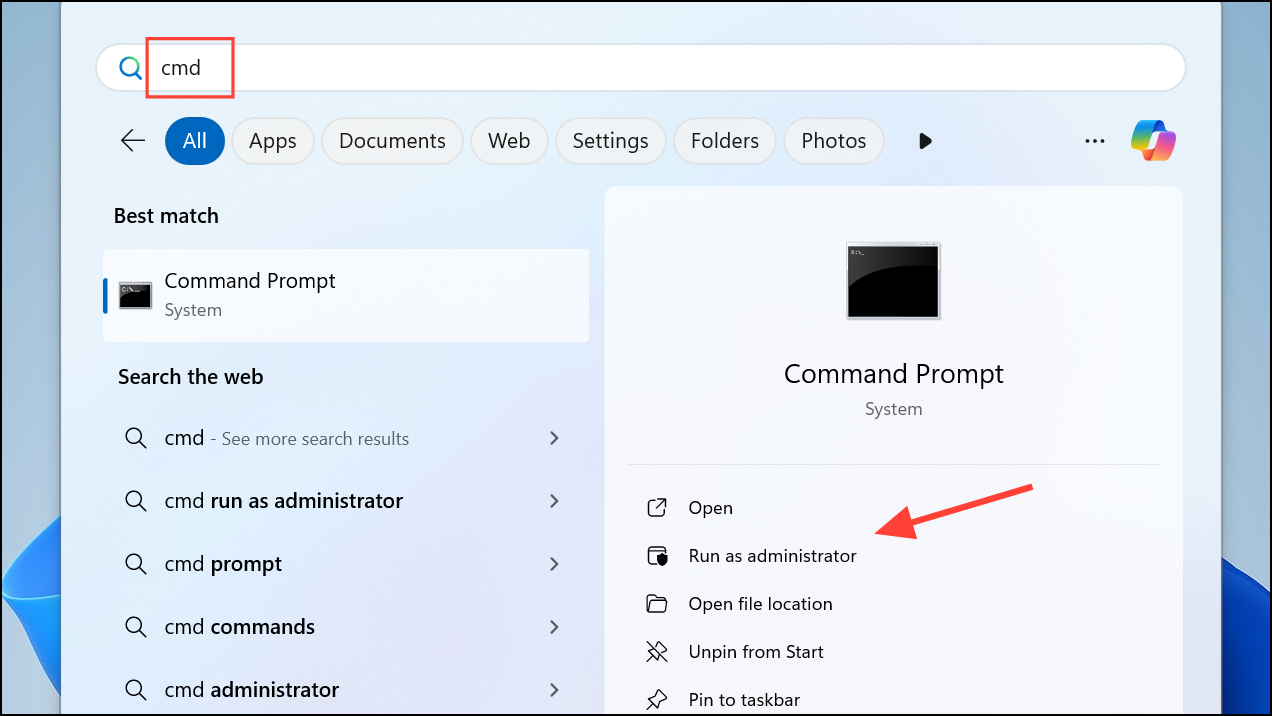
net stop wuauserv
net stop cryptSvc
net stop bits
net stop msiserver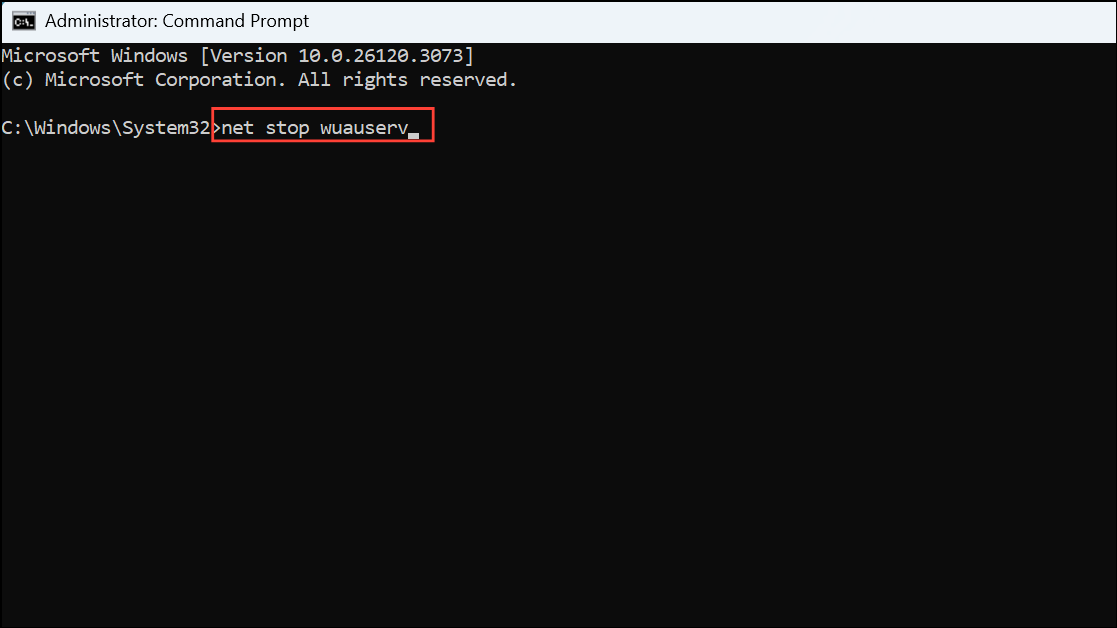
ren C:\Windows\SoftwareDistribution SoftwareDistribution.old
ren C:\Windows\System32\catroot2 Catroot2.old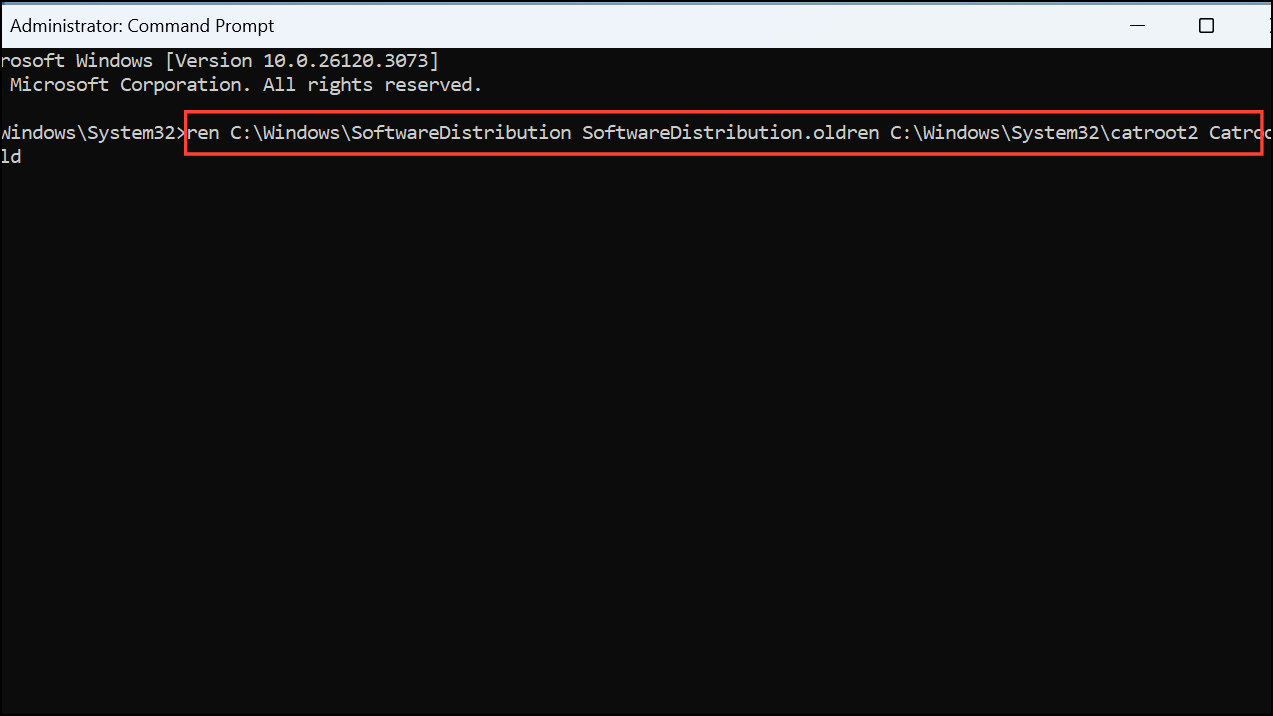
net start wuauserv
net start cryptSvc
net start bits
net start msiserver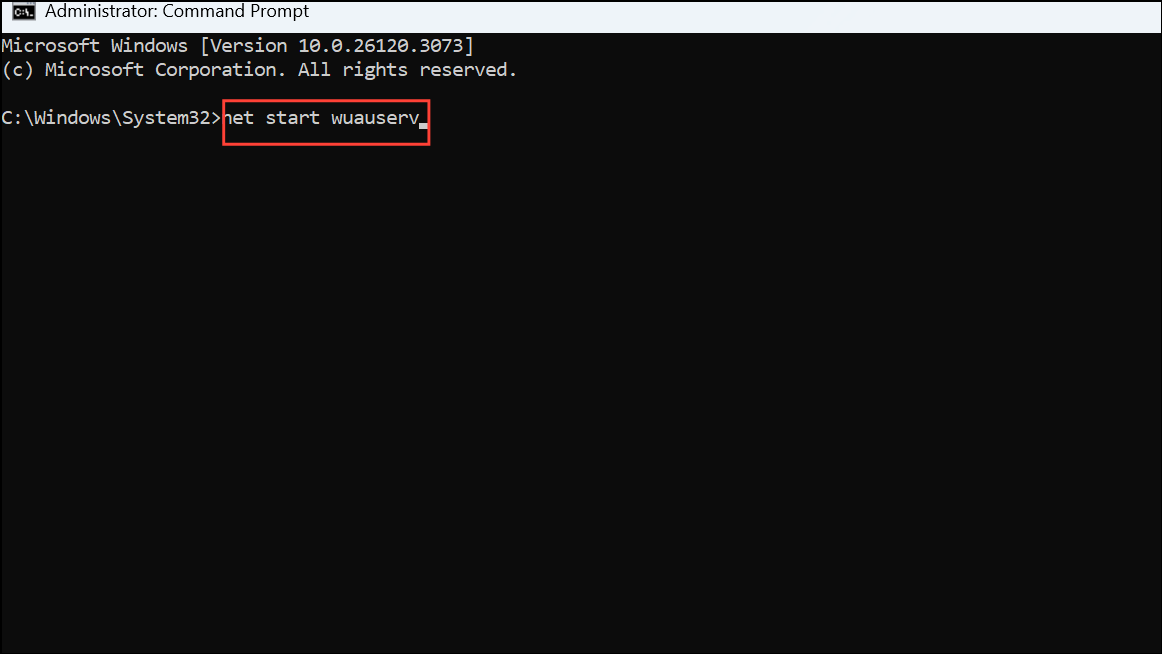
After completing these steps, restart your computer and check if Windows Update works properly.
Method 2: Use the Windows Update Troubleshooter
If resetting the components doesn’t resolve the issue, the built-in Windows Update troubleshooter can automatically detect and repair common problems.
Win + I to open Settings, then navigate to “System” > “Troubleshoot” > “Other troubleshooters.”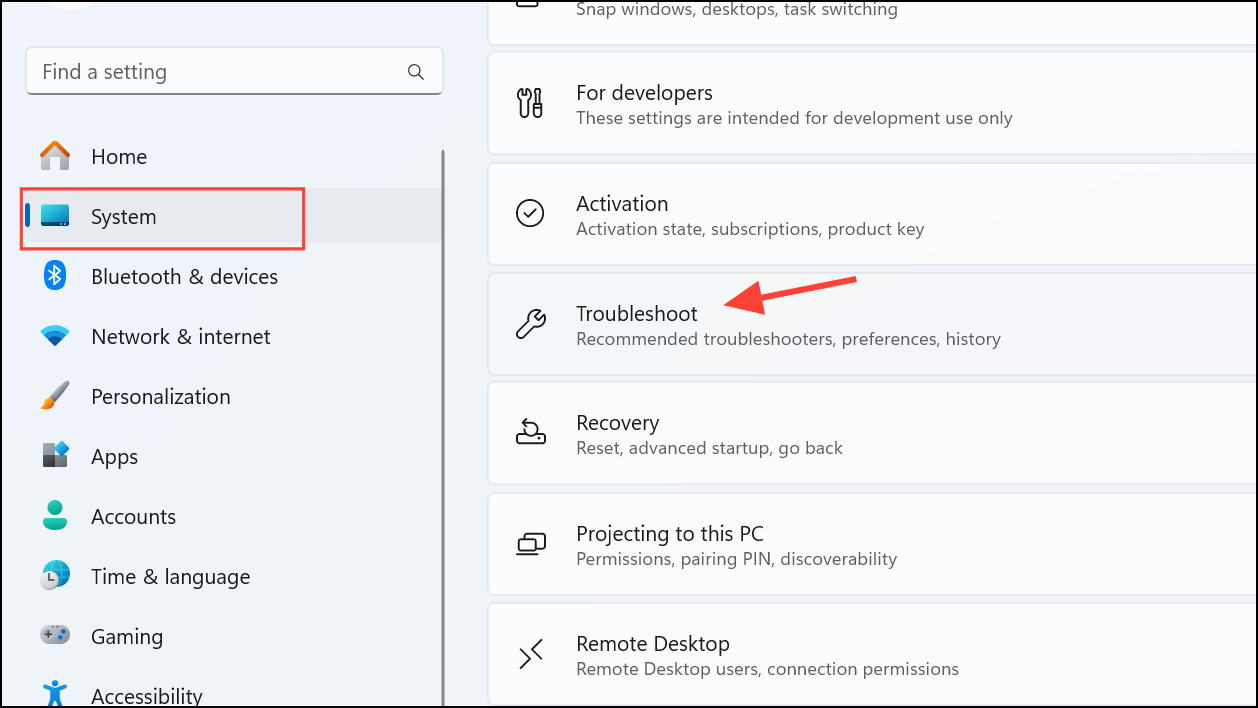
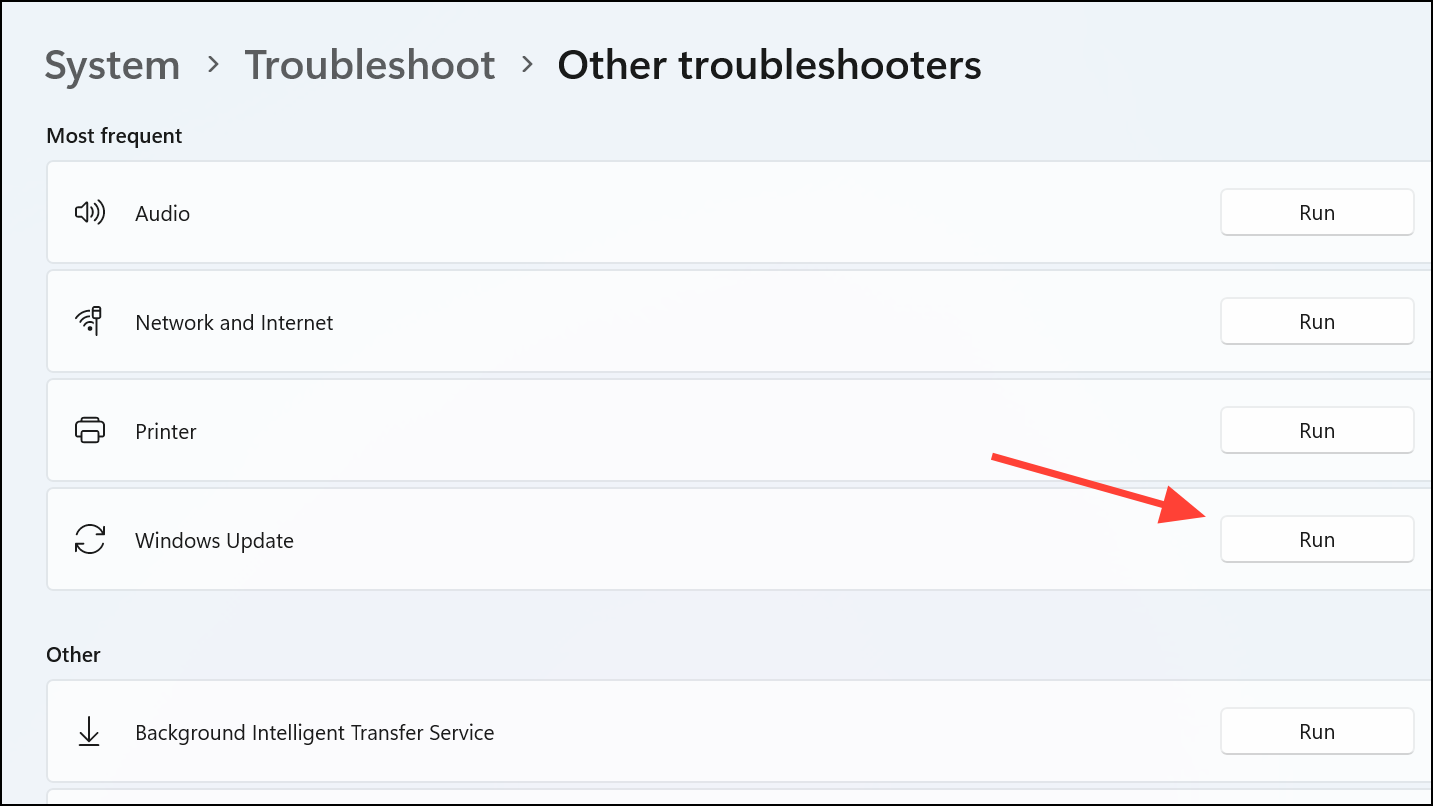
Once finished, restart your PC and attempt the update again.
Method 3: Manually Install the Latest Windows Update
If automatic methods fail, manually installing the latest cumulative update can resolve the issue.
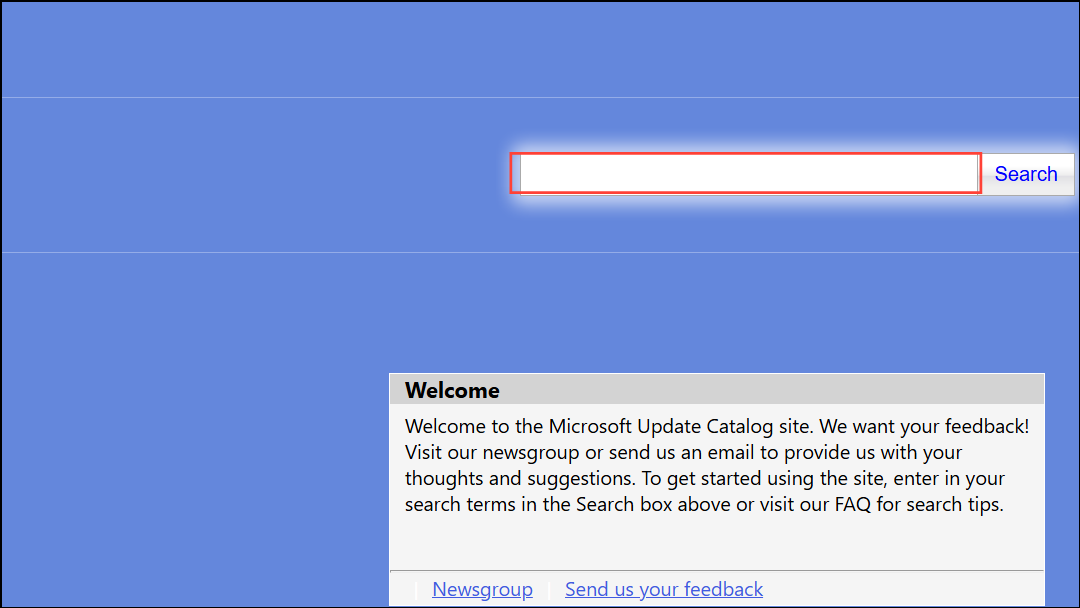
After installation, reboot your computer and verify if the issue is resolved.
Method 4: Defer or Pause Windows Updates Temporarily
If the current update is problematic, temporarily pausing updates can help avoid the error until Microsoft releases a fix.
Win + I, click on “Windows Update” on the left and then click on “Pause updates.”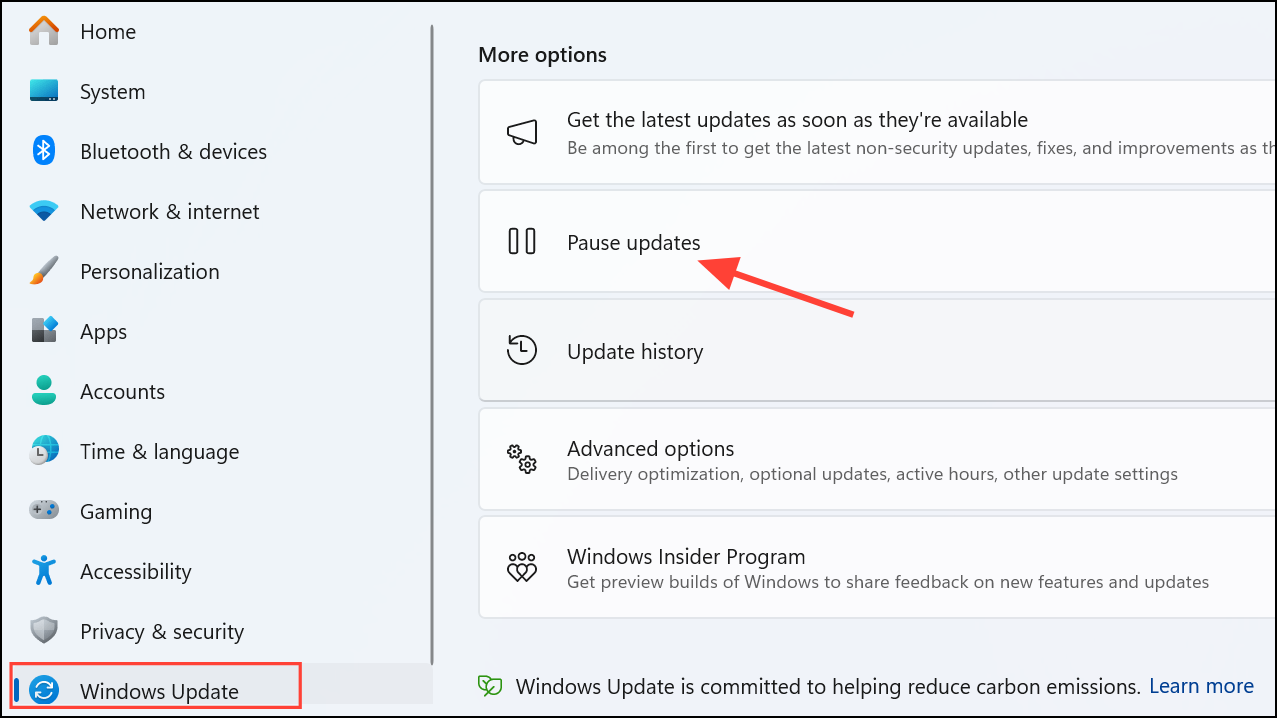
After the deferral period, your system will automatically attempt to install updates again, likely after Microsoft has addressed the issue.
Method 5: Free Up Disk Space
Insufficient disk space can sometimes cause update failures. Ensure that your system drive has enough free space.
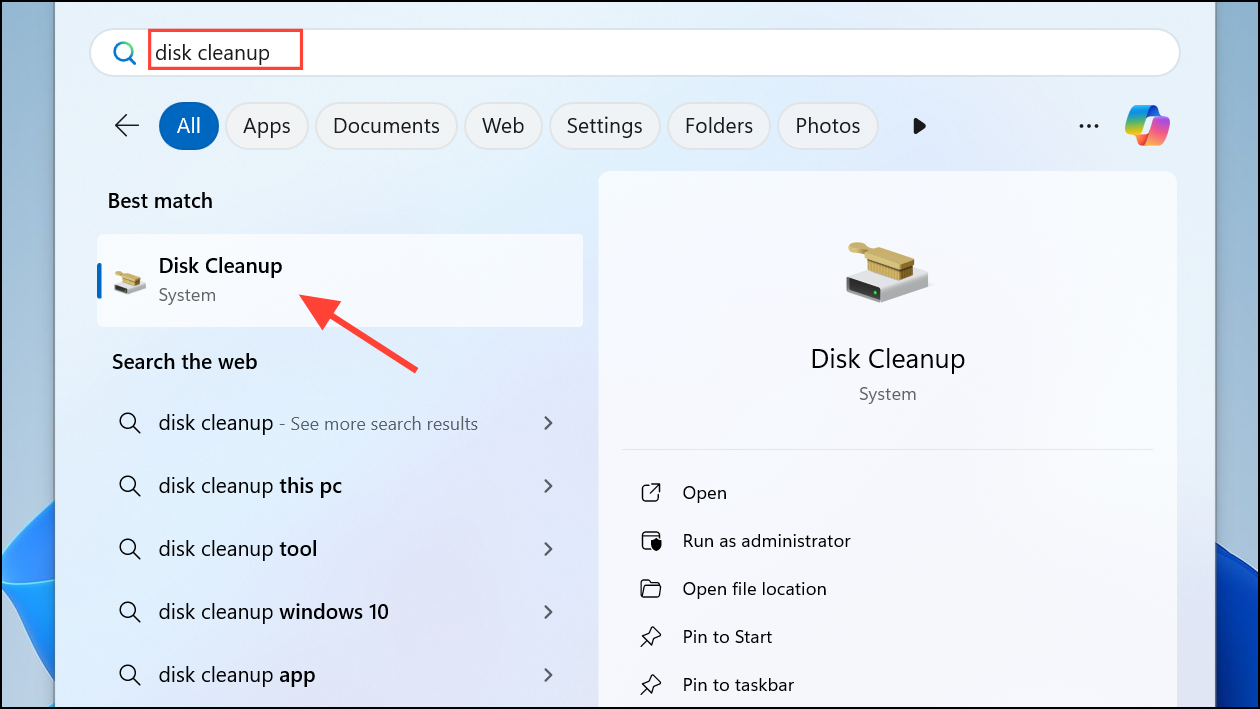
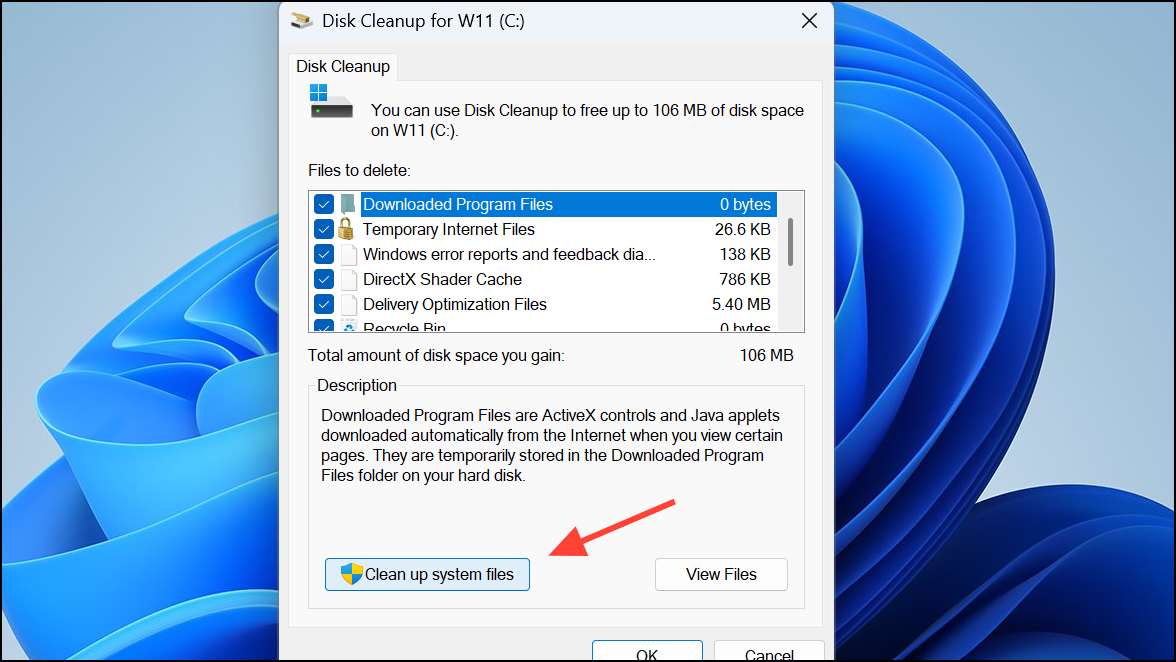
After cleaning up, attempt the update again.
Method 6: Check Your Internet Connection and Disable VPNs
A slow or unstable internet connection or active VPN can interfere with Windows Update.
Retry updating Windows after these adjustments.
By following these methods, you should be able to resolve the Windows Update error 0x80240fff and keep your Windows 11 system up-to-date without further issues.



