
Restarting your Windows 11 laptop using just your keyboard can save you time, especially when your mouse or touchpad isn’t working properly. Windows 11 offers several keyboard-based methods that allow you to reboot your system efficiently and safely. The quickest and easiest method involves the Alt + F4 shortcut, but there are other effective options available as well.
Method 1: Restart Using Alt + F4 Shortcut
First, ensure you’re on the desktop screen. If you have open windows, quickly minimize them all by pressing
Windows + D or Windows + M.Use the arrow keys to select “Restart” from the dropdown menu, then press
Enter. Your laptop will immediately begin the restart process.Method 2: Restart Using Windows + X Shortcut
Press
Windows + X simultaneously to open the Quick Access Menu on the bottom-left corner of your screen.Press the
R key to select “Restart.” Alternatively, use the arrow keys to highlight “Restart” and then press Enter. Your laptop will now restart.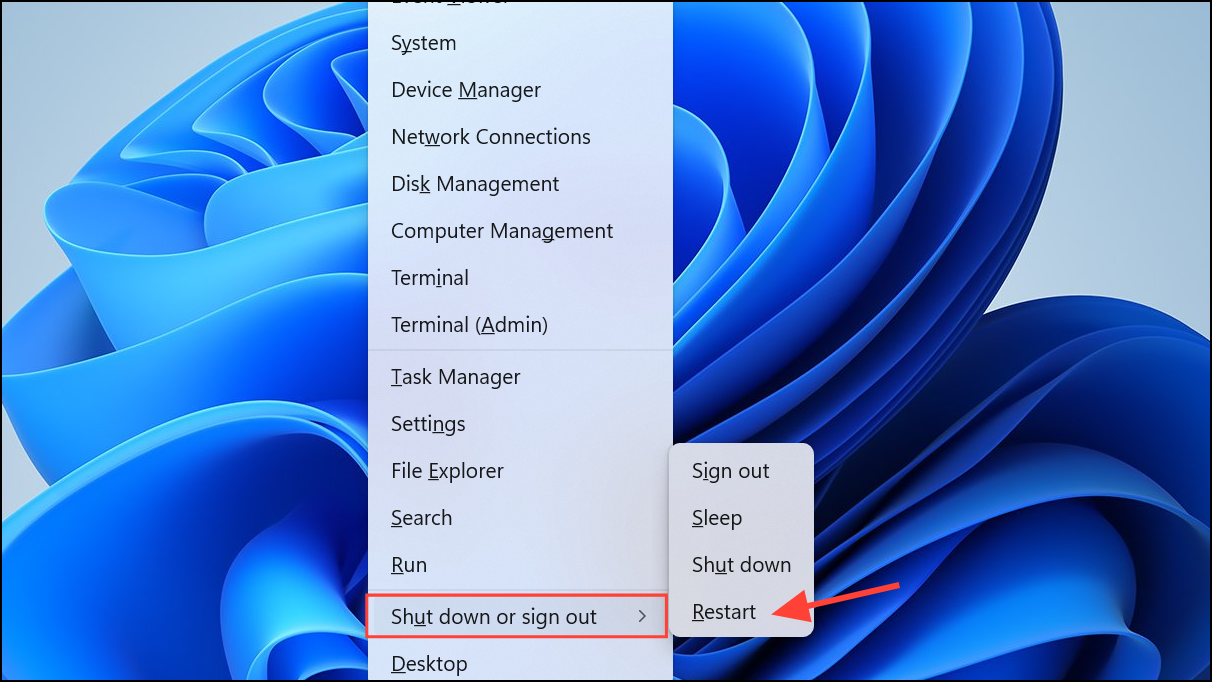
Method 3: Restart Using Ctrl + Alt + Delete
Using the Tab key or arrow keys, navigate to the power icon located at the bottom-right corner of the screen and press
Enter.Select “Restart” using the arrow keys, then press
Enter again. Windows will initiate the restart immediately.Method 4: Restart Using Run Command
shutdown /r /t 0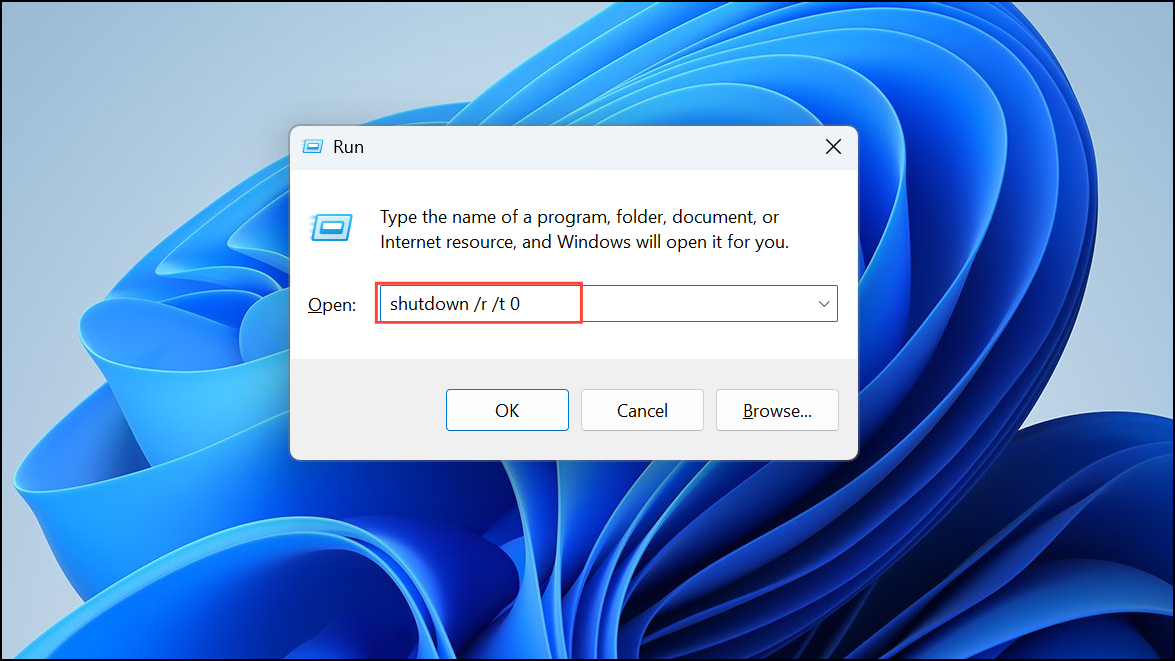
Method 5: Create a Custom Keyboard Shortcut for Restarting
If you frequently need to restart your laptop, creating a custom keyboard shortcut can streamline the process significantly.
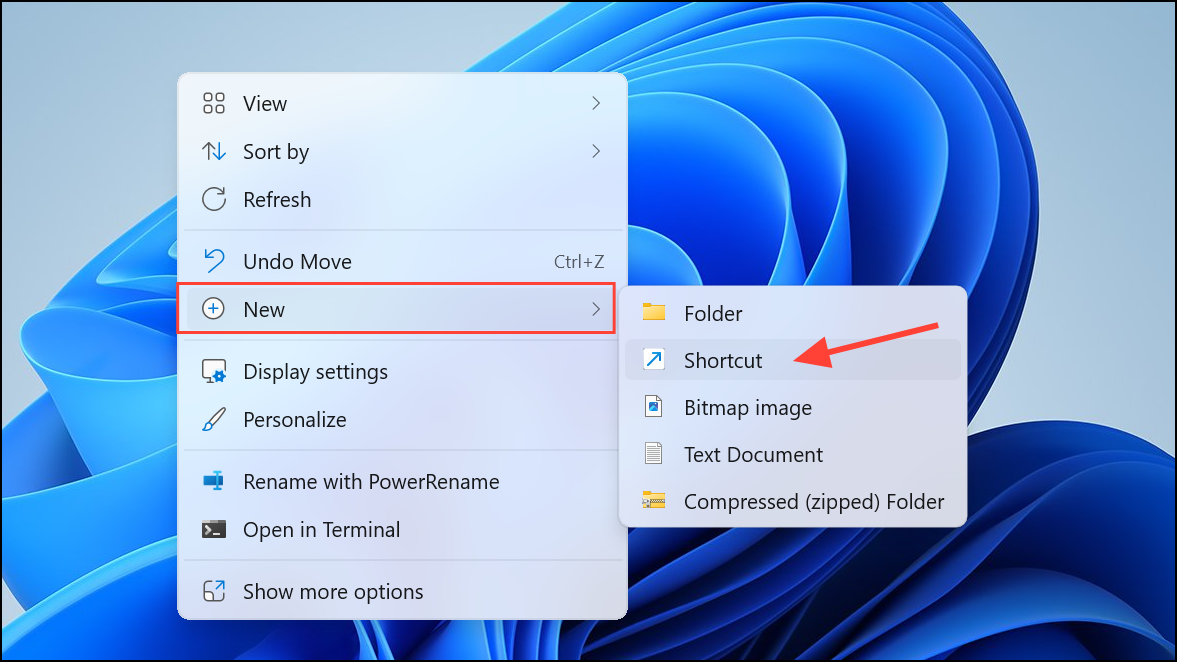
shutdown.exe /r /t 0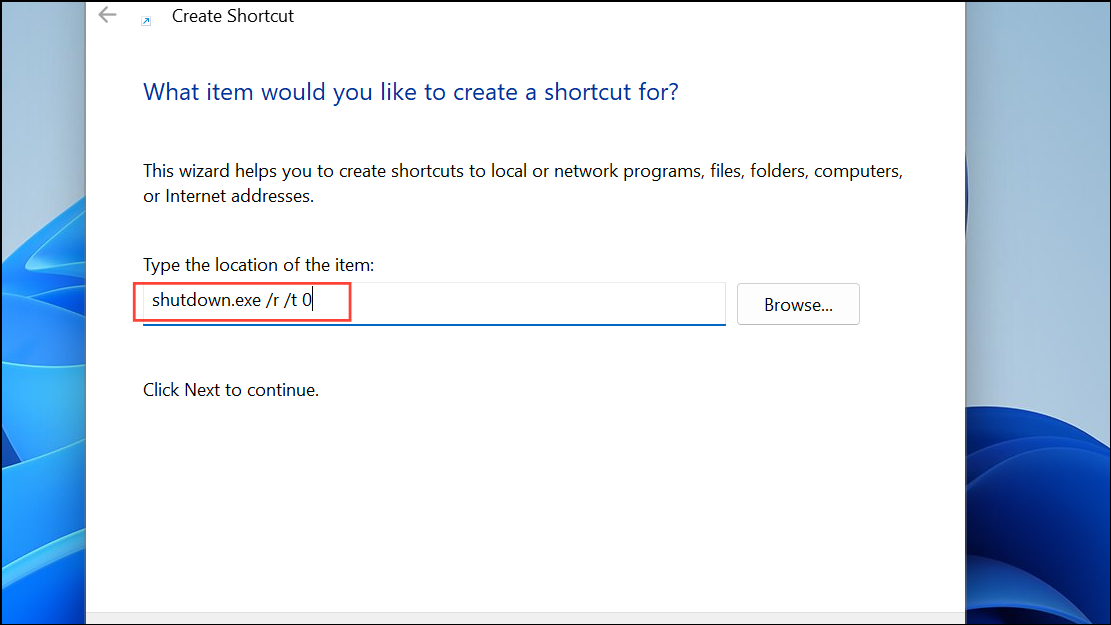
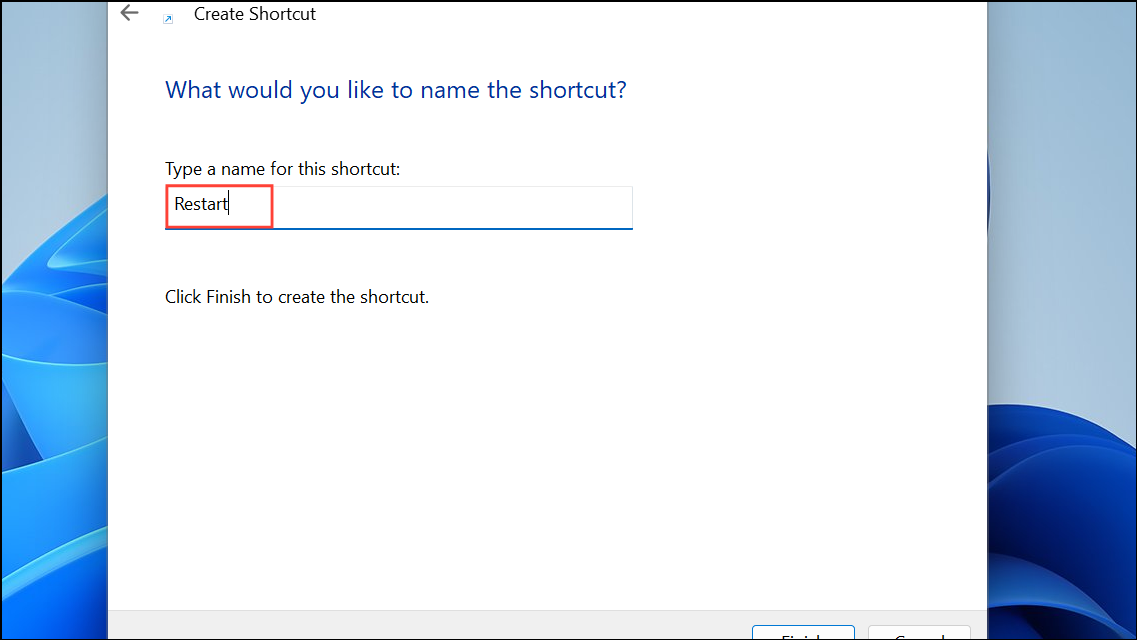
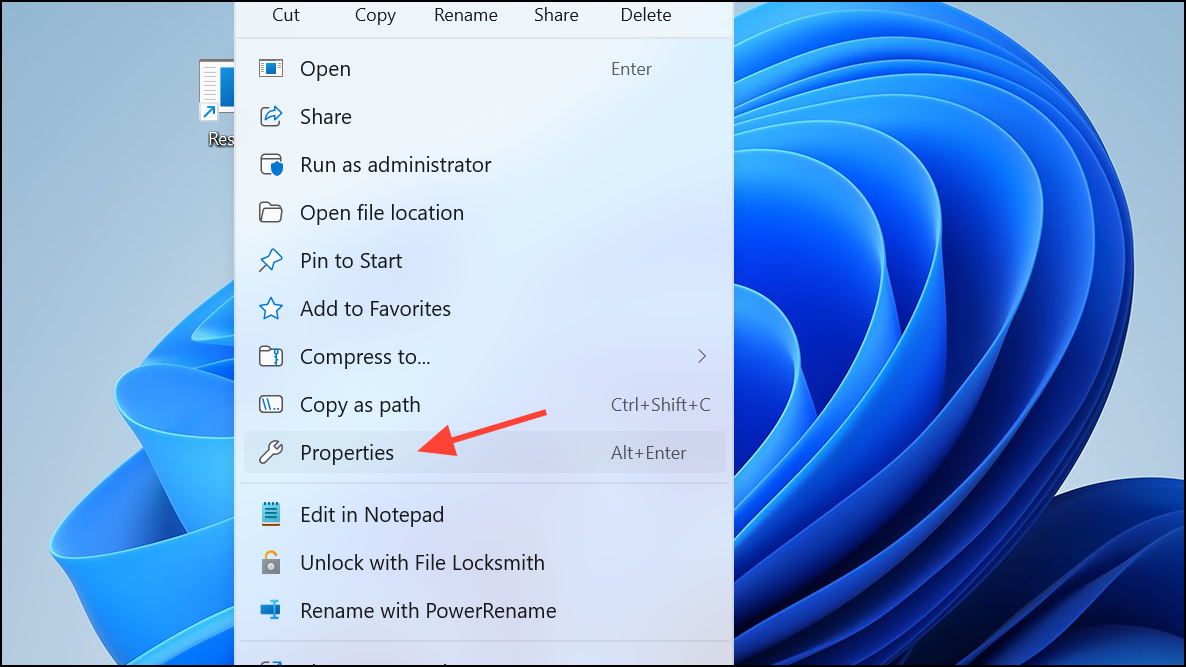
Under the “Shortcut” tab, click the “Shortcut key” field, and press the key you want to use for restarting. Windows automatically prefixes your chosen key with
Ctrl + Alt. For example, pressing the R key will create the shortcut Ctrl + Alt + R.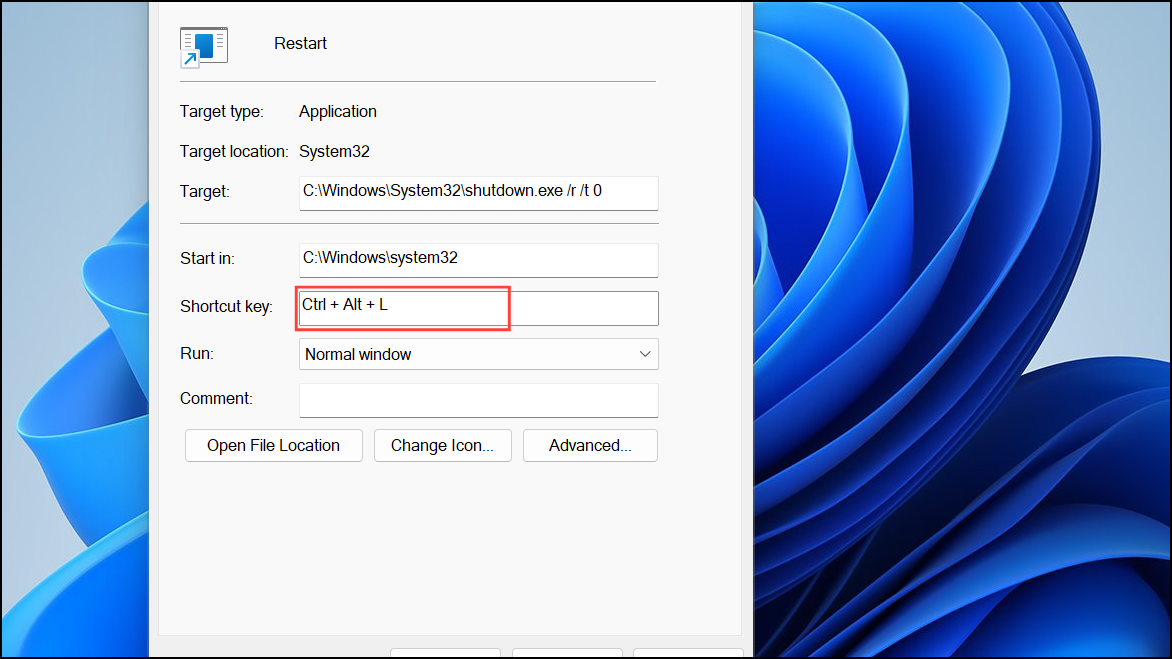
Click “Apply” and then “OK” to save the changes. Now, you can restart your laptop anytime by pressing your custom keyboard shortcut.
Restarting your laptop with these keyboard shortcuts can significantly speed up your workflow, especially if your mouse isn’t cooperating. Choose the method that fits your situation best and make restarting your Windows 11 laptop simpler and faster.



