
Mouse Without Borders is a convenient solution from Microsoft Garage that allows you to seamlessly control up to four Windows computers using just one mouse and keyboard. With this tool, you can effortlessly move your cursor between multiple devices, share clipboard contents, and transfer files by simply dragging and dropping. Here’s how you can set up and use Mouse Without Borders on Windows 11.
Method 1: Using Mouse Without Borders via Microsoft PowerToys
Microsoft PowerToys includes Mouse Without Borders, making it easy to configure and manage your connected devices.
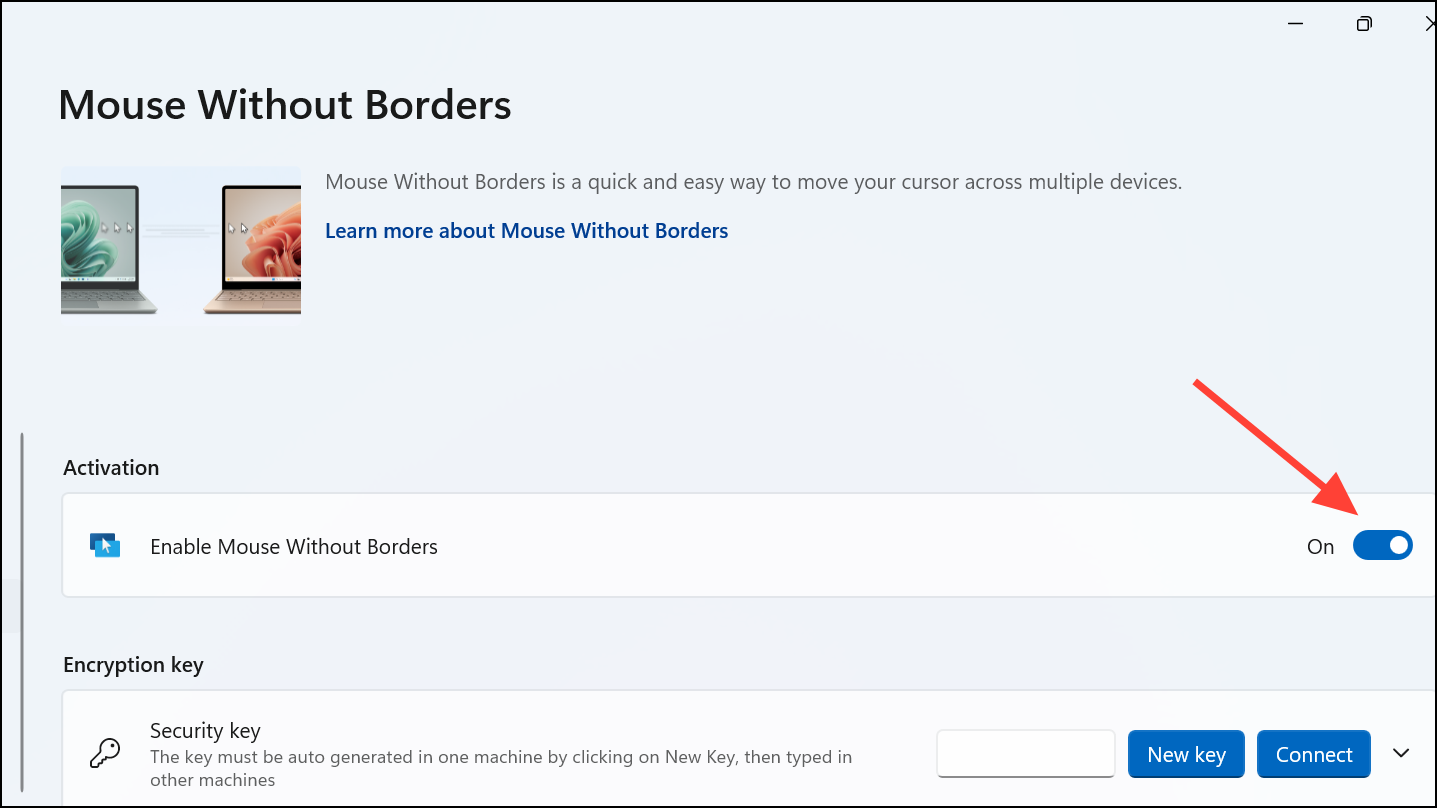
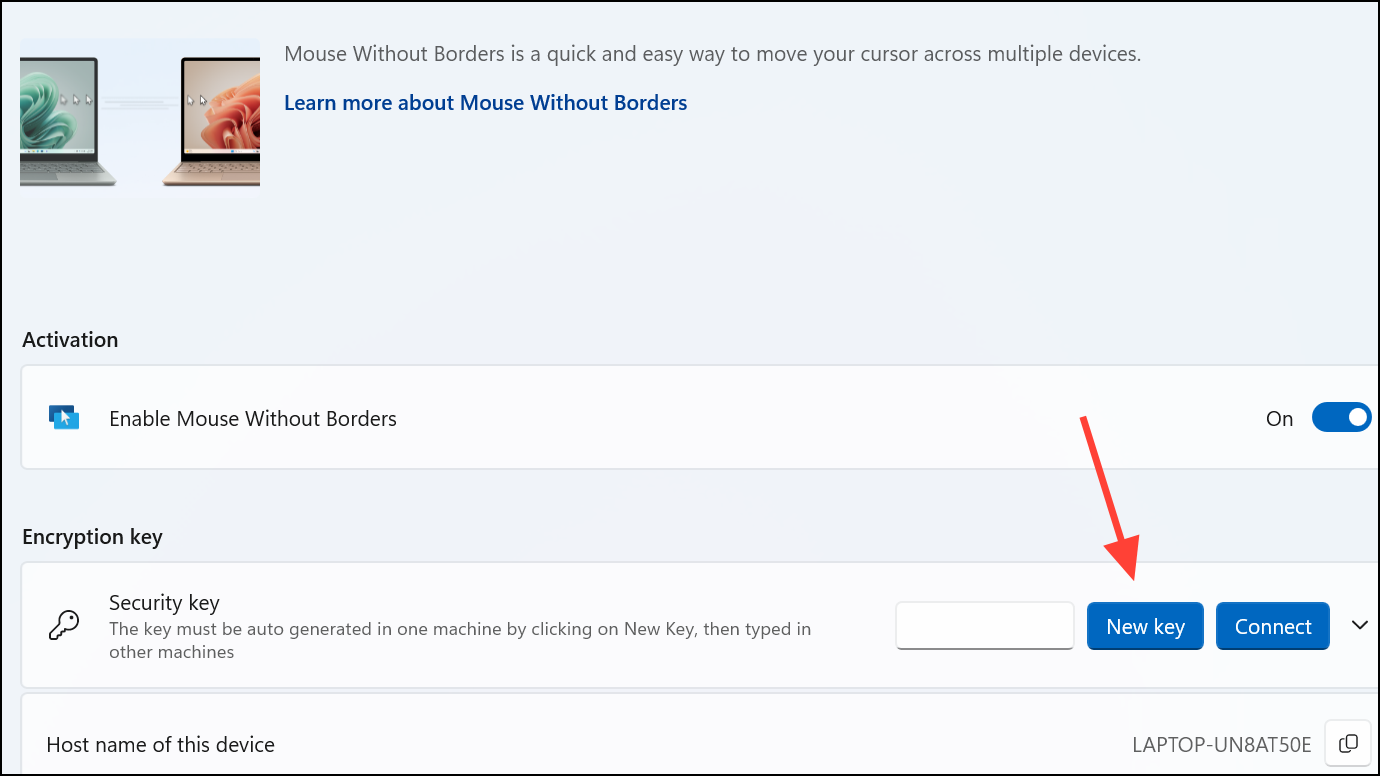
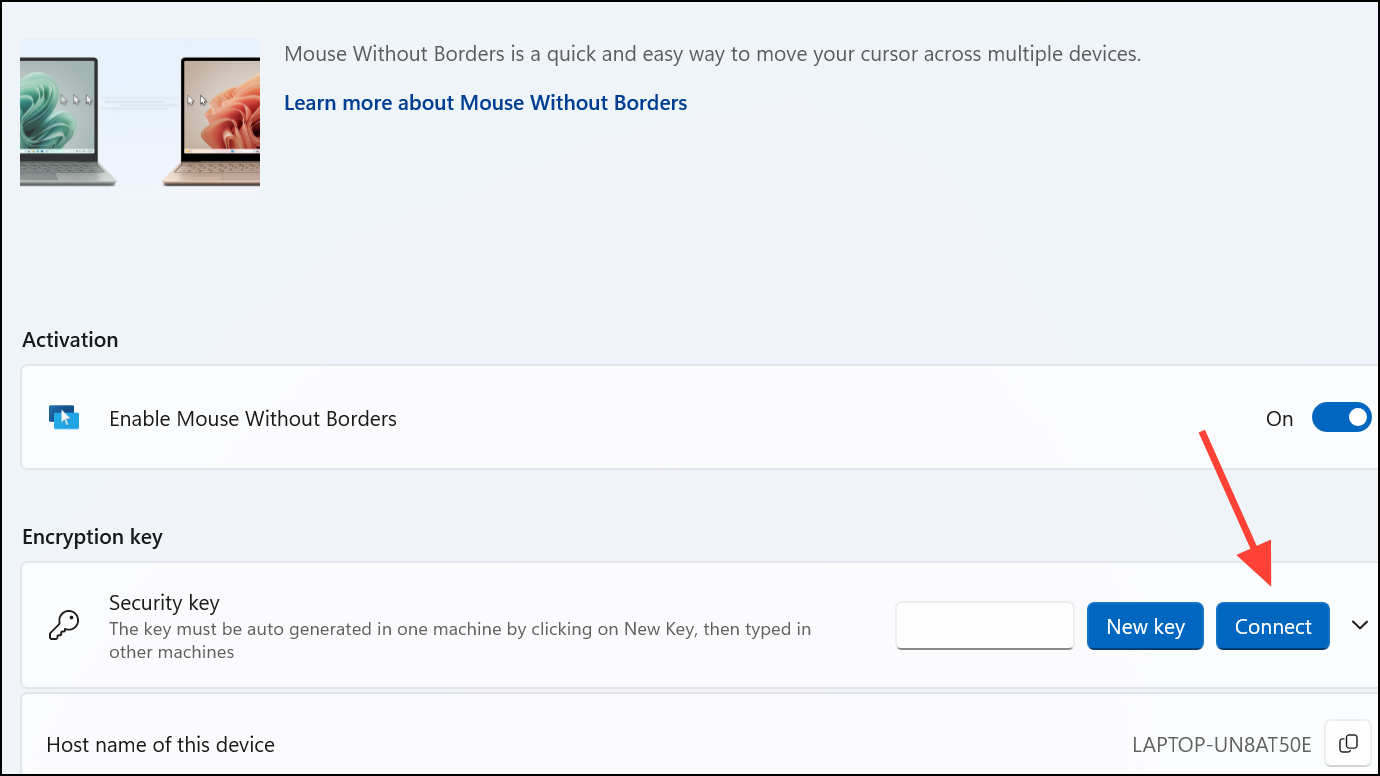
With this configuration complete, you can now move your mouse cursor seamlessly between your Windows 11 devices by moving it beyond the screen edges. Additionally, you can copy and paste text, transfer files by dragging and dropping, and even share clipboard contents across devices effortlessly.
Method 2: Installing Mouse Without Borders as a Standalone Application
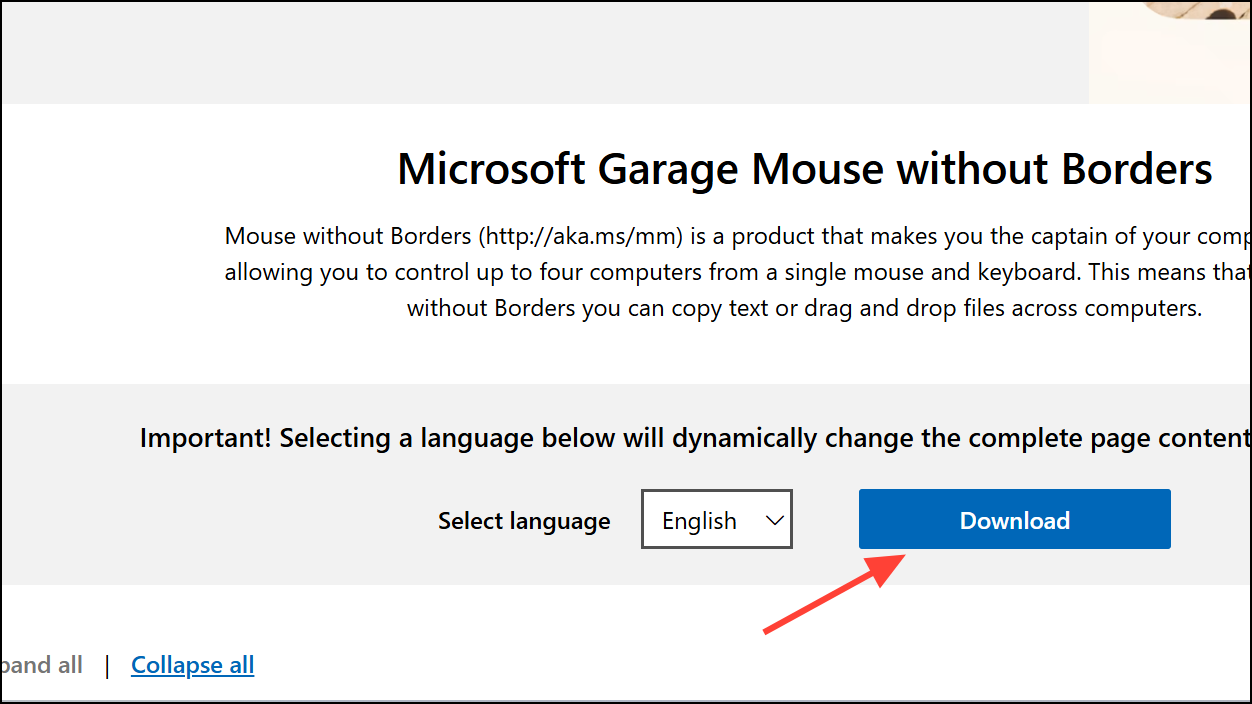
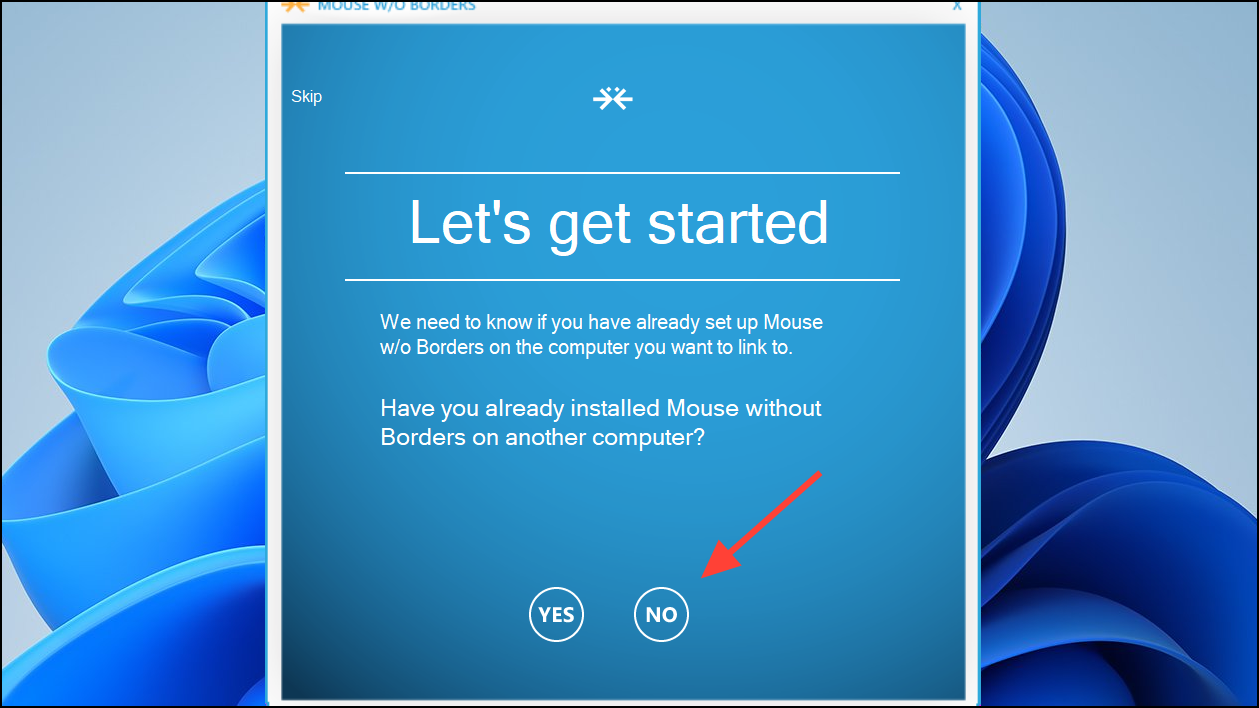
If you prefer not to use PowerToys, you can install Mouse Without Borders directly from Microsoft’s official download page.
Troubleshooting Common Issues
If you encounter issues connecting your devices, first verify that both computers are on the same network. Also, confirm that Windows Firewall settings allow Mouse Without Borders to communicate. You can manually add firewall exceptions by going to Windows Security > Firewall & network protection and allowing the application through the firewall.
If the connection breaks or the mouse cursor movement is inconsistent, click the “Refresh connections” option in Mouse Without Borders settings or restart the application on both devices.
Mouse Without Borders simplifies multitasking across multiple Windows 11 devices, helping you declutter your workspace and streamline your workflow. Give it a try, and you’ll wonder how you managed without it!



