How to Customize VPN and Advanced Sharing Settings in Windows 11
Configure and manage your VPN connections and sharing preferences effectively on Windows 11
Configure and manage your VPN connections and sharing preferences effectively on Windows 11
by Pallav Pathak
Windows 11 offers built-in tools to configure VPN connections and manage advanced sharing settings. VPN connections encrypt your internet traffic, providing secure remote access and maintaining privacy online. Meanwhile, advanced sharing settings allow you to control how your device interacts with networks and other devices, protecting your data while enabling convenient file sharing. Follow these detailed instructions to set up and customize these settings efficiently.
Method 1: Configure a VPN Connection Using Windows 11 Settings
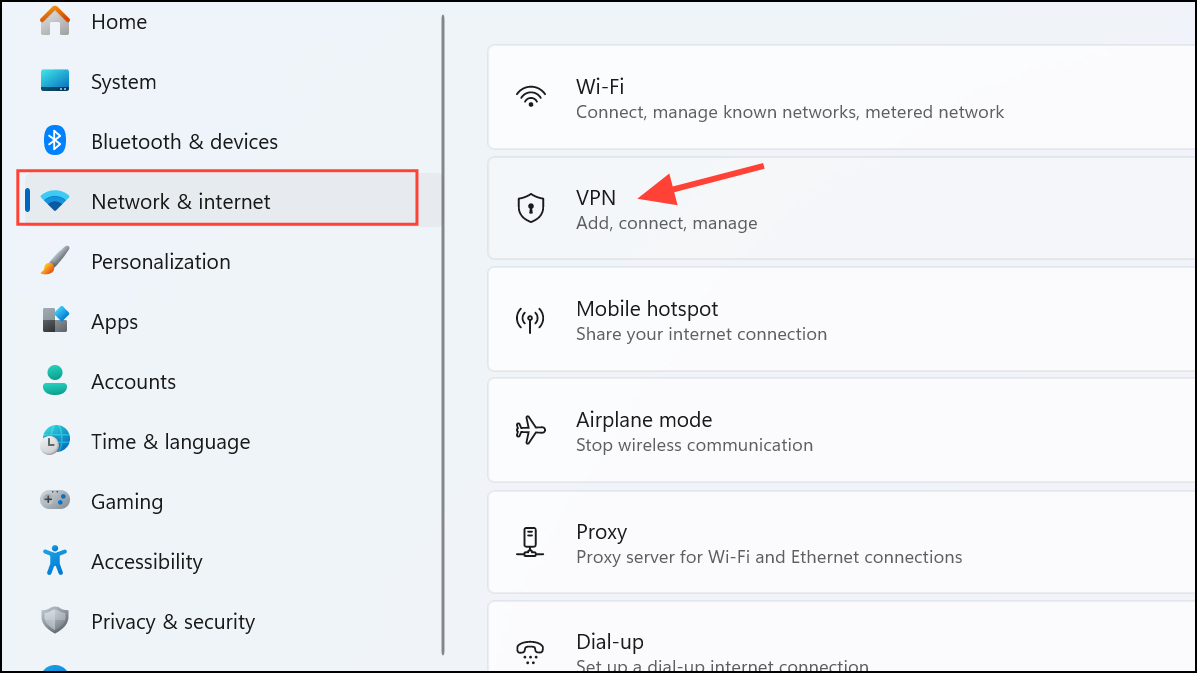
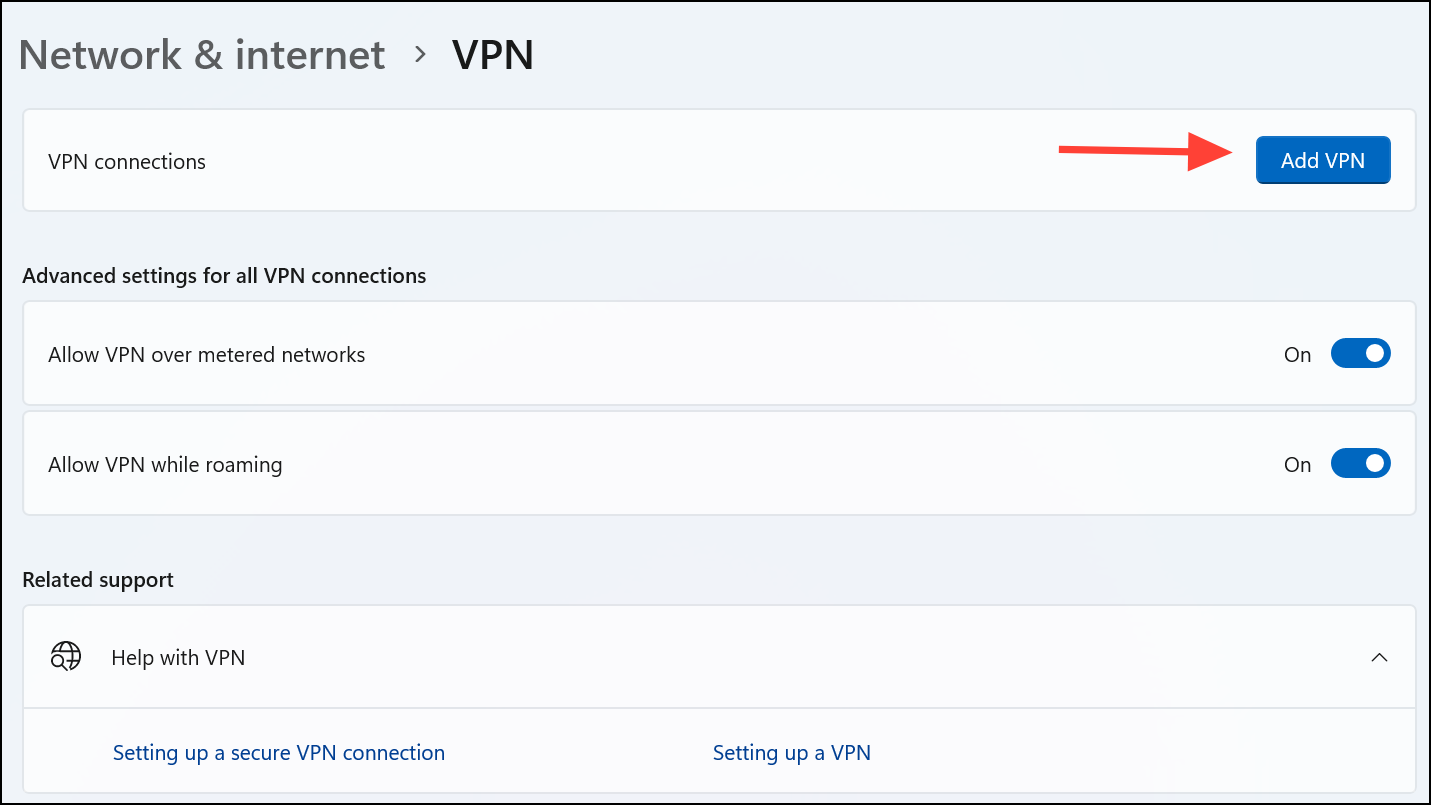
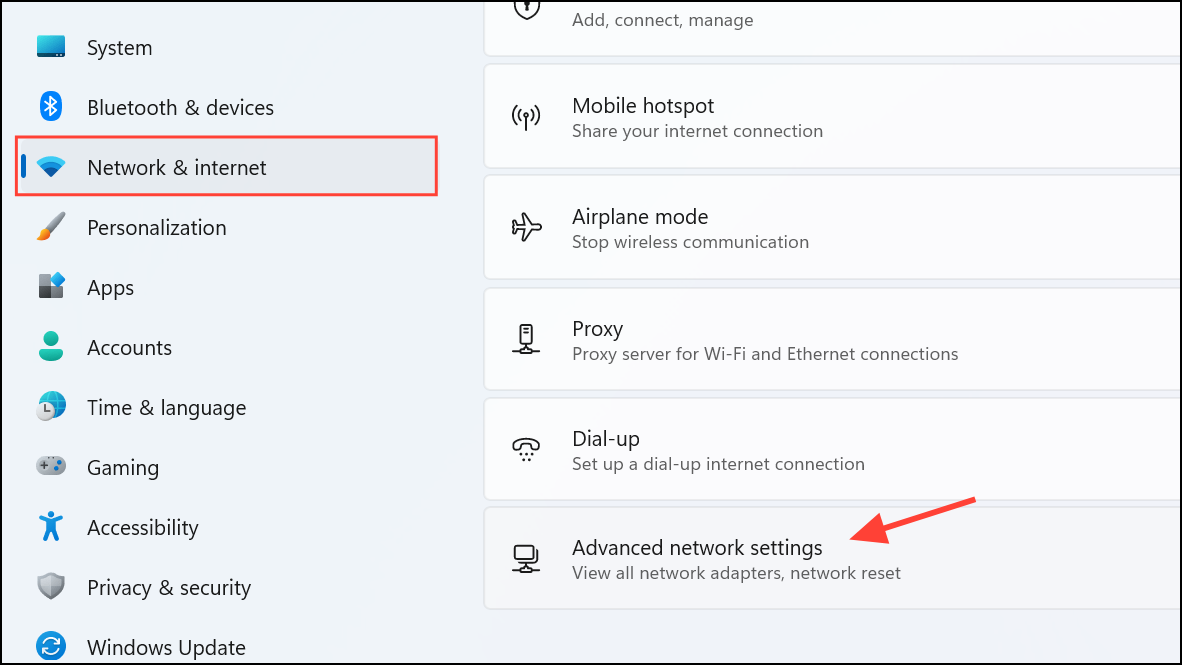
Open the Settings app by pressing Win + I or by clicking the Settings icon in the Start menu. Select “Network & internet” from the left sidebar, then click on “VPN” in the right pane.
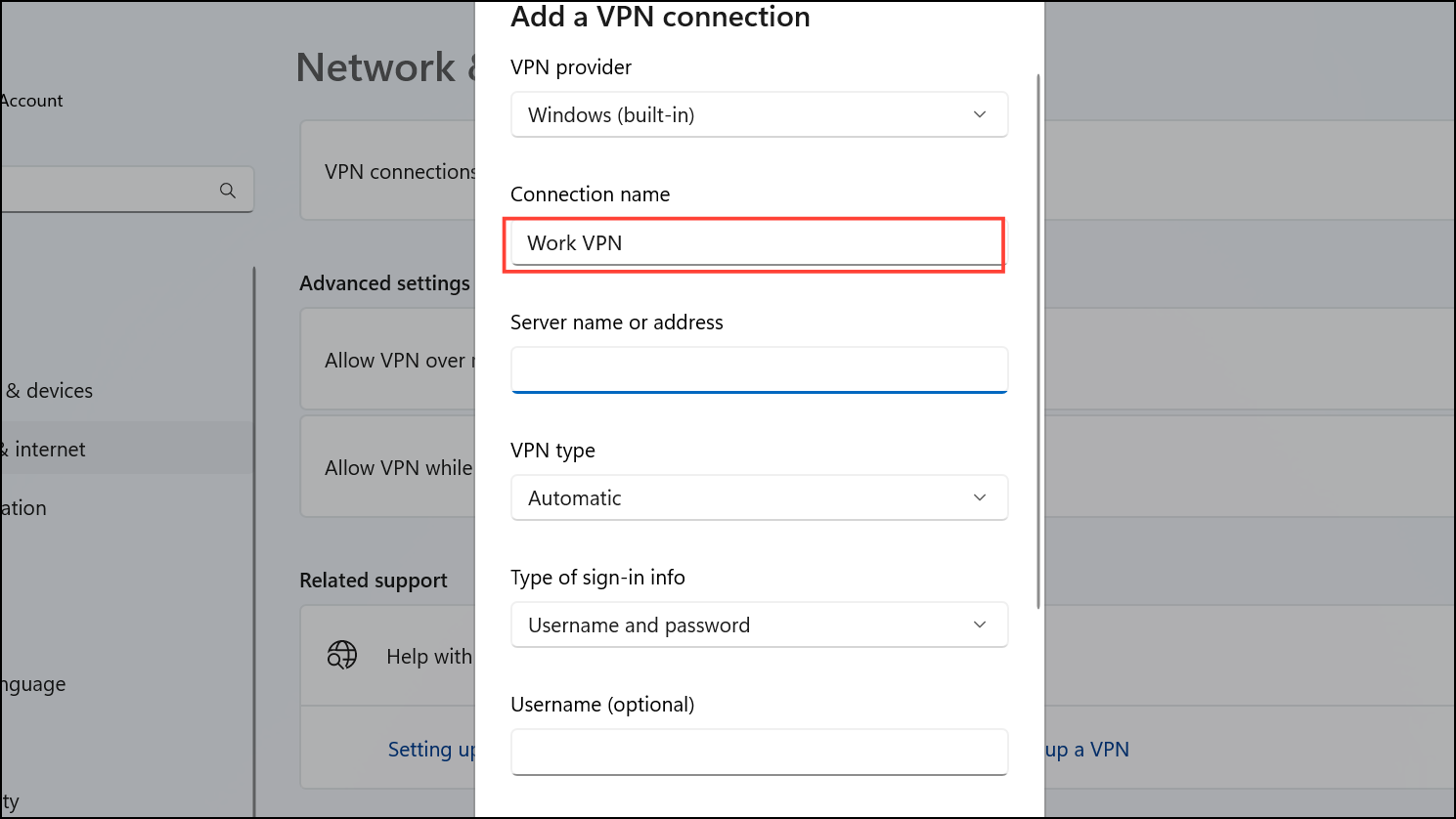
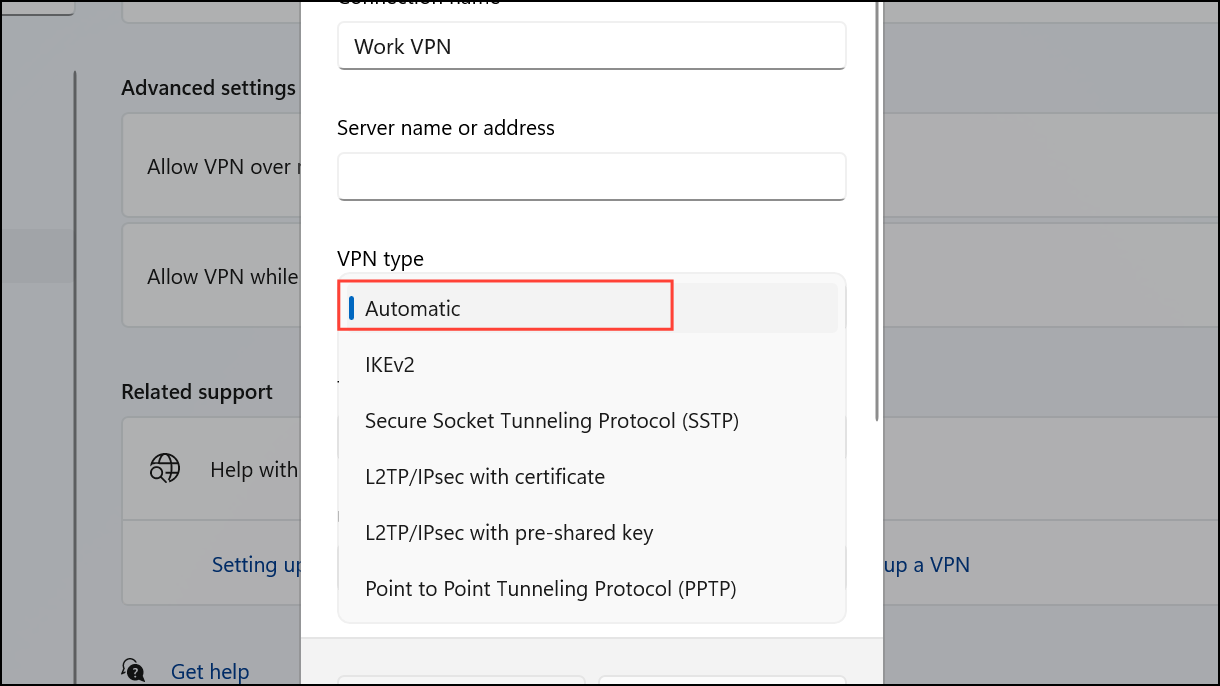
Provide a recognizable name in the “Connection name” field, such as “Work VPN” or “Home VPN”. Enter the VPN server address provided by your VPN service or network administrator into the “Server name or address” field.
Under “VPN type”, select “Automatic” unless your VPN provider specifies a particular protocol like IKEv2, SSTP, or L2TP/IPsec. Next, choose “Username and password” from the “Type of sign-in info” dropdown and enter your VPN credentials provided by your administrator or VPN service.
Click “Save” to store your VPN profile. To connect, return to the VPN settings page, select your newly created VPN connection, and click “Connect”. Windows will initiate the secure VPN connection, displaying a connected status once established.
Method 2: Configure a VPN Connection Using the Control Panel
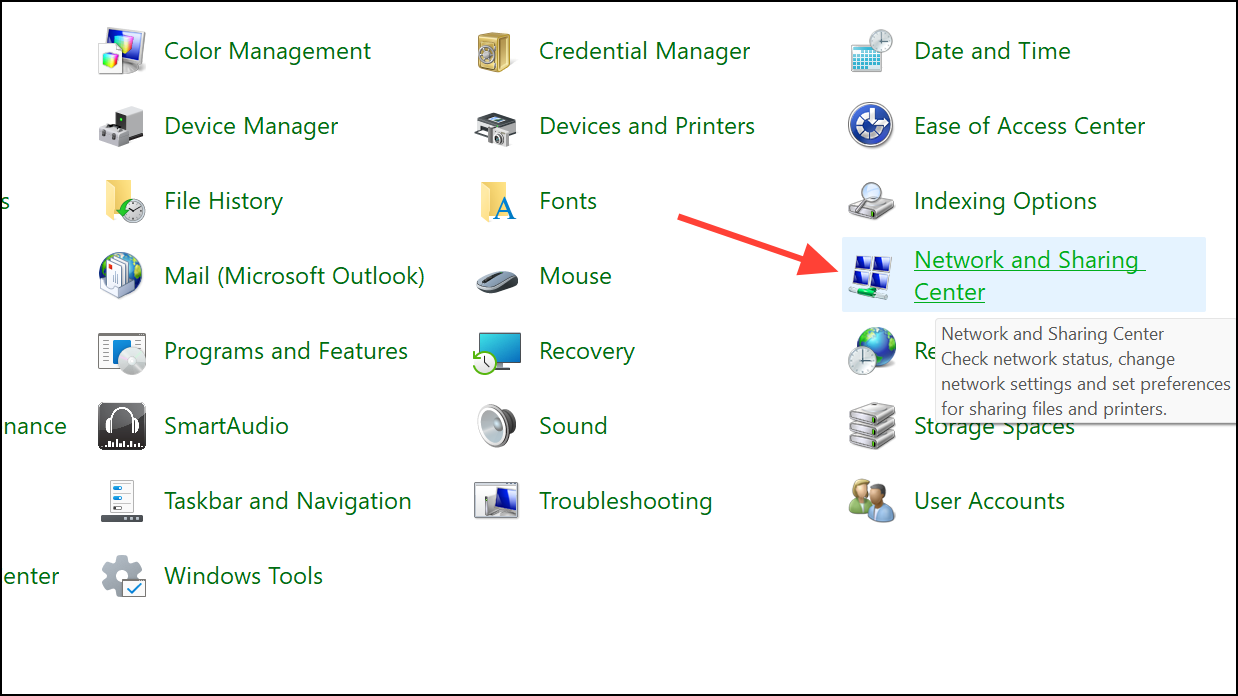
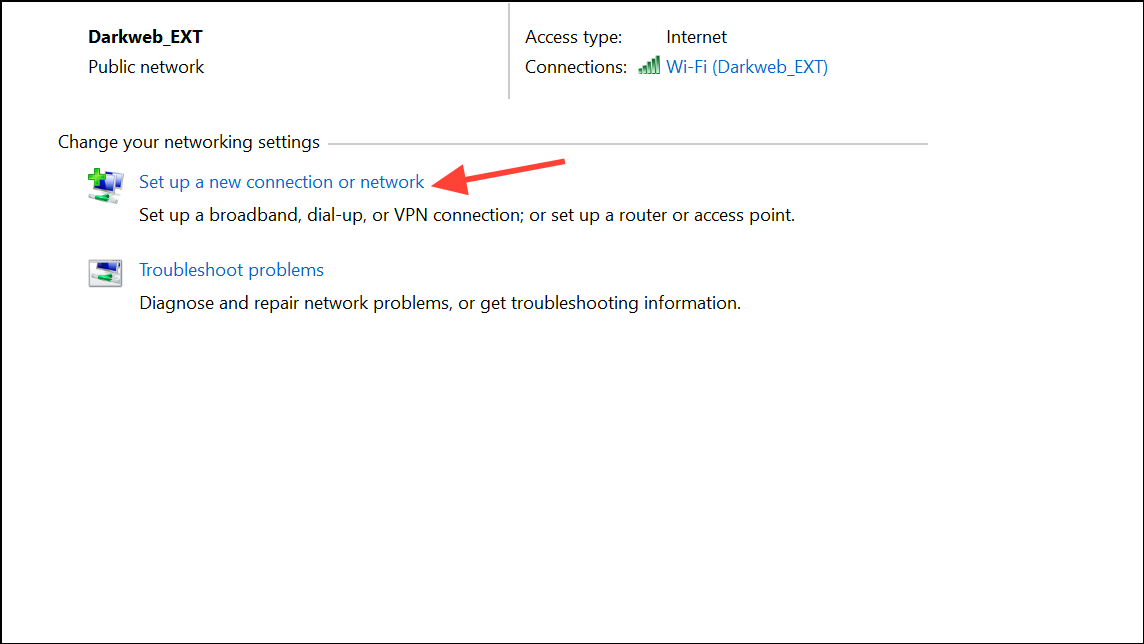
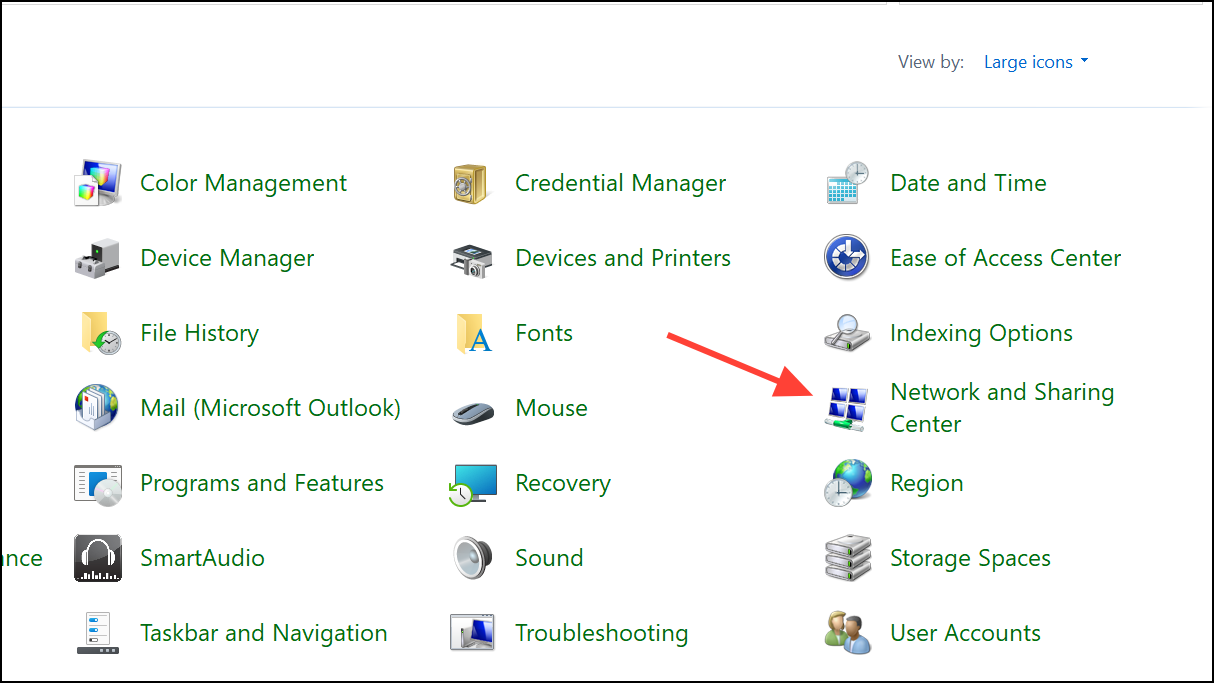
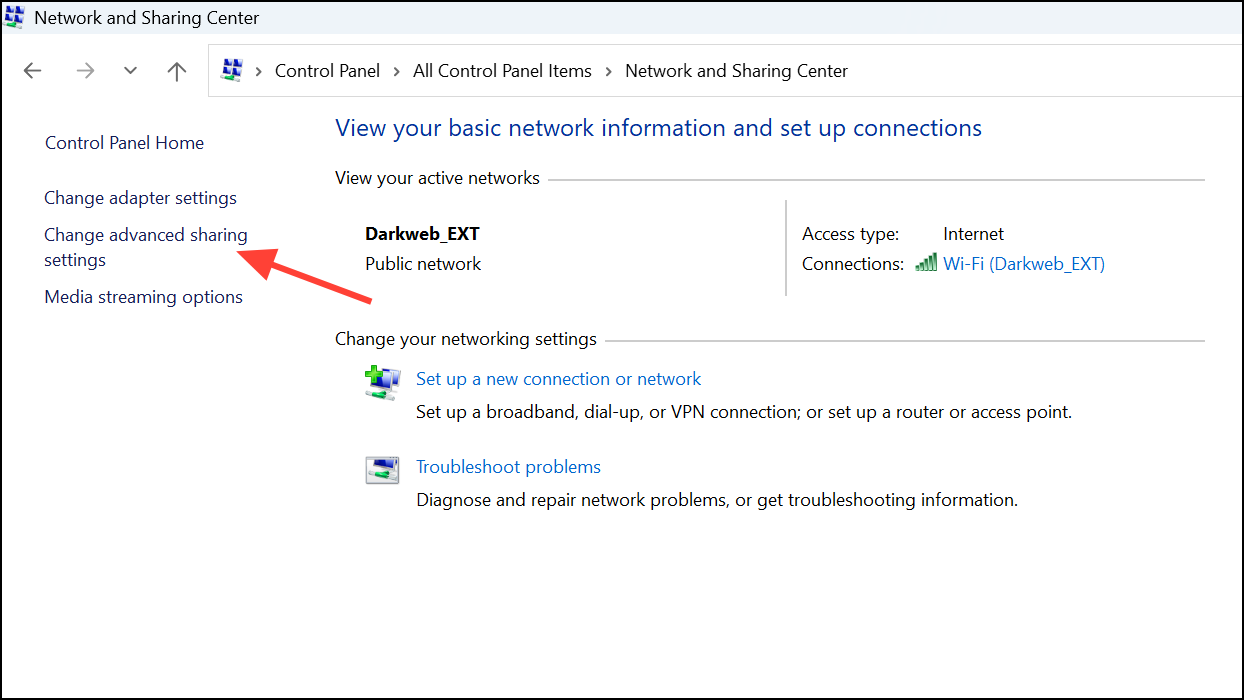
Press Win + R, type control, and press Enter to open the Control Panel. Navigate to “Network and Sharing Center” and click on “Network and Sharing Center”.
To connect, click the network icon in the taskbar, select your VPN connection, and click “Connect”. Enter your VPN username and password when prompted.
Managing Advanced Sharing Settings in Windows 11
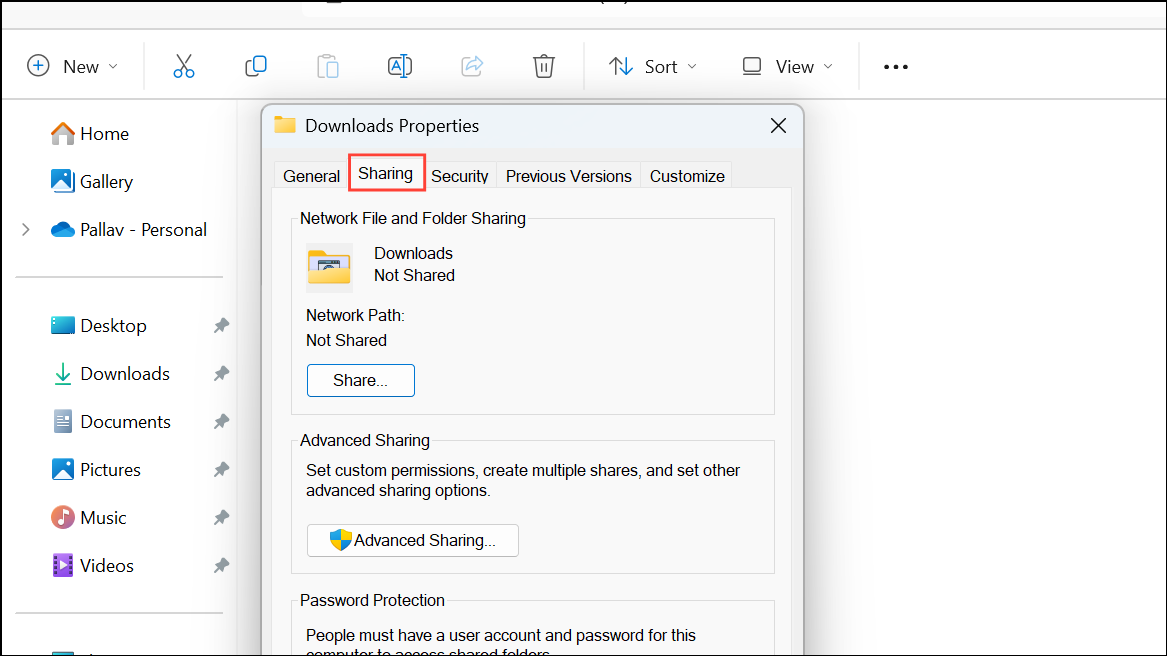
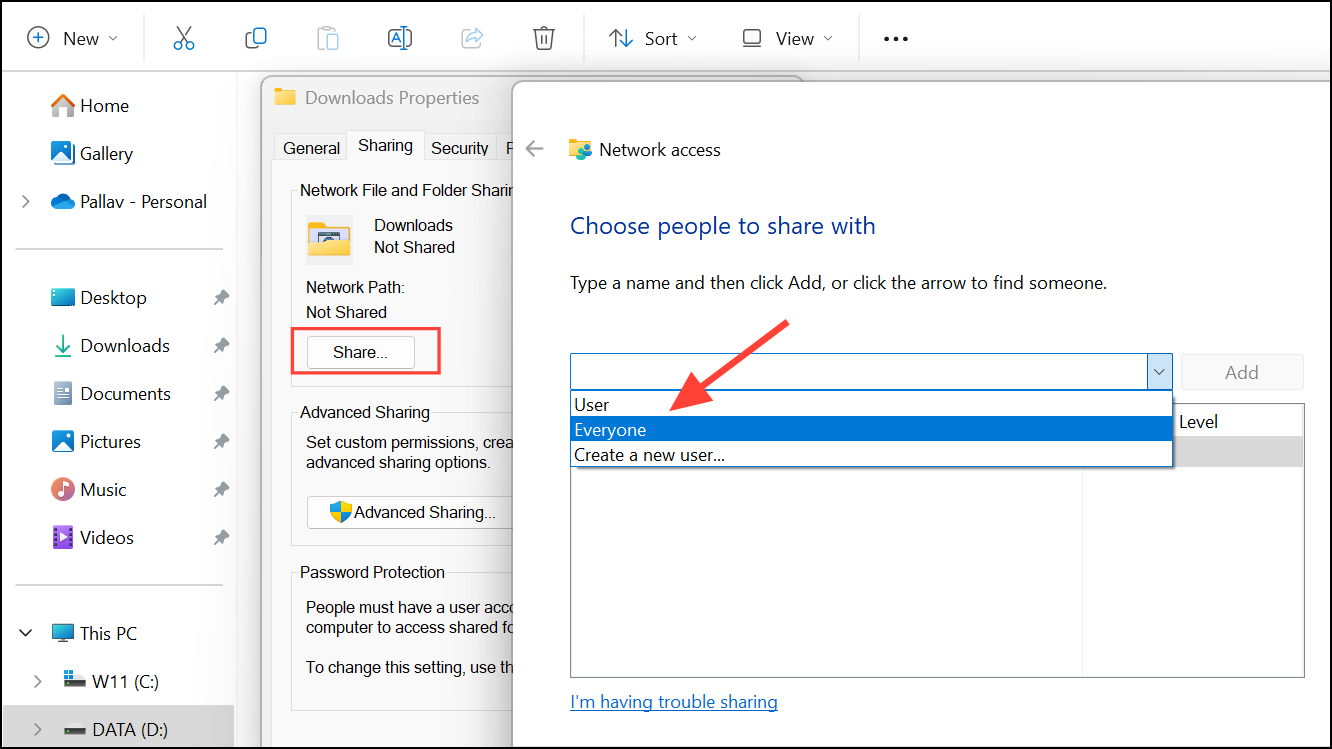
Advanced sharing settings allow you to control how your device shares data and interacts with other devices on your network. Configuring these settings properly helps secure your data and maintain privacy.
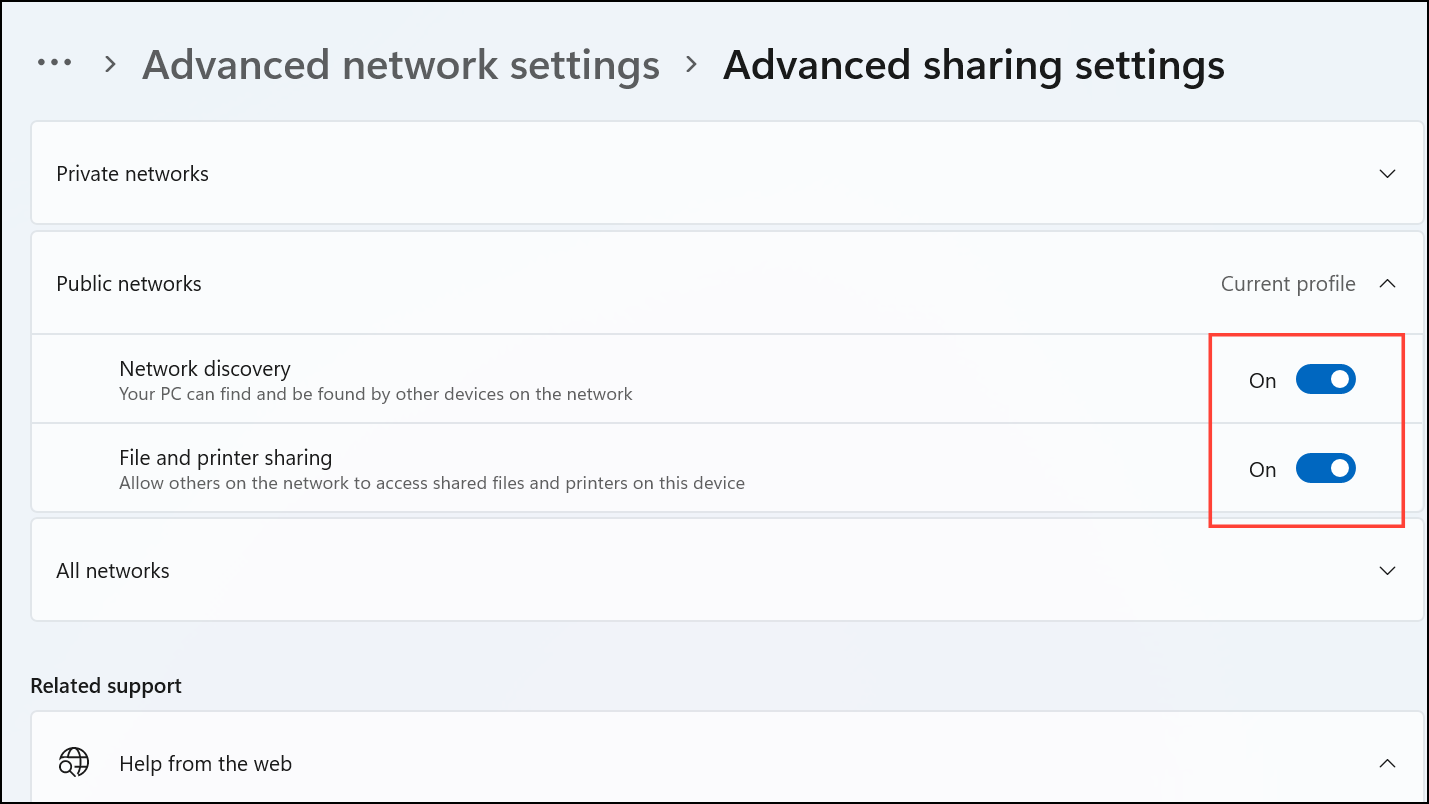
Windows 11 distinguishes between “Private networks” (trusted networks like home or office) and “Public networks” (untrusted networks like cafes or airports). For private networks, enable “Network discovery” and “File and printer sharing” if you wish to share resources with trusted devices. For public networks, keep these options disabled to maintain security.
Click “Change advanced sharing settings”. Here, you can further customize sharing preferences and security options.
Troubleshooting Common VPN Issues
If you encounter issues connecting to your VPN, consider these troubleshooting steps:
Ensure your internet connection is stable.
Double-check your VPN credentials.
Try connecting to a different VPN server (if available).
Restart your PC and router to resolve temporary network issues.
Update your VPN client software or check for Windows updates.
Temporarily disable antivirus or firewall software to determine if they’re interfering with the VPN connection.
Configuring VPN and advanced sharing settings in Windows 11 helps secure your online activities and manage your network interactions effectively. Regularly review your settings to ensure they align with your current security needs and usage patterns.