Follow these proven methods to resolve the Microsoft Store error 0x803F8001 on your Windows 11 PC.
Follow these proven methods to resolve the Microsoft Store error 0x803F8001 on your Windows 11 PC.
by Pallav Pathak
The Microsoft Store error code 0x803F8001 typically appears when attempting to download, update, or launch apps on a Windows 11 device. Often accompanied by a message stating that the app is currently not available in your account, this issue usually stems from account synchronization problems, corrupted temporary files, or damaged system files. Fortunately, there are several straightforward solutions to resolve this error and get your apps running again.
Method 1: Sign Out and Back Into Your Microsoft Account
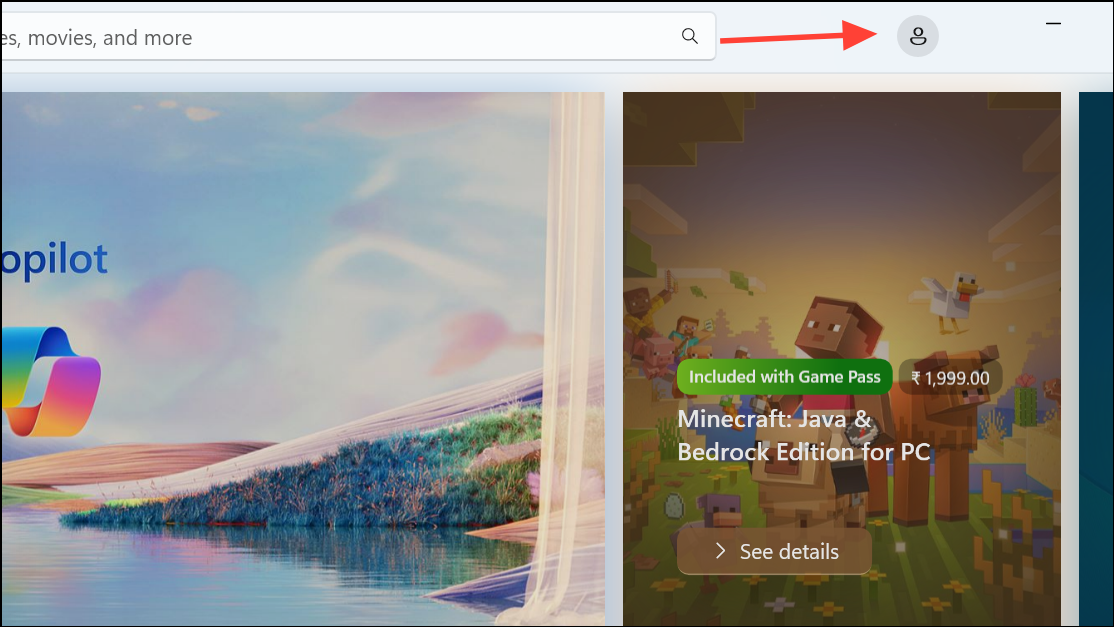
Open the Microsoft Store app on your Windows 11 computer. Click on your profile icon located at the top-right corner of the window. From the dropdown menu, select “Sign out” to disconnect your Microsoft account temporarily.
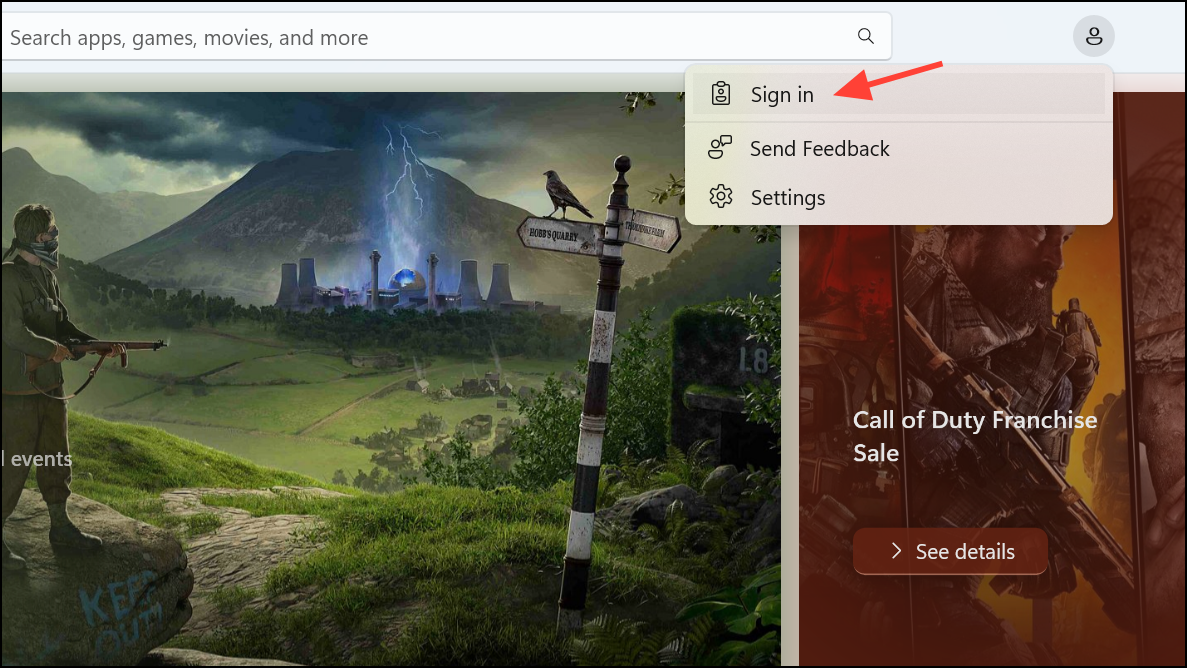
Restart your computer to ensure all temporary settings are cleared. After your computer restarts, open the Microsoft Store again, click the profile icon, and select “Sign in”. Enter your Microsoft account credentials to log back in. This process often resolves synchronization issues causing the 0x803F8001 error.
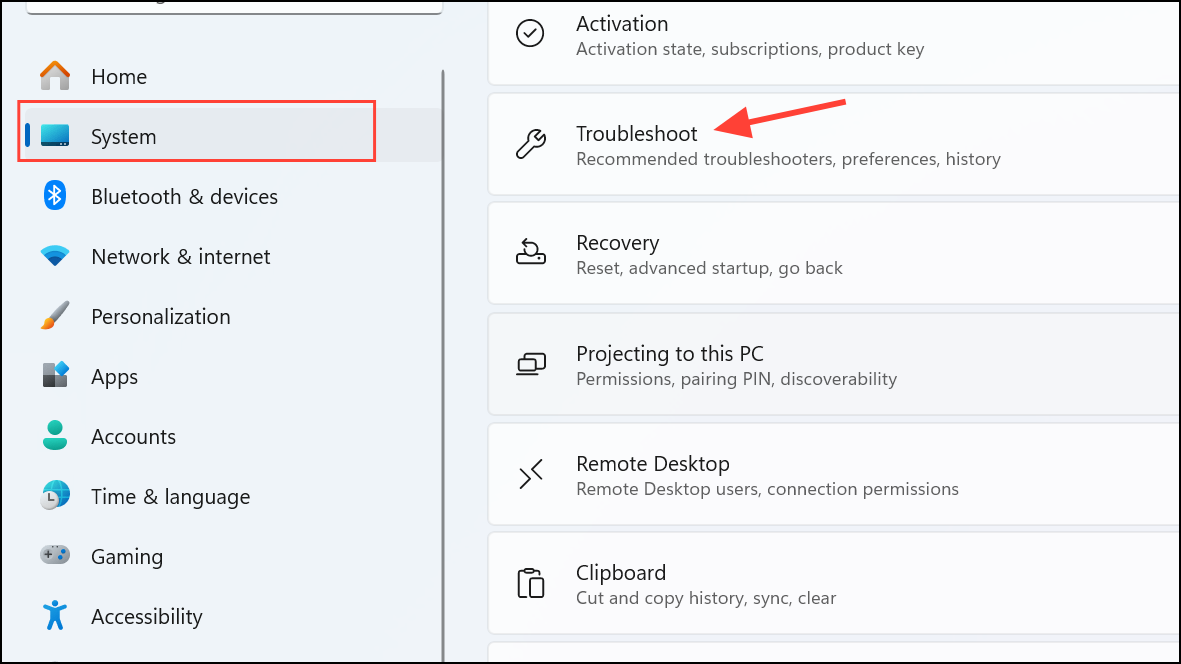
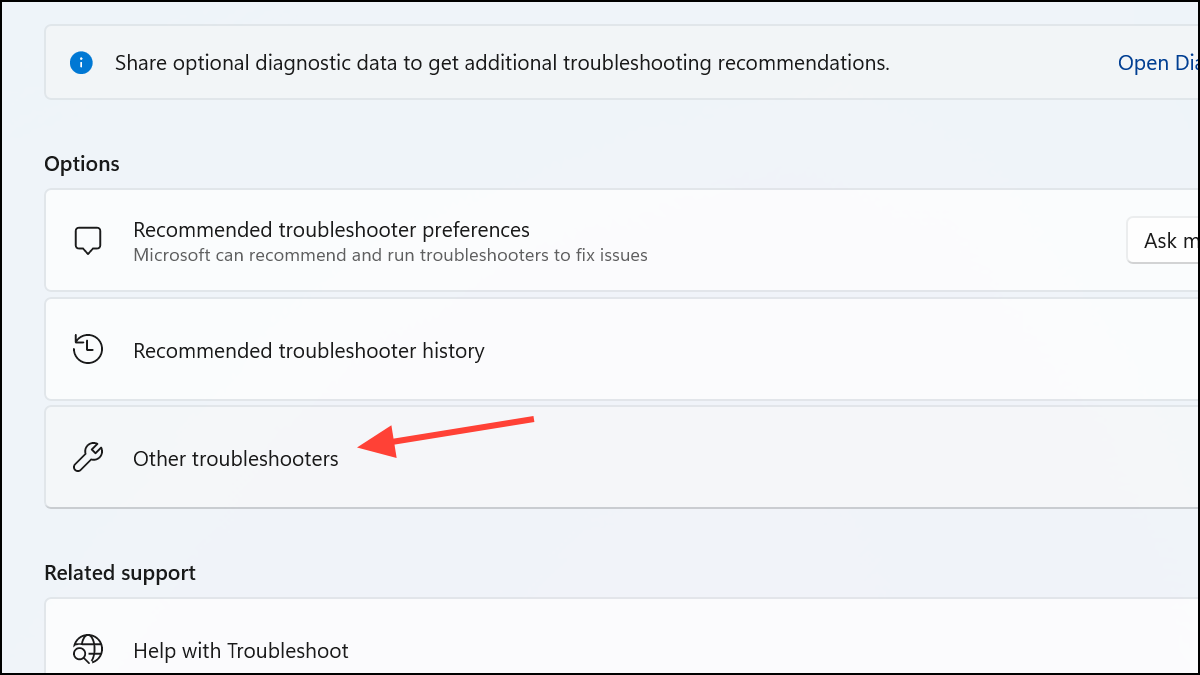
Follow the on-screen prompts provided by the troubleshooter. If it identifies any problems, select “Apply this fix”. Once complete, restart your computer and verify if the error persists.
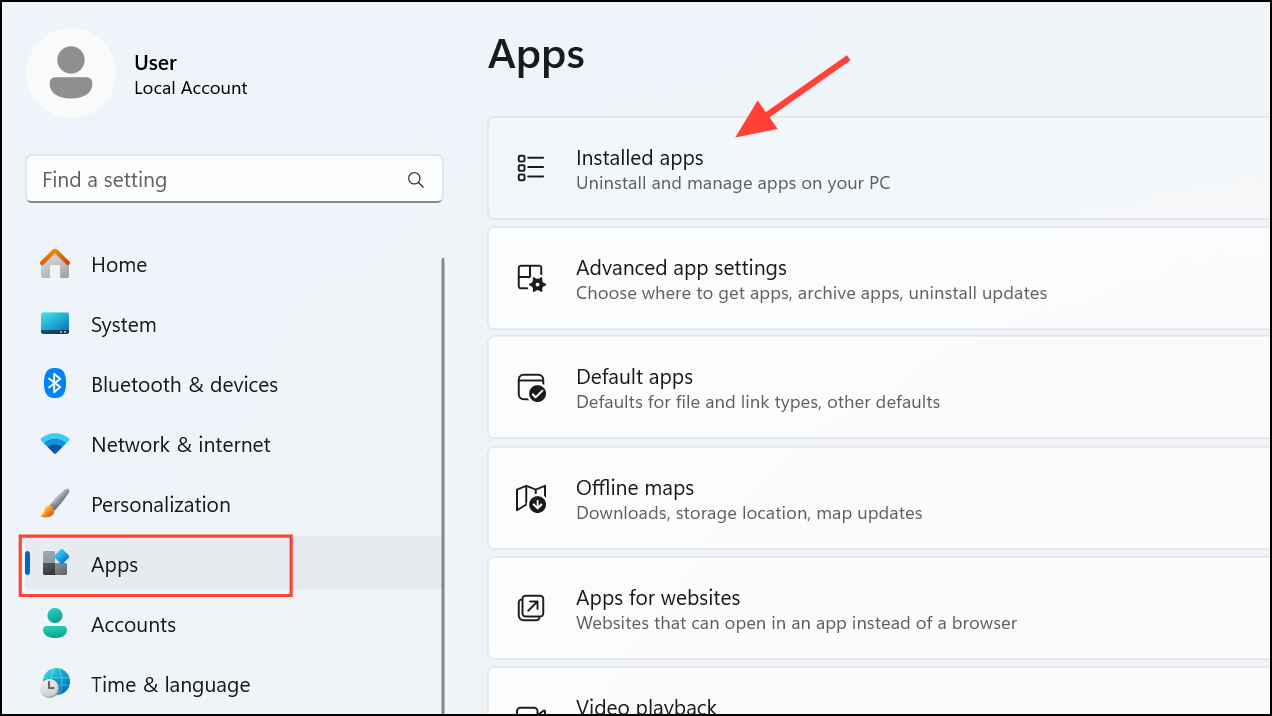
Scroll down to the “Reset” section. First, click on “Repair”. This action scans and fixes any corrupted files or dependencies. If repairing doesn’t resolve the issue, click on “Reset”. This will clear temporary data without affecting your installed apps. After resetting, restart your computer and check if the error is resolved.
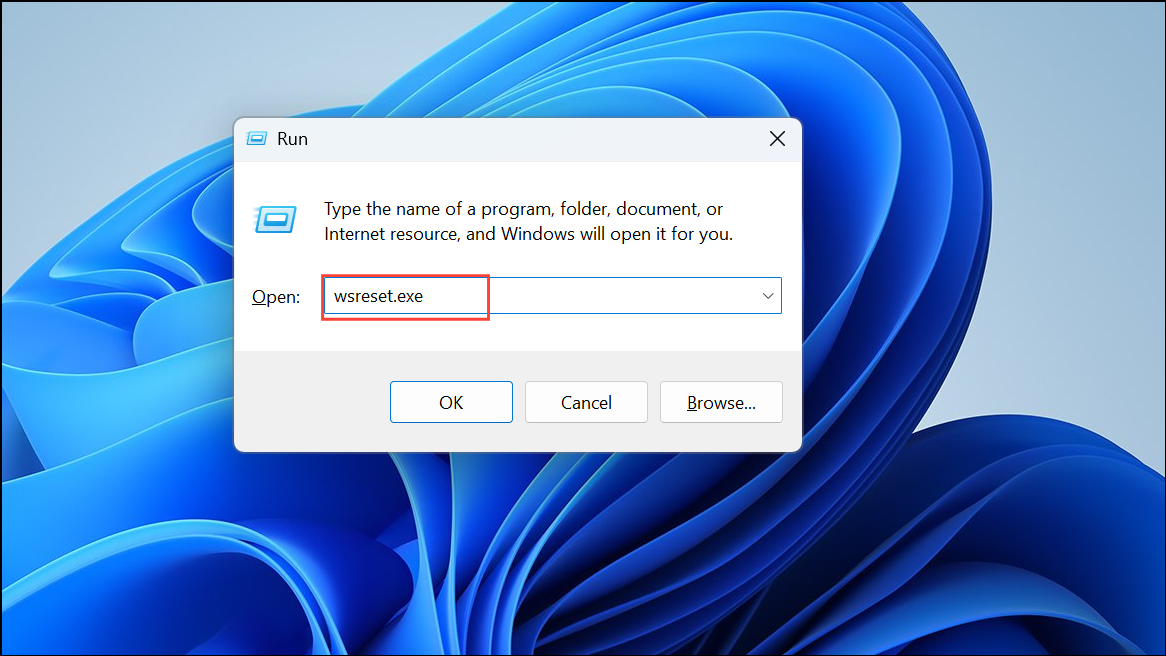
A blank Command Prompt window will appear briefly, indicating the cache is being cleared. After approximately 30 seconds, the window will close automatically, and the Microsoft Store will open. Try downloading or updating the app again to see if the error is resolved.
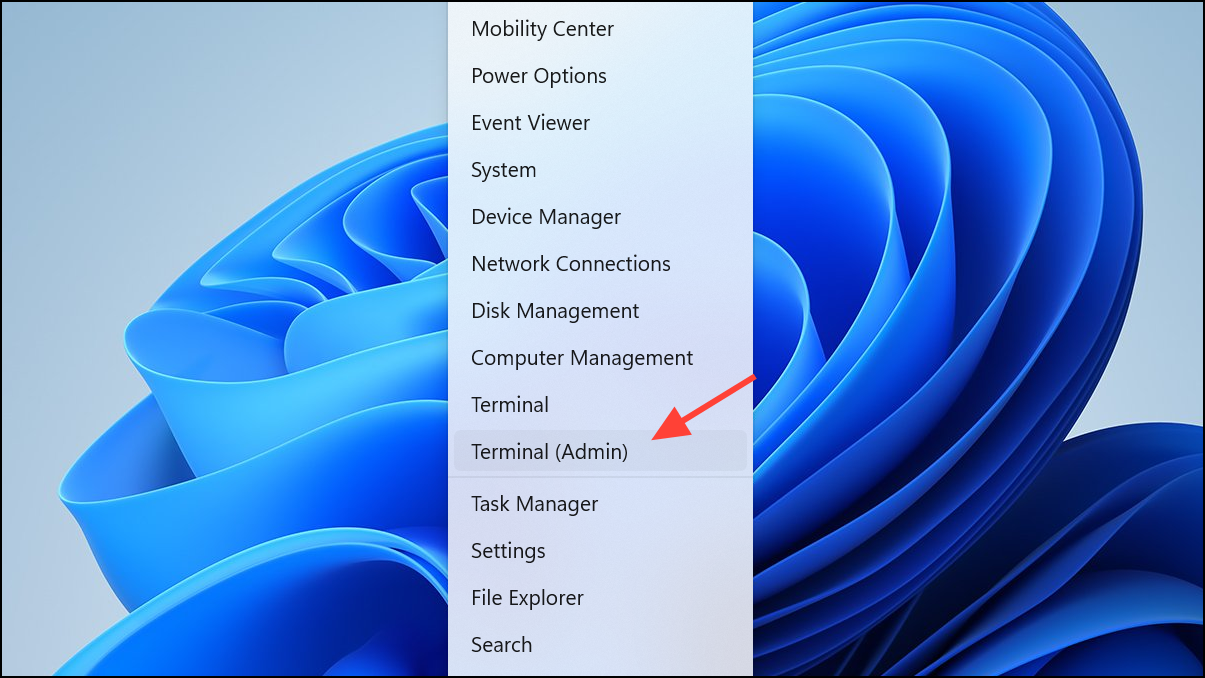
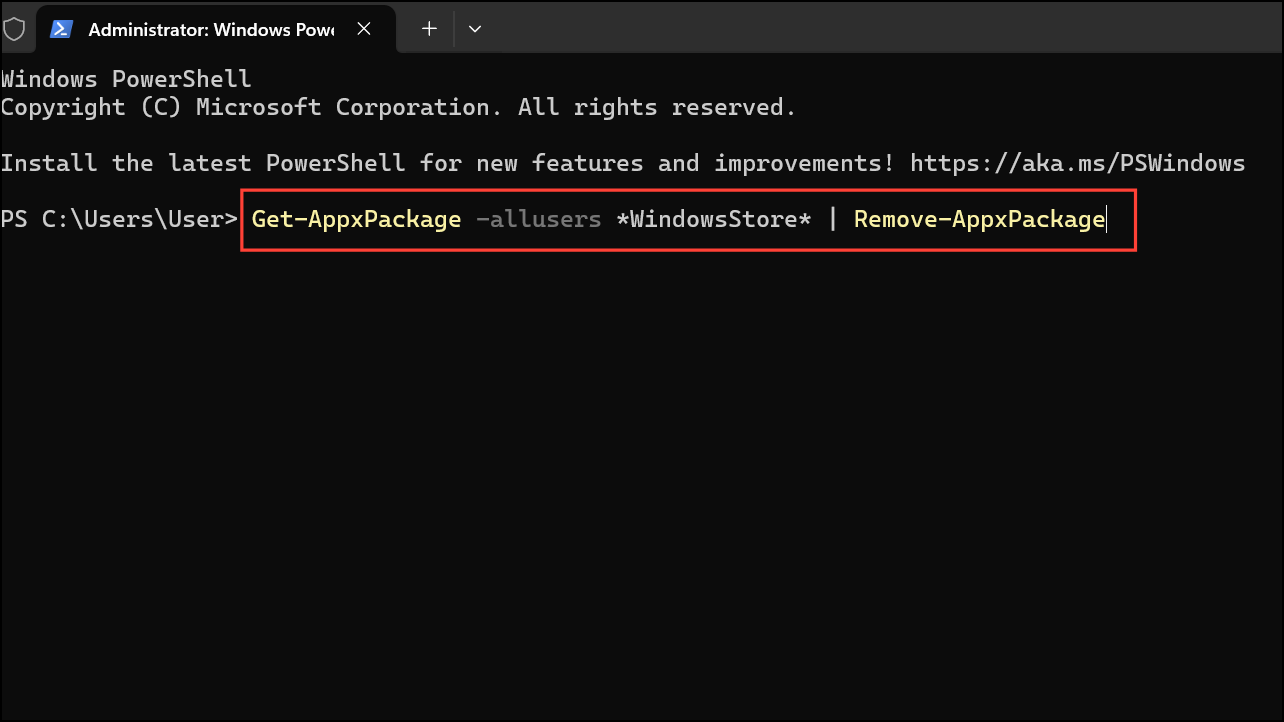
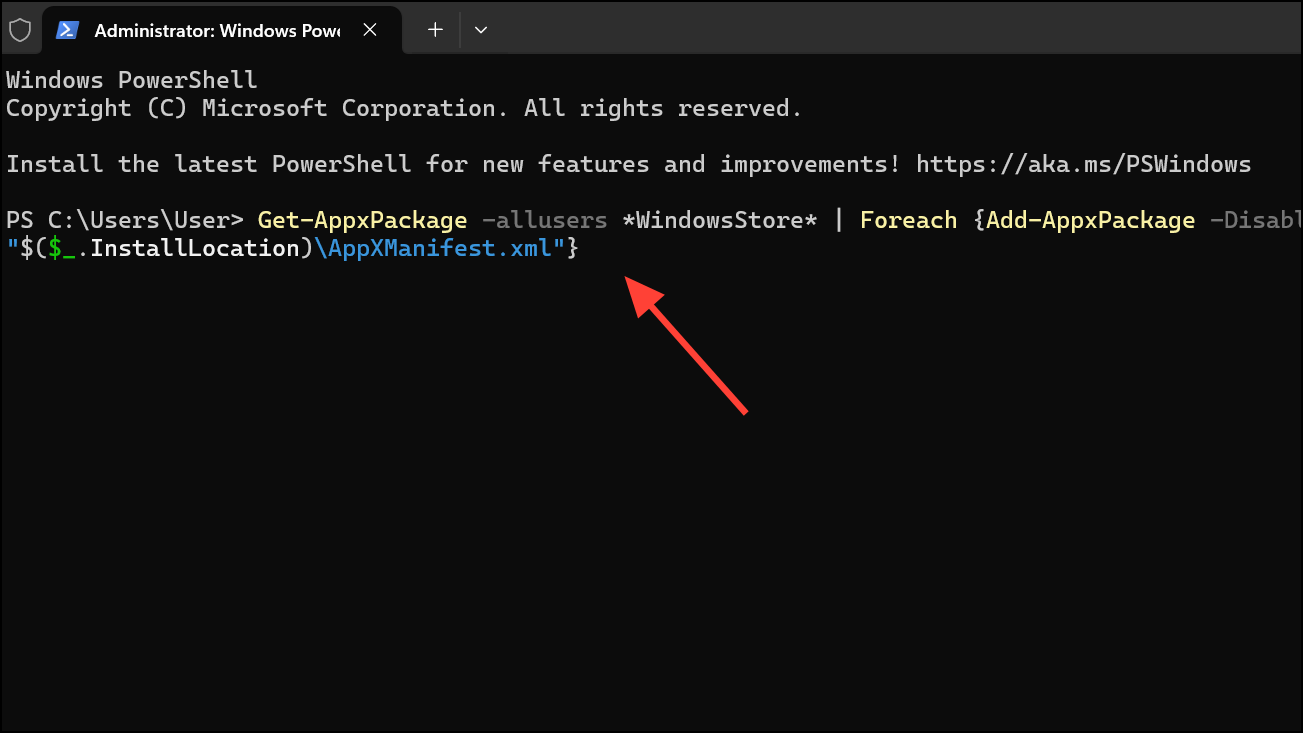
Method 5: Reinstall the Microsoft Store via PowerShell
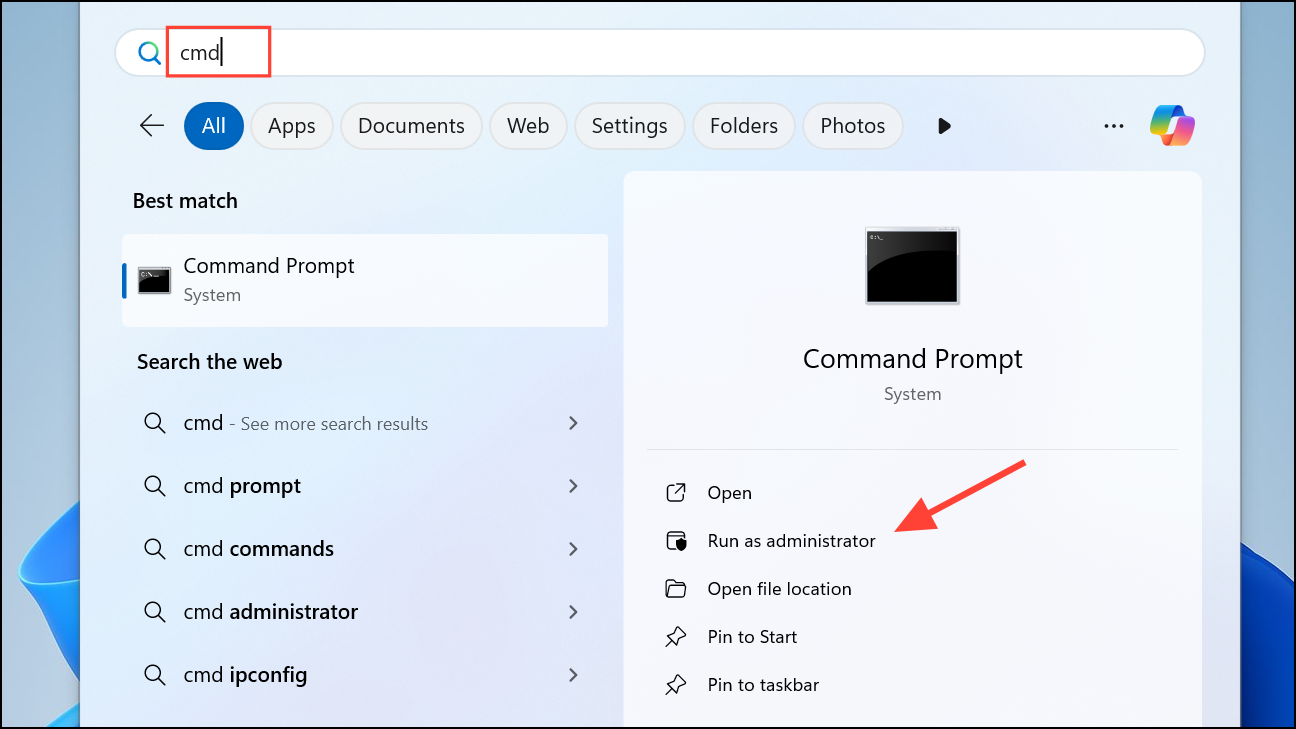
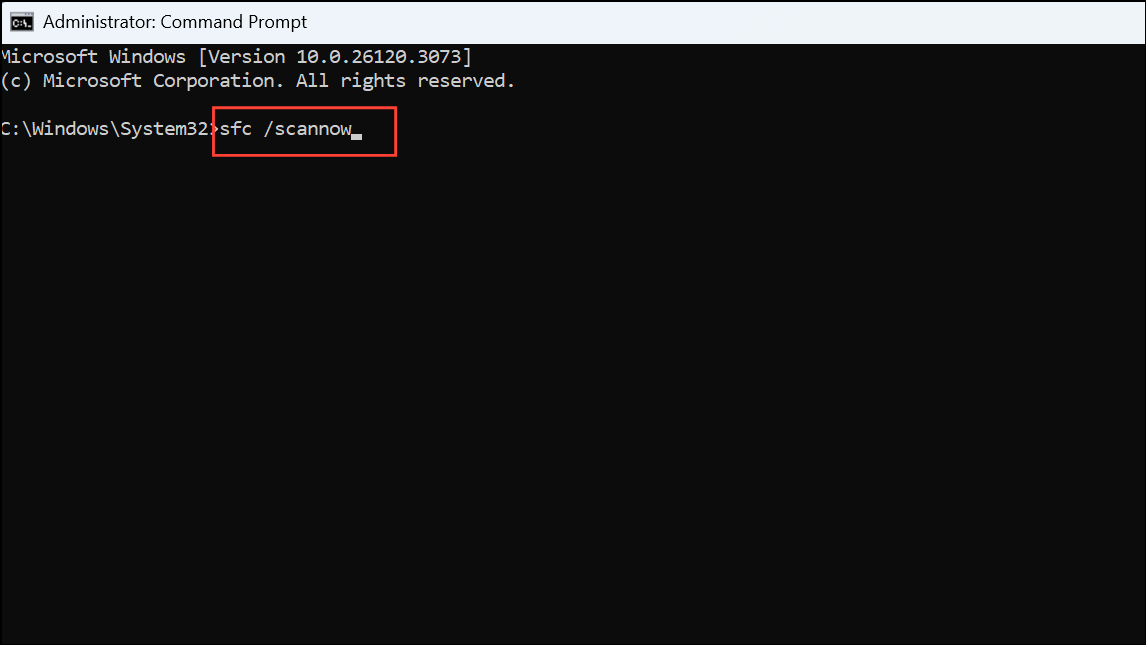
Open Command Prompt as an administrator by searching for “cmd” in the Start menu, right-clicking on “Command Prompt”, and selecting “Run as administrator”.
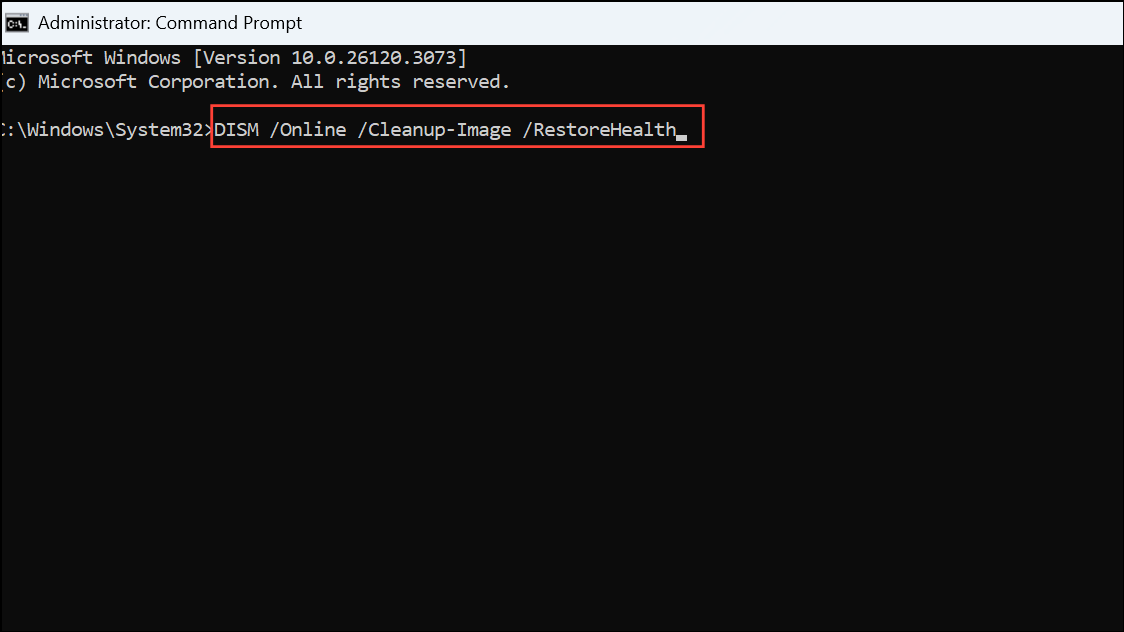
After the SFC scan completes, run a Deployment Image Servicing and Management (DISM) scan by entering the following command:
DISM.exe /Online /Cleanup-image /Restorehealth
This scan repairs deeper system image issues. After the DISM scan finishes, reboot your computer and verify if the error persists.
Following these methods will resolve the Microsoft Store error code 0x803F8001, ensuring smooth installation and updates of your favorite apps. If one method doesn’t work, proceed to the next until the issue is resolved.