

Deleting important files by mistake can cause significant disruption, particularly if you haven’t backed them up. Windows 11 provides several built-in tools and methods to restore deleted files, even if they seem permanently gone. The following methods will help you recover your deleted files effectively, starting with the quickest and most straightforward solutions.
Method 1: Undo Delete (Ctrl + Z)
Ctrl + Z to undo the action. Alternatively, right-click within the folder where the file was deleted and select Undo Delete from the context menu.Method 2: Restore Files from Recycle Bin
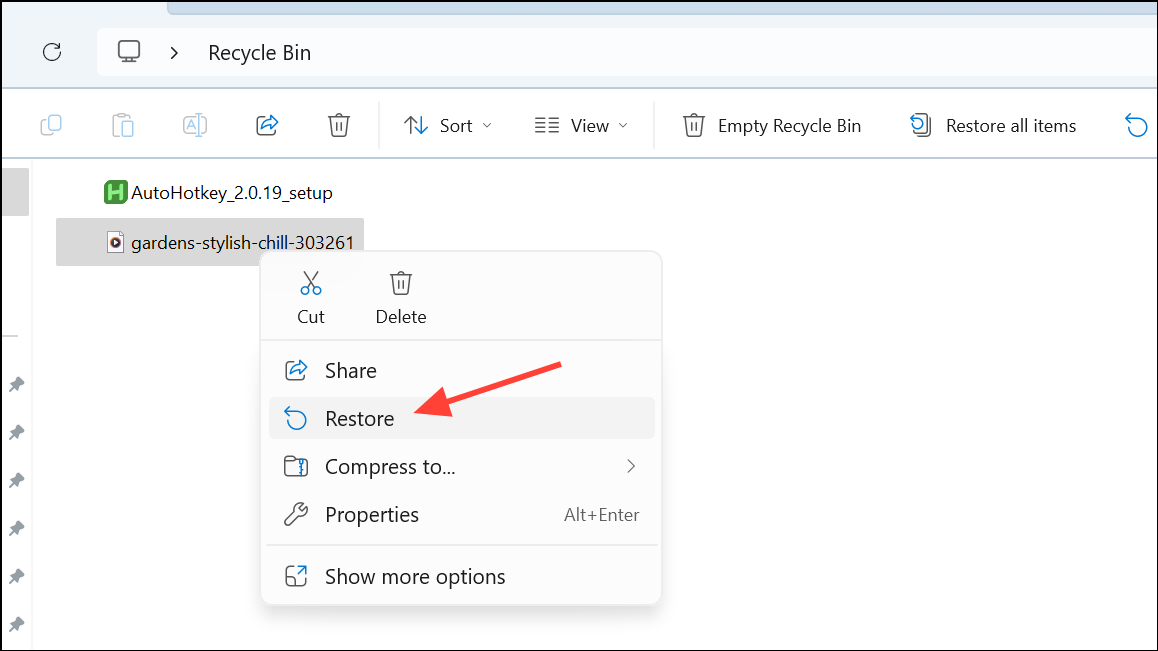
This method is suitable for files that were recently deleted without using the Shift + Delete shortcut or without emptying the Recycle Bin.
Method 3: Restore Using File History
If you’ve previously enabled Windows File History, you can restore your files from a backup snapshot.
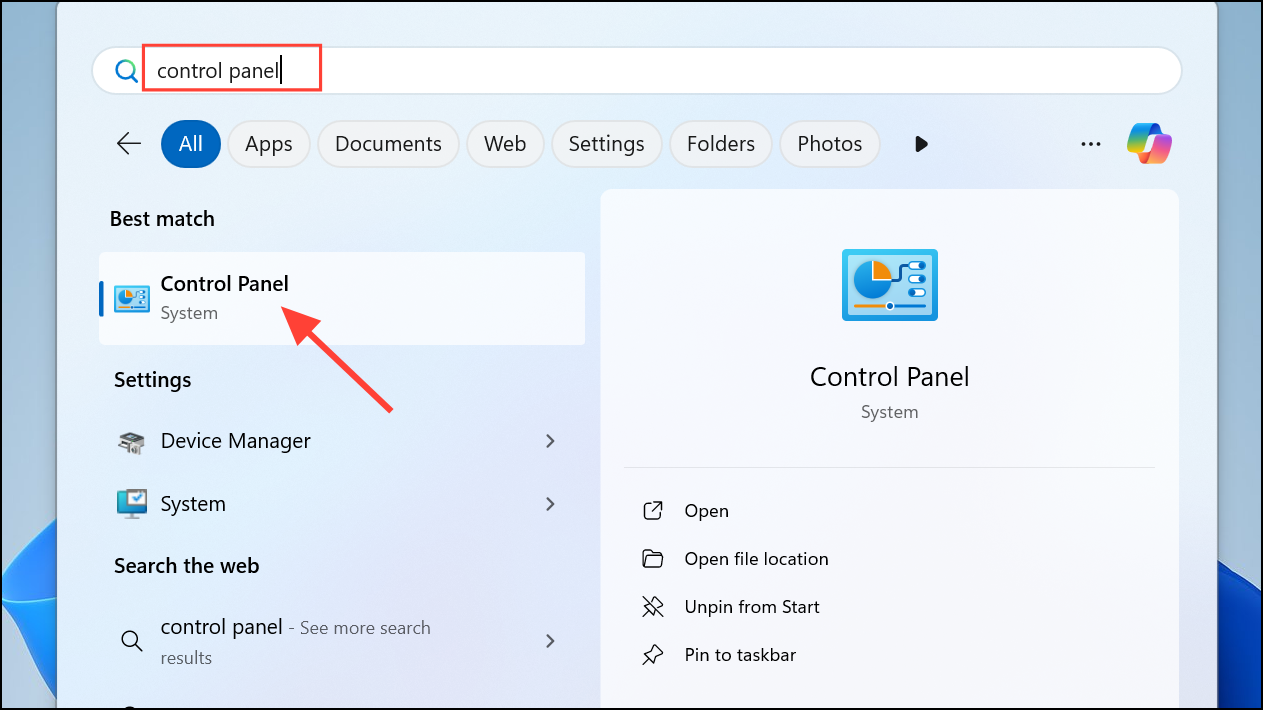
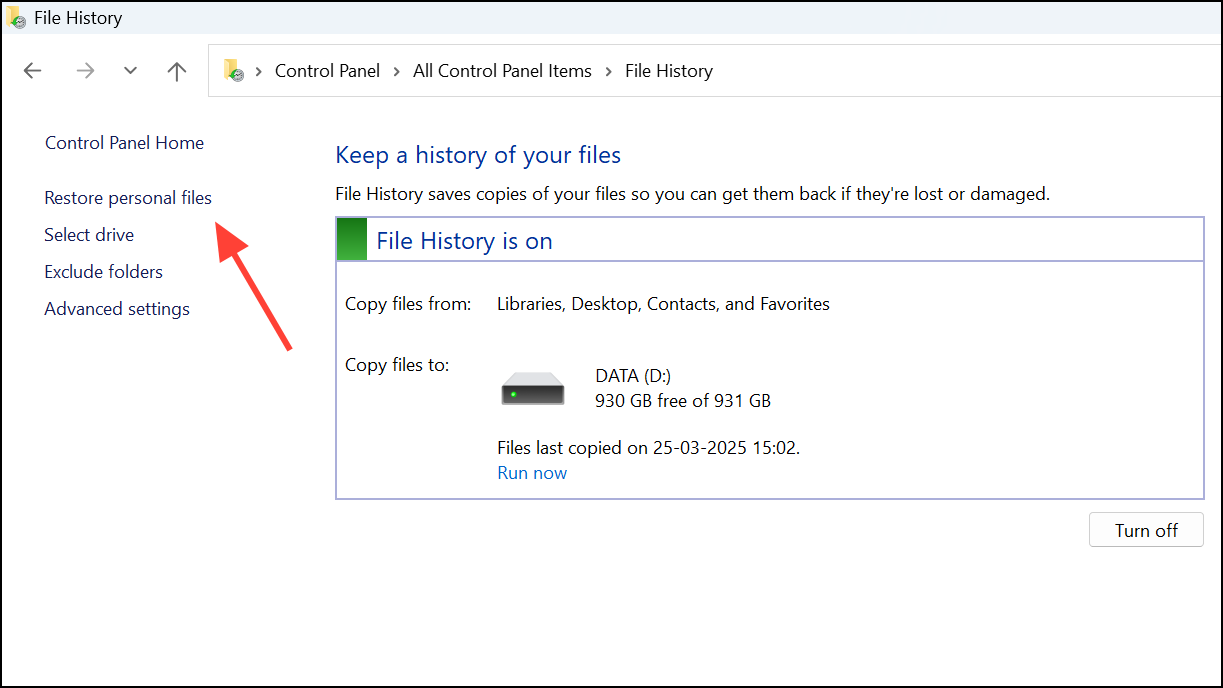
This method relies on File History being active before the data loss occurred.
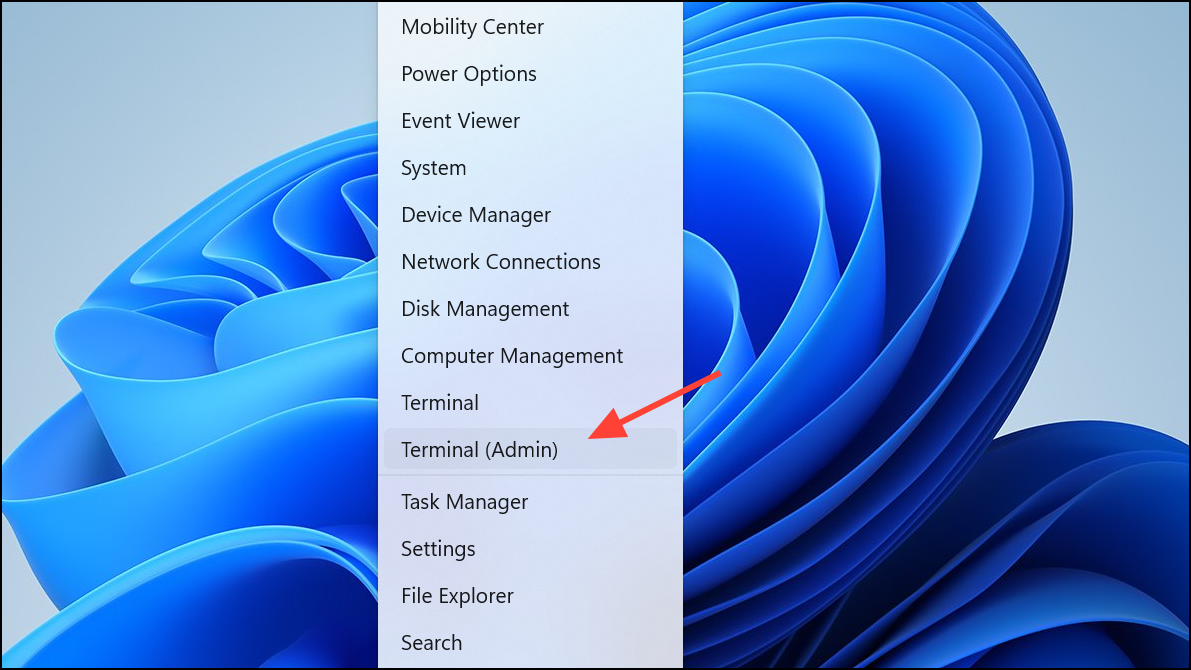
Method 4: Recover Files with Windows File Recovery Tool
Microsoft offers a command-line tool called Windows File Recovery to help retrieve deleted files.
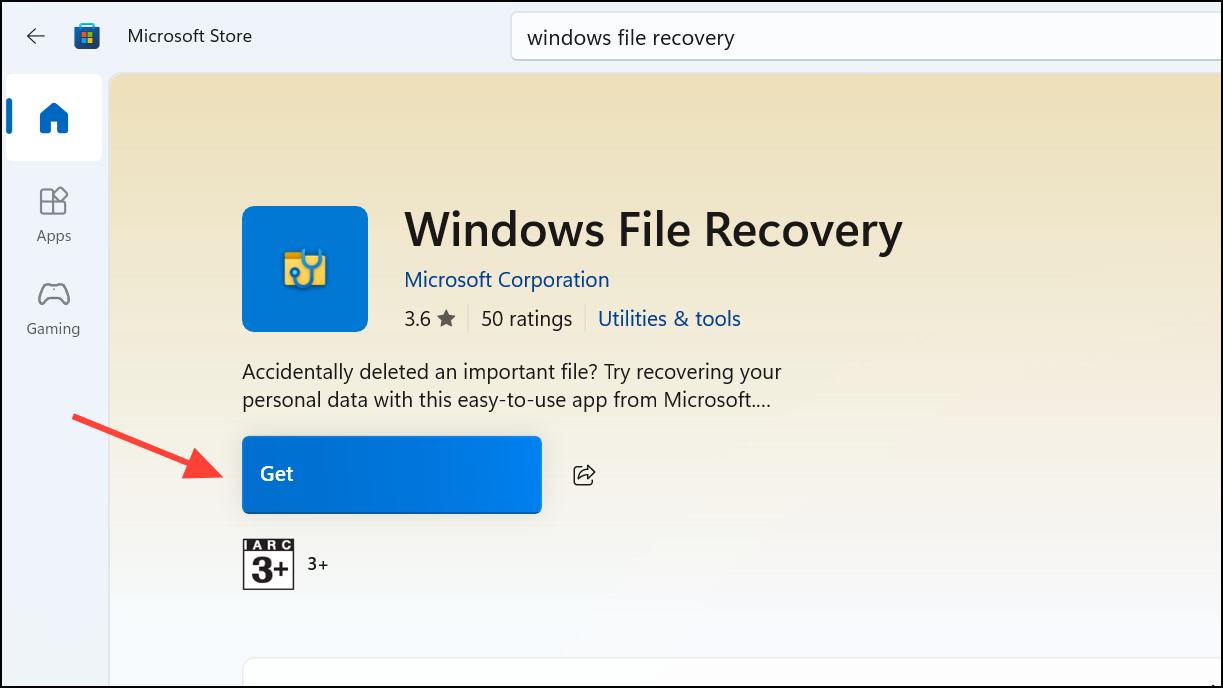
winfr C: E: /regular /n \Users\YourUsername\Documents\*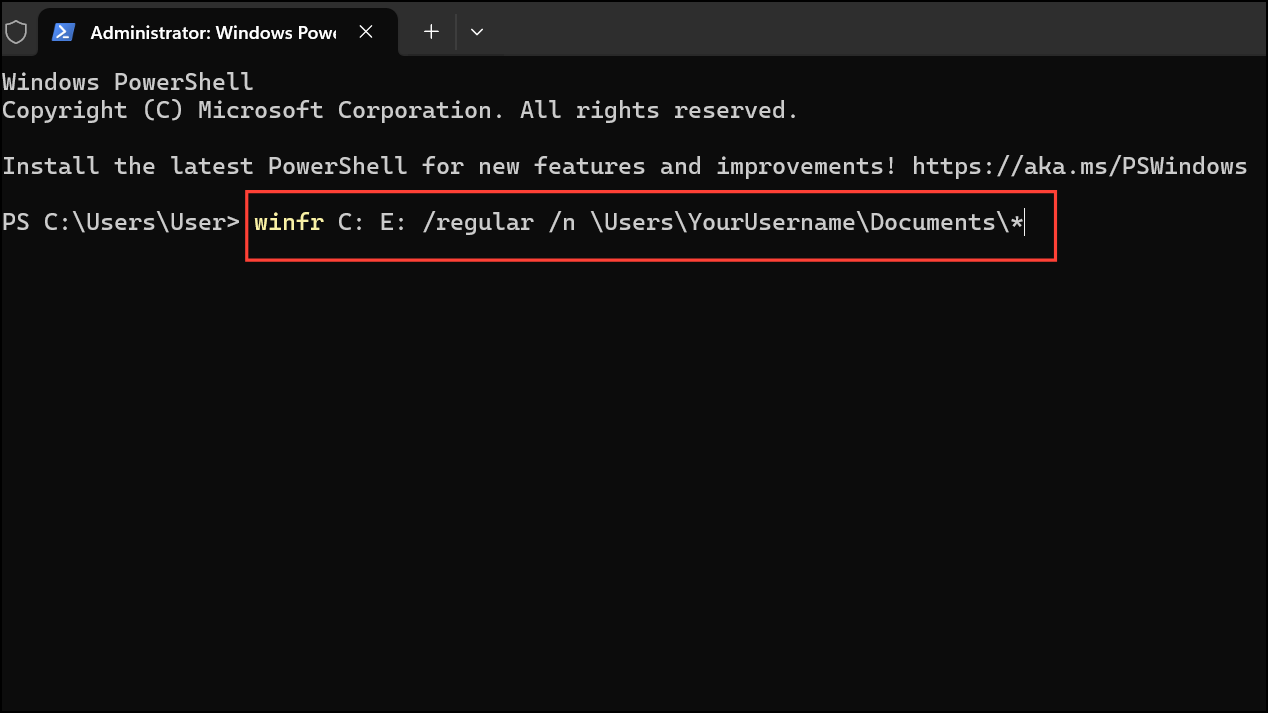
Press Enter to execute the command. This utility helps recover files that were permanently deleted or lost due to formatting.
Method 5: Using Third-Party Data Recovery Software
If built-in solutions don’t work, third-party recovery software like Disk Drill or Stellar Data Recovery can help.
This method is particularly effective for recovering files that have been permanently deleted or lost due to formatting or corruption.
Method 6: Restore Files from Previous Versions
Windows 11 lets you restore previous versions of files or folders if you have System Restore or File History enabled.
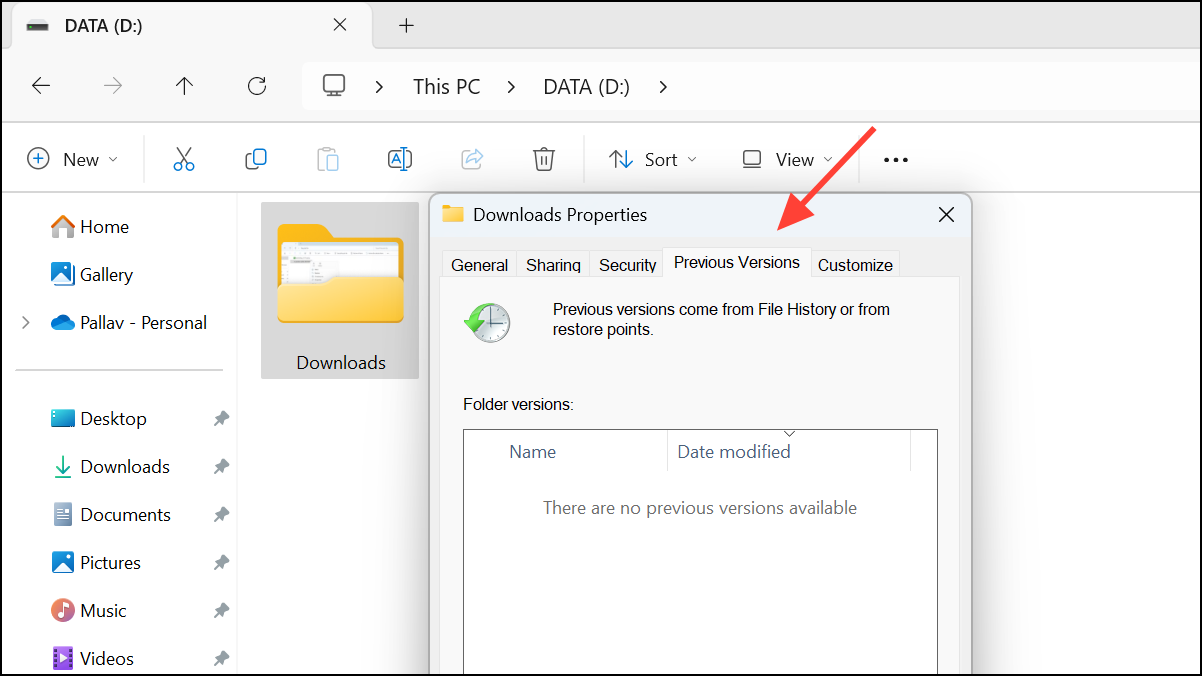
Be cautious, as restoring previous versions will overwrite current data. Ensure you back up current files before proceeding.
Method 7: Check Your Cloud Storage (OneDrive)
If your files were synced with OneDrive, you could retrieve them from the cloud.
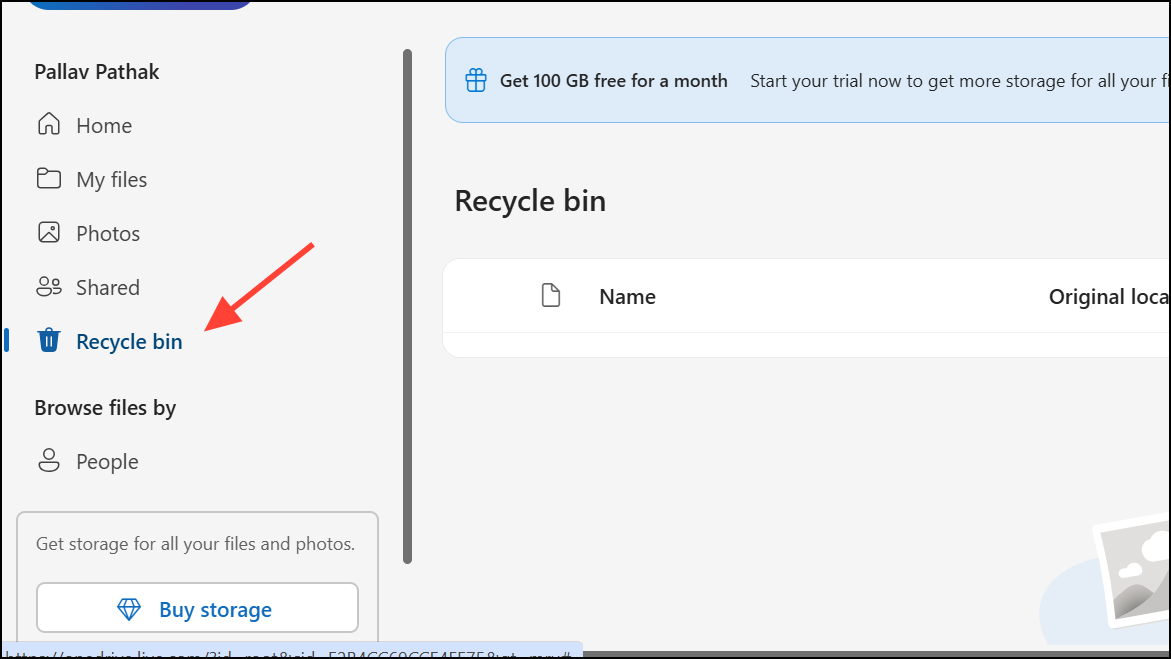
This method works best if you regularly sync your files with OneDrive and haven’t permanently deleted them from the cloud.
Recovering deleted files on Windows 11 is straightforward with the right tools and methods. Always remember to back up your data frequently to prevent future data loss headaches.



