
The SYSTEM_SERVICE_EXCEPTION (0x0000003B) error appears in Windows 11 when a system service fails to execute correctly, typically causing your computer to crash and display a Blue Screen of Death (BSOD). Common triggers include outdated or corrupted drivers, damaged system files, software conflicts, or hardware issues. Follow the methods below to resolve this error and restore your system’s stability.
Method 1: Update Graphics and Network Drivers
Outdated or corrupted graphics and network drivers often cause the error 0x0000003B. Updating these drivers can resolve compatibility issues and prevent system crashes.
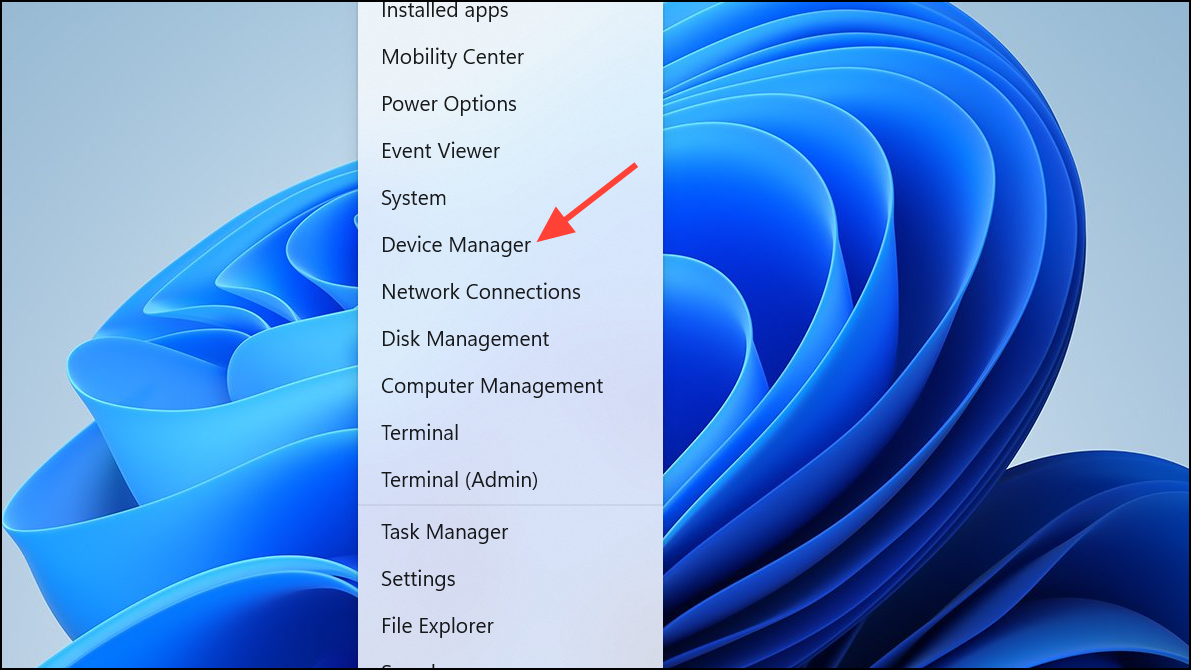
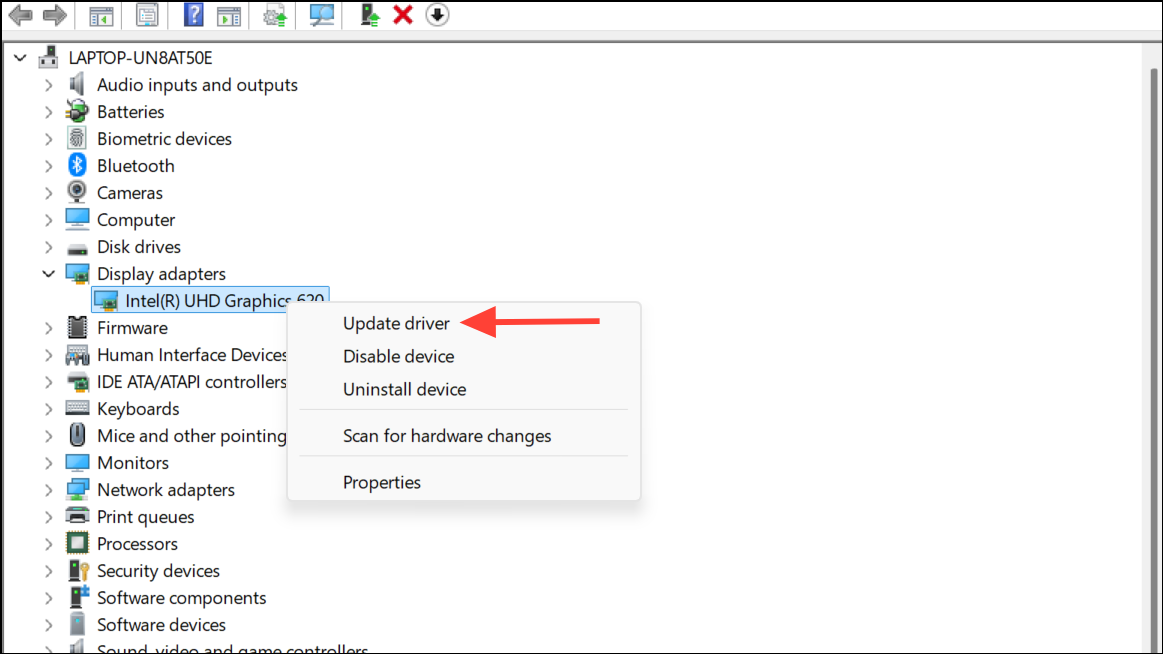
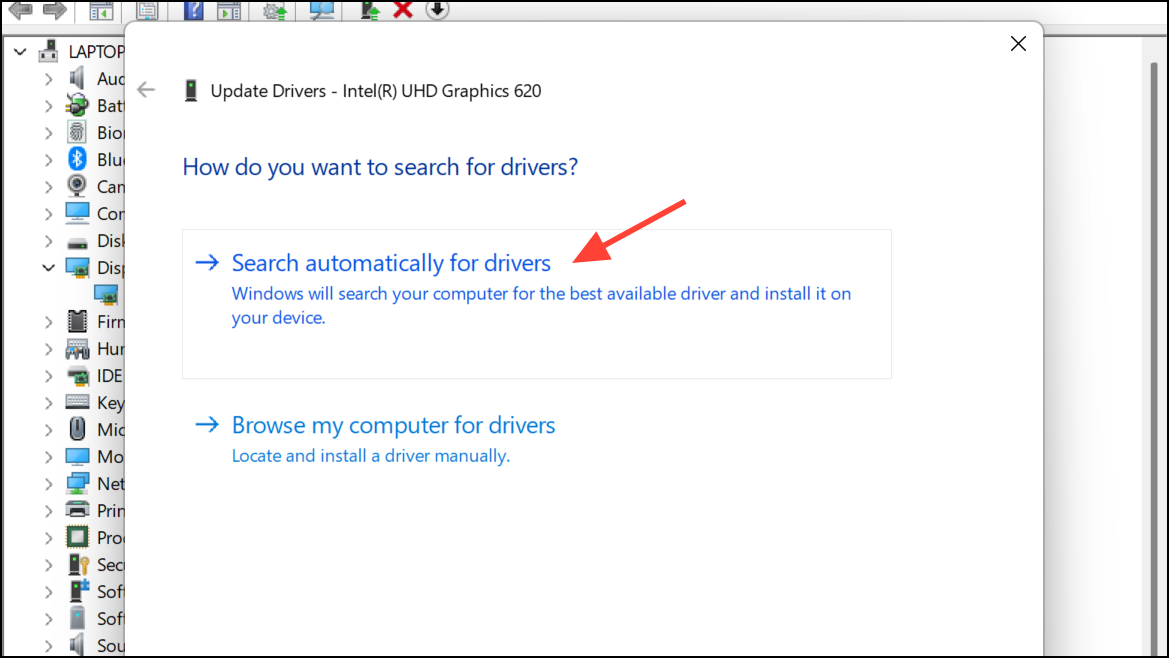
If automatic updates don’t resolve the issue, manually download the latest drivers directly from the manufacturer’s official website, such as NVIDIA, AMD, or Intel, and install them following the provided instructions.
Method 2: Run System File Checker (SFC) and DISM Tools
Corrupted or missing system files can lead to the 0x0000003B error. Windows provides built-in diagnostic tools to detect and repair these files automatically.
cmd in the search box, right-clicking Command Prompt, and selecting Run as administrator.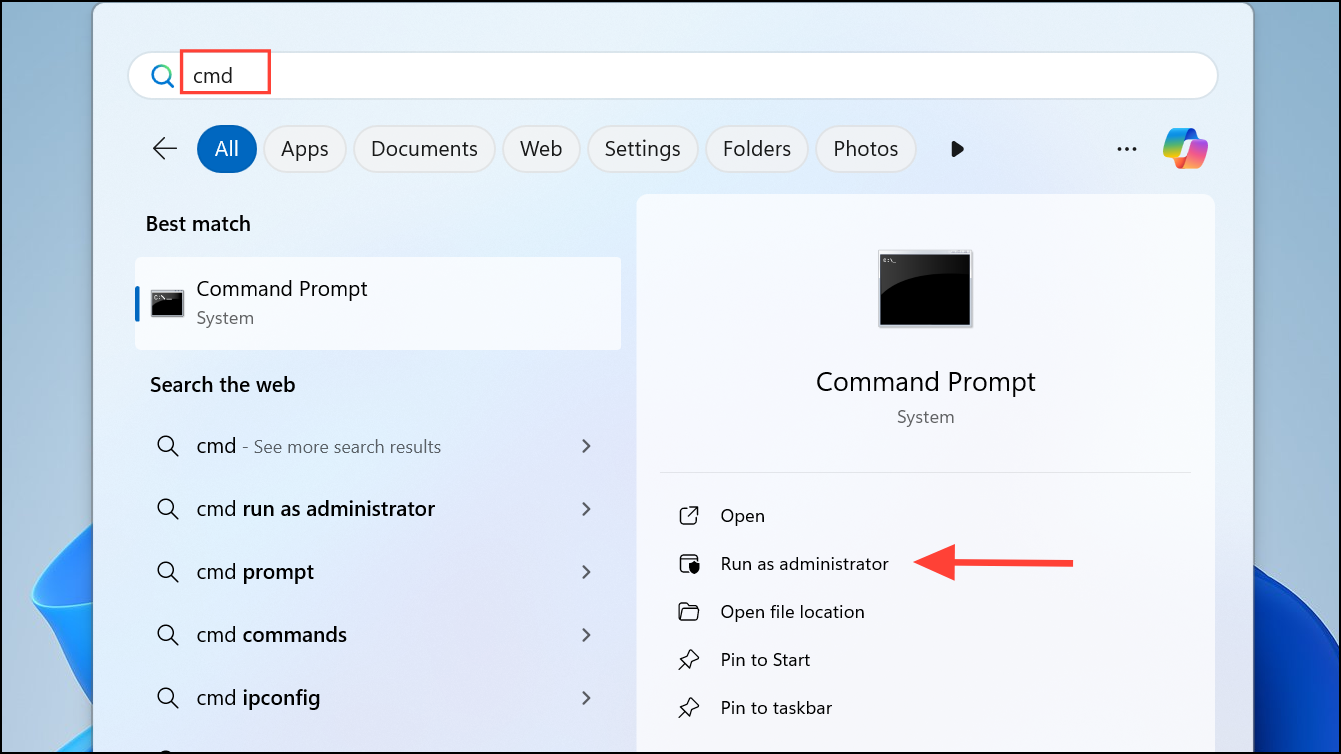
sfc /scannow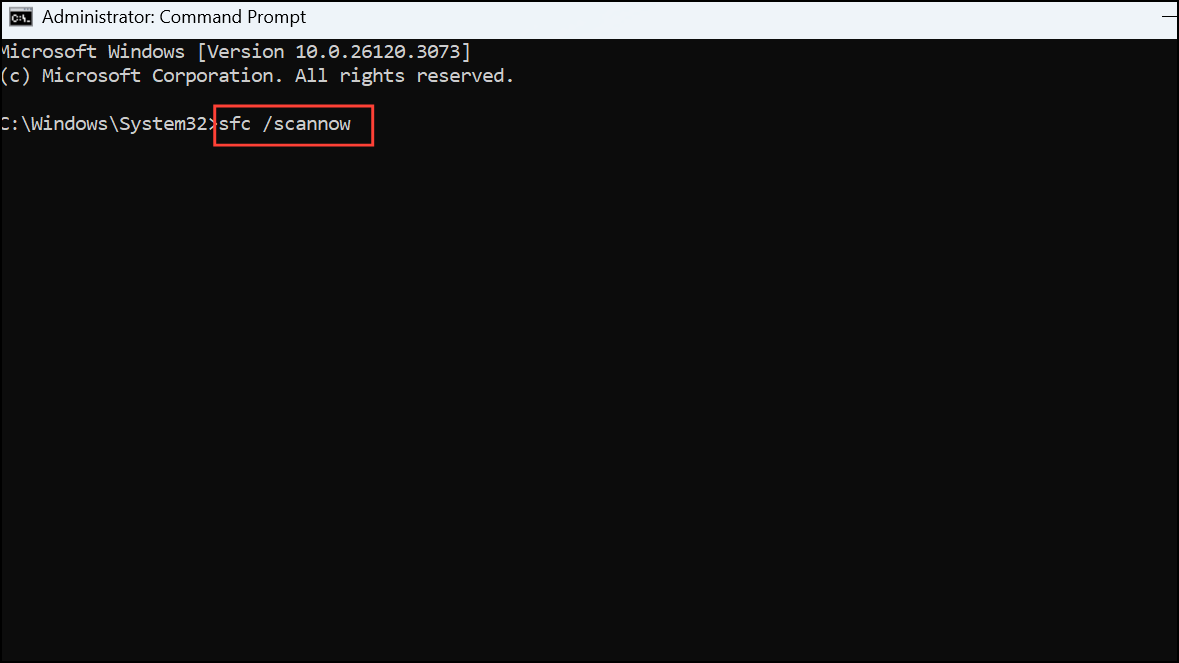
Allow the process to complete. This utility scans your system files and replaces any corrupted or missing files.
DISM /Online /Cleanup-Image /RestoreHealth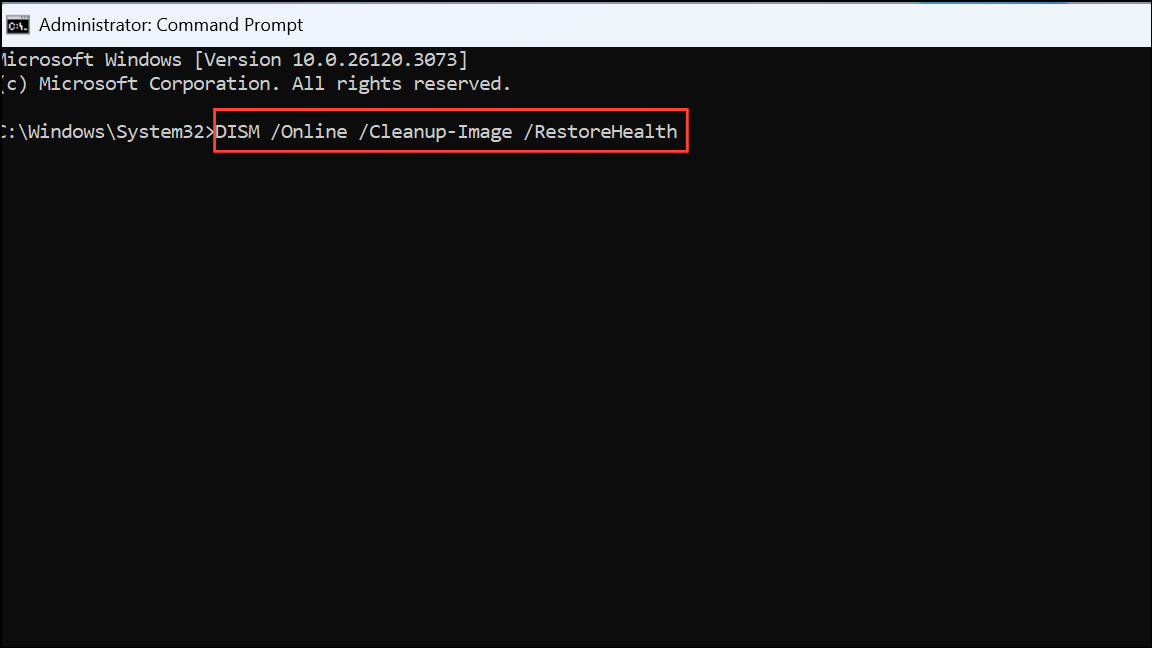
This command repairs the Windows component store, resolving deeper corruption issues that the SFC tool might not fix on its own.
Method 3: Perform Windows Memory Diagnostic
Faulty RAM modules are another common source of the SYSTEM_SERVICE_EXCEPTION (0x0000003B) error. Running the Windows Memory Diagnostic tool helps identify and address memory-related issues.
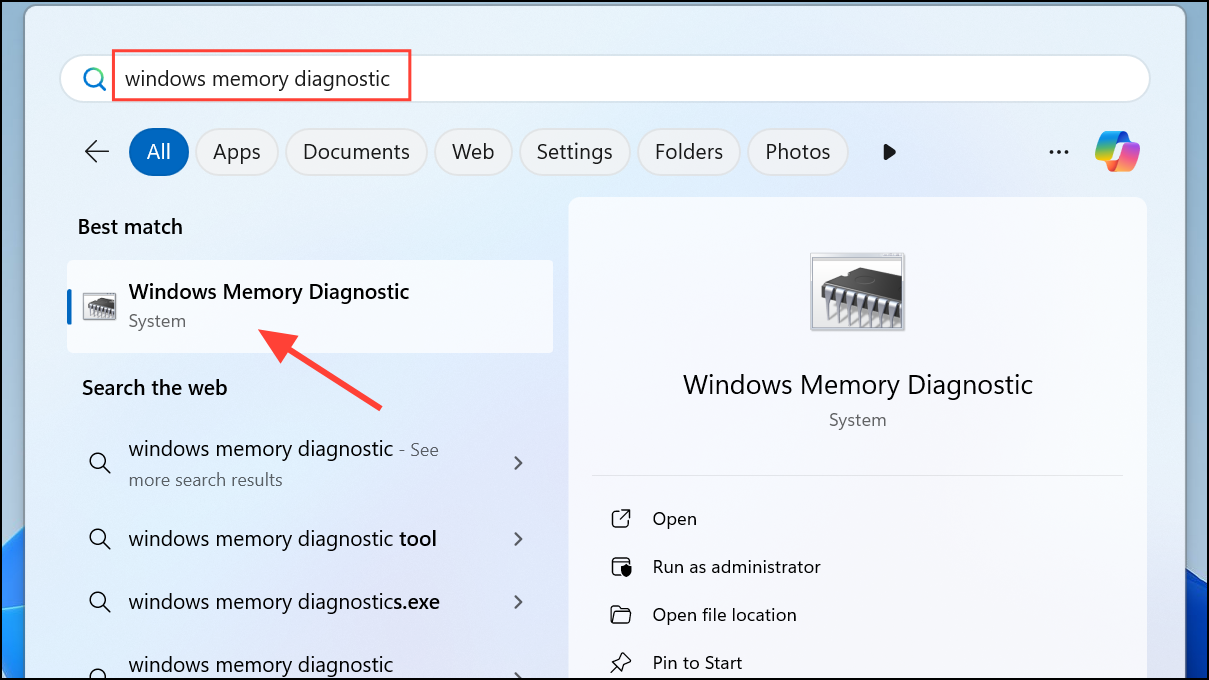
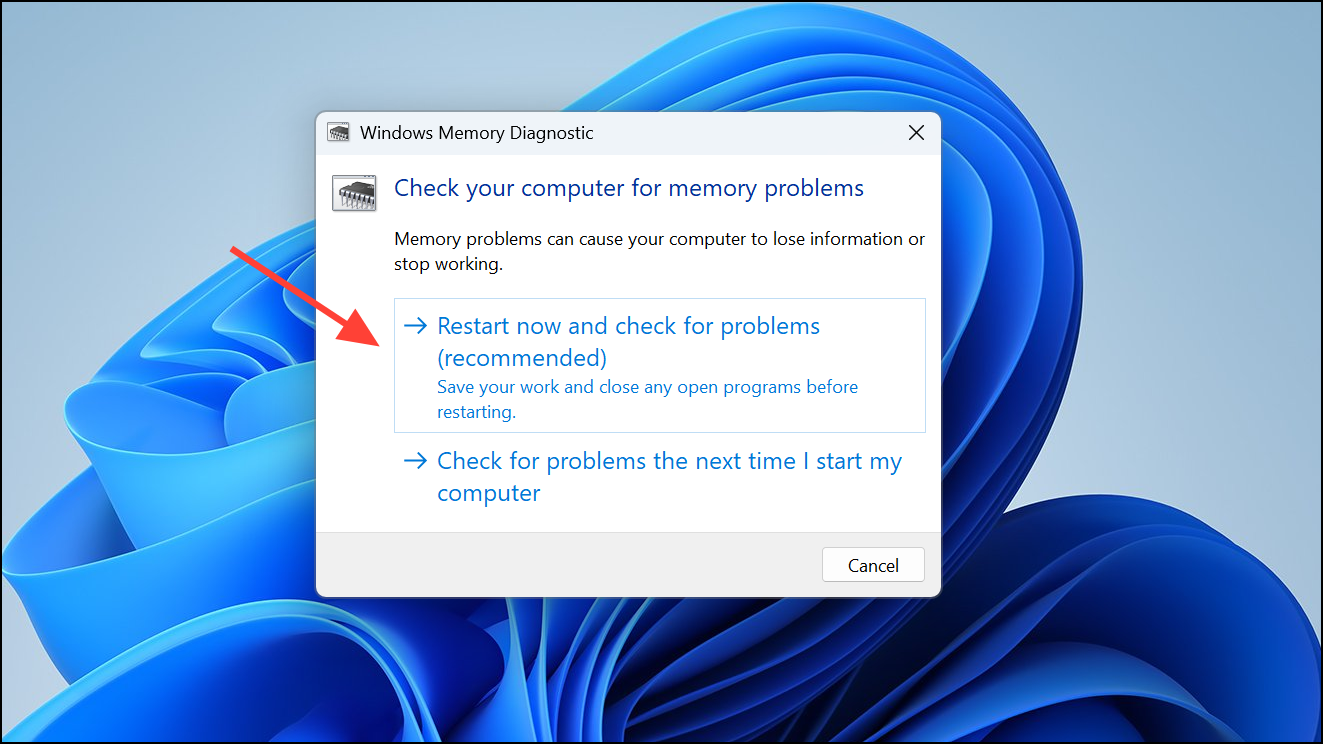
If the tool identifies issues, consider replacing or reseating your RAM modules to resolve the problem.
Method 4: Uninstall Malwarebytes or Conflicting Antivirus Programs
Security software, particularly Malwarebytes, can sometimes conflict with system processes, indirectly contributing to the 0x0000003B error.
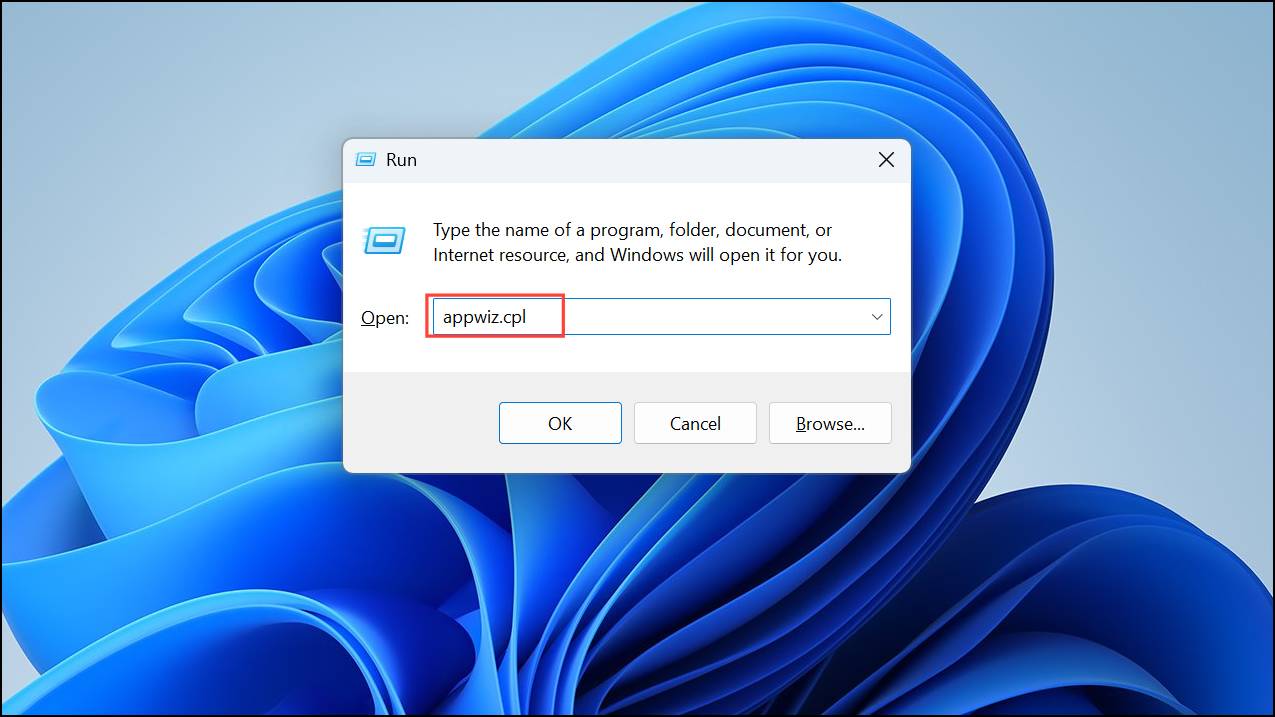
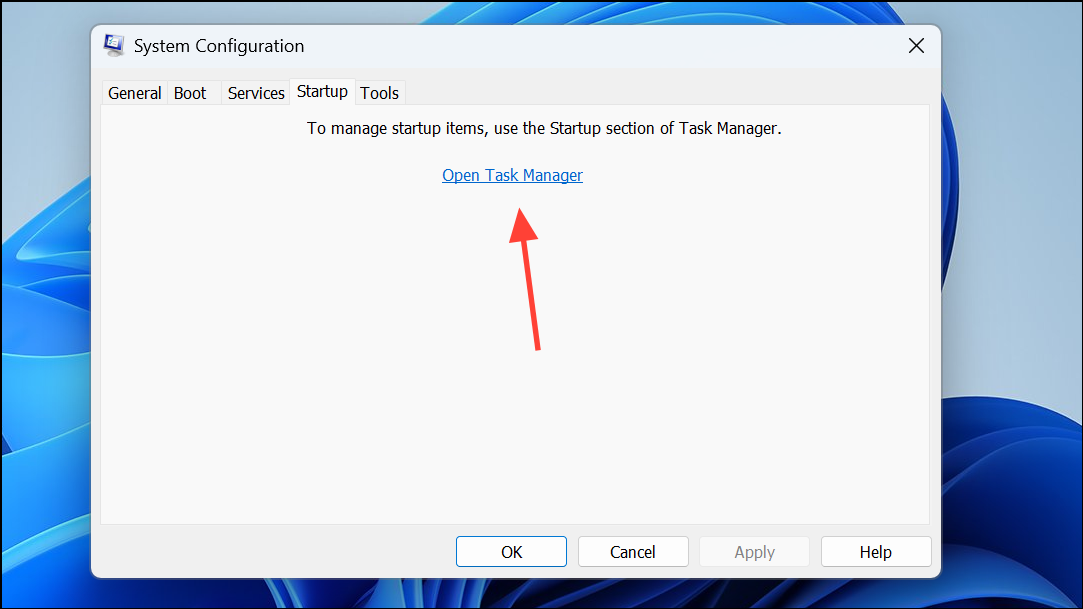
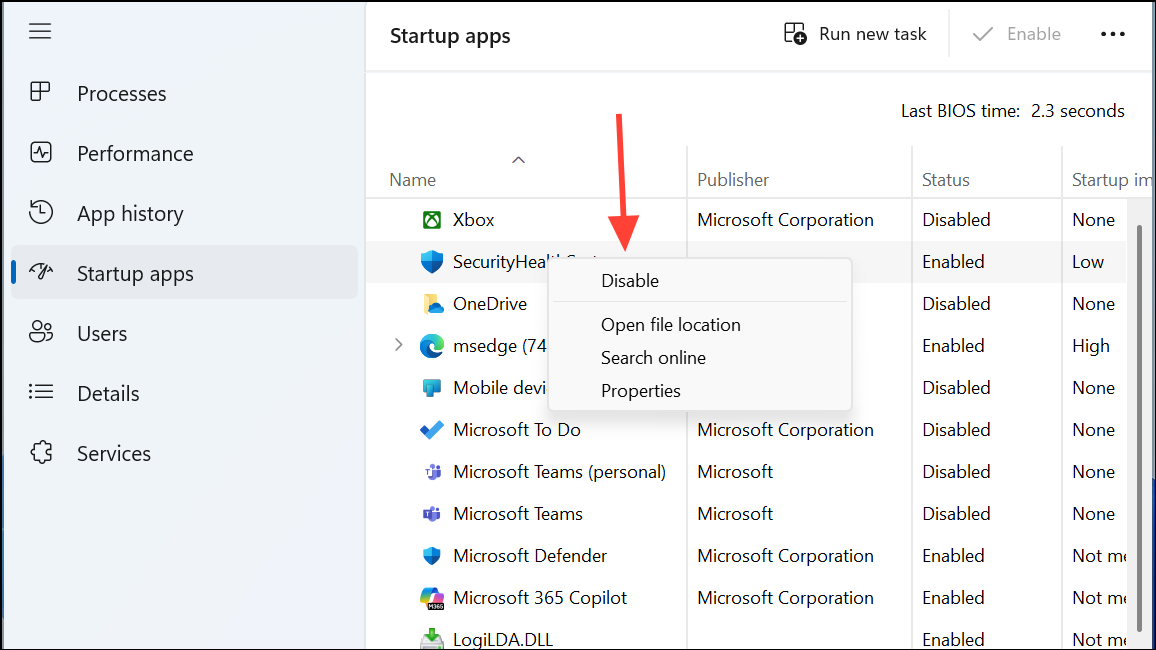
Method 5: Perform a Clean Boot
A clean boot helps identify third-party software conflicts by starting Windows with minimal drivers and startup programs.
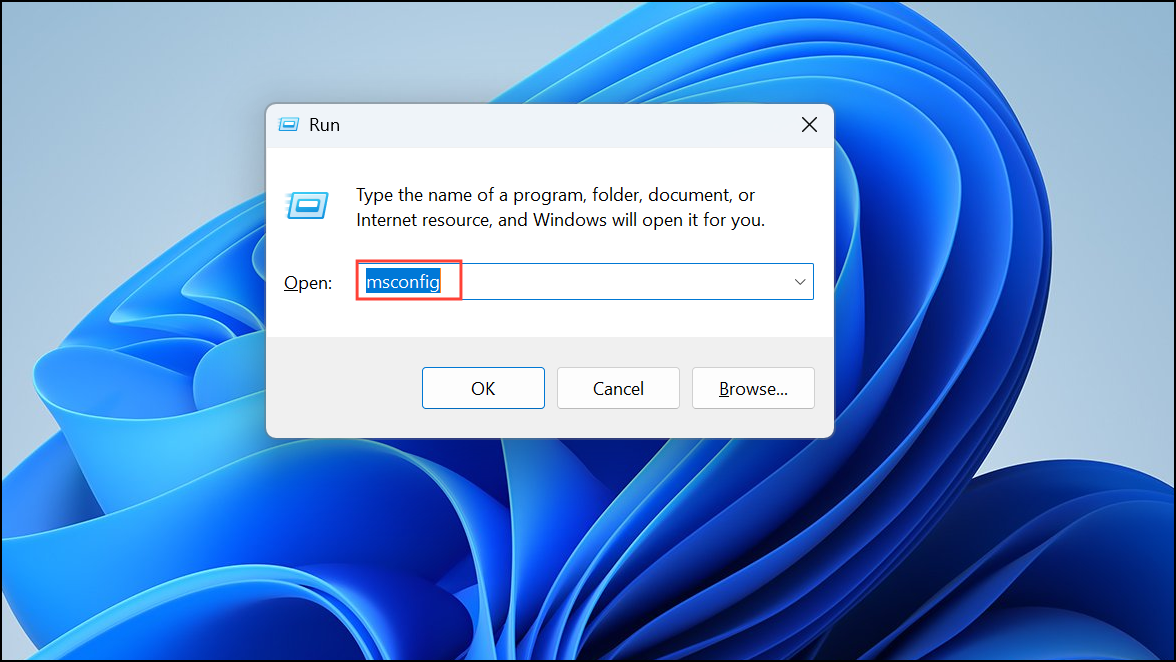
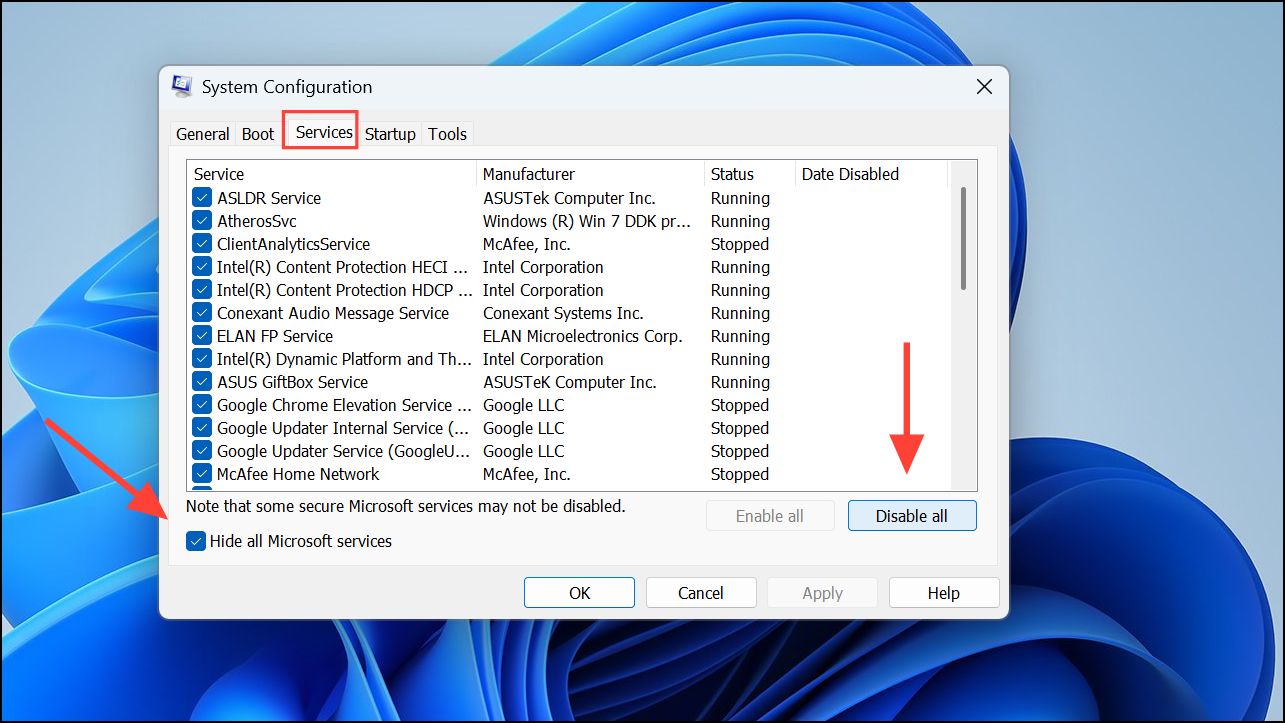
Method 6: Disable External Peripherals
External devices, such as USB drives, printers, or scanners, can sometimes conflict with system operations, causing the 0x0000003B error.
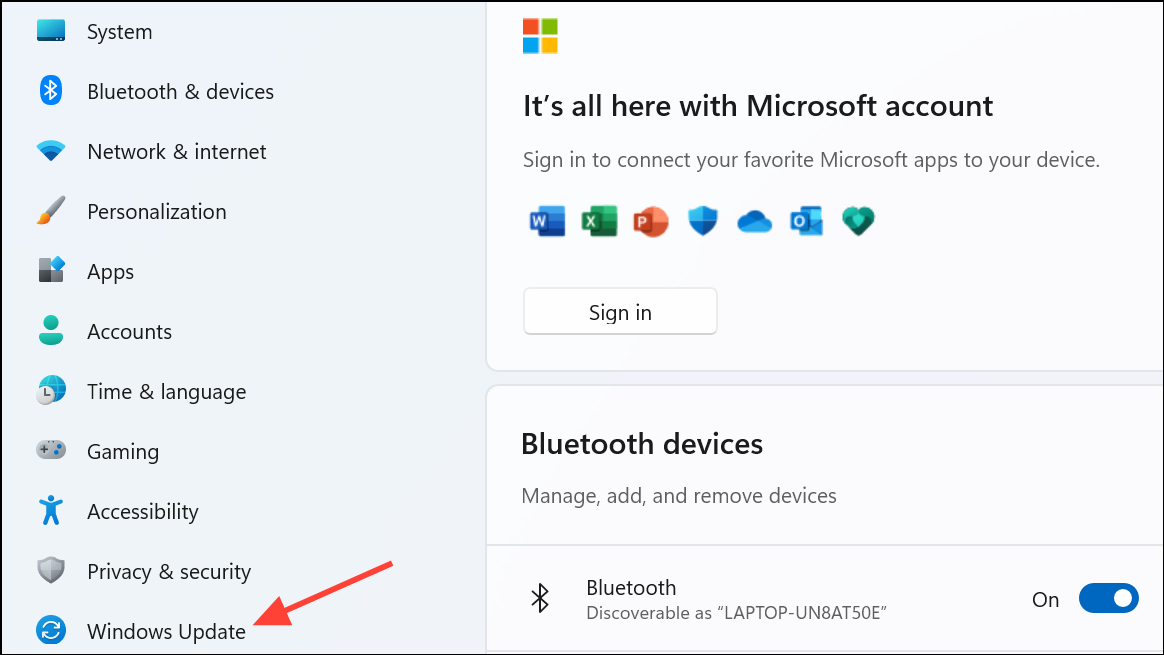
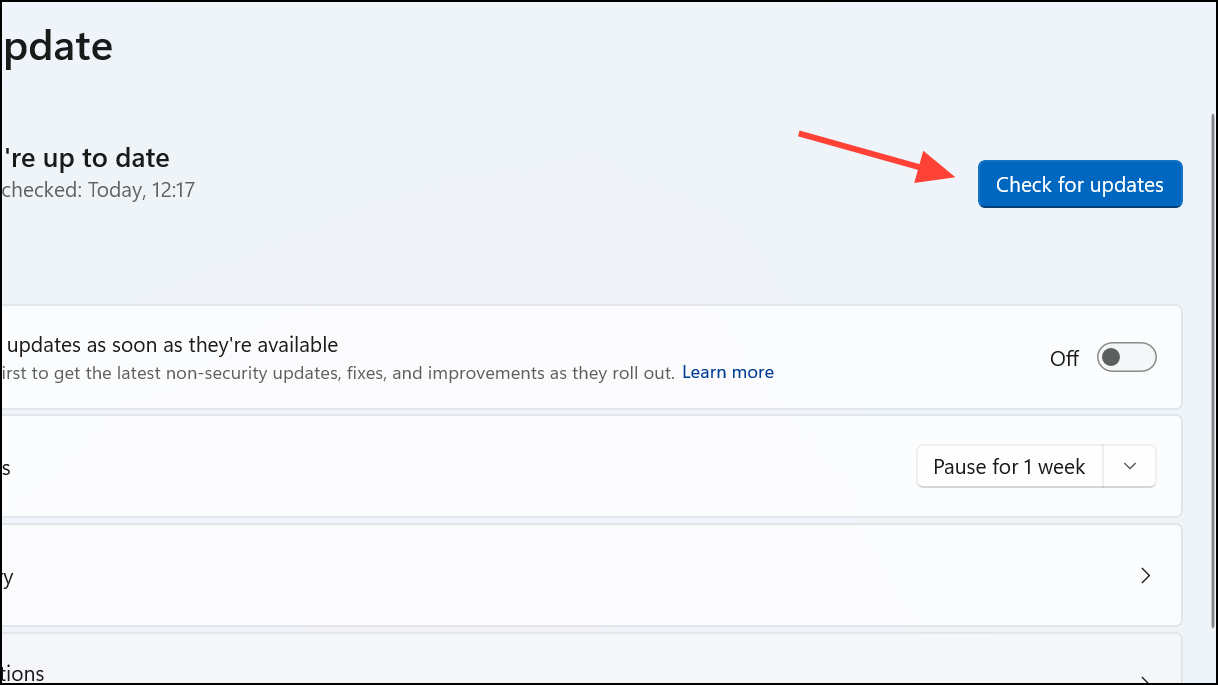
Method 7: Update Windows 11
Ensuring your Windows 11 installation is up-to-date helps resolve known system bugs and compatibility issues.
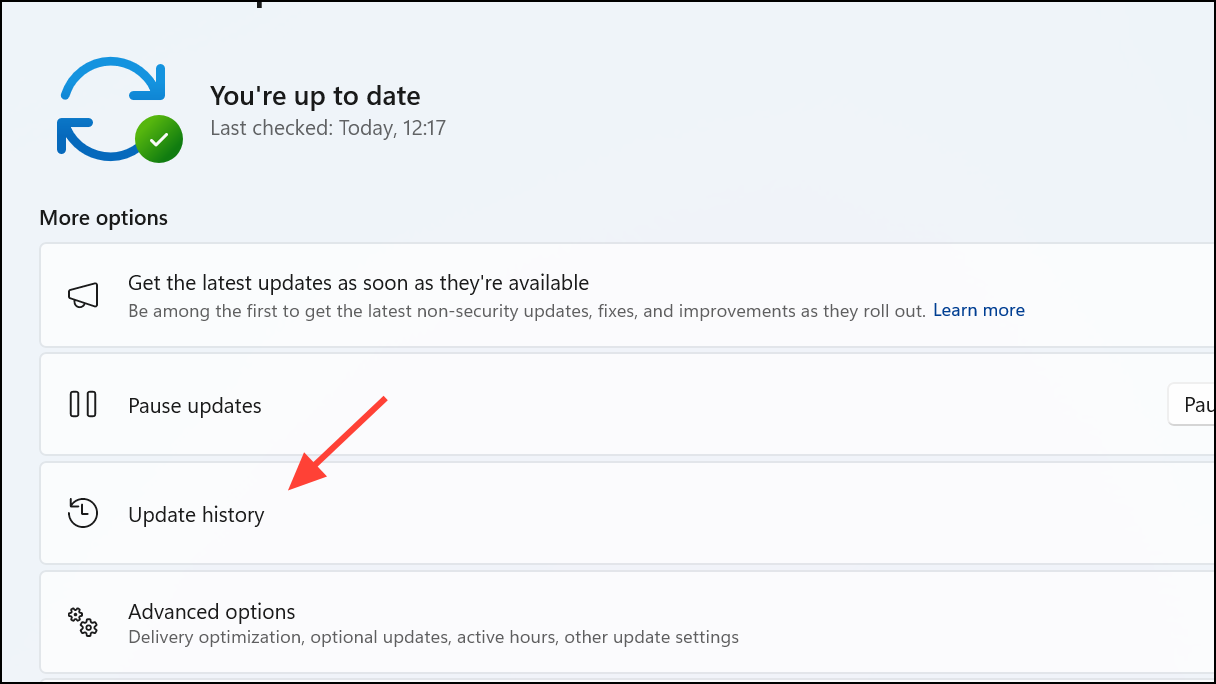
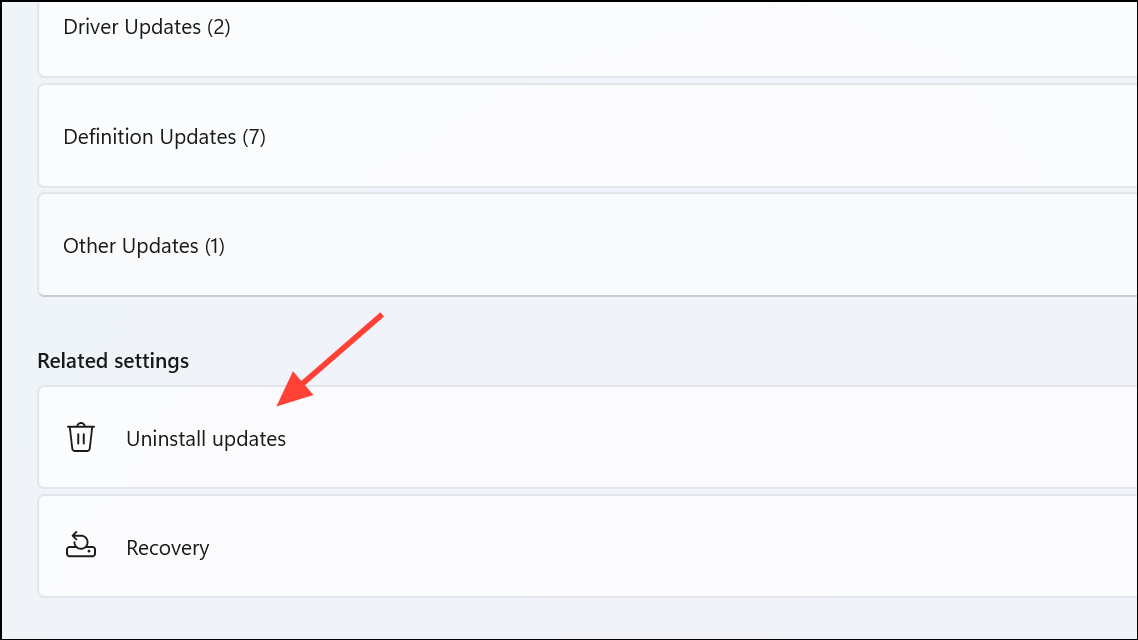
After applying these methods, your Windows 11 system should run smoothly without encountering the 0x0000003B error. Regularly update your drivers and Windows system to maintain optimal performance and prevent future issues.



