
High GPU usage in Windows 11 occurs when your graphics processing unit (GPU) is excessively active, even when you’re not running resource-intensive applications or games. This can cause your computer to slow down, become unresponsive, or overheat. Fortunately, several straightforward methods can help you quickly identify and resolve this issue.
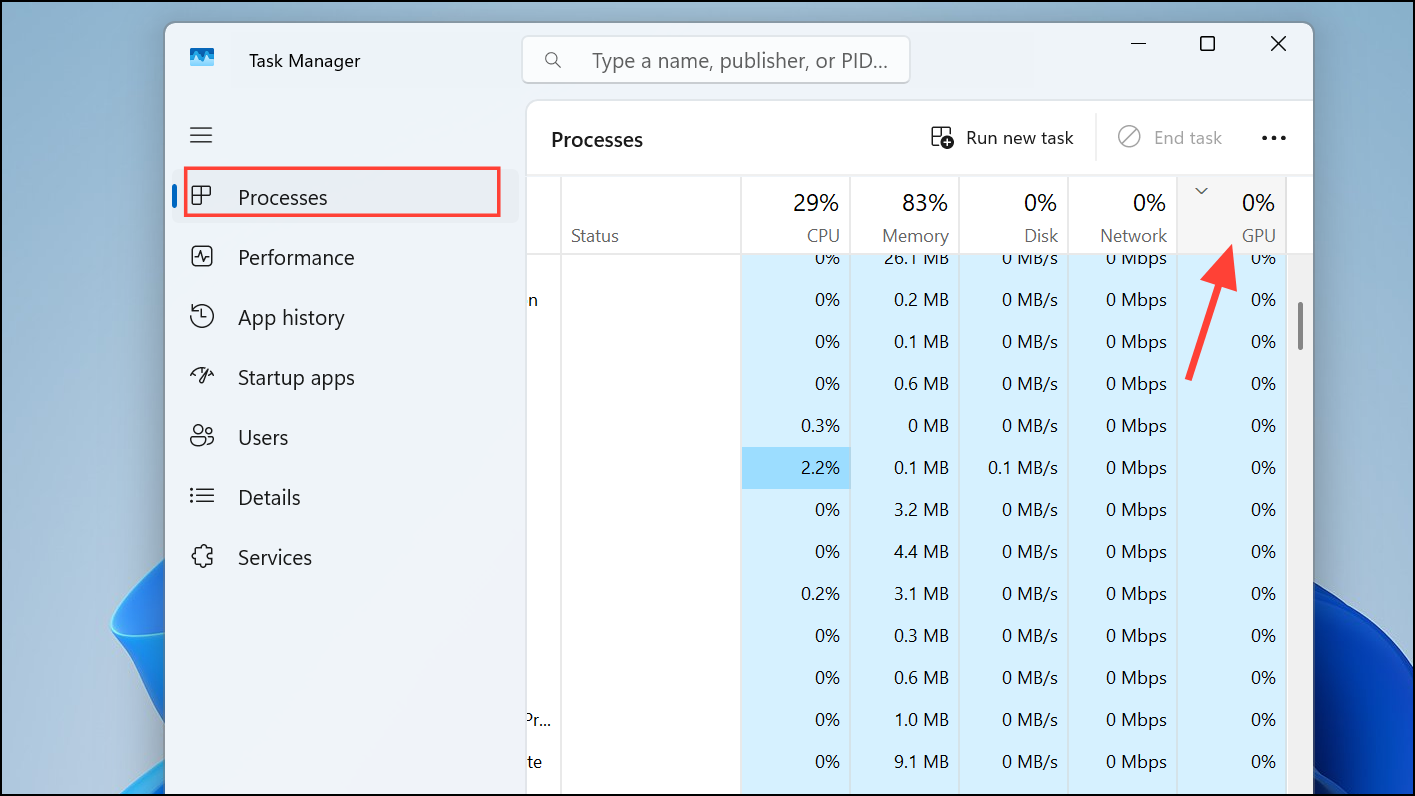
Check GPU Usage with Task Manager
Ctrl + Shift + Esc to open Task Manager. Alternatively, right-click the taskbar and select “Task Manager.”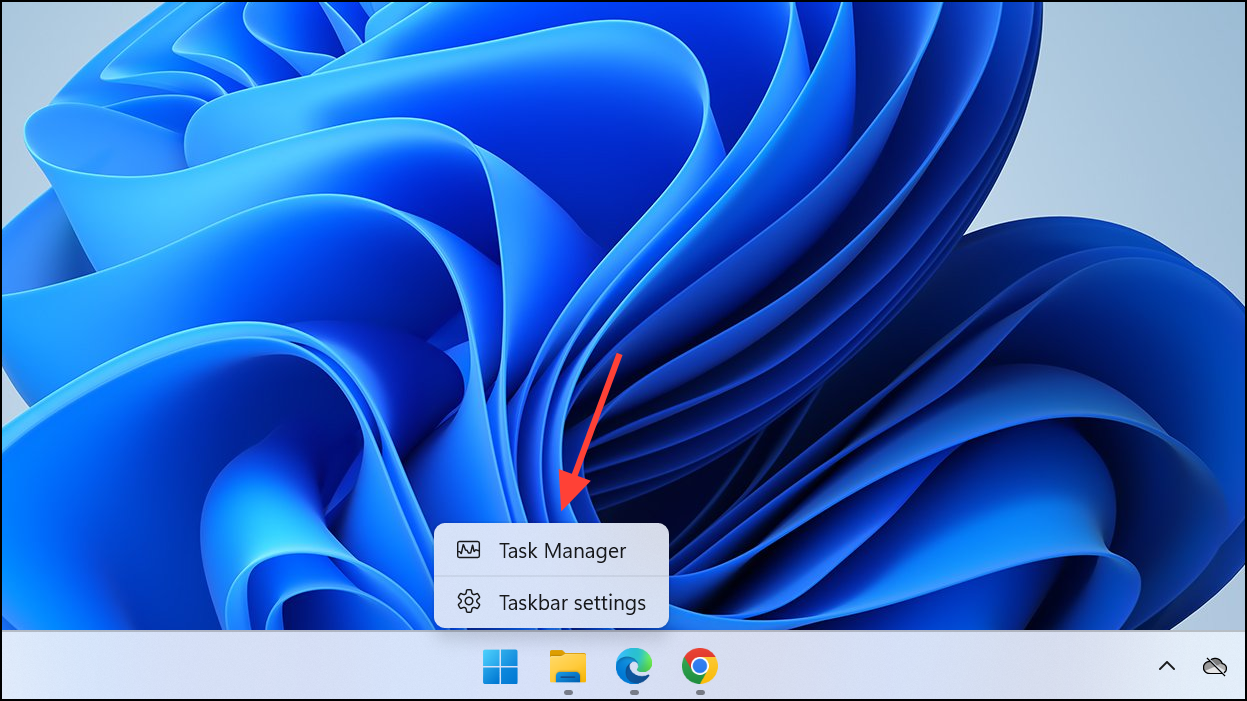
Update Your GPU Drivers
Outdated or corrupted GPU drivers often cause high GPU usage. Updating drivers ensures compatibility and efficient GPU performance.
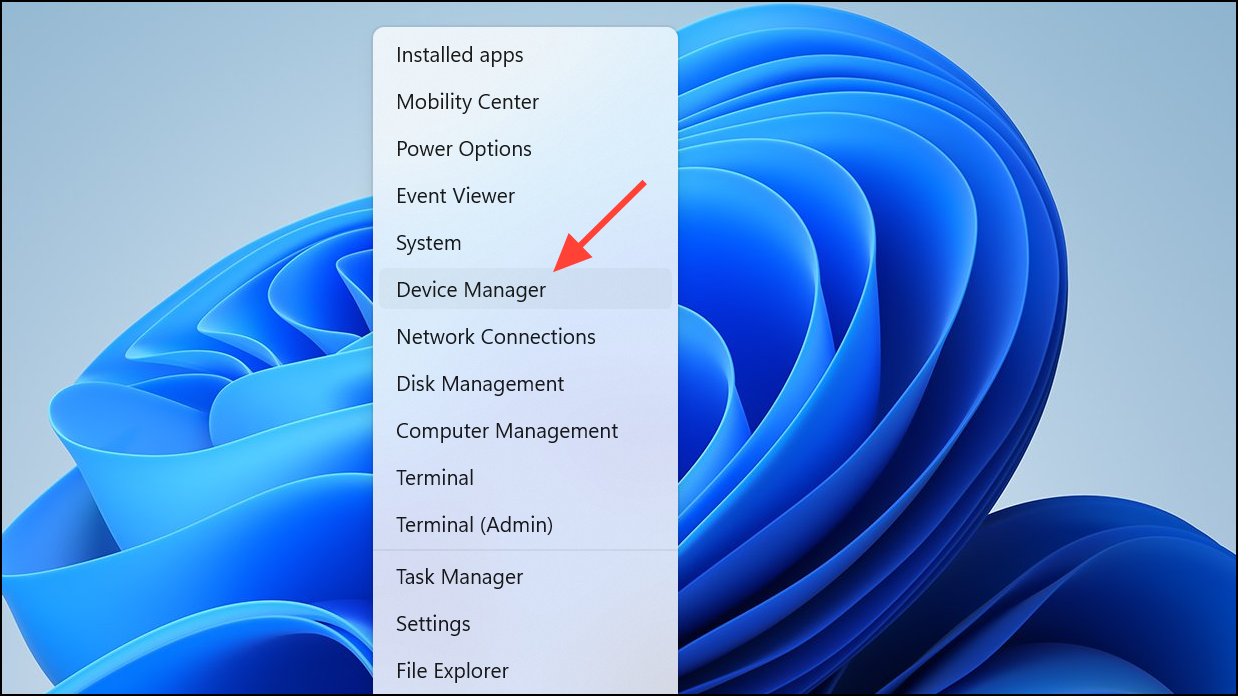
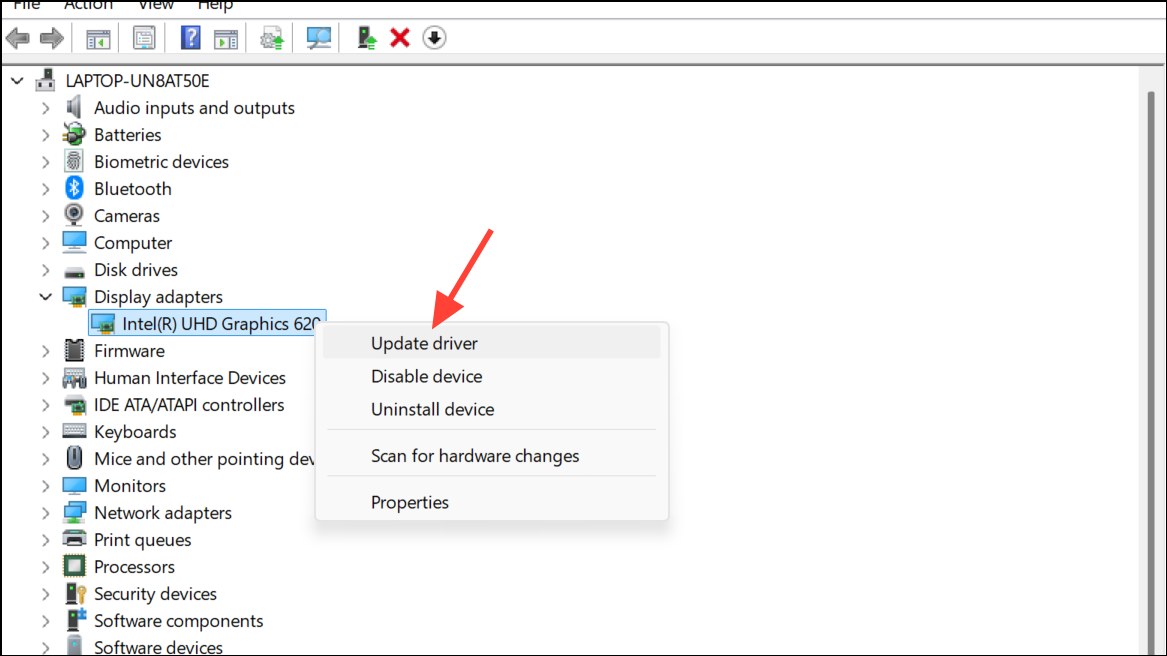
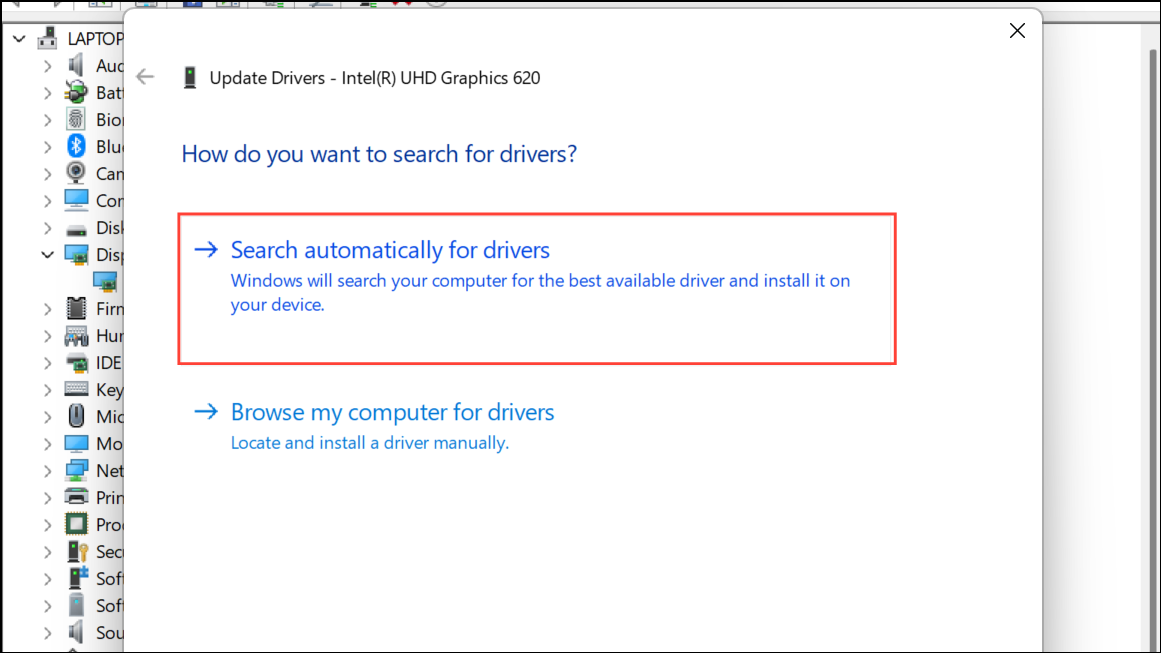
If Windows doesn’t find an update, visit your GPU manufacturer’s website (NVIDIA, AMD, or Intel) to download and install the latest driver manually.
Scan for Malware and Viruses
Malware, especially crypto-mining malware, can secretly utilize GPU resources in the background.
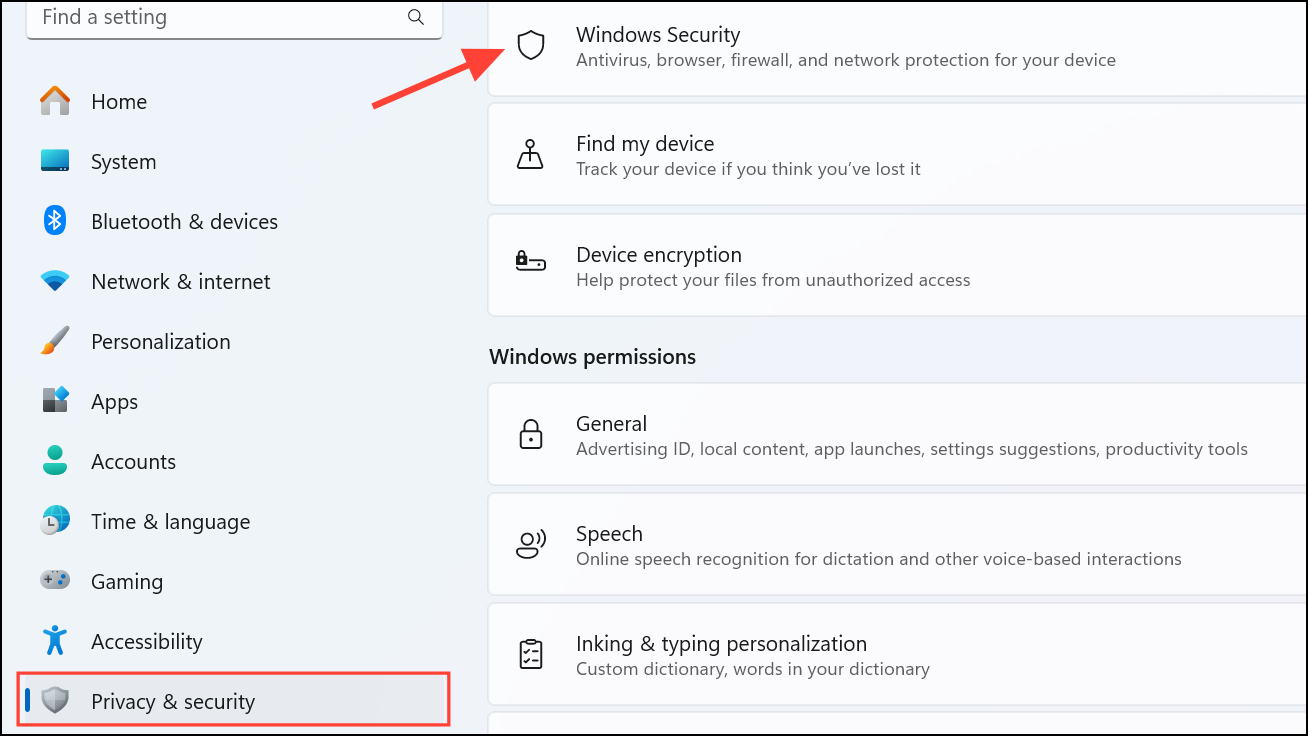
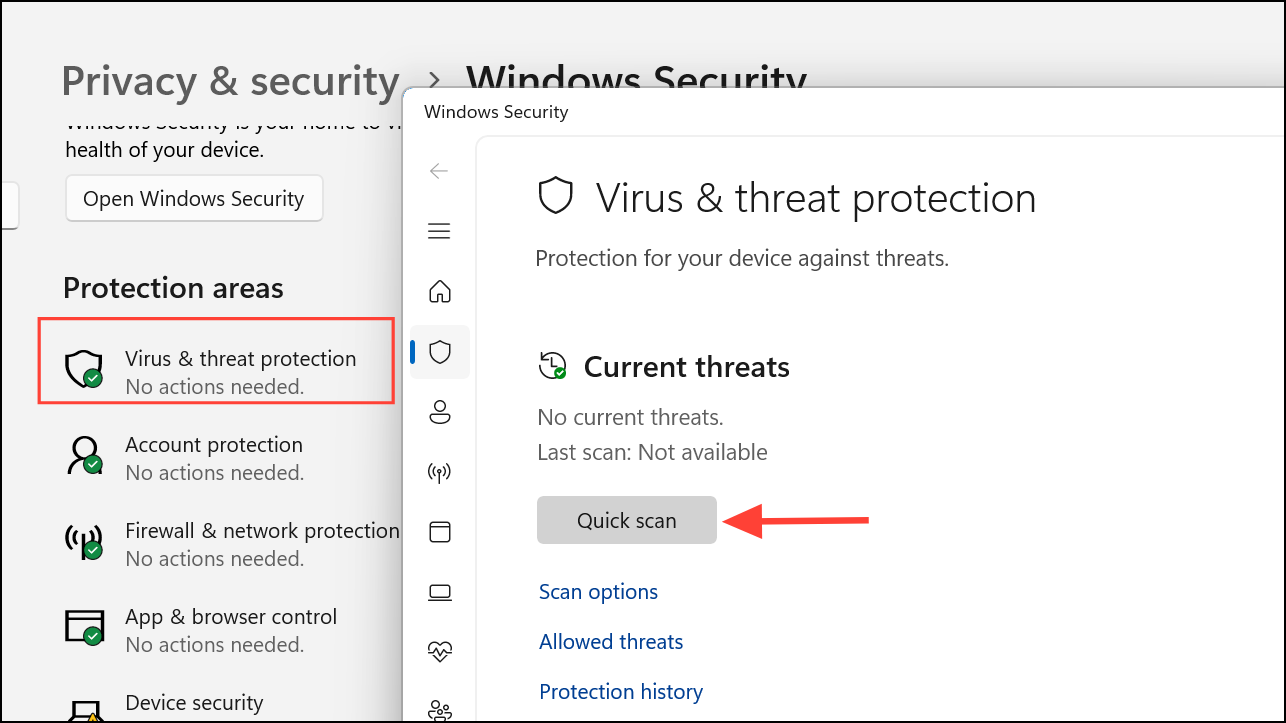
If you suspect malware remains undetected, consider using a trusted third-party antivirus program like Malwarebytes or Avast for additional scanning.
Disable Hardware Acceleration
Some applications like browsers and productivity tools use hardware acceleration, causing unnecessary GPU load.

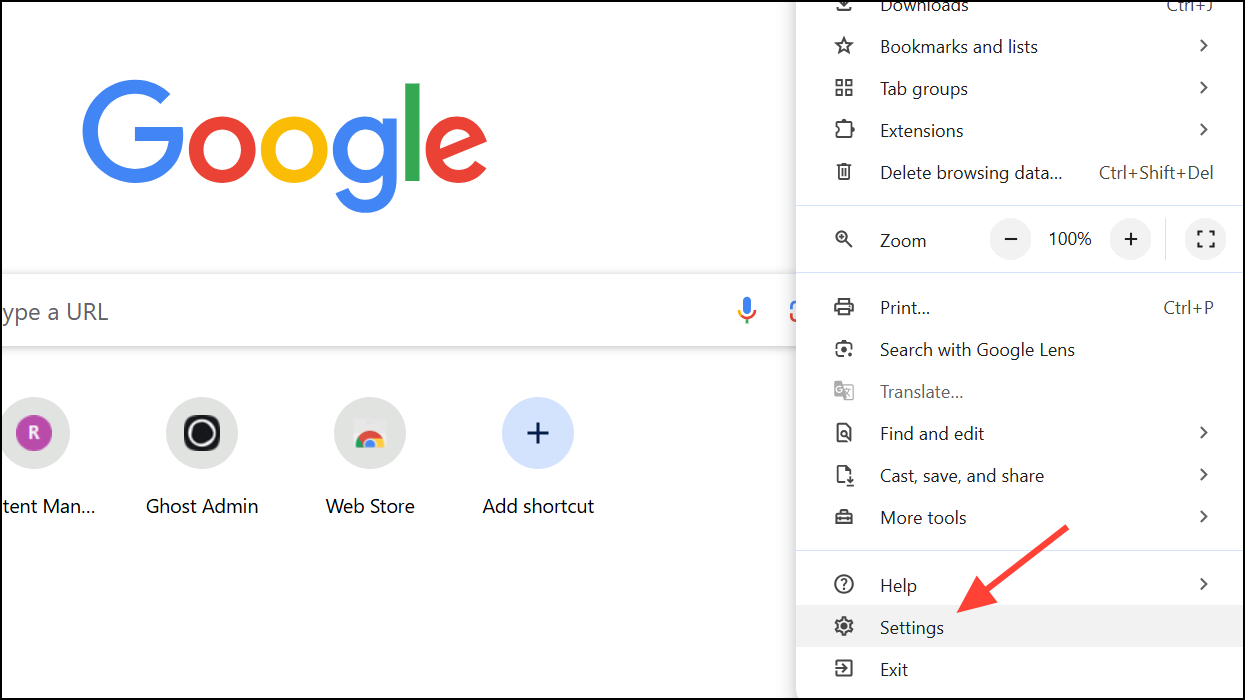
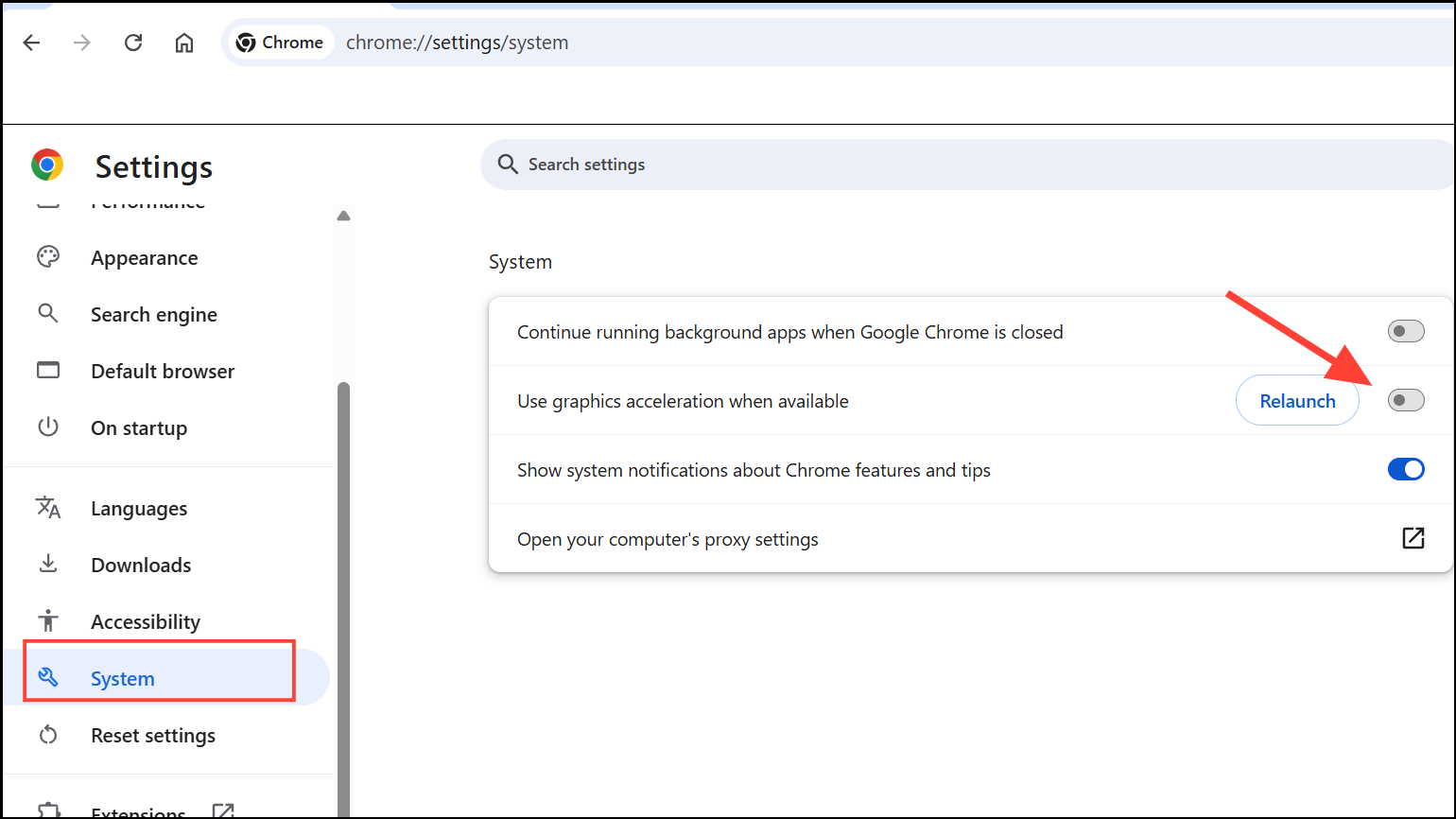
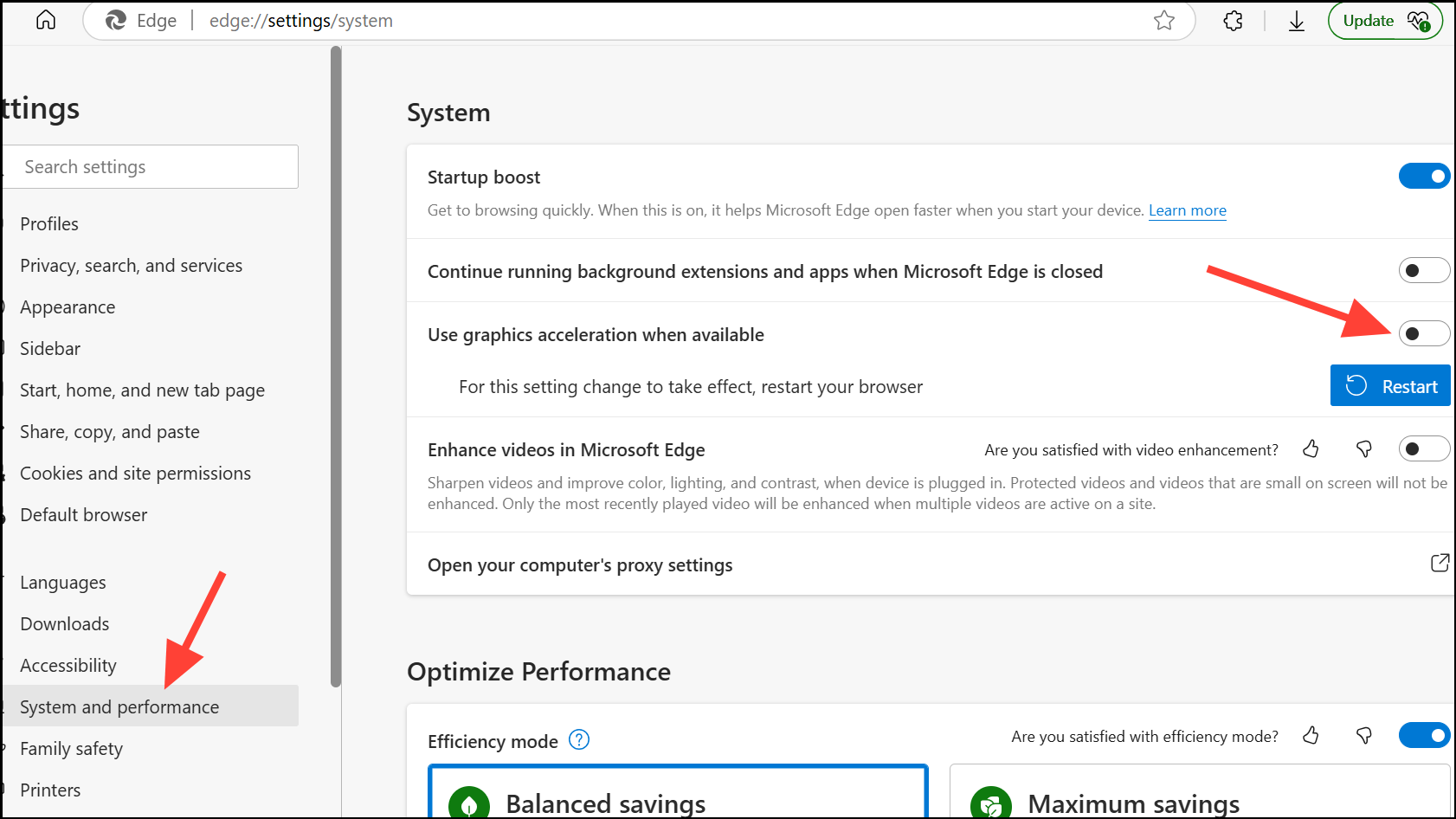
Restart your browser to apply changes and check if GPU usage decreases.
Adjust Game and Application Graphics Settings
Games or graphics-intensive applications with overly demanding settings can unnecessarily stress your GPU.
After making adjustments, monitor GPU usage via Task Manager to verify improvement.
Ensure Adequate Cooling and Airflow
Overheating GPUs may run inefficiently, leading to higher usage levels.
Reinstall GPU Drivers Completely
If updating drivers doesn’t help, a clean reinstall can resolve deeper driver conflicts.
Check for Windows Updates
Windows updates can include important fixes for GPU performance issues.
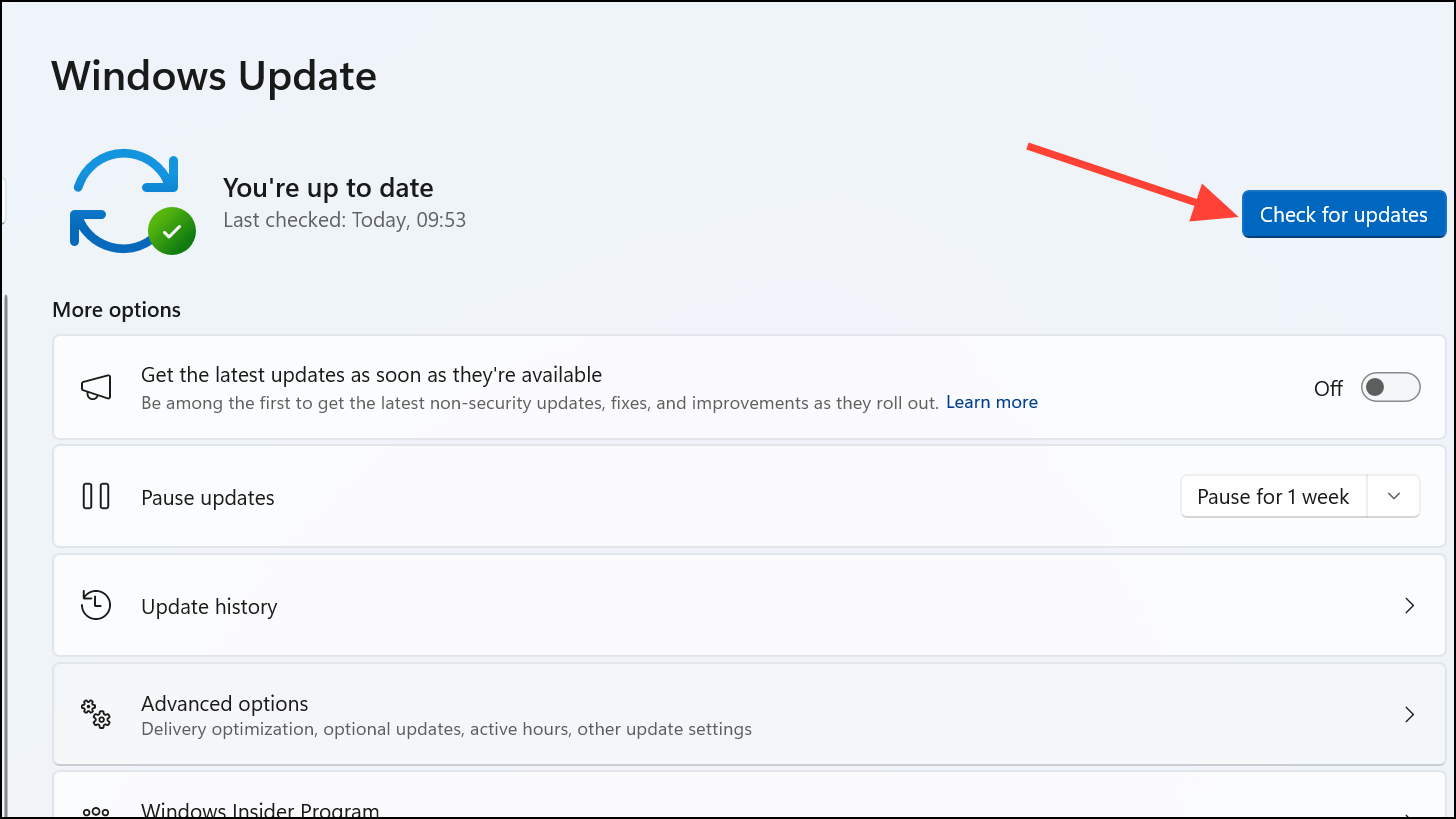
Restart your PC after updates finish installing.
Reset GPU Settings
Resetting GPU settings can resolve issues caused by incorrect configurations.
Restart your PC to ensure changes take effect.
After applying these solutions, monitor your GPU usage regularly. Keeping your system clean, updated, and properly configured ensures stable GPU performance.



