Learn how to quickly resize your Windows 11 taskbar icons and adjust overall taskbar dimensions.
Learn how to quickly resize your Windows 11 taskbar icons and adjust overall taskbar dimensions.
by Pallav Pathak
Windows 11’s default taskbar size may not suit everyone’s preferences or screen resolutions. Adjusting the taskbar size can free up valuable screen space or make icons easier to see. Fortunately, Windows 11 allows users to modify the taskbar icon size and indirectly control the overall taskbar dimensions through a few straightforward methods.
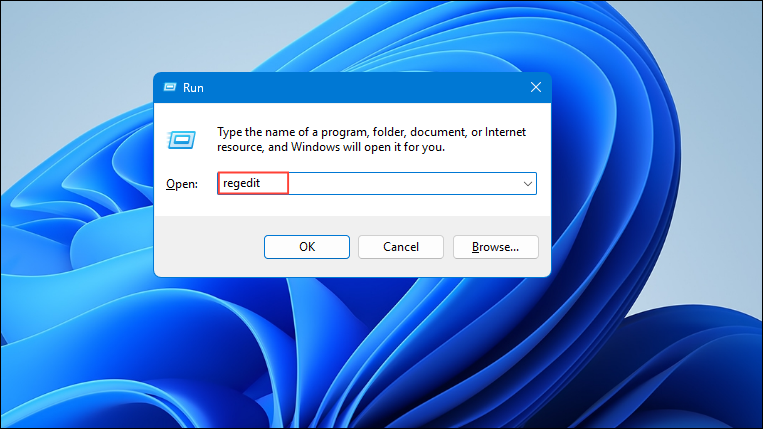
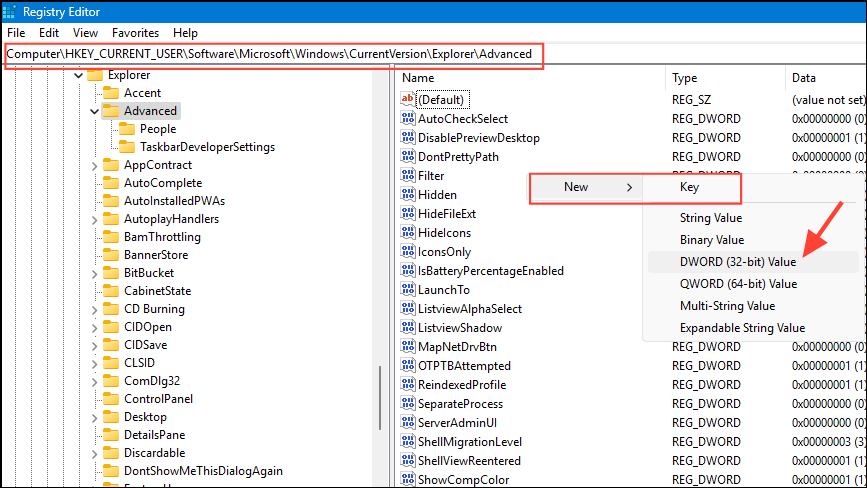
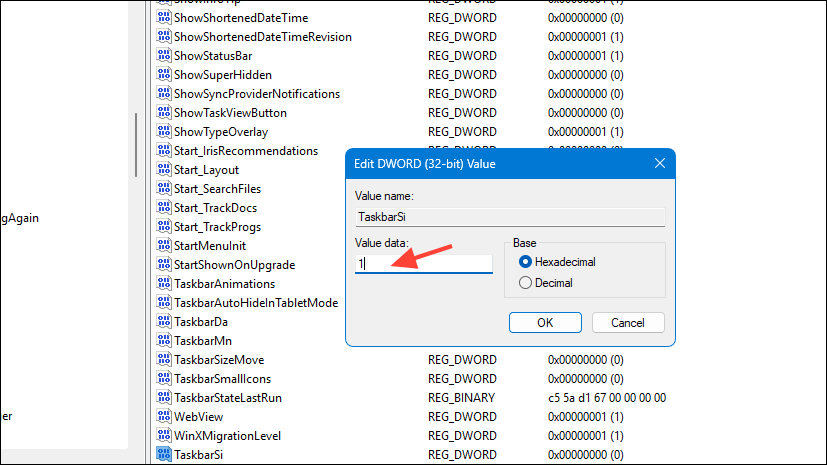
Method 1: Using Registry Editor to Resize Taskbar Icons
After setting your preferred value, click OK and close the Registry Editor. Restart your computer or restart Windows Explorer through Task Manager to apply the changes immediately.
Note: Editing the registry incorrectly can cause issues with your system. Always back up your registry or create a system restore point before making any changes.
Method 2: Adjusting Display Scaling and Resolution
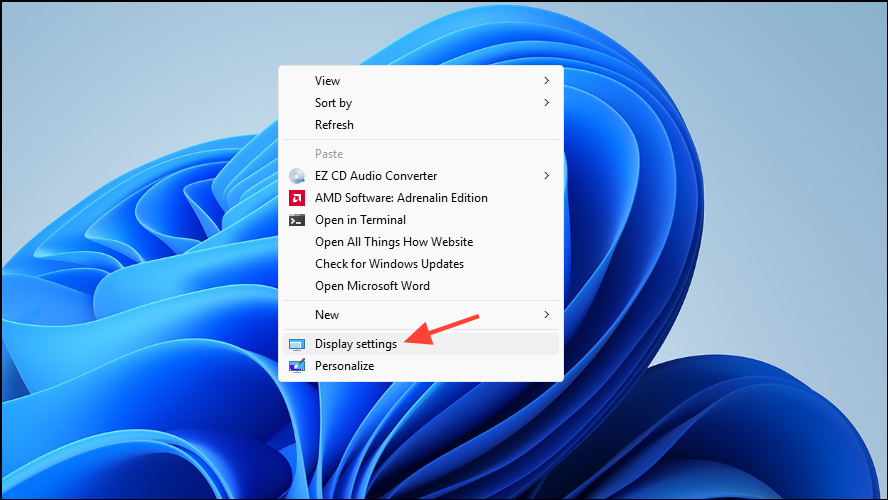
If altering the registry isn’t appealing or you’re looking for a simpler solution, adjusting your display settings can indirectly control the taskbar’s appearance.
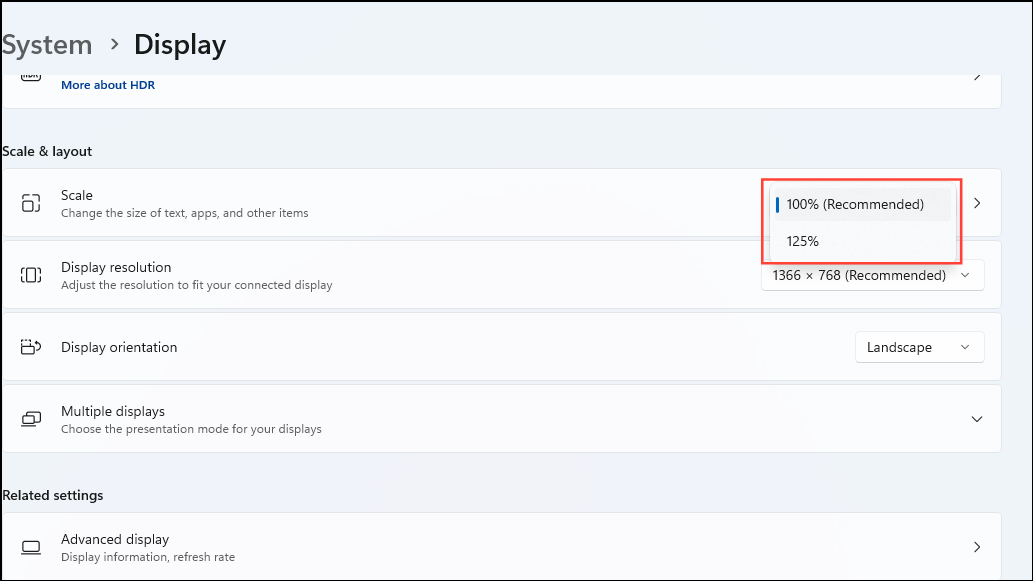
Under the Scale & layout section, you will see options for scaling percentages. Reducing the scale percentage (for example, from 125% down to 100%) will shrink your taskbar icons and overall interface elements, giving you more screen real estate. Conversely, increasing the scale will enlarge the taskbar icons and interface.
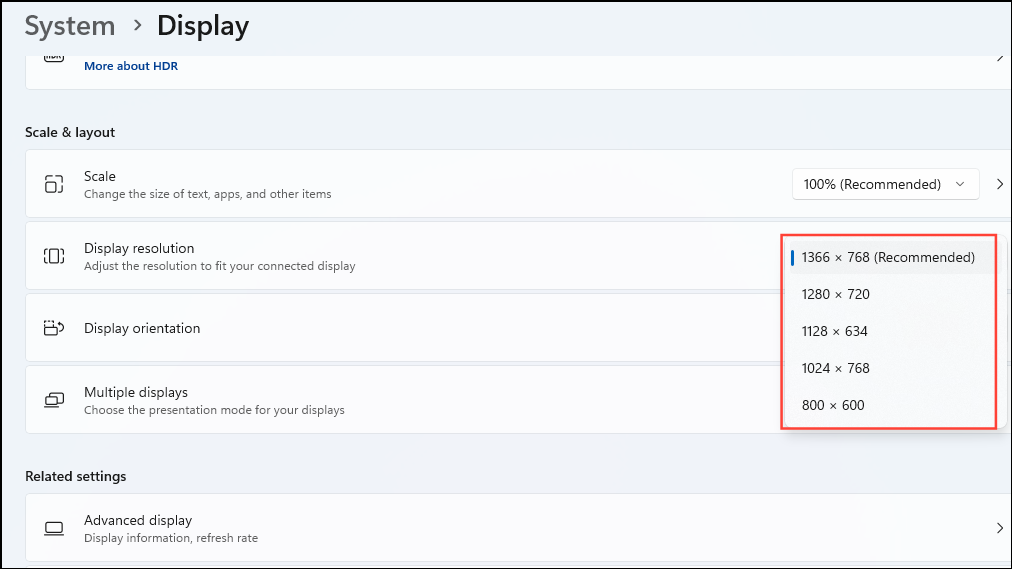
Alternatively, you can adjust your display resolution to indirectly affect the taskbar size. Increasing the resolution makes elements smaller, while decreasing it enlarges them. Experiment with these settings until you achieve your desired taskbar size and overall display comfort.
These changes take effect immediately, and you can always revert by selecting your original settings.
Adjusting your Windows 11 taskbar size helps you optimize your workspace and find a comfortable viewing experience. Don’t hesitate to experiment with these methods to discover what works best for your setup.