
Windows 11 users often prefer having quick access to their most-used applications directly from the desktop. Placing apps on the home screen allows faster launching and better organization. Here’s how you can easily create desktop shortcuts for apps on Windows 11.
Method 1: Using the Applications Folder
This method involves navigating directly to Windows’ built-in Applications folder, which conveniently lists all installed applications.
Windows Key + R to open the Run dialog box. In the dialog box, type shell:AppsFolder and then click OK. The Applications folder will open, displaying all the apps installed on your computer.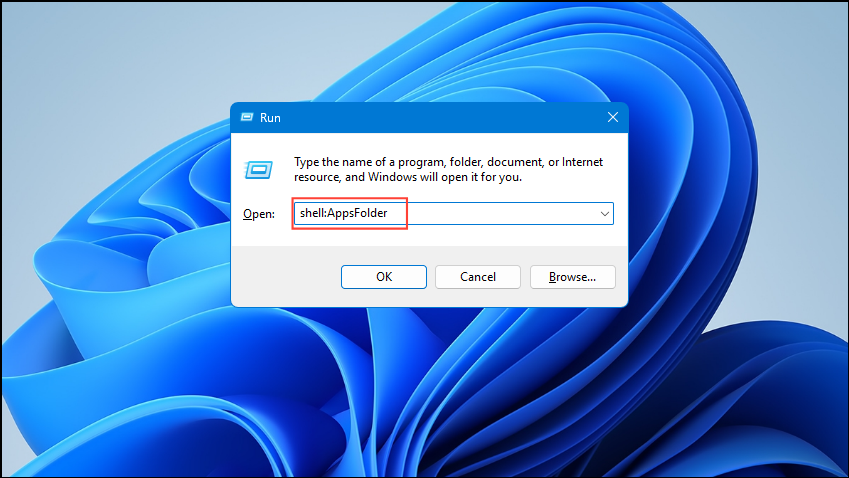
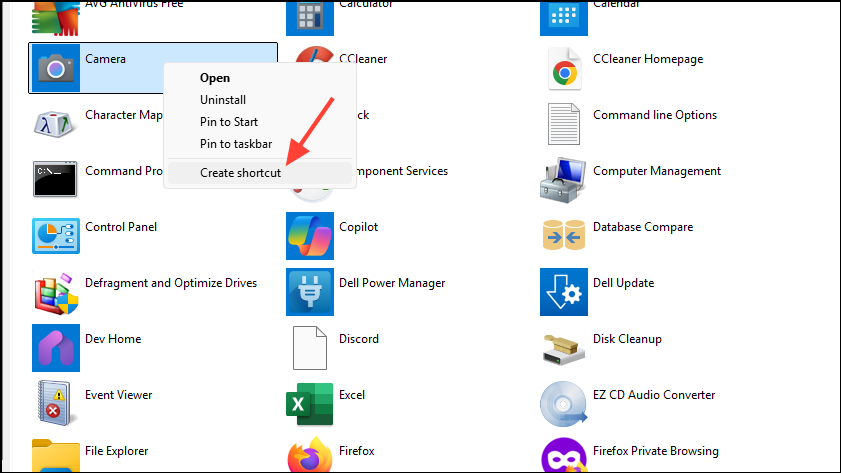
Now the shortcut to your selected app appears directly on your desktop, ready for quick access.
Method 2: Dragging Apps from the Start Menu
This approach is ideal if you prefer a visual, intuitive method for creating desktop shortcuts.
This method is quick and visually straightforward, making it easy even for beginners.
Removing Apps from the Taskbar (Optional)
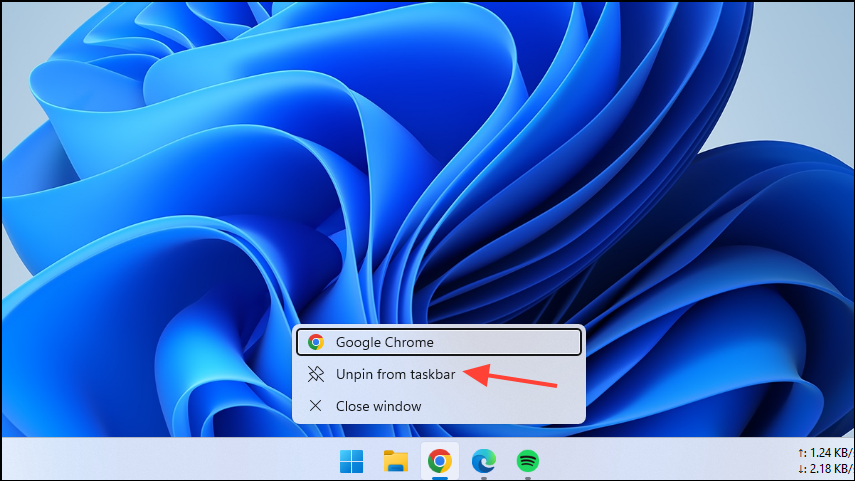
If you prefer to have your apps only on the desktop and not on the taskbar, you can unpin them easily. Right-click the app’s icon on the taskbar and select Unpin from taskbar. This action removes the app from the taskbar but leaves your desktop shortcut intact, allowing you to maintain a cleaner taskbar.
With these methods, placing apps directly on your Windows 11 desktop becomes straightforward and efficient, providing quicker access and a more organized workspace.



