

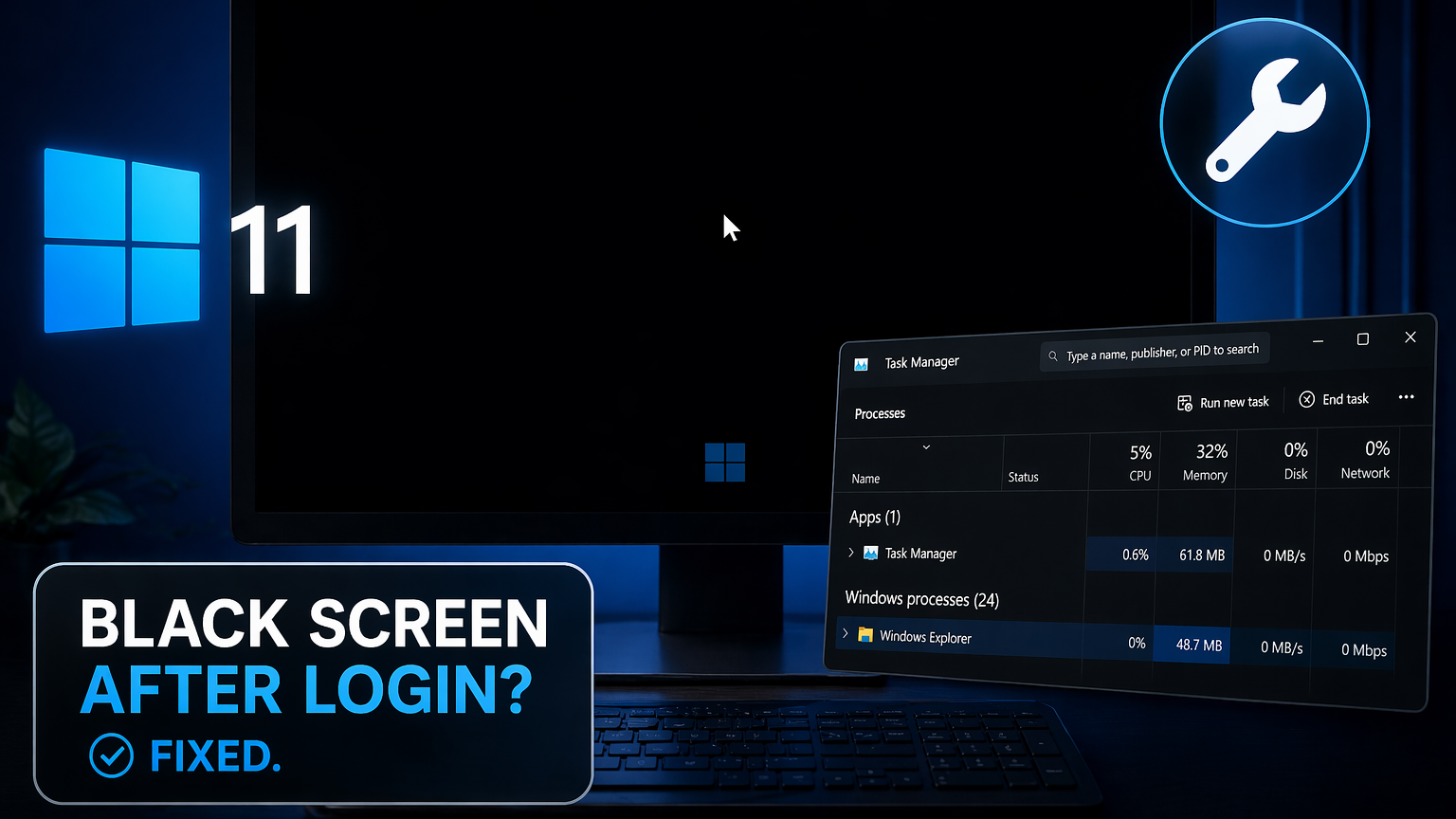
A black screen after signing into Windows 11, usually with just a mouse cursor floating on an empty display, points to the desktop shell failing to load. The login itself succeeds, but explorer.exe or the graphics stack stalls before the taskbar and icons appear. The fix depends on whether you can reach Task Manager, whether the issue started after an update, and whether Fast Startup is involved.
Reset the graphics driver first
Before anything else, try the built-in keyboard shortcut that restarts the display stack without rebooting. Press Windows + Ctrl + Shift + B. You should hear a short beep and see the screen flicker. If the desktop appears, a stalled GPU driver was the cause and no further action is needed for that session.
If nothing happens, cycle the display output. Press Windows + P, then tap P again and press Enter to rotate through PC screen only, Duplicate, Extend, and Second screen only. This rules out a misrouted signal to a disconnected monitor.
Restart Windows Explorer from Task Manager
The most common cause is that the Explorer shell did not launch with your user session. Task Manager can start it manually.
explorer.exe, tick the box for Create this task with administrative privileges, and press Enter.explorer.exe process in the Details tab and relaunch it the same way.Verify the shell registry value
If Explorer will not start at all, the Winlogon shell entry may be missing or corrupted. This needs to match a clean Windows 11 install.
HKEY_LOCAL_MACHINE\SOFTWARE\Microsoft\Windows NT\CurrentVersion\Winlogon. Confirm the Shell value exists and is set to explorer.exe. If it contains anything else, back up the key, then change it.HKEY_LOCAL_MACHINE\SYSTEM\CurrentControlSet\Control\Session Manager\Environment. Confirm a string value named windir exists with the data C:\Windows. A missing windir variable has resolved black-screen-after-login cases where Explorer refuses to launch.Boot into Safe Mode to fix deeper issues
If the desktop never appears, even after restarting Explorer, boot into Safe Mode so you can roll back drivers, uninstall recent software, or run a system restore without the shell being involved.
Roll back or reinstall the graphics driver
Display driver conflicts are one of the top triggers, especially right after a Windows update or a GPU driver update.
Turn off Fast Startup
Fast Startup is hybrid hibernation. When you shut down, Windows saves kernel state to hiberfil.sys and reloads it on the next boot. On some systems, particularly with certain motherboard firmware or GPU drivers, this reused state is what leaves you with a black screen and cursor. Disabling it forces a full cold boot every time.
powercfg -H off
hiberfil.sys — freeing several gigabytes equal to your installed RAM. Reboot to apply.If you prefer a GUI: open Control Panel > Power Options > Choose what the power buttons do > Change settings that are currently unavailable, then clear Turn on fast startup (recommended).
Uninstall recently added software
If the black screen started after installing a program, a shell extension, filter driver, or security tool is likely hooking into Explorer. Third-party folder protection, screen recorders, virtual display utilities, Explorer replacements, and some antivirus products have all been linked to this behavior.
Boot into Safe Mode, open Settings > Apps > Installed apps, and uninstall anything added in the days before the problem started. Reboot after each removal and test. If a specific program is the trigger, reinstalling it will reproduce the black screen — confirming the cause.
Repair system files and the image
Corrupted system files can prevent the shell from initializing. Running the built-in repair tools in order resolves most cases.
DISM /Online /Cleanup-Image /RestoreHealth
sfc /scannow
Use System Restore if it started after an update
When the black screen began immediately after a Windows update or driver install, a restore point from before that change is the fastest fix.
From the Recovery Environment, go to Troubleshoot > Advanced options > System Restore and pick a restore point dated before the issue appeared. This rolls back drivers, updates, and registry changes without touching your personal files.
If an update is confirmed as the trigger, you can also uninstall it from Troubleshoot > Advanced options > Uninstall Updates, then pause Windows Update for a few weeks to avoid reinstallation while a fix is prepared.
Reference table of fixes by symptom
| Symptom | Most likely cause | First fix to try |
|---|---|---|
| Black screen with cursor, Task Manager opens | Explorer shell failed to start | Run explorer.exe as admin from Task Manager |
| Black screen, no cursor | Graphics driver stalled | Windows + Ctrl + Shift + B |
| Happens only after shutdown, not restart | Fast Startup reusing bad state | powercfg -H off |
| Started after a Windows update | Driver or update regression | Roll back driver or System Restore |
| Started after installing an app | Shell extension or filter driver conflict | Uninstall the app in Safe Mode |
| Blinking underscore cursor on a black screen | BIOS cannot find boot device | Check boot order and drive connection in BIOS |
| One-minute delay then desktop loads | Delayed user profile or AppX provisioning | Wait out the delay; check for cumulative updates |
When to consider a reset or clean install
If the shell still will not load after rolling back drivers, running DISM and SFC, disabling Fast Startup, removing recent software, and attempting System Restore, you are likely dealing with a corrupted user profile or a broken component store that repair tools cannot reach.
Create a new local administrator account first — from Task Manager, run control userpasswords2 or use net user NewName Password /add followed by net localgroup Administrators NewName /add in an admin prompt. Sign in to the new account. If it loads a normal desktop, the original profile is the problem and you can migrate your files over.
If a fresh profile also shows the black screen, use Settings > System > Recovery > Reset this PC and choose Keep my files. As a last resort, perform a clean install from a Windows 11 USB created with the Media Creation Tool. Back up data from Safe Mode before doing this.
Known issue note: Microsoft has acknowledged black-screen-after-login reports tied to mid-2025 Windows 11 cumulative updates, involving the App Readiness service and delayed shell startup on imaged enterprise deployments. If you are on a managed device, check with your IT team before making registry or driver changes, because a pending servicing fix may already be in the pipeline.



