
Windows 11 encourages users to set up a PIN as part of its Windows Hello security features. While a PIN can provide quick and secure access to your device, you might prefer to use a traditional password or another sign-in method. If you’re looking to disable the PIN on your Windows 11 computer, here are some effective methods to help you accomplish that.
Method 1: Disable the Windows Hello Sign-in Requirement
By default, Windows 11 may require you to use Windows Hello sign-in options, such as a PIN, for Microsoft accounts. Disabling this requirement allows you to remove your PIN and use other sign-in methods.
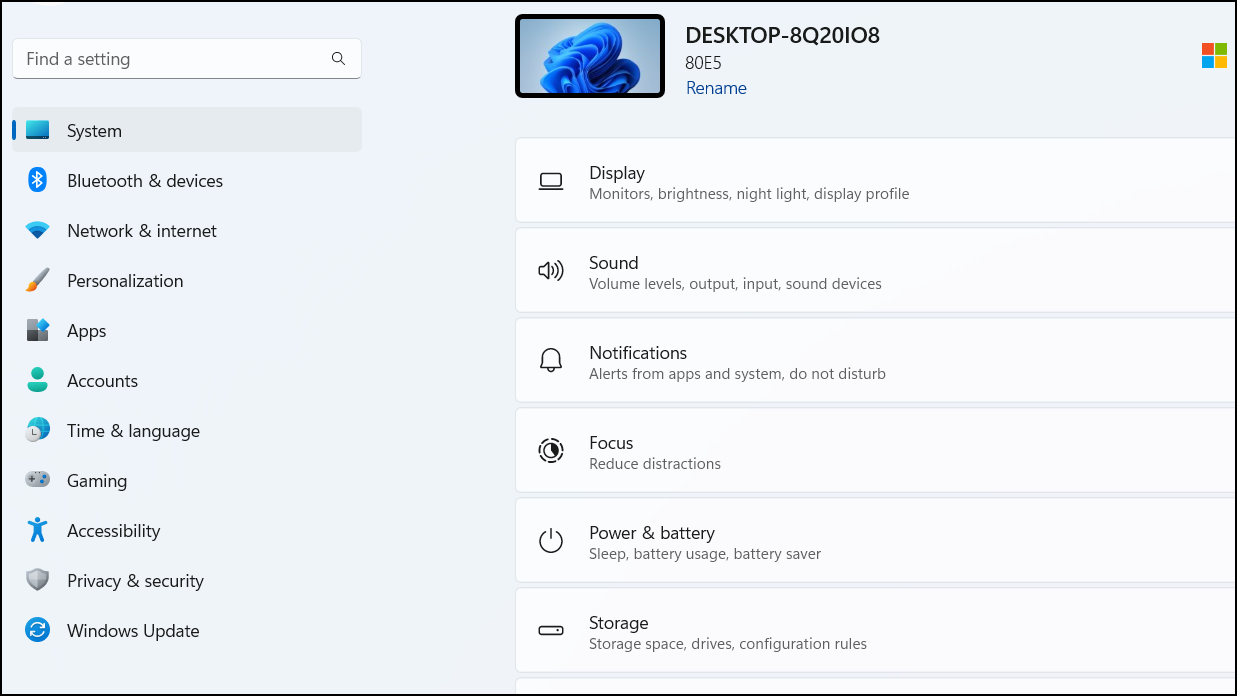
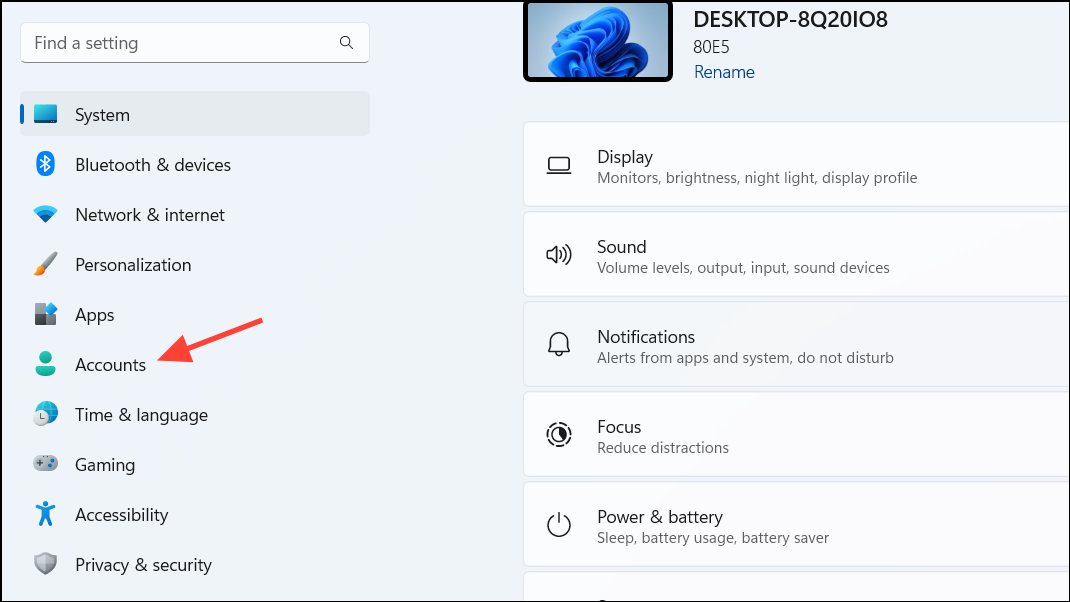
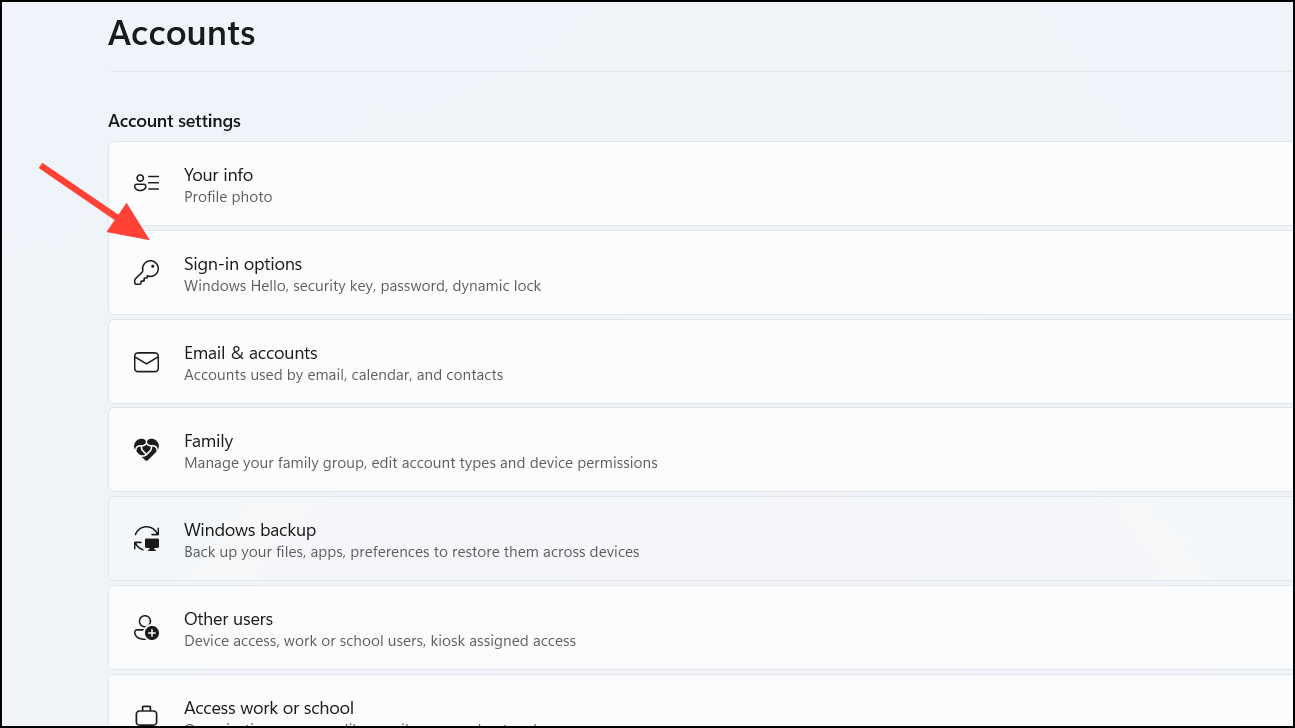
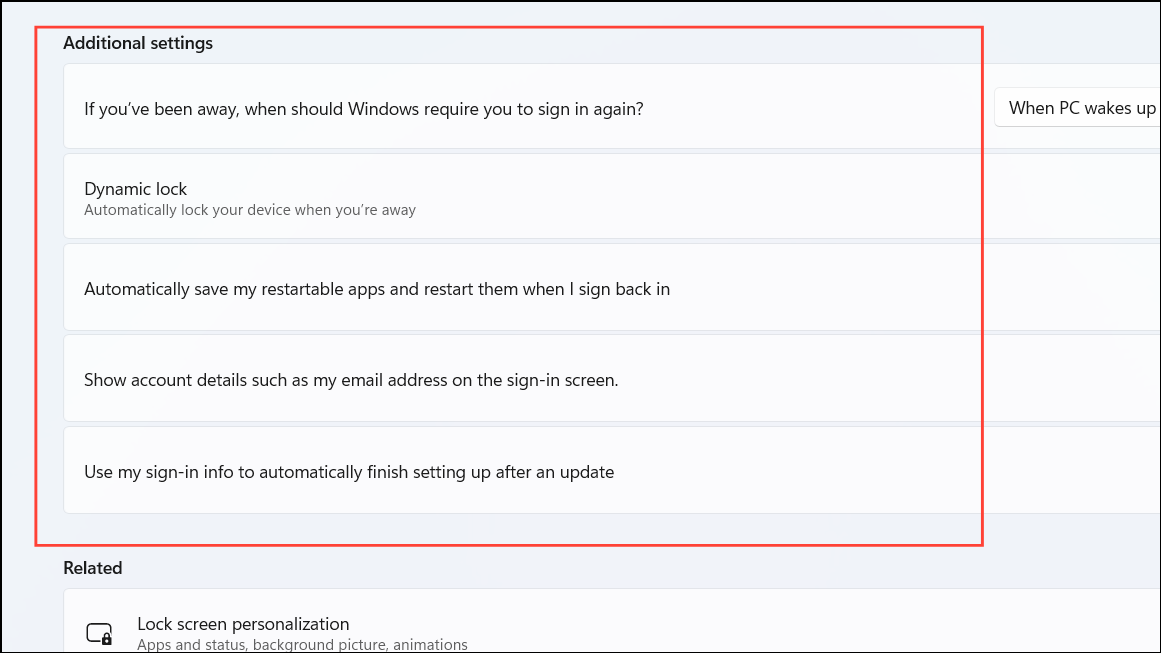
By turning off this setting, you can now choose to remove your PIN and use a password or another sign-in option.
Method 2: Remove the PIN Using the “I Forgot My PIN” Option
If the Remove PIN option is greyed out, you can use the “I forgot my PIN” feature to remove your PIN without setting up a new one.
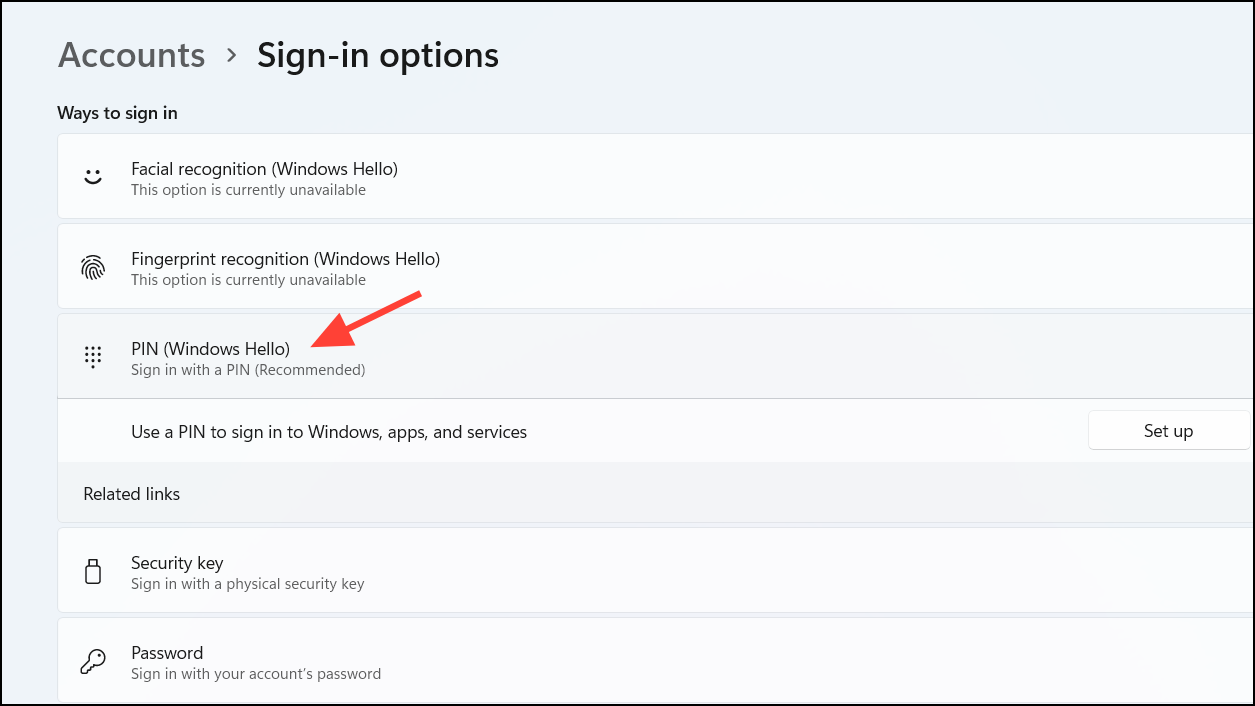
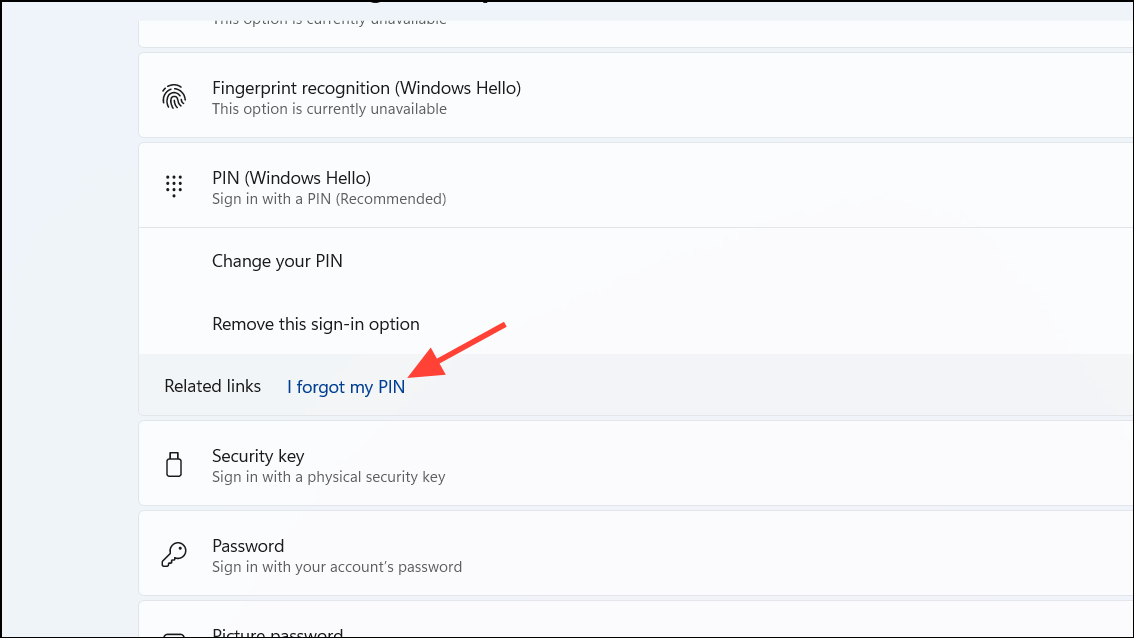
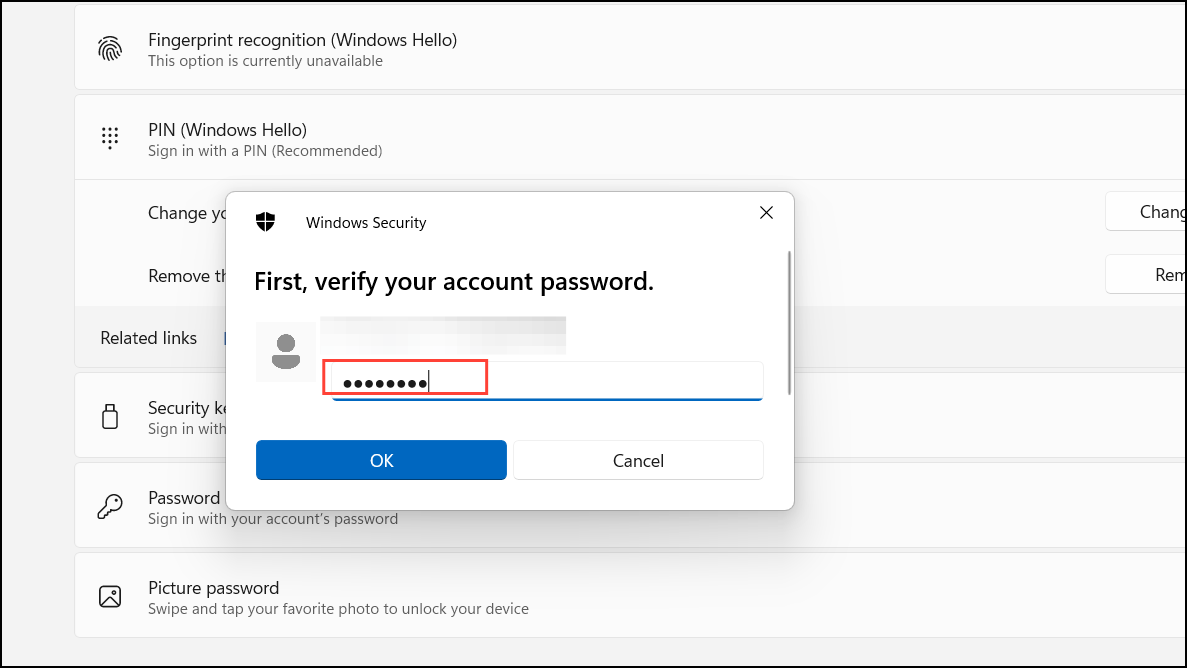
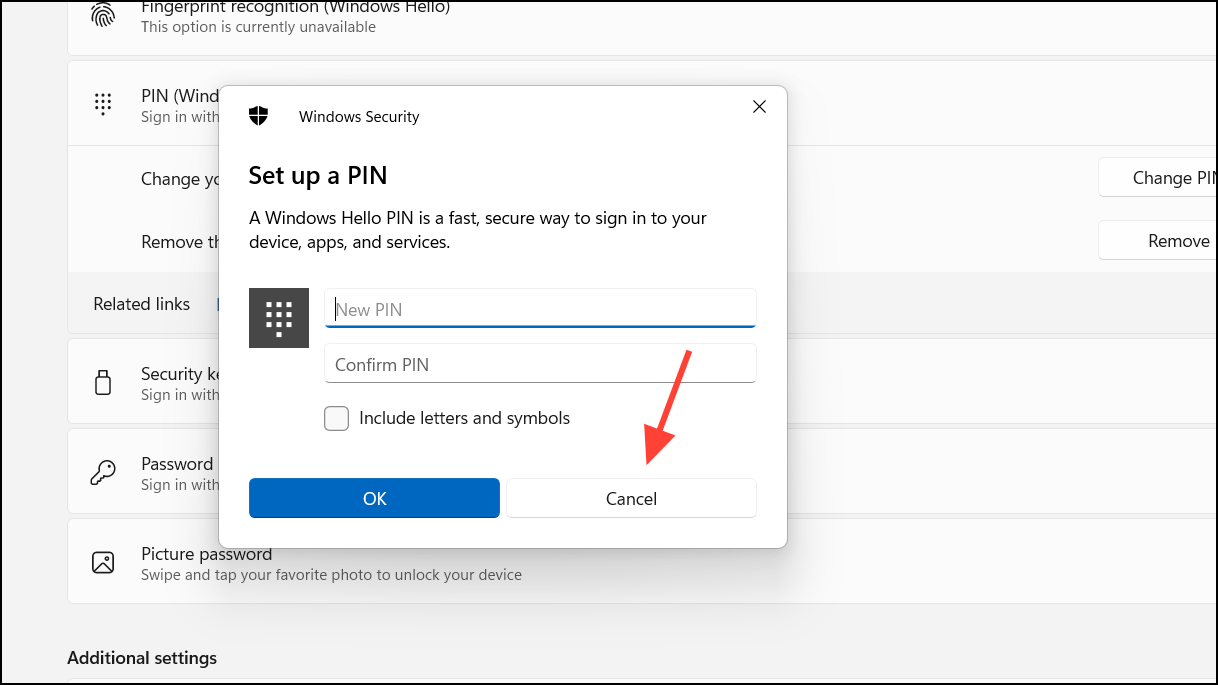
Your PIN has now been removed, and you can sign in using your password or another method.
Method 3: Turn Off the Passwordless Login Feature for Your Microsoft Account
Disabling the passwordless login feature in your Microsoft account settings can help remove the PIN requirement from your device.
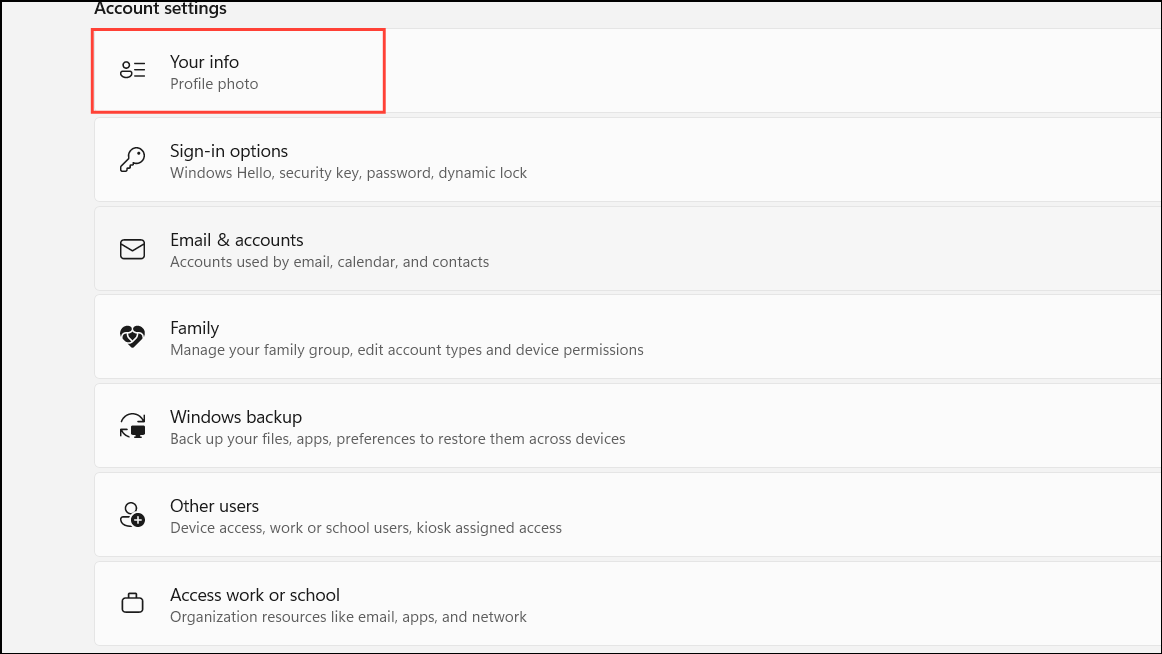
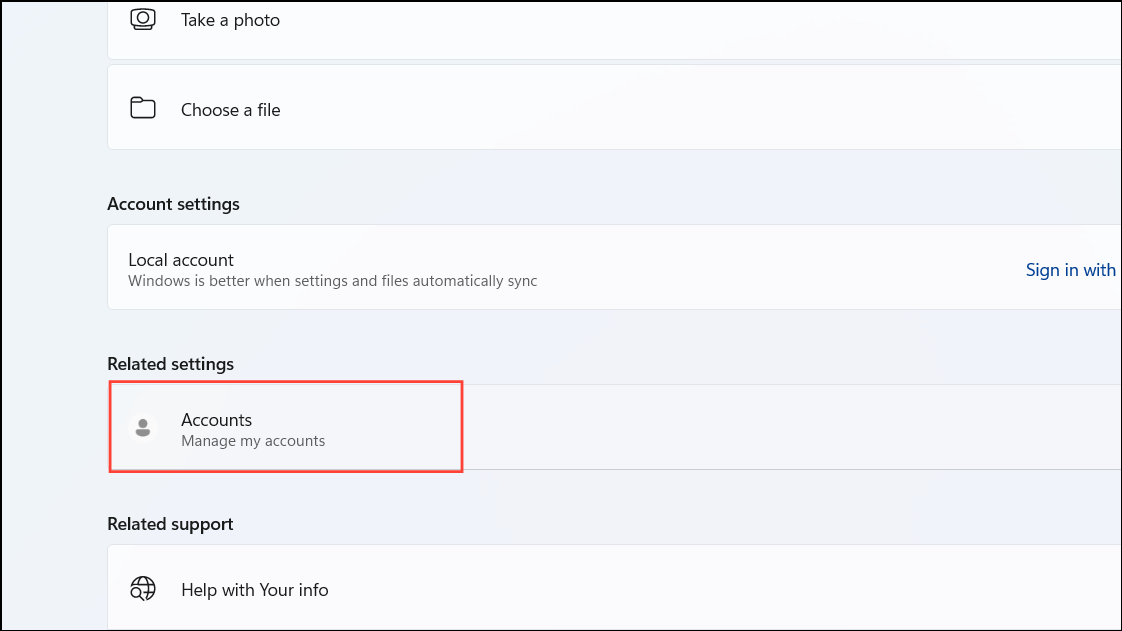
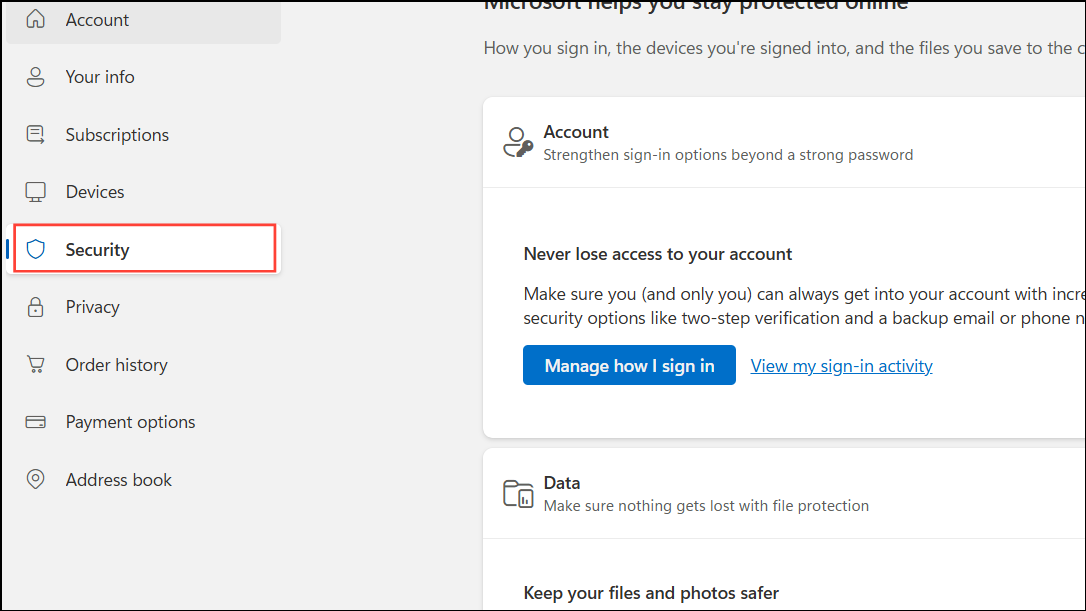
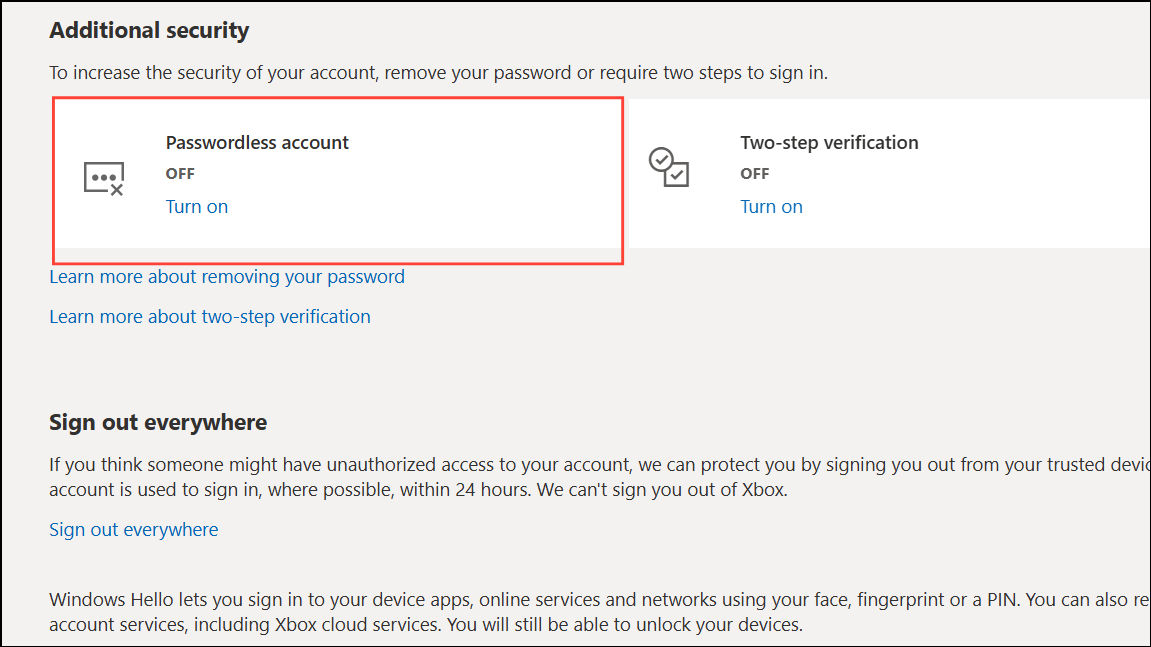
With passwordless login turned off, you can now remove your PIN from Windows 11.
Method 4: Remove the PIN from Your Account
After performing the steps in Method 1 or Method 3, you should now have the option to remove your PIN directly from the Settings app.
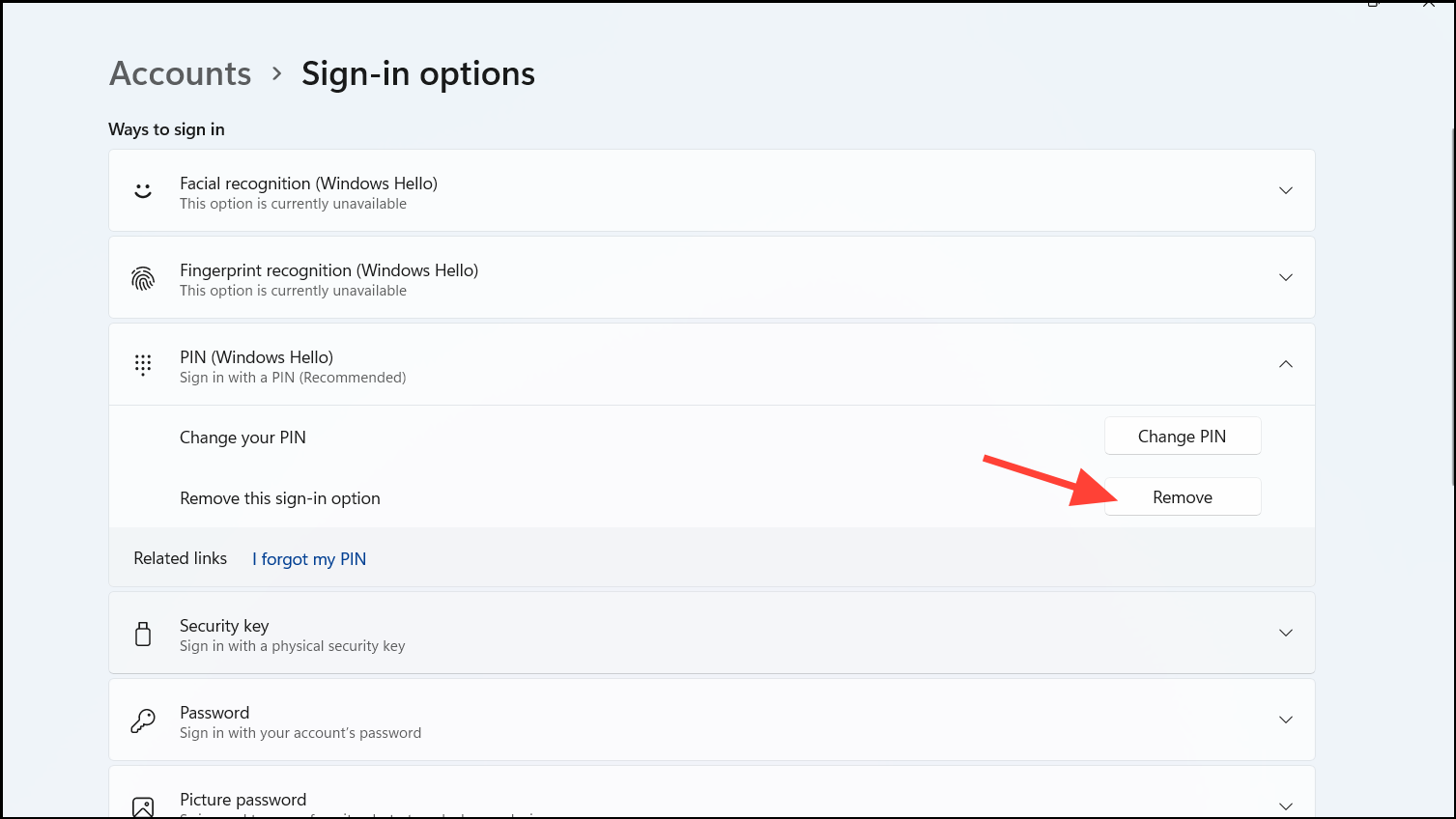
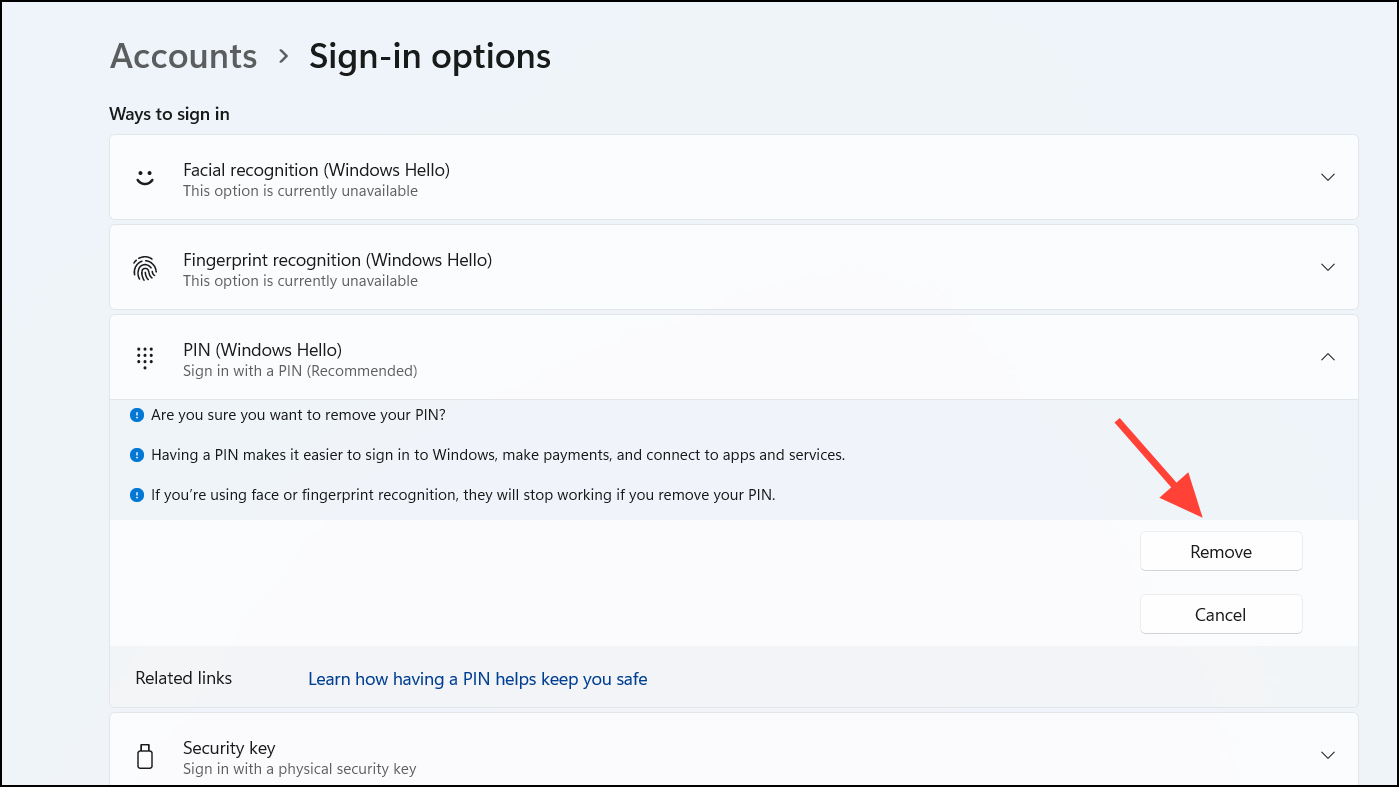
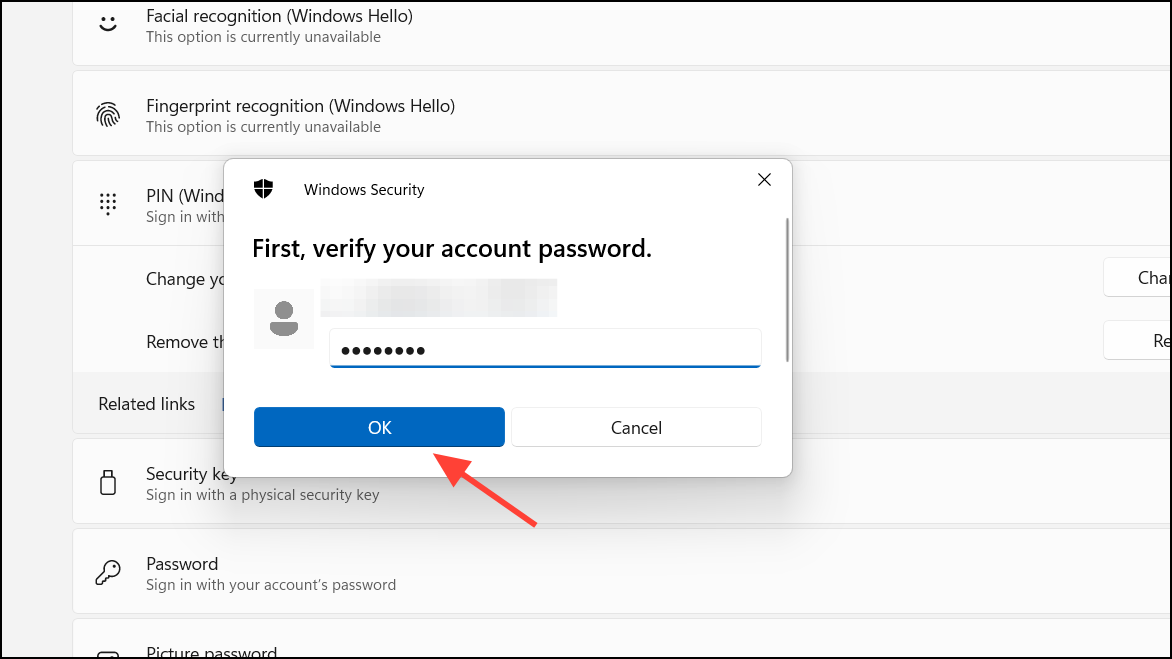
Your PIN has been successfully removed, and you can now use your password or another sign-in method to access your device.
By following these methods, you can disable the PIN feature on your Windows 11 device and choose the sign-in option that best suits your preferences.



