
Having a clean and organized desktop on your Windows 11 PC can enhance both aesthetics and performance. If your desktop is cluttered with too many icons, it can be challenging to find the applications you need quickly. Moreover, a crowded desktop can consume valuable system resources, potentially slowing down your computer. Fortunately, Windows 11 provides simple ways to hide specific desktop icons without removing them entirely.
Hide specific desktop icons using personalization settings
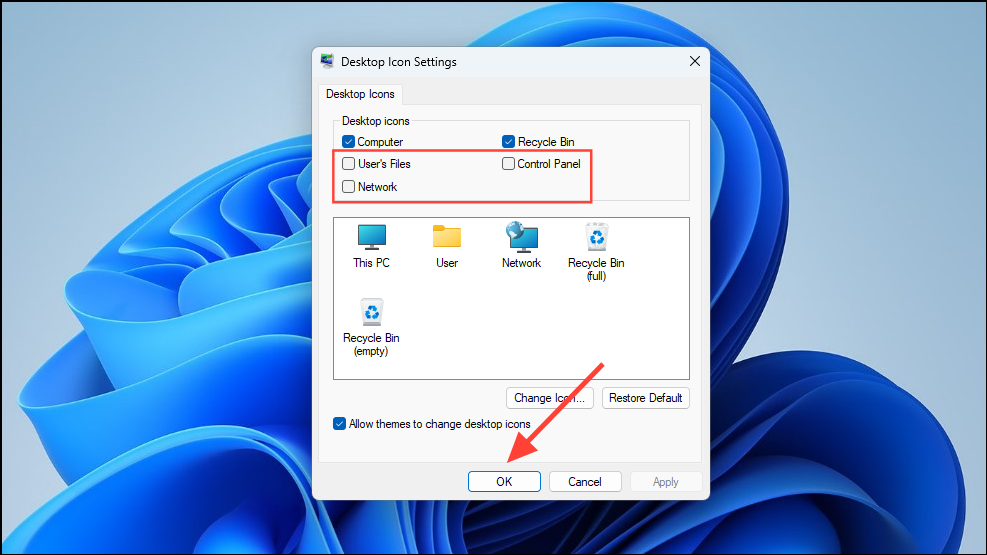
To hide certain icons on your Windows 11 desktop while keeping others visible, you can utilize the Personalization settings. Here’s how to do it:
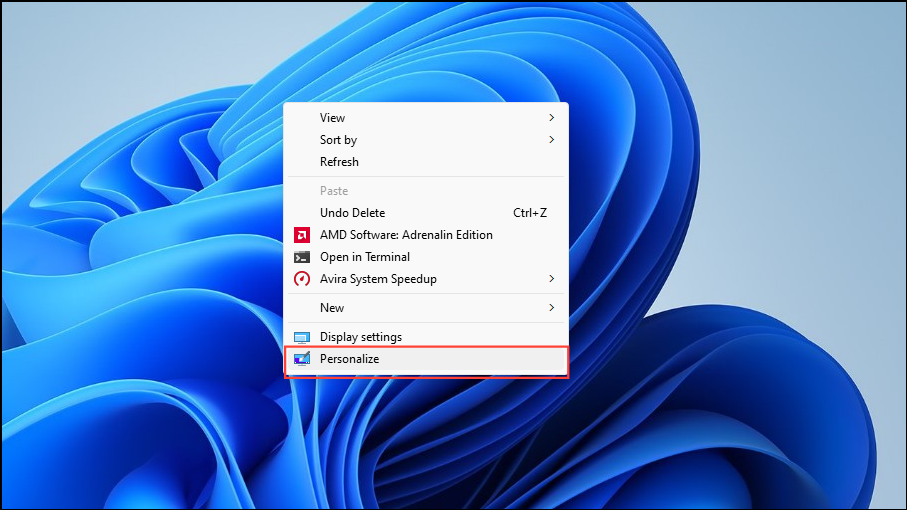
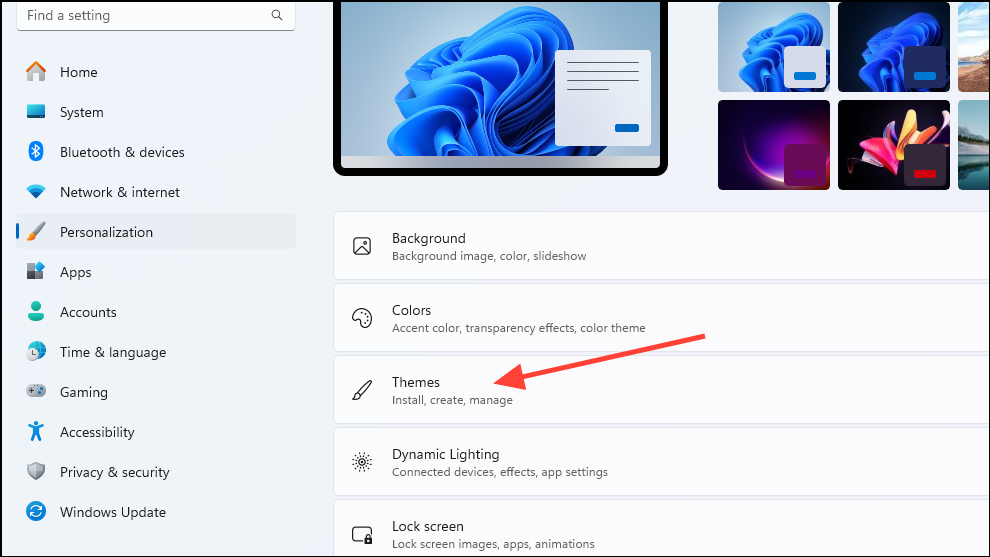
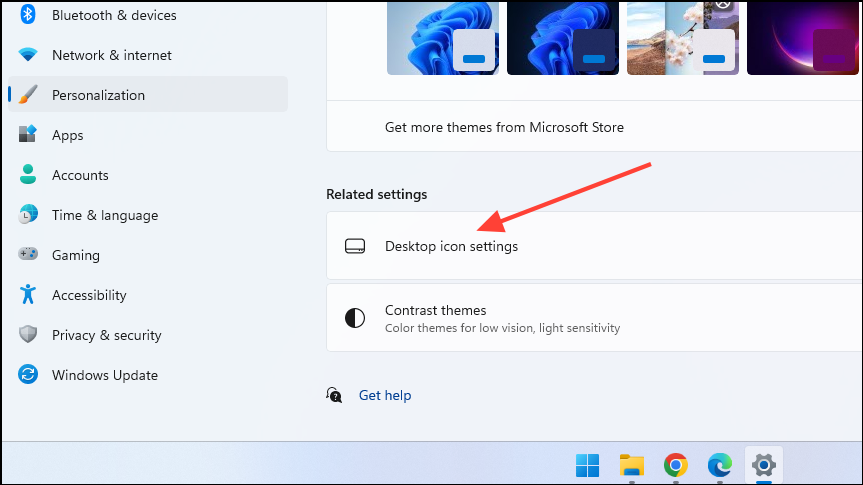
Remove shortcut icons from the desktop
If your desktop has shortcut icons for applications that you don’t frequently use, you can remove them to declutter your workspace. This method deletes the shortcut icon but does not uninstall the application.
Delete key on your keyboard.The icon will be removed from your desktop. To access the application in the future, you can use the Start menu or create a new shortcut if necessary.
By customizing which icons appear on your Windows 11 desktop, you can keep your workspace organized and efficient. Hiding unnecessary icons not only declutters your screen but can also contribute to a smoother and more responsive system experience.



