

Encountering issues when trying to play .MOV files on Windows 11 can be frustrating, especially when you expect them to open seamlessly. Whether the built-in media player shows a black screen or fails to play the file altogether, these problems can disrupt your workflow or entertainment. Fortunately, there are effective solutions to ensure your .MOV files play smoothly on your Windows 11 computer. Here’s how you can resolve this issue.
Use a third-party media player like VLC Media Player
If you’re having trouble playing .MOV files with the default media player, using a versatile third-party media player like VLC Media Player can be a game-changer. VLC supports a wide range of video formats and often doesn’t require additional codecs.

VLC. Click on the VLC Media Player app from the search results.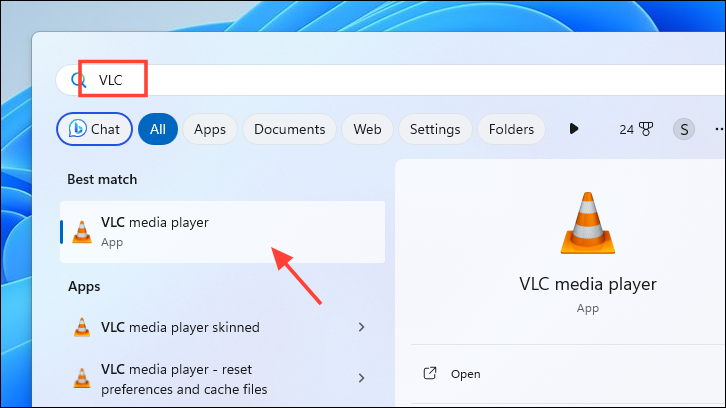
Media menu at the top-left corner and select Open File from the dropdown. This action will prompt a File Explorer window to appear.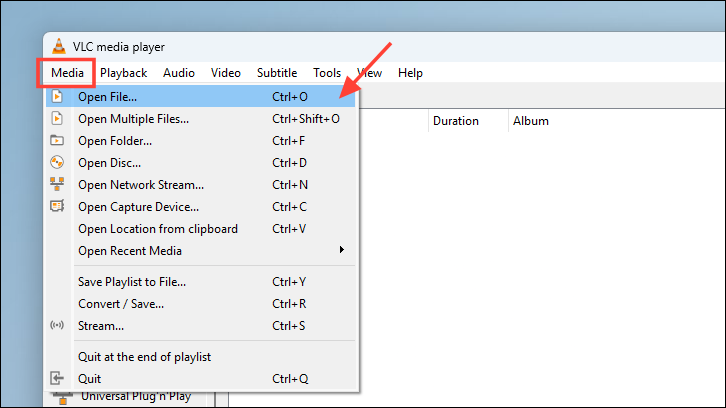
.MOV file in the File Explorer window. Select the file you wish to play and click on Open.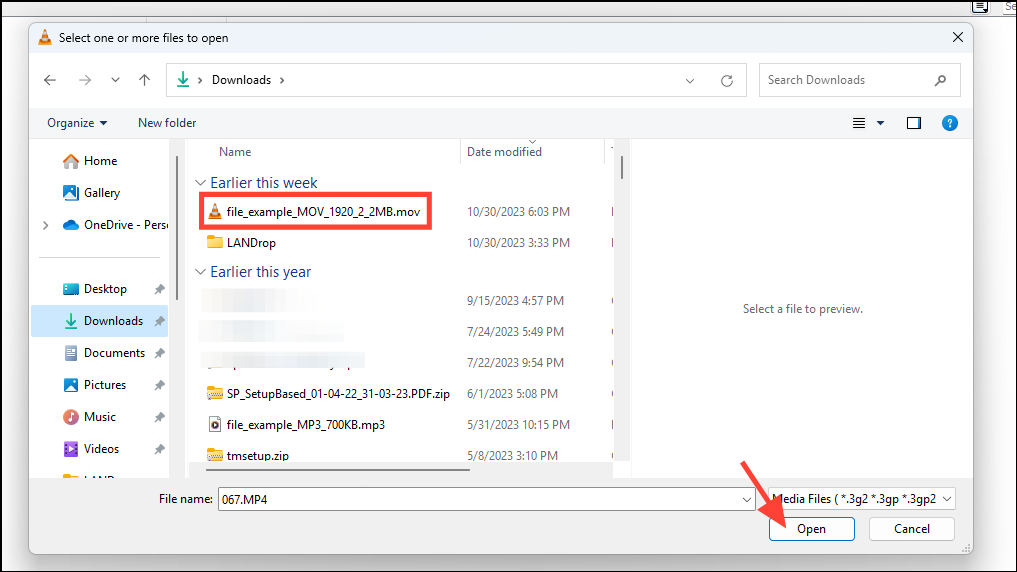
Install K-Lite Codec Packs
If you’re still unable to play .MOV files, it’s possible that your system lacks the necessary codecs. Installing the K-Lite Codec Pack can resolve this by adding support for various video formats to your media players.
Mirror 1, Mirror 2, or Mirror 3 to begin downloading the codec pack. This will open a dialog box prompting you to save the file.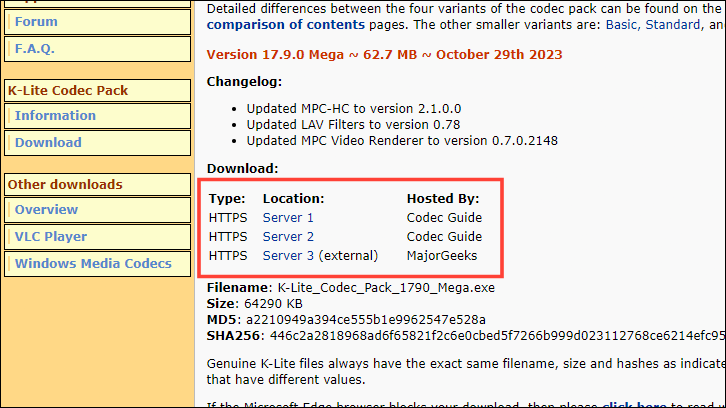
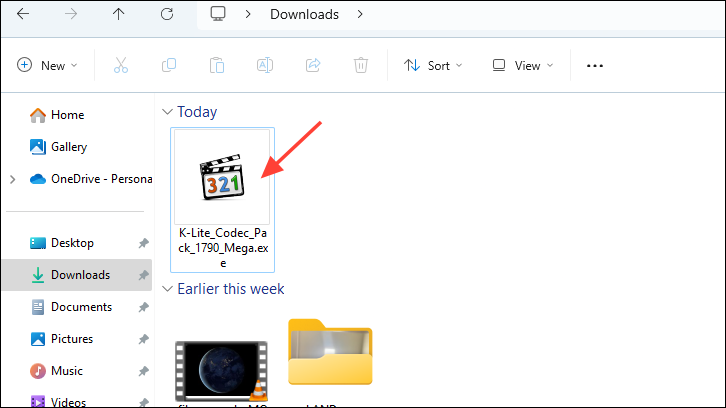
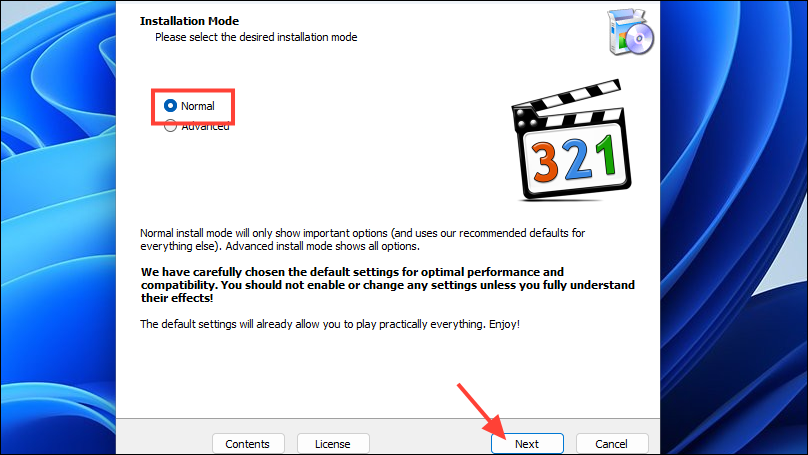
Preferred video player dropdown menu. Then, click on Next to continue.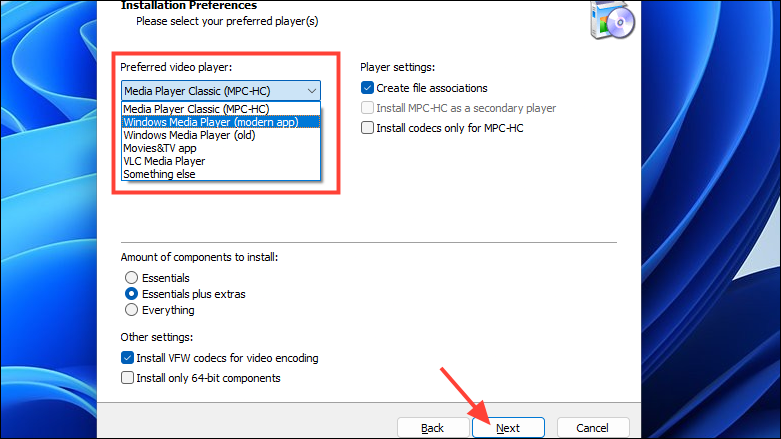
.MOV file using your chosen media player. The file should now play without any problems.Use Windows Media Player Legacy
Windows 11 includes the Windows Media Player Legacy, which can play .MOV files. If you’re experiencing issues with the default Media Player, you can try using this legacy version.
For a single file
Open with option, and then select Choose another app from the submenu.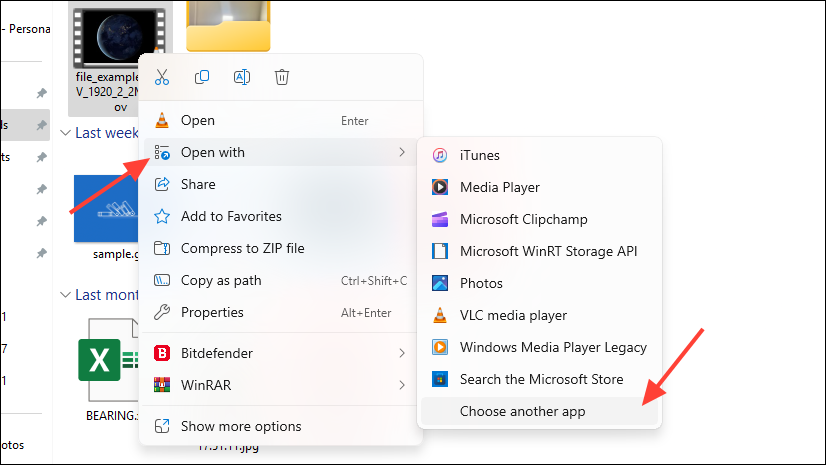
Windows Media Player from the list of applications. If you want to use Windows Media Player for all .MOV files by default, check the box for Always use this app to open .MOV files. Then, click on OK.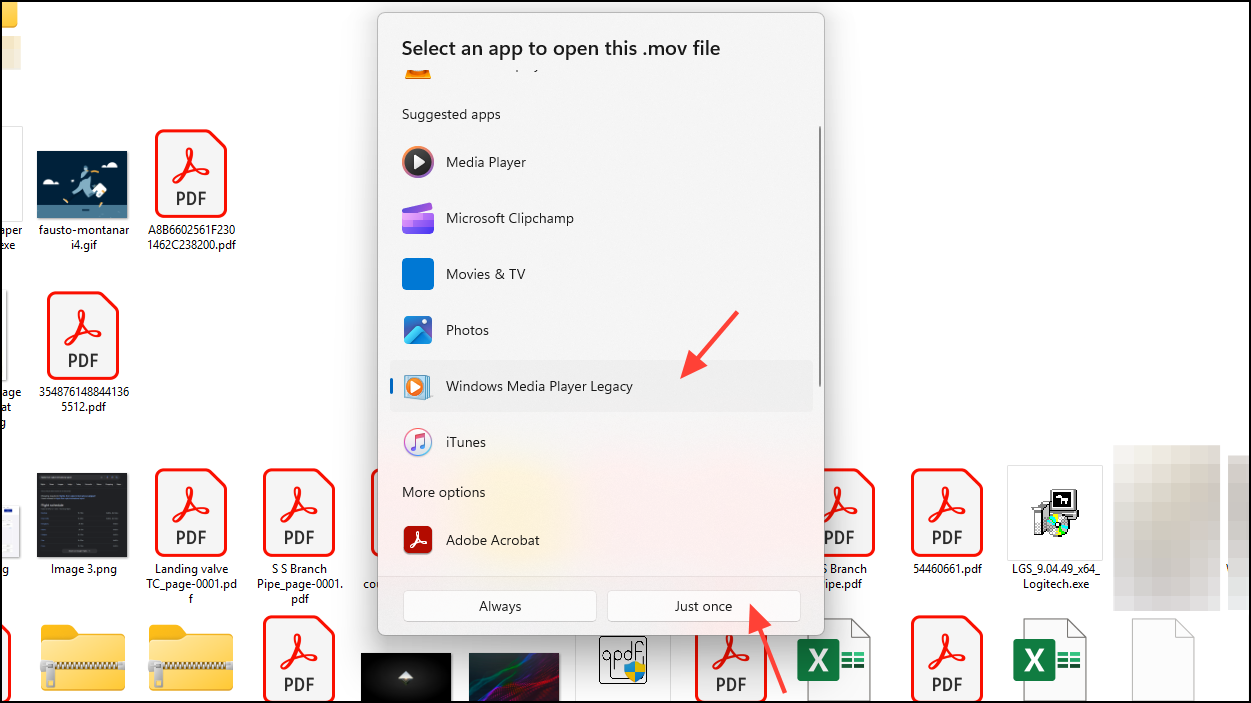
To permanently include a directory
If you have a folder containing multiple .MOV files, you can add it to Windows Media Player’s library for easy access.
Windows Media Player in the search bar. From the search results, select Windows Media Player Legacy.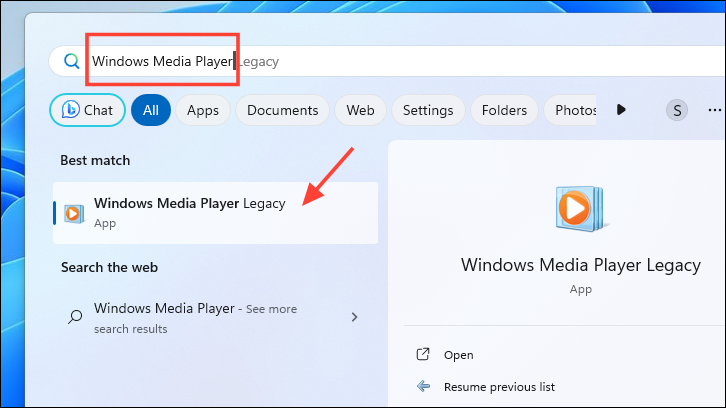
Organize menu. Hover over Manage libraries, and then click on Videos.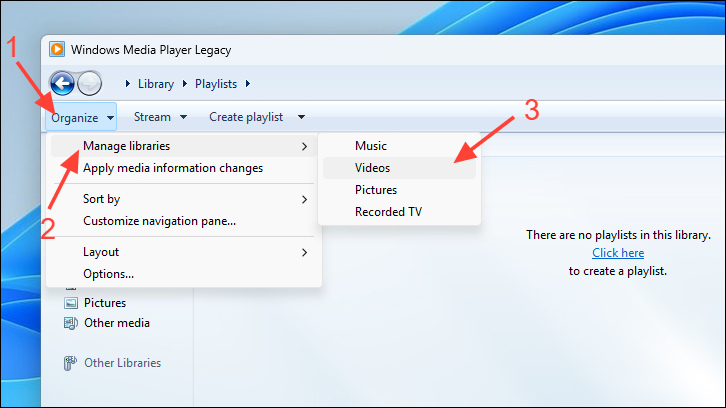
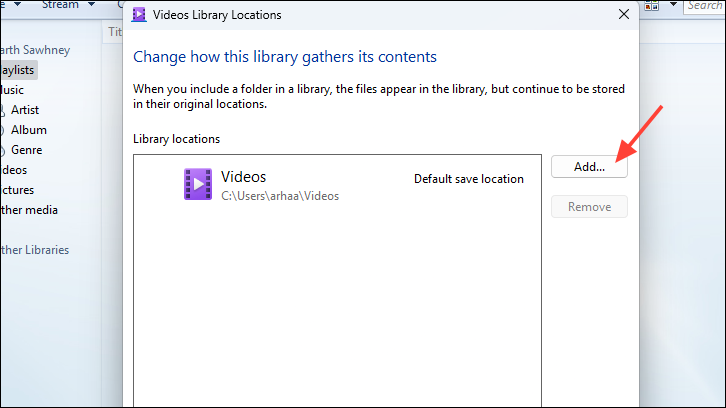
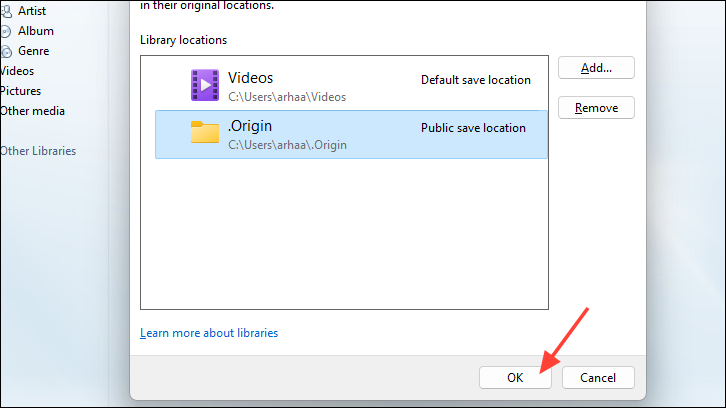
.MOV files will now appear in the Videos tab within Windows Media Player. Any new files added to this folder will be automatically included in the library.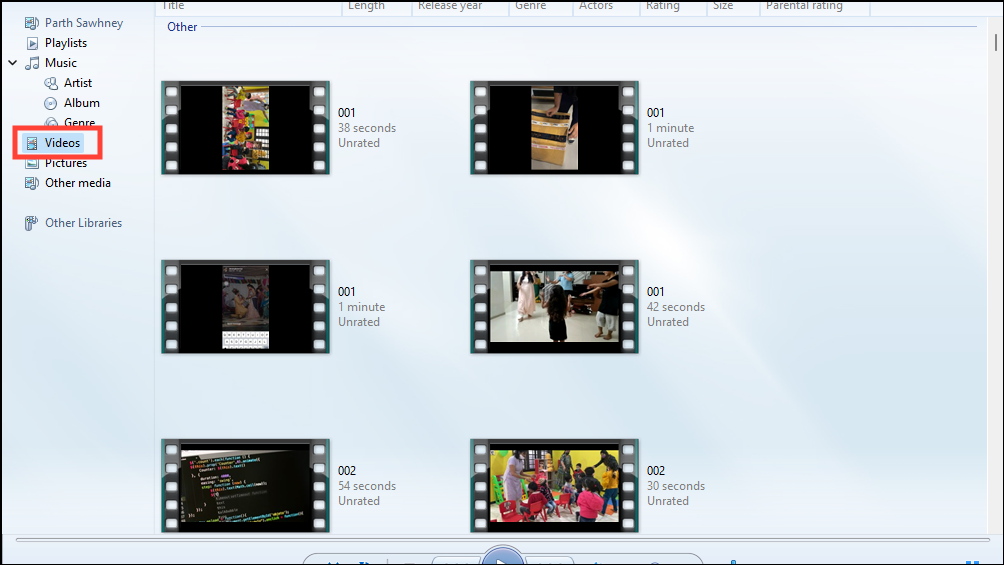
By following these methods, you should be able to play .MOV files effortlessly on your Windows 11 computer.



