Having trouble printing in Windows 11? A clogged print queue could be the culprit. Learn how to view and delete the print queue to fix printing issues and stop unwanted documents from being printed.
Having trouble printing in Windows 11? A clogged print queue could be the culprit. Learn how to view and delete the print queue to fix printing issues and stop unwanted documents from being printed.
by Raj Kumar
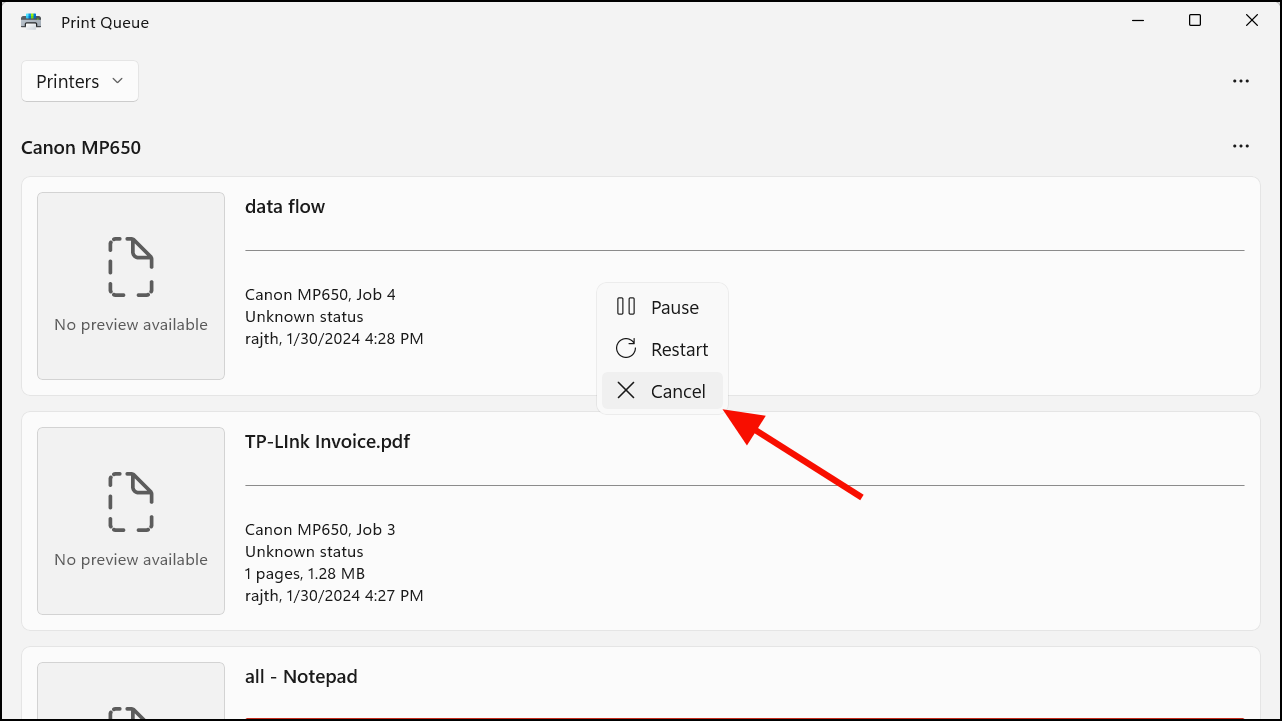
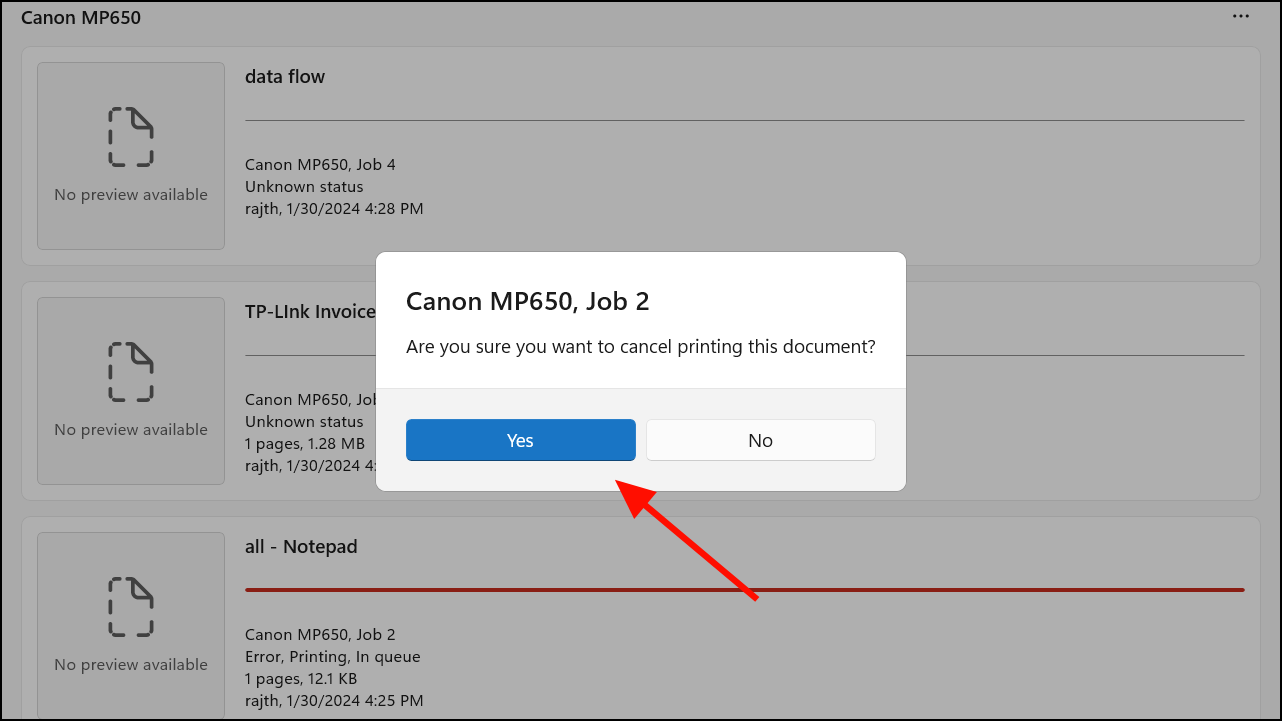
Printing issues in Windows 11 often arise due to complications within the print queue. A single stalled or corrupted print job can halt all subsequent printing tasks, causing delays and frustration. Clearing the print queue can resolve these problems and prevent unnecessary consumption of paper and ink. Below are several methods to view and clear the print queue in Windows 11 to ensure smooth printing operations.
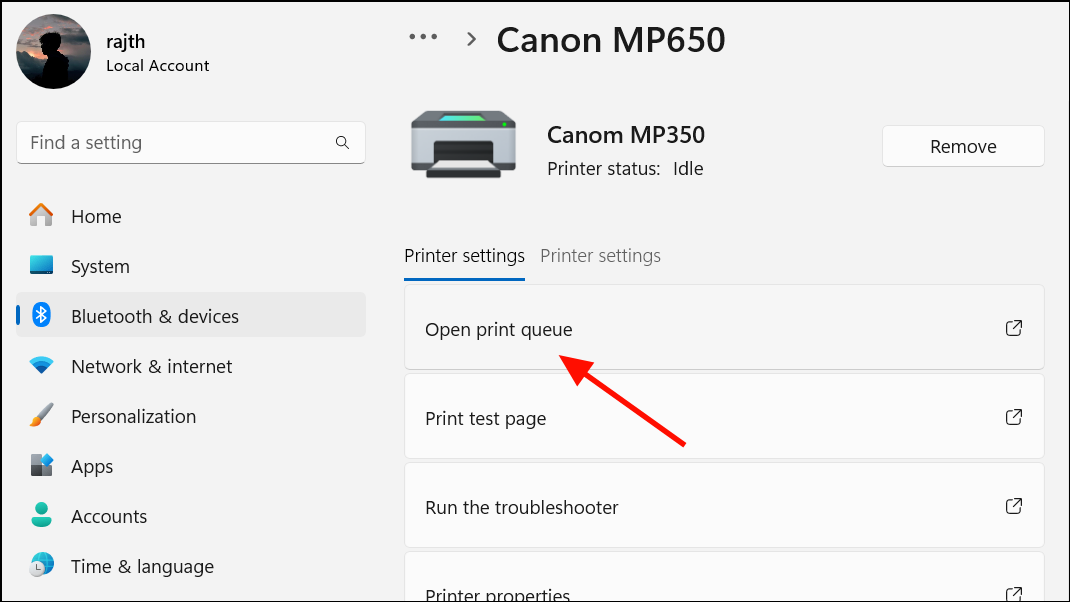
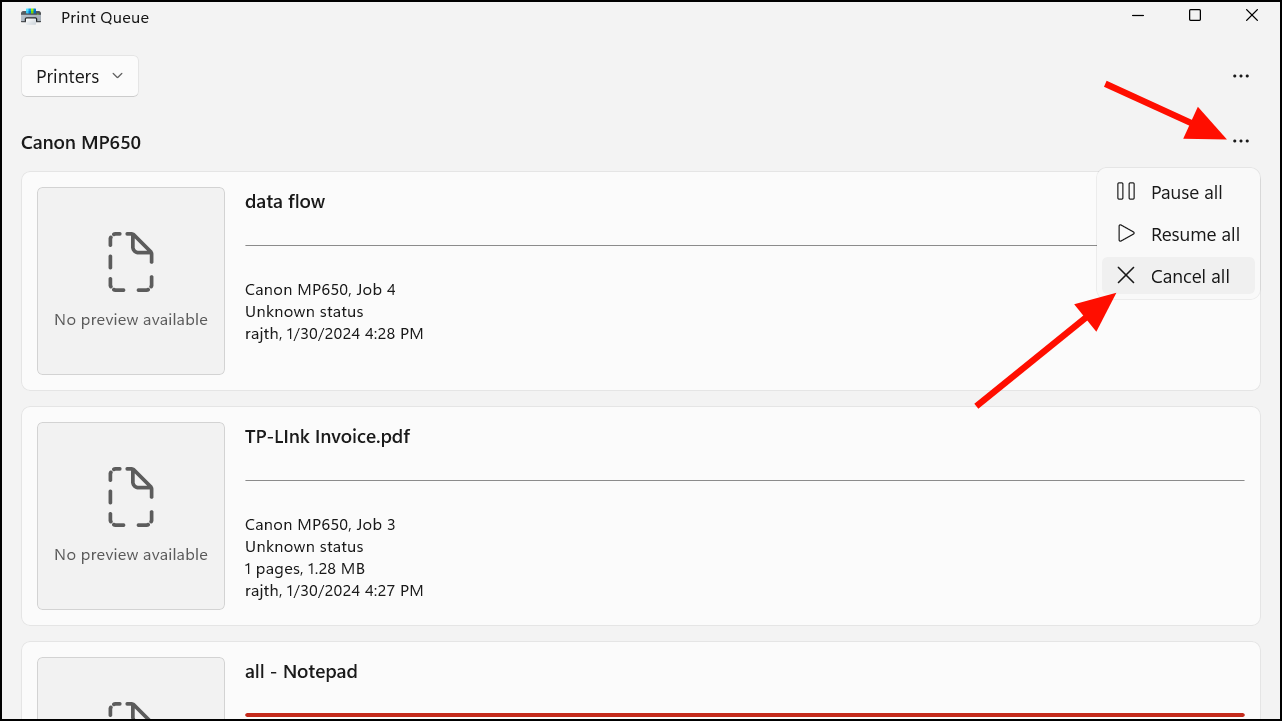
To clear all print jobs, click on the three-dot menu (…) in the top-right corner of the Print Queue window, select ‘Cancel all’, and confirm by clicking ‘Yes’. This will remove all documents from the queue.
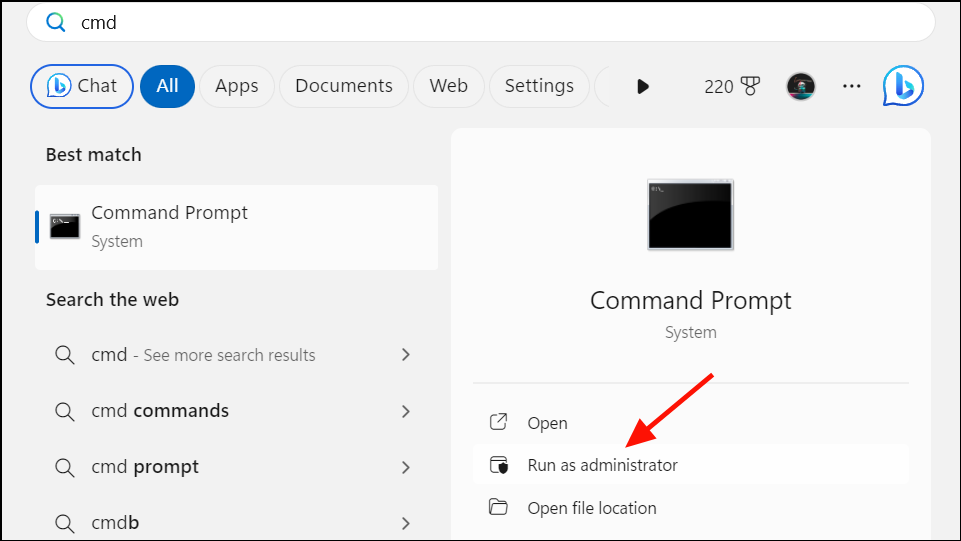
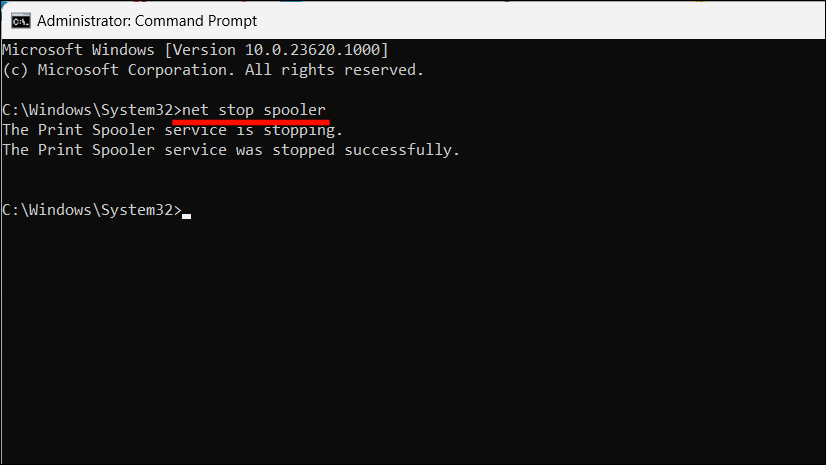
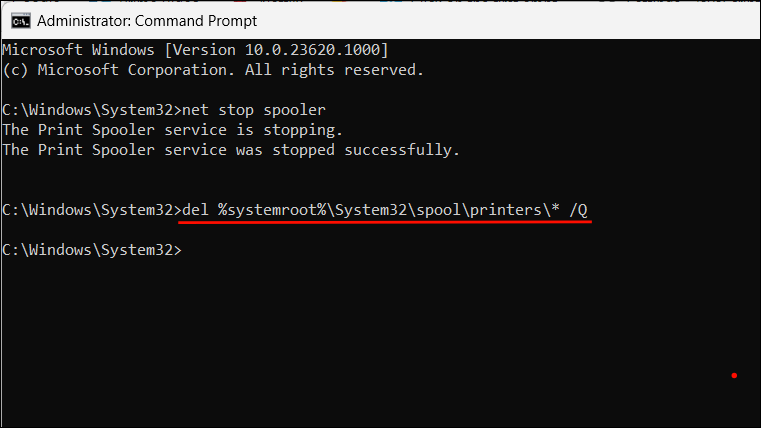
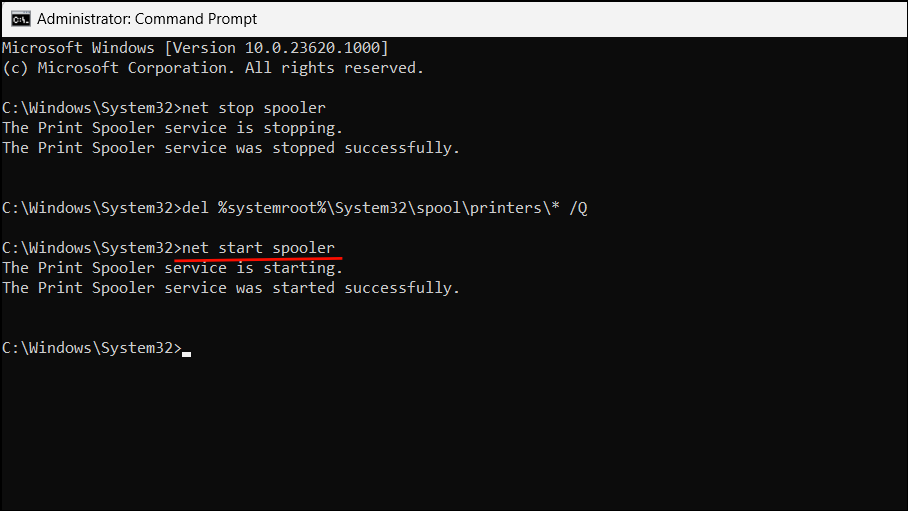
Open Command Prompt with administrative privileges. Type cmd in the Windows Search bar, right-click on ‘Command Prompt’, and choose ‘Run as administrator’.
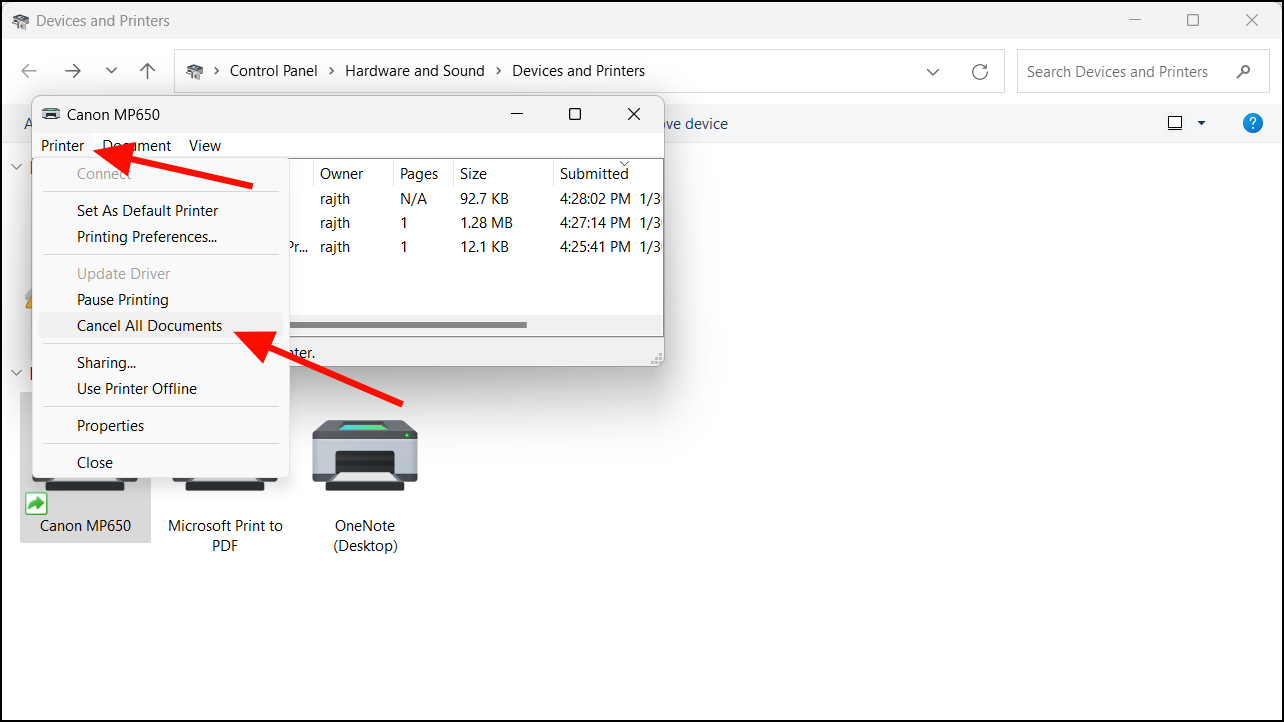
To remove all documents from the queue, click on the ‘Printer’ menu at the top and select ‘Cancel All Documents’. Confirm by clicking ‘Yes’.
Troubleshooting and FAQs
What if the print queue won’t clear? If the print queue remains stuck after attempting these methods, try restarting your computer and printer. This can refresh the system and resolve persistent issues.
Why do print jobs get stuck in the queue? Print jobs may become stuck due to corrupted files, connectivity issues between the computer and printer, or software malfunctions.
How often should I clear the print queue? Regularly checking and clearing the print queue can help prevent printing problems and ensure efficient operation of your printer.
By following these steps, you can effectively manage and clear the print queue in Windows 11, ensuring your printing tasks proceed without interruptions.