How to Set Chrome as Default Browser in Windows 11
Ditch Edge! Make Chrome your Windows 11 default browser with these easy steps.
Ditch Edge! Make Chrome your Windows 11 default browser with these easy steps.
by Parth Sawhney
If you’re using Windows 11 but prefer Google Chrome over the default Microsoft Edge browser, you might want to set Chrome as your default browser. Doing so ensures that all your web links and certain file types automatically open in Chrome. Here’s how you can set Google Chrome as your default browser in Windows 11.
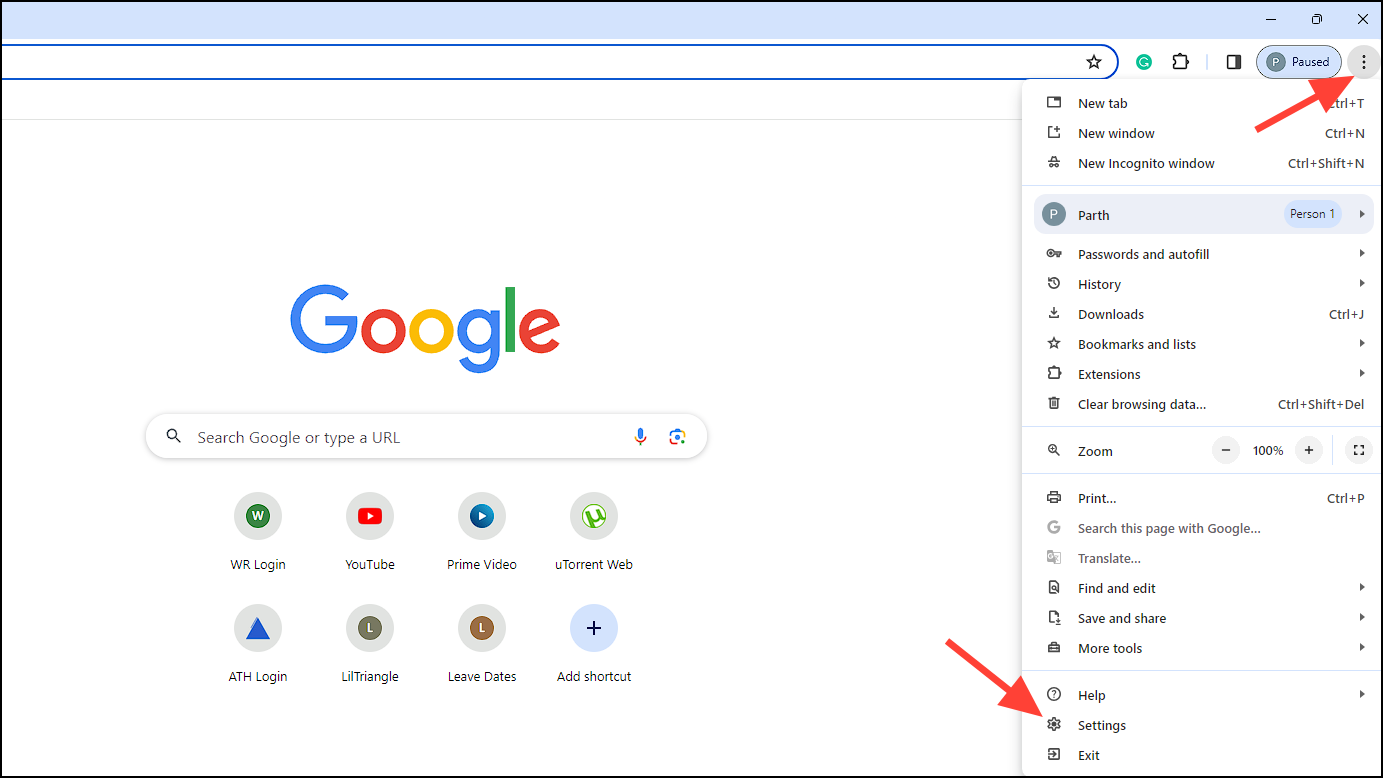
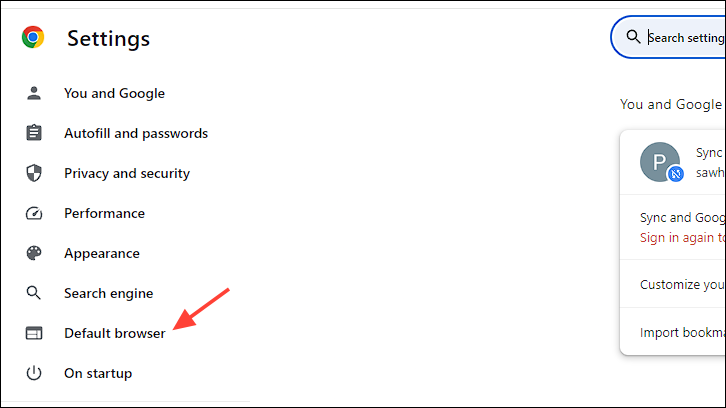
Launch Google Chrome on your Windows 11 PC. Click on the three vertical dots (the ‘More’ icon) located at the top-right corner of the Chrome window, and select ‘Settings‘ from the dropdown menu.
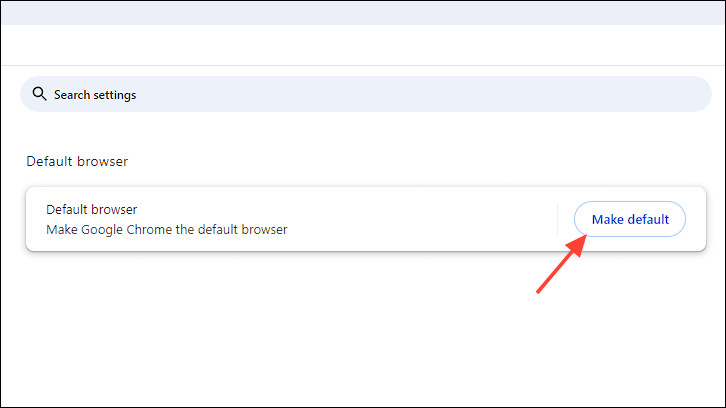
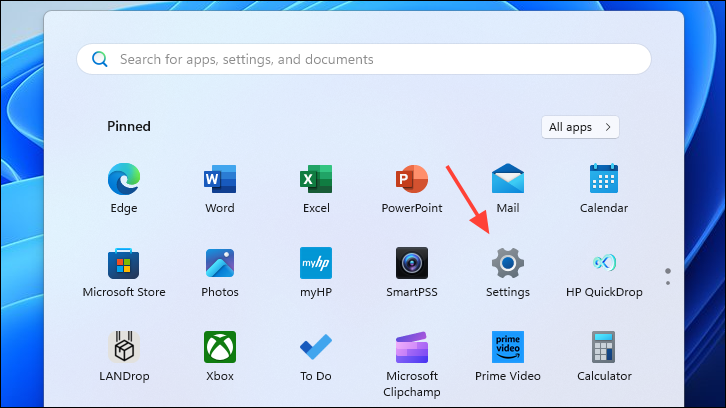
Click on the ‘Make default‘ button in the ‘Default browser’ section. This action will open the Windows ‘Settings’ app, directing you to the ‘Default apps’ settings.
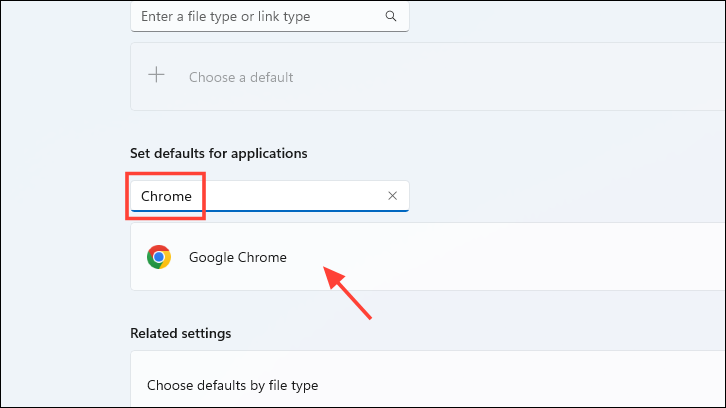
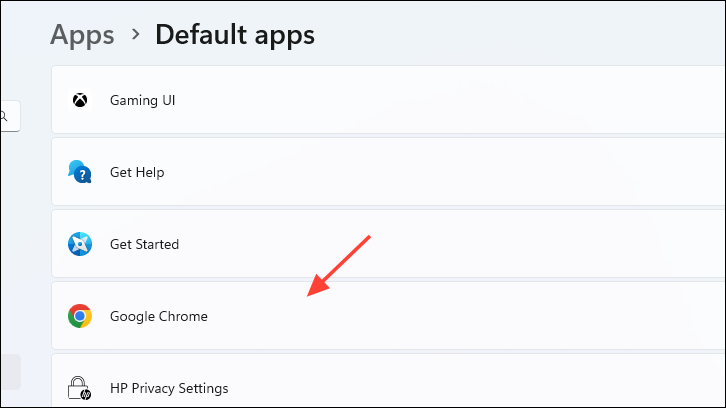
In the ‘Settings’ app, you’ll see the ‘Default apps’ page. Use the search bar at the top to type ‘Google Chrome‘, or scroll down to find it manually. Once you locate ‘Google Chrome’ in the list, click on it to proceed.
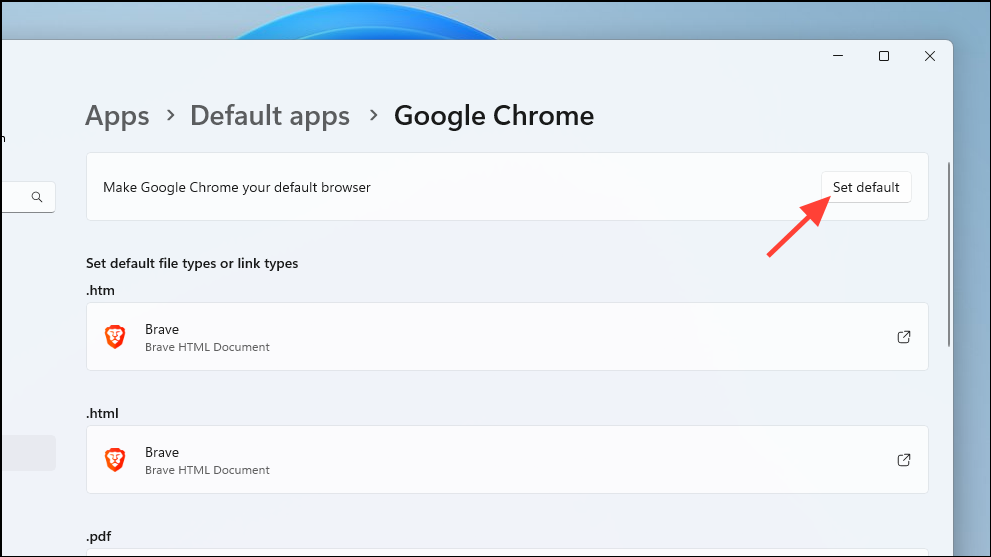
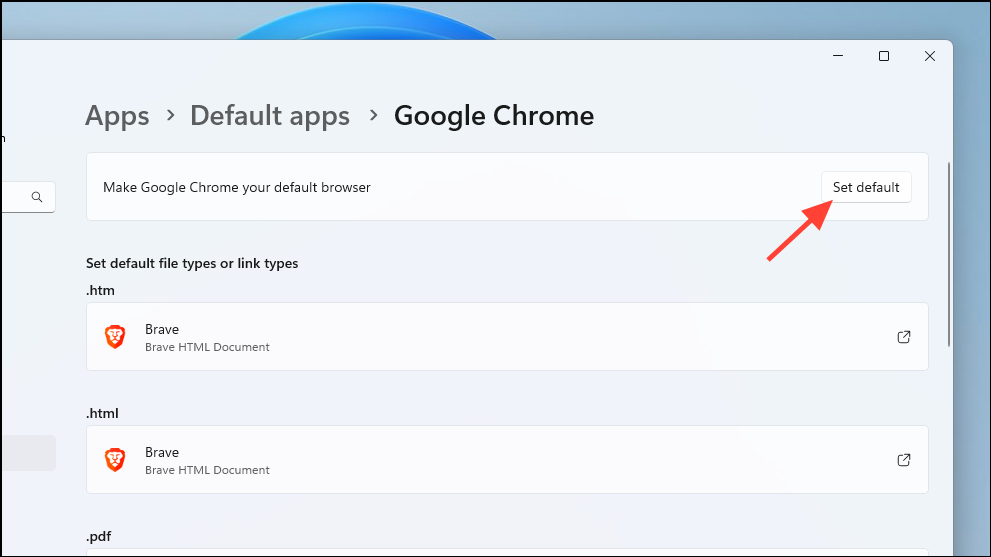
On the ‘Google Chrome’ settings page, click on the ‘Set default‘ button at the top of the window. This will set Chrome as the default app for web browsing.
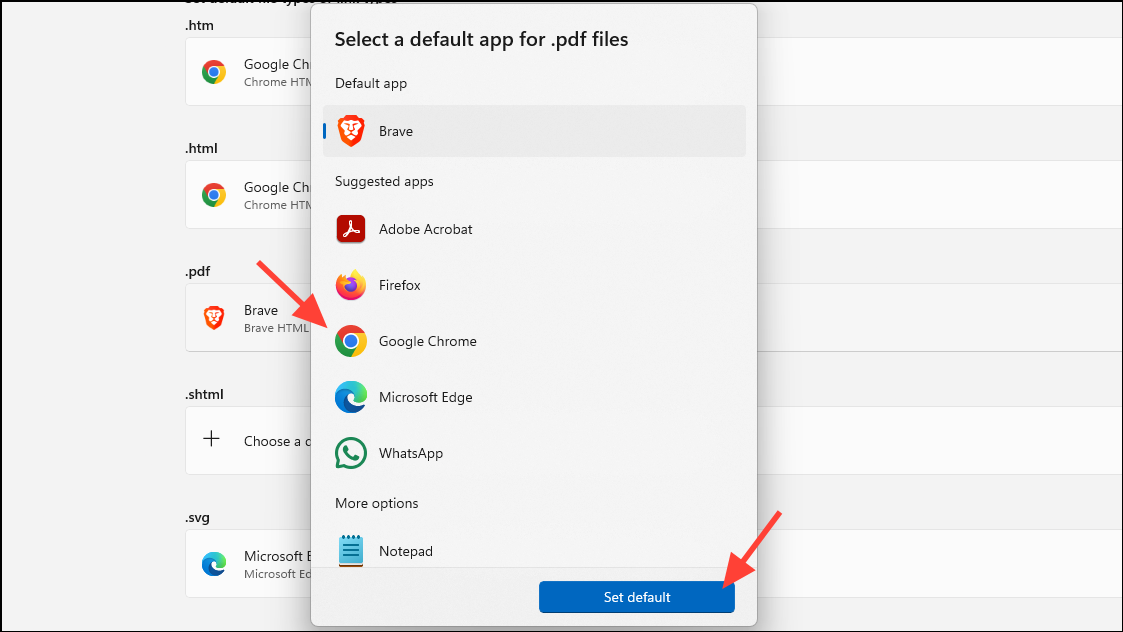
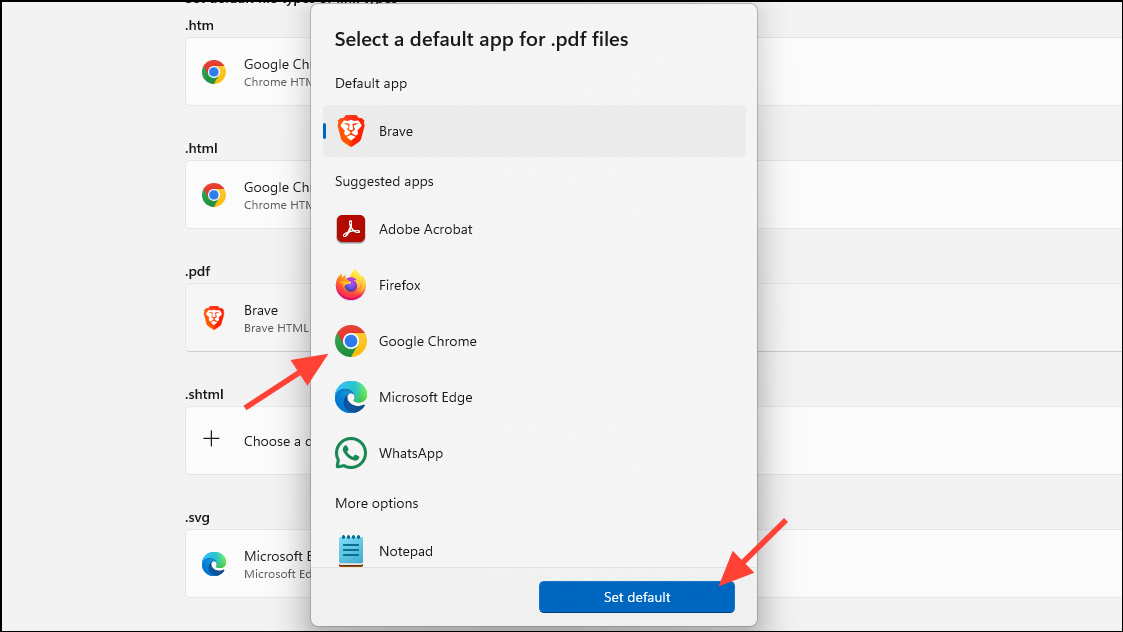
You can also assign Chrome as the default app for additional file types it supports. For instance, to open PDF files with Chrome by default, scroll down to the .pdf file type, click on it, and choose ‘Google Chrome‘ from the list of apps.
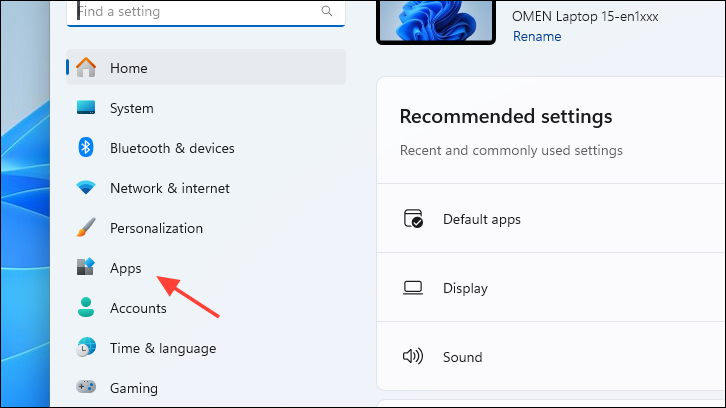
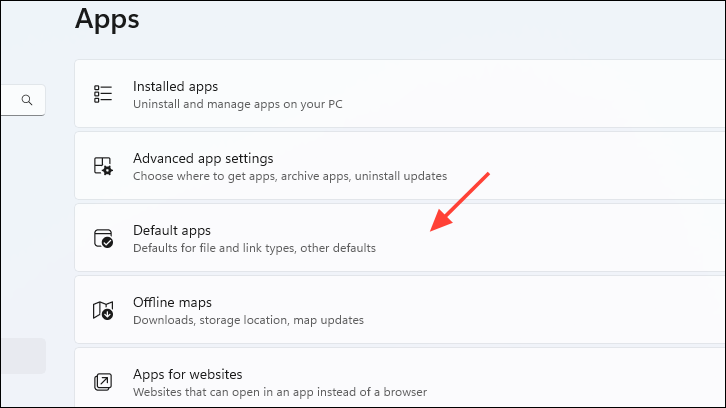
Set Chrome as default browser through Windows Settings
On the ‘Default apps’ page, you can find ‘Google Chrome’ by typing its name into the search bar or by scrolling through the list of installed apps. Click on ‘Google Chrome‘ once you find it.
In the ‘Google Chrome’ default apps settings, click on the ‘Set as default‘ button located at the top-right corner. This sets Chrome as your default web browser for web protocols and file types.
Tip: To associate Chrome with other specific file types like .pdf or .html, scroll down to the desired file extension, click on it, and select ‘Google Chrome‘ from the list of available apps.
By setting Google Chrome as your default browser, you ensure that all web links and supported file types open seamlessly in Chrome, providing a consistent browsing experience tailored to your preferences.