

Managing the volume levels of individual applications can significantly enhance your audio experience on Windows 11. Whether you’re listening to music, watching videos, or receiving notifications, having precise control over each app’s sound output allows you to tailor the audio to your preferences. Windows 11 provides several methods to adjust the volume for each app, including a convenient Volume Mixer integrated into the Quick Settings menu.
Adjusting Volume Levels for Individual Apps in Windows 11
In Windows 11, you can set different volume levels for each active application. This means you can enjoy your favorite music at a higher volume while keeping notification sounds from other apps at a lower level or even muted.
Here are some of the most effective ways to adjust individual app volumes:
Using the Volume Mixer from Quick Settings
With the latest update in Windows 11 (version 22H2 build 22621.2361 and newer), the Volume Mixer is now accessible directly from the Quick Settings menu, allowing for quick adjustments without navigating through multiple settings.
Windows + Ctrl + V keys simultaneously to open the Volume Mixer directly.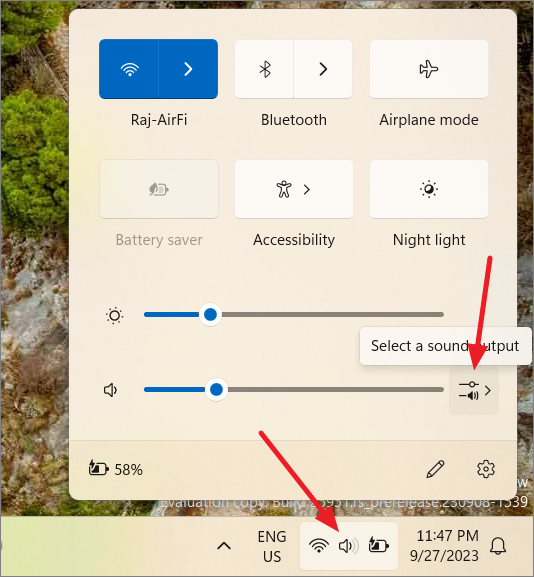
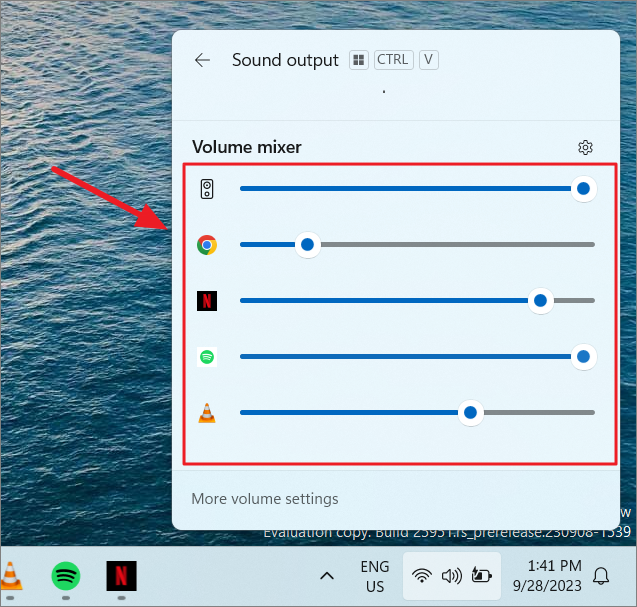
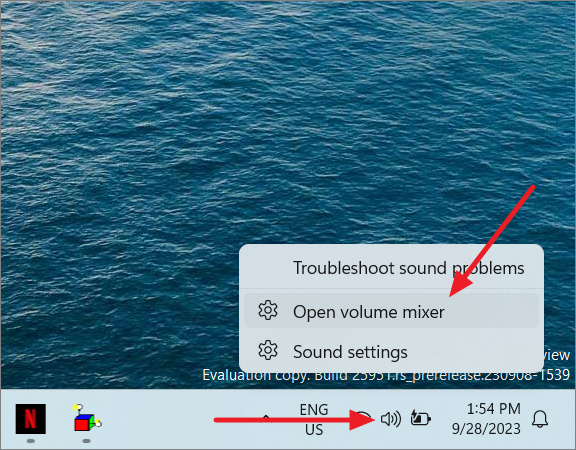
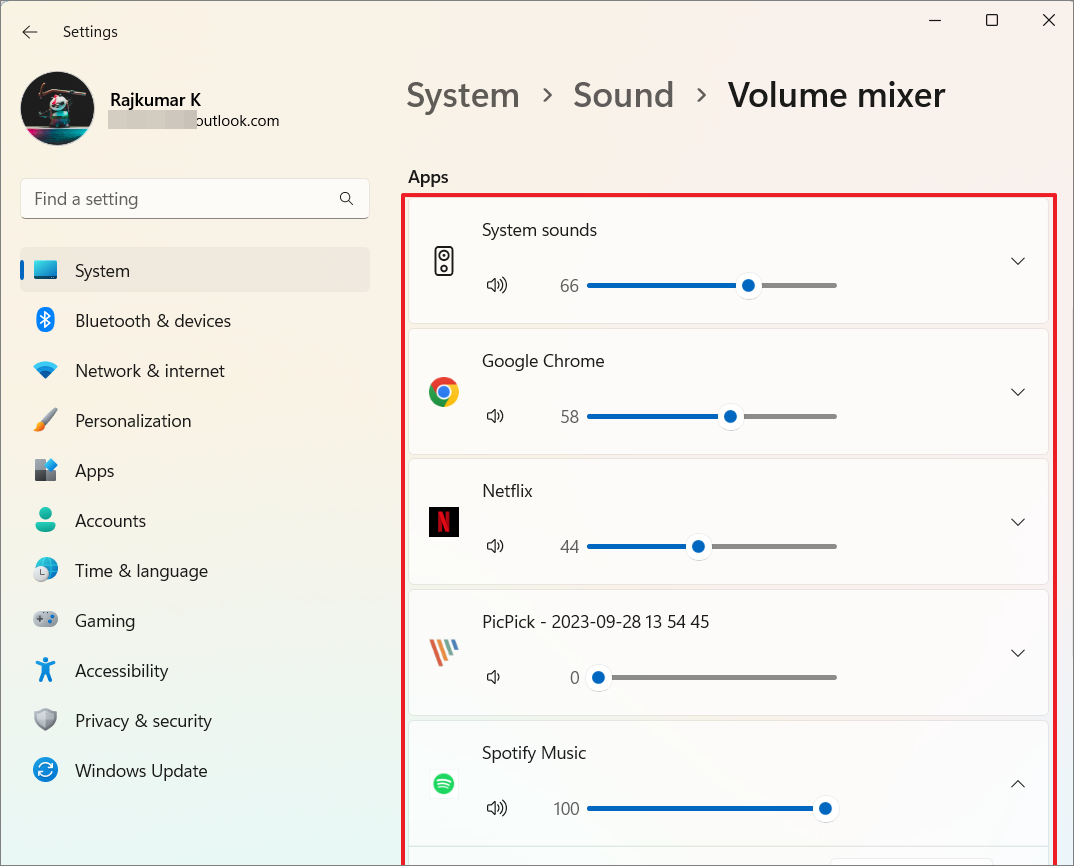
0.Using the Volume Mixer from Windows Settings
You can also adjust individual app volumes through the Windows Settings app for a more detailed configuration.
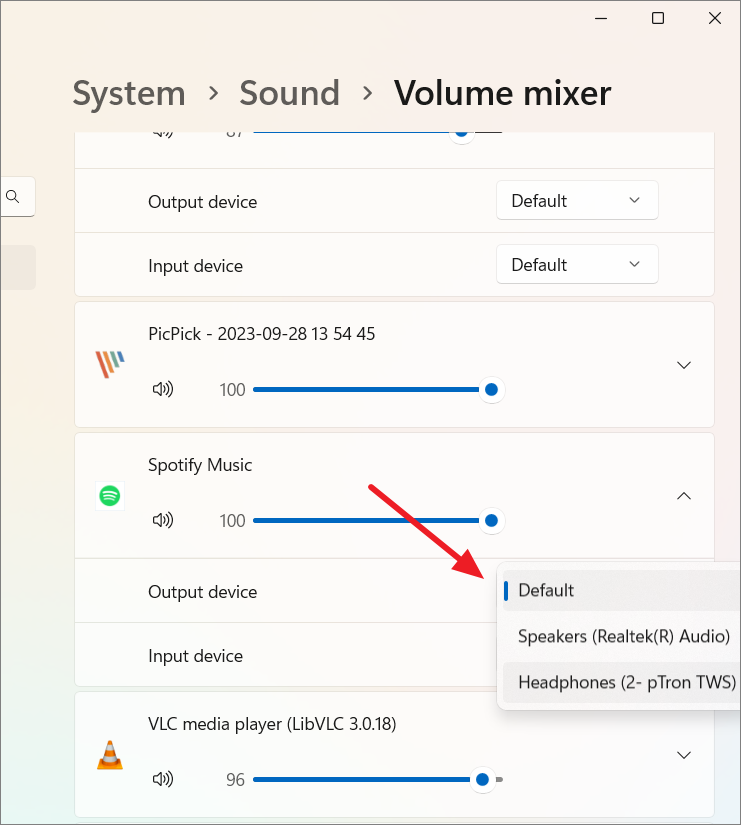
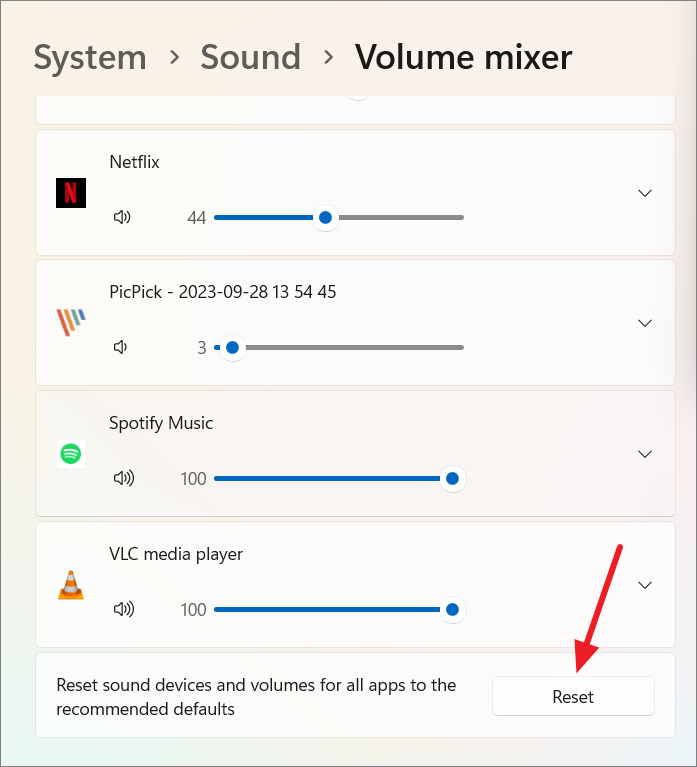
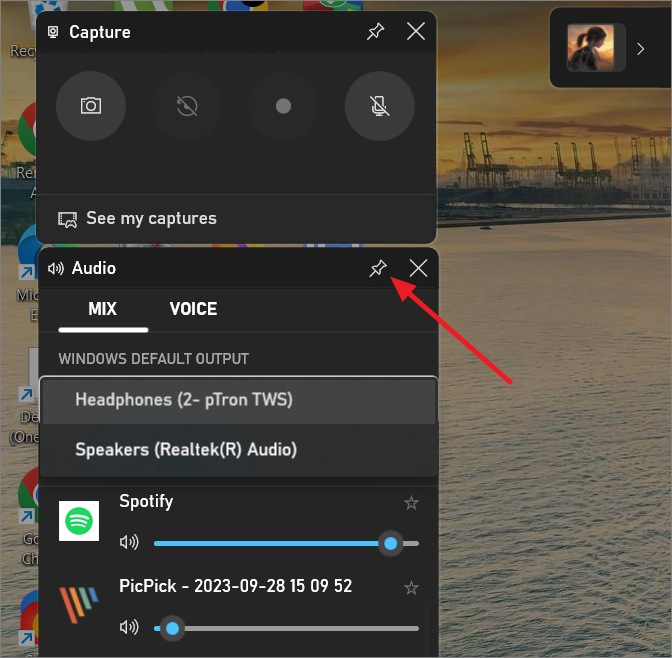
Using the Volume Mixer from Xbox Game Bar
The Xbox Game Bar provides another method to adjust the system and app sound output levels, especially useful for gamers.
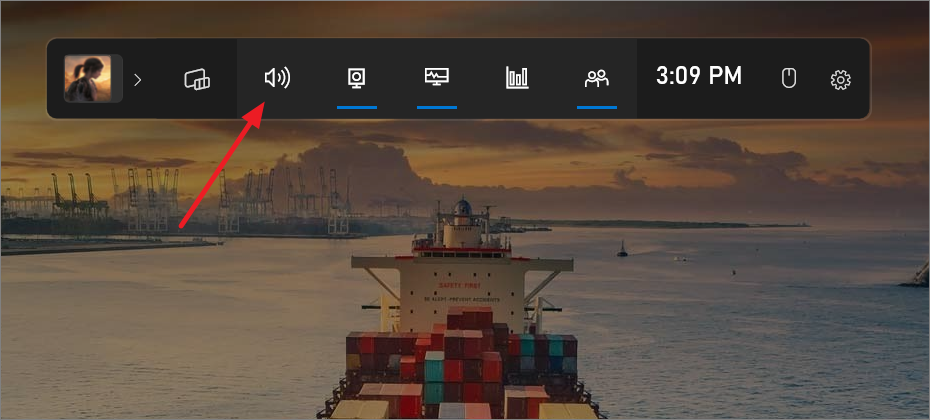
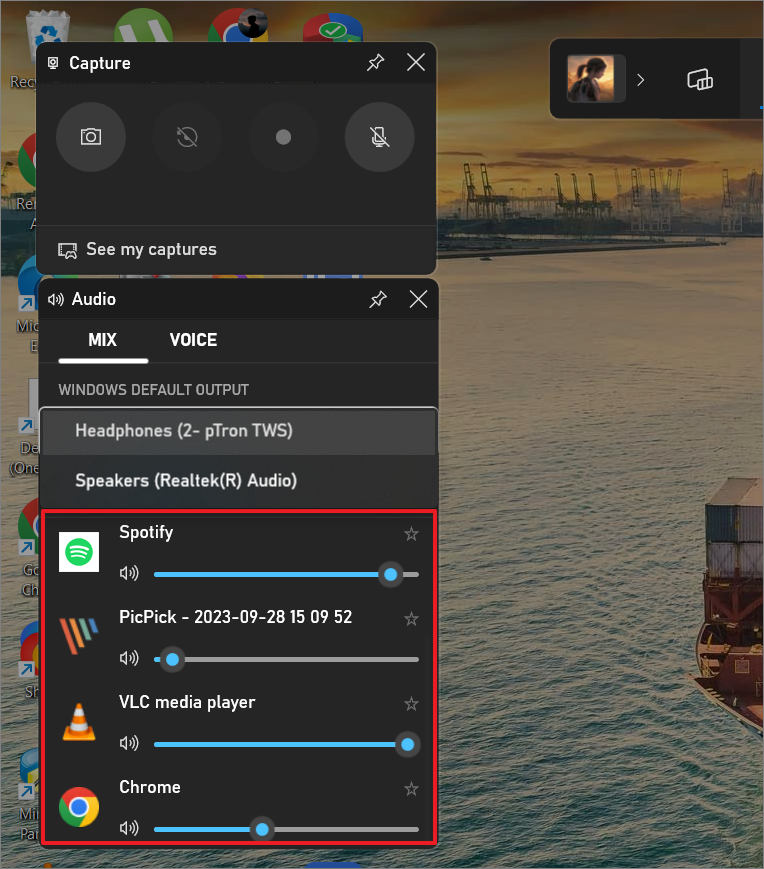
Notable Mention: EarTrumpet App
For those seeking even more control, the third-party app EarTrumpet offers advanced volume management features. This app provides a user-friendly interface to control both universal and desktop apps, and it’s freely available on the Microsoft Store and GitHub.

Once installed, EarTrumpet can be accessed from the System tray. Clicking on its icon brings up individual volume sliders for all your running applications, making it even more convenient to adjust volumes without opening the built-in Volume Mixer.
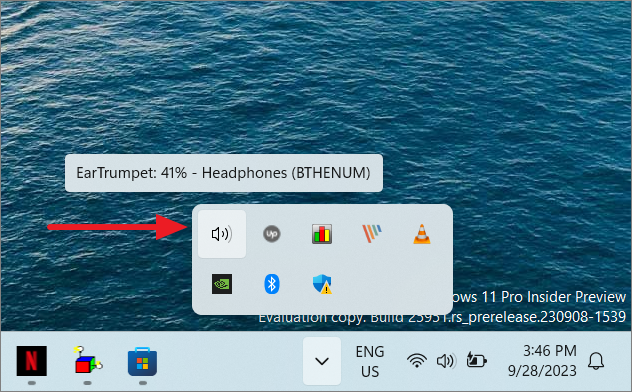
When you click the EarTrumpet icon, a list of running apps appears, each with its own volume slider.
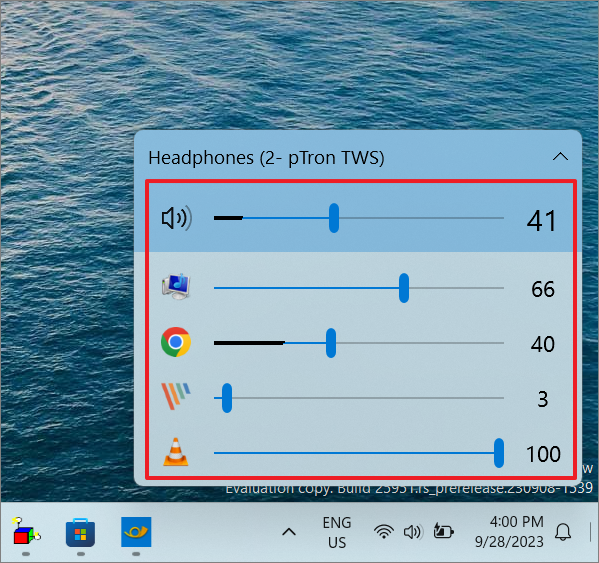
This feature allows for quick and precise adjustments, enhancing your overall audio management experience.
Having the ability to control individual app volumes in Windows 11 empowers you to create a personalized audio environment. Whether using the integrated Volume Mixer or a third-party app like EarTrumpet, managing your application’s sound levels has never been more accessible.



