
Ensuring your Windows 11 computer shuts down automatically can help maintain its performance and extend the lifespan of its components. Whether you’re downloading large files, rendering videos, or leaving tasks running overnight, scheduling an automatic shutdown can be highly beneficial. Here are some effective methods to schedule an auto shutdown on your Windows 11 PC.
1. Schedule a Shutdown with the Task Scheduler
The Task Scheduler offers a comprehensive way to automate shutdowns at specific times or on a recurring schedule.
Start menu and type Task Scheduler in the search bar. Click on the ‘Task Scheduler’ app from the search results.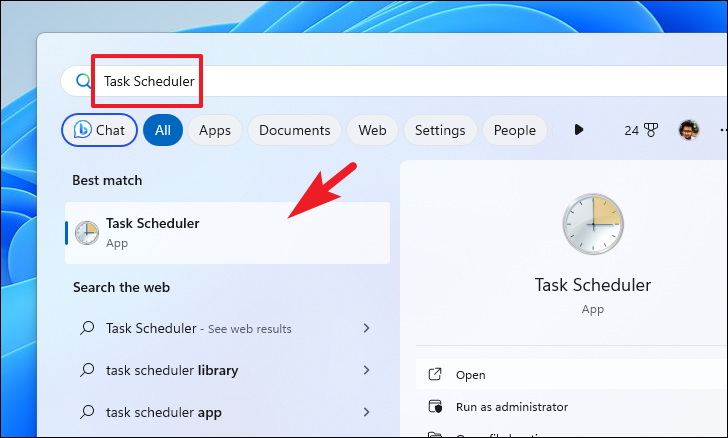
Create Basic Task from the right-hand Actions pane. This will launch the task creation wizard.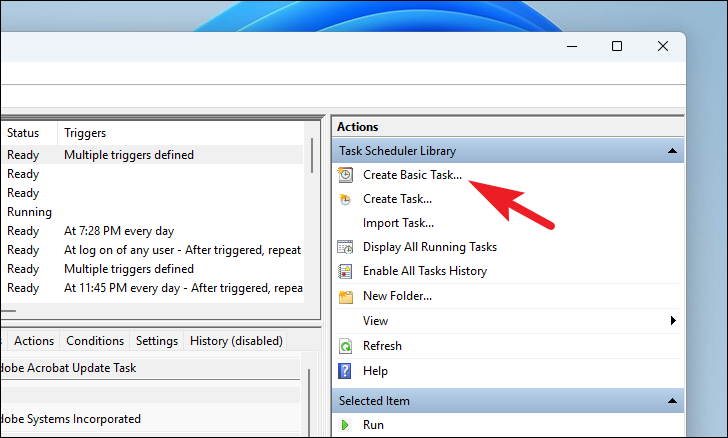
One time for a single occurrence or pick another option for recurring shutdowns. Click Next to proceed.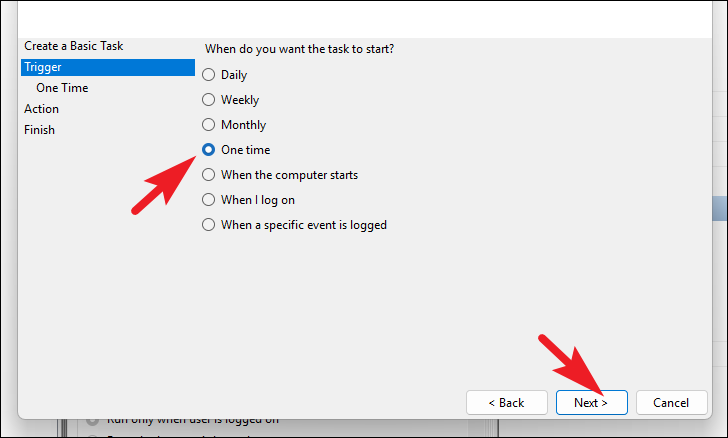
Next.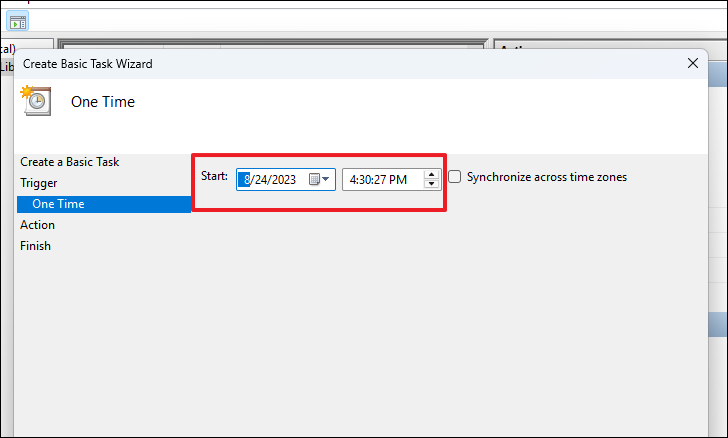
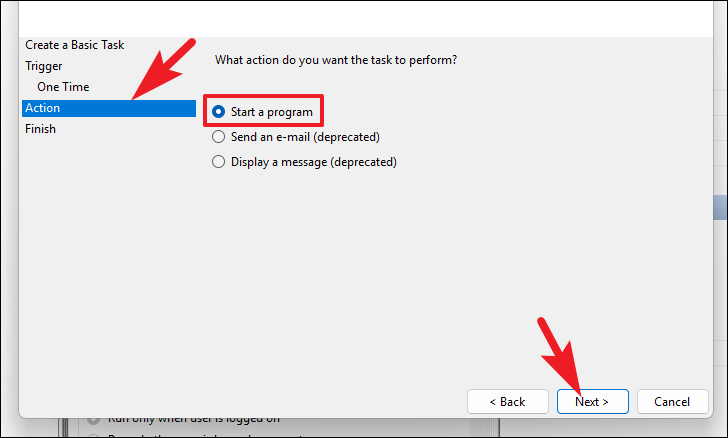
C:\Windows\System32\shutdown.exe. In the ‘Add arguments’ field, type -s (which specifies shutdown). Click Next to continue.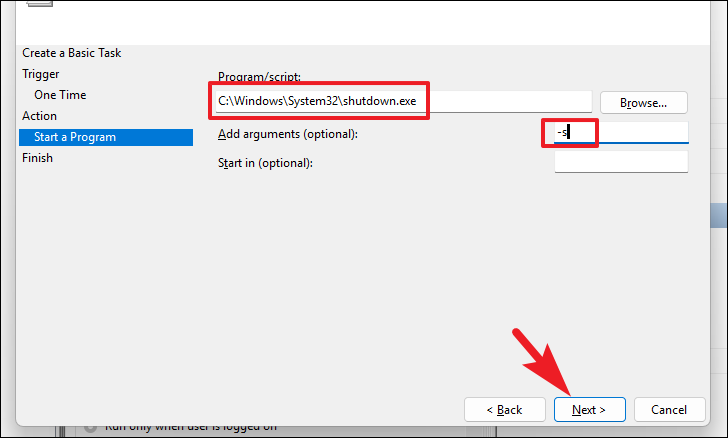
Finish to create the scheduled shutdown task.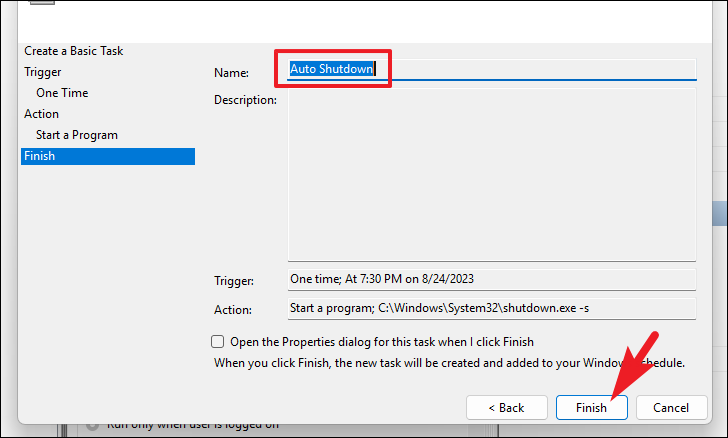
2. Schedule a Shut Down Using Run Command
The Run command provides a quick method to schedule a shutdown using a simple command line.
shutdown -s -t <number of seconds>
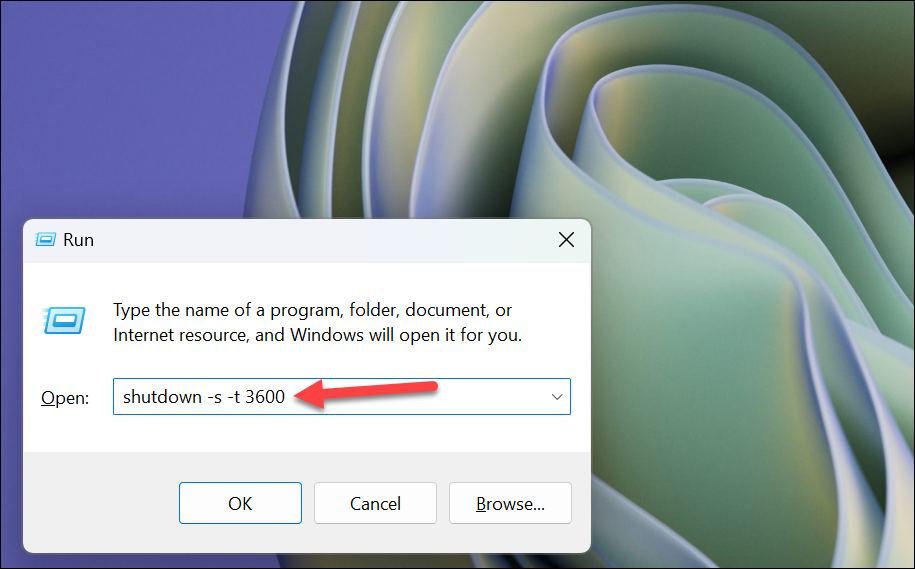
Replace <number of seconds> with the time in seconds before the shutdown occurs. For example:
- 1 hour:
shutdown -s -t 3600 - 2 hours:
shutdown -s -t 7200 - 3 hours:
shutdown -s -t 10800
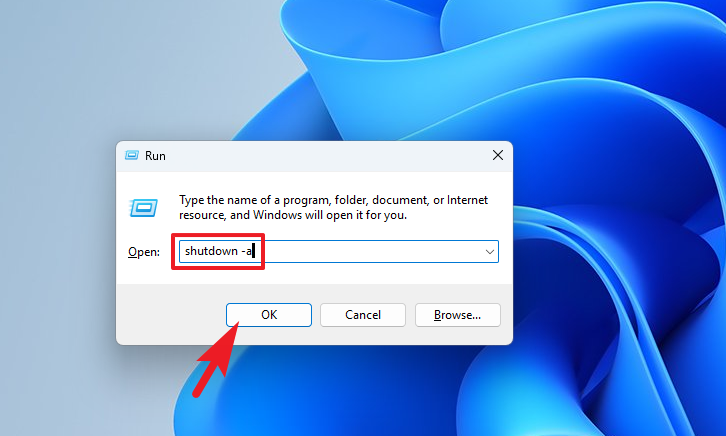
OK:shutdown -a
3. Auto Shutdown Using Command Prompt
You can also use the Command Prompt to schedule an automatic shutdown, especially if you prefer command-line interfaces.
Start menu and type Terminal. Right-click on the ‘Terminal’ app and select Run as administrator.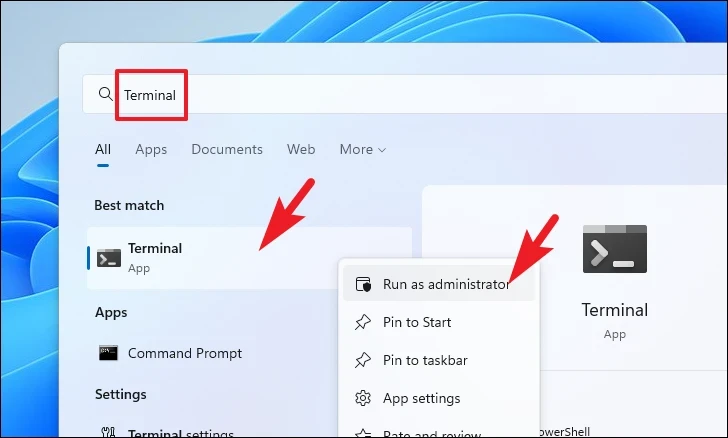
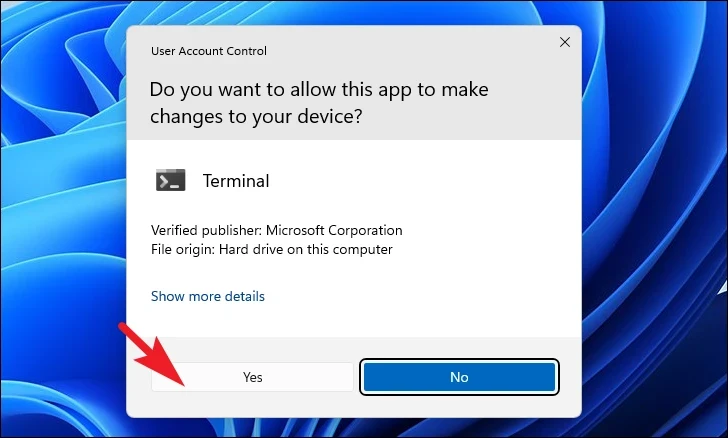
Command Prompt to open it in a new tab.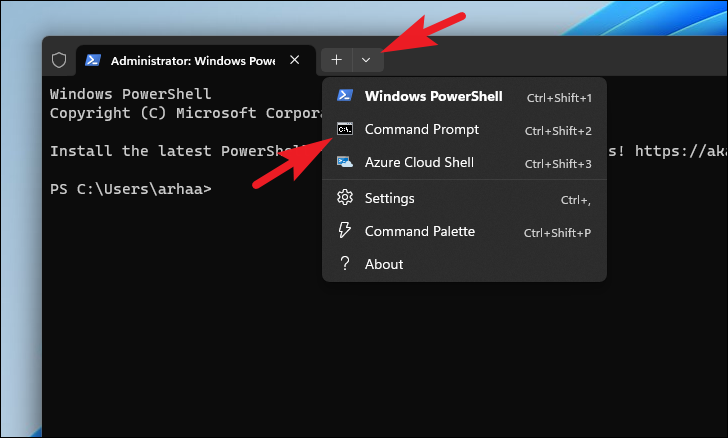
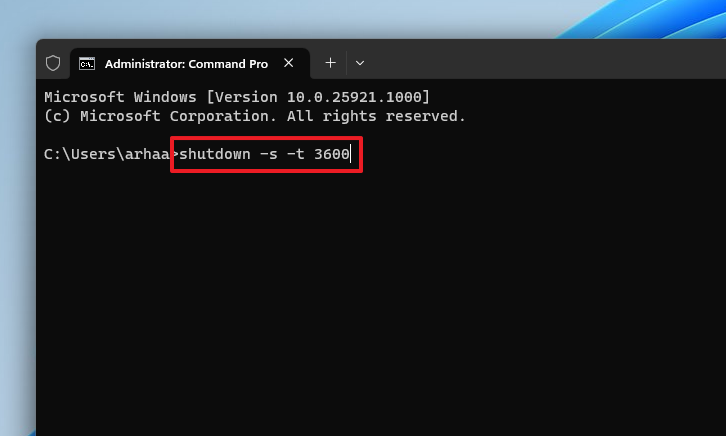
shutdown -s -t <number of seconds>
Note: Replace <number of seconds> with the desired shutdown delay in seconds.
4. Create a Desktop Shortcut for Scheduled Shutdown
For quick access, you can create a desktop shortcut that initiates a shutdown countdown when activated.
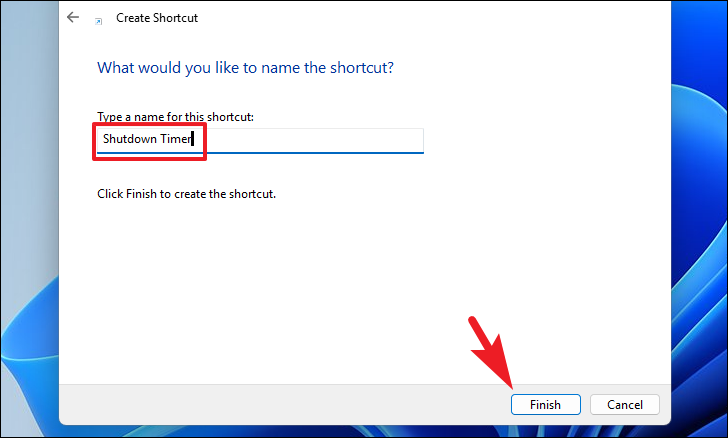
New, and select Shortcut from the context menu.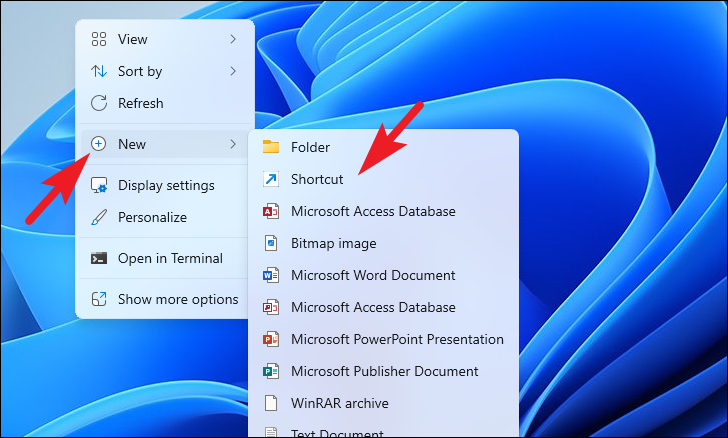
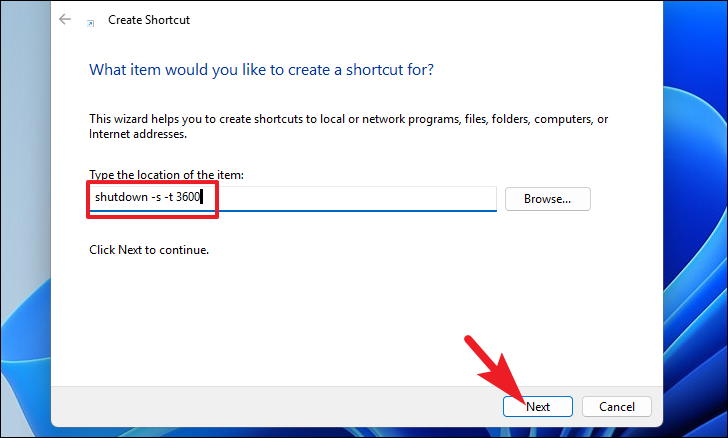
shutdown -s -t xxxx
Note: Replace xxxx with the number of seconds after which you want the shutdown to occur.

By utilizing these methods to schedule automatic shutdowns, you can ensure your computer gets the necessary downtime, helping to maintain optimal performance and extend the life of its components.



