Having an outdated or unprofessional email address linked to your Microsoft account can be inconvenient or even embarrassing. Fortunately, Windows 11 provides straightforward ways to update the administrator email associated with your account. This guide will walk you through the steps to change your administrator email on Windows 11.
1. Add a new alias to your Microsoft account
Windows allows you to sign in using a Microsoft account, which can be linked to an email address or phone number known as an ‘alias’. By adding a new email alias and setting it as your primary, you can change the administrator email associated with your account.
Your info tab at the top of the page.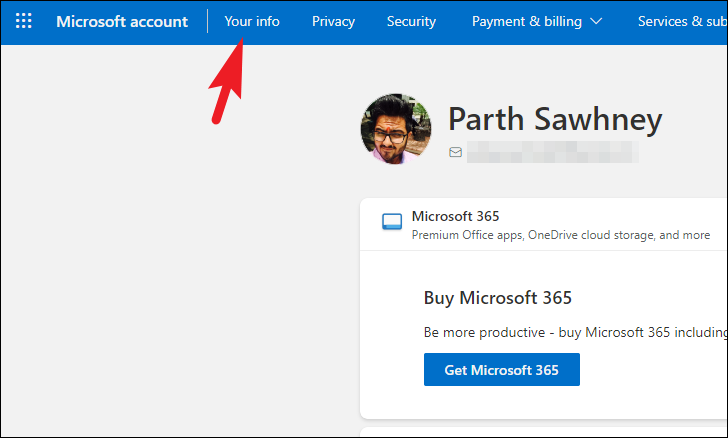
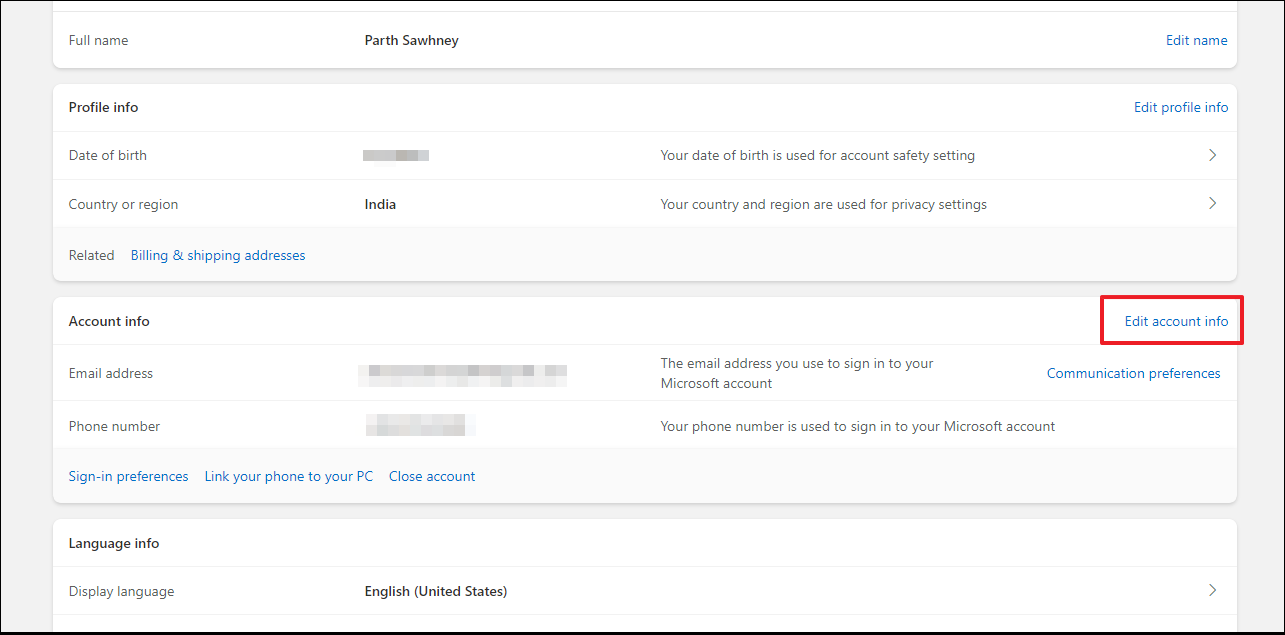
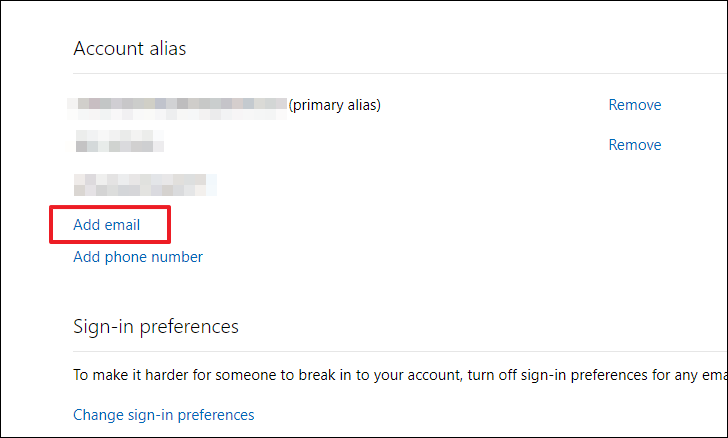
Create a new email address and add it as an alias. To use an existing email, select the second option and enter your email address. Then click on Add alias.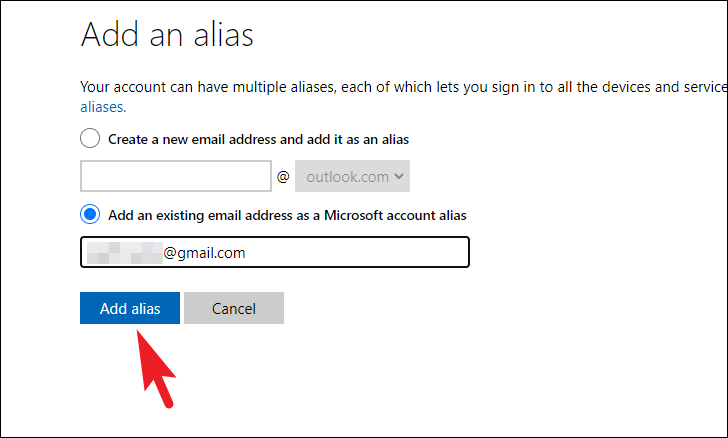
Make primary to set it as your primary email address.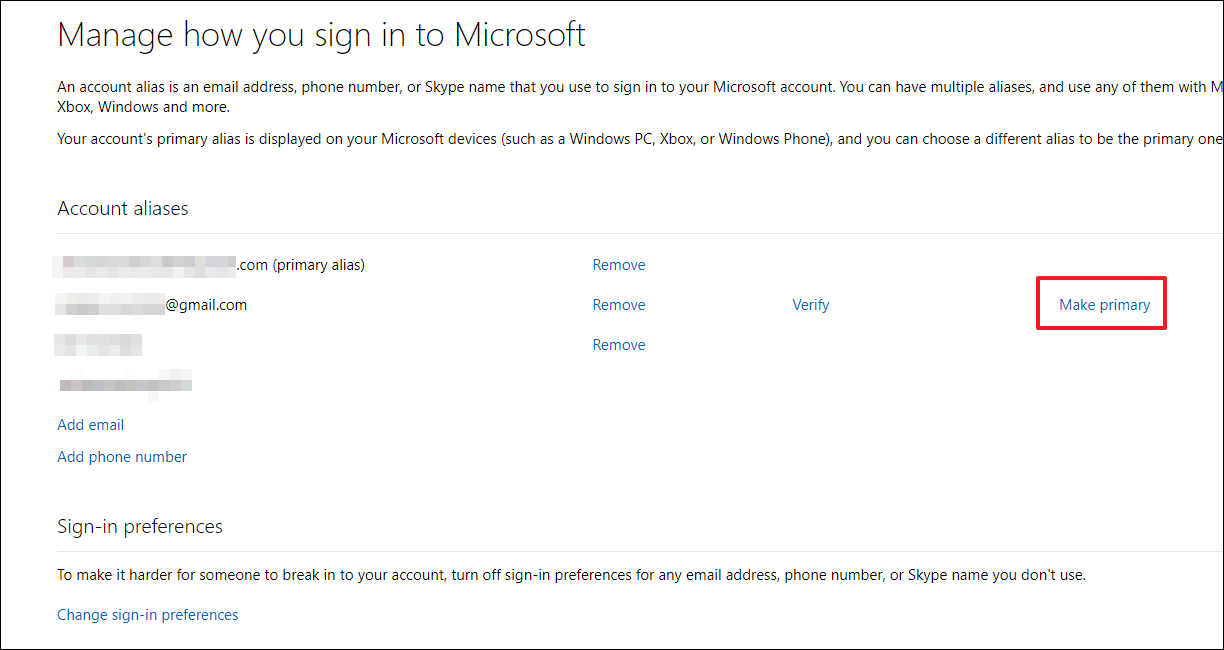
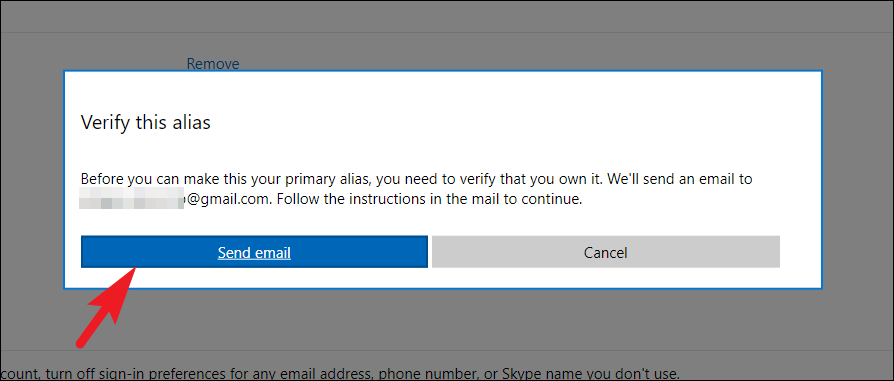
If you’ve added an existing email address, you’ll need to verify it first. Click on Send email to receive a verification link. After verifying, return to the account page and click Make primary again.
If you created a new Outlook email, you may not need to verify it. Simply confirm any prompts by clicking Yes.
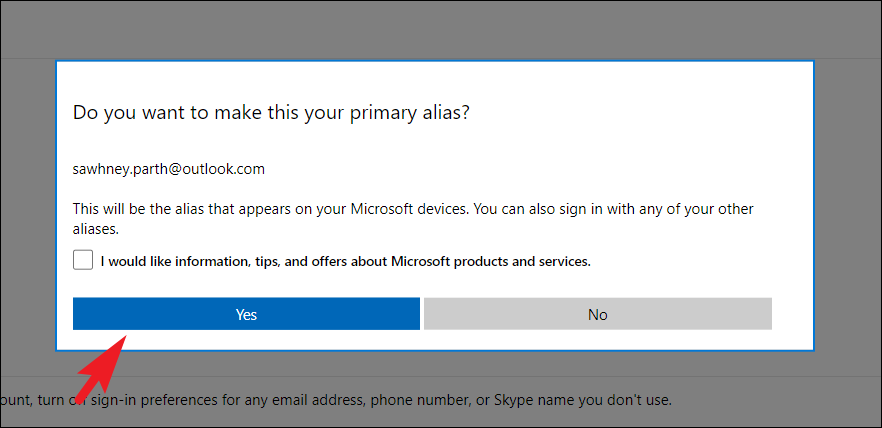
After completing these steps, you might be asked to sign in again. Once logged back in, you’ll see that your primary alias has been updated.
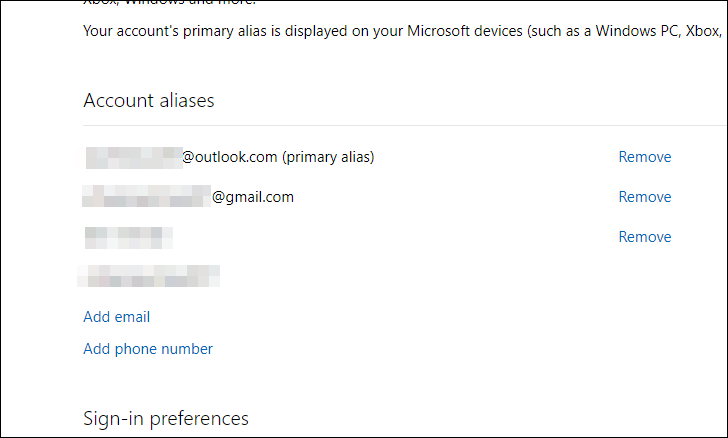
You can now sign in to all your Microsoft devices using the new email address.
2. Create a new Microsoft user account
If you’re unable to add a new alias to your Microsoft account, another option is to create a new user account on your Windows 11 device and assign it administrator privileges.
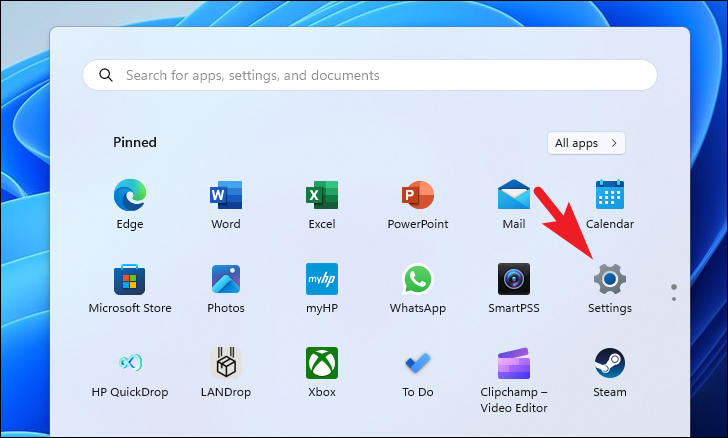
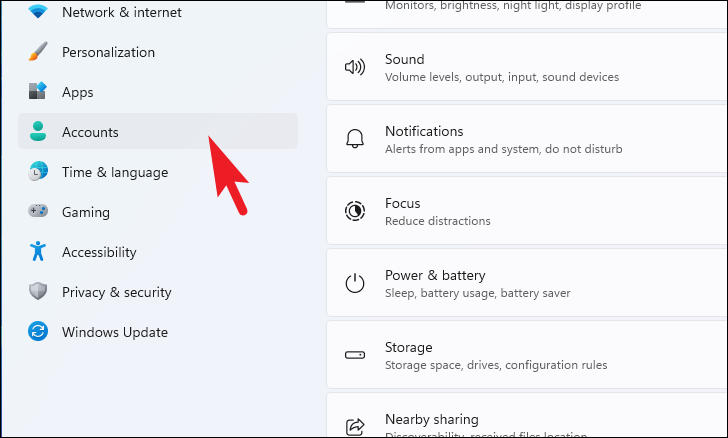
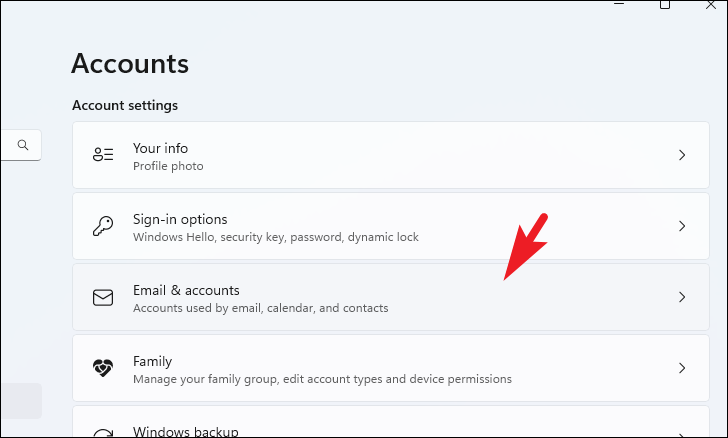
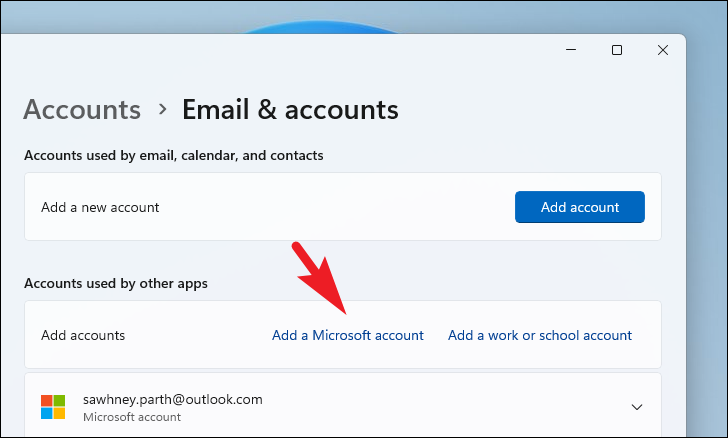
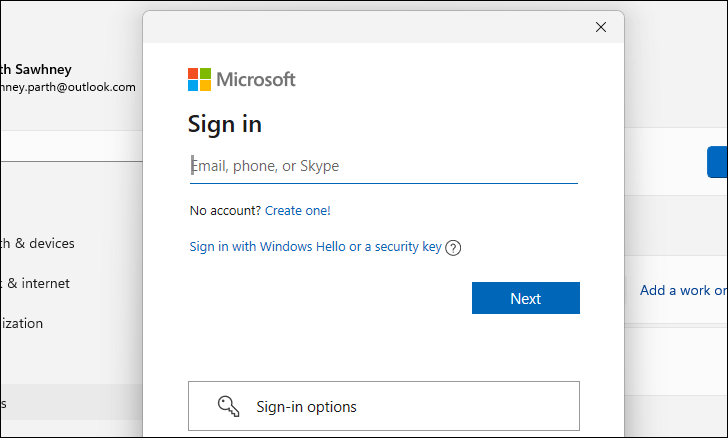
Once signed in, the new account will appear under ‘Email & accounts’.
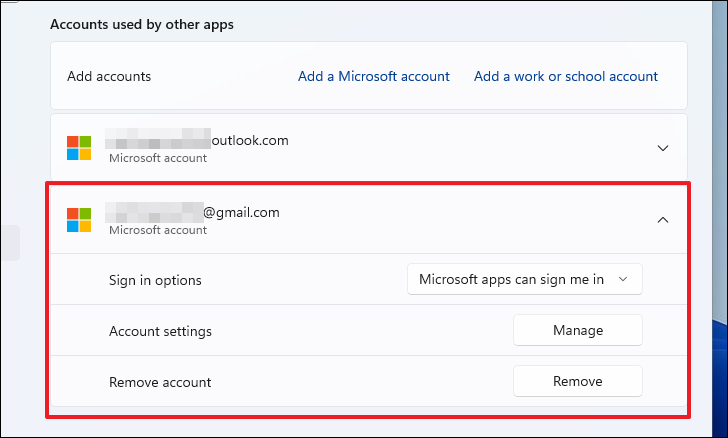
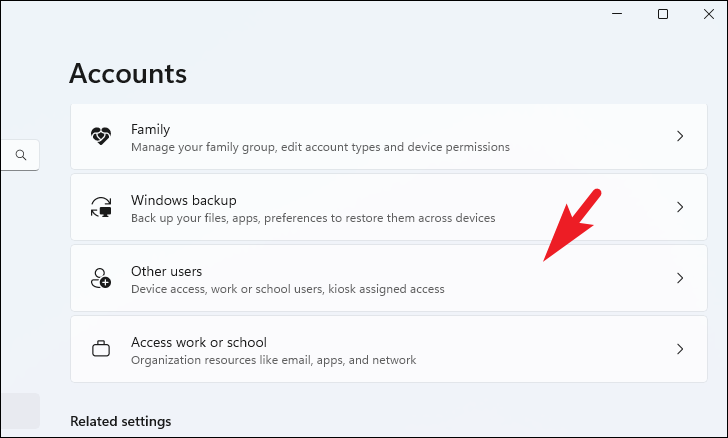
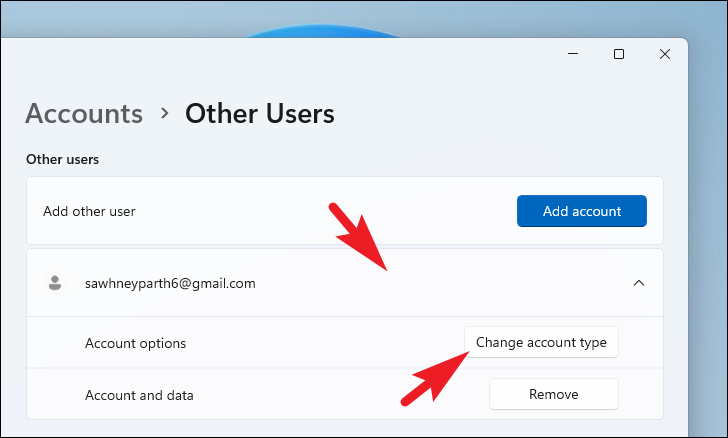
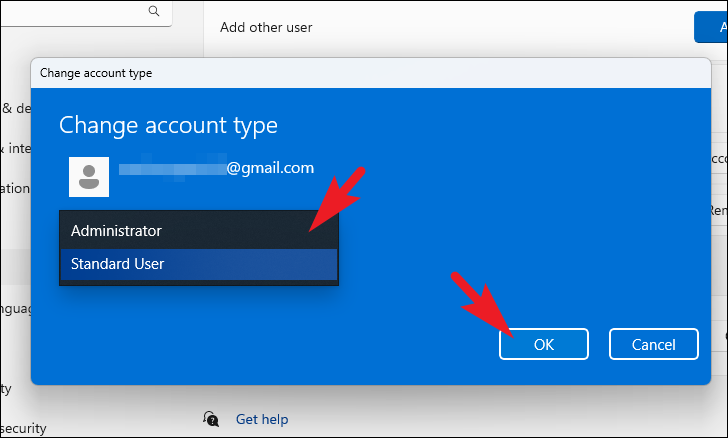
The new account is now set as an administrator account.
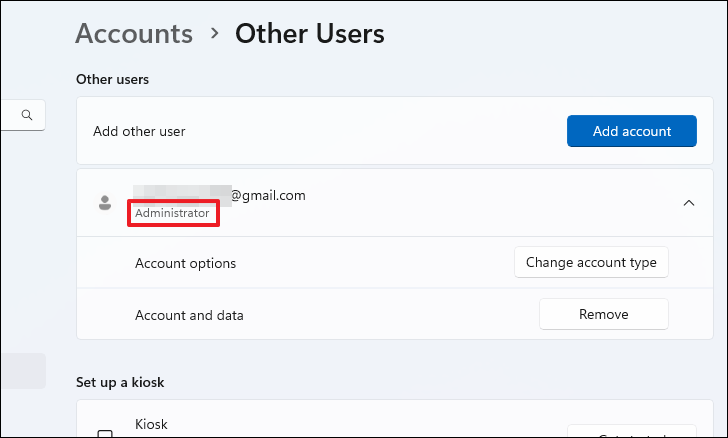
You’ve successfully created a new administrator account on your system.
Changing the administrator email on Windows 11 is a straightforward process, whether by adding a new alias to your Microsoft account or creating a new user account. By following these steps, you can ensure your account details reflect your current preferences.