
Sharing files between Windows 11 and the Windows Subsystem for Android (WSA) can be challenging because WSA operates in its own container with a separate file system. While Microsoft is working on integrating file transfer capabilities, there are effective methods you can use right now to move files between Windows 11 and WSA. This guide provides detailed instructions on two such methods: using Android apps to facilitate file transfer and utilizing the Android Debug Bridge (ADB) command line tool.
Transfer Files between Windows 11 and WSA Using Android Apps
One of the most user-friendly ways to exchange files between Windows 11 and WSA is by using Android apps designed for file transfer. This method involves installing Google Play Store on WSA to access a broader range of apps, such as LAN Drive, which allows seamless file sharing between the two systems.
Install Google Play Store on Windows 11 to Access Android Apps
To utilize Android apps for file transfer, you need to install Google Play Store on WSA since the Amazon Appstore offers a limited selection. This process involves creating a custom version of WSA that integrates Google Apps. Follow these steps carefully to set up Google Play Store on your Windows 11 PC.
Uninstall Existing Windows Subsystem for Android
Settings by pressing Win+I. Navigate to Apps on the left pane and select Installed apps on the right.Windows Subsystem for Android™ in the list of installed apps. Click the three-dot menu next to it and select Uninstall. If you have the Amazon Appstore installed, uninstall that as well.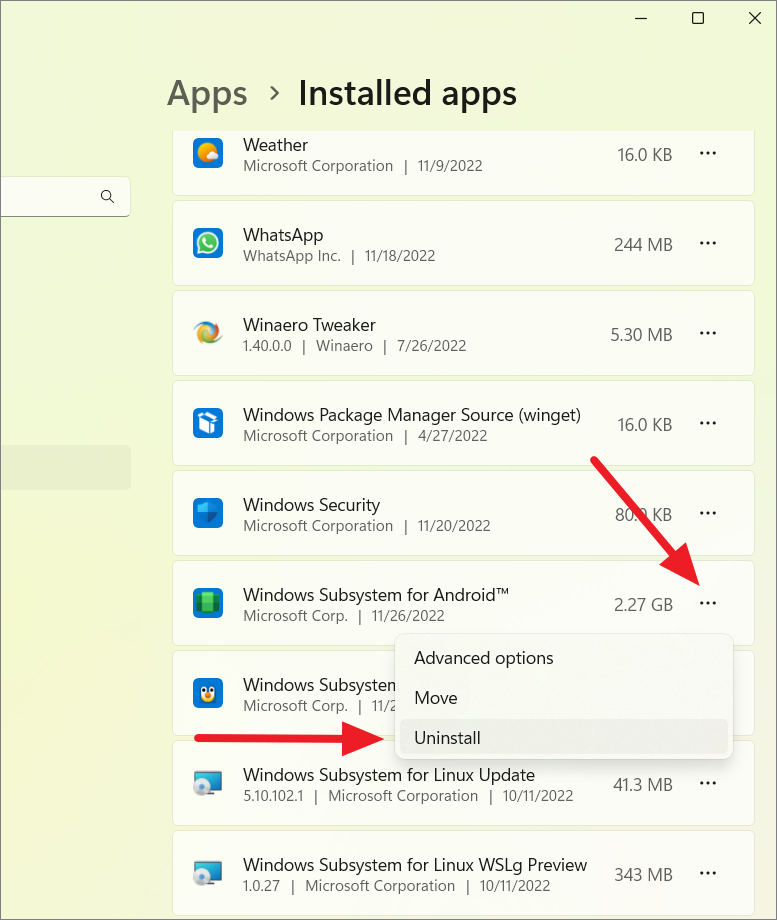
Install Windows Subsystem for Linux (WSL) and Virtual Machine Platform
Enter to install WSL along with the Ubuntu Linux distribution:wsl --install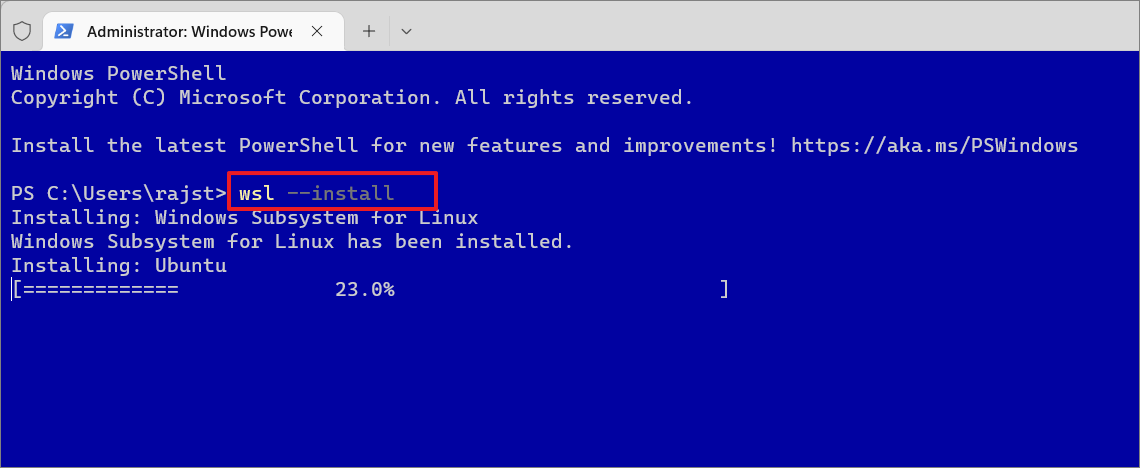
Win+R to open the Run dialog, type optionalfeatures, and press Enter. In the Windows Features window, check the box next to Virtual Machine Platform and click OK. Restart your computer to apply the changes.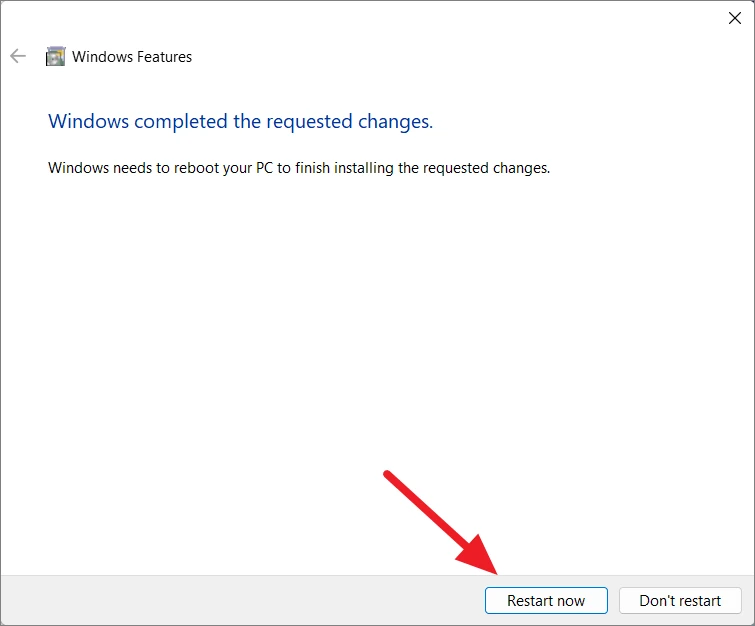
Enable Developer Mode
Settings, navigate to Privacy & Security, and select For developers under the Security section.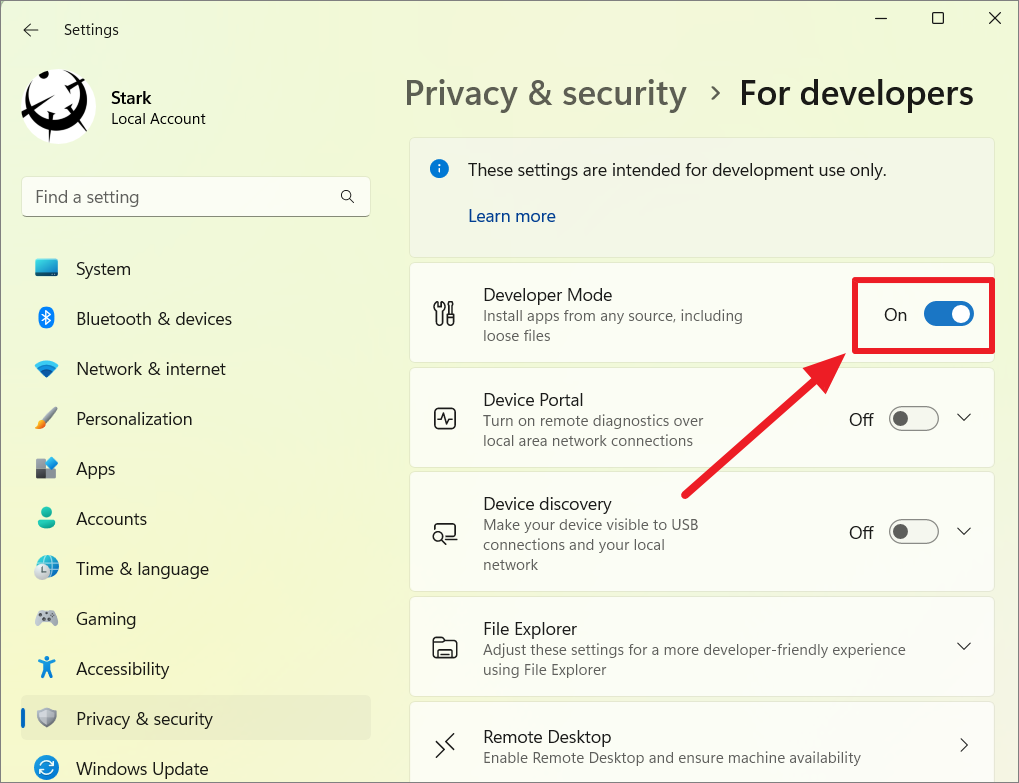
Install 7-Zip
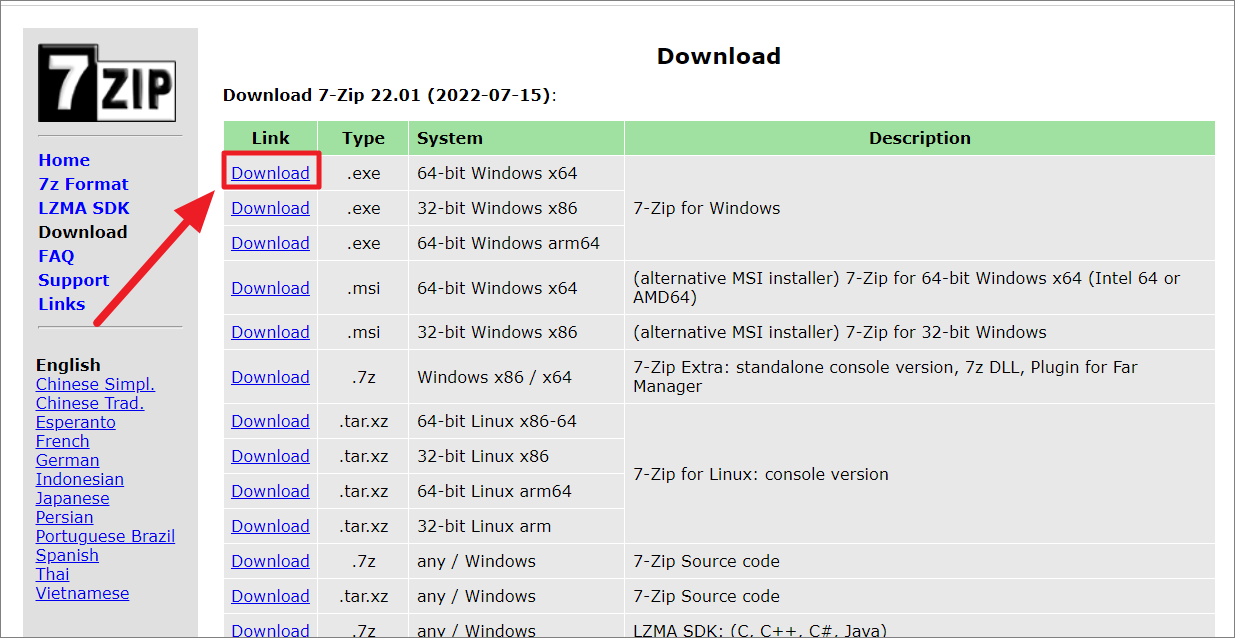
Download the Windows Subsystem for Android Package
ProductId from the first drop-down menu.9P3395VX91NR in the text field, select Slow from the second drop-down menu, and click the check button.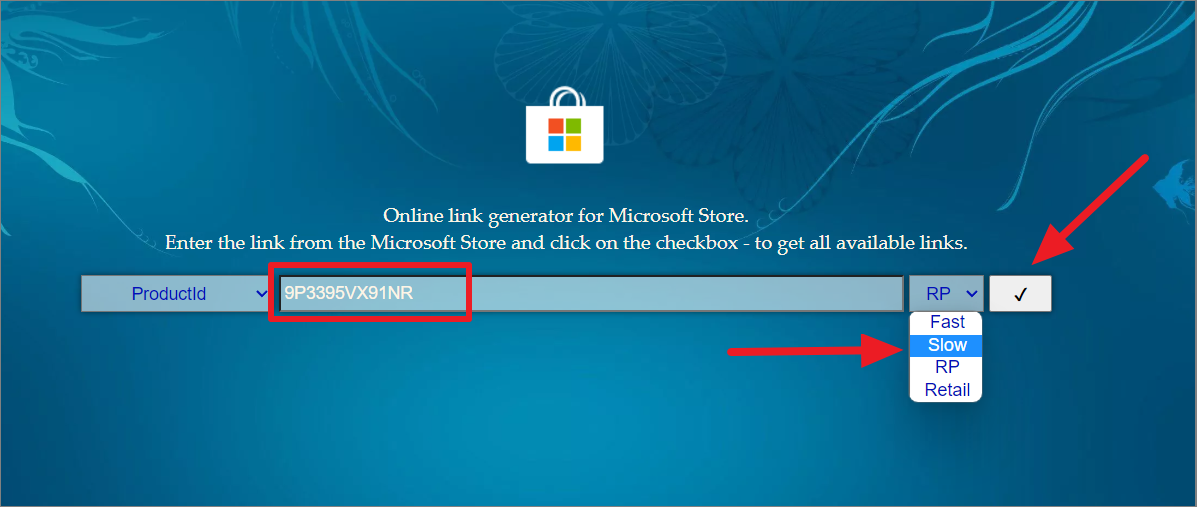
Save link as.Extract and Prepare WSA Files
Release-Nightly.msix.AppxMetadata, AppxBlockMap.xml, AppxSignature.p7x, and [Content_Types].xml from this folder.Download WSAGAScript and Open GApps
C:\GAppsWSA\.x86_64 for Platform, 11 for Android, and pico for Variant. Download the ZIP file and place it in C:\GAppsWSA\#GAPPS.Copy Image Files to GAppsWSA Folder
C:\WindowsSubsystemAndroid\, copy the following files: vendor.img, system_ext.img, system.img, and product.img.Download ADB Toolkit
Customize WSA to Install Google Play Store
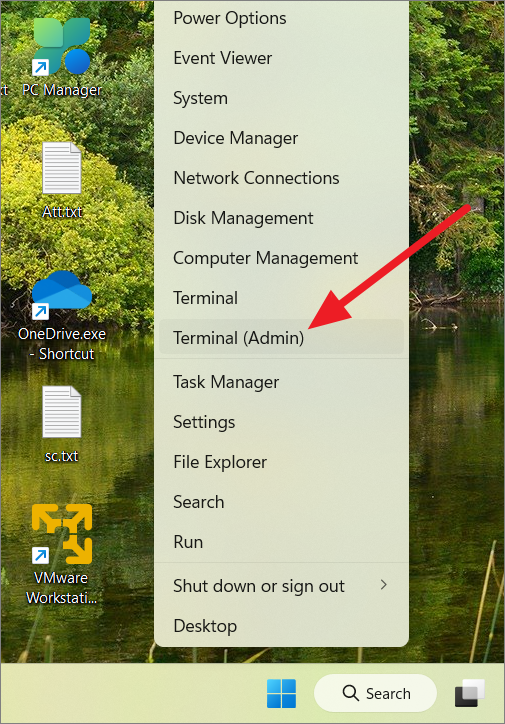
Start menu and select Terminal (Admin). In the terminal, click the down arrow and select Ubuntu to open the Ubuntu terminal.sudo suapt-get updateapt-get upgradecd /mnt/c/GAppsWSAapt install lzip unzip dos2unixdos2unix ./apply.shdos2unix ./extend_and_mount_images.shdos2unix ./extract_gapps_pico.shdos2unix ./unmount_images.shdos2unix ./VARIABLES.sh./extract_gapps_pico.sh./extend_and_mount_images.sh./apply.sh./unmount_images.shReplace WSA Files with Modified Versions
C:\WindowsSubsystemAndroid\Tools. Rename the existing kernel file to kernel_back and paste the copied kernel file here.Install the Customized WSA
Add-AppxPackage -Register C:\WindowsSubsystemAndroid\AppxManifest.xmlSet Up Google Play Store on WSA
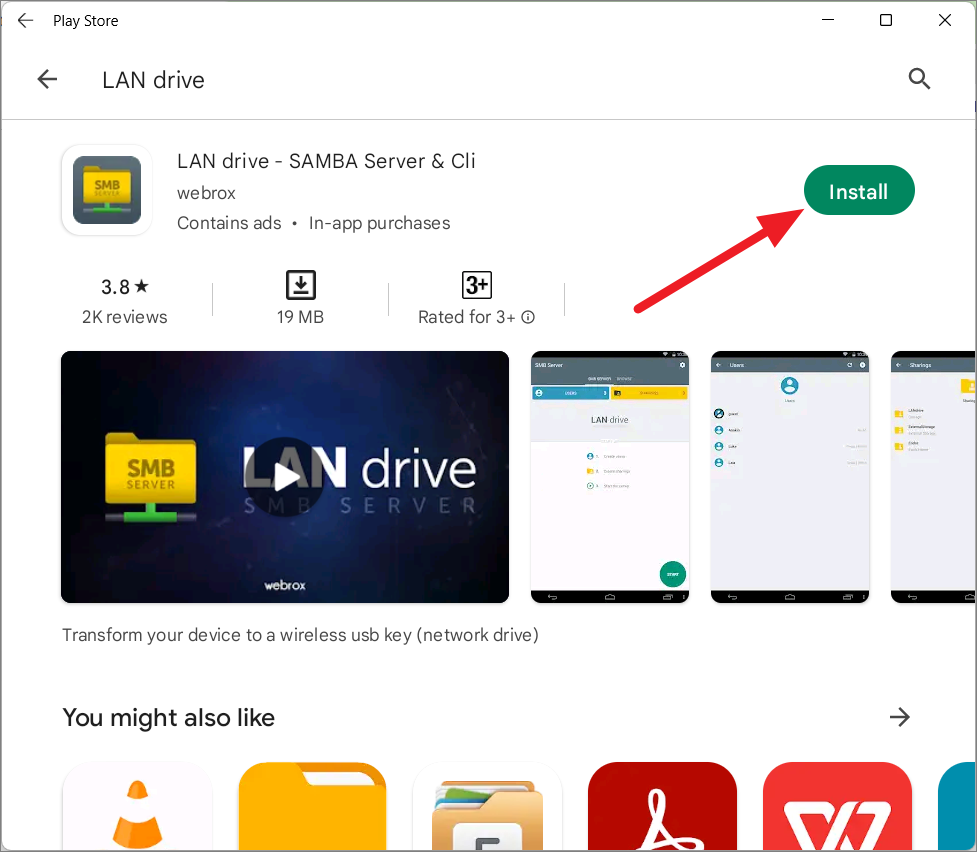
Play Store in the Start menu and launch it. If you encounter issues signing in, proceed to the next steps.cd C:\ADBKitadb.exe connect 127.0.0.1:58526adb.exe shellsusetenforce 0Install LAN Drive App to Facilitate File Transfer
+ icon to add a new user. Create a username and password, enable both Read and Write permissions under global permissions, and save the settings.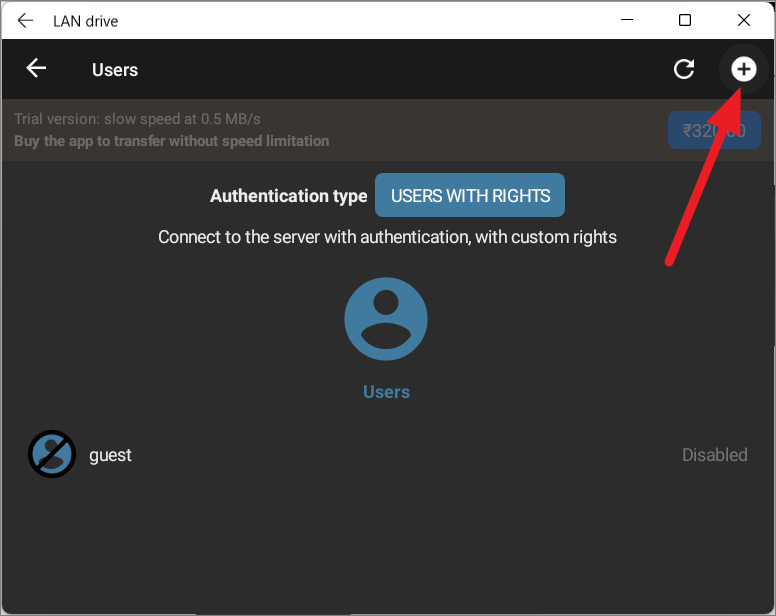
Access WSA Storage Through File Explorer
Network in the left panel. You should see a device named Googleredfin under the Computer section.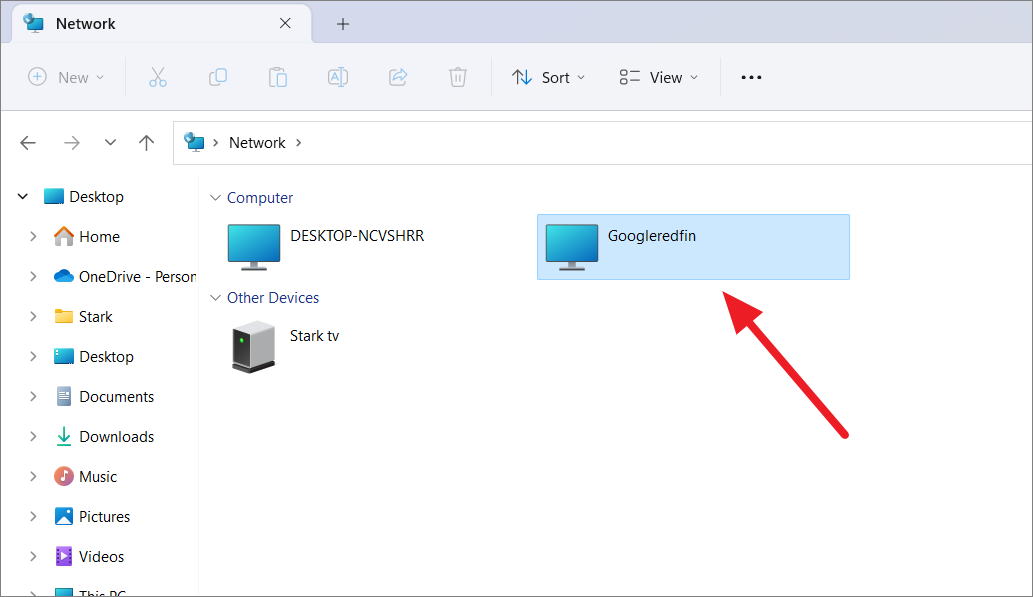
Googleredfin and enter the username and password you set up in LAN Drive. You can check Remember my credentials for future access.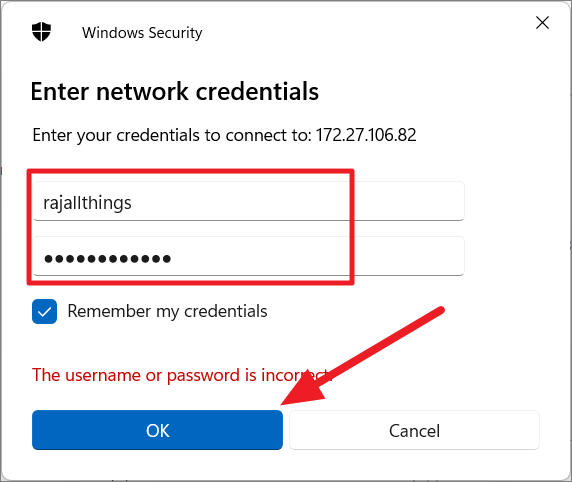
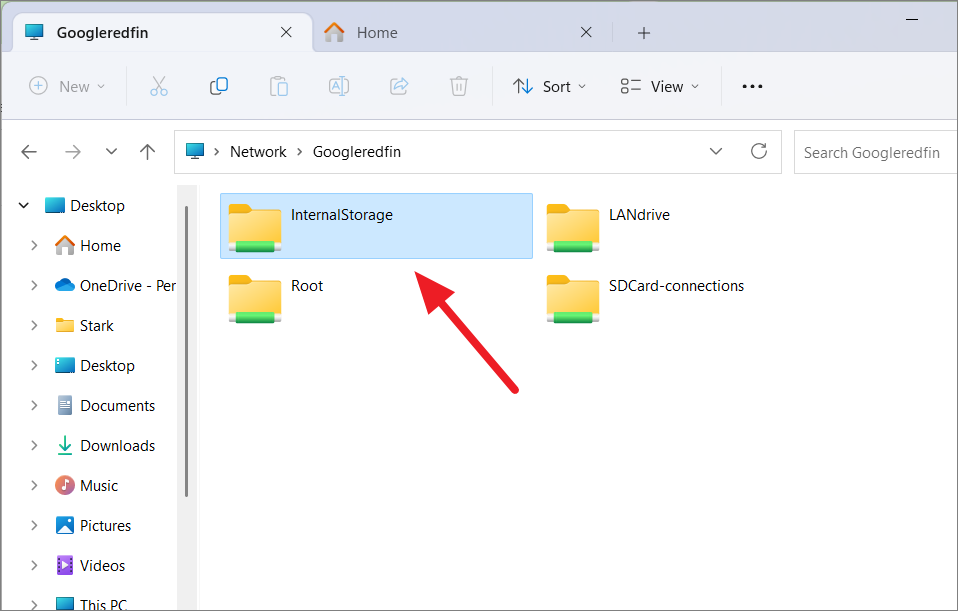
By following these steps, you can effortlessly transfer files between Windows 11 and the Windows Subsystem for Android using Android apps. This method offers a straightforward and user-friendly approach without the need for command line tools.
Copy Files between Windows 11 and Windows Subsystem for Android Using the ADB Command Line
The Android Debug Bridge (ADB) is a versatile command line tool that allows you to communicate with Android devices. Using ADB, you can transfer files, install apps, and perform various commands on WSA from your Windows 11 PC. This method provides more control but requires familiarity with command line operations.
Set Up ADB on Your Computer
Download SDK Platform-Tools for Windows and agree to the terms to start the download.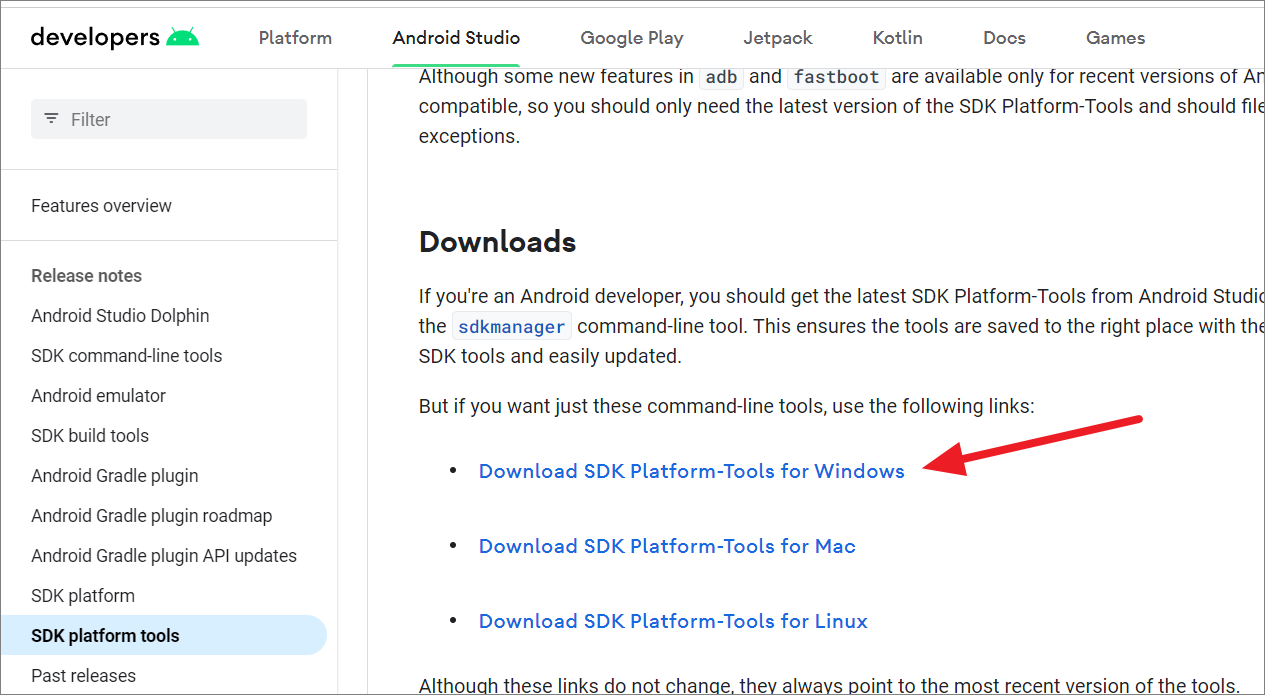
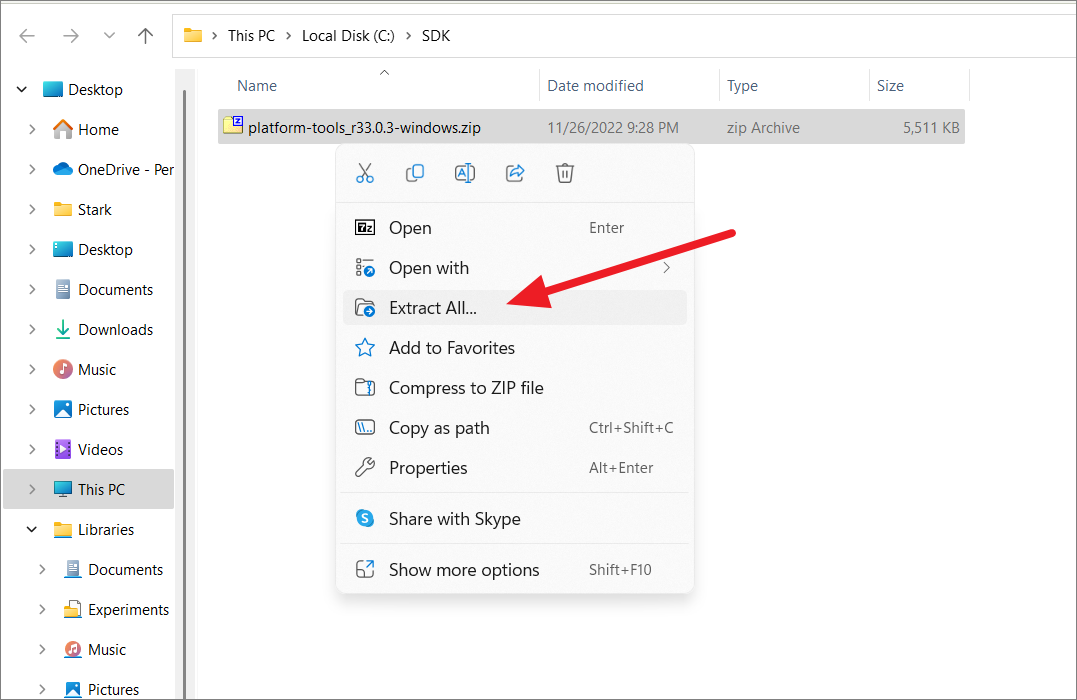
Enable Developer Mode in WSA
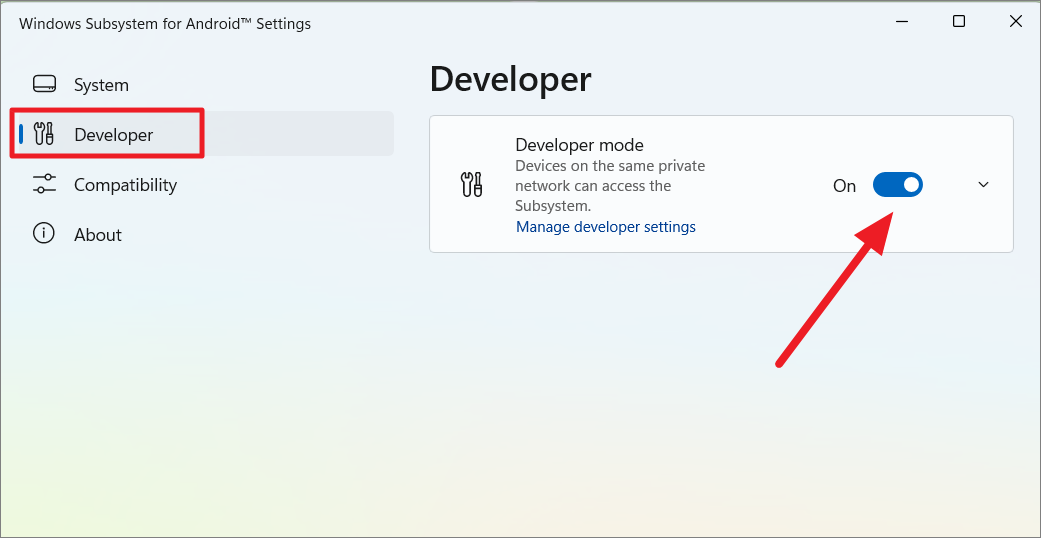
Developer tab and toggle on Developer mode. Click Allow access if prompted by a Windows Security Alert.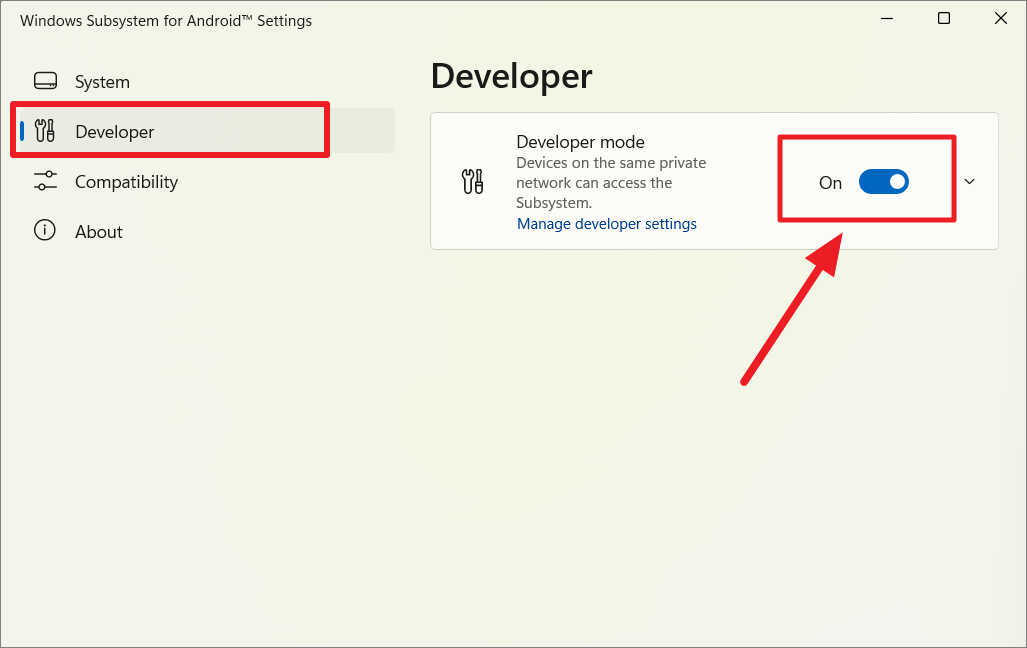
Connect to WSA via ADB
cd C:\SDK\platform-toolsadb connect 127.0.0.1:58526adb devicesTransfer Files Using ADB Commands
To copy files from Windows to WSA:
Copy as path.adb push "C:\path\to\your\file.txt" /storage/emulated/0/Download/To copy files from WSA to Windows:
adb pull /storage/emulated/0/Download/file.txt "C:\path\to\destination\"adb disconnect 127.0.0.1:58526Using the ADB command line tool provides a powerful way to transfer files between Windows 11 and WSA, offering greater control for users comfortable with command line operations.



