

Windows 11 users now have the option to enable dark mode in the Notepad application, making it easier on the eyes during late-night coding or writing sessions. Notepad, which previously did not support dark mode, now integrates seamlessly with Windows 11’s dark theme. In this guide, we’ll walk you through how to enable dark mode in Notepad.
Enable dark mode in Notepad through Notepad settings
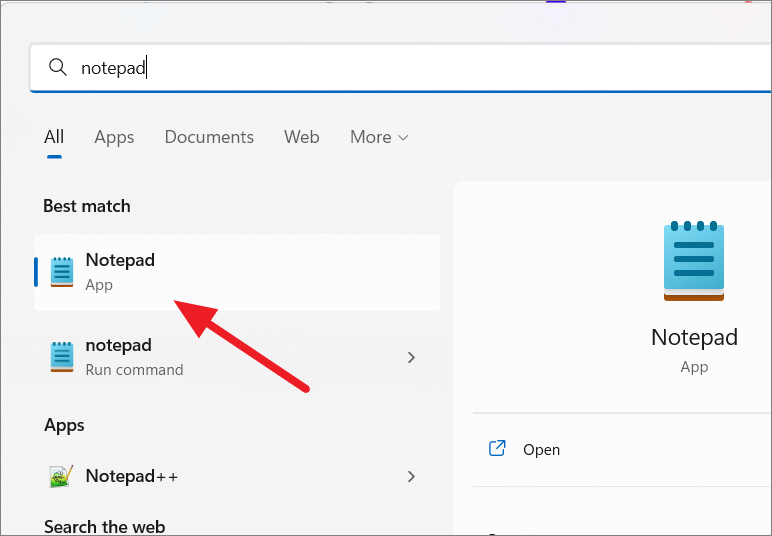
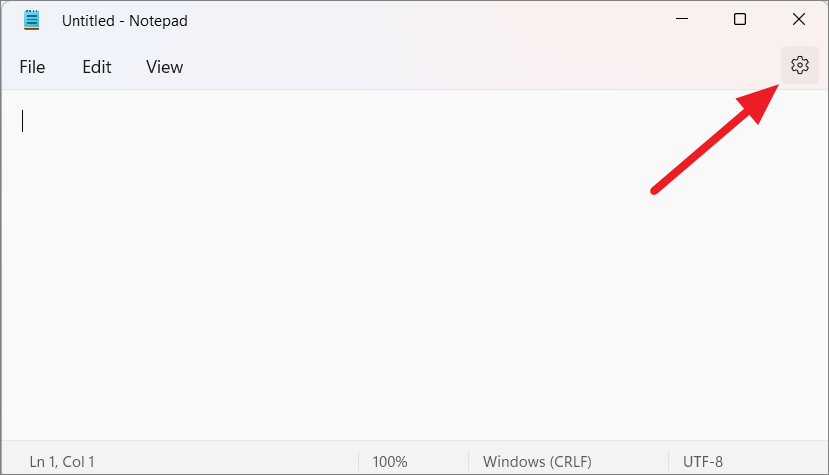
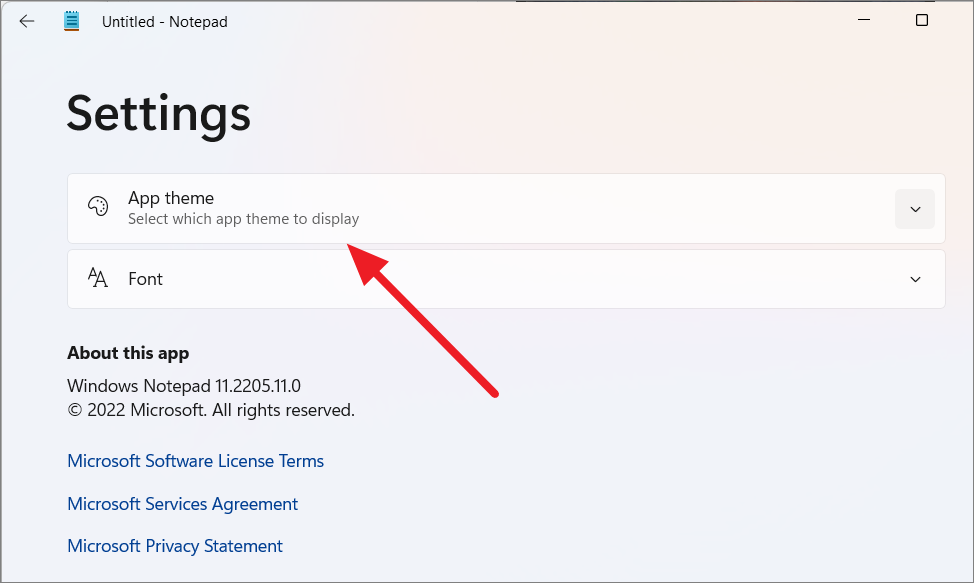
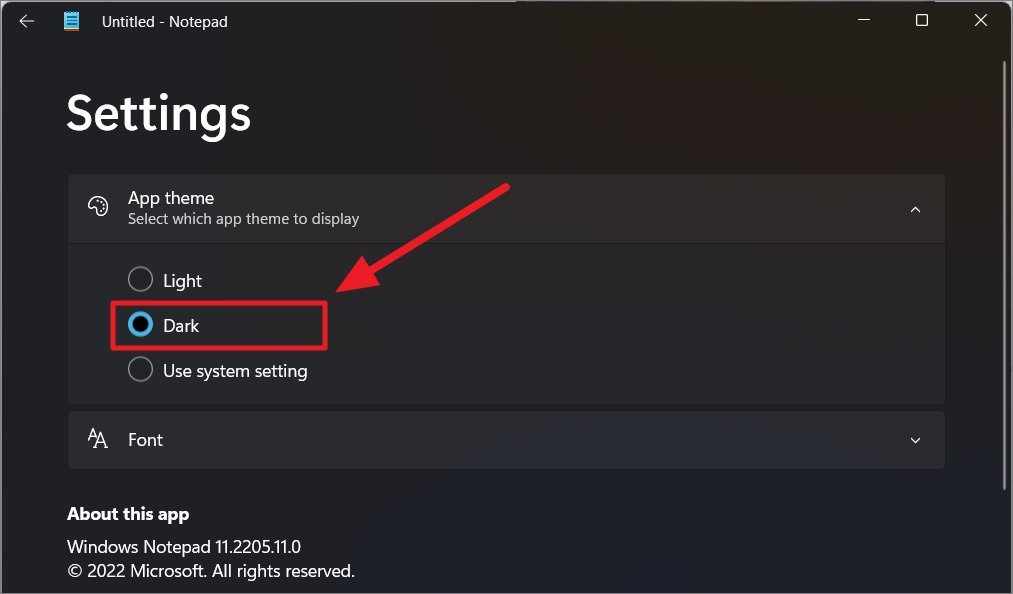
Enable dark mode in Notepad through Windows 11 settings
If you’d like to enable dark mode across the entire Windows 11 system, including Notepad and all other apps that support dark mode, you can adjust your system settings.
Win + I keys on your keyboard to open the Windows Settings app. Alternatively, click on the Start menu and select Settings.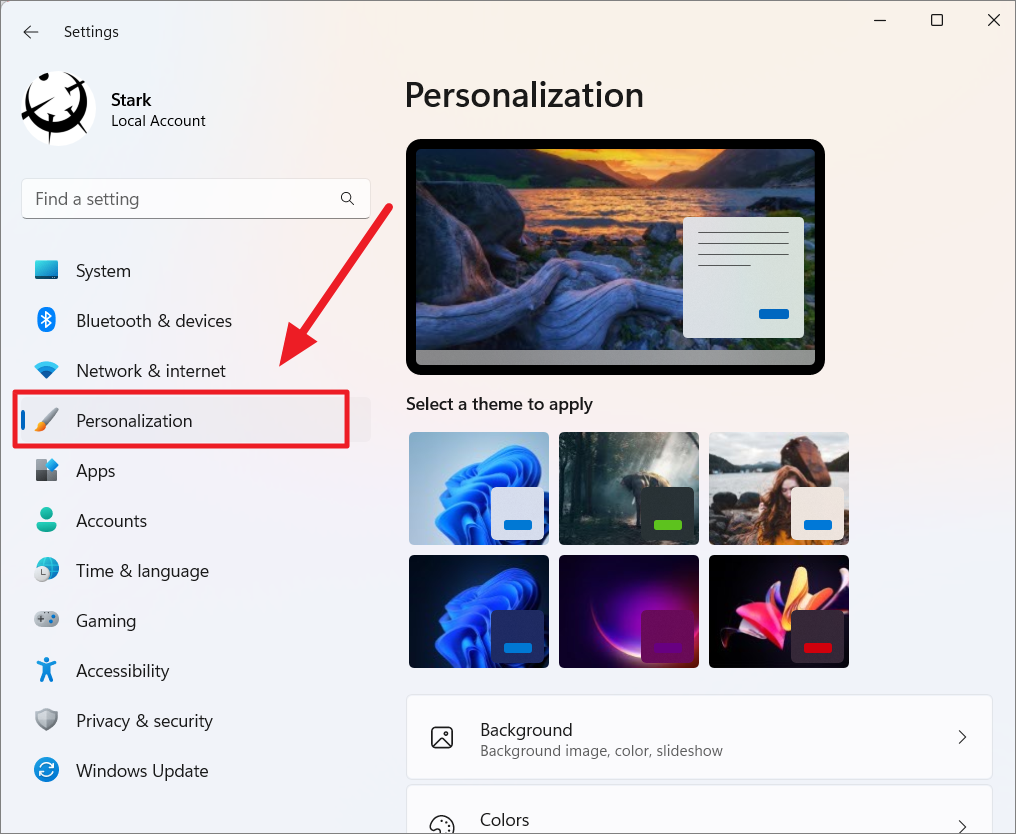
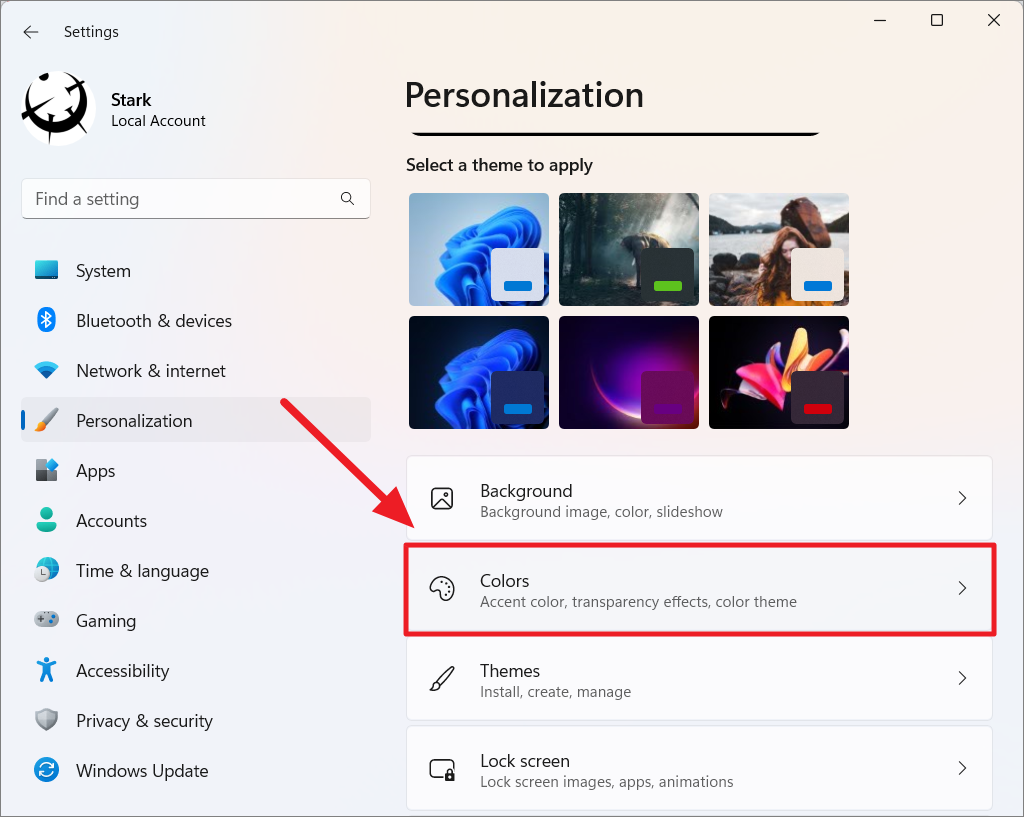
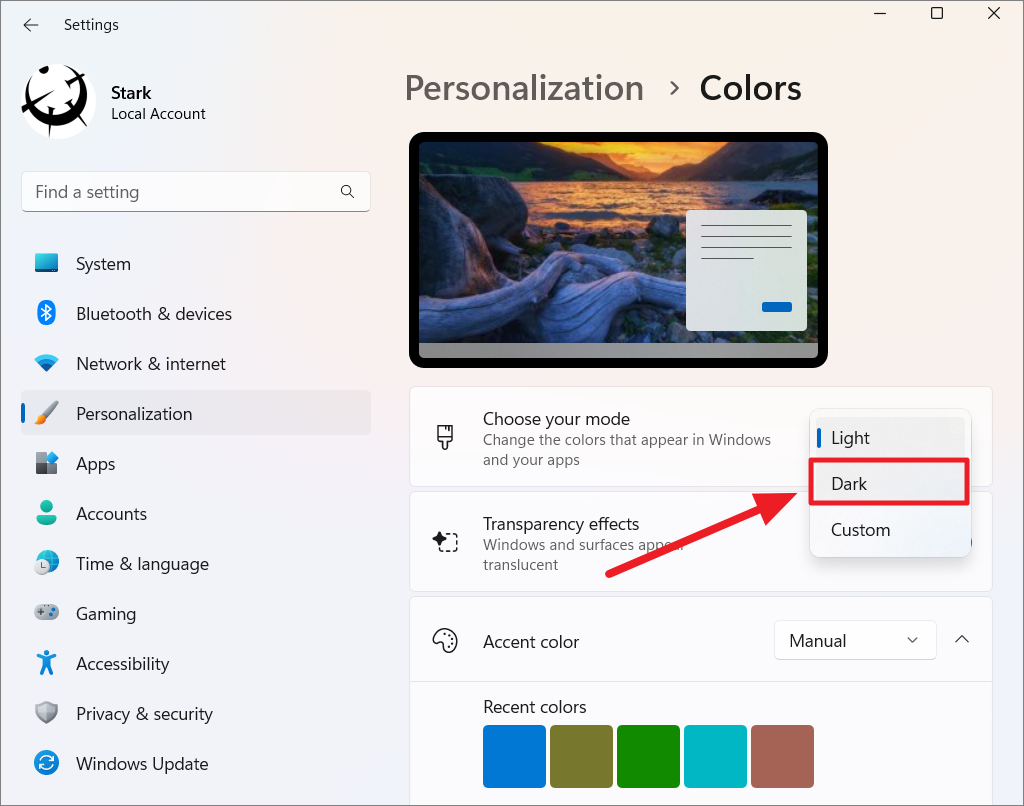
Now, all supported apps, including Notepad, will use the dark theme.
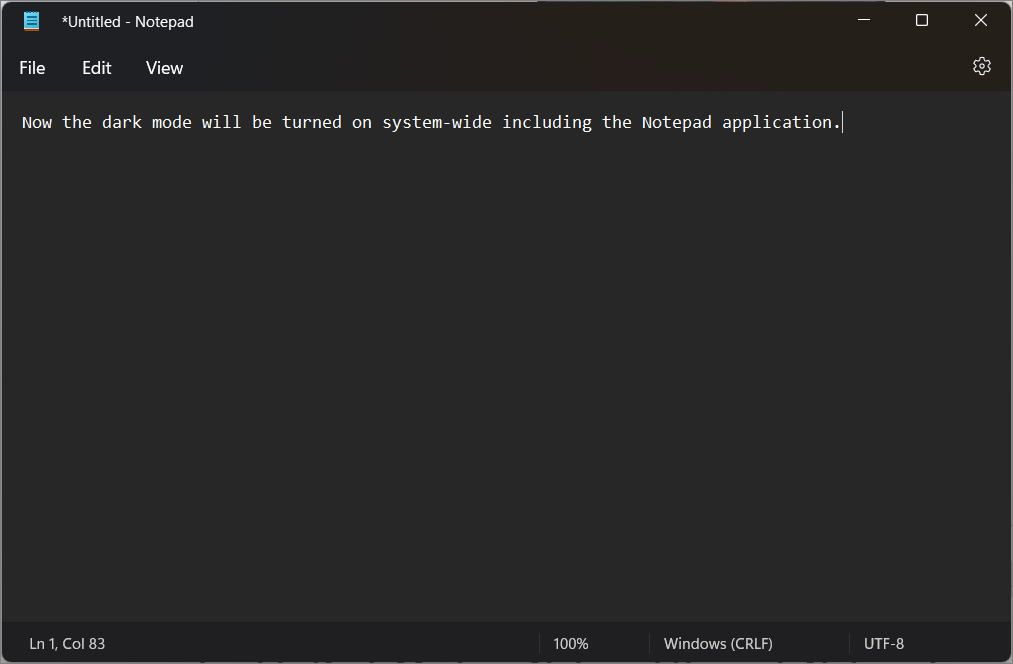
If Notepad does not switch to dark mode after changing the system theme, ensure that Notepad’s App theme setting is set to Use system setting or select Dark manually in the Notepad settings.
Enabling dark mode in Notepad can enhance your user experience, especially during nighttime use. Whether you prefer to switch themes within Notepad or apply the dark mode across your entire system, these simple steps make it easy to customize your display.



