
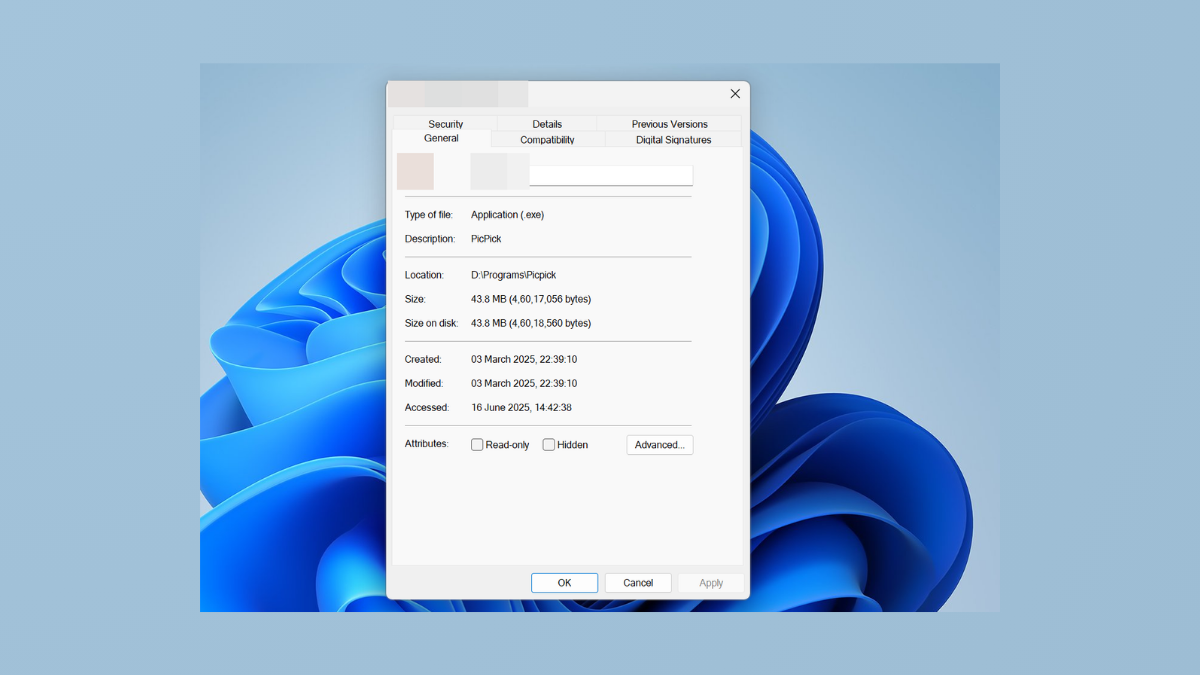
Missing the Compatibility tab in file properties can prevent users from adjusting settings that help older applications run correctly on Windows 11. The Compatibility tab allows you to configure options like running apps in compatibility mode for previous versions of Windows or running as administrator. When this tab is hidden, it often results from group policy settings, registry changes, or file permission issues. Restoring or removing the Compatibility tab ensures you can manage legacy app behavior or restrict user access as needed. The following methods detail how to add or remove the Compatibility tab using Local Group Policy Editor, the Windows Registry, and alternative troubleshooting steps.
Add or Remove Compatibility Tab Using Local Group Policy Editor
Windows + R, typing gpedit.msc, and pressing Enter. Note that this tool is available on Windows 11 Pro, Enterprise, and Education editions.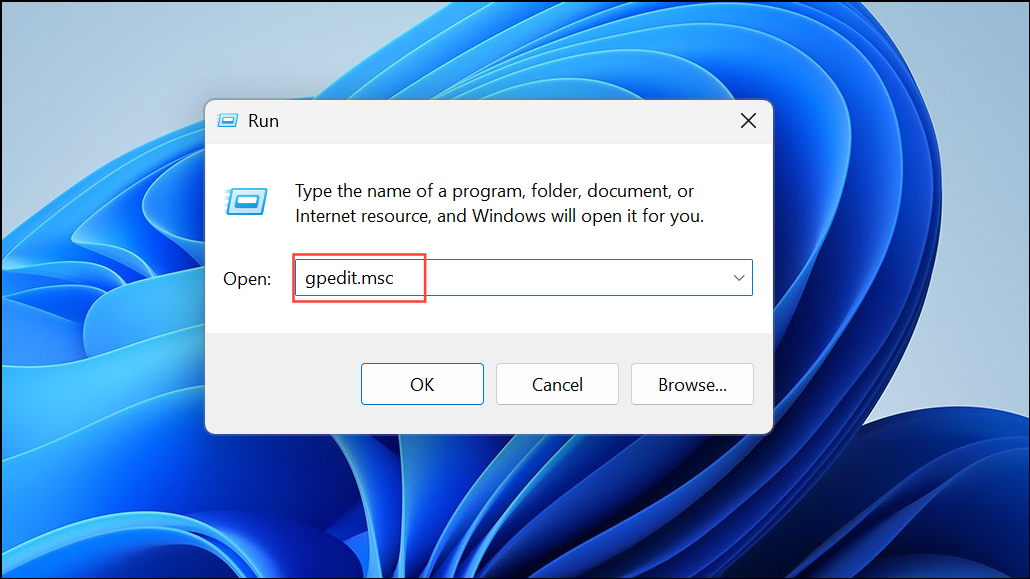
Computer Configuration > Administrative Templates > Windows Components > Application Compatibility.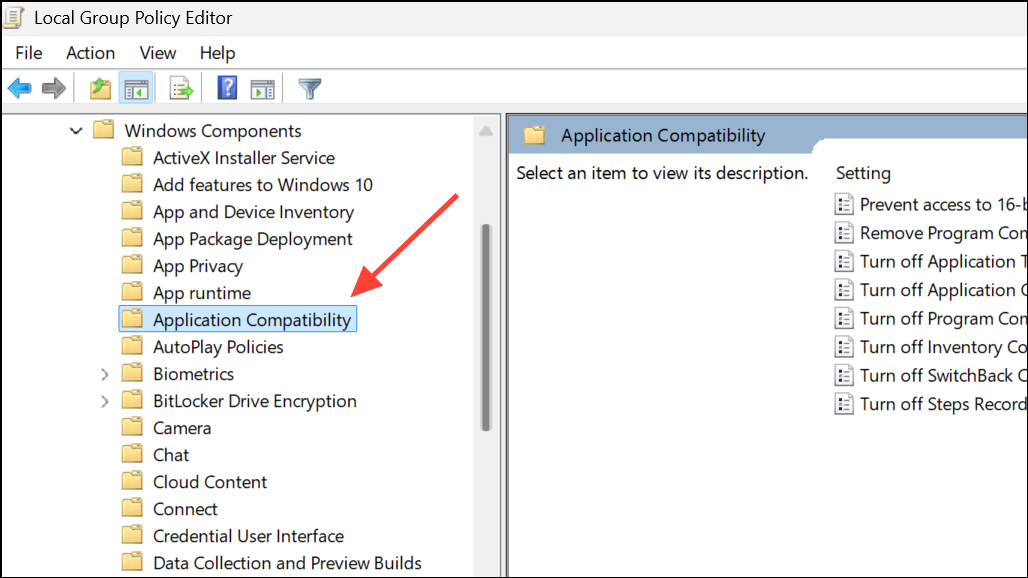
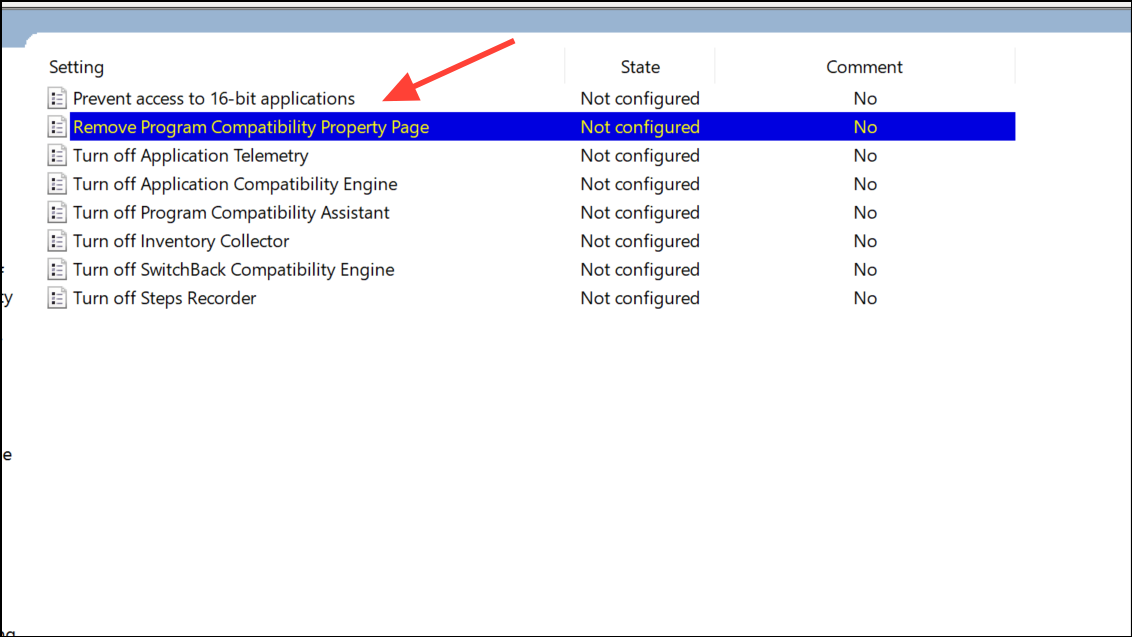
Not Configured or Disabled. To hide the Compatibility tab, select Enabled. Click OK to confirm.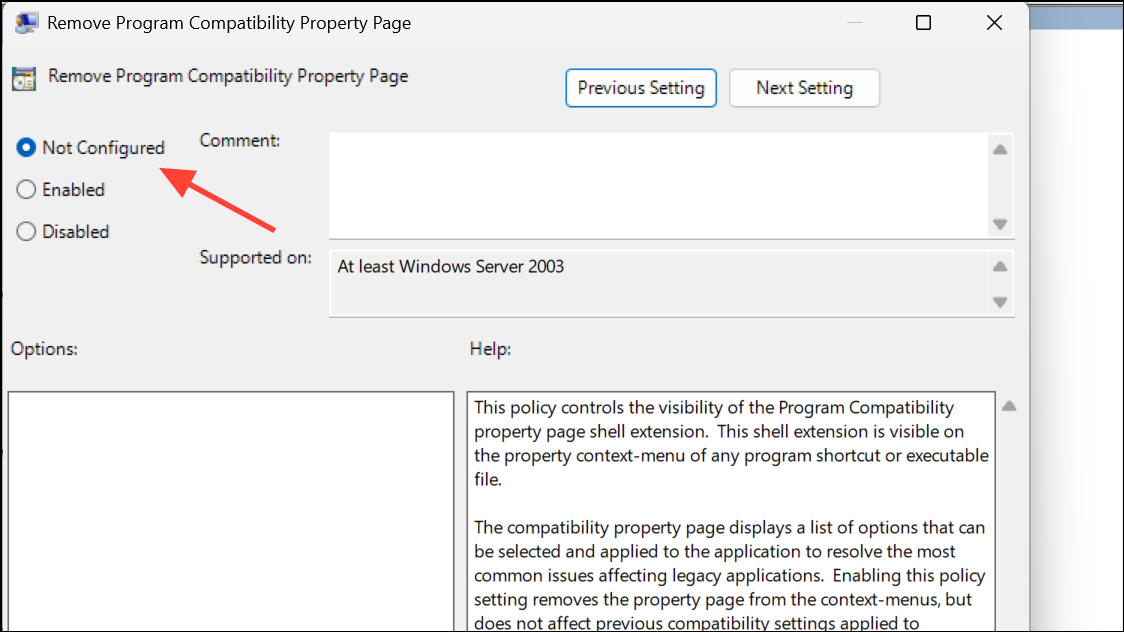
Add or Remove Compatibility Tab Using Windows Registry
For users without access to the Group Policy Editor (such as Windows 11 Home), the registry offers a direct way to control the Compatibility tab’s visibility.
Windows + R, type regedit, and press Enter to open the Registry Editor. If prompted by User Account Control, choose Yes.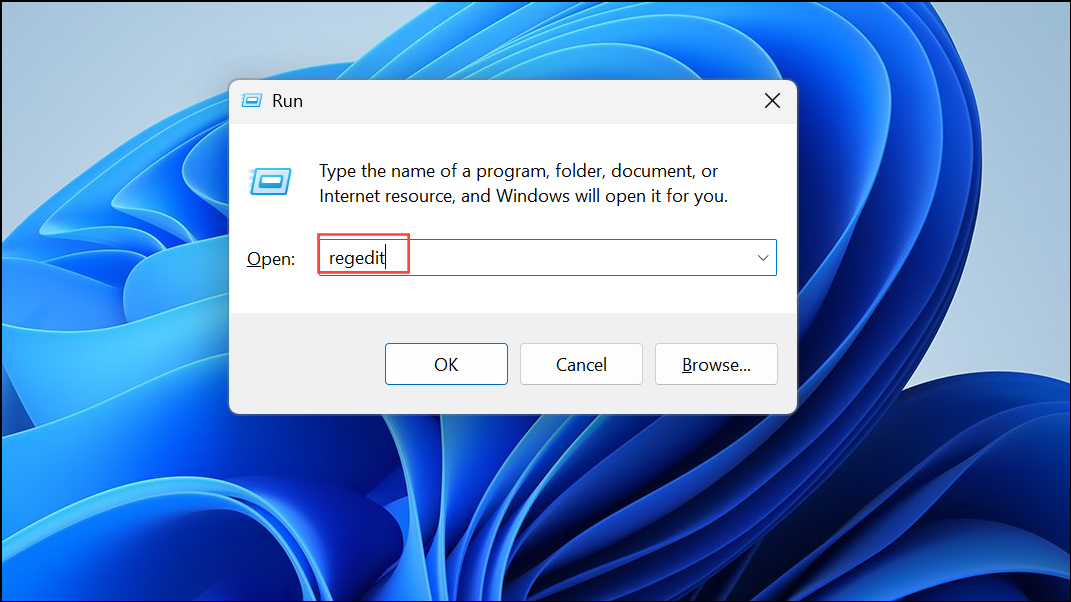
HKEY_LOCAL_MACHINE\SOFTWARE\Policies\Microsoft\Windows\AppCompat. If the AppCompat key does not exist, right-click on Windows, select New > Key, and name it AppCompat.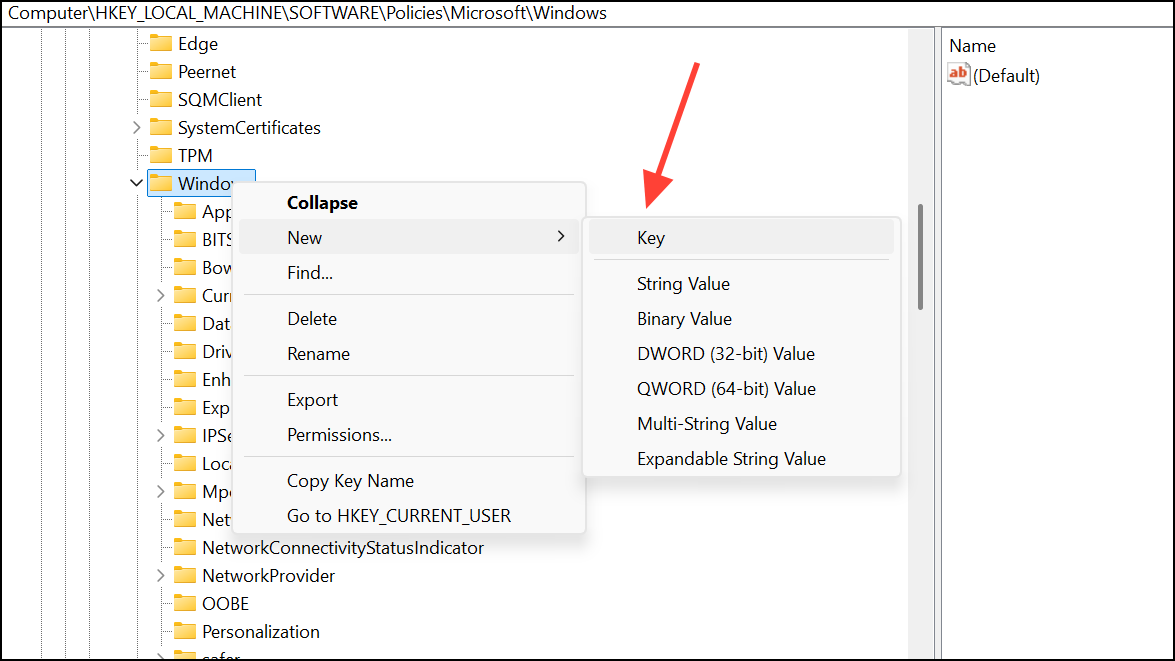
DisablePropPage and set its value to 1.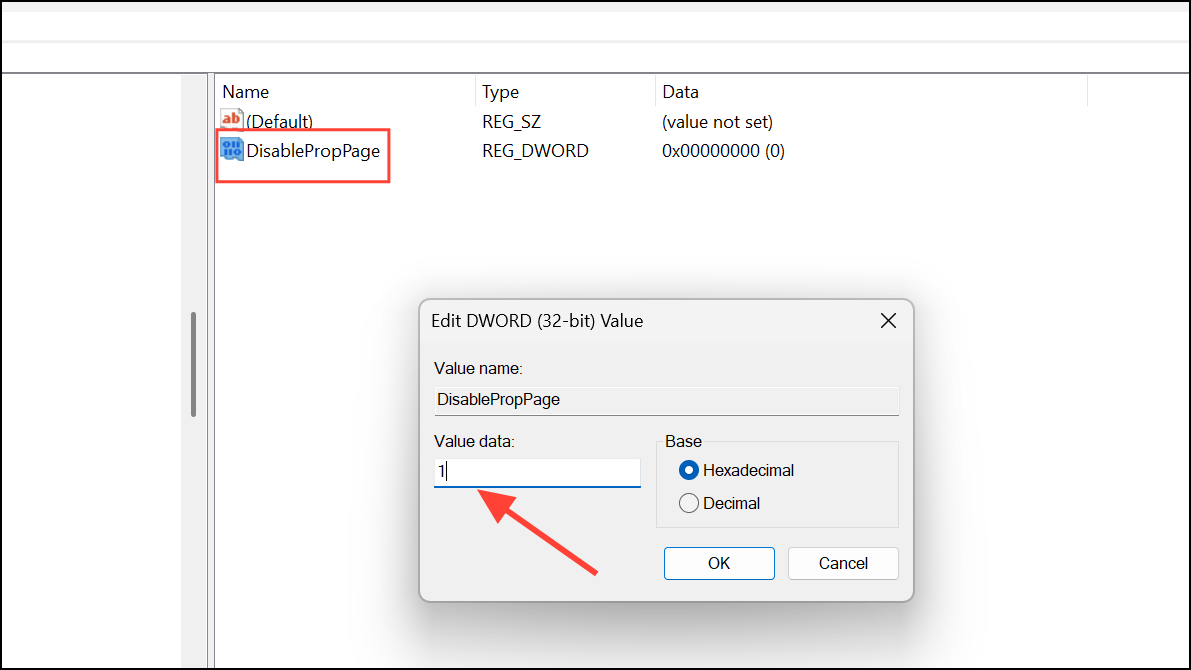
    Windows Registry Editor Version 5.00

    [HKEY_LOCAL_MACHINE\SOFTWARE\Policies\Microsoft\Windows\AppCompat]
    "DisablePropPage"=dword:00000001
To add or restore the Compatibility tab, delete the DisablePropPage value or set it to 0.
    Windows Registry Editor Version 5.00

    [HKEY_LOCAL_MACHINE\SOFTWARE\Policies\Microsoft\Windows\AppCompat]
    "DisablePropPage"=-
Check File Selection and Permissions
Sometimes, the Compatibility tab is missing due to how the file is selected or because of insufficient permissions.
Rename Executable or Move File
Some executable files—especially installers or those from virtual drives—may not show the Compatibility tab due to security restrictions or file attributes.
setup.exe to install.exe), then right-click and check Properties again. Sometimes, this triggers Windows to display all property tabs, including Compatibility.Advanced: Apply Compatibility Settings Directly in the Registry
If the Compatibility tab is unavailable but you need to set compatibility options, you can apply these settings directly in the registry.
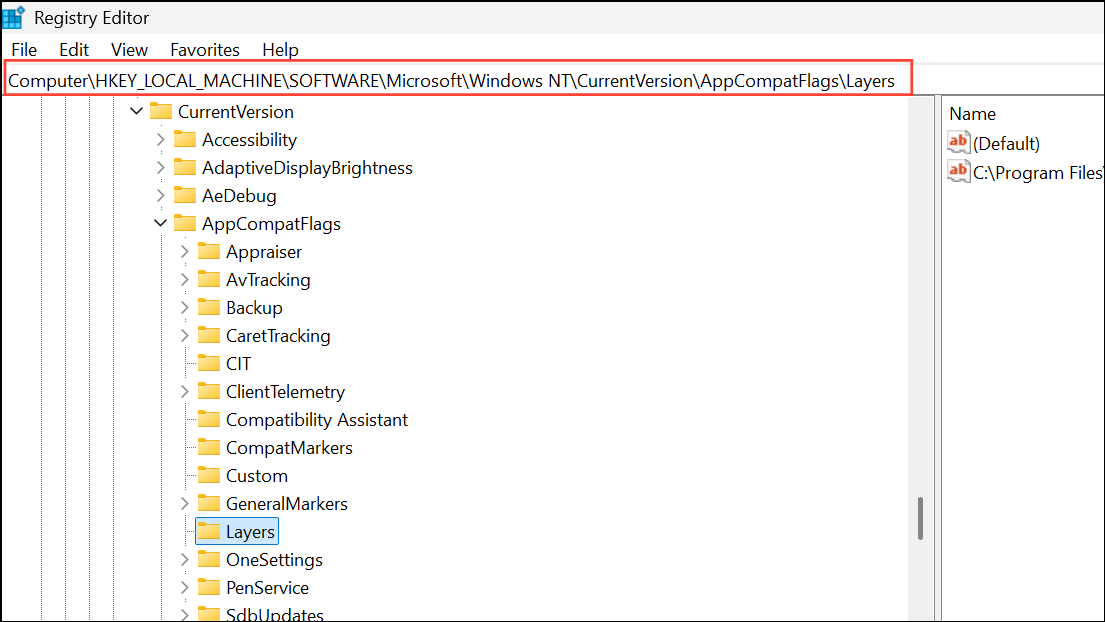
RUNASADMIN, VISTARTM, etc.). This method mimics the settings available in the Compatibility tab, but requires precise knowledge of the flags and their effects. Reference lists of compatibility flags are available on community forums and Microsoft support sites.Restoring or hiding the Compatibility tab in Windows 11 file properties allows you to control legacy app settings as needed. If standard methods do not resolve the issue, adjusting permissions or applying registry tweaks can provide a solution.



