

Windows 11 can quickly accumulate unnecessary files and data that consume valuable storage space, potentially slowing down your system and limiting your ability to install updates or save new files. Adjusting specific settings allows you to instantly clear storage, reclaiming gigabytes without additional software or hardware upgrades. The following methods guide you through key settings and features designed to automate and optimize storage management.
Enable and Configure Storage Sense for Automatic Cleanup
Storage Sense is a built-in Windows 11 feature that automatically deletes temporary files, clears the Recycle Bin, and removes old downloads based on your preferences. Activating Storage Sense puts your system on autopilot for storage maintenance, reducing manual cleanup efforts.
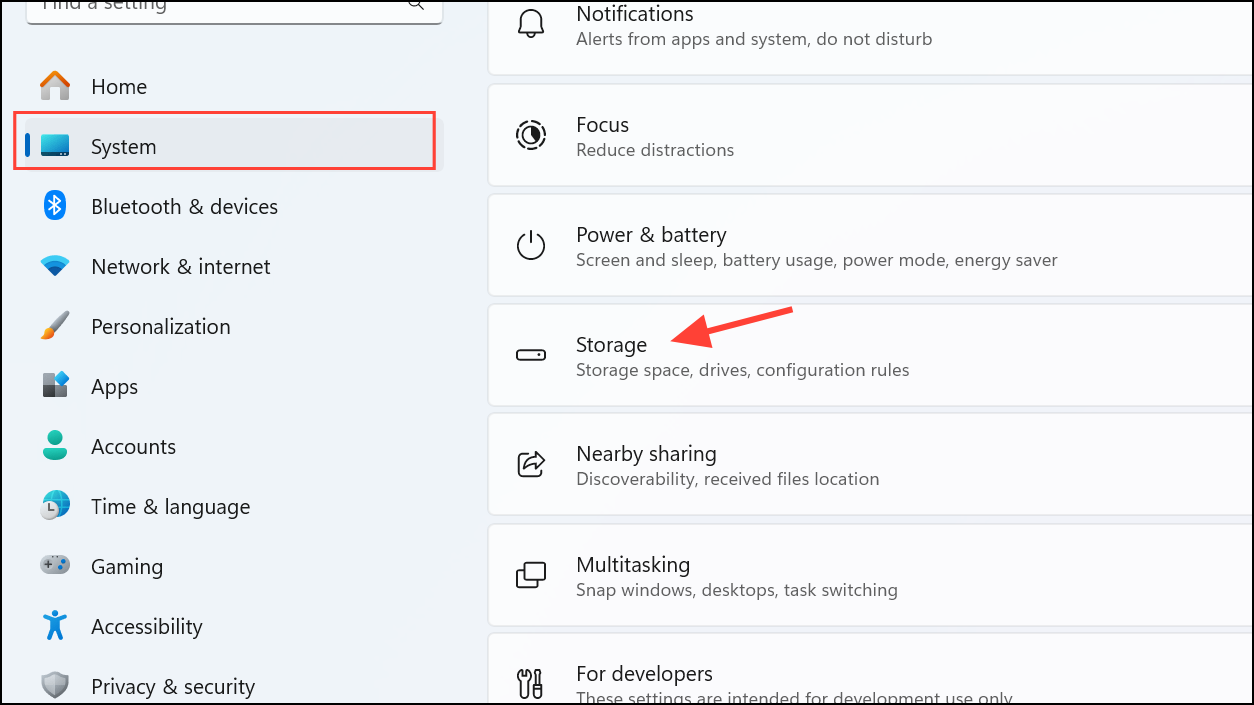
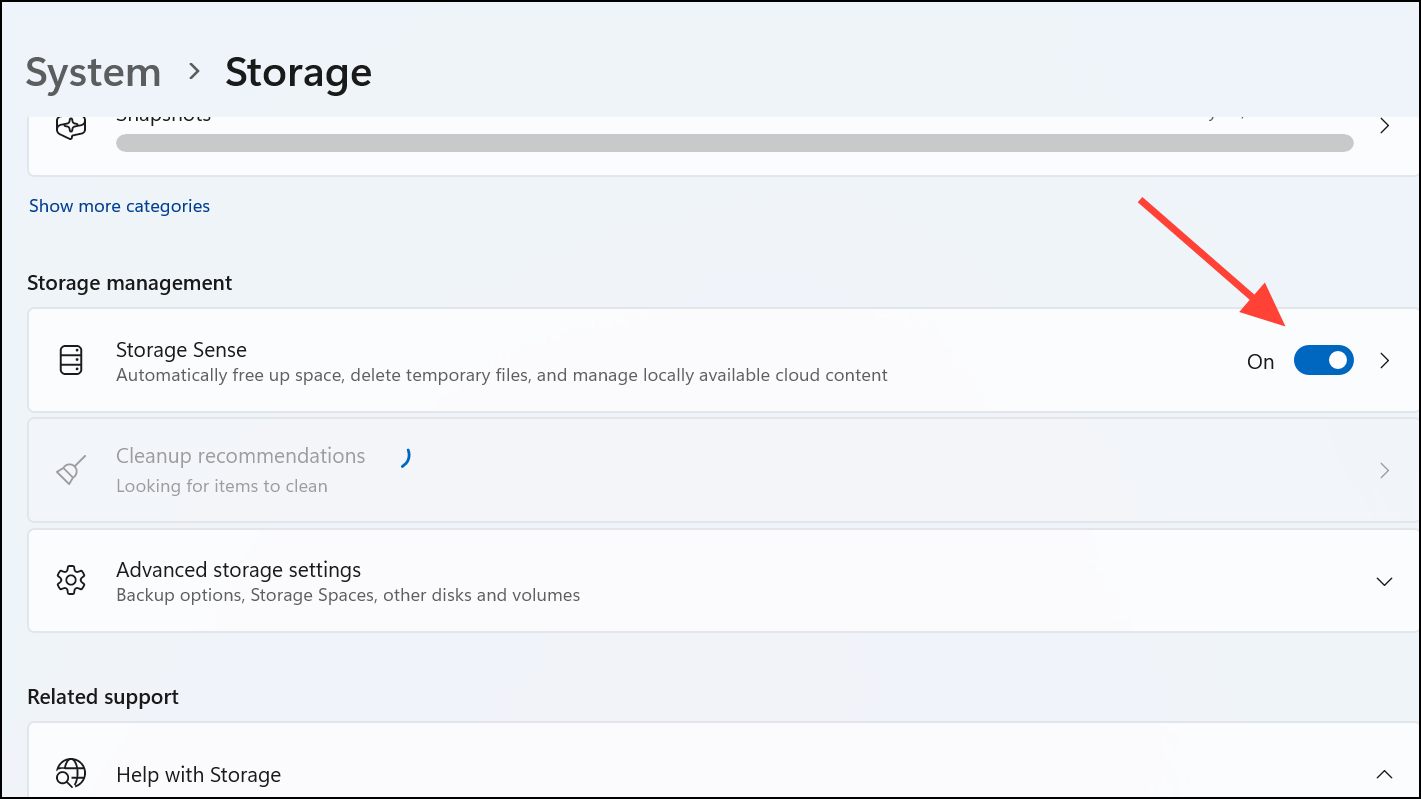
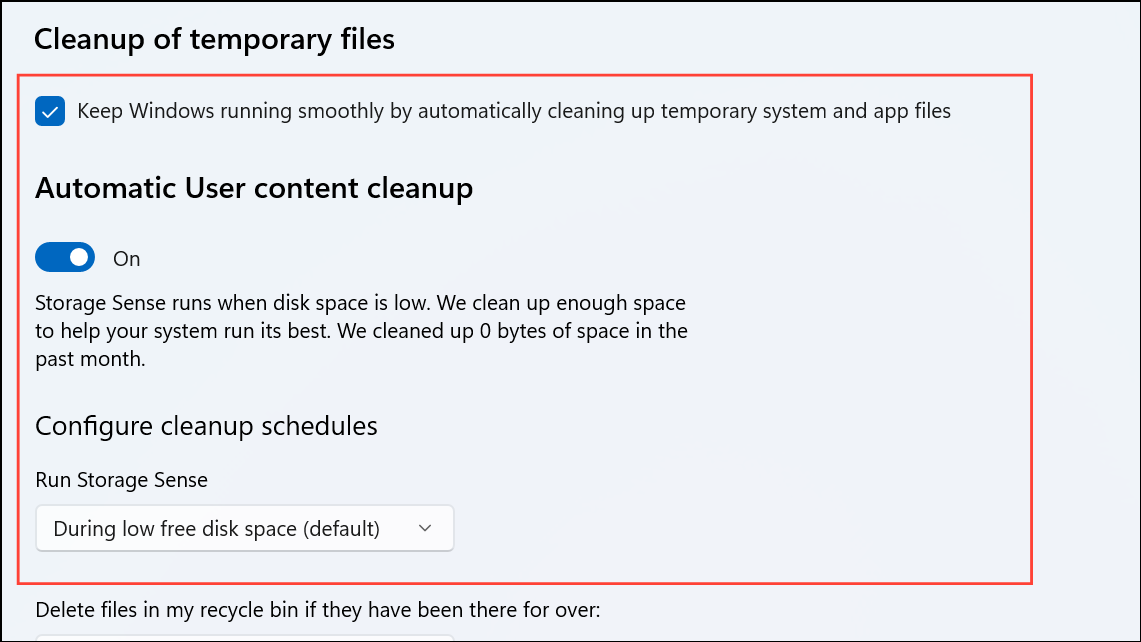
By customizing these options, you ensure Storage Sense removes clutter efficiently without deleting important files prematurely.
Change Default Save Locations to Free Up the System Drive
The default save location for new files, such as documents, pictures, videos, and downloads, is usually the system drive (C:), which can fill up quickly. Redirecting these folders to another drive with more free space prevents the system drive from becoming overloaded.
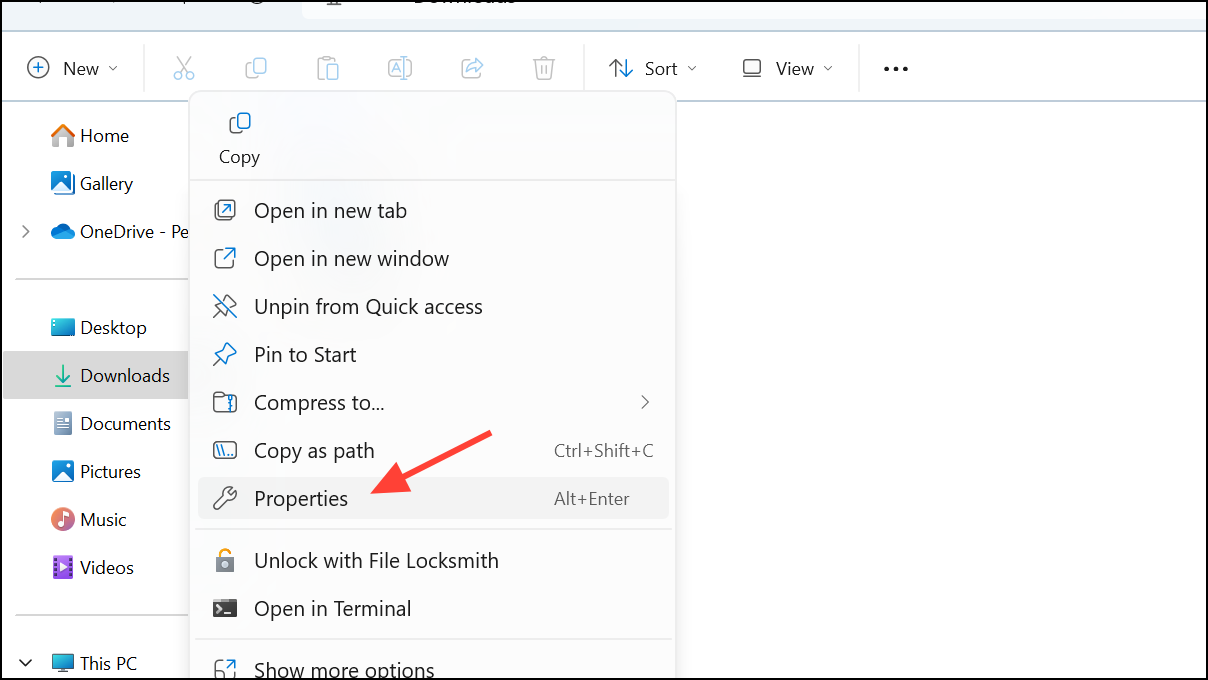
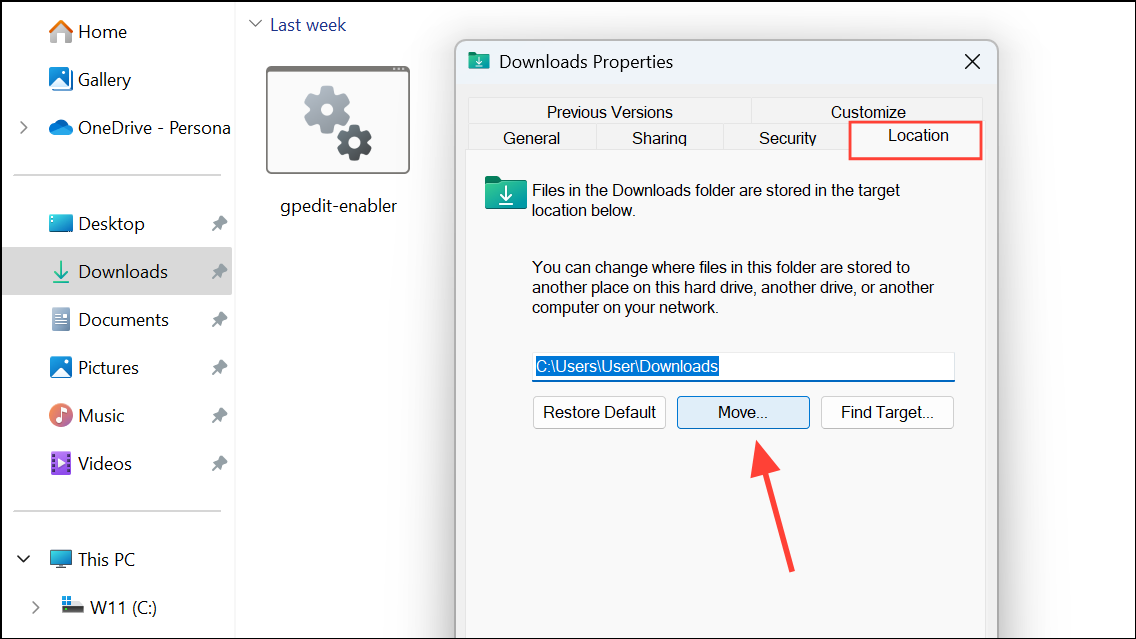
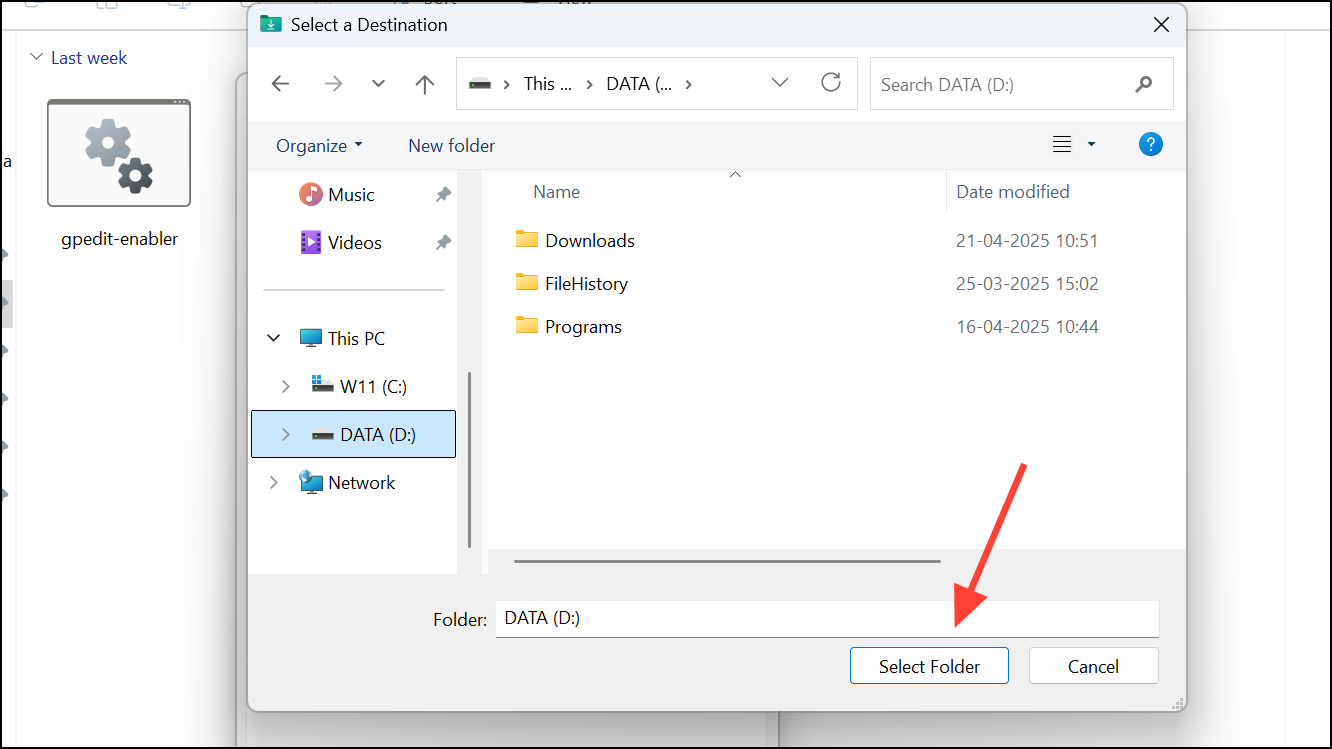
This adjustment prevents the system drive from filling up with personal files, improving overall storage management.
Disable Hibernation to Remove the Hibernation File
Hibernation mode saves the system state to a file named hiberfil.sys on your drive, which can consume several gigabytes. If you do not use hibernation, disabling it deletes this file and frees up storage.
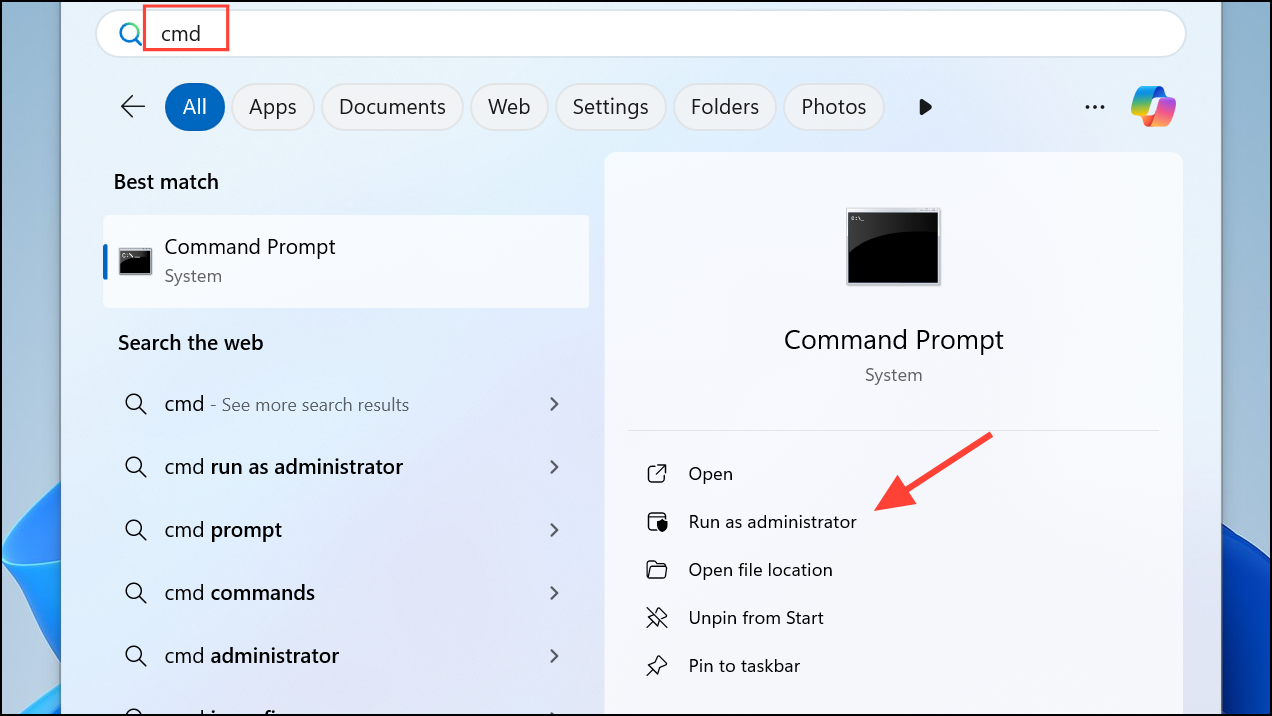
powercfg -h off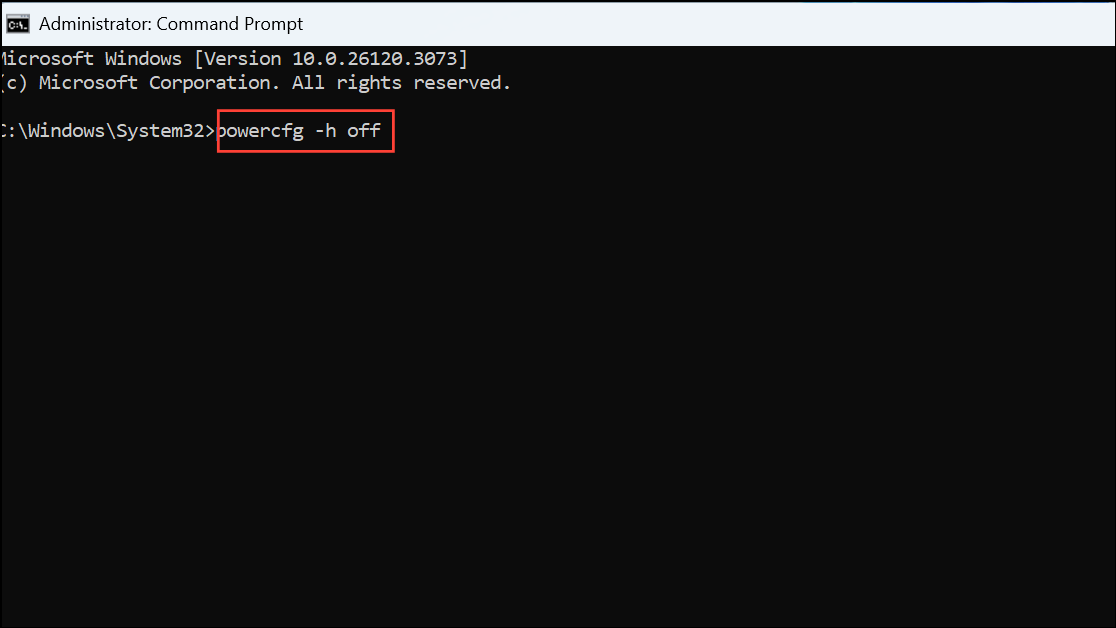
This command disables hibernation and removes the associated file immediately.
powercfg -h on instead.Reduce Disk Space Used by System Restore
System Restore saves snapshots of your system to allow recovery after problems, but it can reserve up to 10% of your drive by default. Lowering this allocation frees up storage while still maintaining restore points.
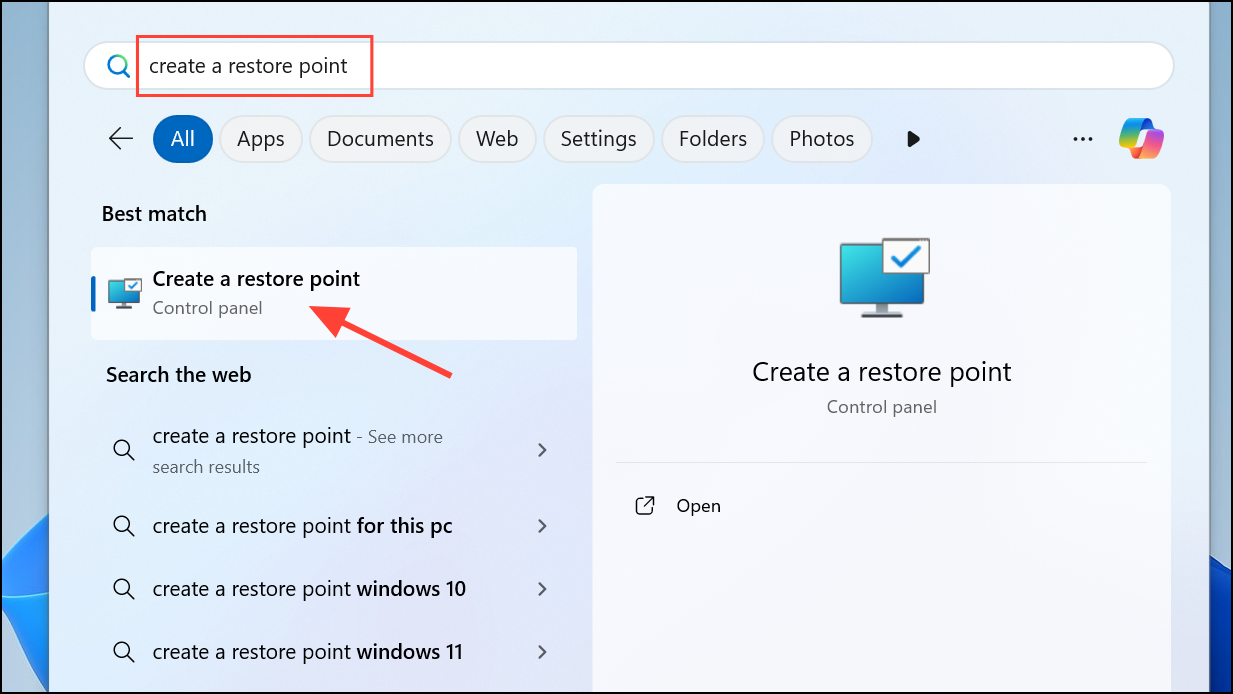
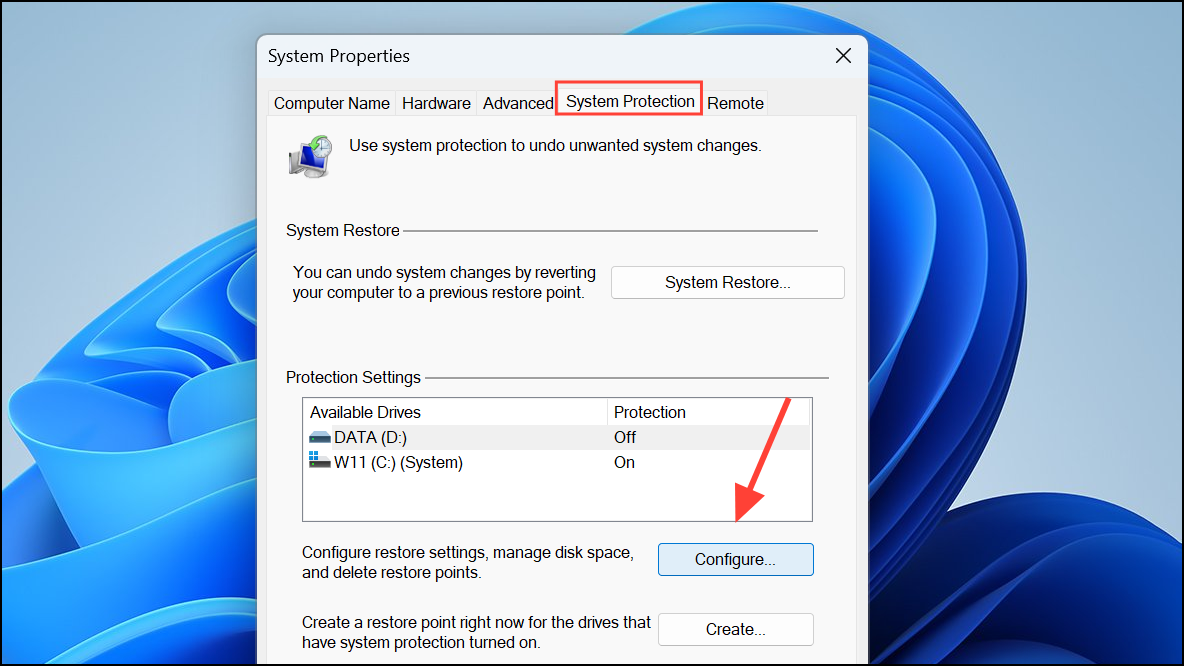
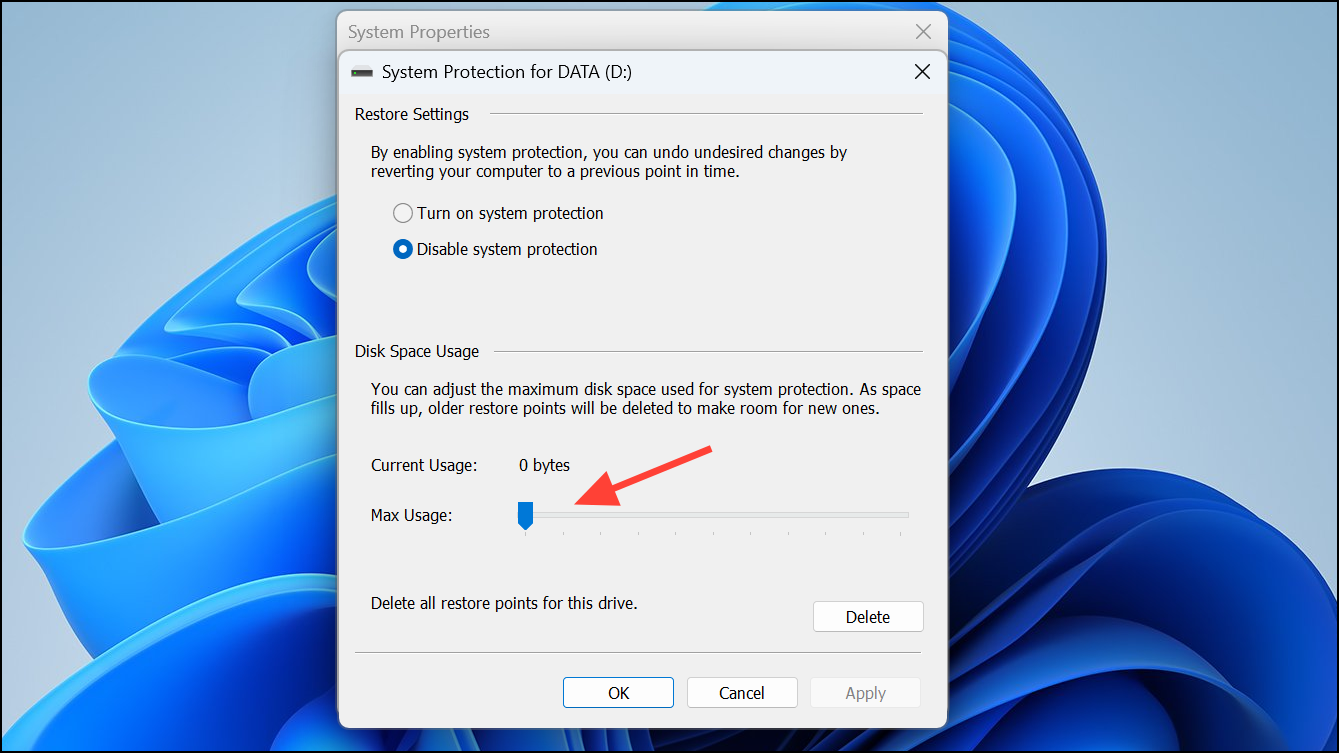
This change limits the disk space reserved for restore points, freeing more storage for other uses.
Use Compact OS to Compress System Files
Compact OS compresses Windows system files, reducing their size by 2–3 GB. This is especially useful for devices with limited storage capacity.
compact /compactos:query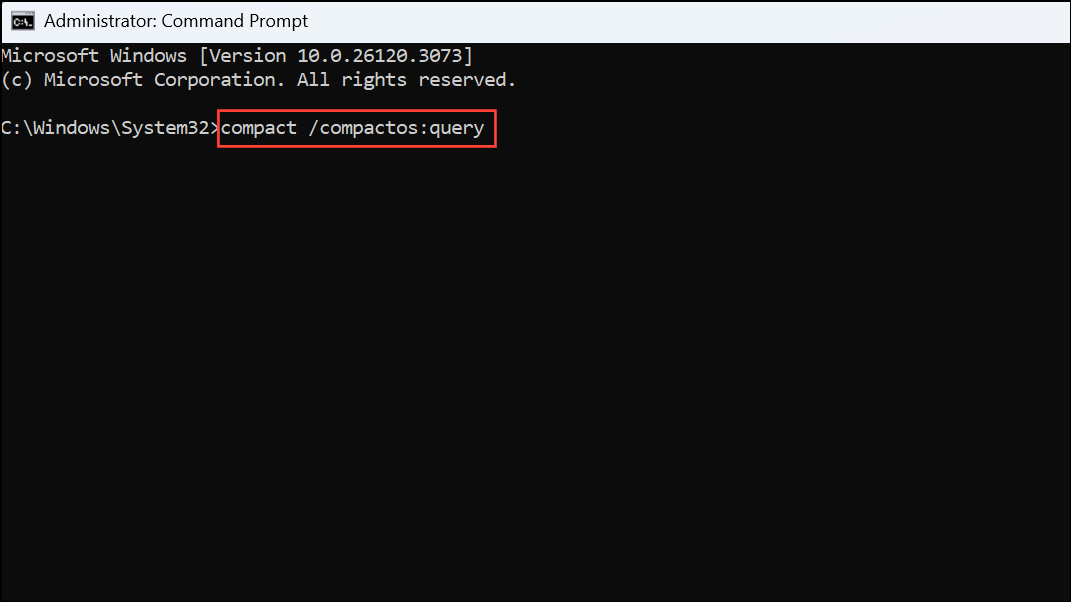
COMPACT.EXE /CompactOS:always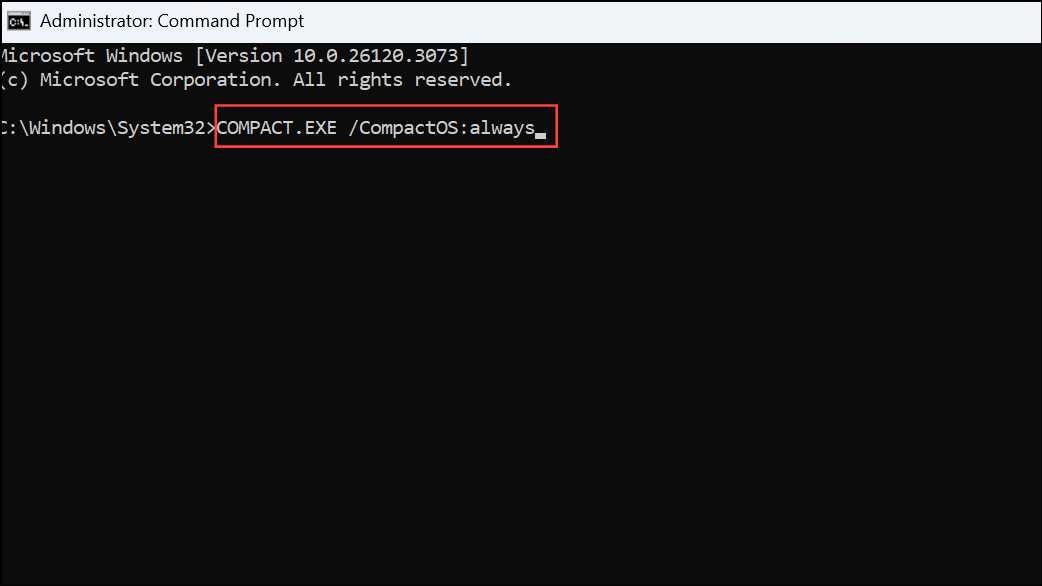
COMPACT.EXE /CompactOS:never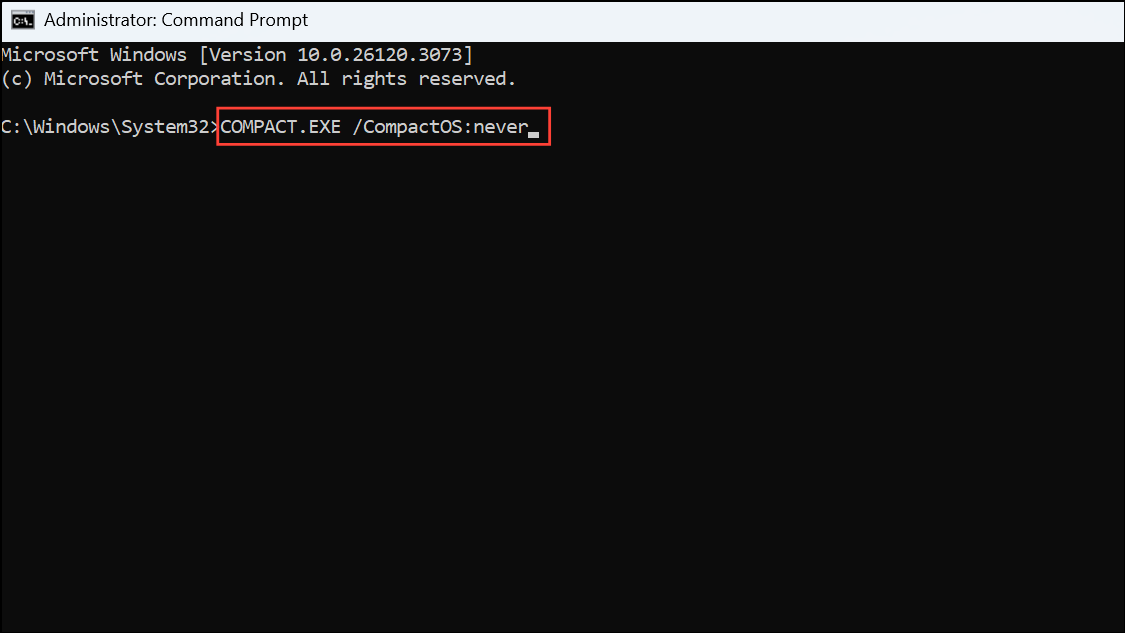
Compact OS works by compressing system files without deleting them, allowing you to reclaim space without affecting system stability.
Clear Temporary Files from Apps and System
Applications such as browsers, media players, and editors accumulate temporary files and caches that consume storage. Regularly clearing these files helps maintain free space.
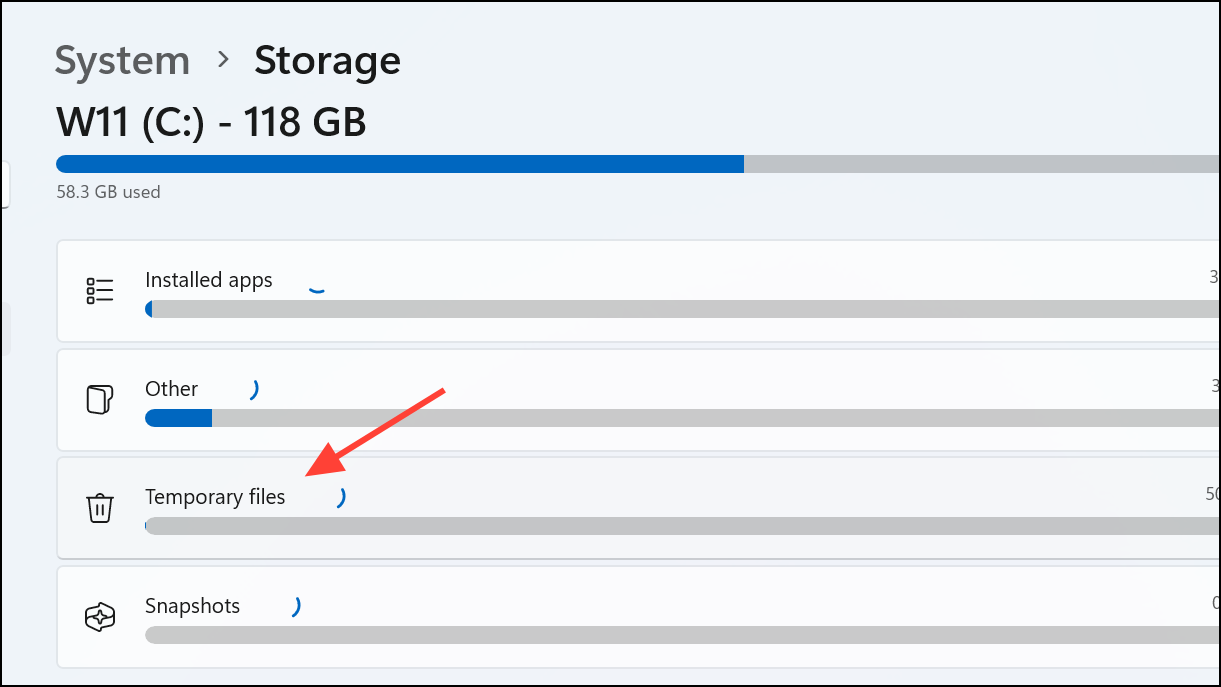
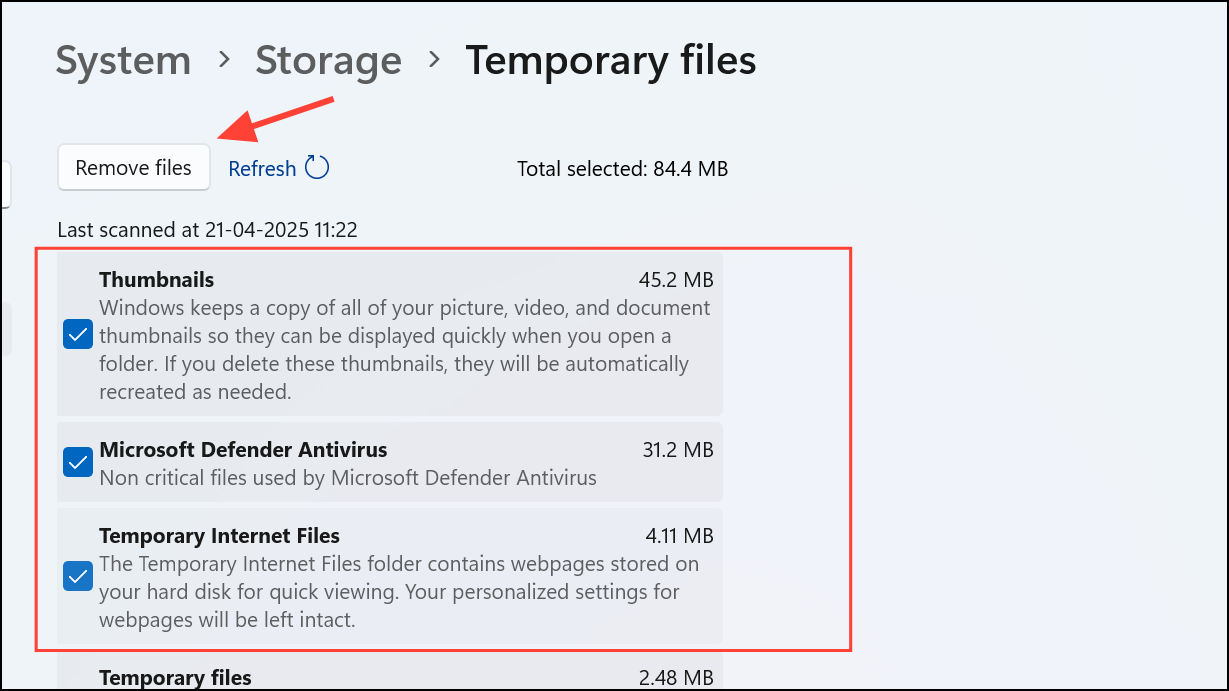
For browsers such as Chrome or Edge, you can also clear cache directly through their history or privacy settings to recover additional space.
Uninstall Unused Applications and Windows Features
Unused programs and Windows features occupy disk space and may slow system updates or startup. Removing them streamlines your system and frees storage.
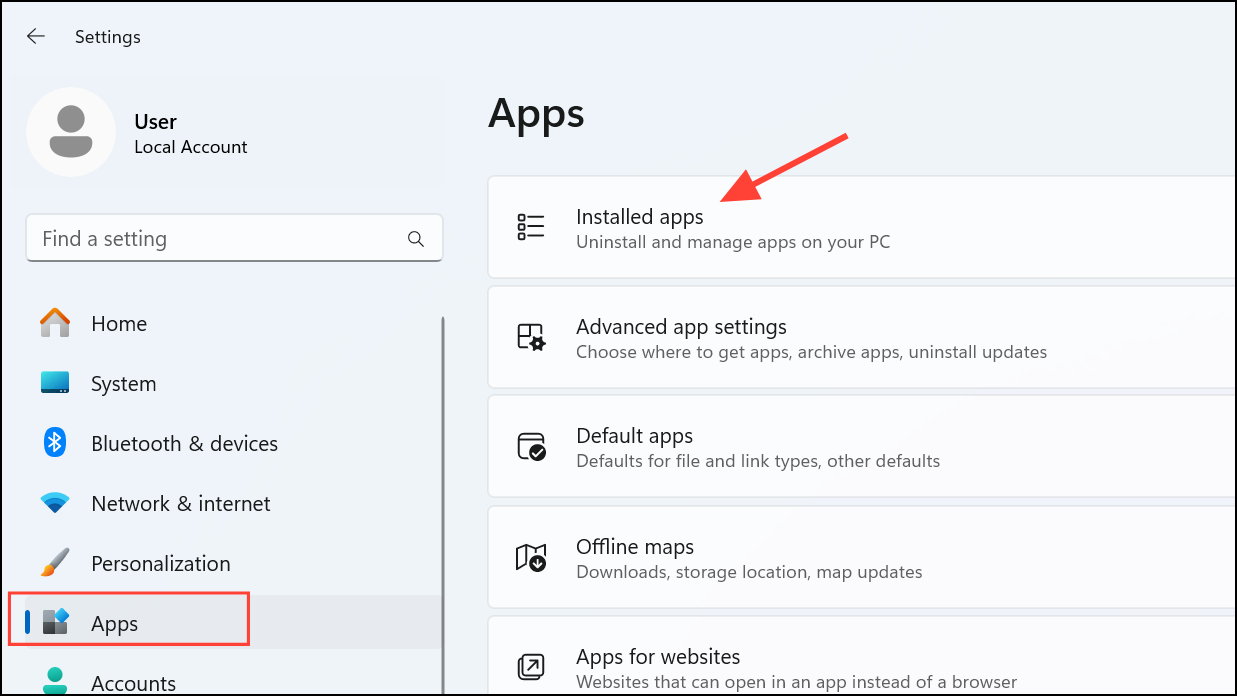
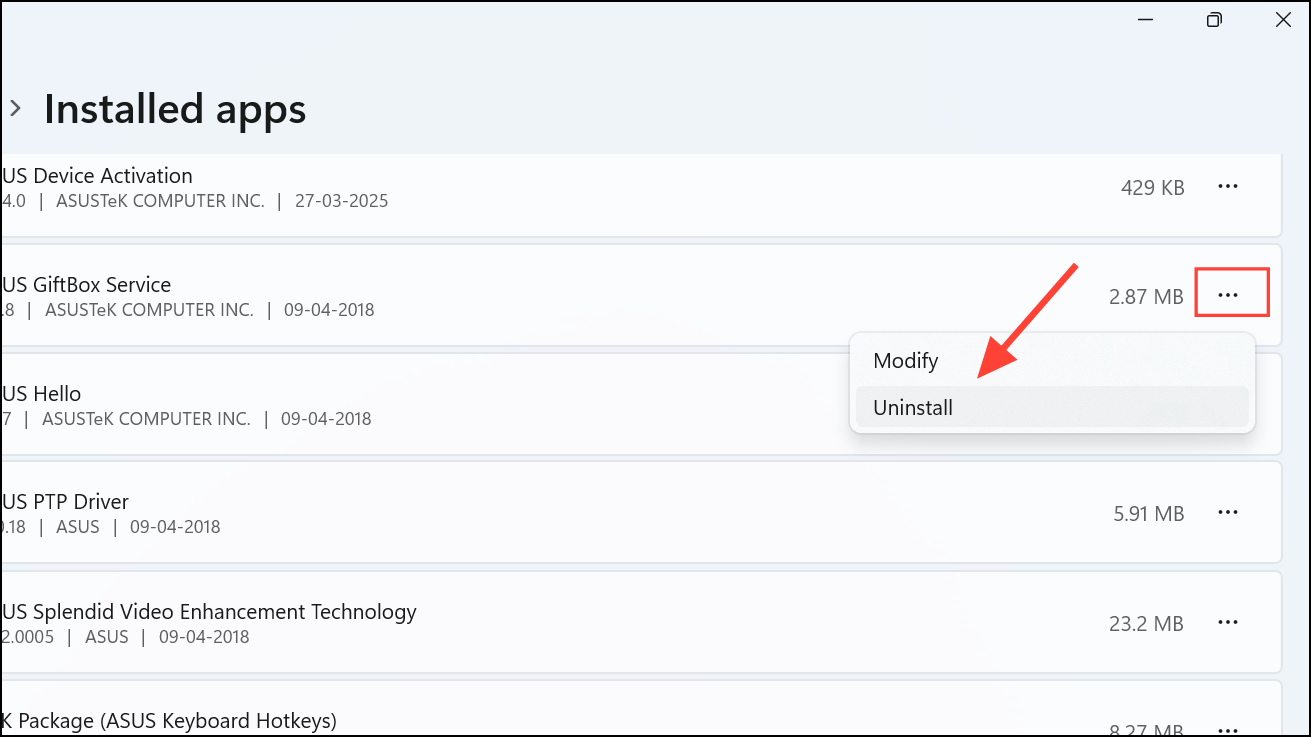
Regularly auditing and removing unused software prevents unnecessary storage consumption.
Adjusting these settings in Windows 11 provides an effective way to clear storage instantly and sustain smooth system operation. Periodically revisiting these configurations ensures your device remains responsive and ready for updates without storage constraints.



