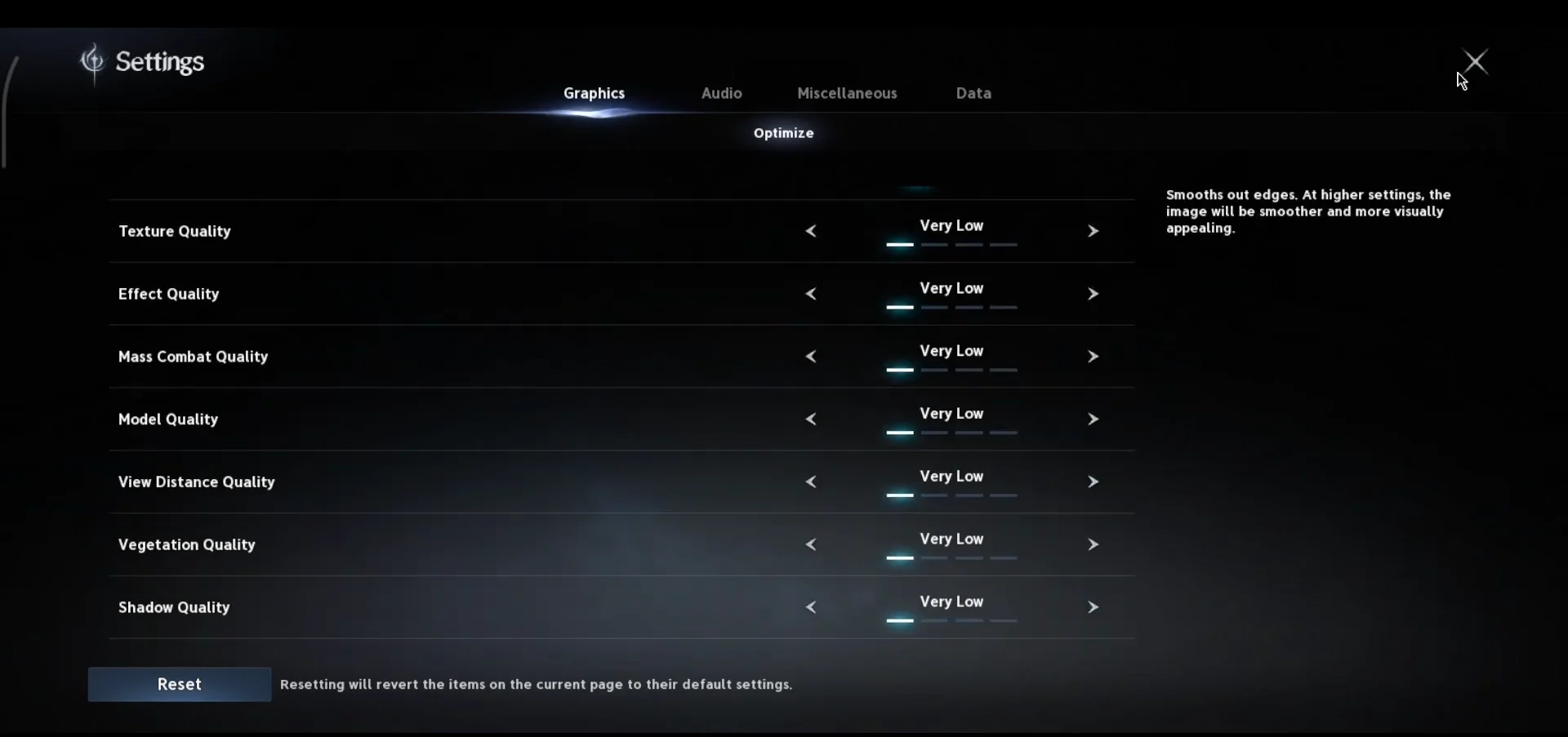
On PC, AION 2 starts in Borderless Window Mode, and that single setting keeps the Resolution dropdown locked. Until you switch the display mode, the list of resolutions stays grayed out and you cannot pick a different one. The fix takes only a few clicks inside the Graphics settings.
Quick answer: Open Settings, go to Graphics, then Optimize, and change Display Mode from Borderless Window Mode to Full-Screen Mode or Windowed Mode. The Resolution dropdown then unlocks so you can select any listed resolution.
Why the Resolution dropdown is grayed out
Borderless Window Mode always matches your desktop resolution, so the game locks the Resolution option while that mode is active. There is nothing to fix on your end and no bug involved. The dropdown only becomes selectable once the game is rendering to a real window or a full-screen output, which means you have to change the display mode before anything in that menu responds.
Both alternative modes remove the lock. Full-Screen Mode gives the game direct control of the display, while Windowed Mode draws the game inside a resizable window. Either one enables the resolution list immediately.
Change resolution in AION 2
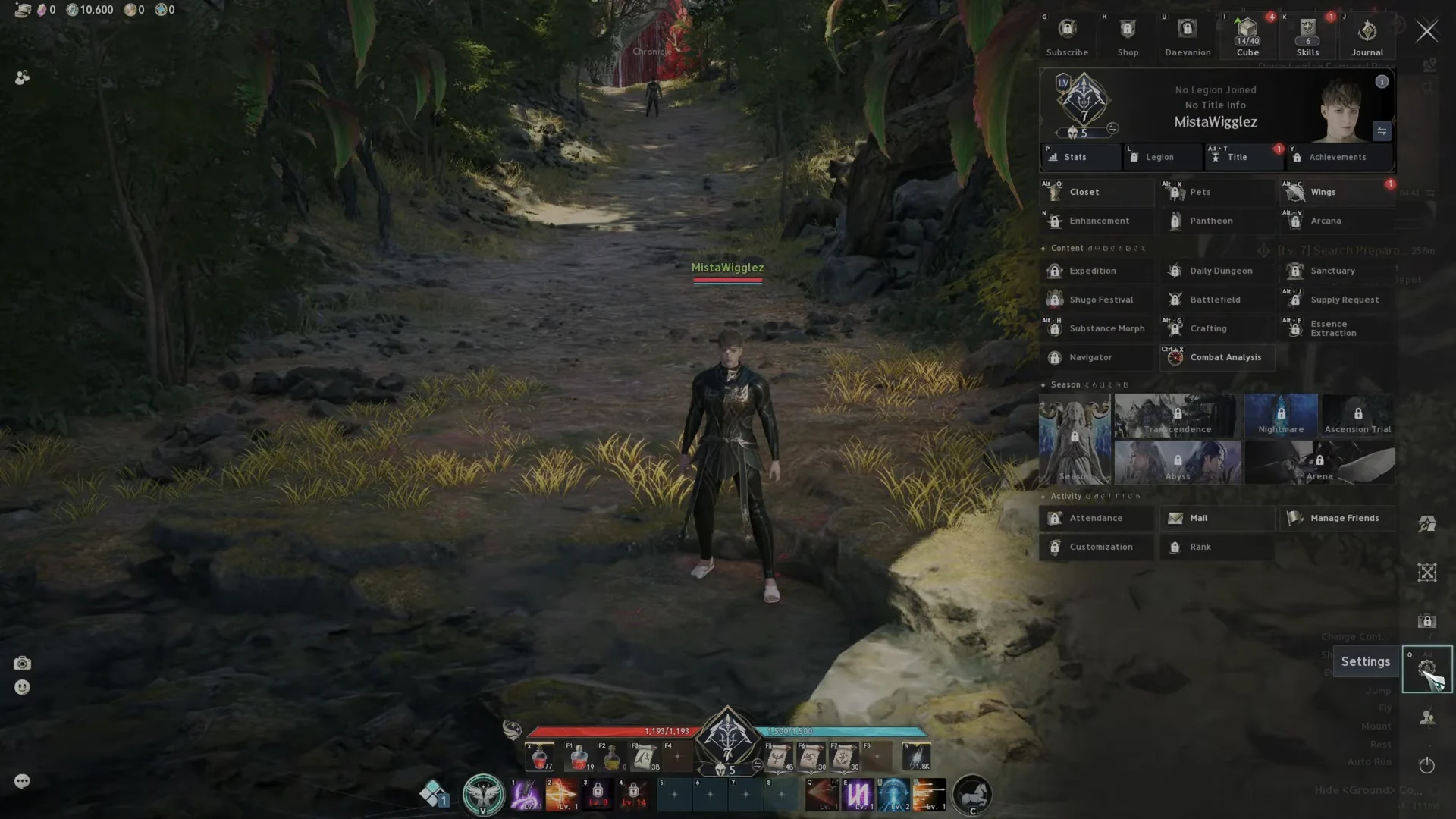
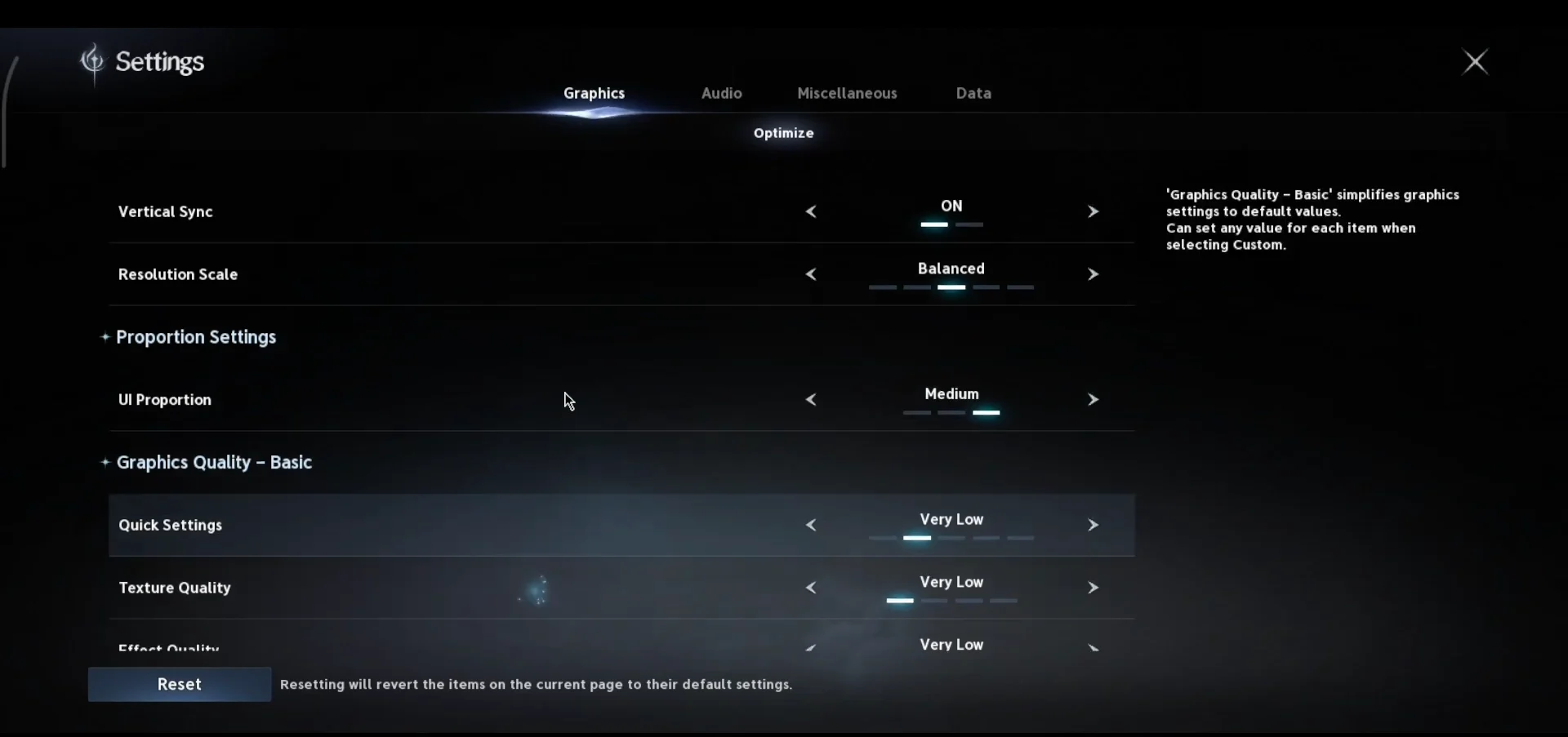
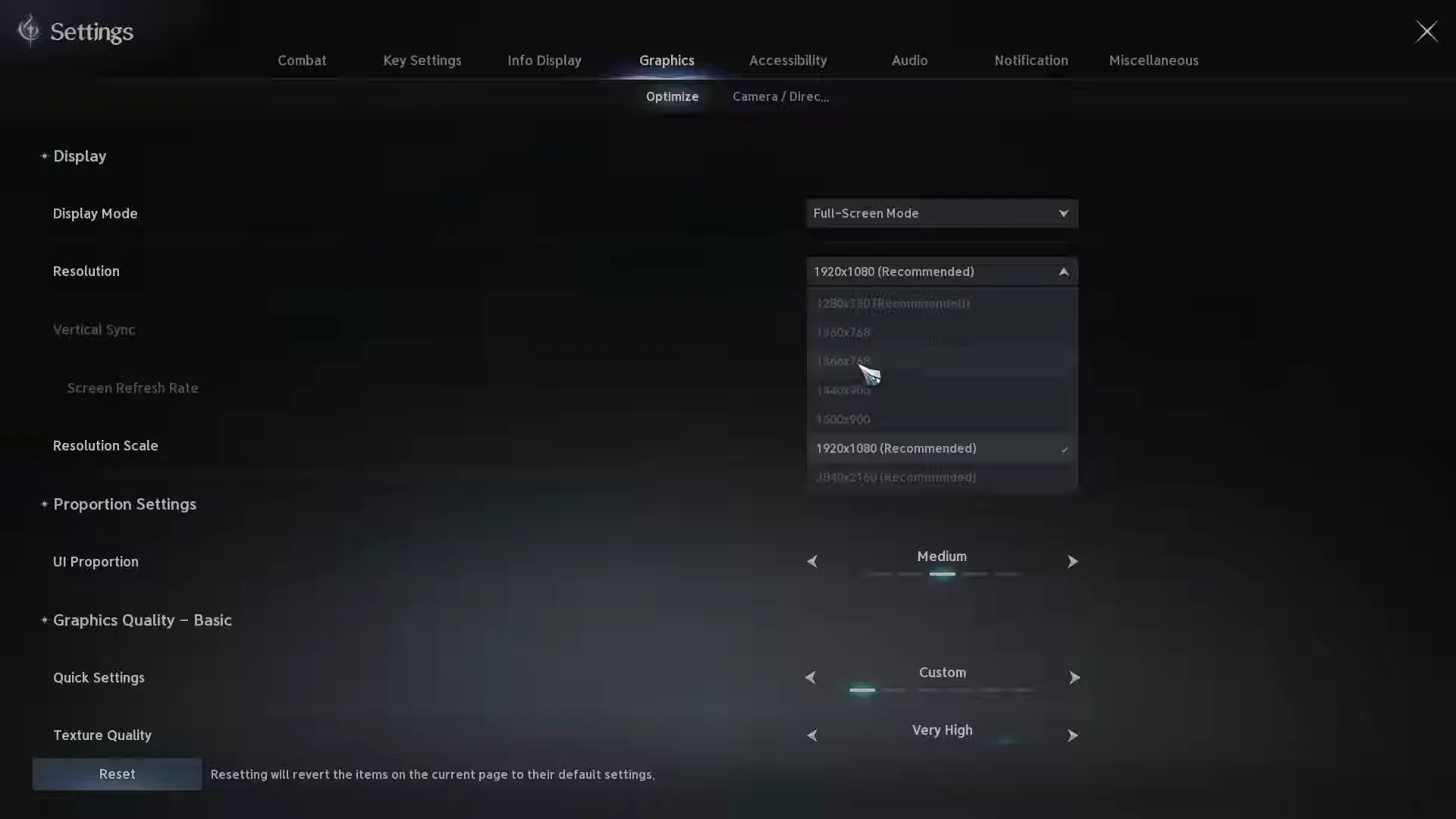
If you prefer to keep the game in a window, pick Windowed Mode in Step 3 instead. The dropdown works the same way and lets you drop down to smaller sizes such as 1280×720 for extra frames on weaker hardware.
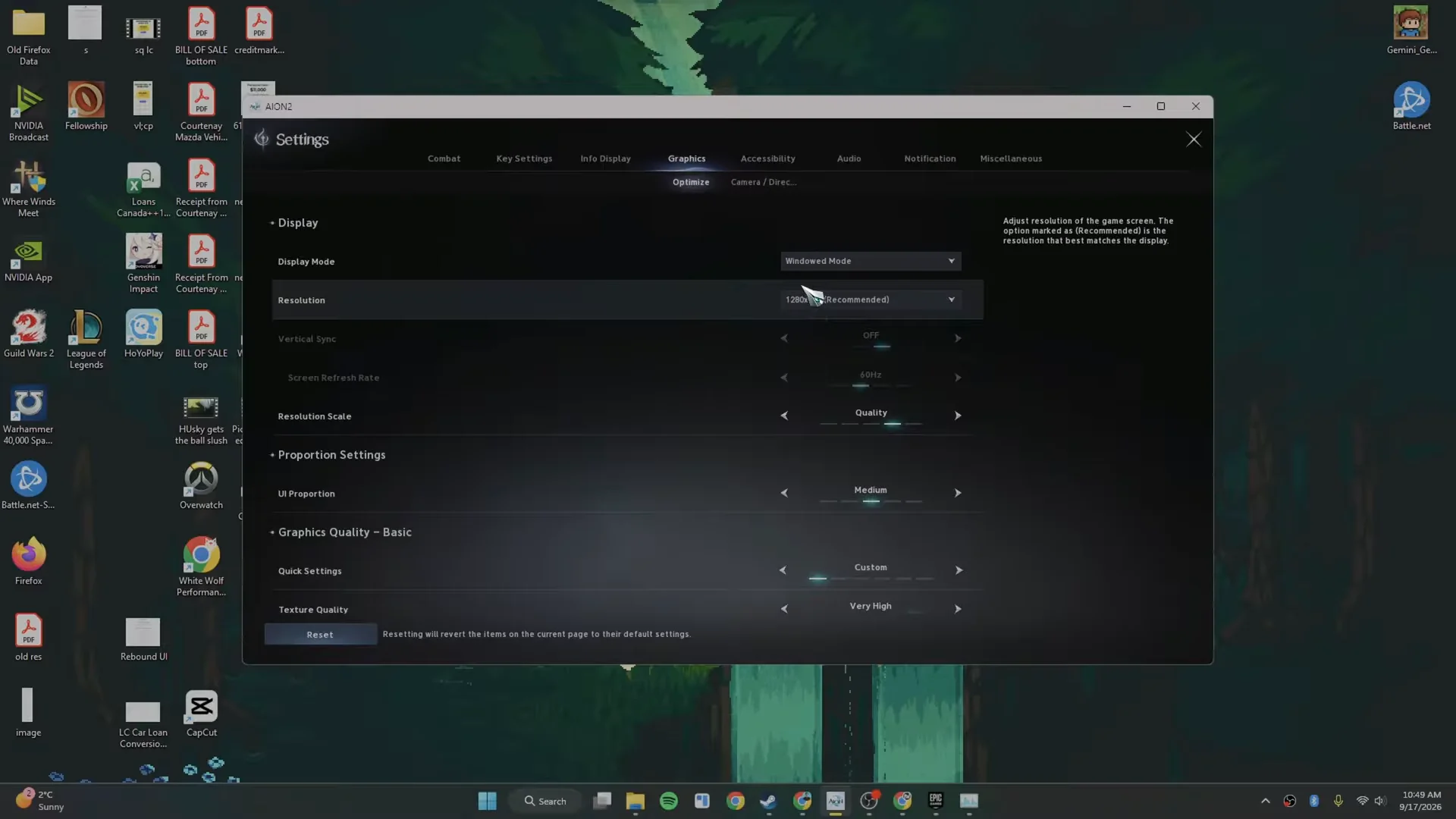
Resolutions available in the dropdown
Once Full-Screen Mode or Windowed Mode is active, the dropdown offers a fixed set of options. Choose the one that matches your monitor for the sharpest image, or a lower one to gain performance.
- 1920×1080 (Recommended)
- 1680×1050
- 1600×900
- 1440×900
- 1366×768
- 1360×768
- 1280×1024
- 1280×800
- 1280×720
- 1024×768
Lowering the resolution below your monitor’s native value increases frame rate but softens the image. Reduce other graphics options first if clarity matters to you.
Confirm your monitor’s native resolution in Windows
If you are not sure which value is native to your display, check it in Windows before choosing inside AION 2. Open System > Display and look at the Display resolution setting, where the correct value is also labeled Recommended. Matching that number in the game keeps text and target markers sharp.
Confirm the change applied
After selecting a resolution, the game switches to it right away and the picture updates on screen. Close the settings menu with the X in the corner to return to play. If the resolution still looks locked, make sure Display Mode is not set back to Borderless Window Mode, since that mode grays the dropdown out again.